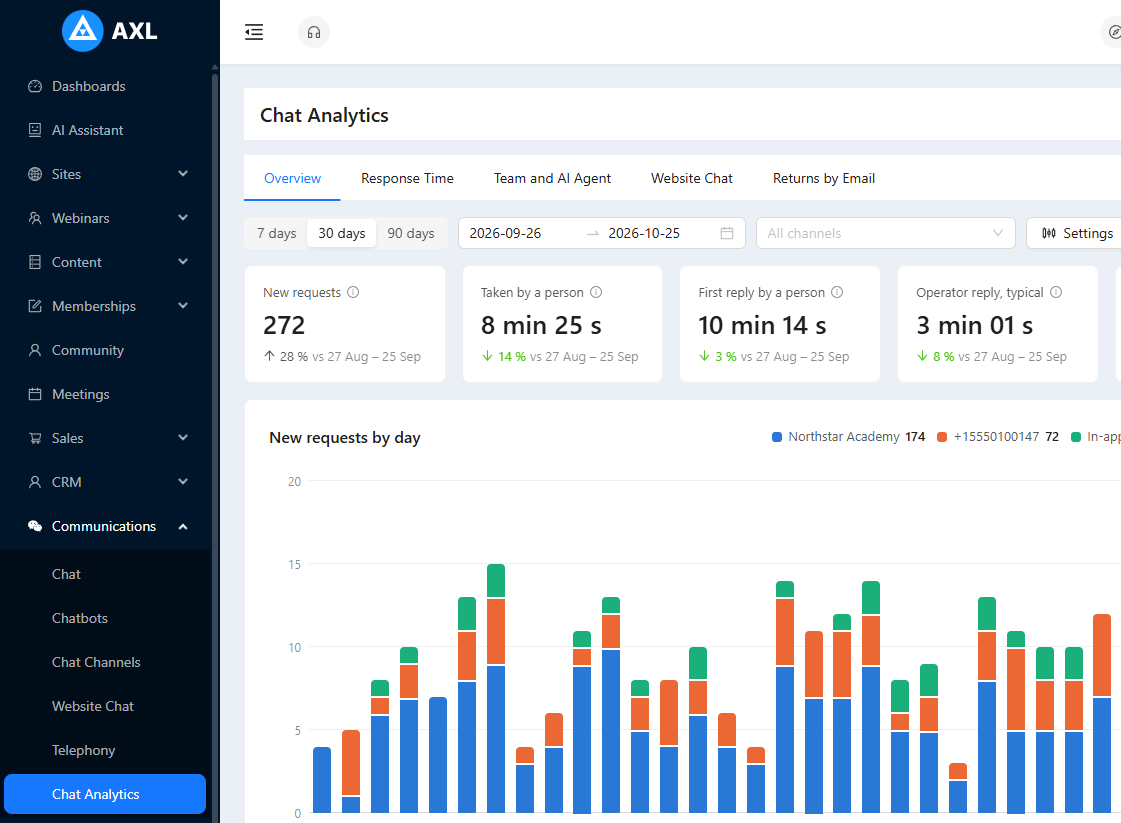
Chat Analytics shows how your chats are going across every channel: how many requests people send, how fast a person takes them and replies, how much the AI agent handles on its own, what your website chat brings in and how many visitors come back after the "you have a reply" email.
A request is the first message of a conversation, or the first message after the conversation was closed or after a day of silence. Every number on the page counts requests that started in the selected period.
Open the analytics
- Open Communications → Chat Analytics. The Overview tab opens with the last 30 days.
- To see one channel only, open Communications → Chat Channels and click the Analytics button (a bar chart icon) next to the channel, or open the channel and click Analytics at the top right. The page opens with that channel already selected; for a website chat it opens the Website Chat tab.

The page is available to everyone who can manage chat channels. To give someone the analytics without the channel settings, tick Communications → Chat Analytics in their rights in Settings → Team.
Choose what to count
Under the tabs pick the period (7 days, 30 days, 90 days or your own dates) and the channels (All channels, or one or several; In-app chat is the chat in your membership area). Every tab follows them and the page updates as soon as you change one.
The rest is behind the Settings button:
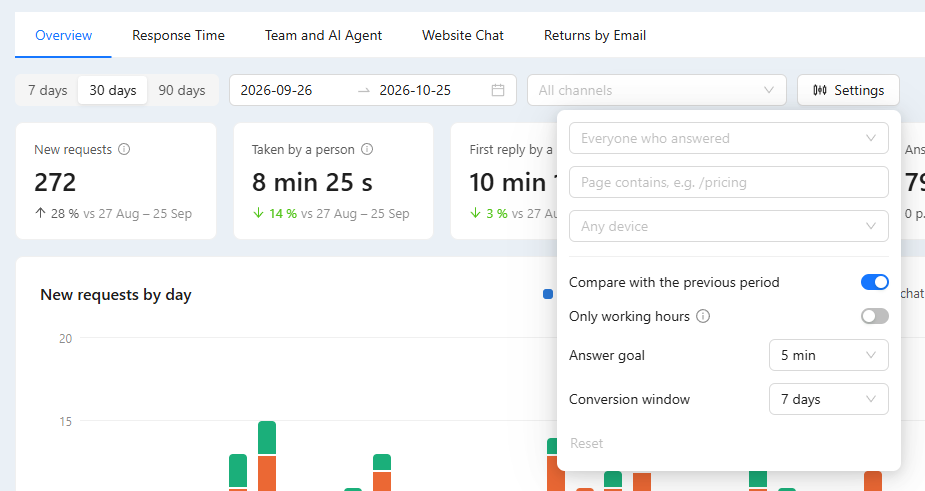
- Everyone who answered: only the requests the selected team members answered.
- For a website chat: Page contains (for example
/pricing) and Any device (computer, phone, tablet). They use the page and device the visitor wrote from. - Compare with the previous period (on by default): every tile shows the change against the same number of days just before.
- Only working hours: nights and days off in the website chat schedule do not count as waiting. Channels without a schedule count round the clock.
- Answer goal: the time you aim to reply within (5 minutes by default). It is used in "Answered within…" and marked with a dashed line on the charts.
- Conversion window: how many days after a request a purchase, form or booking still counts as its result (7 by default).
The number on the button shows how many settings differ from the default; Reset puts them back. Click Download CSV at the top right to get the tables by channel and by team member.
Overview
The tiles at the top show the main numbers. Hover the i icon next to a tile name to see how it is counted.

- New requests: how many requests started.
- Taken by a person: the median time until a team member took the conversation: clicked Join in the chat, was assigned, or wrote.
- First reply by a person: the median time until the first reply of a team member (the AI agent and bots are not counted here).
- Operator reply, typical: the median over every team reply, how long the contact waited for it.
- Answered within…: the share of requests whose first reply, by anyone, came within your goal. Requests nobody answered count as missed.
- AI agent handled alone: requests only the AI agent answered, without handing over to a person.
- Revenue after chats: payments minus refunds of contacts within the conversion window after their request.
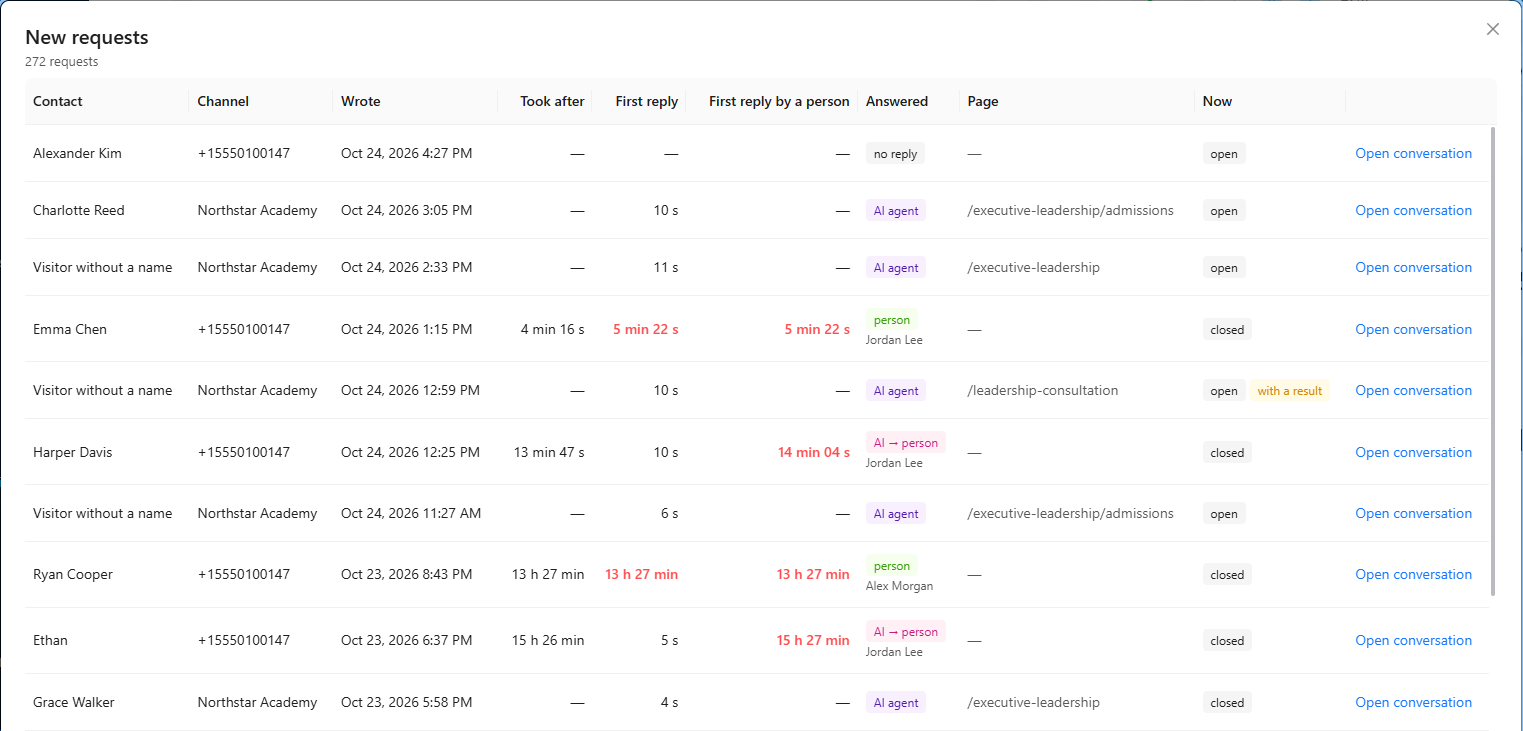
Click a tile to open the list of requests behind it in a window. Click a request in the list to open the conversation in the chat.
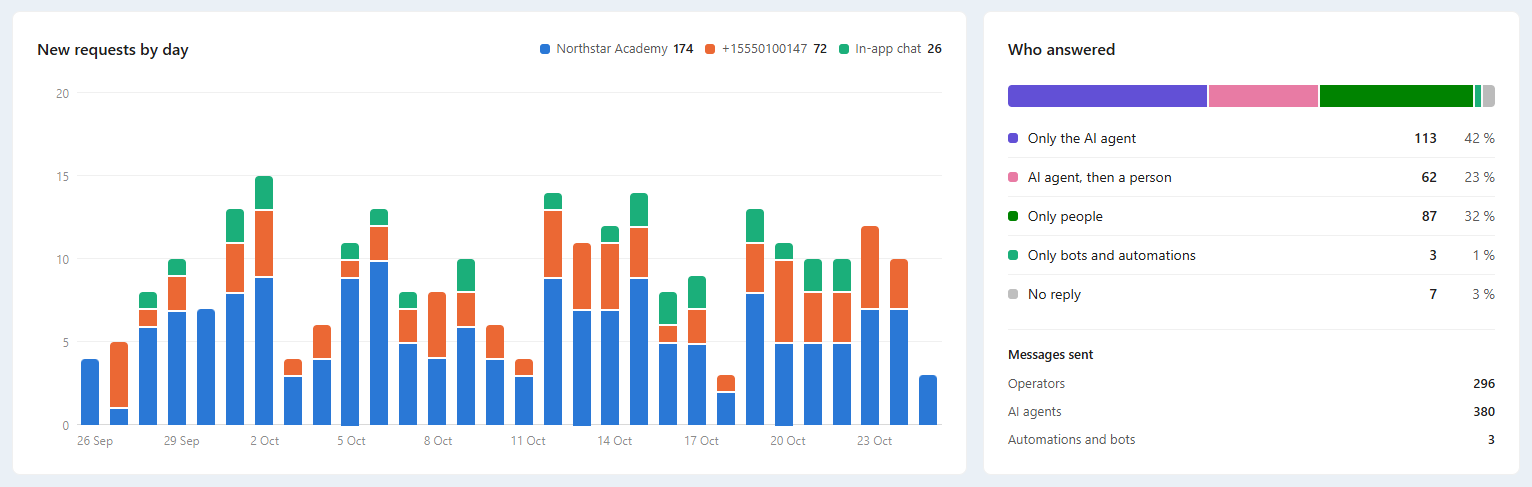
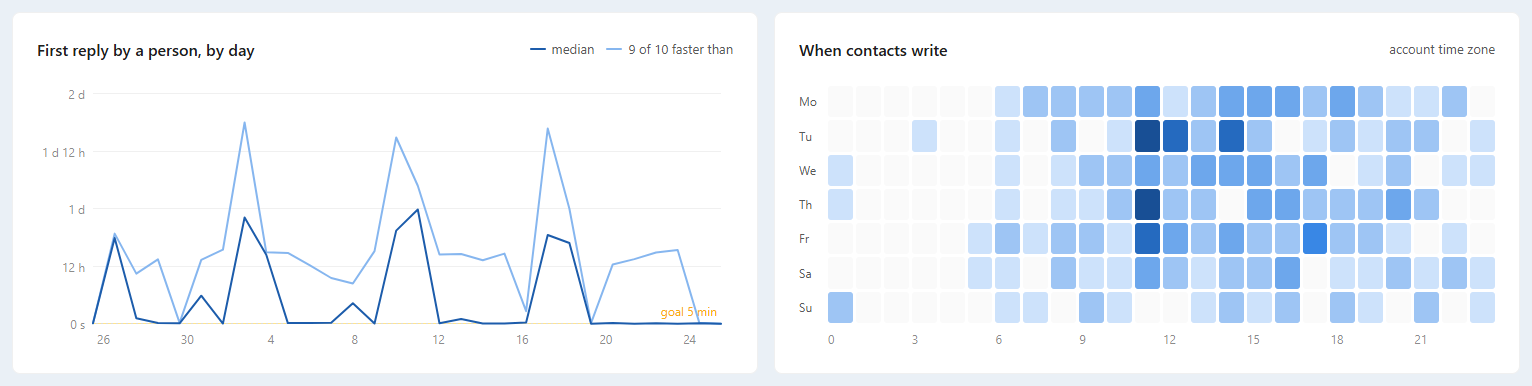
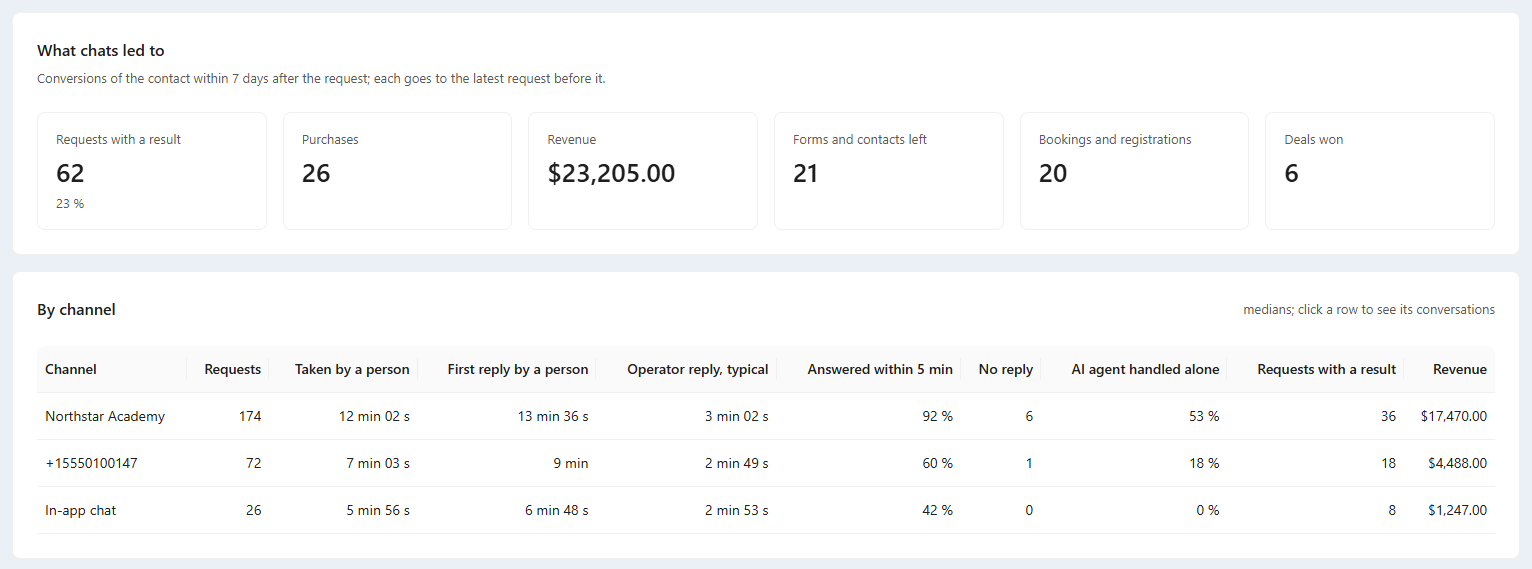
Below the tiles: New requests by day by channel, Who answered (only the AI agent, the AI agent then a person, only people, no reply), First reply by a person, by day with the median and the time 9 of 10 requests were faster than, When contacts write by weekday and hour in your account's time zone, What chats led to (purchases, revenue, forms, bookings, deals won) and the table By channel. Click a channel row to see its requests.
Response time
The Response Time tab shows every wait twice: the median and "9 of 10 faster than", so one slow evening does not hide behind a good average.
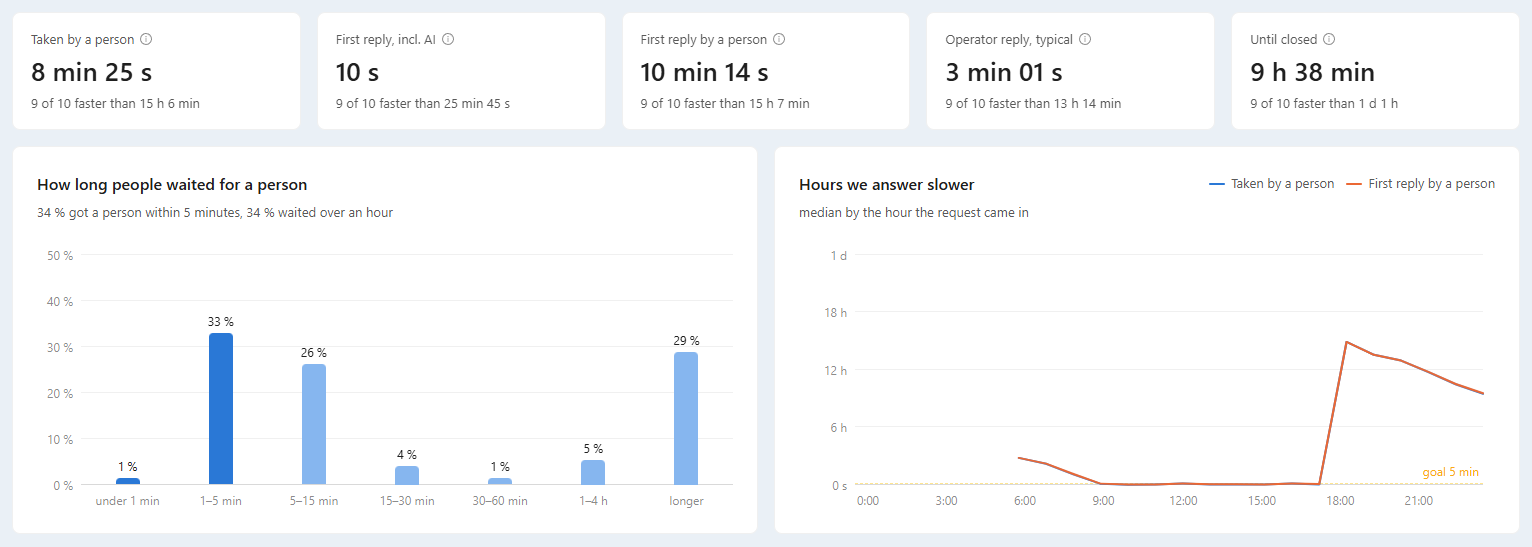
- How long people waited for a person groups requests by the wait for the first reply of a team member: under a minute, 1–5 minutes and so on.
- Hours we answer slower shows the waits by the hour the request came in, so you can see a lunch break or the evening without cover.
- The table By channel adds the first reply including the AI agent and the time until the request was closed. Hover a value to see the time 9 of 10 requests were faster than.
- Hover the i icon next to a tile name to see how it is counted, and "9 of 10 faster than" to see what it means.
Team and AI agent
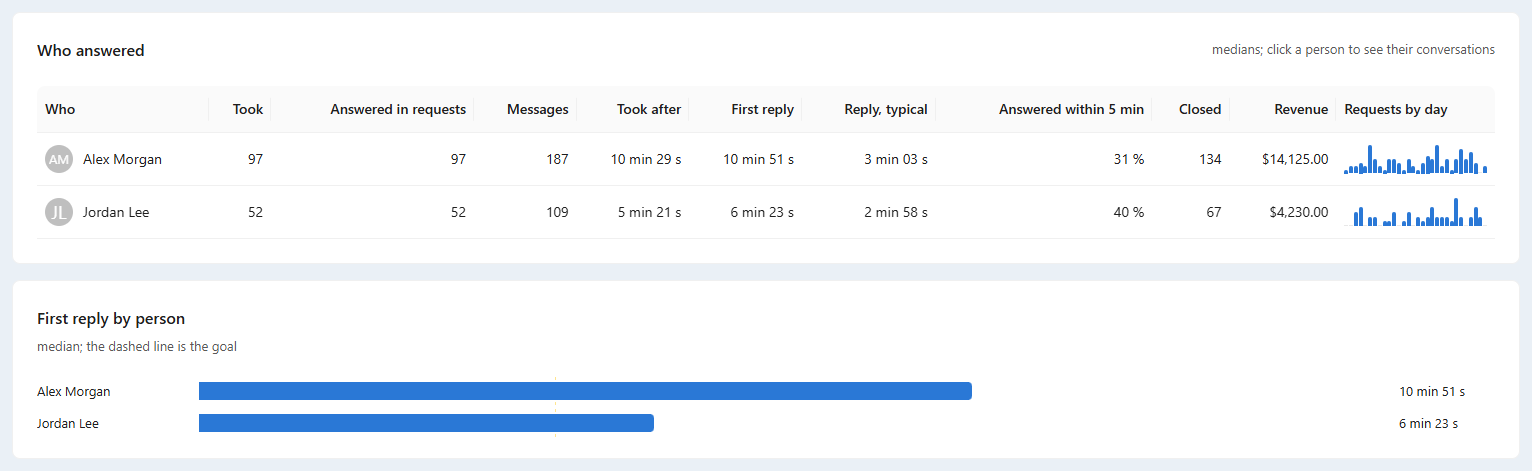
The table Who answered has a row per team member: how many requests they took and answered, messages, how fast they took and answered, the share answered within your goal, how many they closed, revenue after their requests and a small chart of requests by day. Click a row to see that person's requests.
From the messenger app is a separate row: replies typed directly in the WhatsApp or Instagram app on a phone. They count as replies by a person, but the platform cannot tell who wrote them.
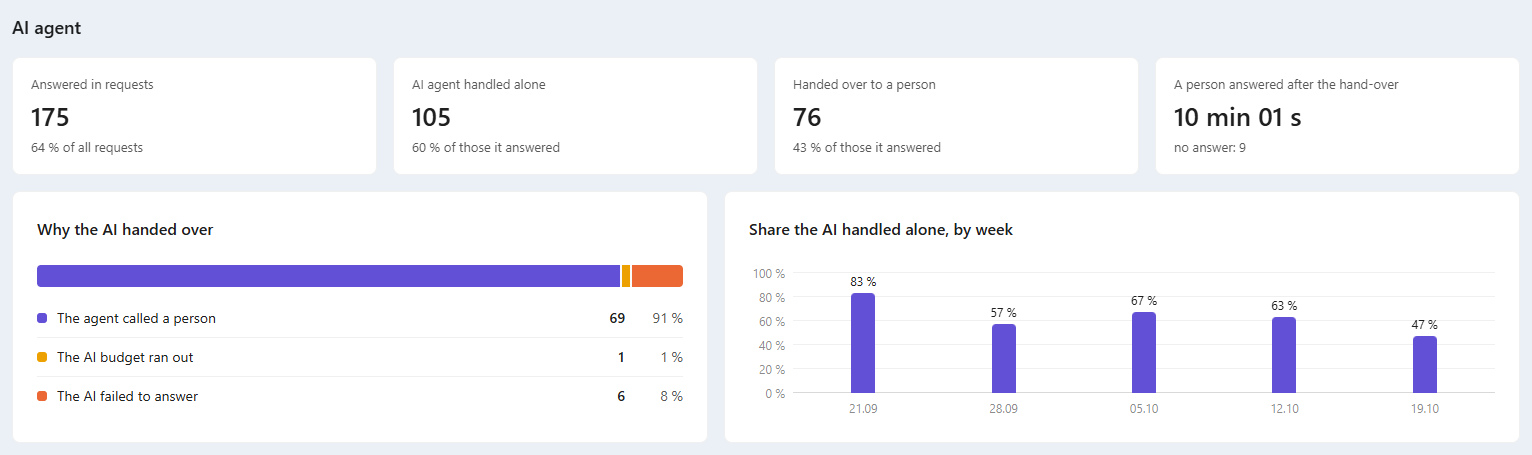
The AI agent part shows how many requests the agent answered, how many it handled alone, how many it handed over to a person and why (the agent called a person, the AI budget ran out, the AI failed to answer), and how long a person took to reply after the hand-over.
Website chat
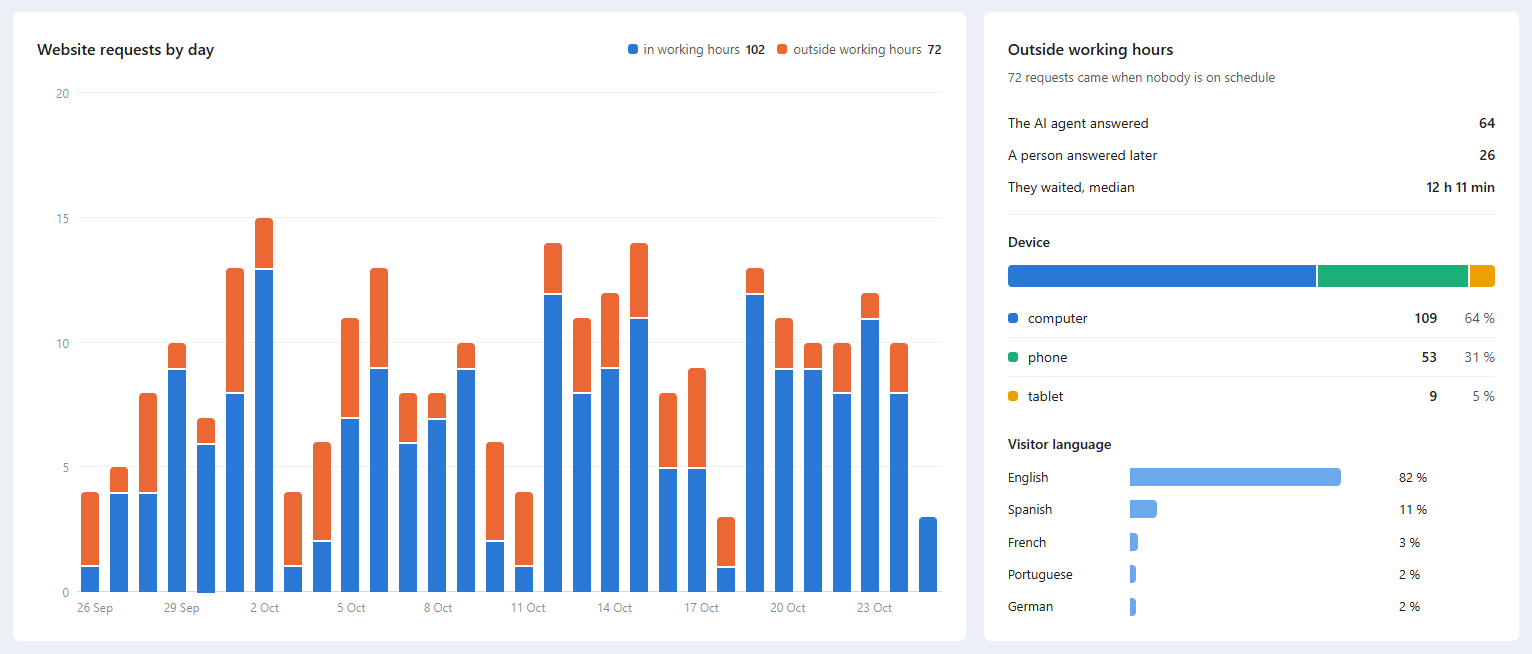
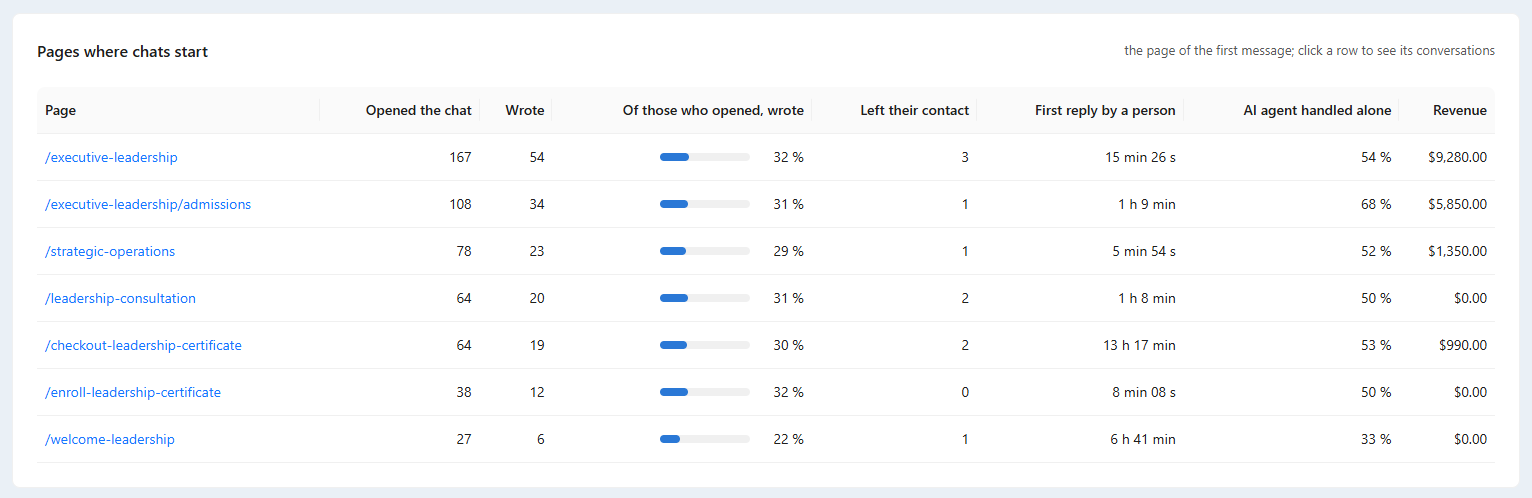
The Website Chat tab appears when the account has a website chat. It shows the visitor's path: Opened the chat → Wrote → Left their contact → Got an answer, requests in and outside working hours, devices and visitor languages, and the table Pages where chats start: how often the chat was opened on each page, how many visitors wrote, the share, contacts left, reply time and revenue. Click a page to see its requests.

Conversation rating
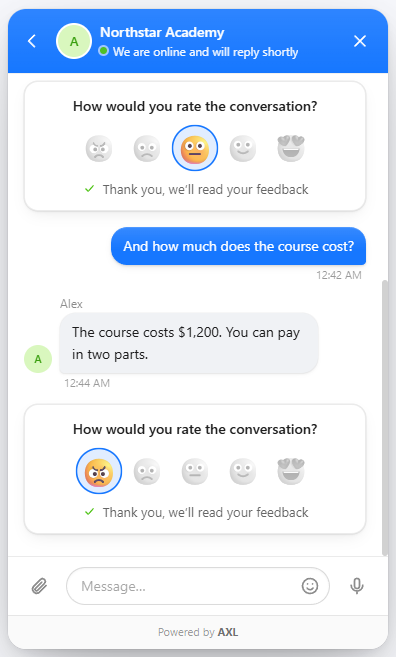
When an operator closes a website chat conversation, the visitor is asked to rate it from 1 to 5. The Conversation rating block on the Website Chat tab shows the answers for the requests that started in the selected period:
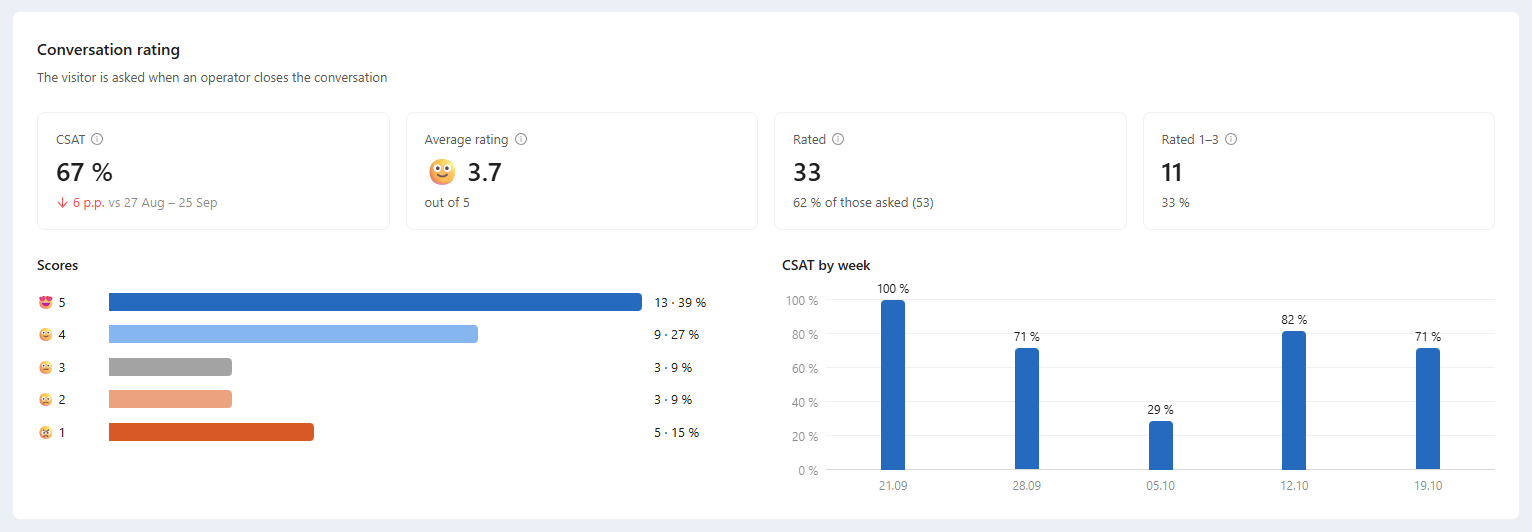
- CSAT (Customer Satisfaction Score): the share of ratings 4 and 5 among the visitors who rated. With the comparison on, the tile shows the change against the previous period.
- Average rating, Rated (how many answered, of those who were asked) and Rated 1–3: click a tile to see those requests.
- Scores from 1 to 5 and CSAT by week.
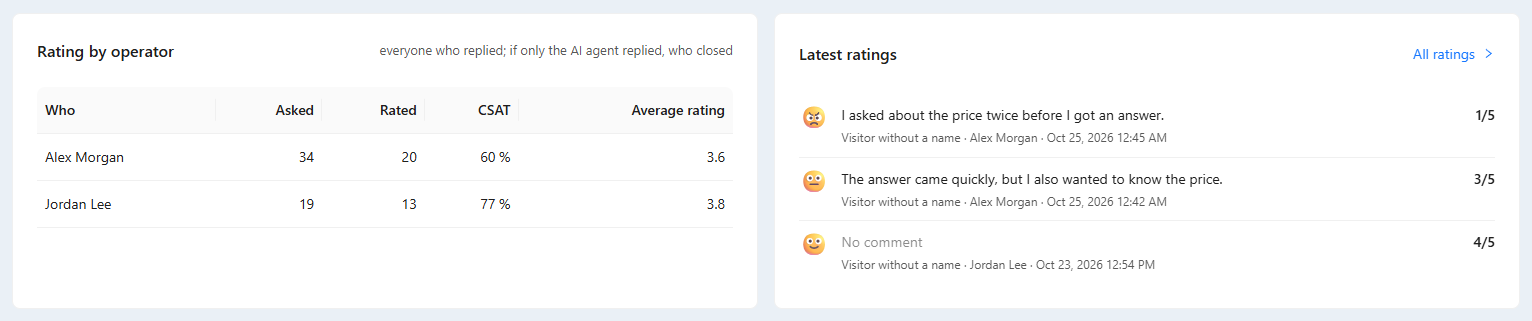
- Rating by operator: a rating counts for every team member who replied in the request; if only the AI agent replied, it counts for the person who closed the conversation.
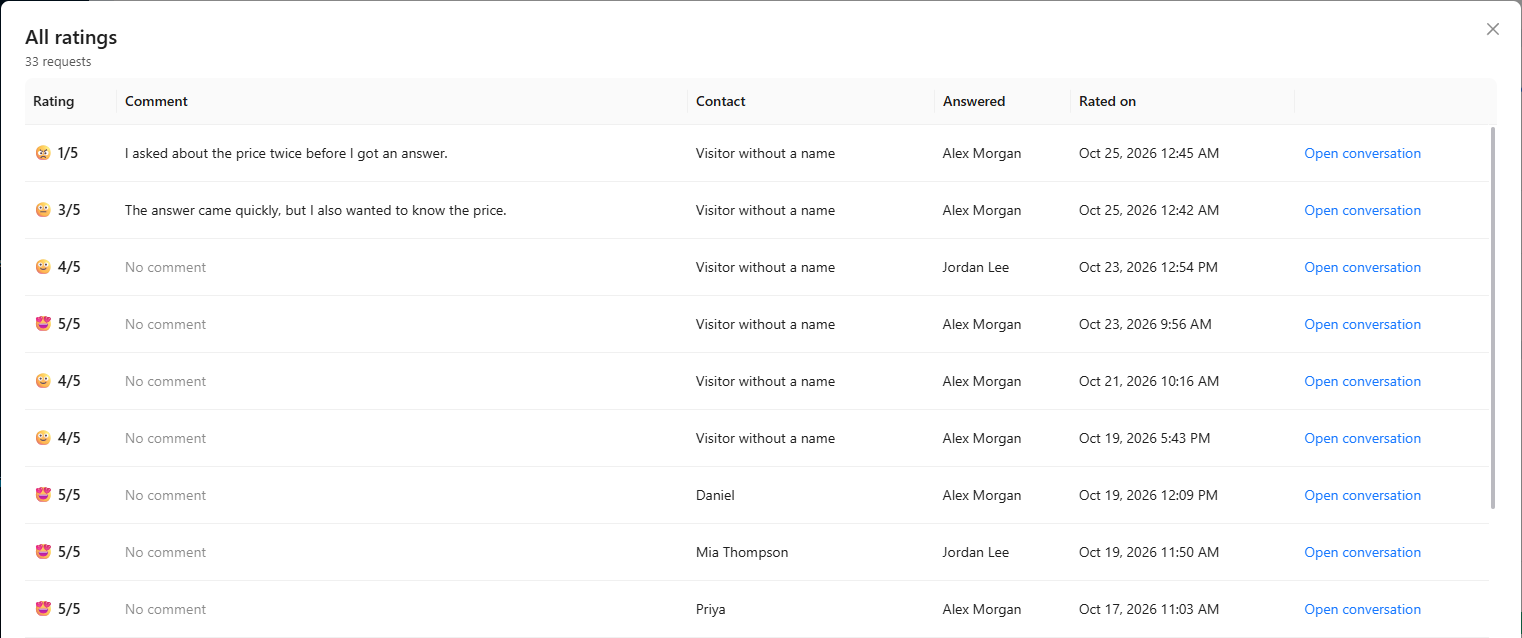
- Latest ratings shows the three newest. Click All ratings to read every rating of the period with the visitor's comment, and Open conversation to go to the chat.
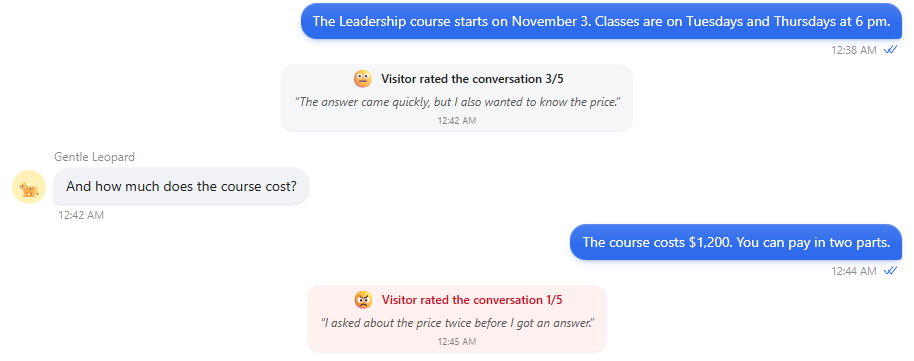
If the visitor changes their rating, the latest one counts.
Returns by email
When a visitor leaves your site before reading a reply, the website chat sends them the conversation by email with a Continue chat button (see "Reply by email" in Website Chat). The Returns by Email tab shows what that brings: letters sent, opened, visitors who came back by the button, who wrote again within a day, and who answered the letter by email. It also shows how soon visitors come back and the latest returns with a link to each conversation.
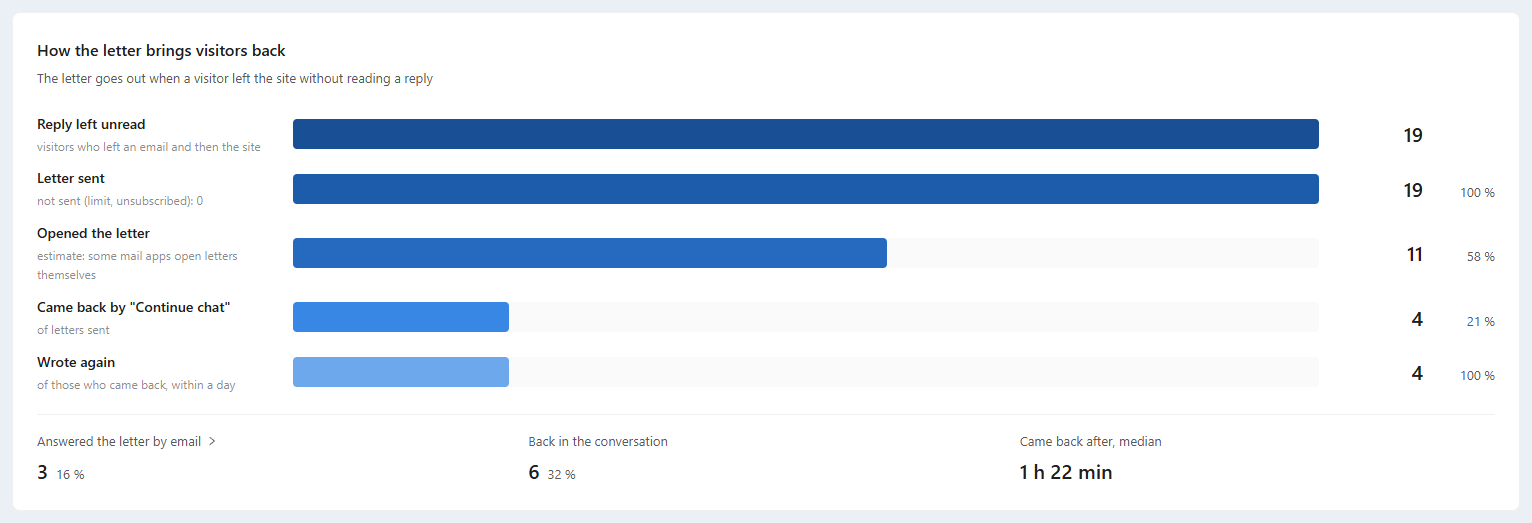
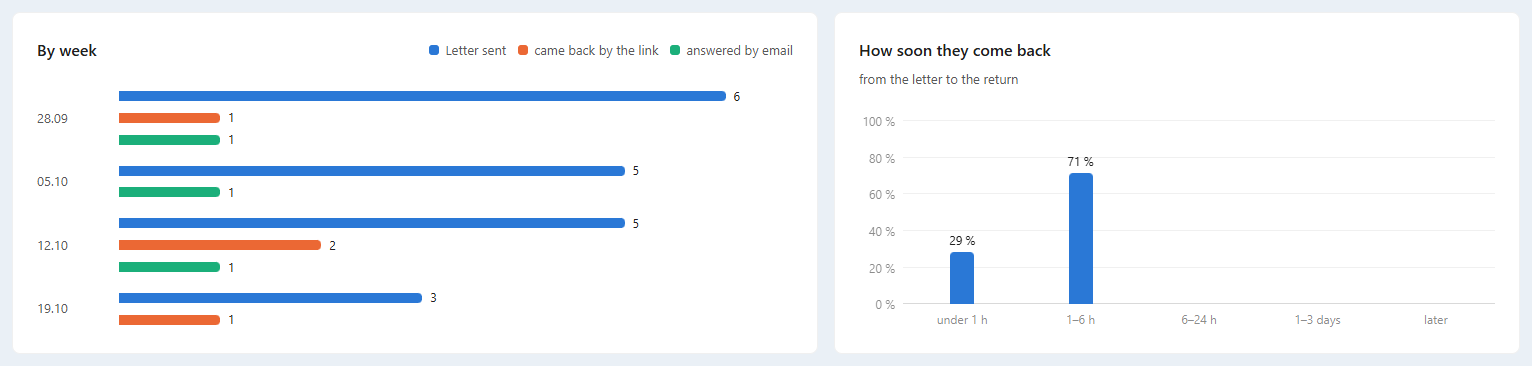
"Opened the letter" is an estimate: some mail apps load images on their own and count as an open.
Ask your AI assistant
The same numbers are available to an AI assistant connected to your account through MCP. Ask, for example: "How fast did we answer website chat this week, and who was slowest?" or "Show the website chat requests where nobody replied".
Good to know
- Messages from the last six months were recounted when the analytics appeared. For that time there is no "Taken by a person", no closing, no page and no email returns: those are counted from the day collection started.
- Broadcasts and service messages are not replies. Comments under social posts are not counted as requests.
- Conversions go to the contact's latest request before them. Payments in another currency are converted at that day's rate; if a rate is not known yet, the payment is left out and the page says so.