The chat agent on the AXL platform is a full-featured virtual team member powered by advanced large language models (LLMs). It works within your account 24/7. It automatically communicates with users and customers, answers questions based on your materials, qualifies leads, handles requests, and guides each conversation toward the desired outcome—all without human involvement.
The agent works like a live support representative: it understands context, maintains a coherent conversation, asks clarifying questions, and offers ready-to-use solutions—all instantly and around the clock.
All management tools, conversation history, and analytics are available within the unified AXL ecosystem. You can create 20 or more independent agents for different tasks.
Select a section below to jump to its description:
How to Create and Configure a Chat Agent
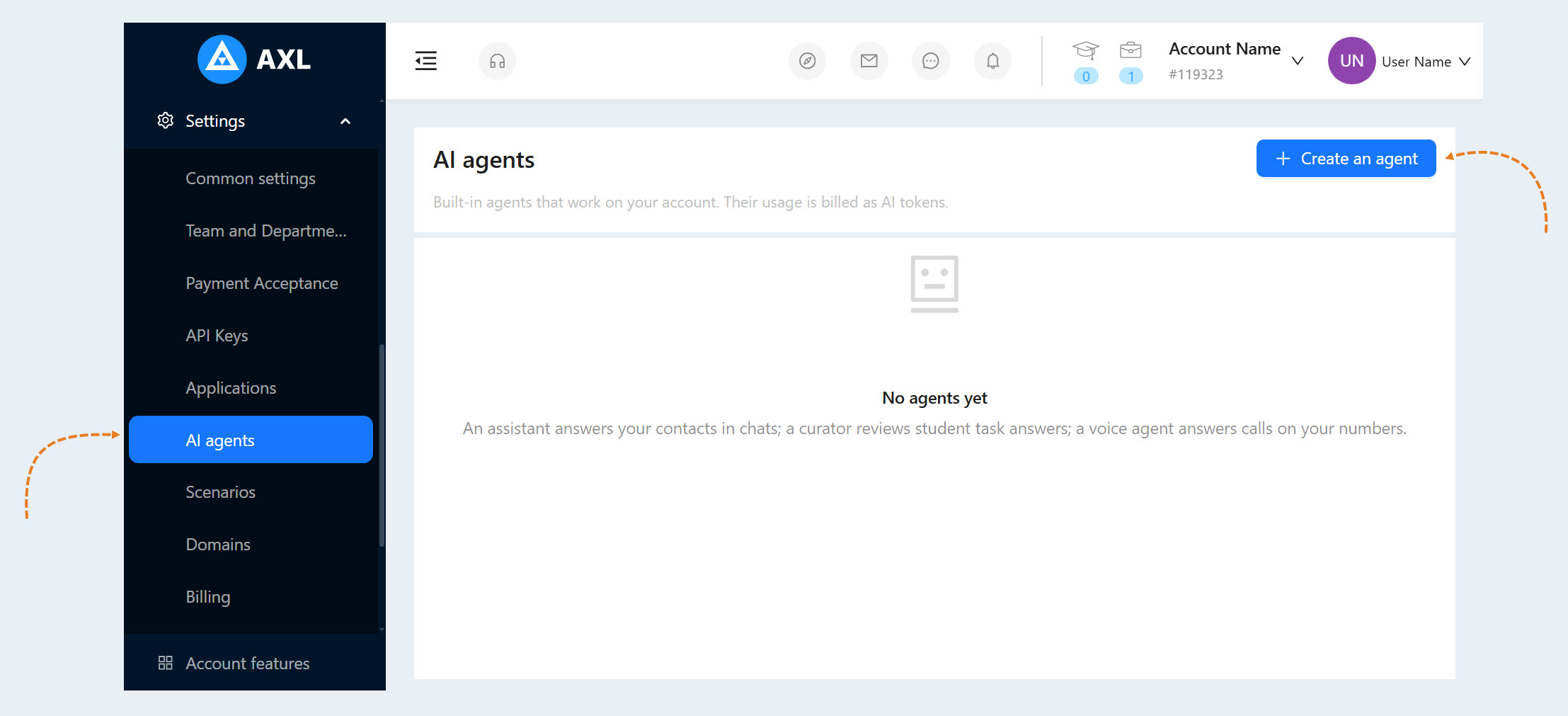
Go to Settings. On the AI agents tab, you will see a list of all AI agents connected to your account.
Click the "Create an agent" button.
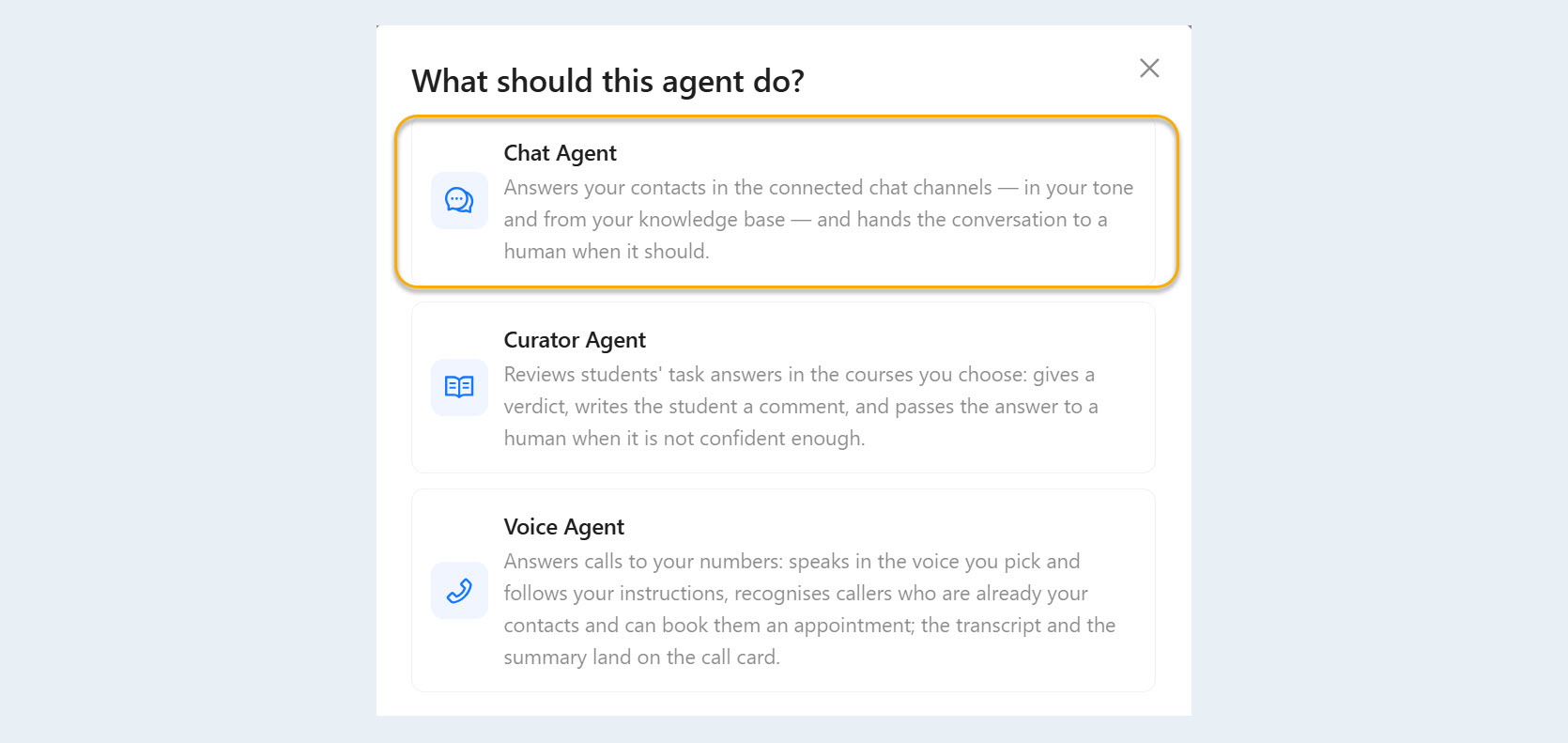
In the "What should this agent do?" pop-up window, select "Chat Agent".
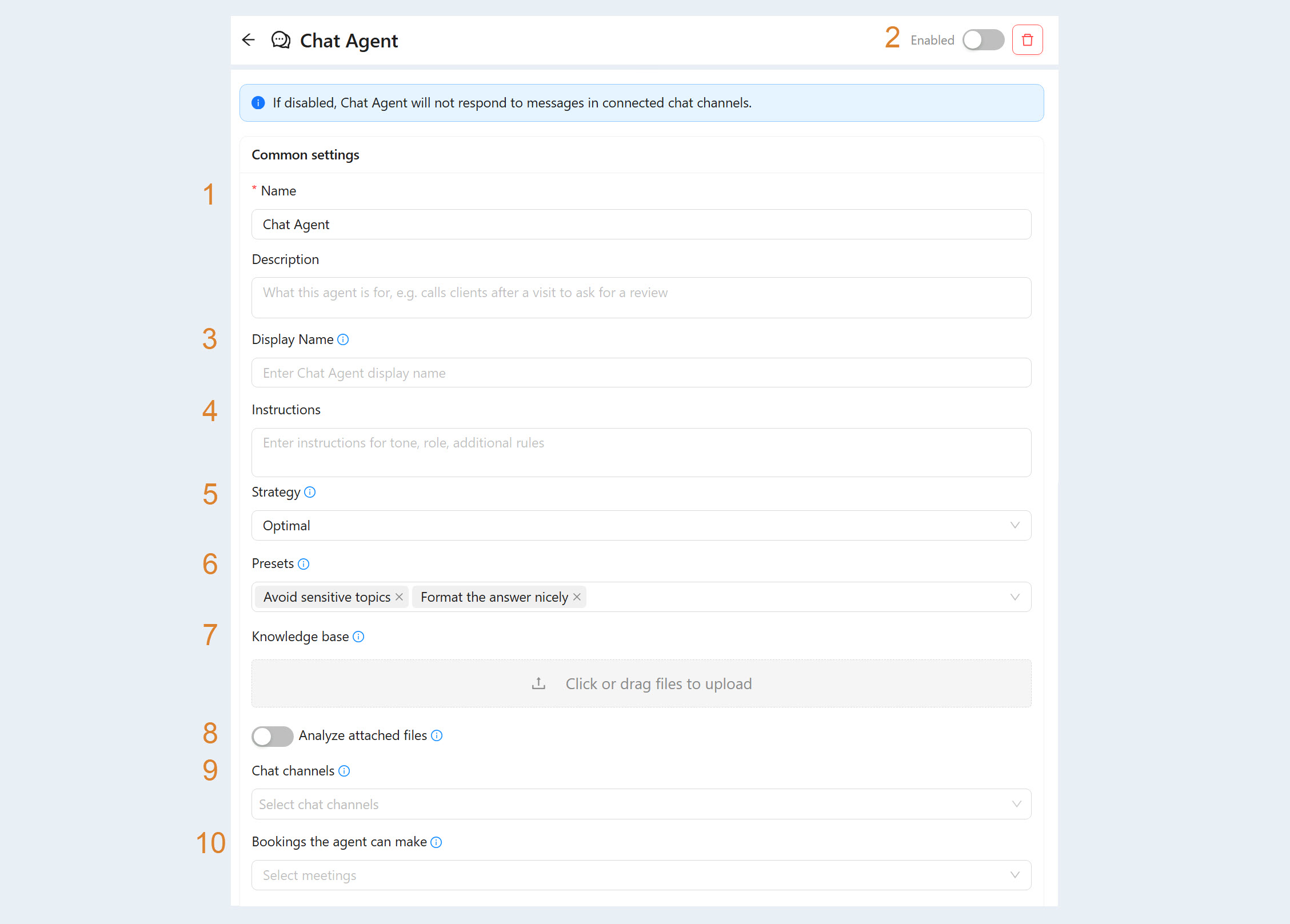
Complete the following fields in the window that opens:
Name. Enter a name for the chat agent so you can easily find it. This name is visible only to you.
Enabled. If this toggle is off, the chat agent will not respond to messages in connected chat channels.
Display Name. Enter the name users will see in chats, such as “Anna from Support” or “Course Assistant.”
Instructions. Enter instructions for the agent’s tone, role, and any additional rules.
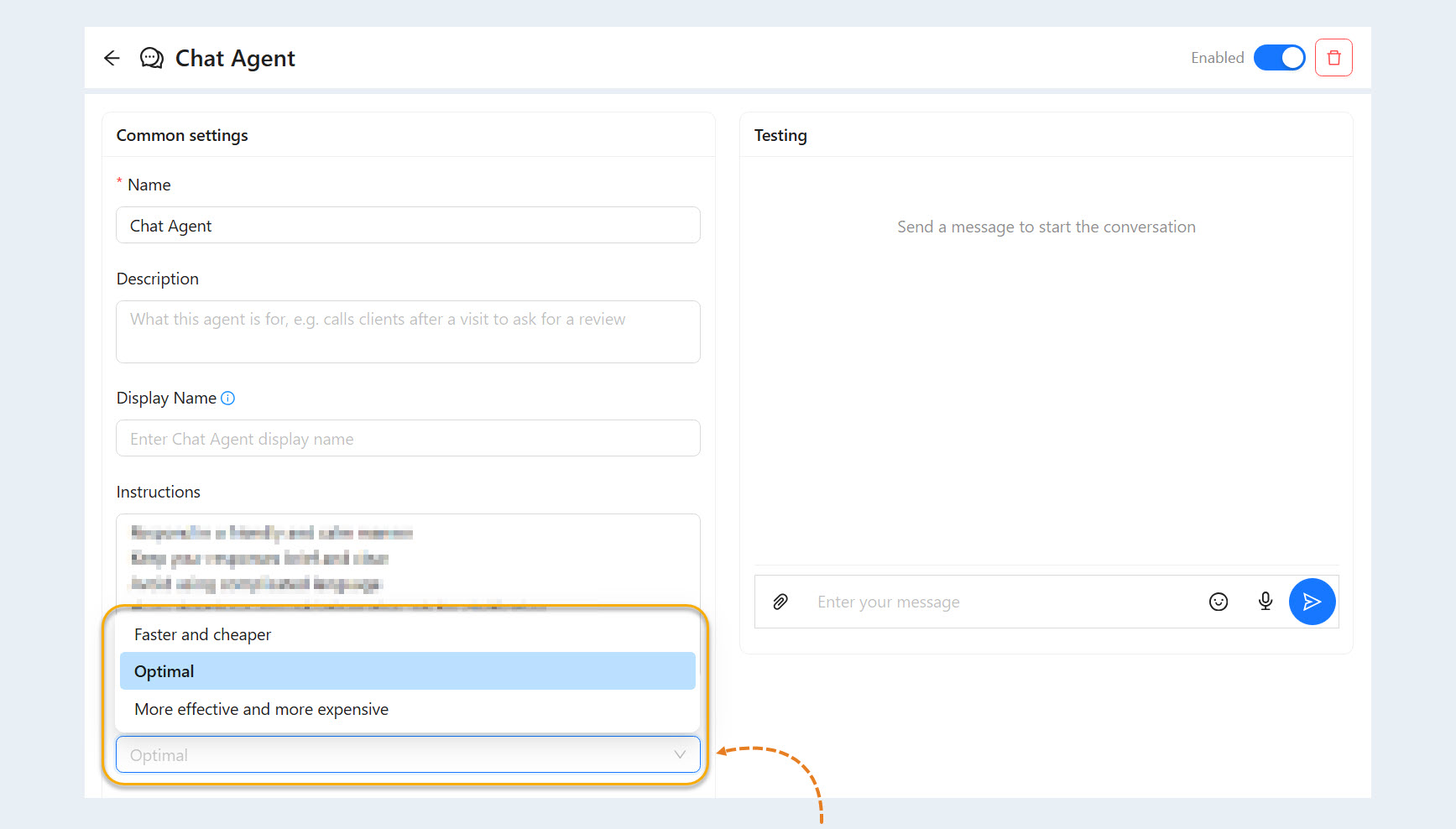
Strategy. Choose how the chat agent will balance speed, cost, and analysis quality.
Presets. Add preconfigured prompt enhancements that change the agent’s behavior in specific situations.
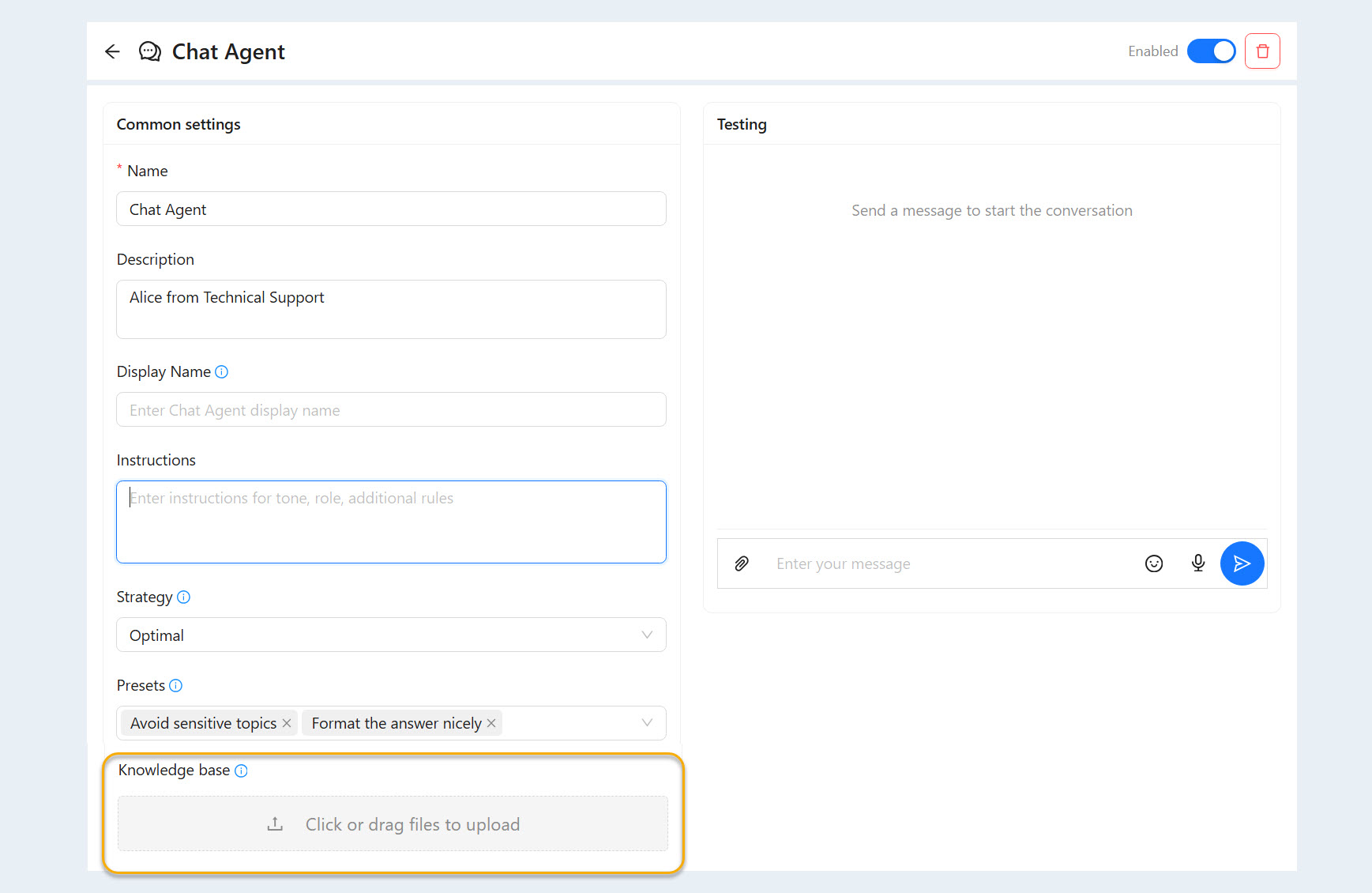
Knowledge Base. Add text or attach files (TXT, PDF, DOCX, or JSON) containing information the chat agent will use in its responses.
Analyze Attached Files. Enable this setting so the chat agent can analyze images and documents attached by users. Enabling this option may increase usage costs.
Chat Channels. Select the chat channels in which the chat agent will respond to incoming messages.
Bookings the agent can make. Select the booking pages the agent can use to view available times and schedule appointments for contacts. Add multiple booking pages to include several people’s calendars; the agent will choose the appropriate page by name. Availability, buffer times, and appointment slots are determined by each page’s settings.
Click the "Save" button.
How It Works
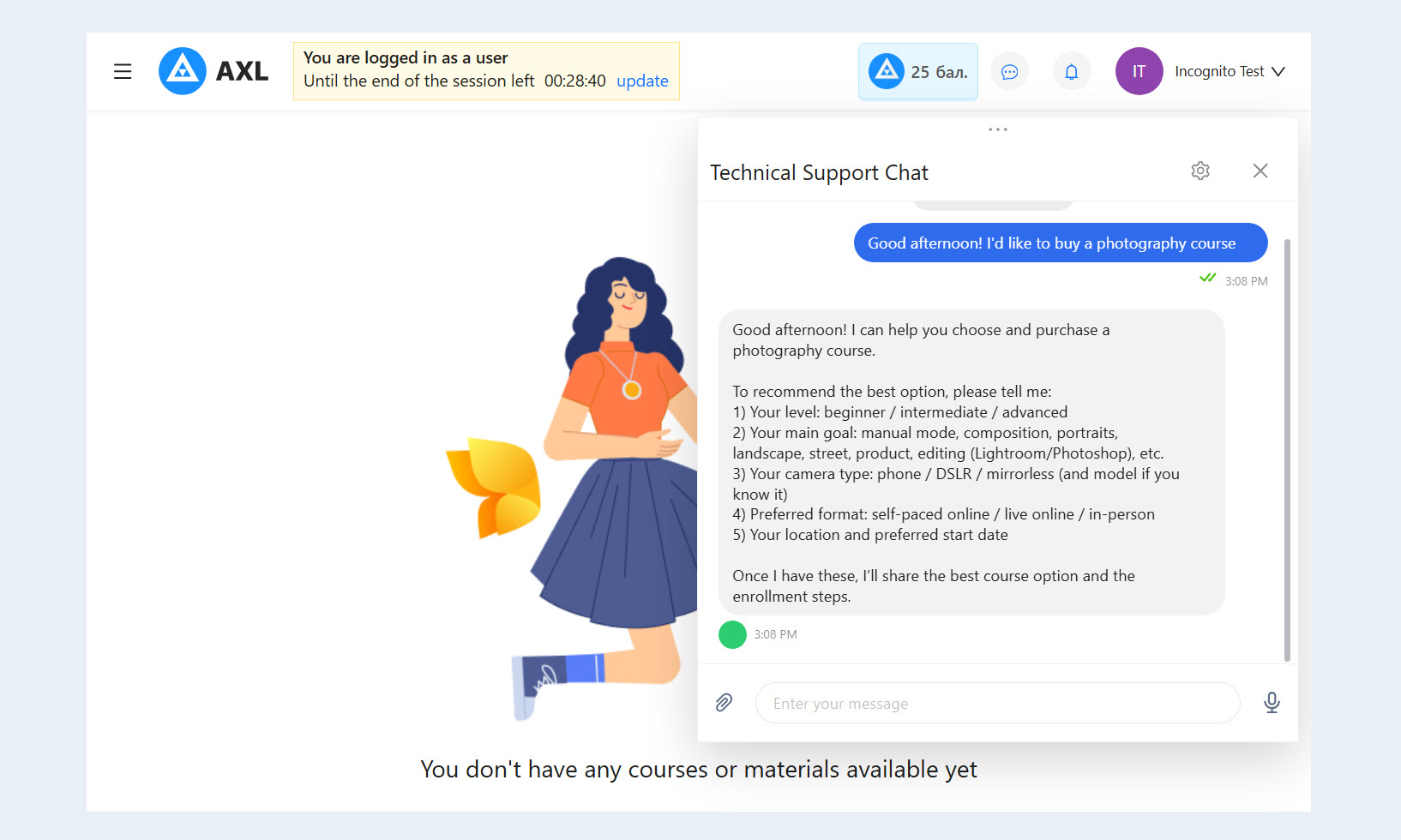
Customer (guest) experience:
Familiar interface: Customers continue messaging through the platform’s built-in chat or a messaging app just as they did before.
Real-time presence: While the response is being generated, a “typing…” status appears, creating the feel of a conversation with a real person.
Fast, effective responses: Customers receive detailed, accurate answers within seconds.
Smart escalation to a team member: If a situation falls outside the scope of the uploaded instructions, the agent automatically hands the conversation off to a live team member.
Administrator (account) experience:
One-time setup: Configure the name and prompt (instructions), then upload the knowledge base once.
Flexible distribution: Choose which connected communication channels—Telegram, built-in chats, and others—each agent should use. You can connect an agent to any chat channel in the system and configure a separate, independent agent for each channel.
Everything included: Spam protection, automatic conversation handoff, message history, and analytics.
Testing
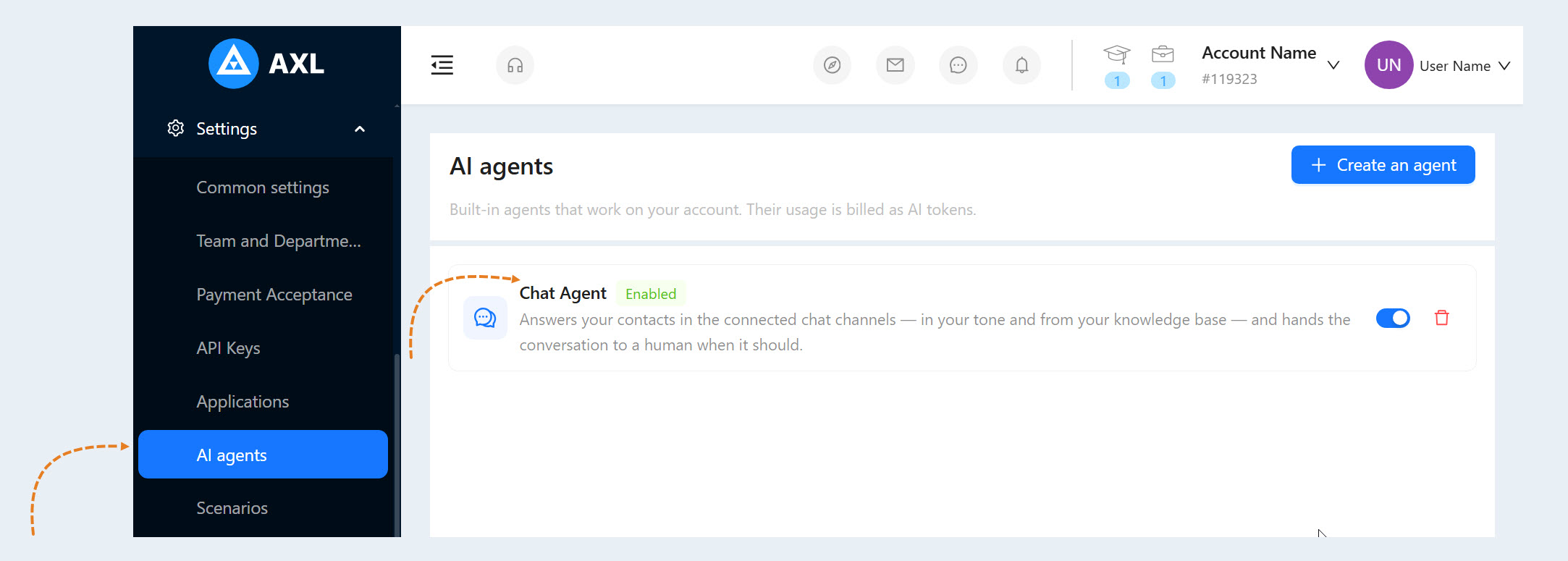
Go to Settings. The AI agents tab displays the chat agents you have already added. Select an agent’s name to open its settings.
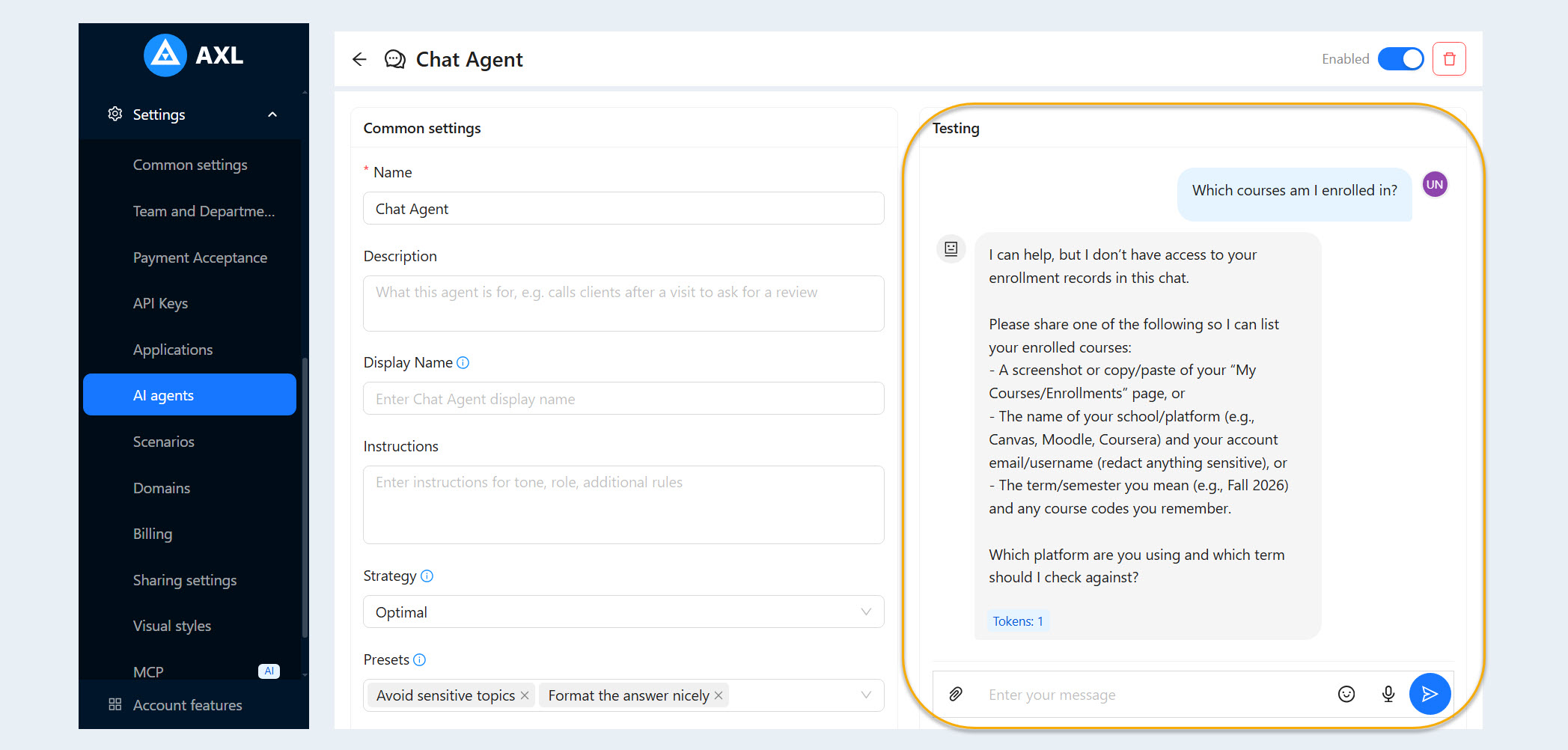
The chat agent settings include a tool for testing the agent’s responses. This built-in conversation simulator lets you fully test the chat agent in a safe environment before giving it access to chats with real users and customers. During testing, you can immediately see the actual token cost of each chat agent response.
The tool works in real time and helps you fine-tune the chat agent’s behavior without risking an incorrect response being sent to a customer. If the agent uses the wrong tone or misses an important detail, you can edit its instructions, enable or disable behavior presets, and immediately submit the request again.
Chat Agent Instructions
You can give each agent its own instructions defining the style and rules for its messages.
Examples include:
Communication style for interacting with customers
Message tone—formal, neutral, or friendly
Whether humor or informal explanations are appropriate
Any other instructions
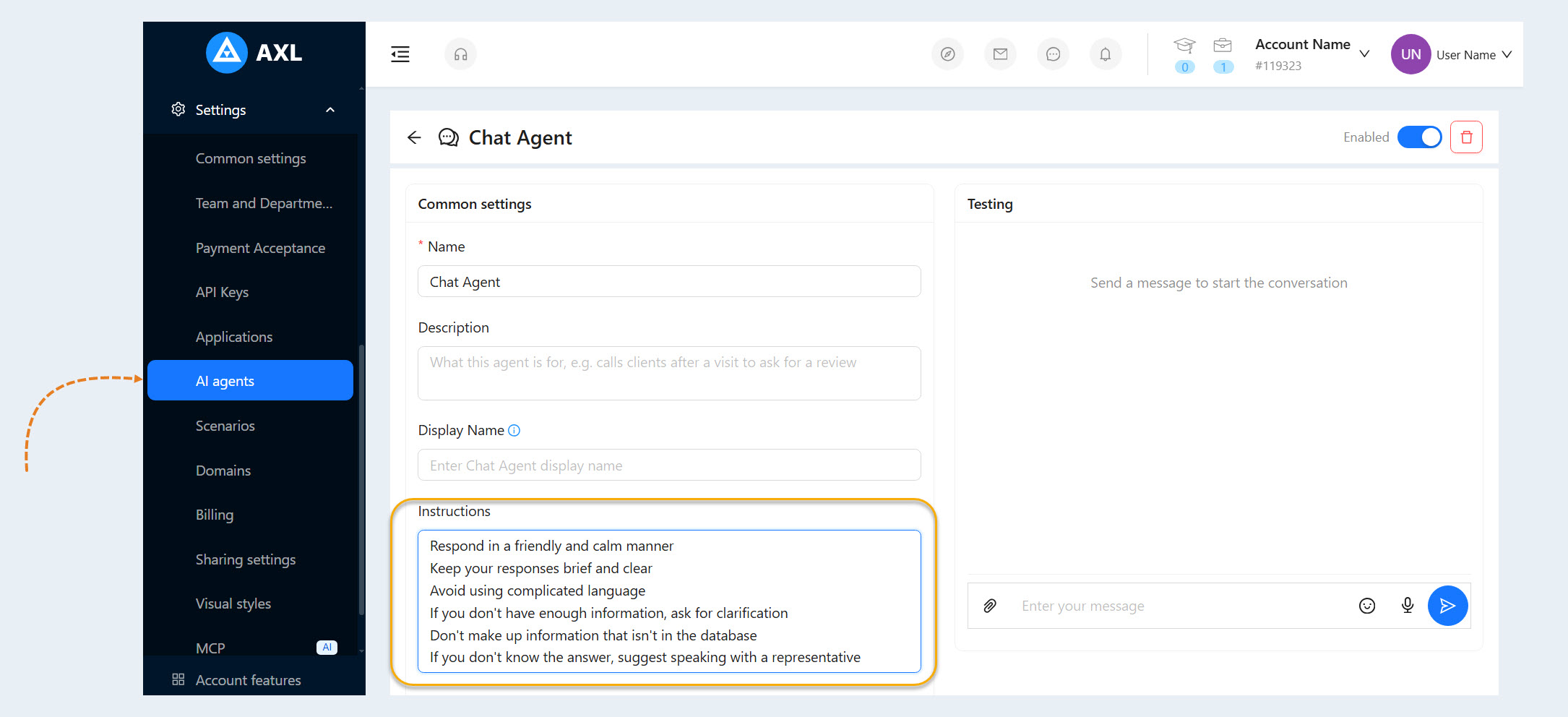
The chat agent strictly follows the specified instructions when responding to customers.
Prebuilt Behavior Presets
You can combine prebuilt agent behavior templates using simple checkboxes:
Avoid sensitive topics: The agent politely avoids discussions of politics, religion, territorial disputes, and other sensitive subjects.
Enhanced formatting: The agent formats responses with structured layouts—including lists, paragraphs, and spacing—to improve readability.
Step-by-step information gathering: The agent conducts the conversation like an interview, asking only one question at a time instead of overwhelming the customer with multiple questions at once.
Chat Agent Knowledge Base
In the chat agent settings, you can upload a custom knowledge base for the agent to use when responding to customers. It can include course, webinar, and intensive-program materials; frequently asked questions (FAQs) and internal account policies; price lists, instructions, pricing tiers, and installment-payment terms.
The platform supports multiple content formats:
Text files
PDF
- DOCX
- JSON
Other document formats
Using a knowledge base allows the agent to respond according to your terminology and internal standards instead of relying on generic language.
Analyzing Attached Files
The chat agent can work with much more than plain text:
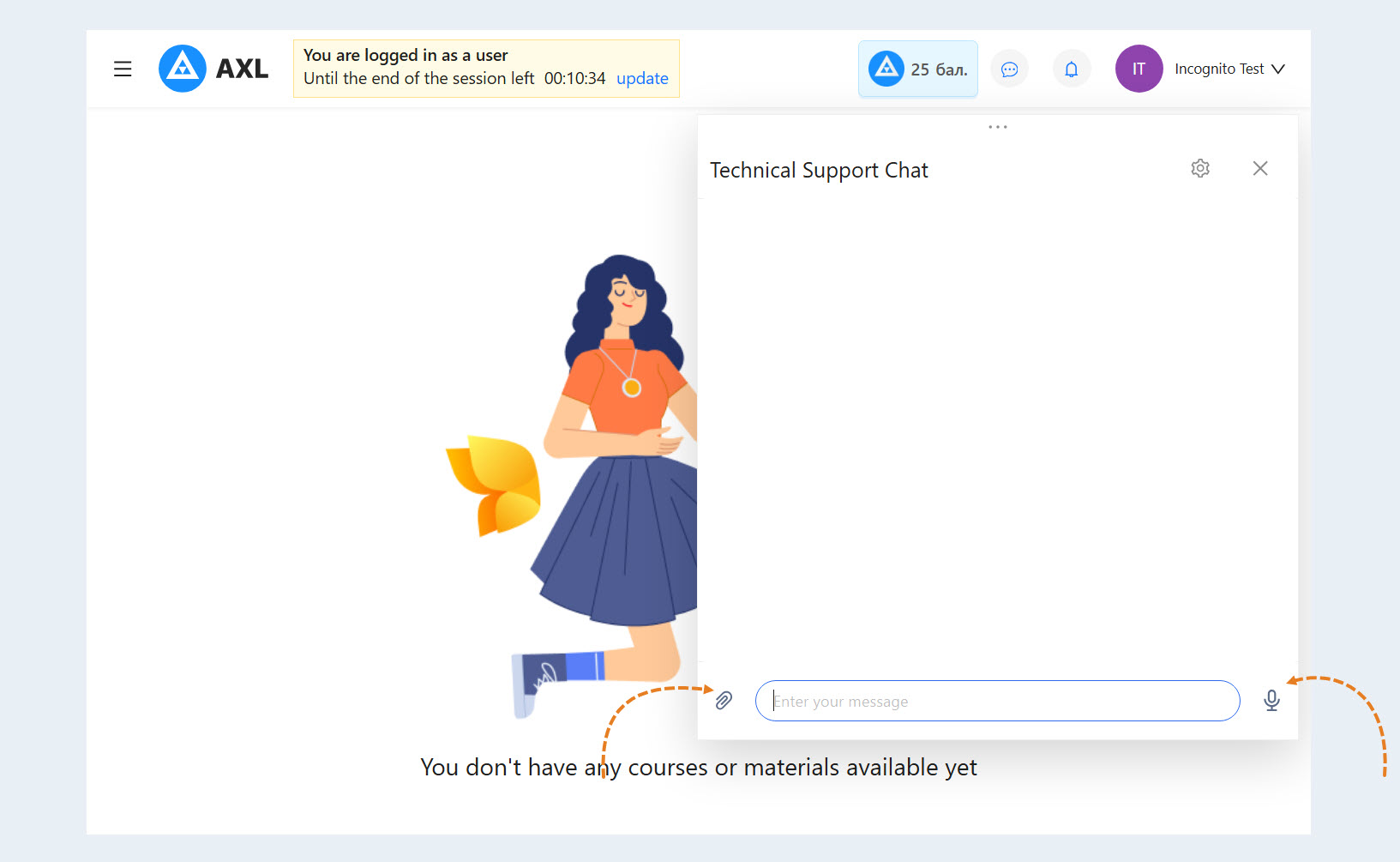
Images: It analyzes images and understands what they contain.
Documents: It reads, interprets, and uses information from files that users attach during a conversation.
Voice messages: It transcribes voice messages into text, understands their content, and responds in the chat.
Handoff to a Live Team Member
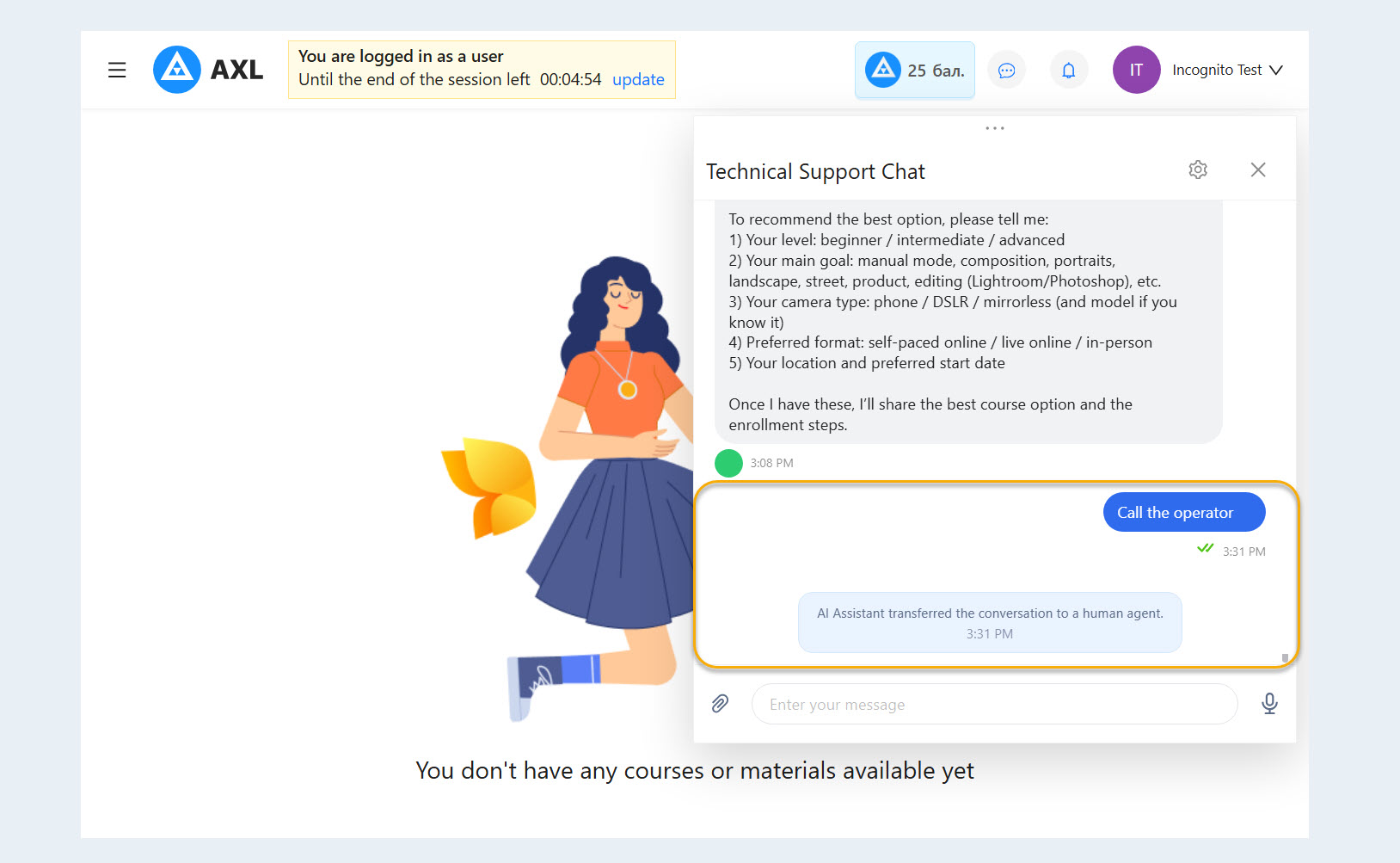
The agent knows when to step back and hand a conversation off to a live team member. This happens when:
A question is too complex, unusual, or outside the scope of the knowledge base.
The user explicitly asks to speak with a person. A Talk to a Person exit is built into the system by default.
Any other custom condition specified in your instructions is met.
Built-in Spam Protection
Before a request is sent to the primary—and more expensive—language model, the message is analyzed by a separate lightweight, low-cost LLM. If the system detects obvious spam, it automatically pauses responses to that user for 15 minutes without consuming your tokens.
Automation with Workflows
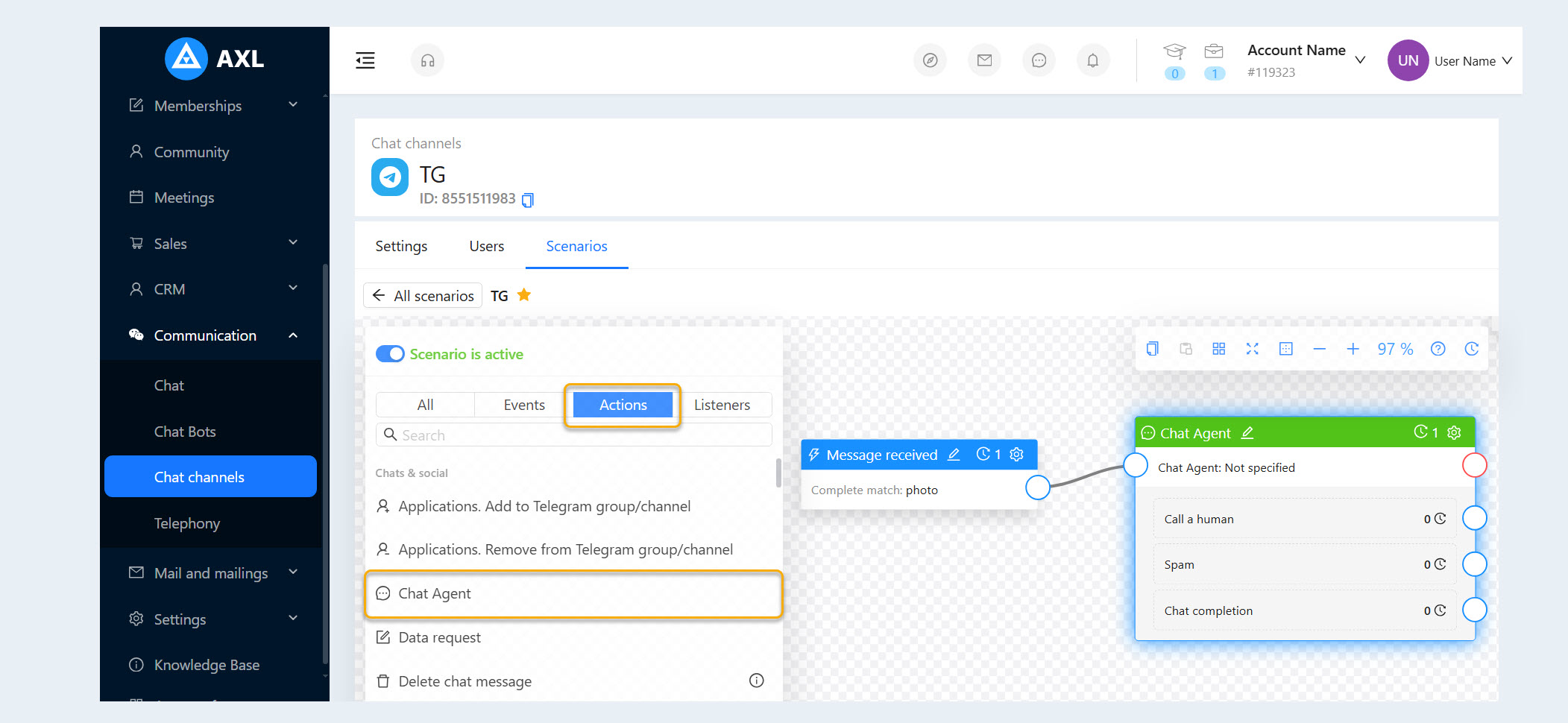
The chat agent is integrated into all platform workflows and can be used as a separate step:
You can add a chat agent node to any workflow.
The conversation within the node continues in a loop until the goal is reached.
You can configure conversation exit paths based on user intent. The agent determines the outcome of the conversation—for example, “Request Submitted,” “Issue Resolved,” “Declined,” or “Ready for the Next Step”—ends the loop, and routes the contact to the appropriate workflow branch.
A workflow can include a sequence of several different agents.
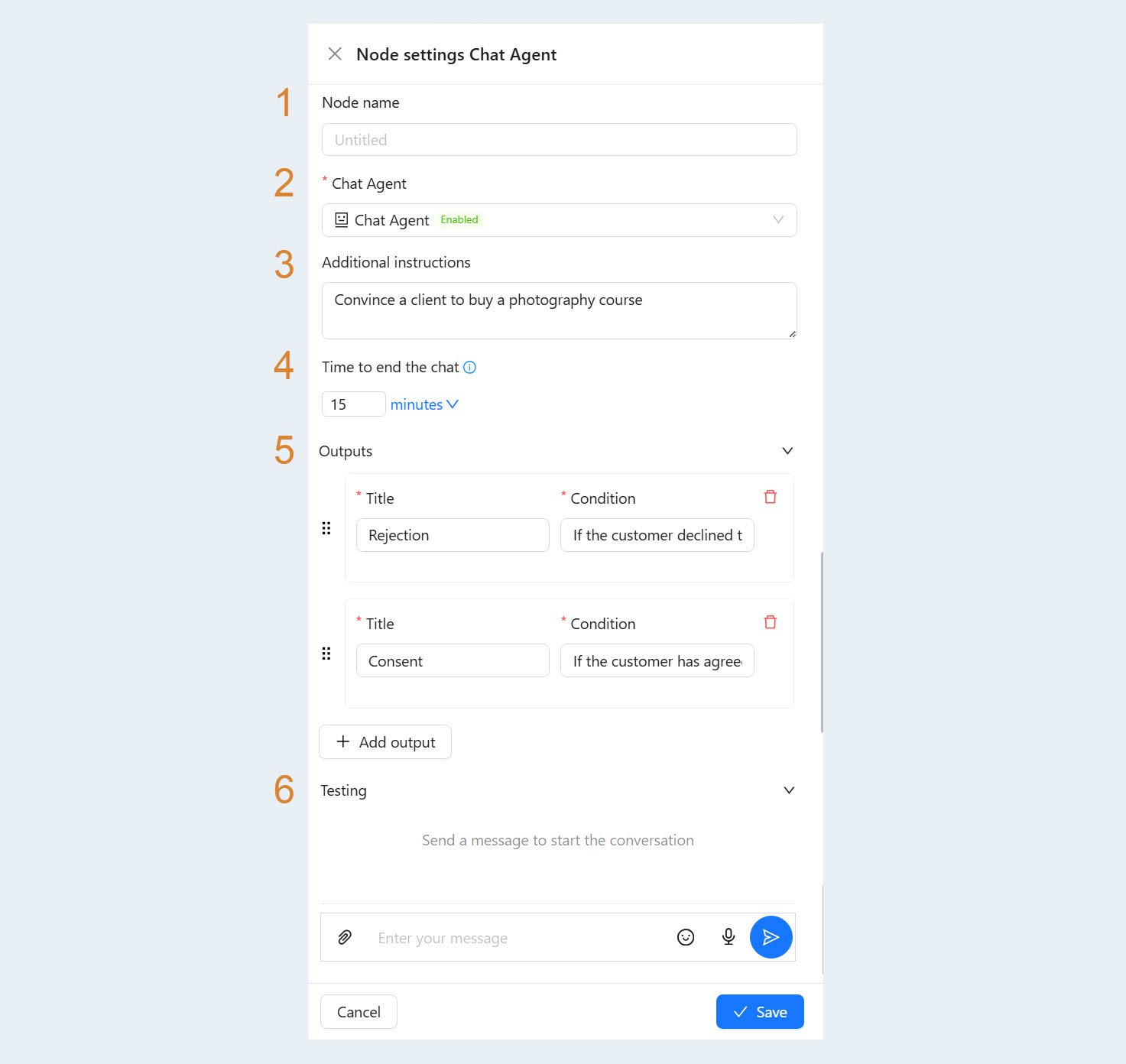
Chat agent node settings:
Node Name. Enter a name for the node. You can name workflow nodes however you like.
Chat Agent. Select one of the chat agents previously created in the system.
Additional Instructions. Enter contextual guidance that supplements or temporarily adjusts the agent’s main system prompt (instructions) for this specific workflow step.
Time to End Chat. Set the user inactivity timeout. If the customer stops responding, the chat closes automatically after the specified period—five minutes in this example—and the contact leaves the workflow node through the system Chat Ended exit.
Exits. Configure intelligent routing by creating custom exits from the node based on customer intent. Each exit has a name and a condition. The name identifies the exit on the workflow diagram. The condition is a natural-language rule the chat agent uses to determine when the goal has been reached.
Testing. Use the built-in conversation simulator to fully test the chat agent in a safe environment before giving it access to chats with real users and customers. During testing, you can immediately see the actual token cost of each chat agent response.
Choosing a Strategy and Understanding Costs
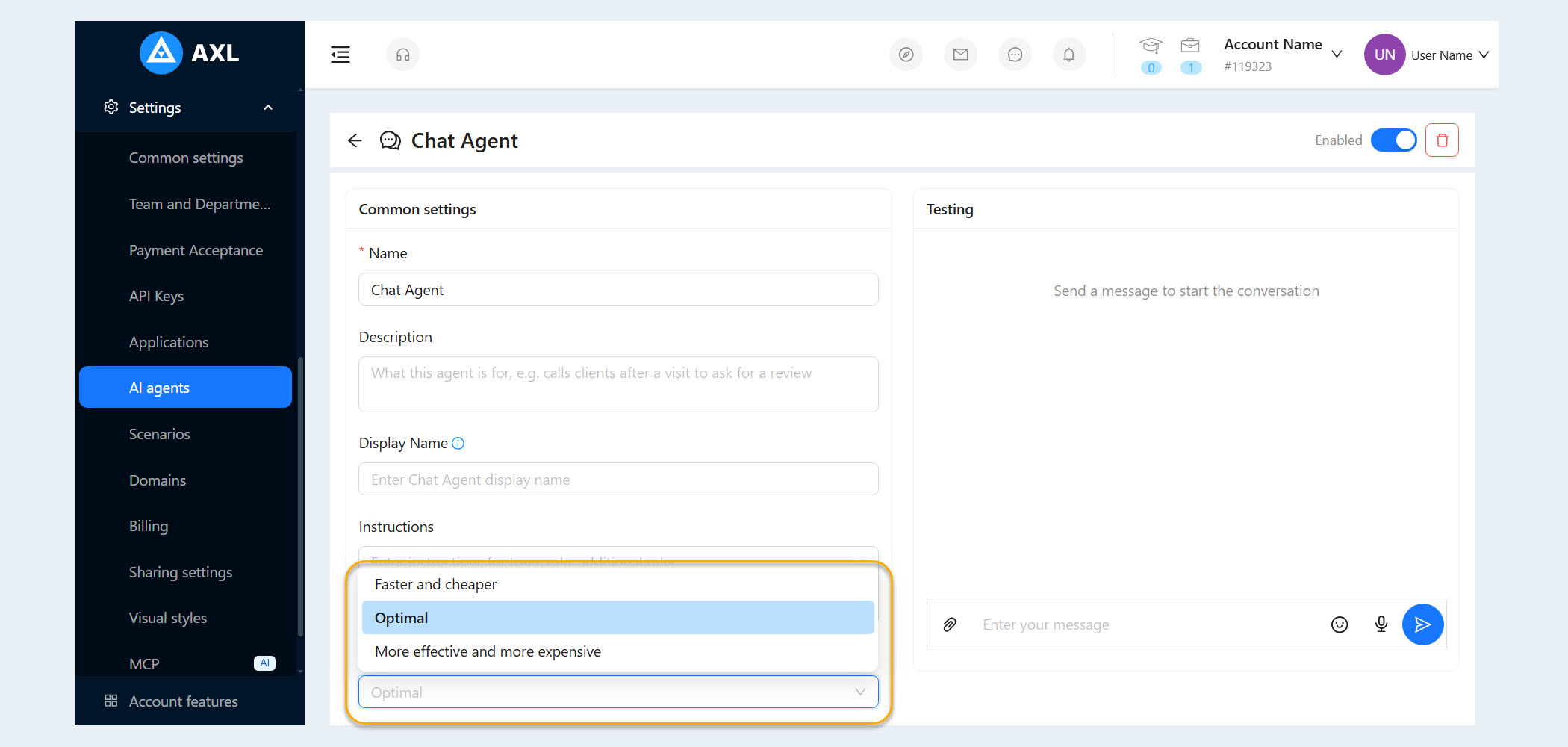
You can manage your budget flexibly by selecting a strategy for each agent based on its tasks:
Faster and More Affordable: A lightweight model with instant responses and the lowest cost.
Balanced: A balance of quality and cost that is suitable for most tasks.
- More Powerful and More Expensive: A top-tier model for complex conversations and sales.
Changing the strategy can significantly affect the price per conversation, so choose the option that best fits your use case.
Usage Cost
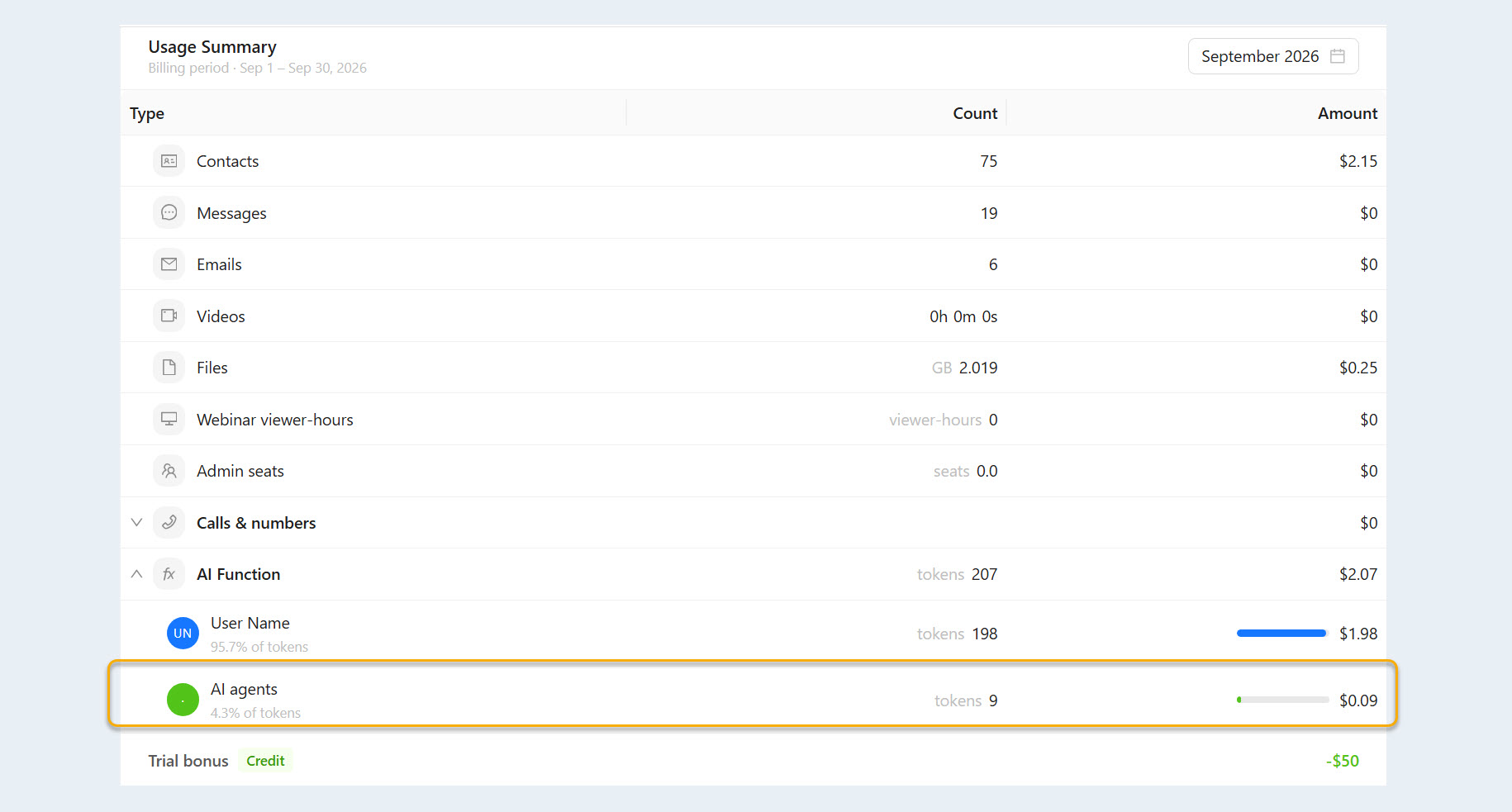
Chat agent usage is billed based on the tokens actually used.