A variable is a value to be automatically replaced with the data you selected. This can be the contact's name, e-mail, account name, order number, webinar date, etc. Variables will automatically replace the data in the text. For example, add the variable “Contact Name” to the text of the letter and when sending the letter, this variable is replaced with the recipient's name.
In the scenario configuration settings, you can add variables in the subject, subtitle and text of the letter. You can add variables to the following scenario actions: send an email, web hook, send a message, add a note, request data, and notification.
In the scenario, select the event and action, drag them to the scenario field. Next, you need to connect the event and the action together. You can create one or more links between events and actions.
For each action, you need to perform settings - configuration. Click on the "Settings" button in the upper right corner of the action, then open the node settings. For more information on how to configure the configuration, read the article "Types of actions in the scenario and their configurations".
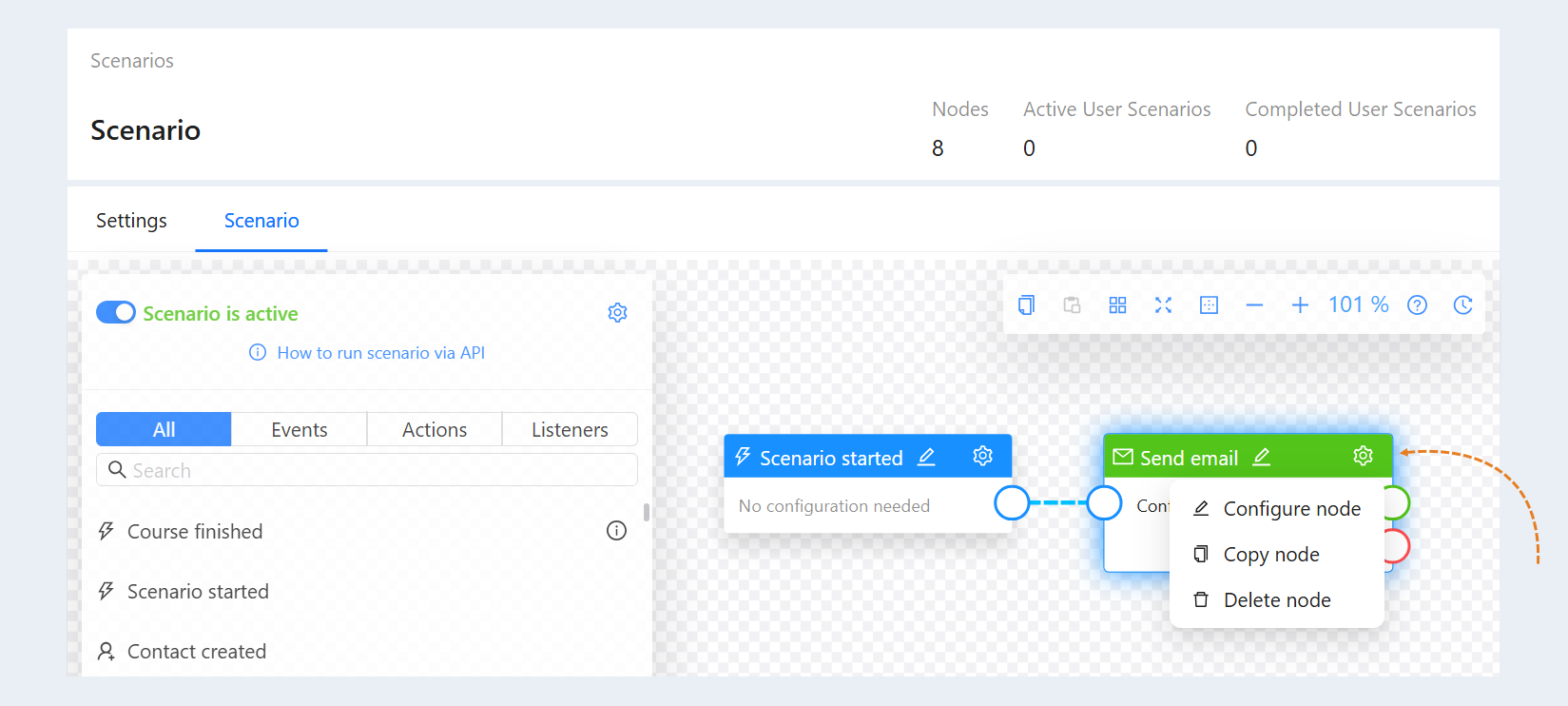
In the node settings, click the "Add template variables" button next to the corresponding section. A list of variables will open on the right. Select the necessary variables from the suggested list.
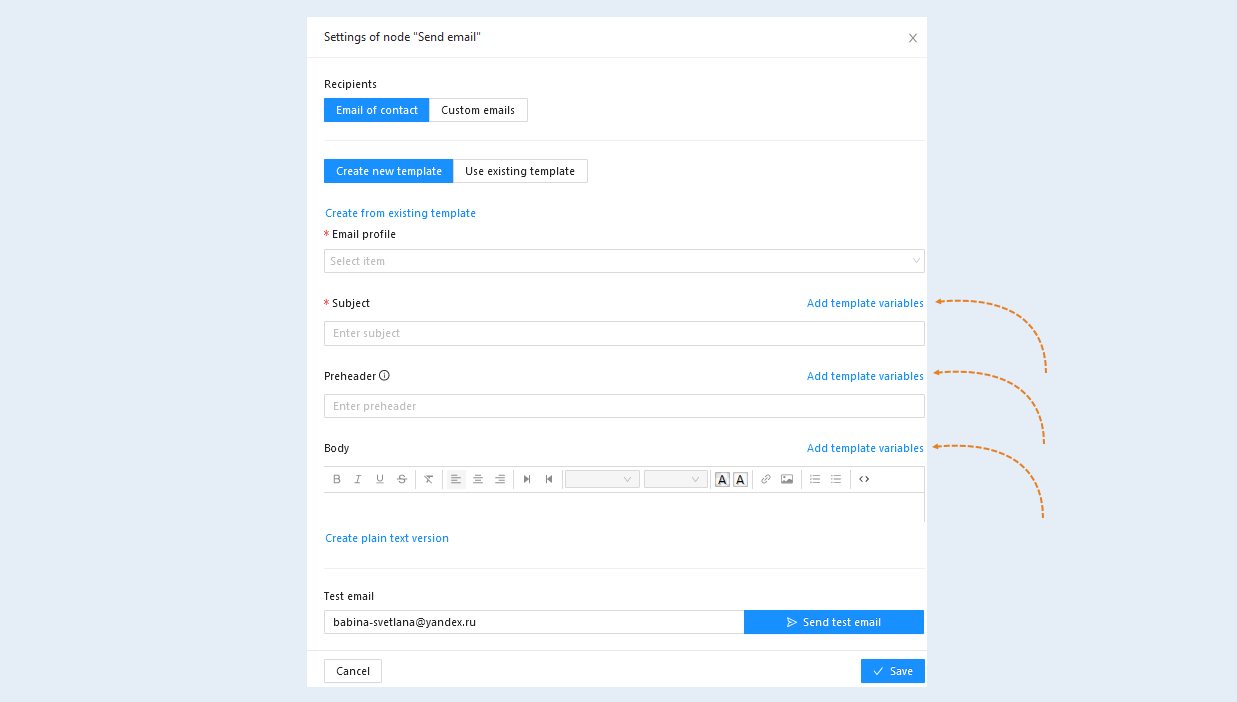
Each of the objects has its own list of variables available:
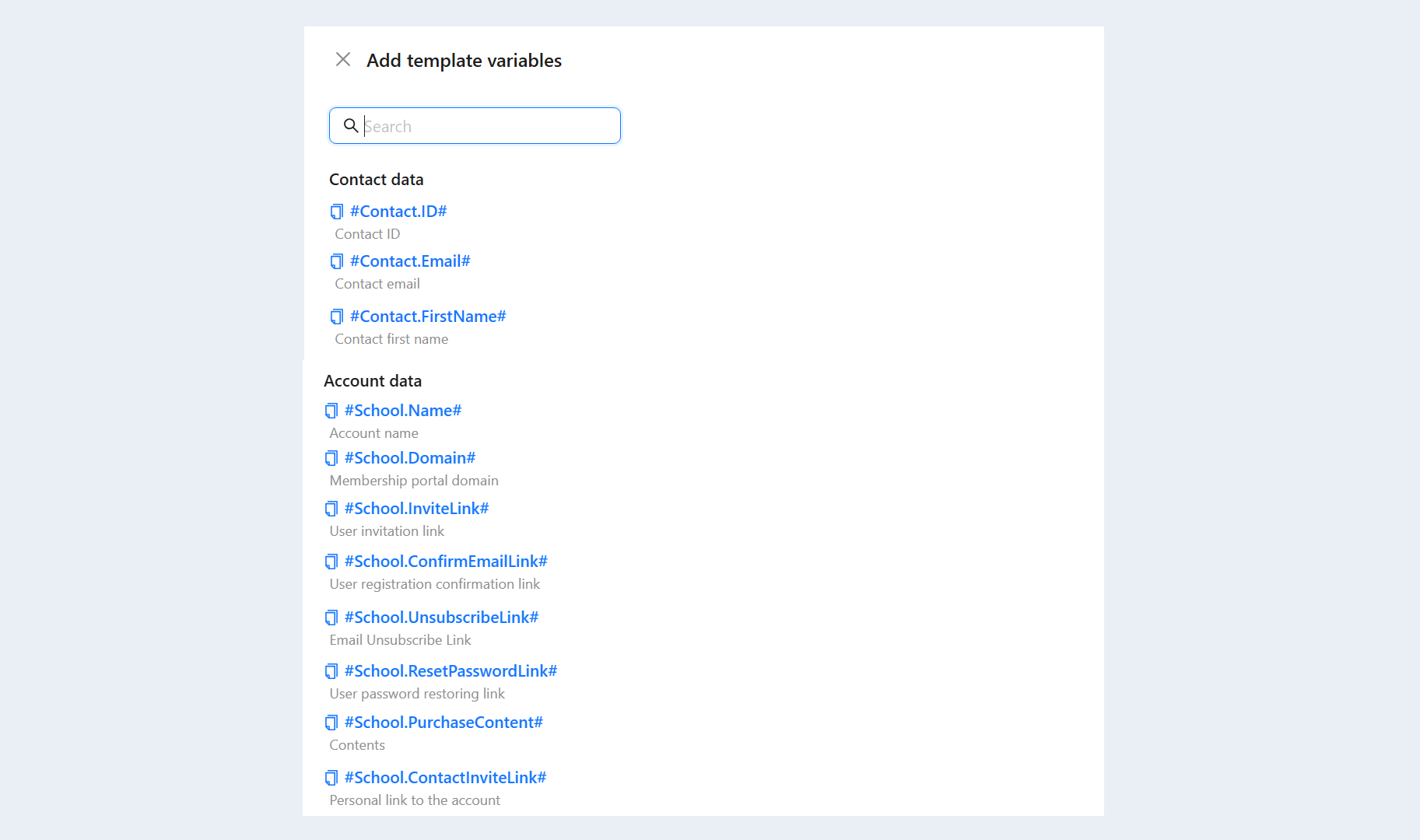
Variables "Contact data"
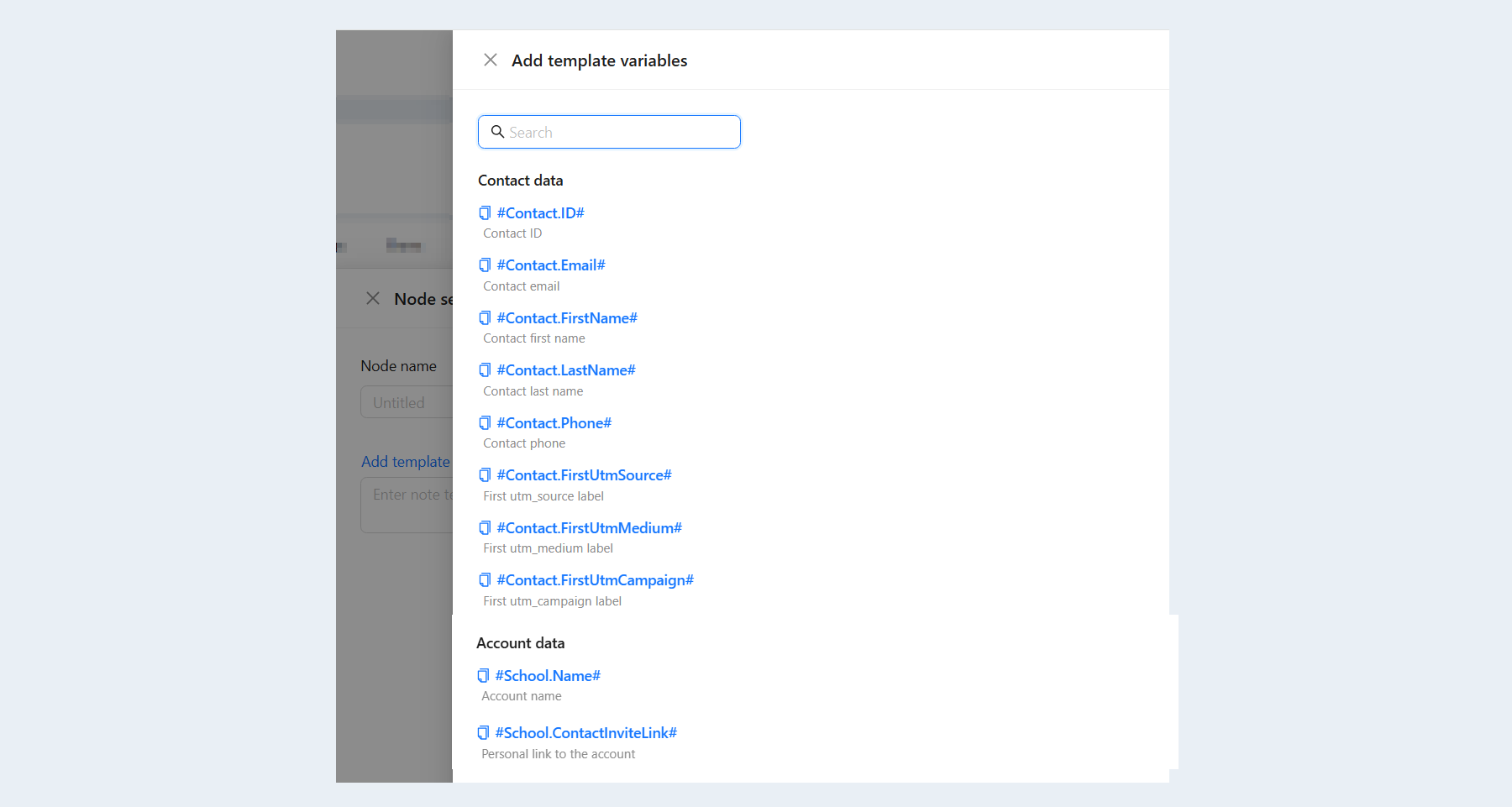
In the list of variables, "Contact Data" are available to you. Select the desired variables and click on the name to add variables to the text.
The list of variables "Contact Data" contains variables related to the user's contact: email, contact name, phone number, date of birth, contact attribute, etc.
Variables "Account Data"
The "Account Data" list contains variables related to your account: the name of the account and a personal link to the membership portal.
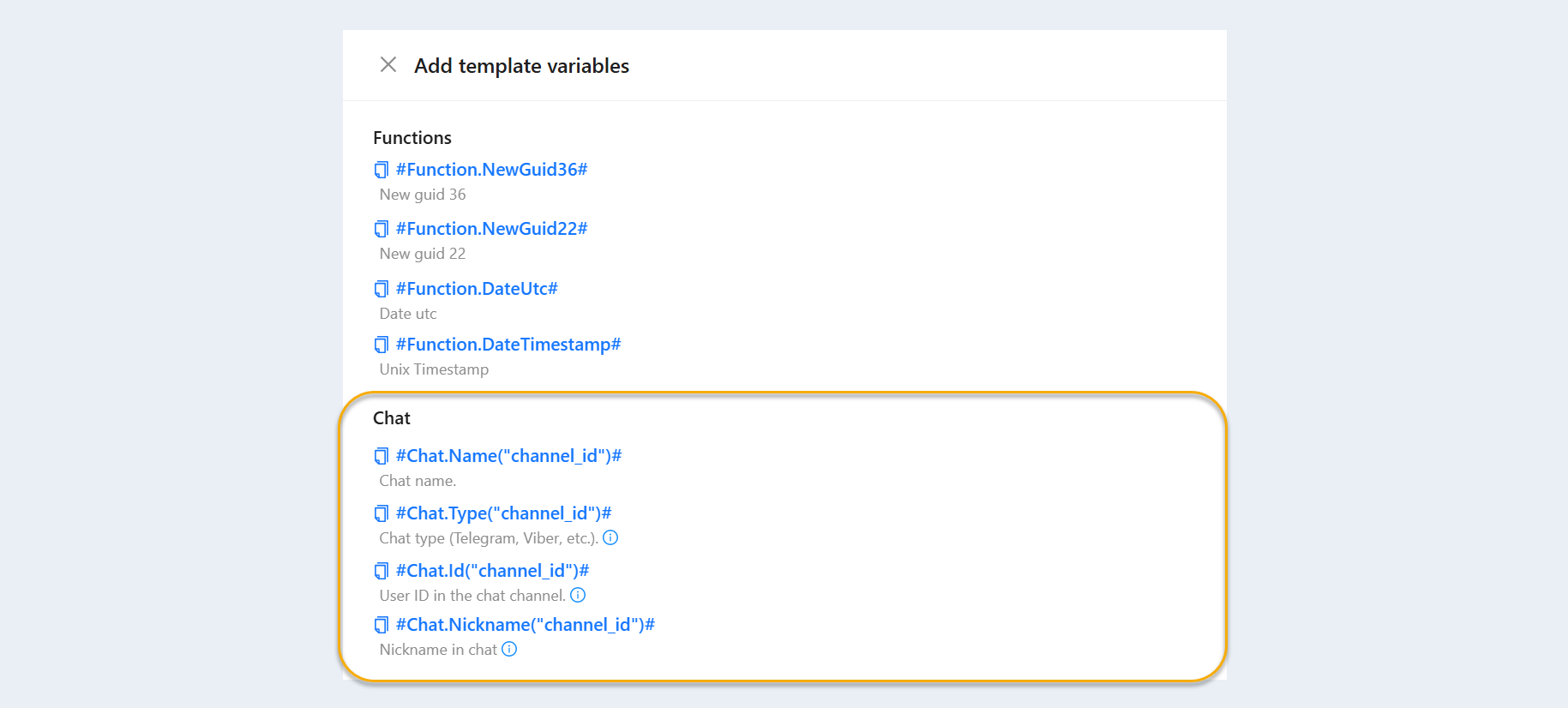
Variables "Chat"
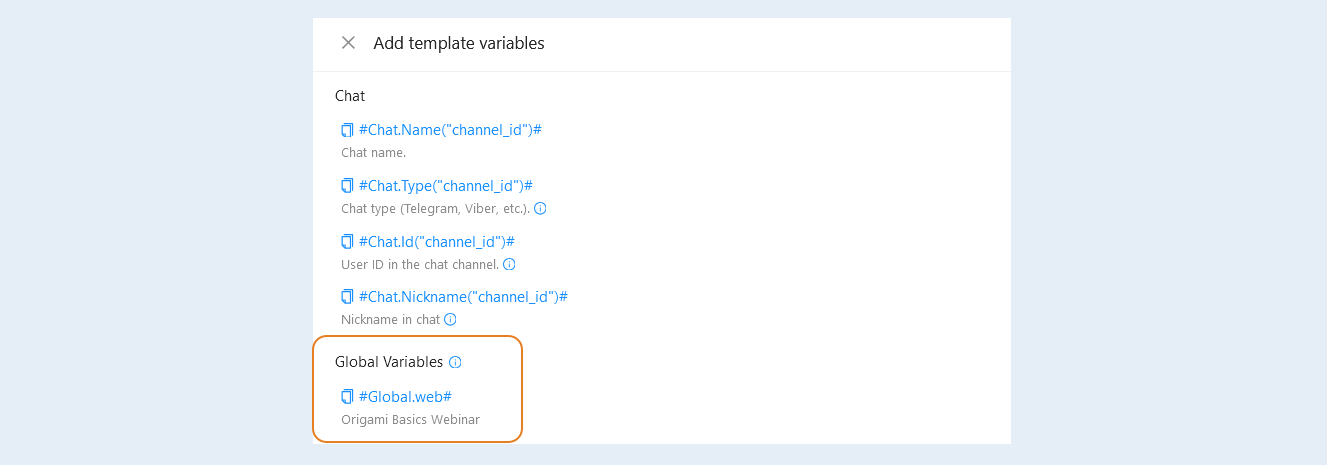
The Chat list contains variables related to messengers. Such as: chat name, chat type (telegram, viber, etc.), user ID in the chat channel and nickname in chat.
If channel_id is not specified, the chat channel from the script will be used if available.
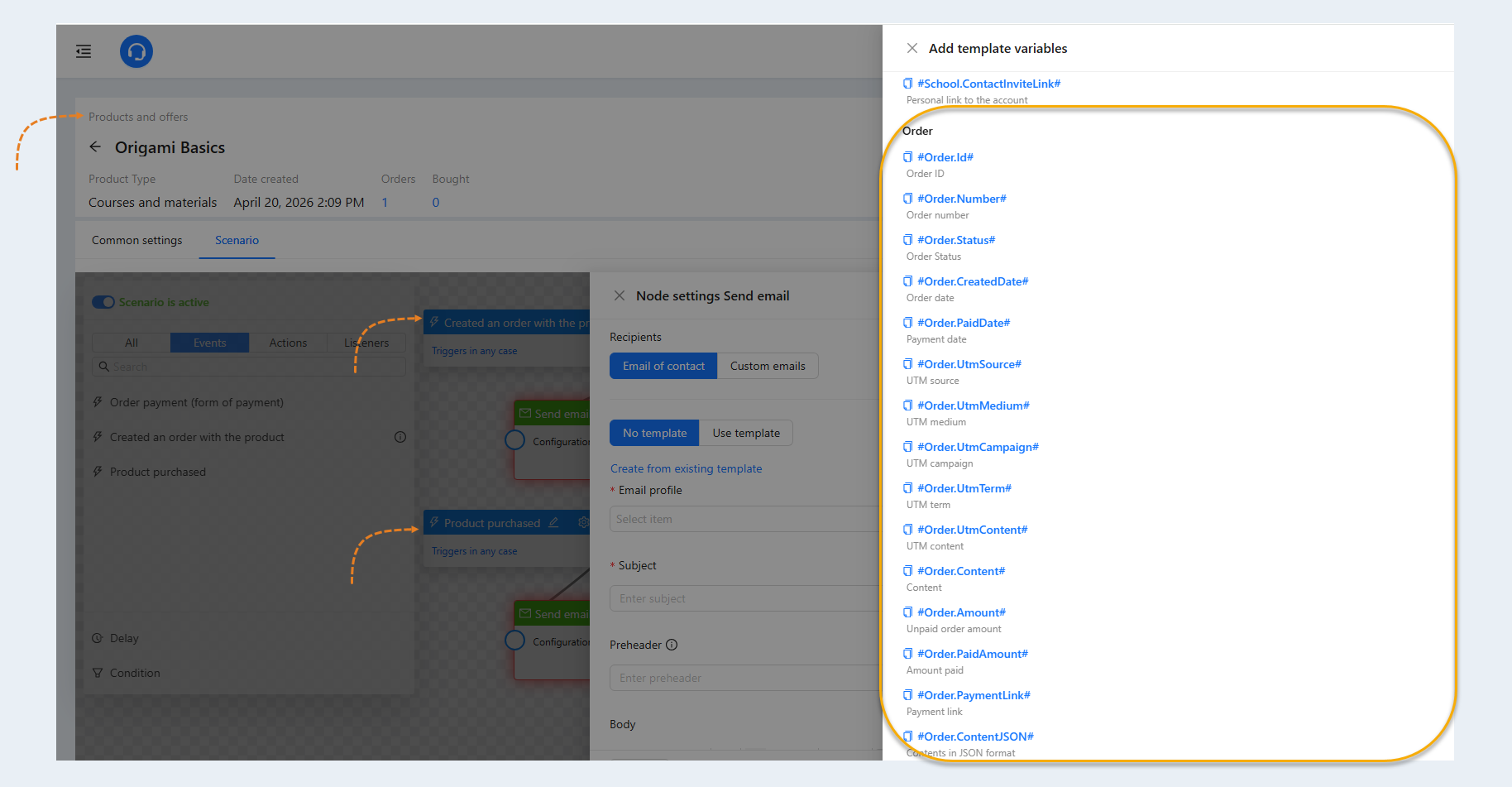
Variables "Order"
The "Order" variables will be added to the list of variables if you create a product scenario and the scenario triggers events such as "Created an order with the product" or "Product Purchased".
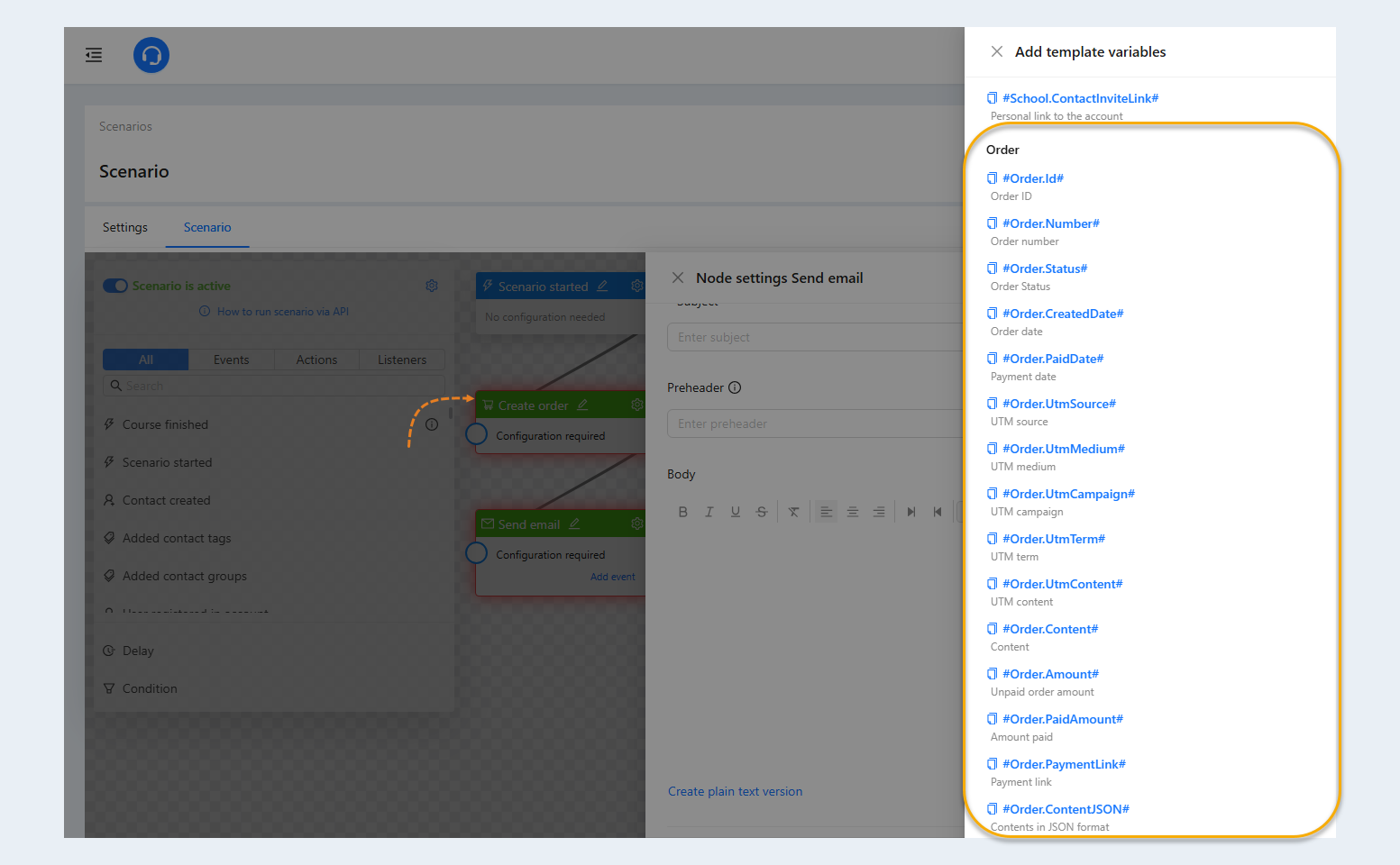
If you are creating a different scenario (not a product scenario), then add the "Create Order" action to the scenario in the previous step. In this case, variables related to the user's order will be added to the list of variables: number, status, order date, UTM tags, order amount, payment link, and others.
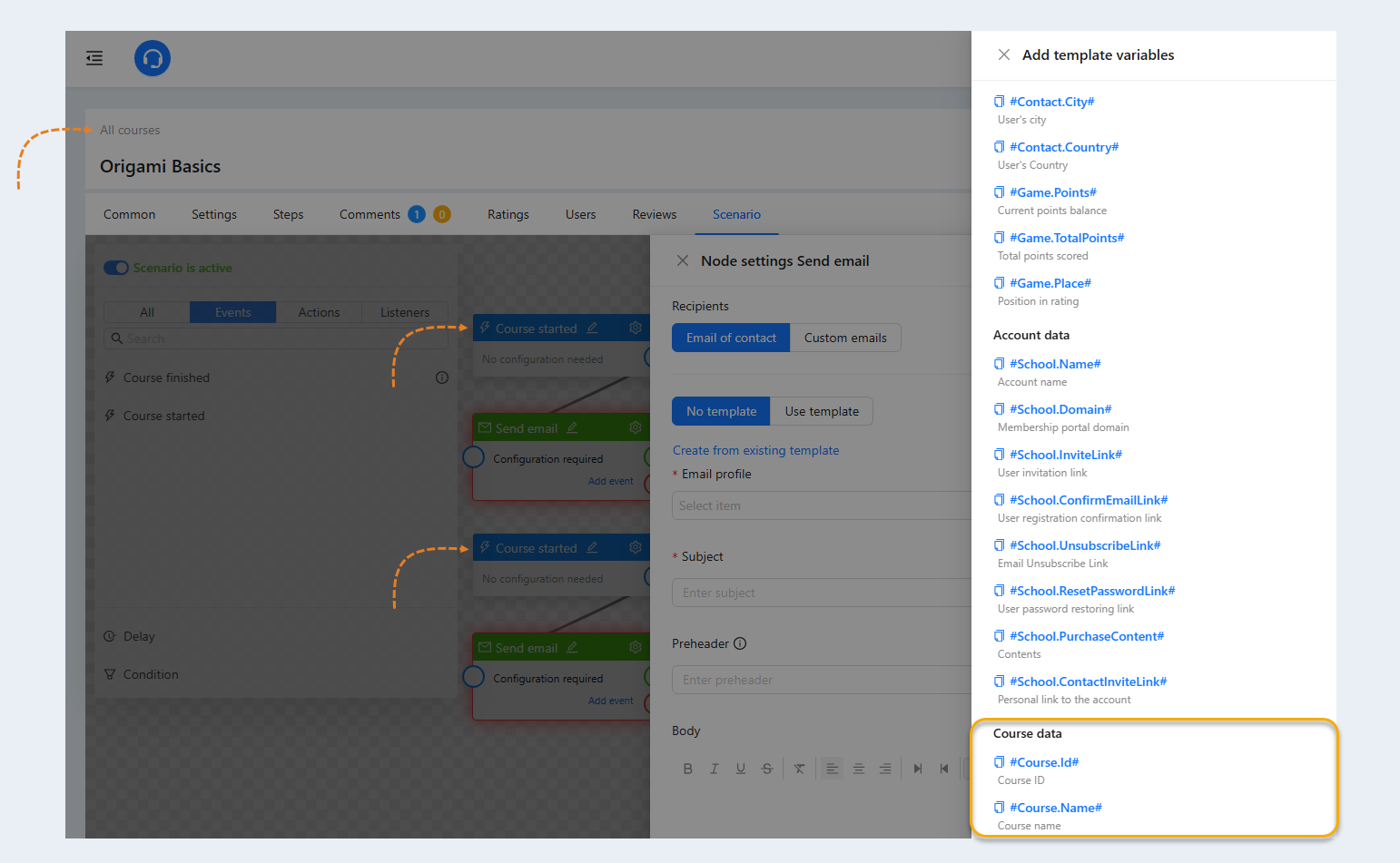
Variables "Course Data"
If you are creating a course scenario and the action "Course started" or "Course completed" was added earlier in the step, then the course data will appear in the list of variables.
The "Course Data" list contains variables related to the course that the user can access: the course name and the course ID.
Variables "Webinar"
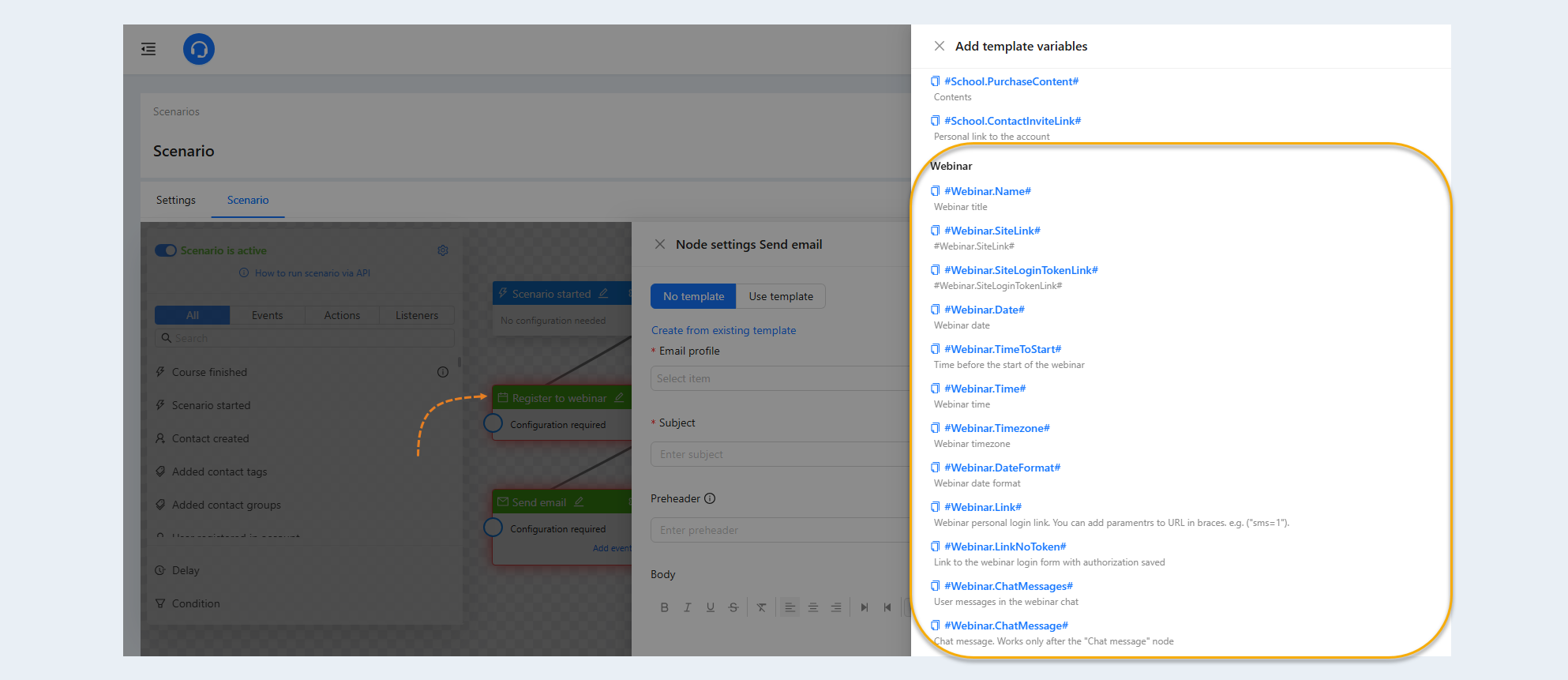
If you are creating a webinar scenario or the "Register for a webinar" action was added earlier in the step, then the webinar data will appear in the list of variables.
The "Webinar" list contains variables related to the webinar for which the user is registered: the name, date, time of the webinar, a link for personal login to the webinar, the time before the start of the webinar, and others.
Variables "Functions"
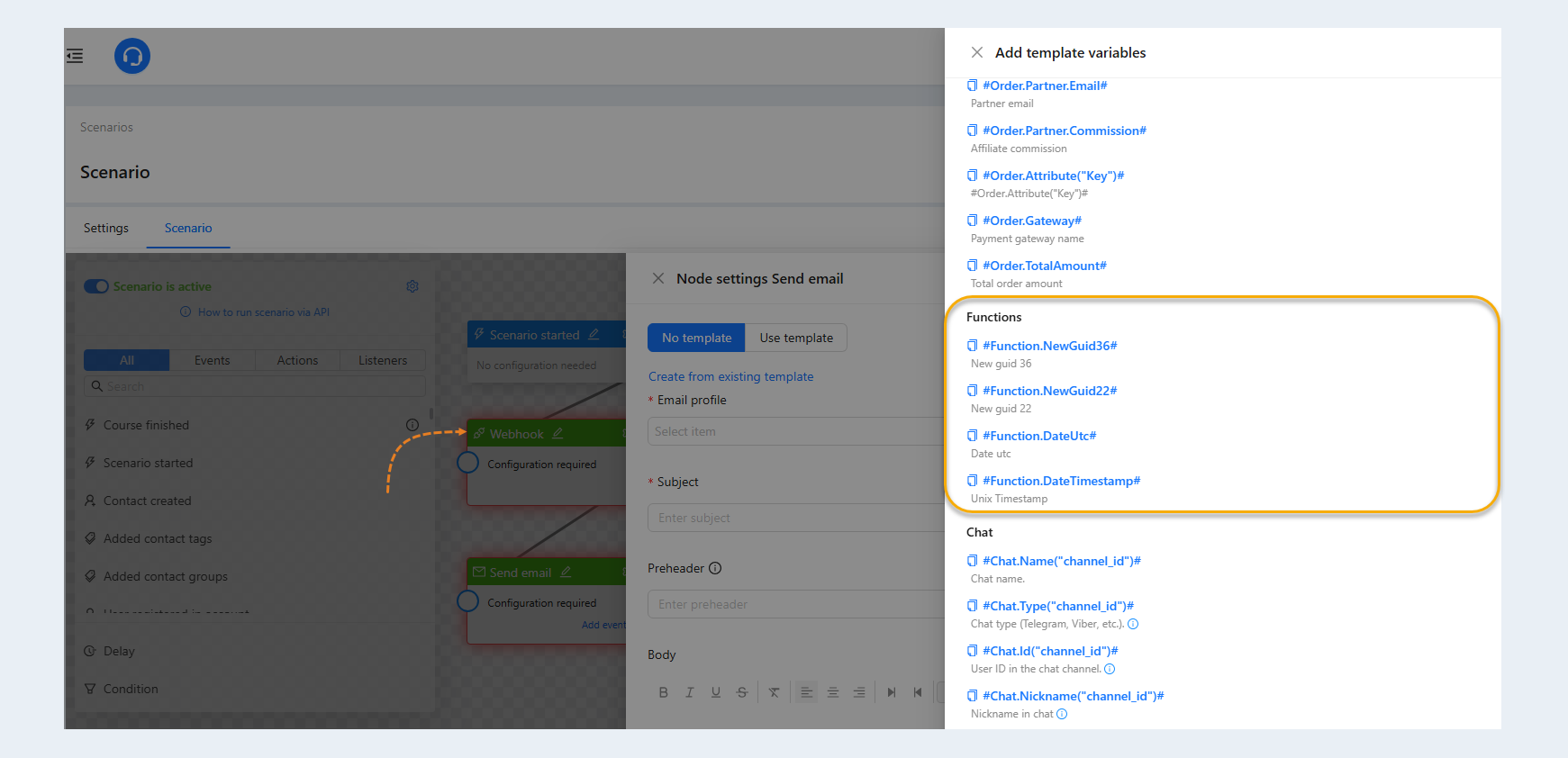
If the "Web Hook" action was added to the scenario in the previous step, then functions will appear in the list of variables.
The list contains variables: New guid 36, New guid 22, Date utc, Unix Timestamp.
Variables "Form Data"
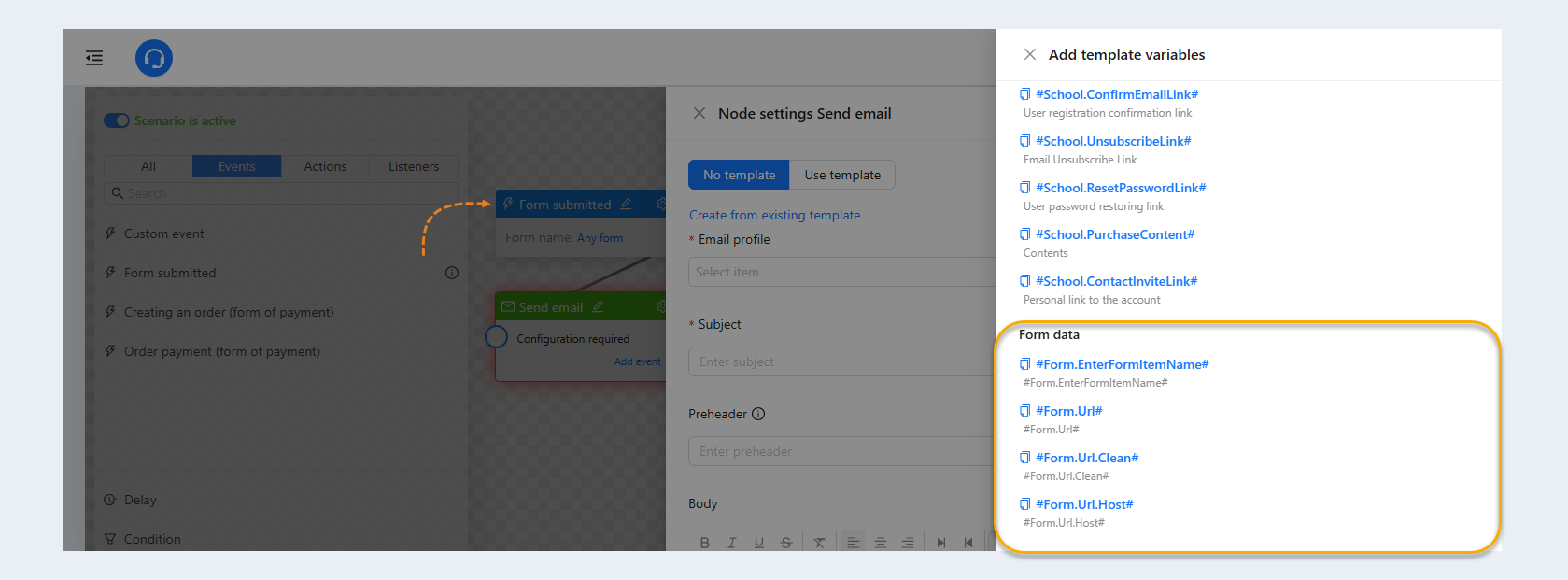
If the "Form submitted" action was added in the script at the previous step, then the form Data will appear in the list of variables.
The list contains variables: the name of the form element.
Variables "Deal"
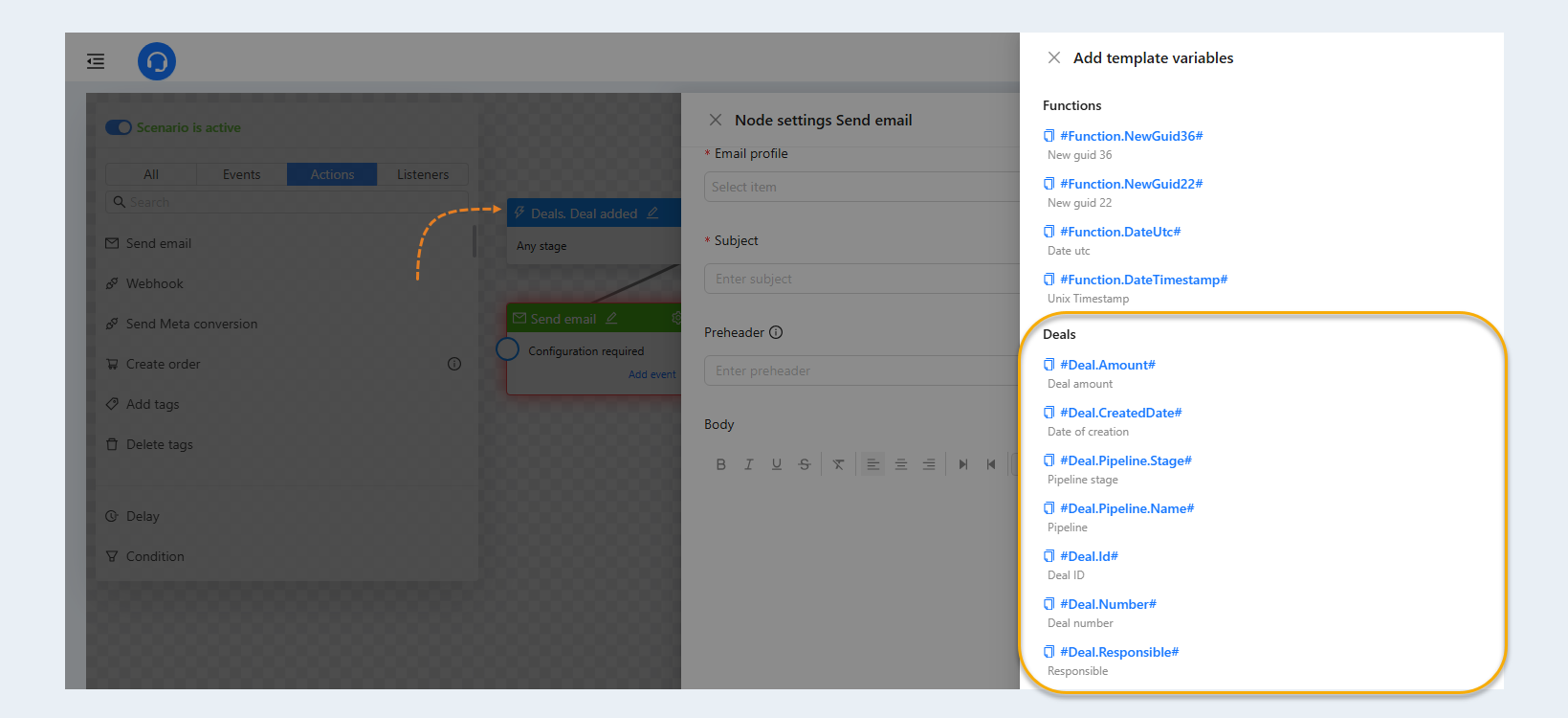
If you are creating a transaction scenario or the "Deal" action was added earlier in the step, then variables related to funnels will appear in the list. Such as: deal amount, date of creation, pipeline stage, pipeline.
Variables "Certificate"
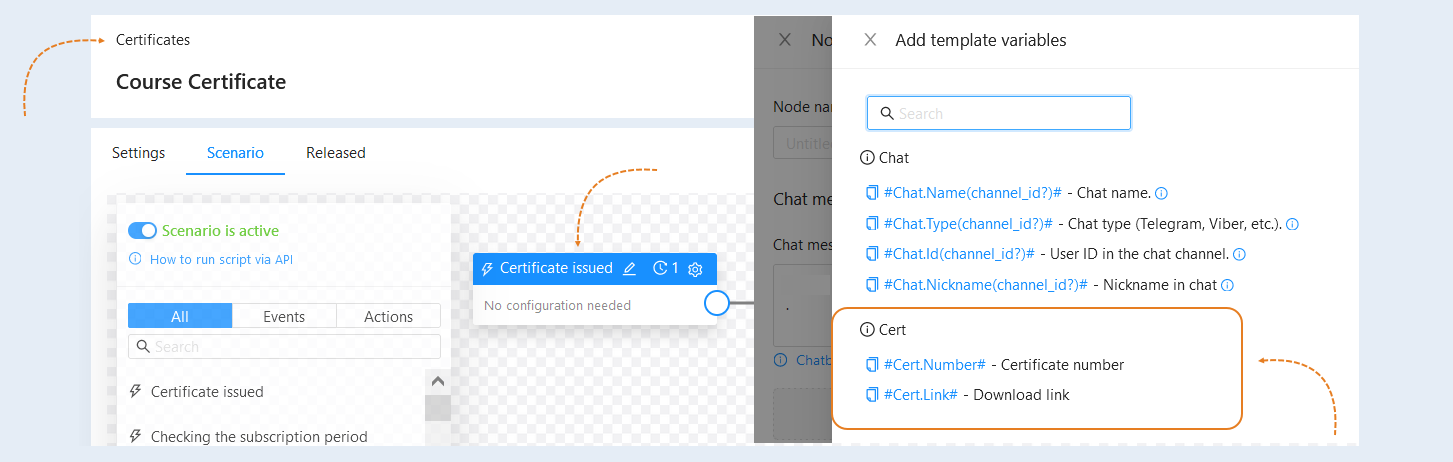
If you are creating a certificate scenario or the "Issue certificate" action was added earlier in the step, then variables related to certificates will appear in the list. Such as: certificate number and certificate download link.
Variables "Global Variables"
Global variables are variables that can be created and configured for use in various parts of the platform. They are available throughout the entire time you work with the platform and can be used to store data that should be available in different scenarios, modules, lessons, or assignments.
For more information on how to create and edit global variables, see the article "Account Settings".