The AXL affiliate program is a mechanism of cooperation between the seller of products and services and partners when selling a product or providing services. The partner can be a webmaster, blogger, information producer, membership portal user or any other person who has an audience or resources that can attract potential buyers.
The purpose of the affiliate program is to attract new customers and increase sales. When a new user clicks on an affiliate link and purchases a course, the partner receives a commission or reward. The affiliate program allows the seller to expand its audience and attract new customers who might not be available without the participation of partners. It also helps to increase brand awareness and increase sales by using already established relationships and trust of partners with their audience.
In the "Affiliate Program" section, you can increase sales of your products and increase user engagement with a new tool. Create, configure, connect users and opinion leaders to your account's affiliate program.
Click on the desired section of the article to go to its description:
Affiliate Program
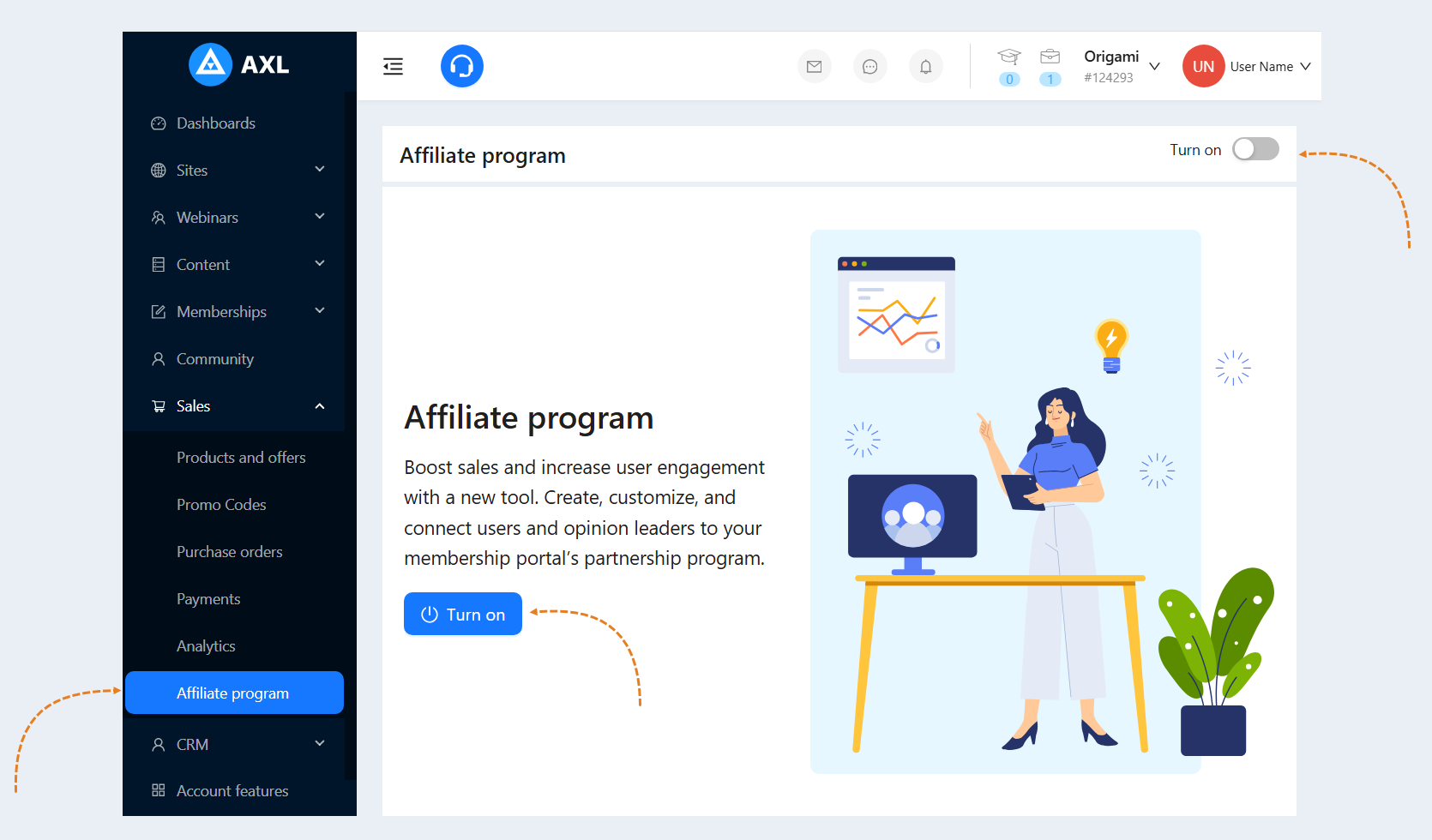
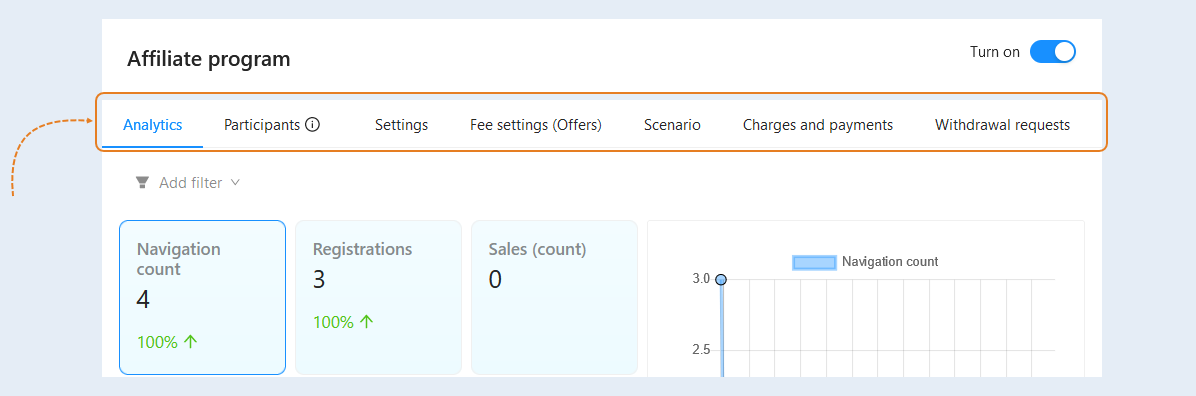
In the "Affiliate Program" section, the following tabs are available to you: analytics, participants, settings, commission settings (offers), scenario, accruals and payments, withdrawal request. Let's look at each tab in detail.
Analytics
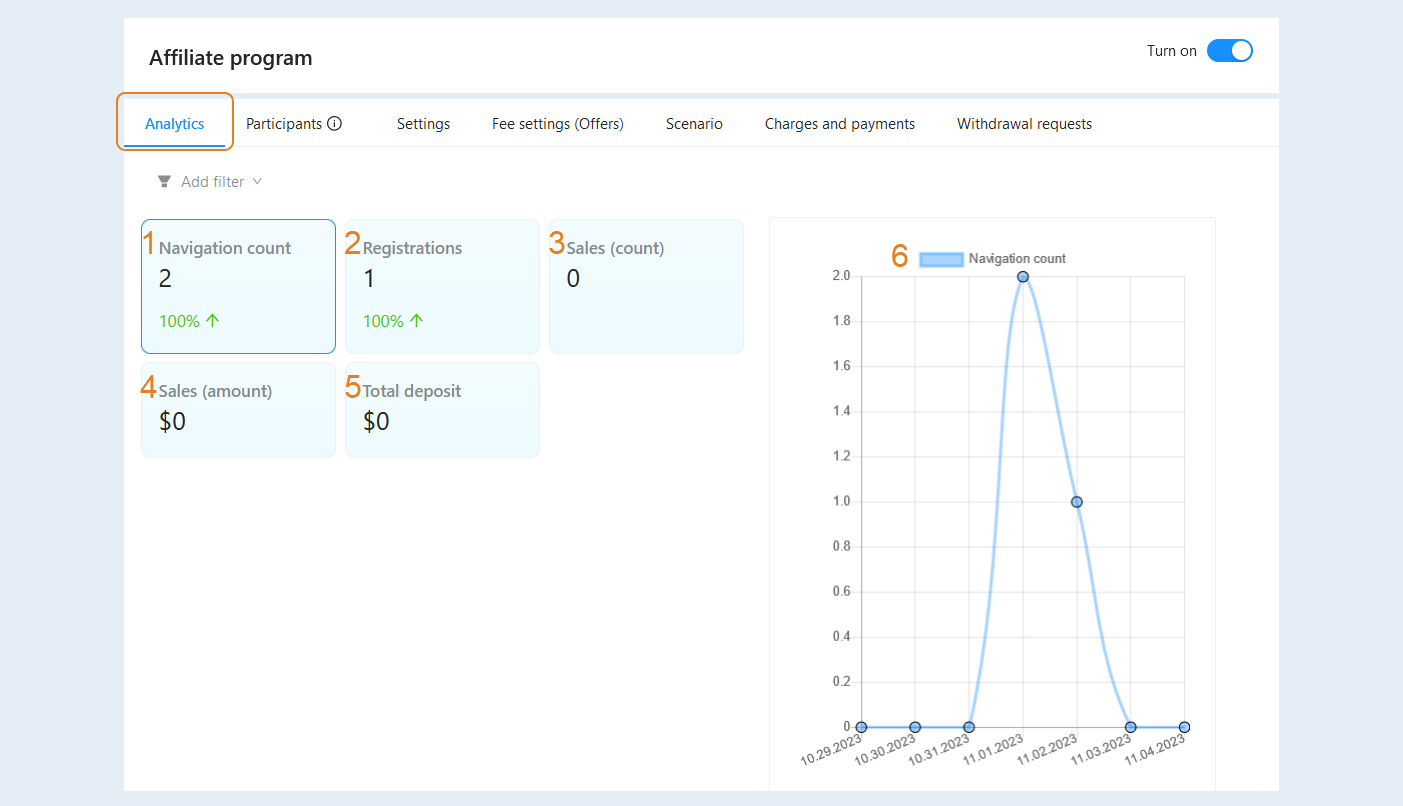
The "Analytics" tab provides reporting that helps analyze partner program data. Analytics of the partner program plays a key role in increasing its effectiveness and development. It provides complete information about its performance, analyzes data, helps to identify strengths and weaknesses and identify potential opportunities for improvement.
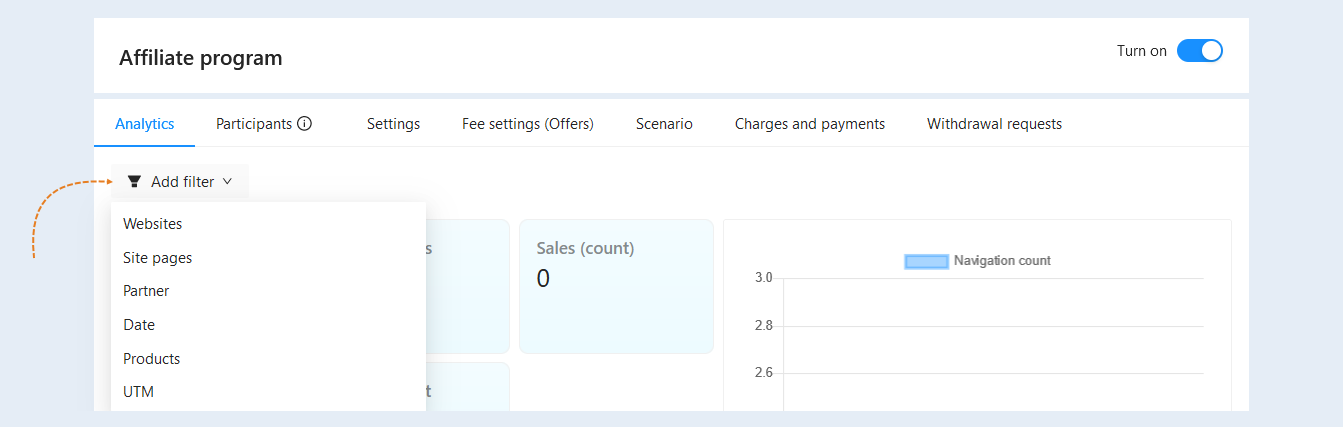
In the tab you can see the following sections:
Navigation count. The number of people who clicked on affiliate links.
Registration. The number of users who have registered using partner links.
Sales (count). The total number of sales through affiliate links.
Sales (amount). The total amount of sales through affiliate links in the currency of the account.
Total deposit. The amount of the commission to partners.
Chart. In this section, the analytics of the affiliate program is shown in the form of a graph. Click on one of the sections described above to see the graph for each section separately. Also use the filter to see statistics for certain dates or set a time interval.
A filter is available to you at the top of the section. Use it for more detailed customization. Click the "Add Filter" button and select a filter condition from the list:
- Websites. This condition highlights the actions performed on individual sites. Select one or more sites from the list.
Site pages. This condition highlights the actions performed on the selected pages of the site. Select the site pages from the list.
Partner. This condition highlights partner programs associated with a specific partner. You can select one or more partners from the list.
Date. This condition highlights the analytics on the selected dates or time period.
Products. This condition highlights affiliate programs that have a specific product. Select one or more products from the list.
UTM. You can specify the value of the UTM tag to select only those partner programs in which related contacts have clicked on this UTM tag.
Participants
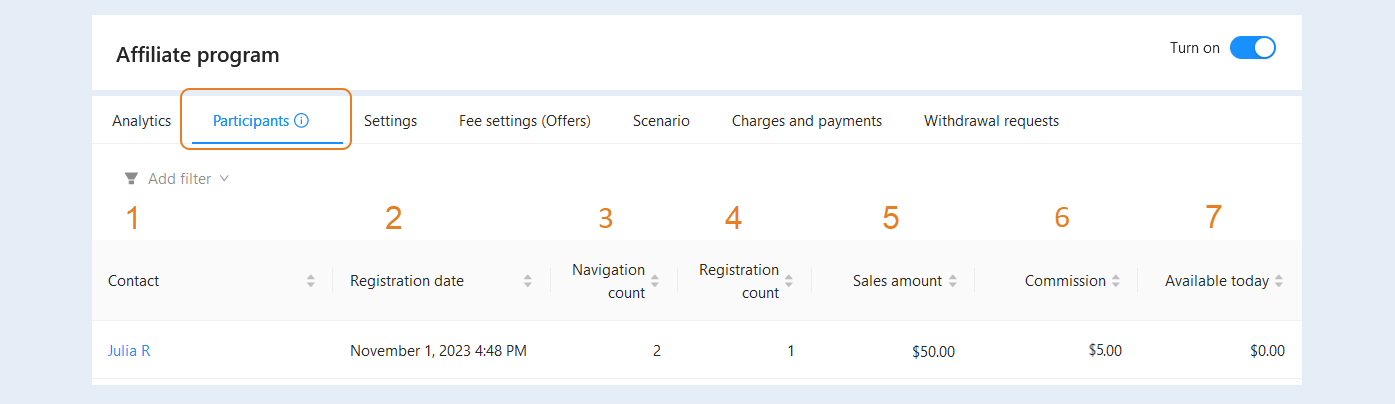
In the "Participants" tab, you can see active partners in the affiliate program. Please note that the list shows only active partners whose links were clicked or bought at least once. You see the following information:
- Contact. The partner's contact is shown. Click on the name to open the contact card.
Registration date. The exact date and time of registration via the partner link is shown.
Navigation count. The number of clicks on the partner link is shown.
Registration count. The number of registrations of new users via the affiliate link is shown.
Sales amount. The total amount of purchases of products via the affiliate link is shown.
Commission. The amount of the commission charged to the partner is shown.
Available today. The amount of commission available for withdrawal for today is shown.
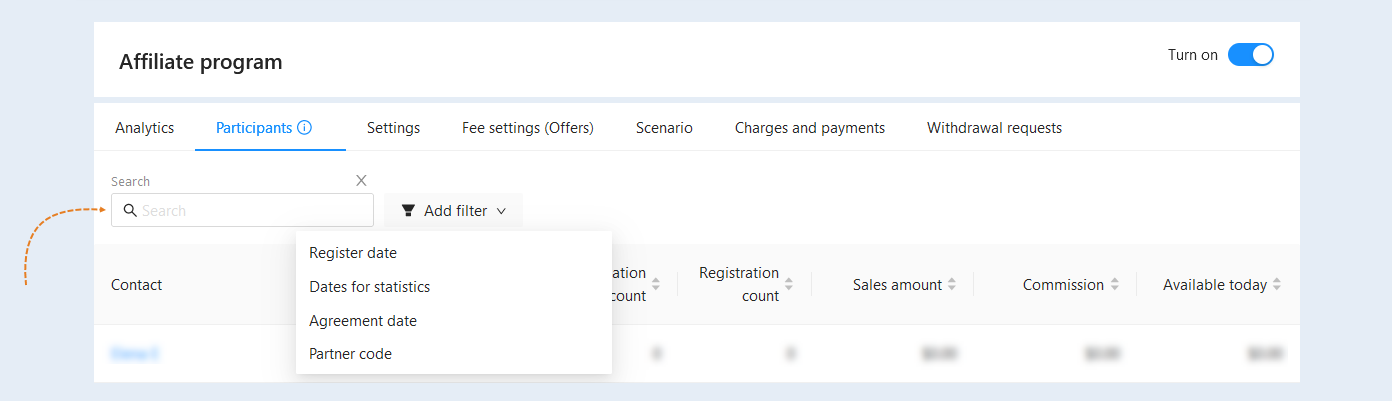
A search bar and a filter are available at the top of the section. Use them to quickly find the right partner program participant. Click the "Add Filter" button and select a filter condition from the list:
- Register date. This condition distinguishes participants by registration date.
Dates for statistics. This condition selects and sorts the participants of the partner program by the selected dates and periods for statistics.
Agreement date. This condition distinguishes the participants by the dates of the agreement.
Settings
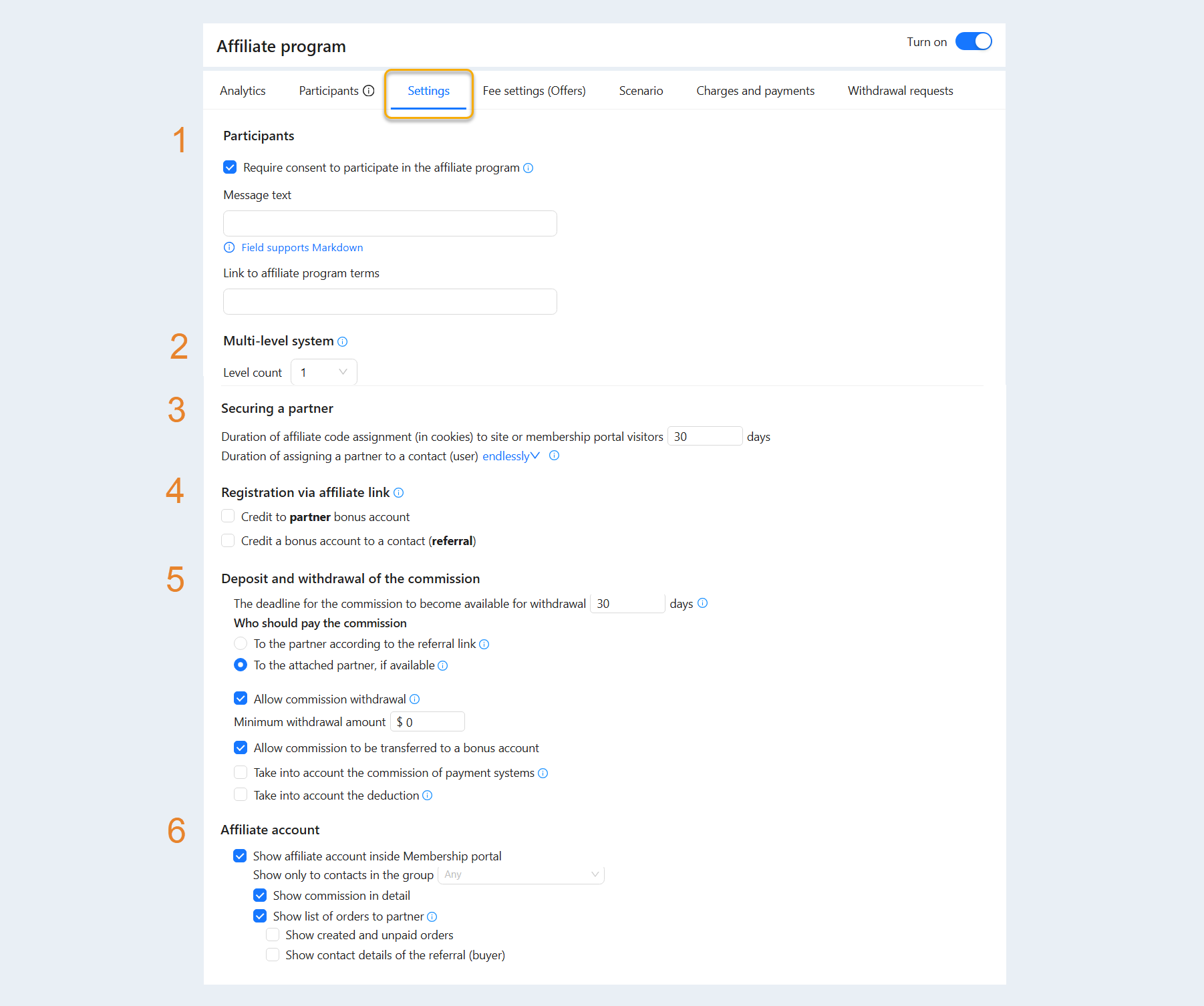
In the "Settings" tab, set the basic settings of the affiliate program:
- Participants. You can set a requirement for participants to agree to the terms of the affiliate program. The requirement for consent to participate in the affiliate program in the user's personal account is necessary to ensure legality, confidentiality, security, and informing all parties before starting to participate in the program. In some countries or industries, there may be laws or rules that require users to be informed and obtain their consent to participate in such programs. Confirmation of consent will help ensure that they fully understand their responsibilities and rights before participating.
- Require consent to participate in the affiliate program. Check the box to display a pop-up window for confirming consent in the user's personal account.
Message text. Enter the text of the message that users will see.
Link to the affiliate program terms. Insert a link to the affiliate program terms for users to review.
- Require consent to participate in the affiliate program. Check the box to display a pop-up window for confirming consent in the user's personal account.
Multi-level system. This is the definition of the number of levels at which participants in the affiliate program will operate. Each level may have its own conditions and rewards for attracting new partners or clients. You can build a network of partners. Building a network of partners using the number of levels in the affiliate program allows you to increase the effectiveness of partners and increase the volume of clients attracted. For example, a participant on the first level may receive a percentage of sales made by their invited participants on the second level, and so on. This motivation system allows you to build long-term and successful relationships with partners and increase sales income.
- Level count. Set the required number of levels in the system from 1 to 10. The commission levels are adjusted in the "Fee settings" section in each offer.
Securing a partner.
Duration of securing the affiliate code (in cookies) for guests site or membership portal. When a website or membership portal guest clicks on an affiliate link and registers, the affiliate code is stored in their device's cookies. This allows tracking which partner attracted a specific guest or user and commission accrual to the partner. The duration of attaching the affiliate code in cookies can vary. It can range from a few days to several months or even years. During this time, if the website or membership portal guest decides to register or make a purchase, the partner whose code was saved in their cookies will be recognized as responsible for attracting this client and receive a commission.
Duration of attaching the partner to a contact (user). Choose the number of days or set an infinite period. After this period, the commission will no longer be accrued. By default, it is set to infinite. In this case, the time limits on assigning a partner to a contact will not apply.
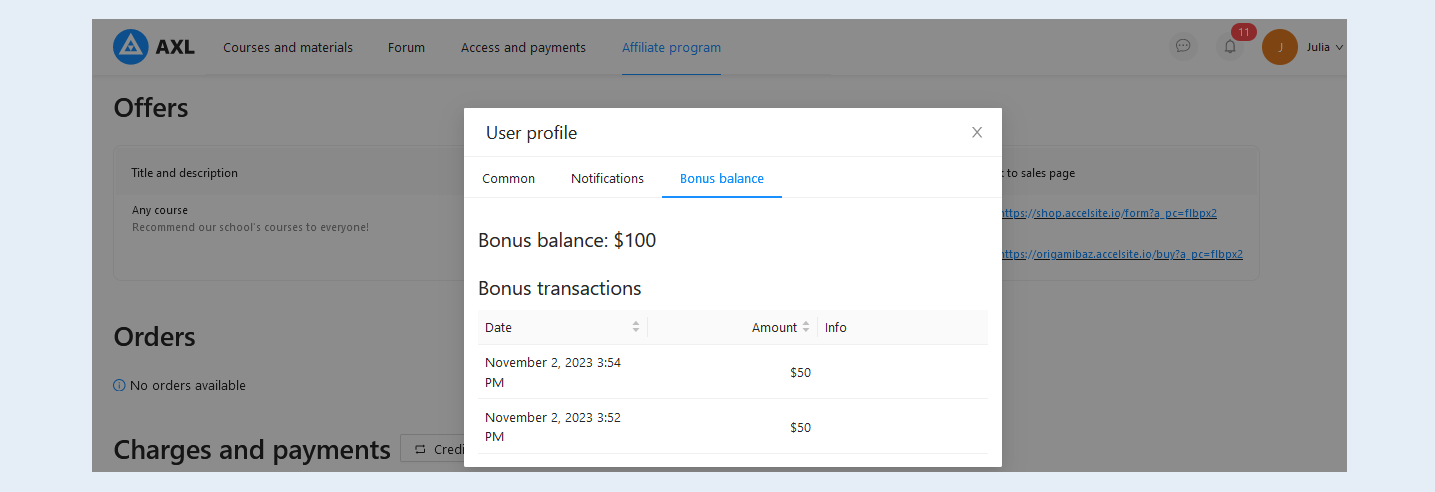
Registration via affiliate link. Commission accrual for registration to the partner's bonus account means that for every new user who registers through a unique affiliate link, the partner will receive a certain amount of bonus credits. Bonus credits will be reflected in the user's bonus account in their personal account. They can be used to purchase products or receive certain privileges or services. Bonus credits cannot be withdrawn. Funds can be credited to the bonus account via scenarios or transferred from the affiliate account. The type of bonus account in the user's personal account is described in the article below in the "Affiliate Program Section in the User's Personal Account" section.
For more information about the bonus balance, read the article "Bonus balance".
This function will work when creating (registering) a new contact (referral) through form submission on websites, registration in a chatbot, webinar, etc.Credit to partner bonus account. Check the box to accrue commission to the inviting partner's bonus account. Set the amount of commission.
Credit a bonus account to a contact (referral). Check the box to accrue commission to the new user's (referral) bonus account. Set the amount of commission.
If you check both boxes, bonus credits will be awarded for registration through an affiliate link to both the inviting partner and the new contact (referral), for example, 50 bonus dollars each. Users can use this amount in their bonus account to make purchases.
Deposit and withdrawal of the commission. Set the amount of accruals and the commission payout period for affiliate program participants.
The deadline for the commission to become available for withdrawal. Set the number of days after which new transactions will become available for withdrawal. If you set 0 days, the commission will be immediately available for withdrawal.
Who should pay the commission. Check the box in the respective row:
- To the partner according to the referral link. Commission will be accrued to the partner whose referral link the order was made and paid through.
To the attached partner, if available. If a partner was previously attached, they will receive commission. Otherwise, the commission will be accrued to the partner according to the current referral link.
Allow commission withdrawal. This function allows creating a request for withdrawal, which must be processed and approved by the account administrator.
Minimum withdrawal amount. Set the minimum commission withdrawal amount.
Allow commission to be transferred to a bonus account. You can set up an opportunity for partners to transfer a commission for fulfilling the terms of the affiliate program to a bonus account. To do this, check the box "Allow transfer of commission to the bonus account". In this case, the user can create a request to withdraw the accrued commission to the bonus account from his personal account.
Take into account the commission of payment systems. Check the box so that the commission charged by the payment system for transactions is taken into account when calculating the remuneration for partners. This allows you to take into account additional costs that may arise when making payments.
The commission will be calculated after deducting the payment system commission.
Affiliate account. Set the availability of the affiliate program in the user's personal account.
Show affiliate account inside the membership portal. Check the box for users to see analytics, offers, commissions, and payouts in the "Affiliate Program" section of the user's personal account. The type of affiliate program in the user's personal account is described in the article below in the "Affiliate Program Section in the User's Personal Account" section.
- Show only contacts in the group. Allows you to show the affiliate program only to those users who are in a certain group. To create a group, go to the "Contacts" section, select the necessary contacts. Next, click the "Mass actions" button, select the "Add groups" action. To create a group, click Manage Groups. For more information on how to create a contact group, see the article "Contacts".
Show list of orders to partner. Check the box for the partner to see all paid orders, including the name and surname of the referral (buyer).
- Show created and unpaid orders. Check the box so that the partner will also be shown unpaid customer orders.
Show contact details of the referral (buyer). Check the box so that the partner is shown additional buyer data.
In this case, the partner can see unpaid orders and contact details of the referral. The partner will be able to contact the referral and sell the product.
Fee settings (offers)
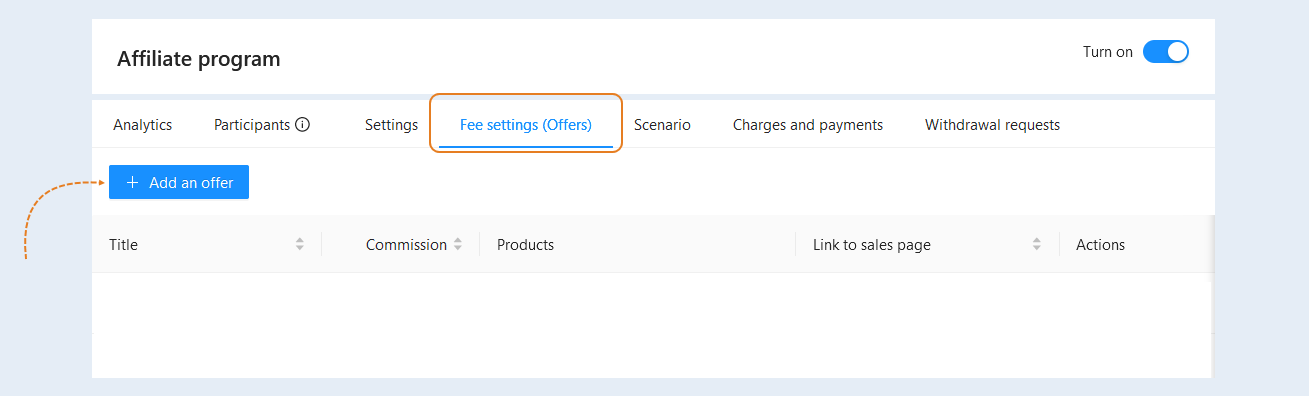
In the tab "Fee settings (offers)" you can see a list of all available offers for partners. In this section you can create and customize new offers for your partners. Click the "Add Offer" button.
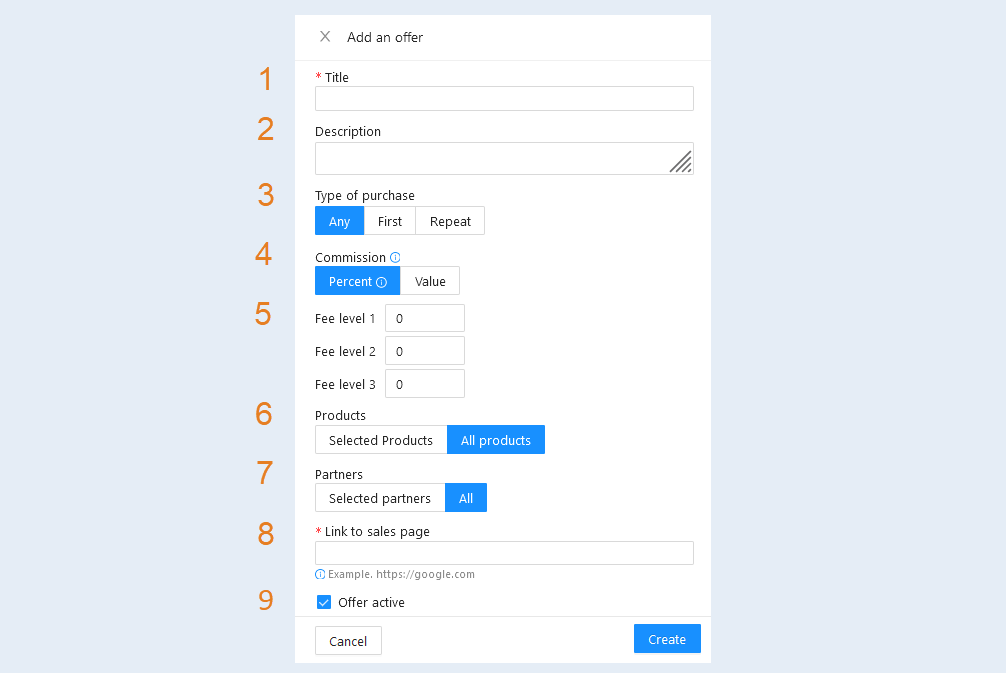
In the window that opens, fill in the fields:
- Title. Specify the name of the new offer for partners.
Description. Add a description for more detailed information about the partner offer.
Type of purchase. Choose the type of purchase: any, first or repeat.
Commission. You can add or change the number of levels in the "Settings" tab of the affiliate program. Select the type of commission for the partner: percentage or value.
A percentage is a reward in the form of a percentage of the order amount or income, depending on the settings.
The value is a reward in the form of an amount set by you. The amount will be shown in the account's currency.Levels. Set the digital commission value for each level. If you have selected a commission in the form of a percentage, then set the number of percentages of the sales amount that will be credited to the partner. If you have selected a commission in the form of a value, then set the amount that will be credited to the partner.
Products. You can add certain products to the offer. Or select "All products", in which case all the products of the account will be available for sale in this offer.
Partners. Click on "Selected Partners" and select partners from the suggested list. This offer will be available only for selected contacts.
Or click "All" to make the affiliate offer available to all users.Link to the selling page. Add a link to the selling page. Read more about how to create a selling page in the article "How to create a website".
Offer active. Check the box to make the offer active for partners. Uncheck the box to make the offer unavailable for use.
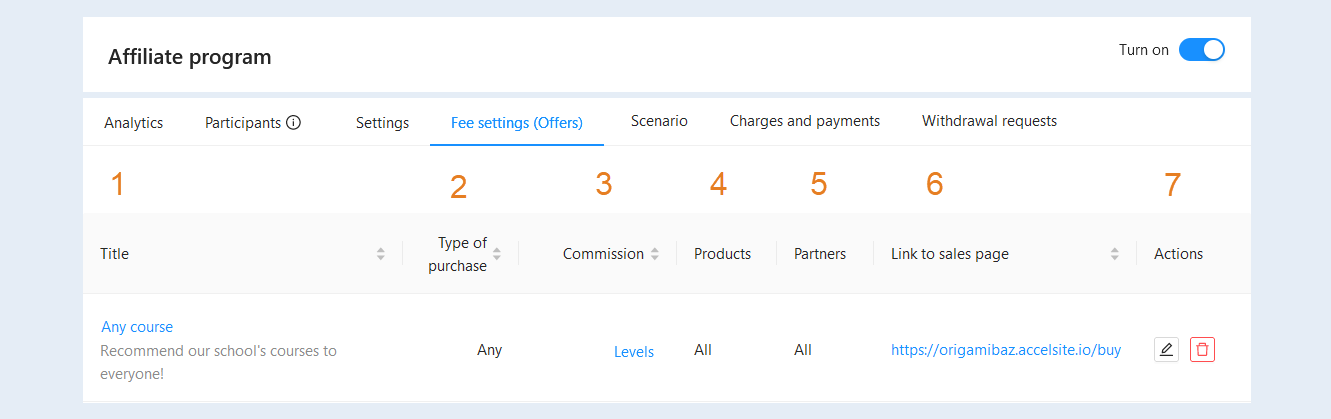
Click the “Create" button. The new offer will appear in the list. You see the following information:
- Title. Click on the name of the offer to open a window for editing.
Type of purchase. The type of purchase is shown: any, first or repeat.
Commission. Click on "Levels" to see the details. You will see the type and amount of the partner commission for each level.
Products. A list of products available for sale is shown.
Partners. The partners for whom this offer is available are shown.
Link to sales page. Click on the link to open the selling page.
Actions. Buttons are available to you here:
The “Edit" button. Click to make changes to the offer.
The “Delete" button. Click to delete the
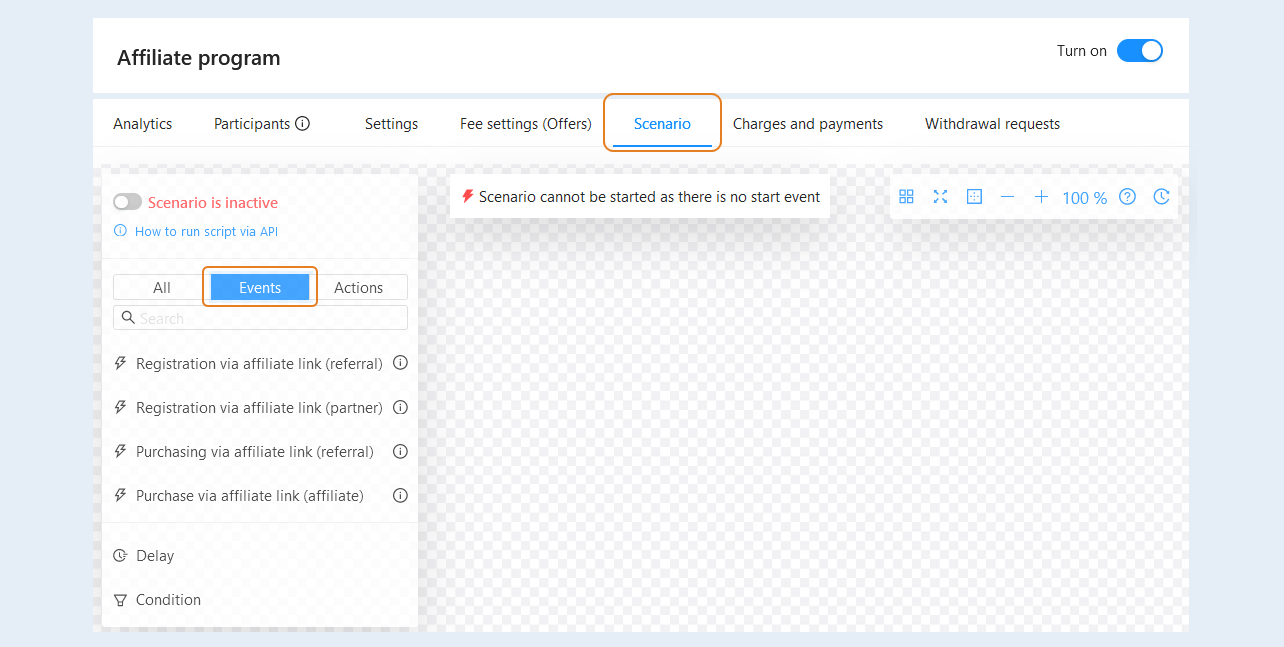
Scenario
In this section, you can automate processes and set up a sequence of events and actions for the affiliate program. For more information on how to create a script, read the article "Affiliate program scenario".
Charges and payments
In the "Charges and payments" tab, you can see the entire history of accruals and payments to partners. And you can also create new transactions. Click the "Create Transaction" button.
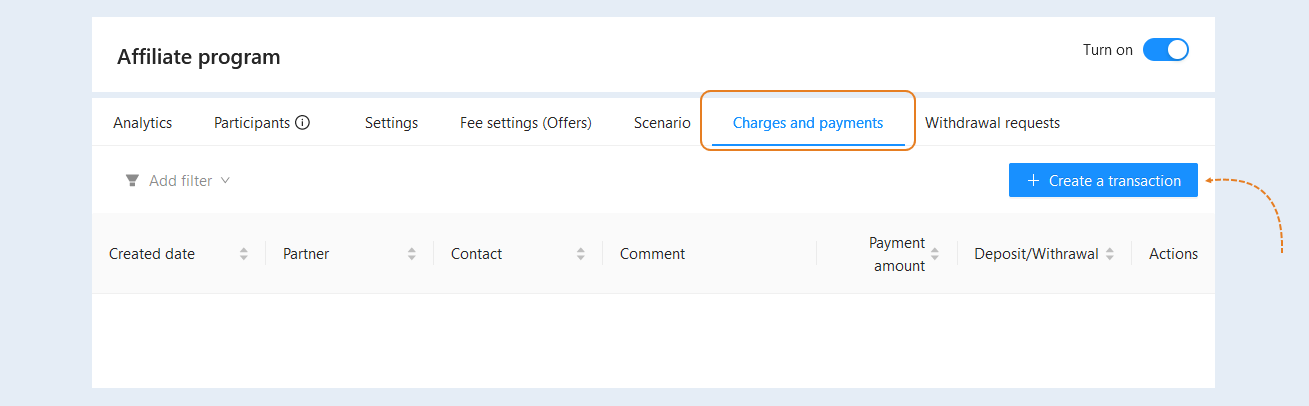
In the window that opens, fill in the fields:
- Partner. Select the partner's contact from the list.
Commission. Specify the amount of the commission to the partner.
Type. Select the commission type: replenishment or debiting.
Replenishment is a transaction for crediting a commission.
A write-off is a transaction for the write-off of a commission.Comment. Add a comment to the transaction.
Credit to bonus account. When choosing the "Debit" transaction type, you can withdraw the commission or add it to the user's bonus account. Check the box to add to the bonus account.
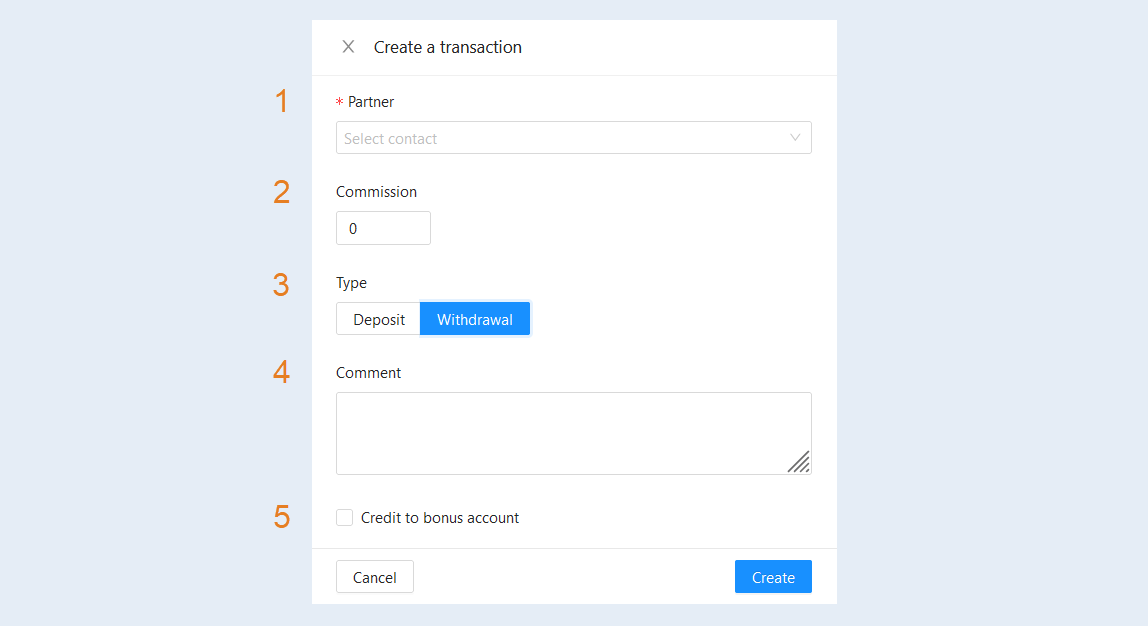
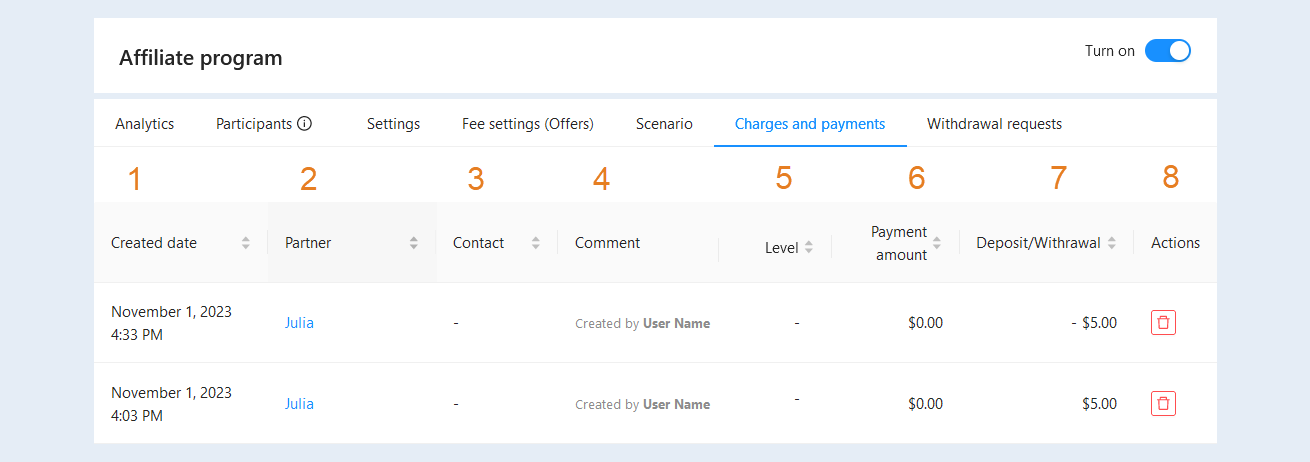
Click the “Create" button. The new transaction will appear in the list. You see the following information:
Created date. The exact date and time of the transaction creation is specified.
Partner. The partner's contact is specified. Click on the name to open the contact card.
Contact. The referral's contact is specified.
Comment. A comment on the transaction is shown and by whom the transaction was created.
Level. The user level in a multi-level system is shown. You can add or change the number of levels in the "Settings" tab of the affiliate program.
Payment amount. The amount paid by the referral when purchasing the product via the affiliate link is indicated.
Deposit/Withrawal. The amount of the commission charged to the partner is indicated.
Actions. The buttons are available to you here:
The “Delete" button. Click to delete the transaction.
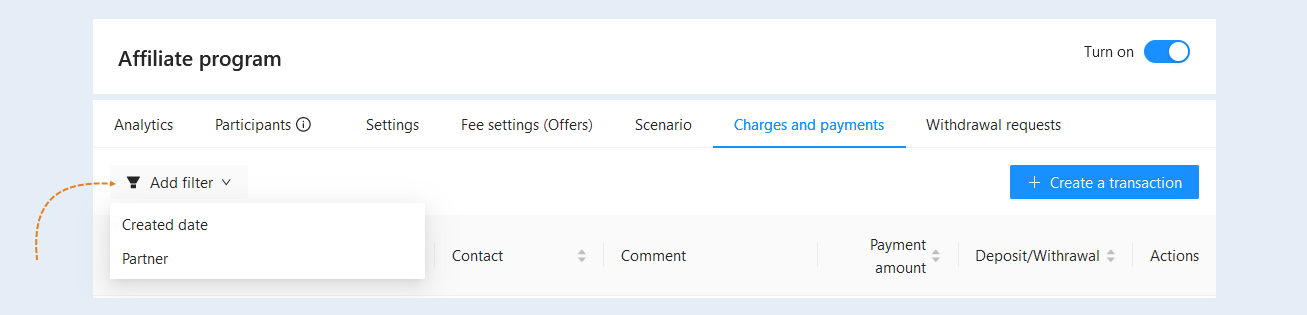
A filter is available to you at the top of the section. Click the "Add Filter" button and select a filter condition from the list:
- Created date. You can filter accruals and payments by dates or for a selected time period.
Partner. This condition highlights the accruals and payments associated with the selected partner. You can select one or more partners from the list.
Withdrawal Request
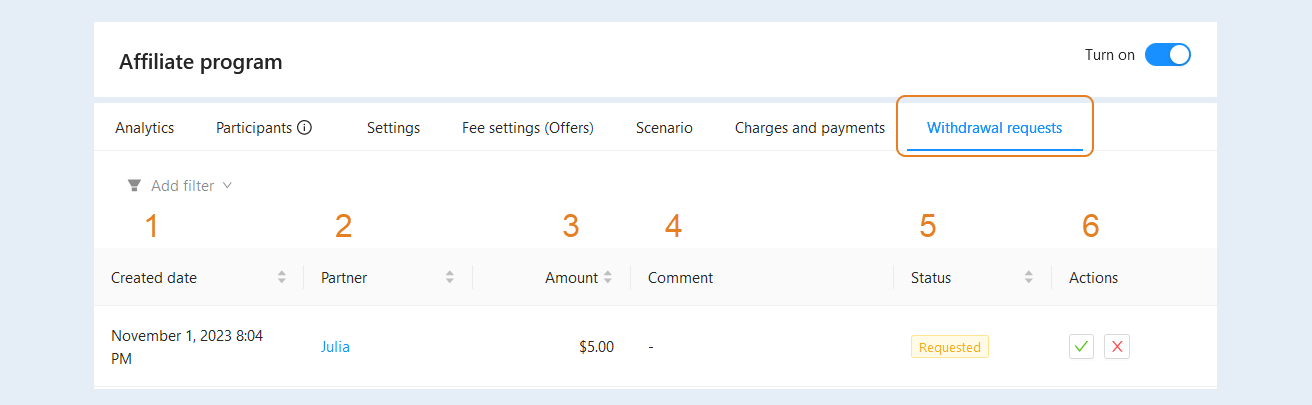
The "Withdrawal Request" tab shows all partner requests for commission withdrawal. You can manage commission withdrawal requests: confirm or reject requests.
In the list of requests you can see the following information:
Created date. The exact date and time of the output request creation is shown.
Partner. The partner's contact is specified. Click on the name to open the contact card.
Amount. The amount of commission available for withdrawal is shown.
Comment. A comment to the request is shown.
Status. The request status is shown: new, approved, rejected.
Actions. The buttons are available to you here:
The “Approve" button.
The “Decline" button.
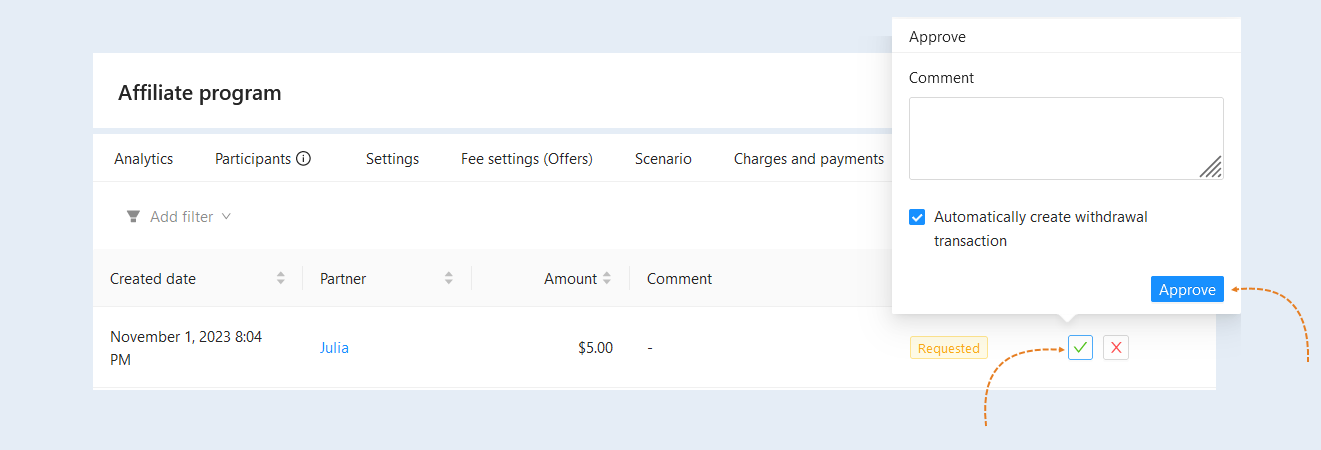
Click the "Approve" button to confirm the withdrawal request. In the window that opens, enter a comment. Check the box "Automatically create a withdrawal transaction" so that a write-off transaction is automatically created in the "Accruals and payments" section. And click the "Approve" button.
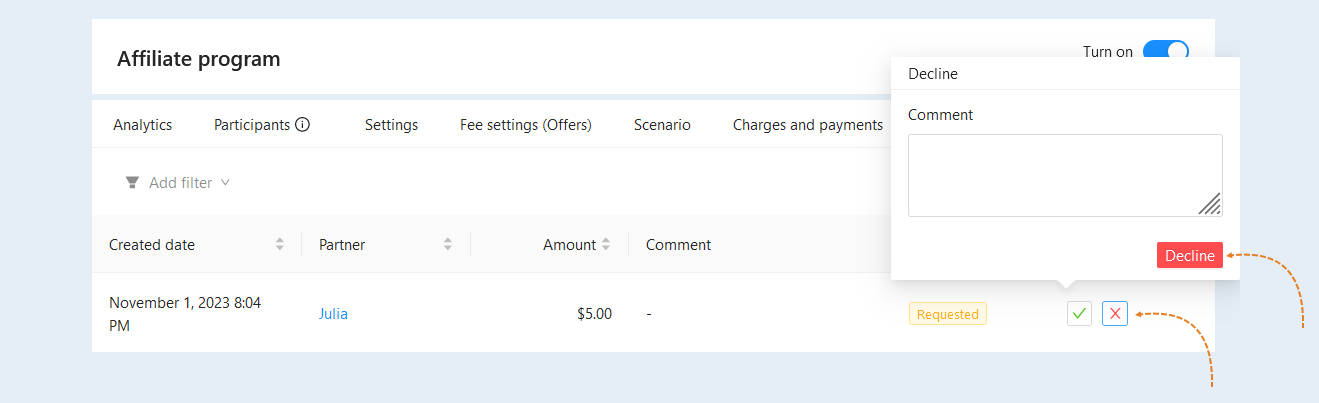
Click the "Decline" button to reject the withdrawal request. In the window that opens, specify a comment for rejecting the request and click the "Decline" button.
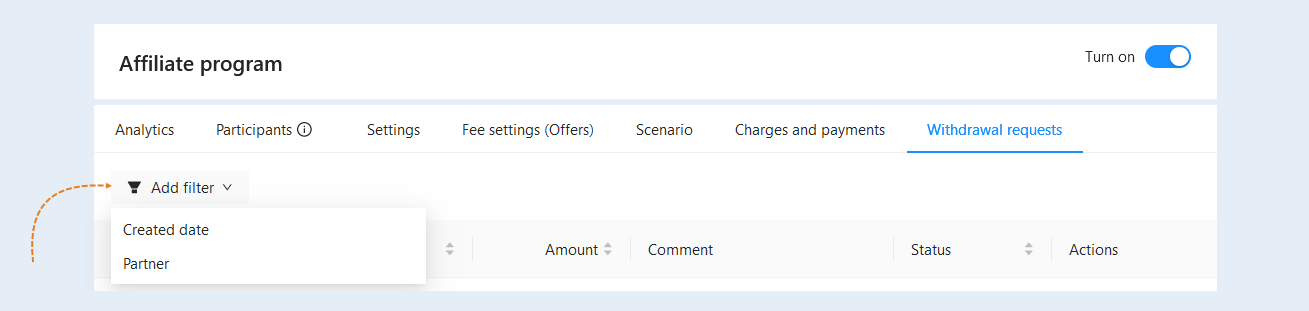
A filter is available to you at the top of the section. Click the "Add Filter" button and select a filter condition from the list:
Created date. You can filter the output requests by dates or for a selected time period.
Partner. This condition highlights withdrawal requests related to a specific partner. You can select one or more partners from the list.
The "Affiliate Program" section in the contact card
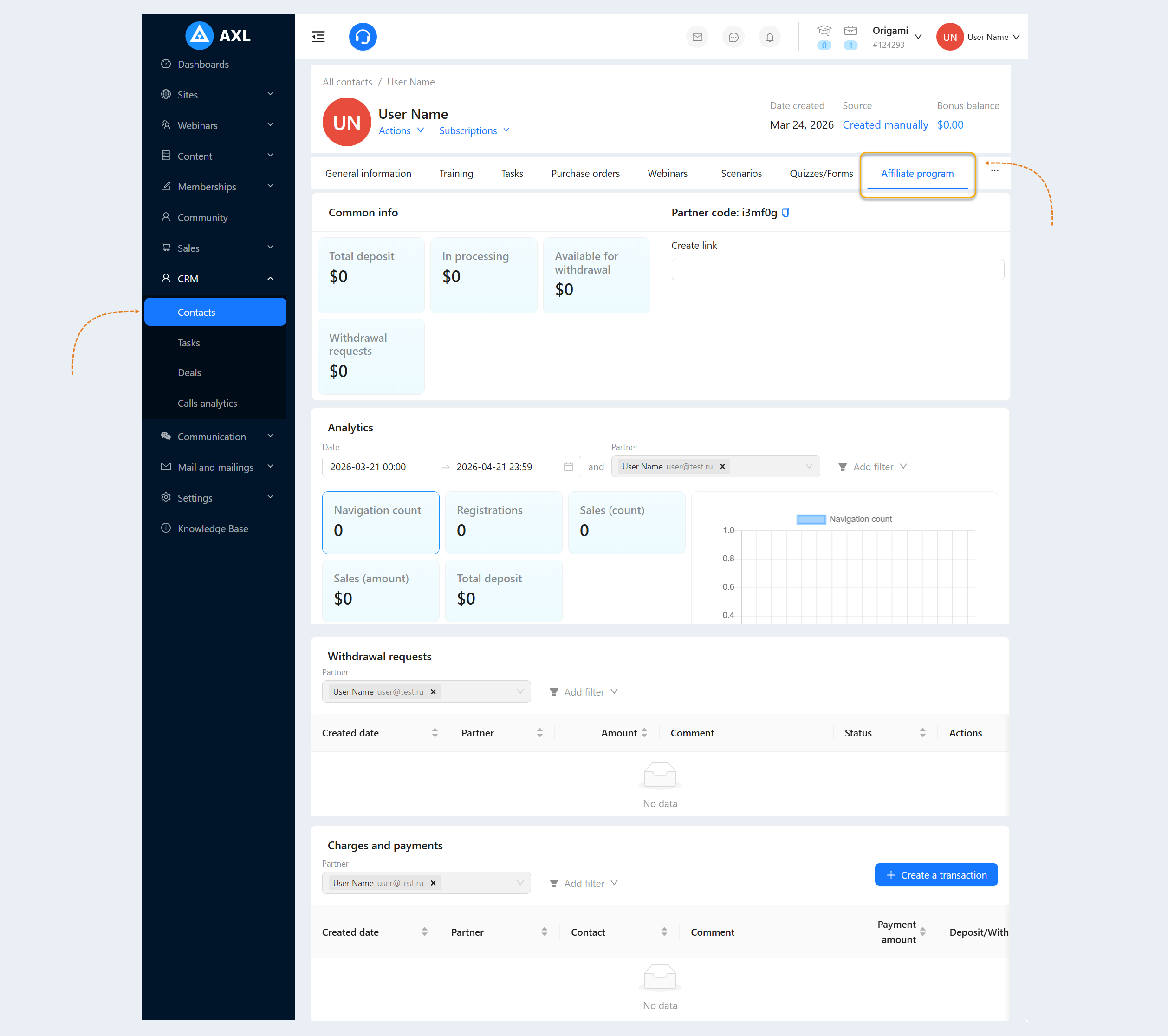
The "Affiliate Program" section is duplicated in the contact card. In this section, from the contact card, you can create unique affiliate links for the selected contact, create transactions, approve or reject commission withdrawal requests. The partner's personal analytics is also available in the partner's card.
Go to the "CRM" section, the "Contacts" tab. Click on the partner's name. The partner's profile (card) will open. Next, open the "Affiliate Program" tab. For more information about this section, read the article "Affiliate program in the contact card".
The "Affiliate Program" section in the user's personal account
Please note that the "Affiliate Program" section will be available to users in their personal account if you have checked "Show affiliate account inside the membership portal" in the settings of the affiliate program. Read more about the settings of the affiliate program in this article above.
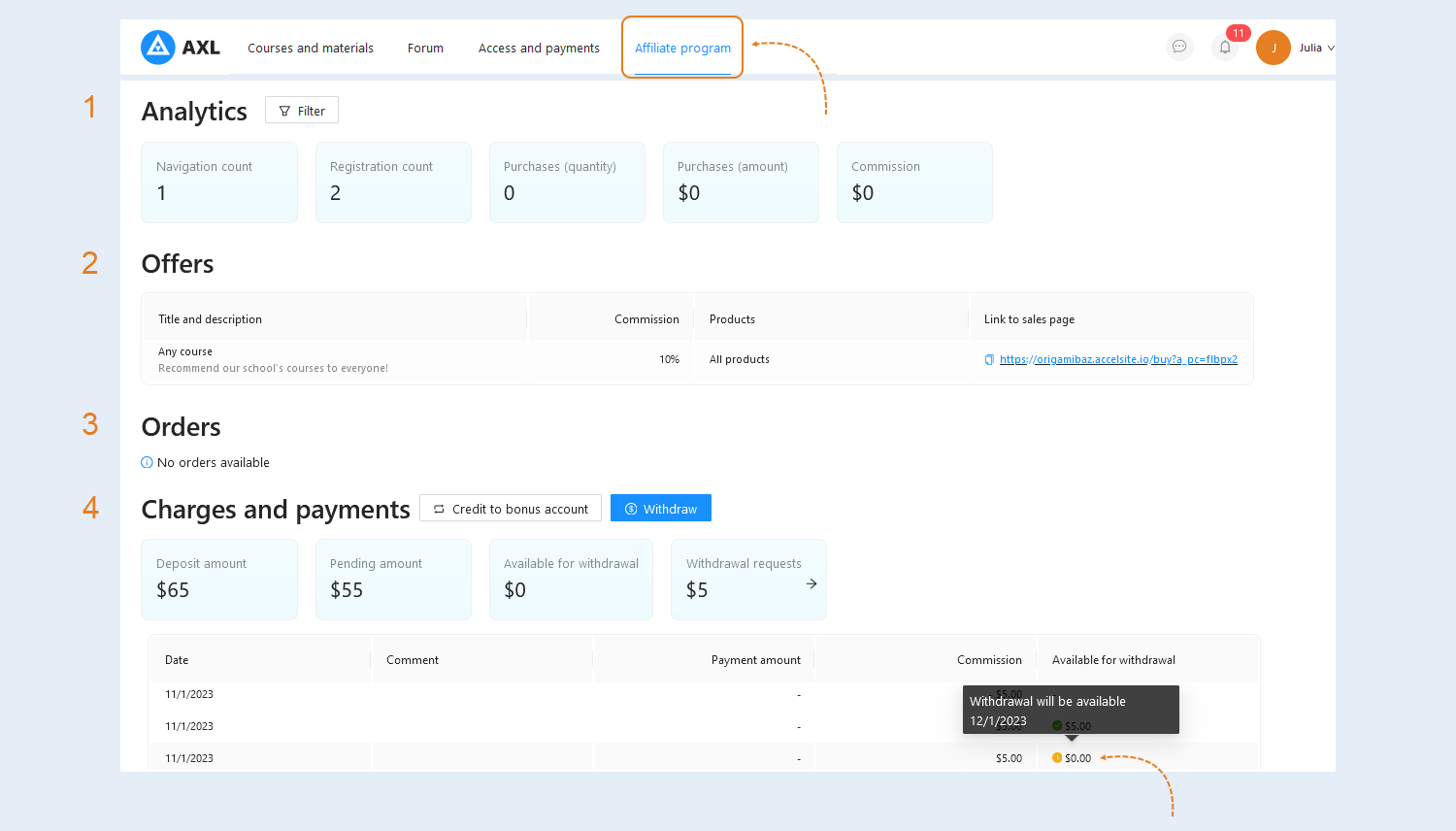
In the user's personal account, in the "Partner Program" tab, the partner sees:
- Analytics. The personal analytics of the affiliate program is shown. The user can use filters to manage analytics: select dates or time periods, track clicks on affiliate links or registrations using UTM tags.
- Navigation count. The number of referrals who clicked on affiliate links.
Registration count. The number of referrals who have been registered using affiliate links.
Purchases (quantity). The total number of sales through affiliate links.
Purchases (amount). The total amount of sales through affiliate links.
Commission. The amount of the accrued commission.
Offers. The partner is shown a list and details of active offers. In this section, the partner can copy a unique affiliate link to the selling page.
Orders. A list of orders created by referrals (buyers) via affiliate links is shown. This section will be shown to the partner if you have checked "Show the list of orders to the partner" in the settings of the partner program. You can show the partner only paid orders, and you can also show created and unpaid orders and contact details of the referral (buyer). Read more about the settings of the affiliate program in this article above.
Charges and payments. This section shows commission accruals and payments.
Deposit amount. The total amount of the accrued commission.
Pending amount. Accruals that are in processing. If you have set a deadline in the settings of the affiliate program in the "Deadline when the commission becomes available for withdrawal" item, then after this period, new transactions will become available for withdrawal. If you set 0 days, the commission will immediately become available for withdrawal.
Available for withdrawal. The amount of accruals available for withdrawal today.
Withdrawal requests. The amount of accruals awaiting confirmation by the account administrator. Click on the section to open the details of output requests. The partner can create a withdrawal request from his personal account.
List of charges. All charges are shown as a list. In the "Available for withdrawal" column, the partner will see all charges available for today or charges that are in processing. Hover over the amount and you will see the date when the withdrawal will be available
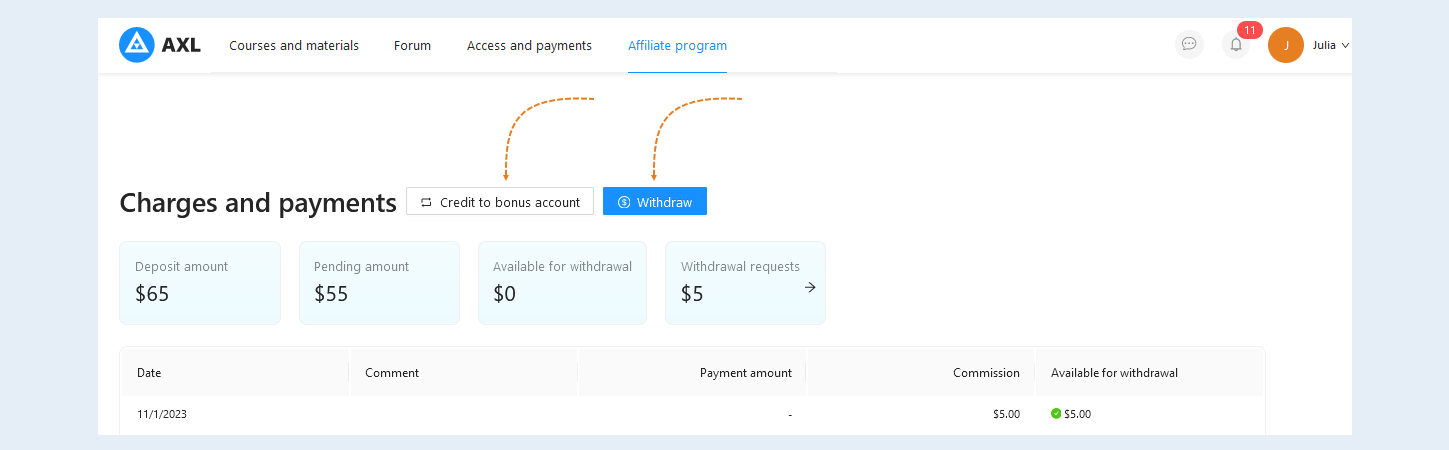
The partner can create a request to withdraw the accrued commission from his personal account. To do this, click the "Withdraw" button, enter the amount to withdraw and a comment and click the "Withdraw" button. This amount will be reflected in the "Withdrawal request" column.
The partner can withdraw the accrued commission to the bonus account. To do this, click the "Credit to bonus account" button, enter the amount to transfer and click the "Add" button.
Bonus credits will be reflected on the bonus balance in the user's personal account. They can be used to purchase products or obtain certain privileges or services. Funds from the bonus balance are automatically debited upon purchase. When buying each product, you can specify the maximum amount that can be paid with bonuses.
In the upper right corner, click on the profile, select "Bonus balance" in the pop-up list.
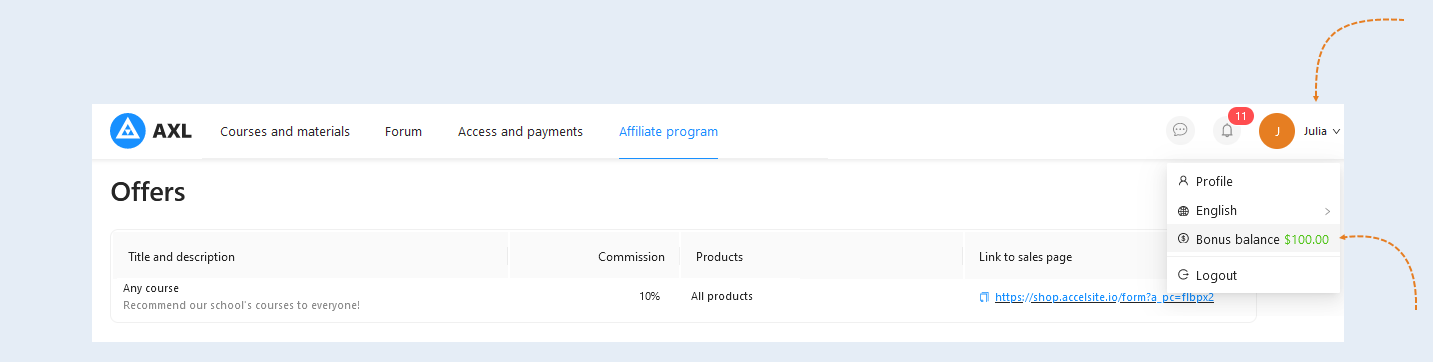
In the window that opens, the partner will see the amount on the bonus balance and a list of bonus transactions.