In this article, we will consider in detail how to combine duplicate contacts.
One user can create several contacts in the CRM database with different data and history. Similar cases may occur when users register under different email addresses or enter their email incorrectly when registering for a webinar or when filling out a form on the site. Later, when buying a course, the user can specify the correct email address. Thus, one user in the CRM database may have several contacts with different history of actions.
On the AXL platform, you can combine several contacts into one, automatically transferring all data, accesses and the history of contact actions.
Click on the desired section of the article to go to its description:
How to merge contacts
If contacts are duplicated, you can select two or more contacts and combine them into one. When merging contacts, all related objects will be merged into one.
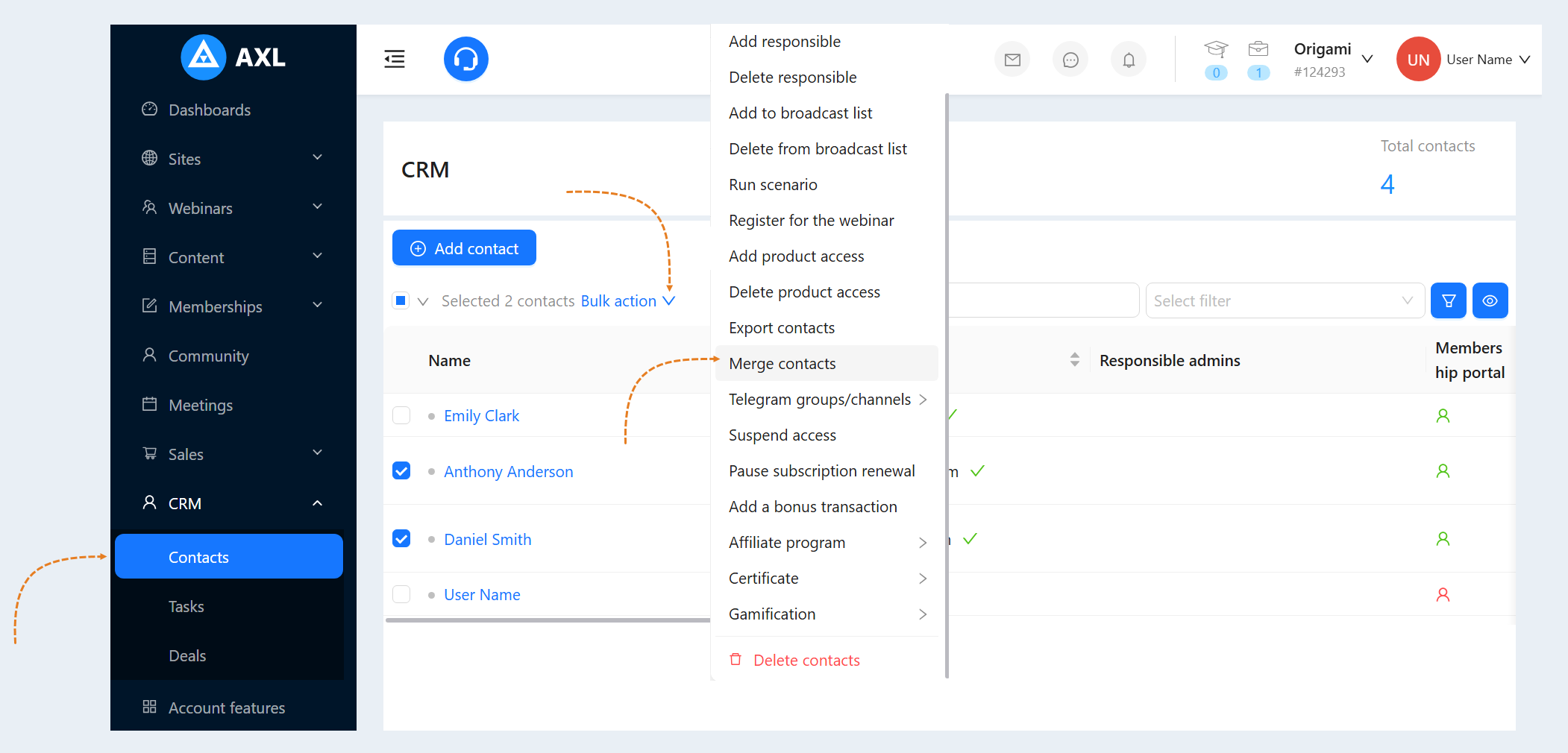
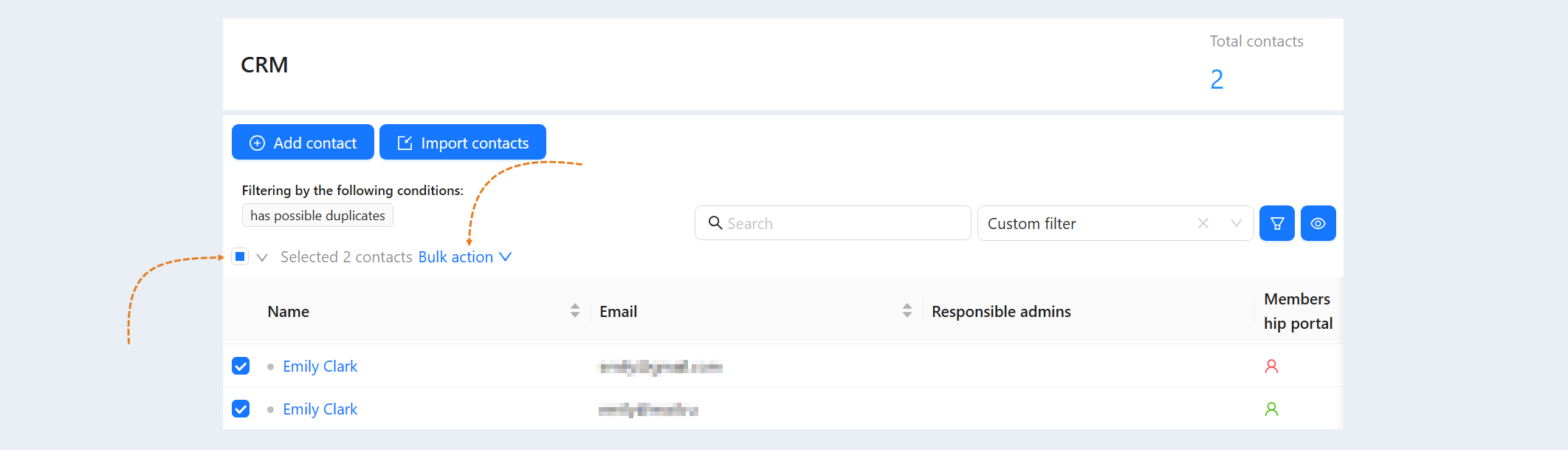
To do this, go to the "CRM" section, the "Contacts" tab. Select the contacts you want to merge from the list. Click the "Bulk Actions" button and select the "Merge Contacts" action.
To search for duplicate contacts, you can use the "Has possible duplicates" filter. This condition allows you to select all contacts that have possible duplicates in the CRM contact database. Thanks to this filter, you can regularly put the contact database in order.
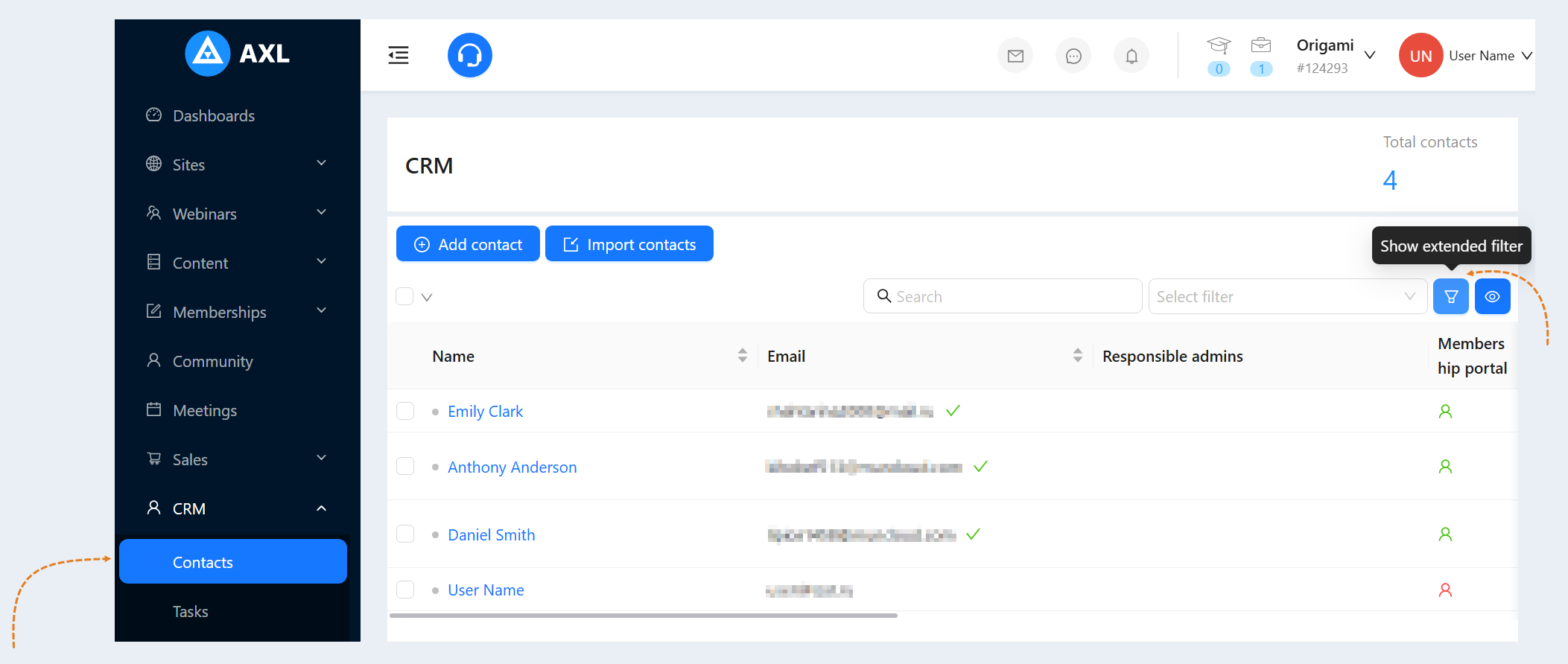
In the "CRM" section, the "Contacts" tab, click the "Show extended filter" button. The button is located in the upper right corner of the contact list.
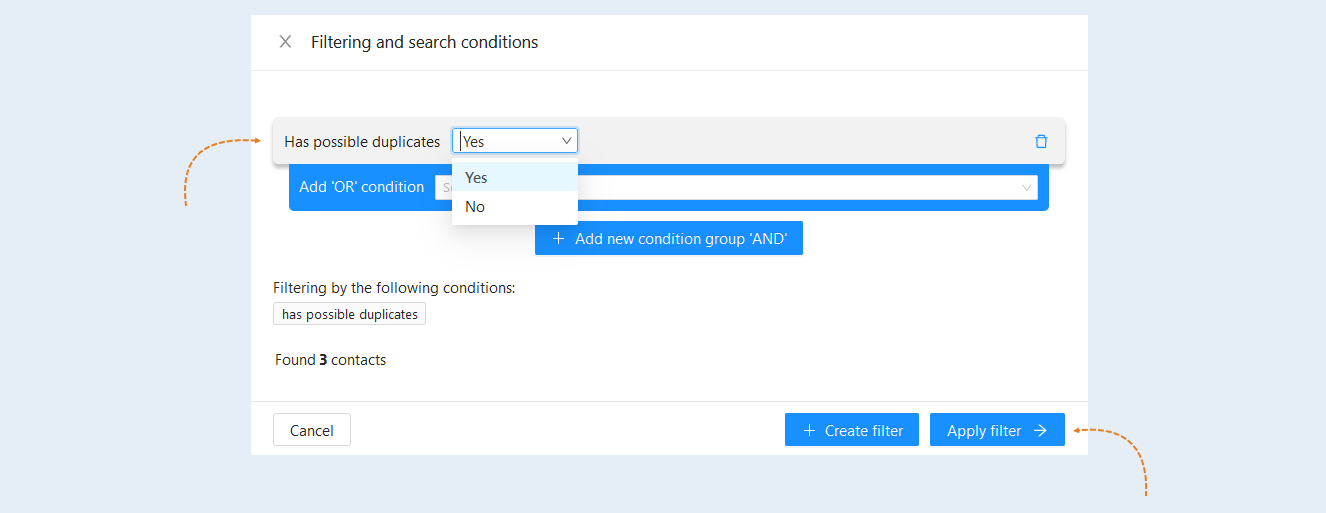
An additional window "Filtering and search conditions" will open for you. Select "Has possible duplicates" from the list and click "Apply Filter".
You will see a list of similar contacts found. Select the desired contacts by ticking the boxes opposite. Click the "Bulk Action" button and select the "Merge Contacts" action.
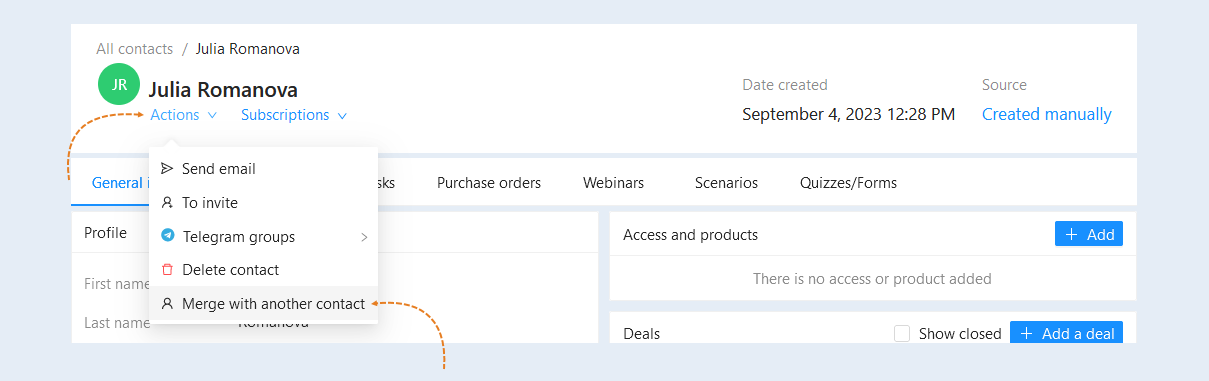
You can also run the function of combining contacts from the CRM contact card. Click on the user's name to open his card. In the contact card, click "Actions" and select "Merge with another contact".
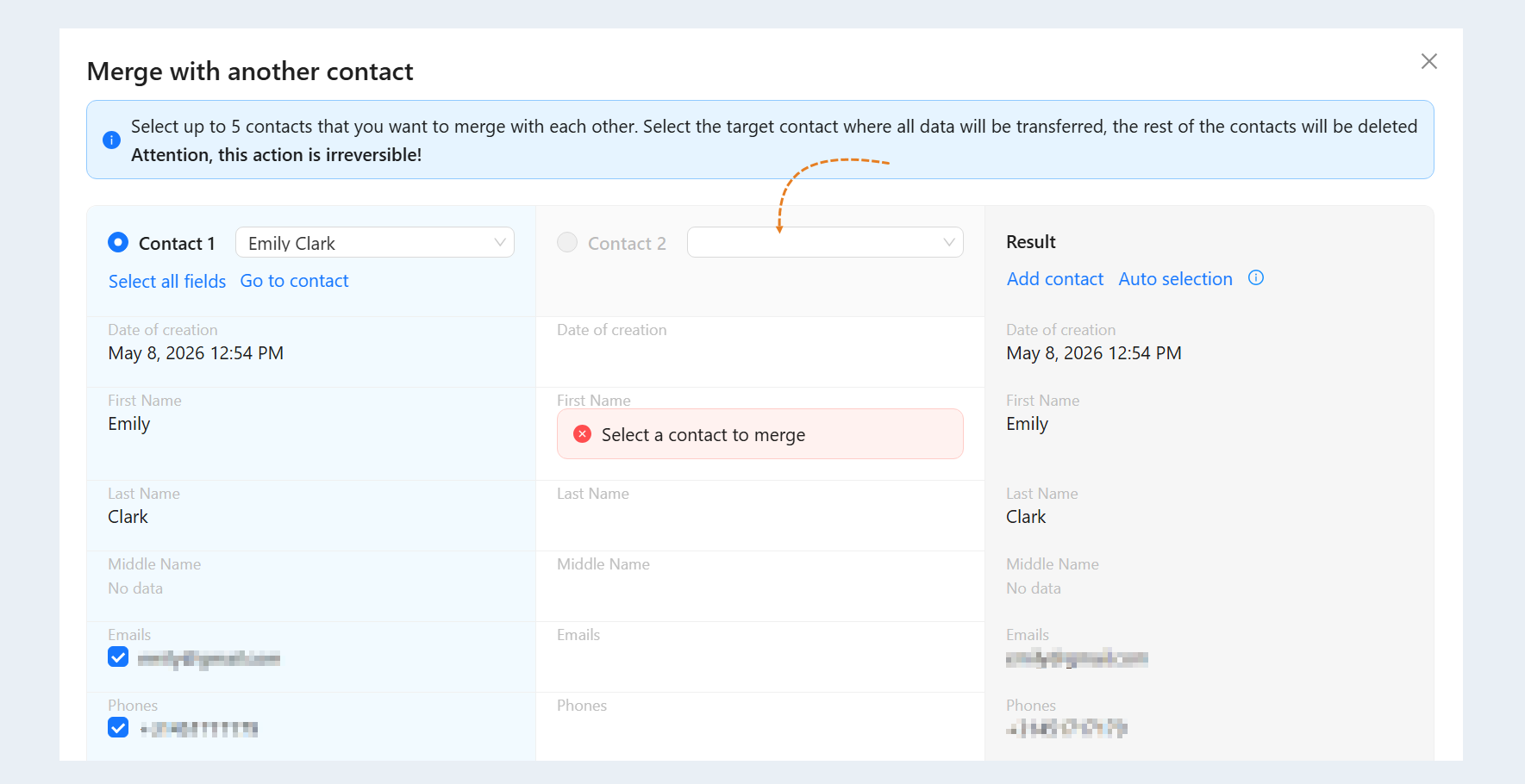
Adding Contacts
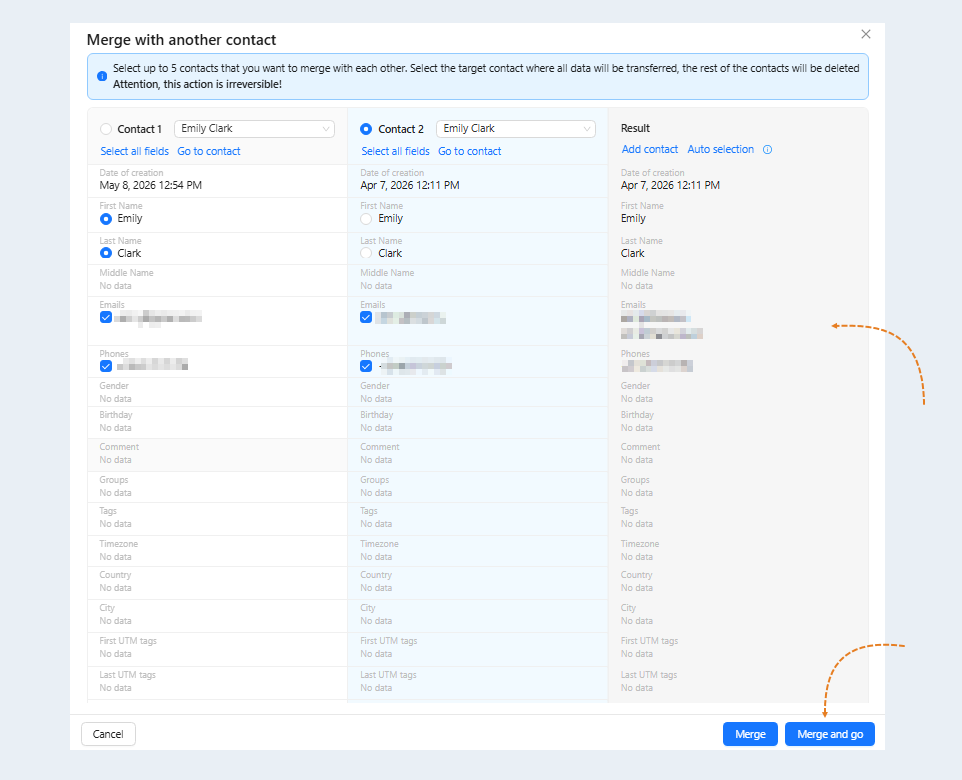
In the window that opens, in the "Contact 2" field, select the one you want to combine from the suggested contact list.
To add another contact to merge, click "Add Contact". You can select up to 5 contacts that you want to combine with each other.
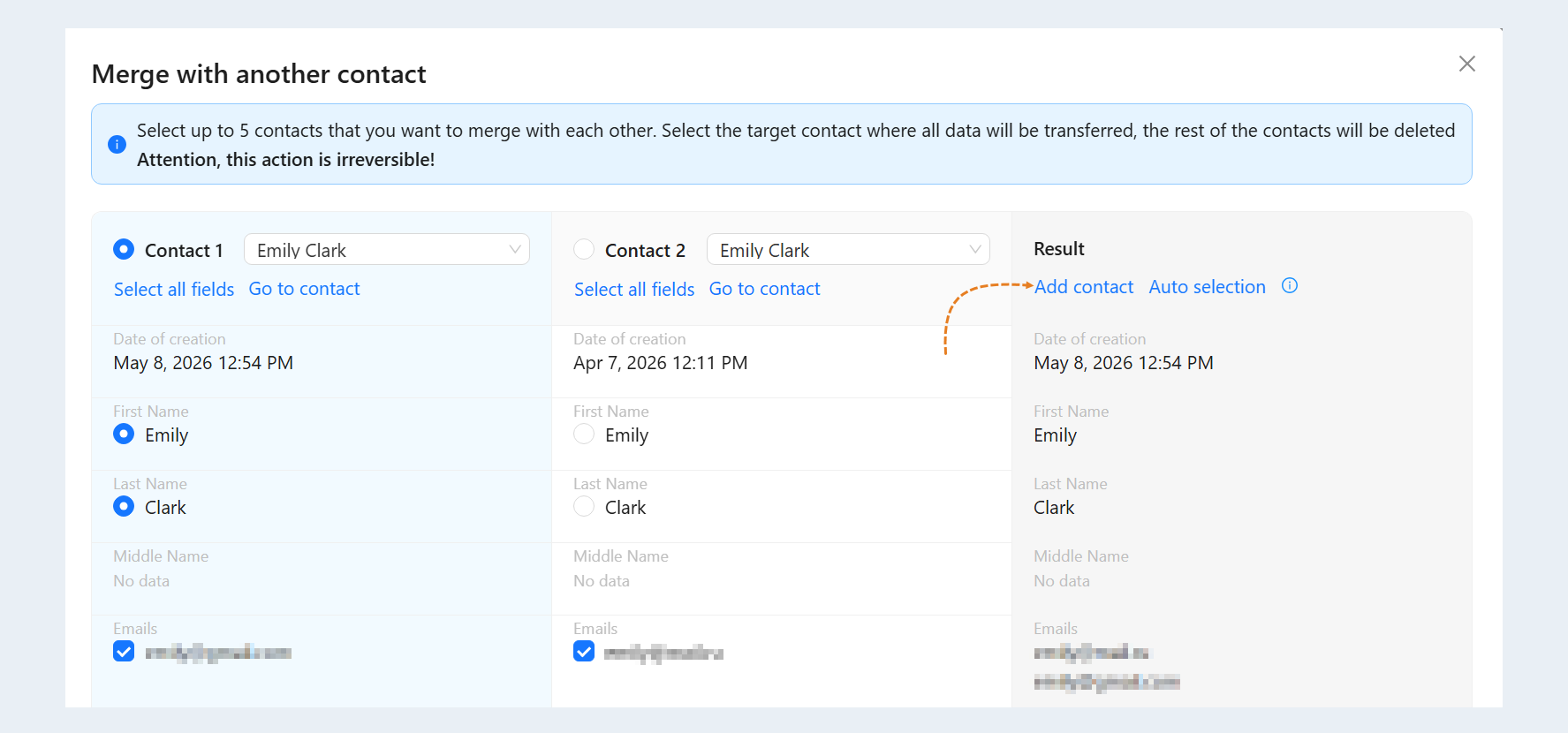
If the selected contact is not suitable for merging, you can delete it from the list by clicking the "Delete" button to the right of the contact.
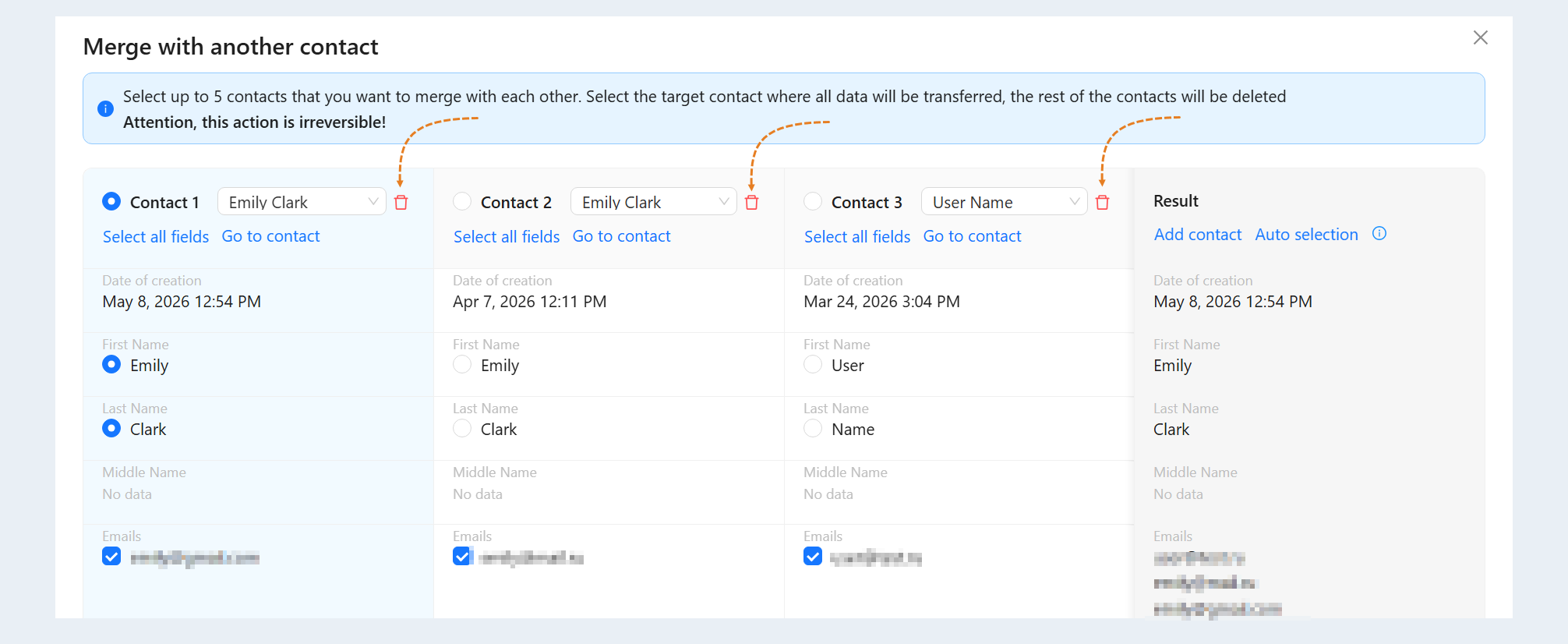
To open the contact data or make changes, click the "Go to contact" button. A CRM contact card will open in a separate window.
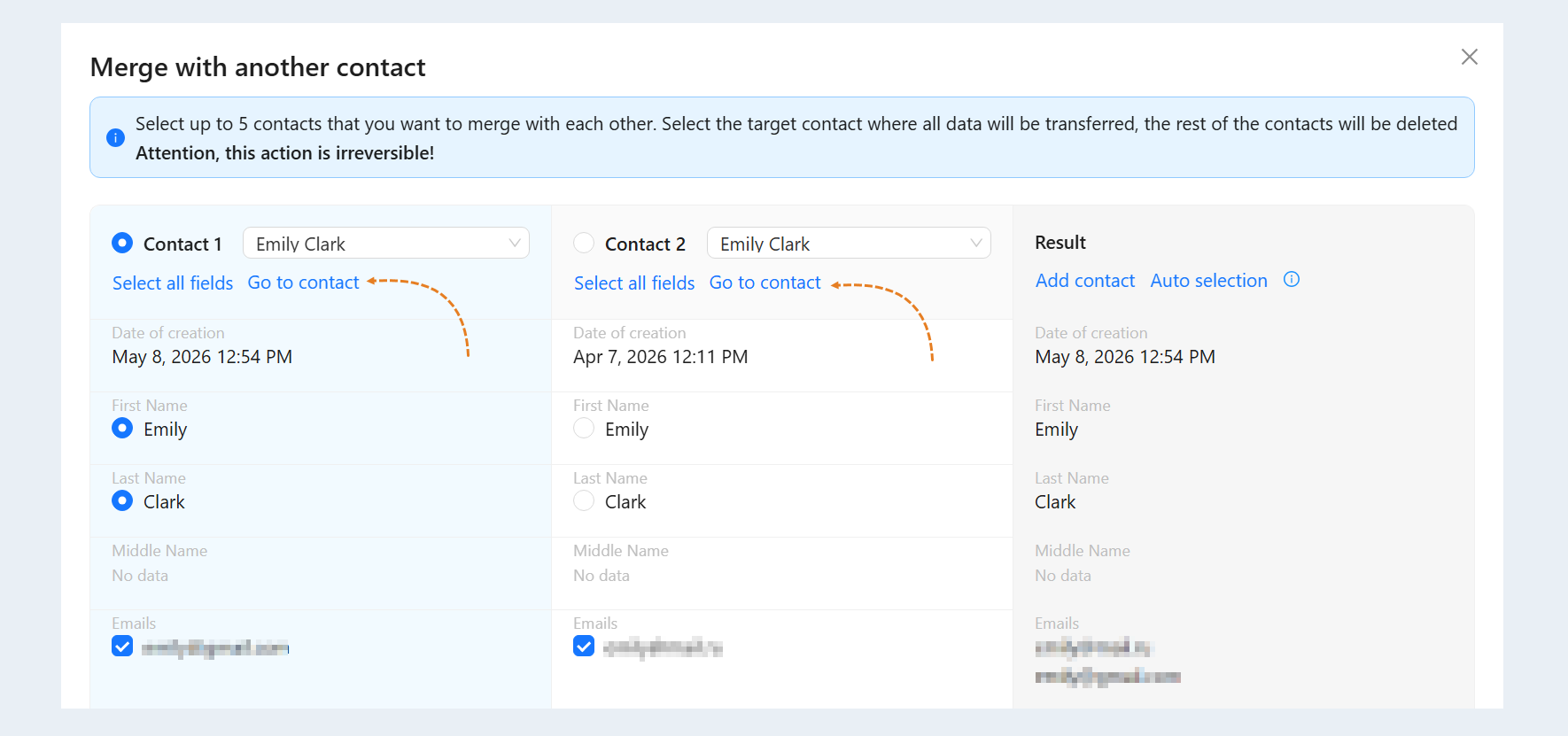
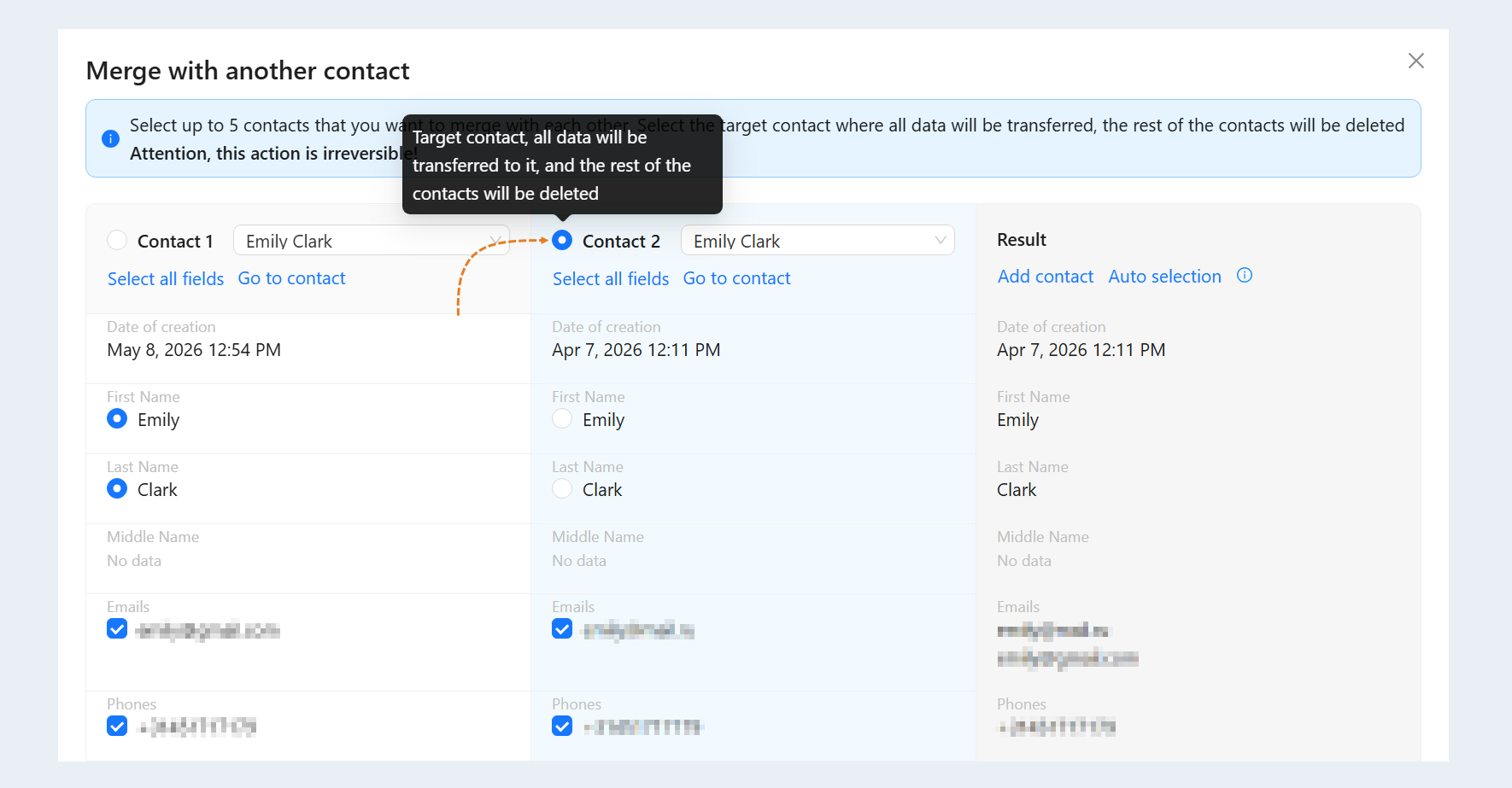
Selecting a target contact
Next, select the target contact by checking the box next to the desired contact. The target contact is the contact to which all data from the selected contacts will be transferred, the remaining contacts will be automatically deleted.
Not only all information from other contacts (full name, phone, email, date of birth, etc.) will be transferred to the target contact, but also the history of the contact's actions (contact purchases, courses, payments, chatbots, etc.).
Selecting fields to combine
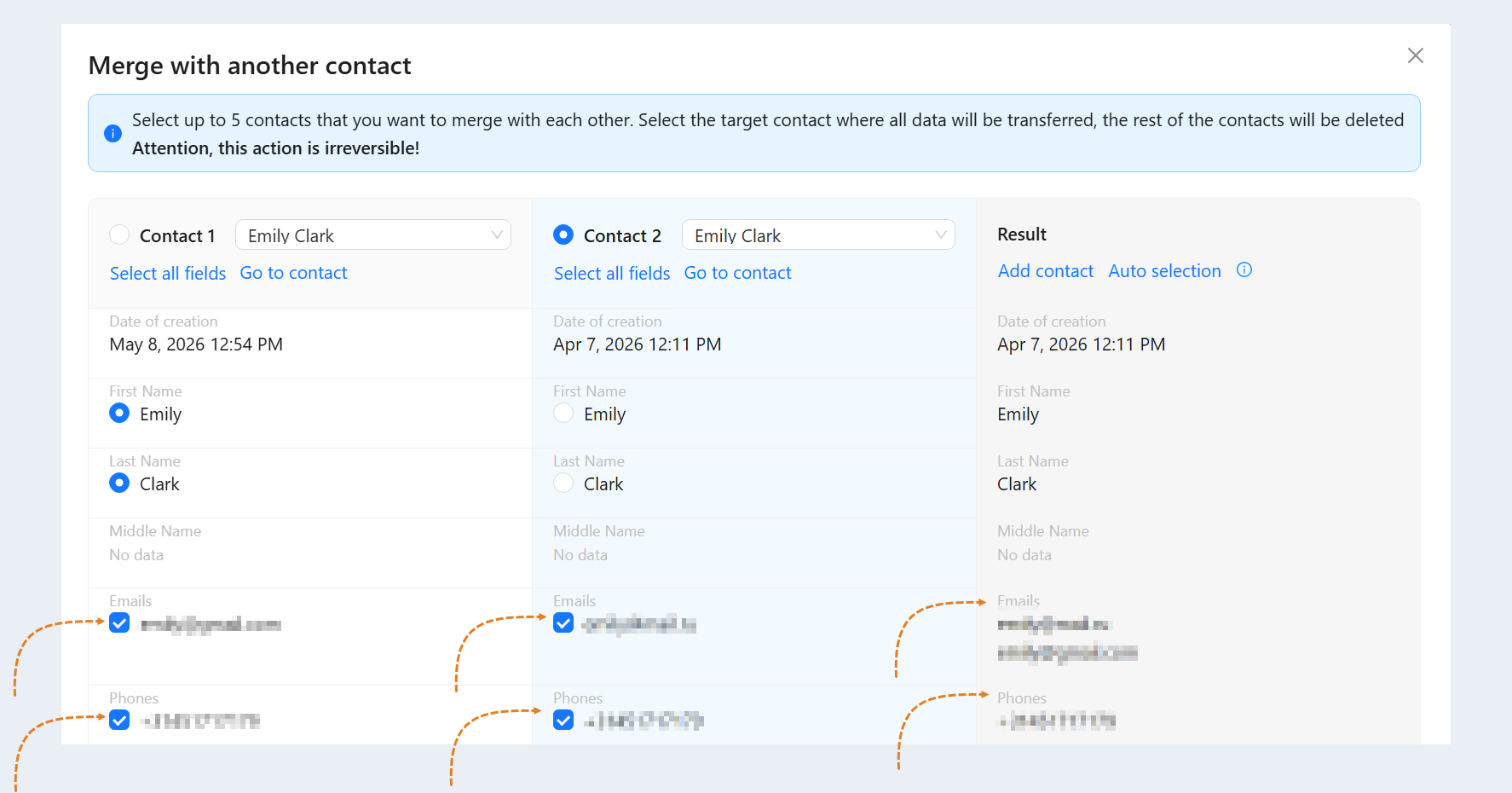
Next, select the contact fields that you want to combine or click "Select all fields". If you do not want to take into account the field for combining, uncheck it. The information in this field will not be taken into account.
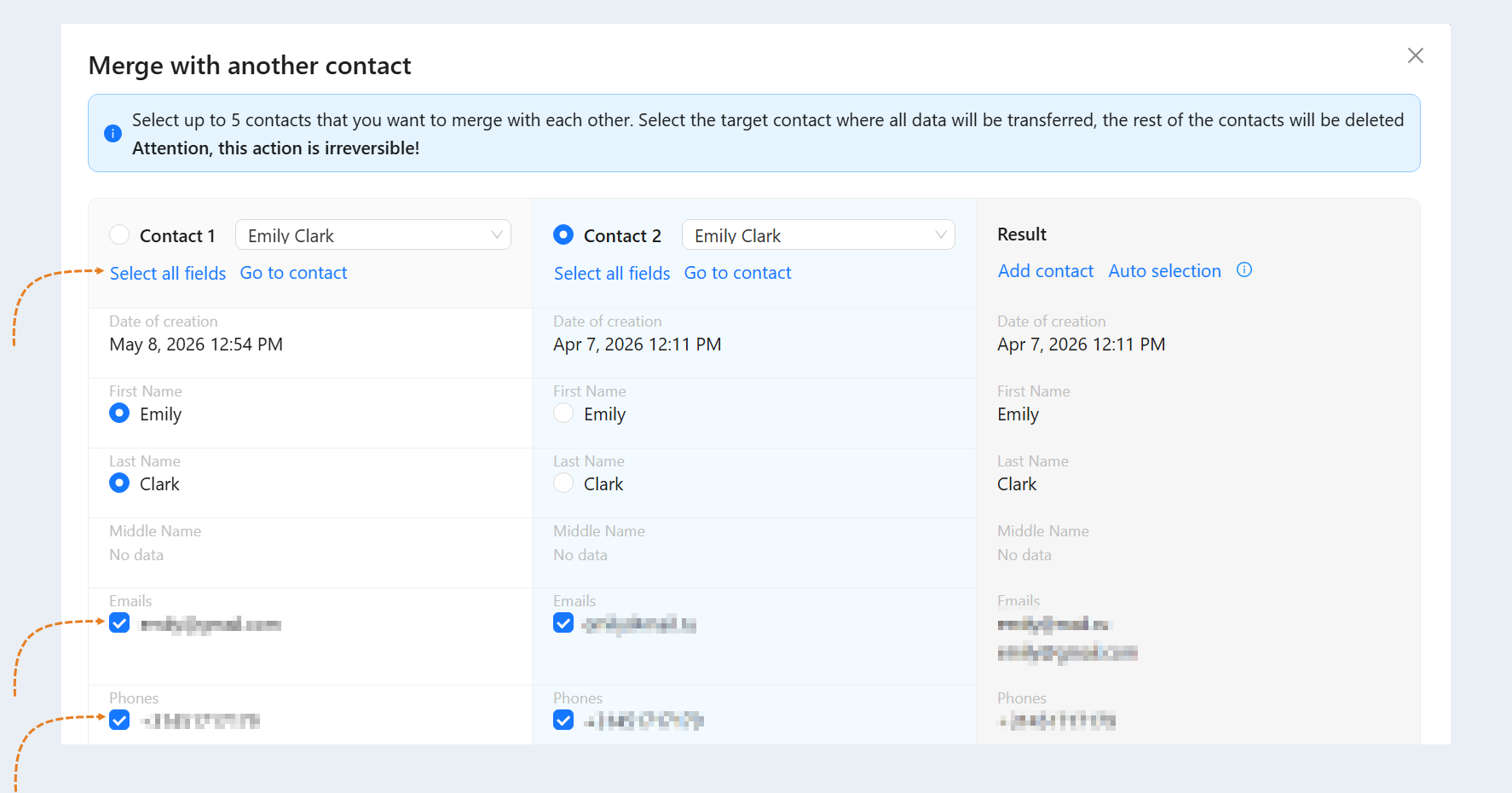
Check the box next to the data you want to transfer. You can add several email addresses and several phone numbers to the final contact card. One of them will be chosen as the main one. Newsletters and notifications will be sent to the main email address. The main phone will be considered the main one.
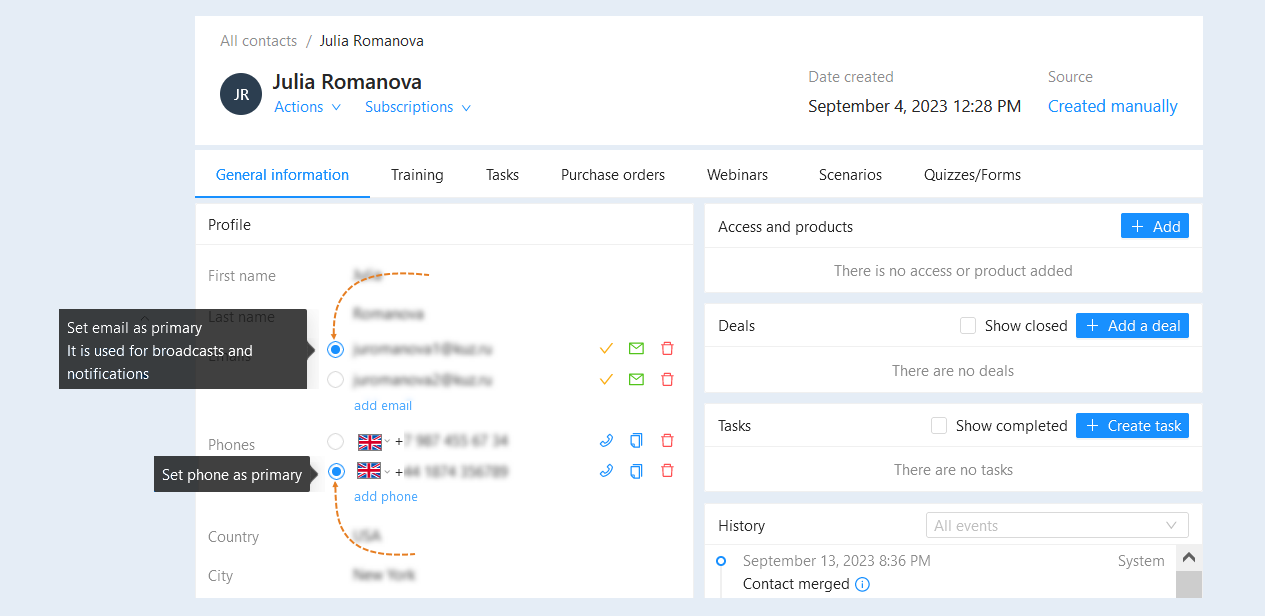
In the final contact card, you can change the main email and the main phone number by checking the box next to the desired one.
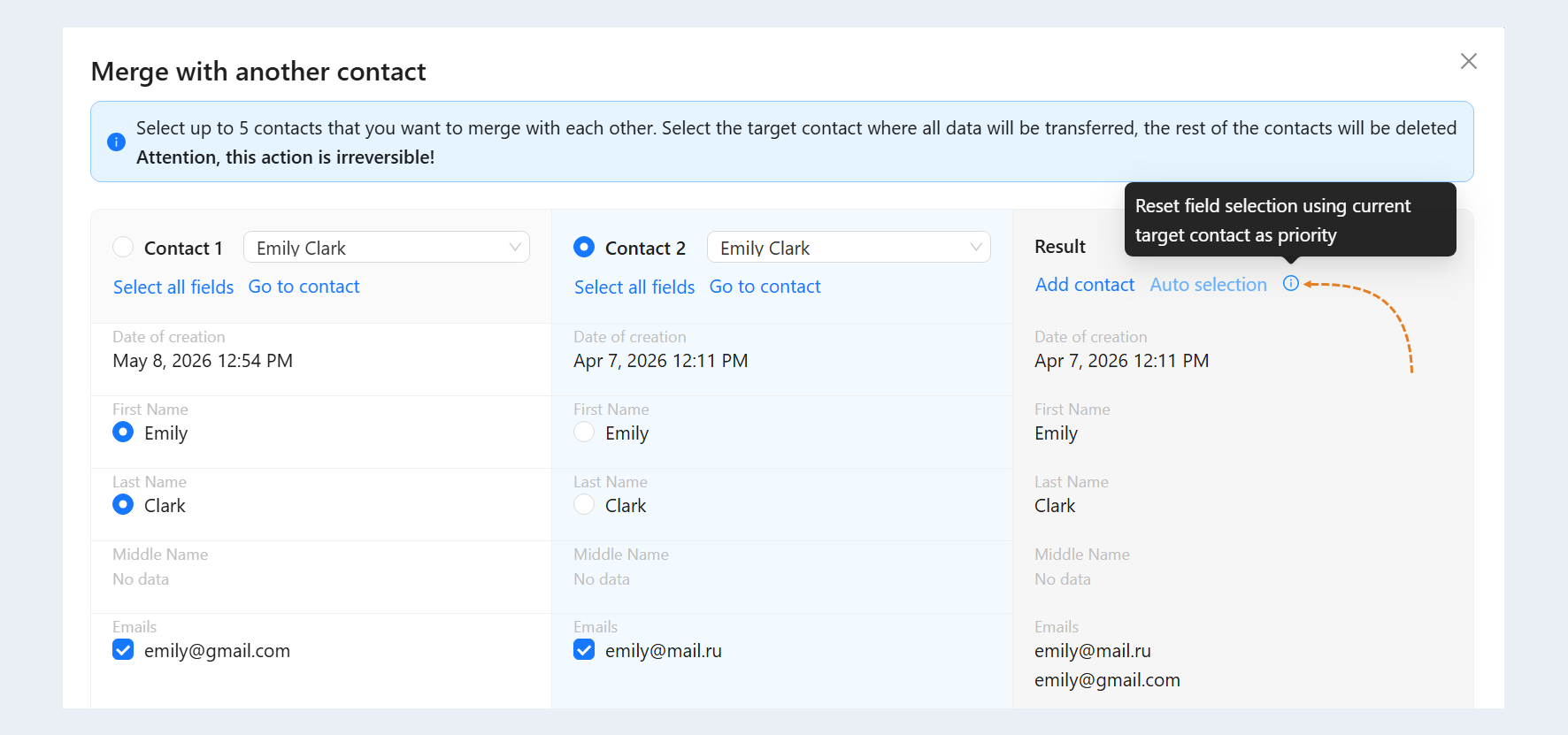
You can also use "Automatic Selection". It allows you to reset the selection of fields using the current target contact as a priority.
Result
The "Result" column will show the final view of the contact after the merge. Check the correctness of the data in the final column. After completing the settings, click the "Merge and Go" button.
Please note, this action is irreversible!
Note: after merging contacts, contact information (full name, phone number, email, etc.) will be instantly transferred. And also the process of transferring the contact history (courses, payments, chatbots, conversions, site visits, etc.) will start in the background. This process may continue for some time.