A domain is a unique name used to identify websites on the Internet. It serves as the address that users can use to find and visit sites. A domain consists of two parts: the name (for example, "example") and the domain zone (for example, ".com", ".ru", ".org"). Together, they form the full address, such as "example.com".
A domain helps establish a brand, stand out among competitors, and create a unique online identifier. A quality domain name makes your business more memorable and instills trust. Having your own domain also adds professionalism to your website or business compared to using free platforms.
You can link your existing domain to the AXL platform to conduct sales in your account.
Click on the desired section of the article to go to its description:
How to create a Domain for a website
To purchase your own domain, choose a suitable domain registrar. Check the availability of the domain using the search function on the domain registrar's website and select the appropriate pricing plan.
After successful registration, copy the domain name. You will need this information in the next step.
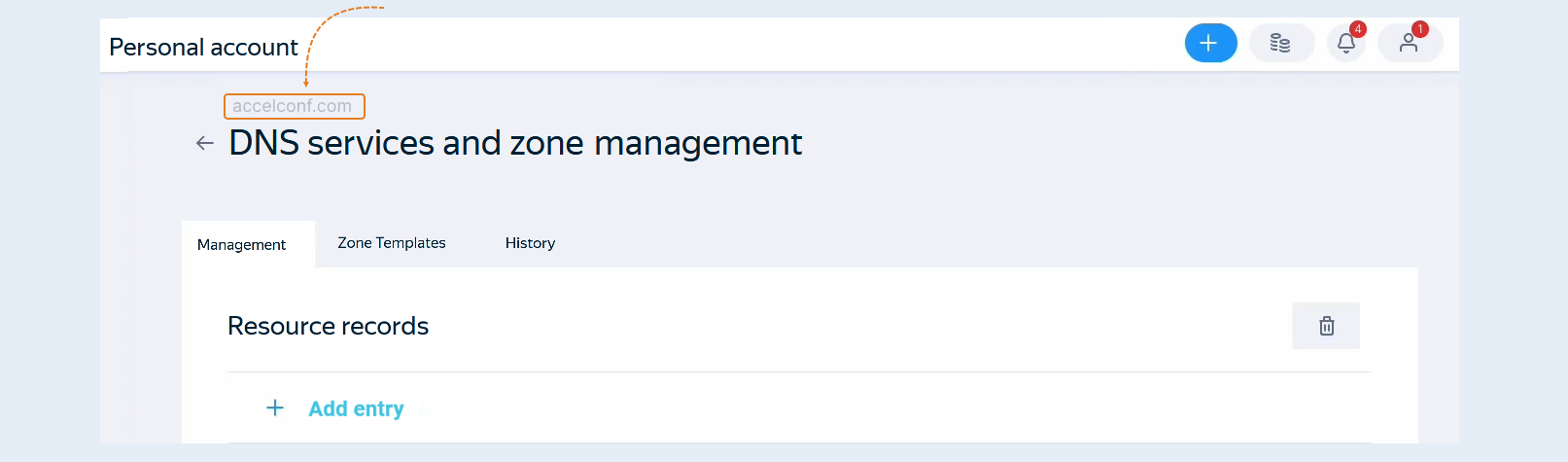
Open the AXL platform. Go to the "Settings" section, then the "Domains" tab. Here you can create two types of domains: for email and for websites.
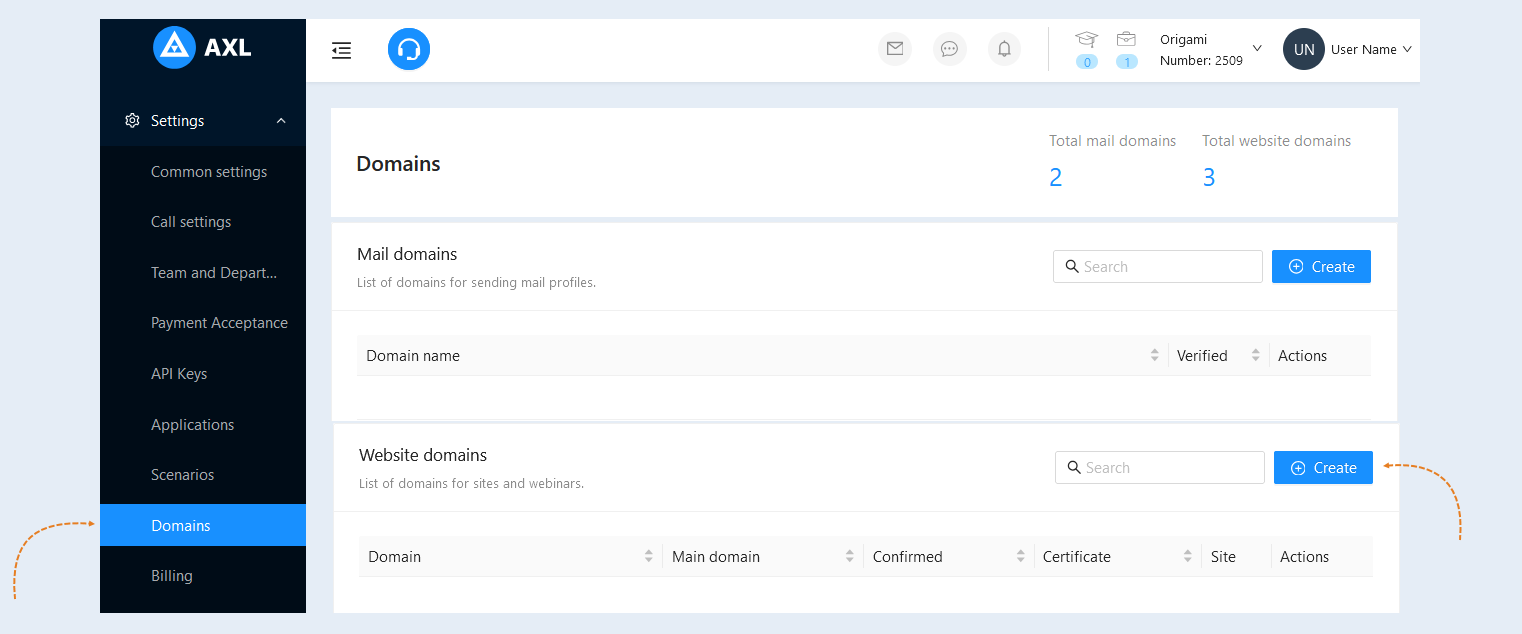
In the "Website Domains" section, click the “Create” button. A popup window will open for adding a domain.
In the opened window, fill in the fields:
- Domain name. Enter the domain name you copied from the domain registrar’s site.
Main domain. Check the box if you want to make the new domain the primary one.
Redirect enabled. Check the box if you want visitors to your site to be automatically redirected to another website address.
Forwarding is necessary, for example, if the site is accessible with both www and without www (for instance, www.mydomain.ru and mydomain.ru). Search engines may perceive them as two different sites. Forwarding helps to consolidate these two addresses so that search engines index only one version of the site. If a user enters the address www.mydomain.ru, they will be automatically redirected to mydomain.ru. This eliminates confusion and ensures that all visitors land on the same page. Additionally, all links pointing to different versions of your domain will be redirected to one primary version. This means that all traffic will be collected in one place, simplifying data analysis and improving site metrics.
Forwarding allows you to choose one primary address format, thus avoiding content duplication. This is important for both users and search engines, as duplicate content can negatively affect SEO.Redirect link. Enter the forwarding link in the field.
Forward with a 301 code. Check the box if you need a permanent redirect. Code 301 indicates that the resource has been moved permanently. This means that the URL you are accessing should no longer be used, and the new URL should now be used.
If you do not check the box, the default forwarding will occur with code 302 (temporary redirect).
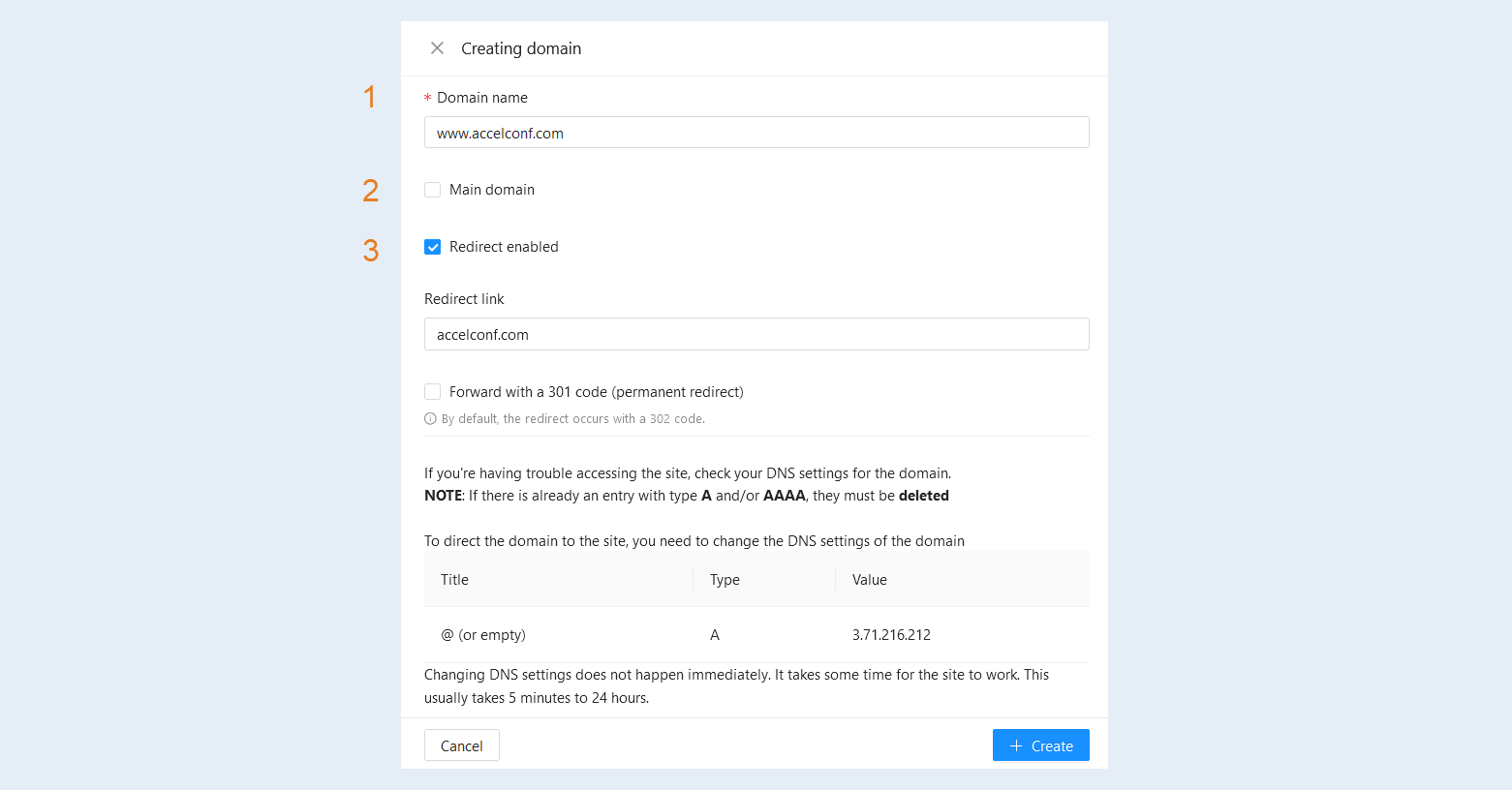
After completing the settings, click the “Create” button.
Website DNS settings
Next, you need to set up the DNS so that the domain points to your web server.
In the "Editing domain" window, in the "Instructions" section, copy the domain value. You will need this information in the next step.
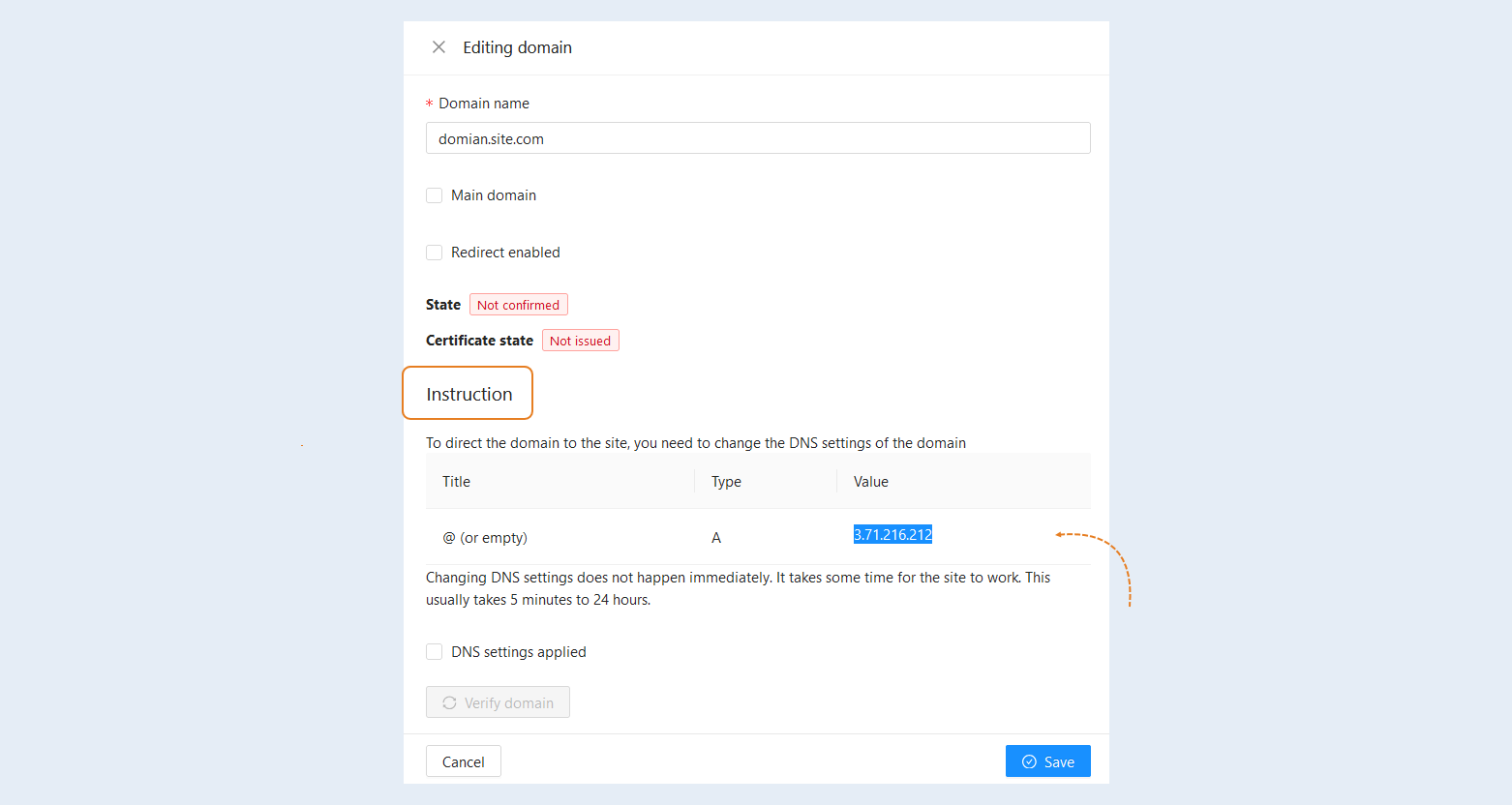
Open the personal account of the domain registrar. Click "Add Record" and select type A.
Please note that the interface of personal accounts of various domain registrars may differ slightly.
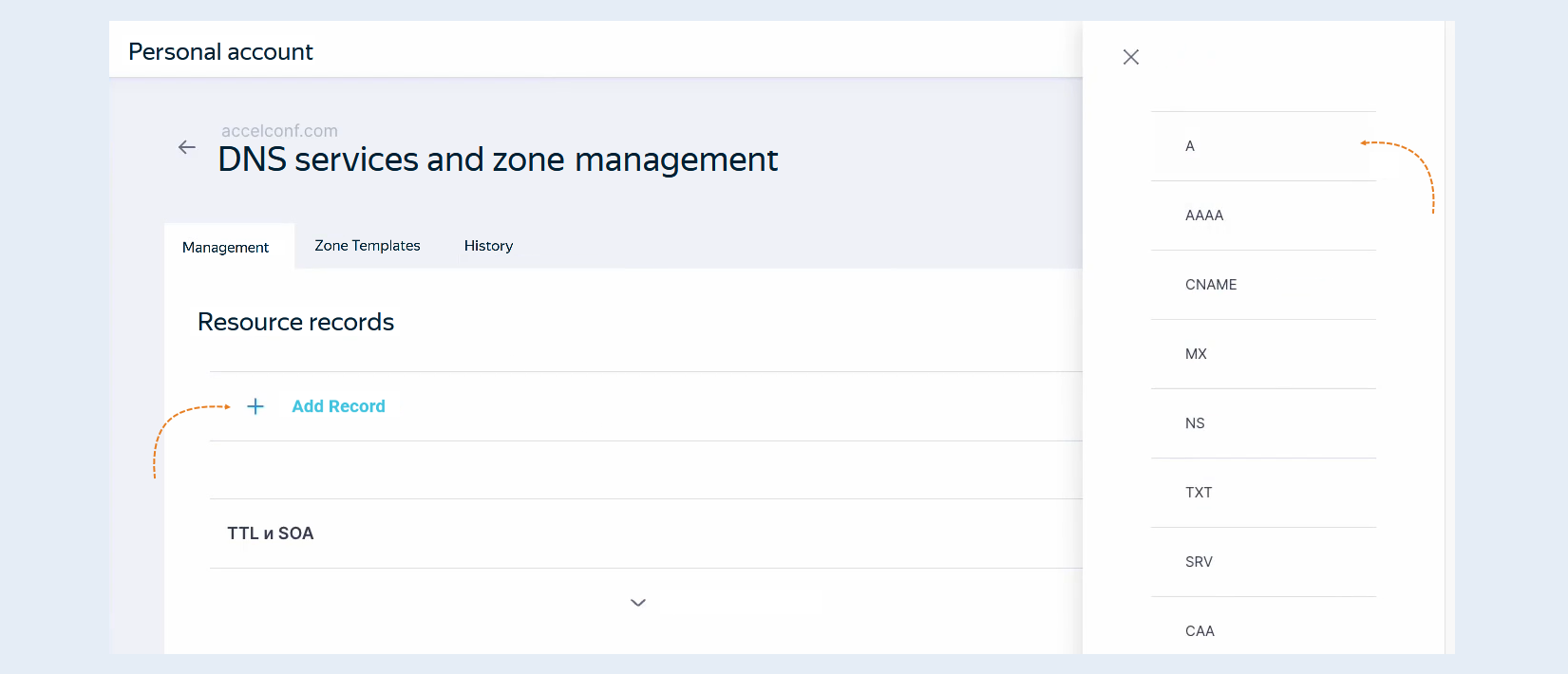
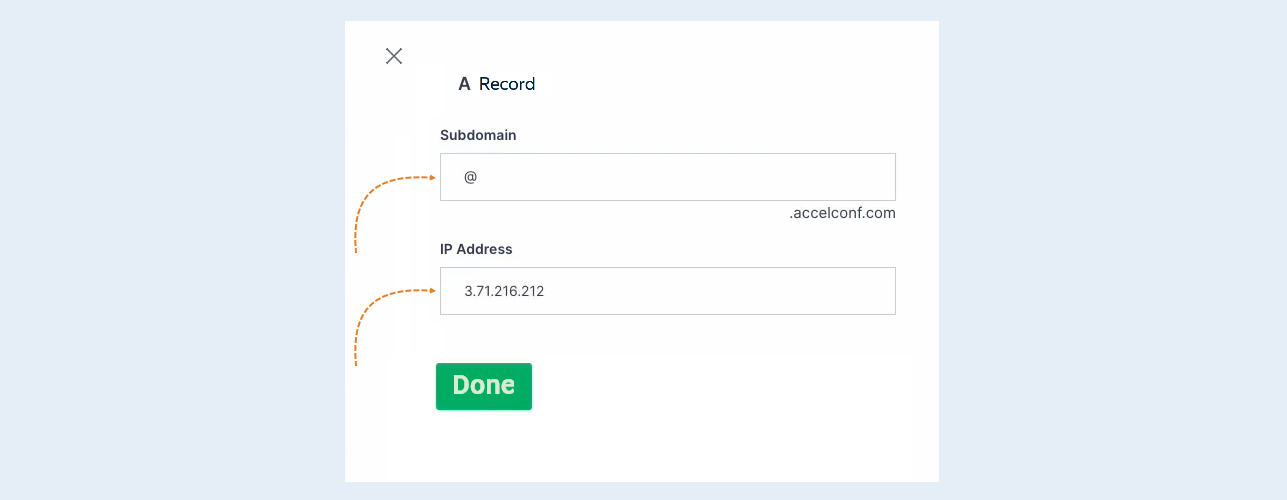
In the opened "A Record" window, fill in the fields:
- Subdomain. Insert "@" in the field.
IP Address. Insert the domain value you copied on the AXL platform in the "Domain Editing" window.
Click the "Done" button.
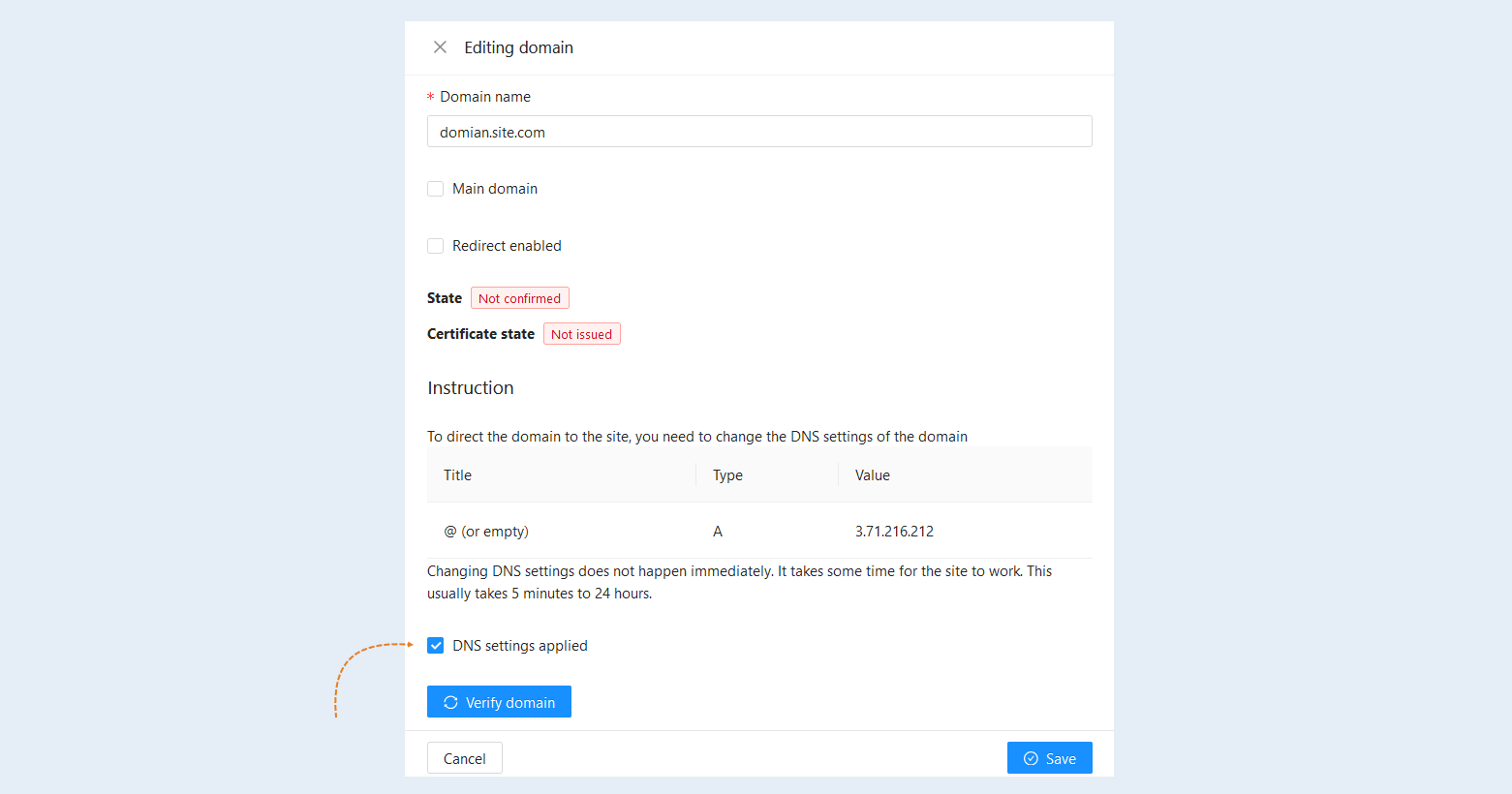
Return to the AXL platform. Next, you need to confirm the domain to direct it to the website. In the "Domain Editing" window, check the box for "DNS settings applied" and click the "Confirm domain" button. DNS settings changes do not take effect immediately. It takes some time for the website to work. Usually, this takes anywhere from 5 minutes to 24 hours.
Click the "Save" button.
Your domain has been successfully added and appears in the list of website domains. You can edit it at any time, add other domains, and delete it. To make changes, click on the domain name or the "Edit" button.
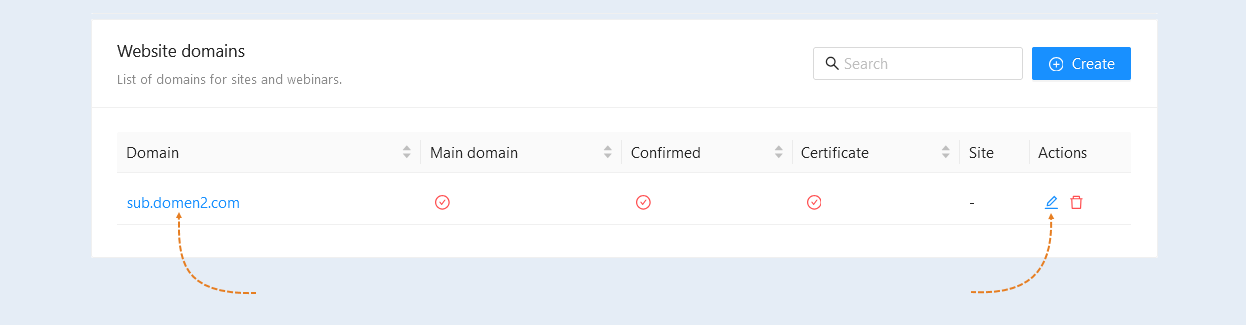
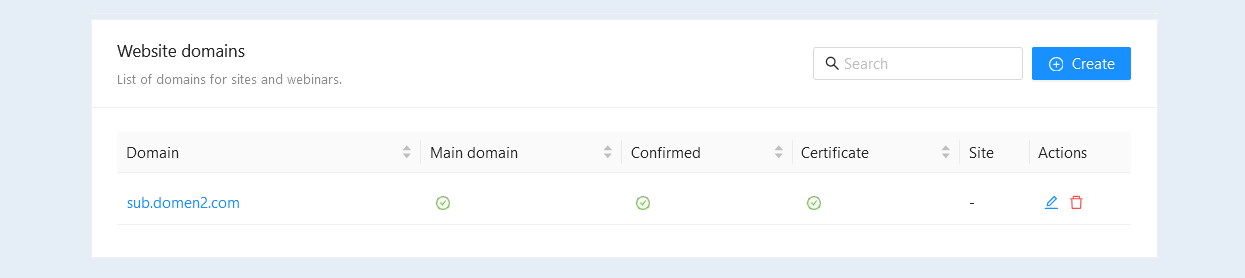
After the domain is confirmed, the checkmarks in the "Confirmed" and "Certified" columns will turn green. An SSL certificate is issued automatically upon connecting the domain.
How to create a Subdomain for a website
A subdomain is part of the main domain that allows you to organize and structure the content of a website. It represents an additional name that precedes the main domain name. For example, in the address courses.accelconf.com, "courses" is the subdomain and "accelconf.com" is the main domain. The procedure for creating a subdomain is the same as for creating a domain. First, create a subdomain on the AXL platform. In the "Website Domains" section, click the "Create" button.
A dialog will open for adding a domain. In the opened window, enter the name of the subdomain and click the "Create" button.
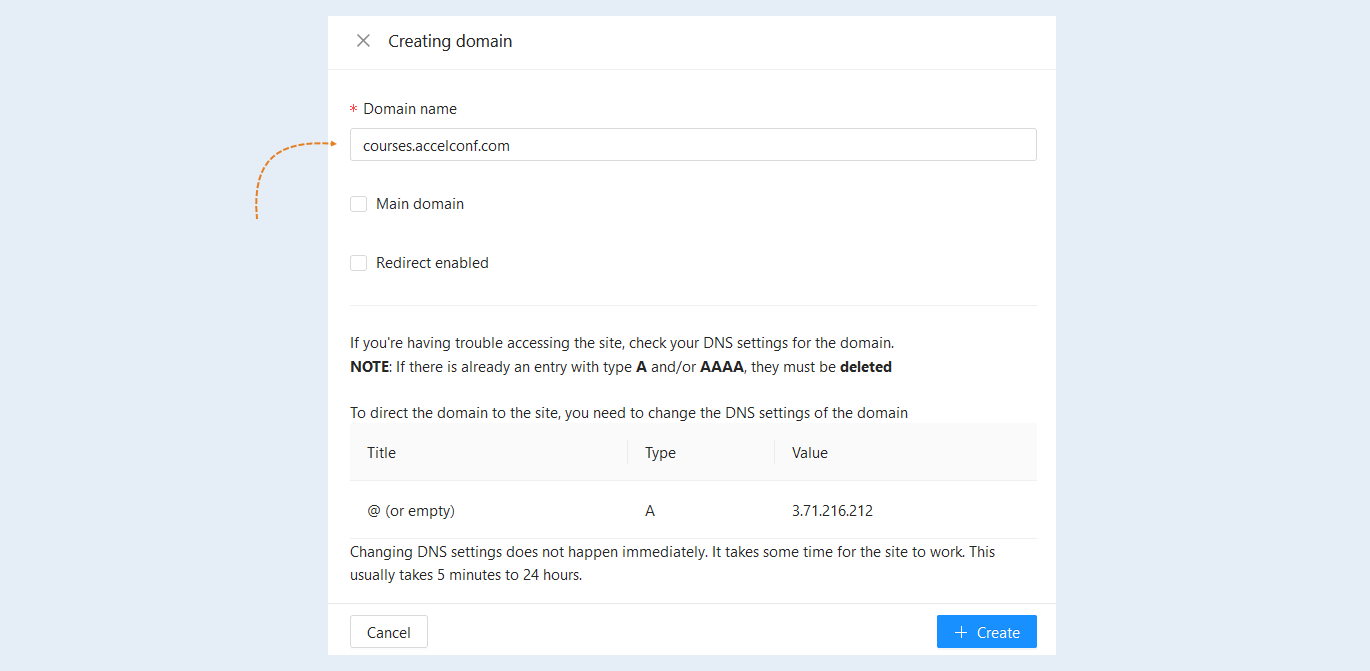
Copy the domain Value. You will need this information in the next step.
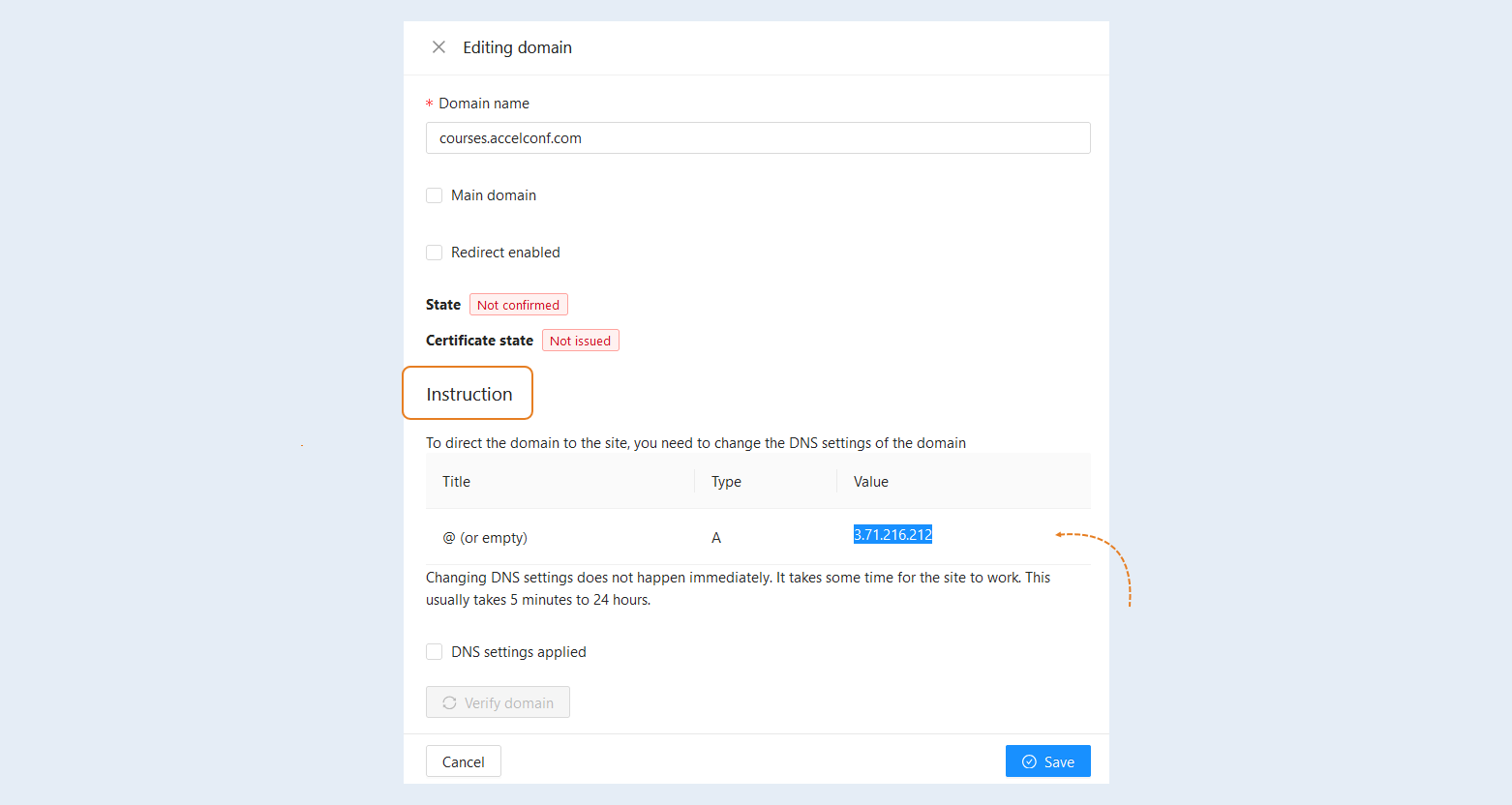
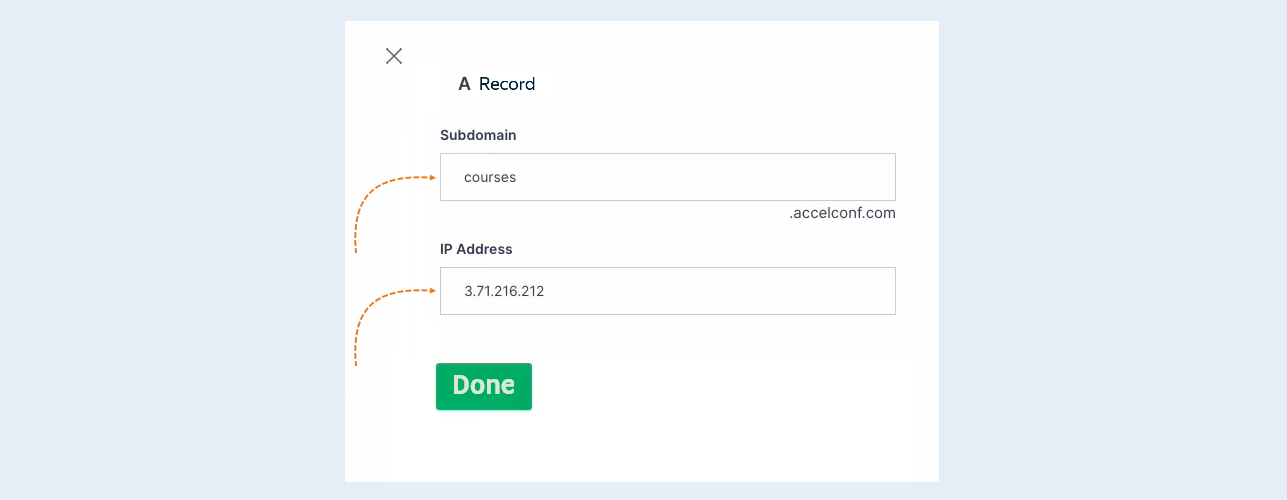
Open the personal account of your domain registrar. Click "Add Record" and select type A. In the opened "A Record" window, fill in the fields:
- Subdomain. Paste the subdomain, e.g., "courses."
IP Address. Paste the domain value you copied on the AXL platform in the "Domain Editing" window.
Click the "Done" button.
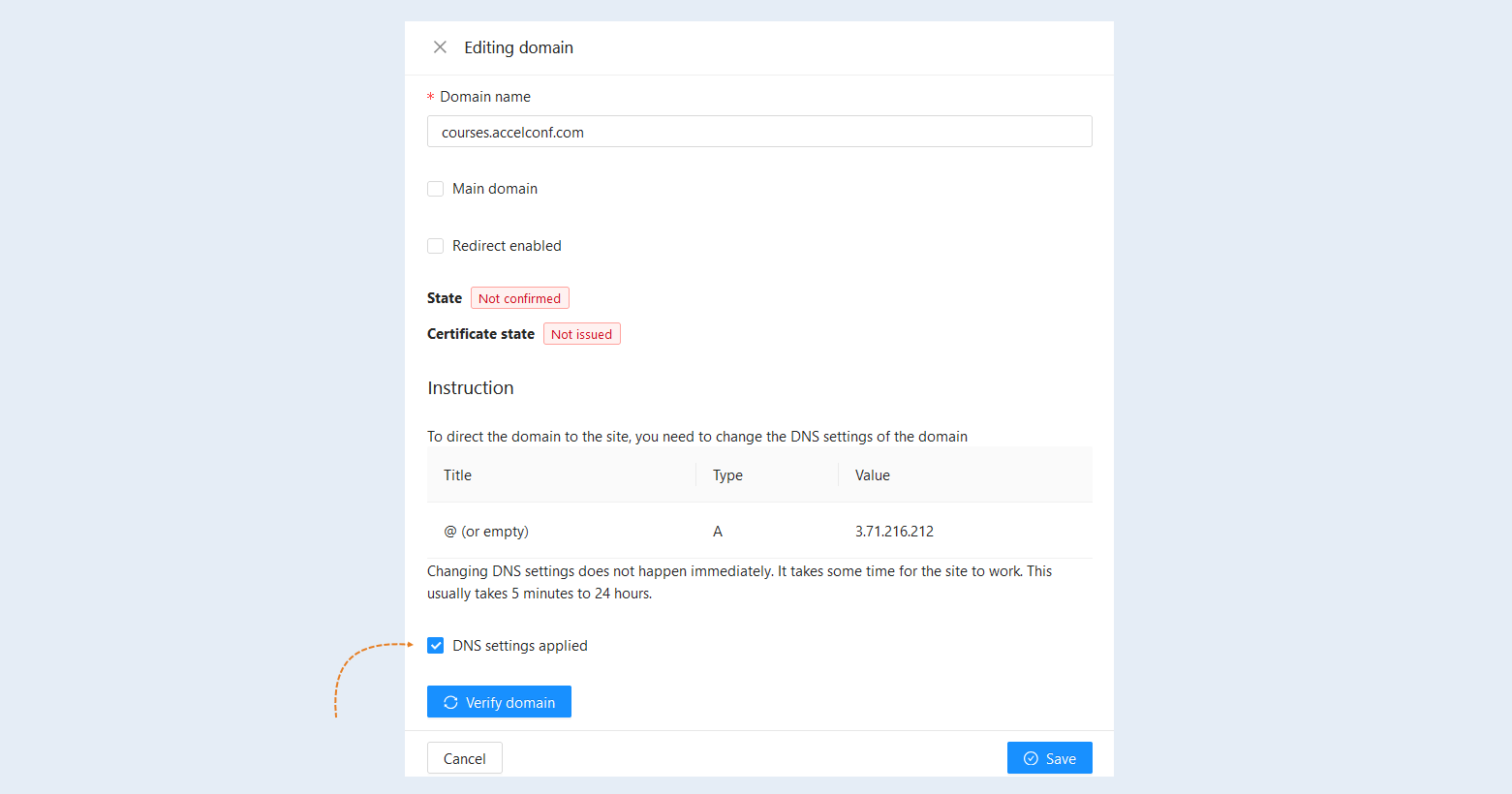
Return to the AXL platform. Next, you need to confirm the subdomain to direct it to the website. In the "Domain Editing" window, check the box for "DNS settings applied" and click the "Confirm domain" button. DNS settings changes do not take effect immediately. It takes some time for the website to work. Usually, this takes anywhere from 5 minutes to 24 hours.
Click the "Save" button.
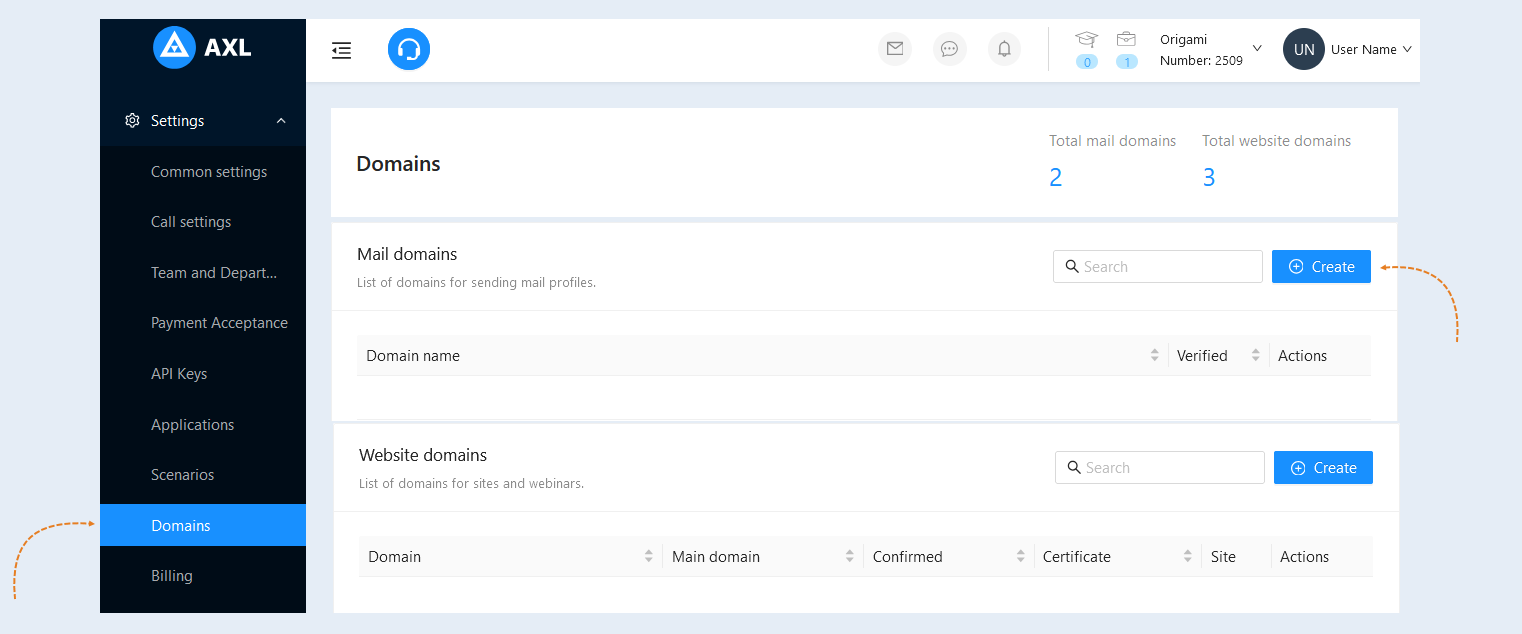
How to create a Domain for mail
In the "Email Domains" section, click the "Create" button.
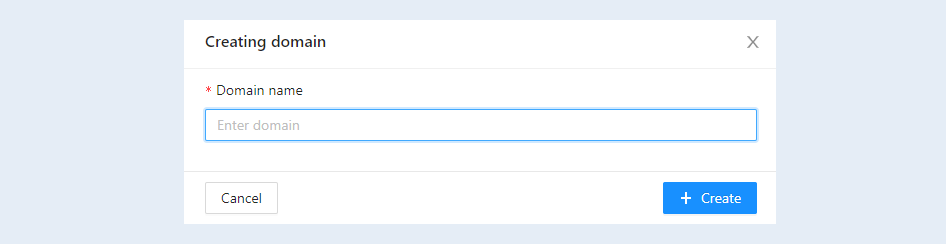
A dialog will open for adding a domain. In the opened window, enter the domain name and click the "Create" button.
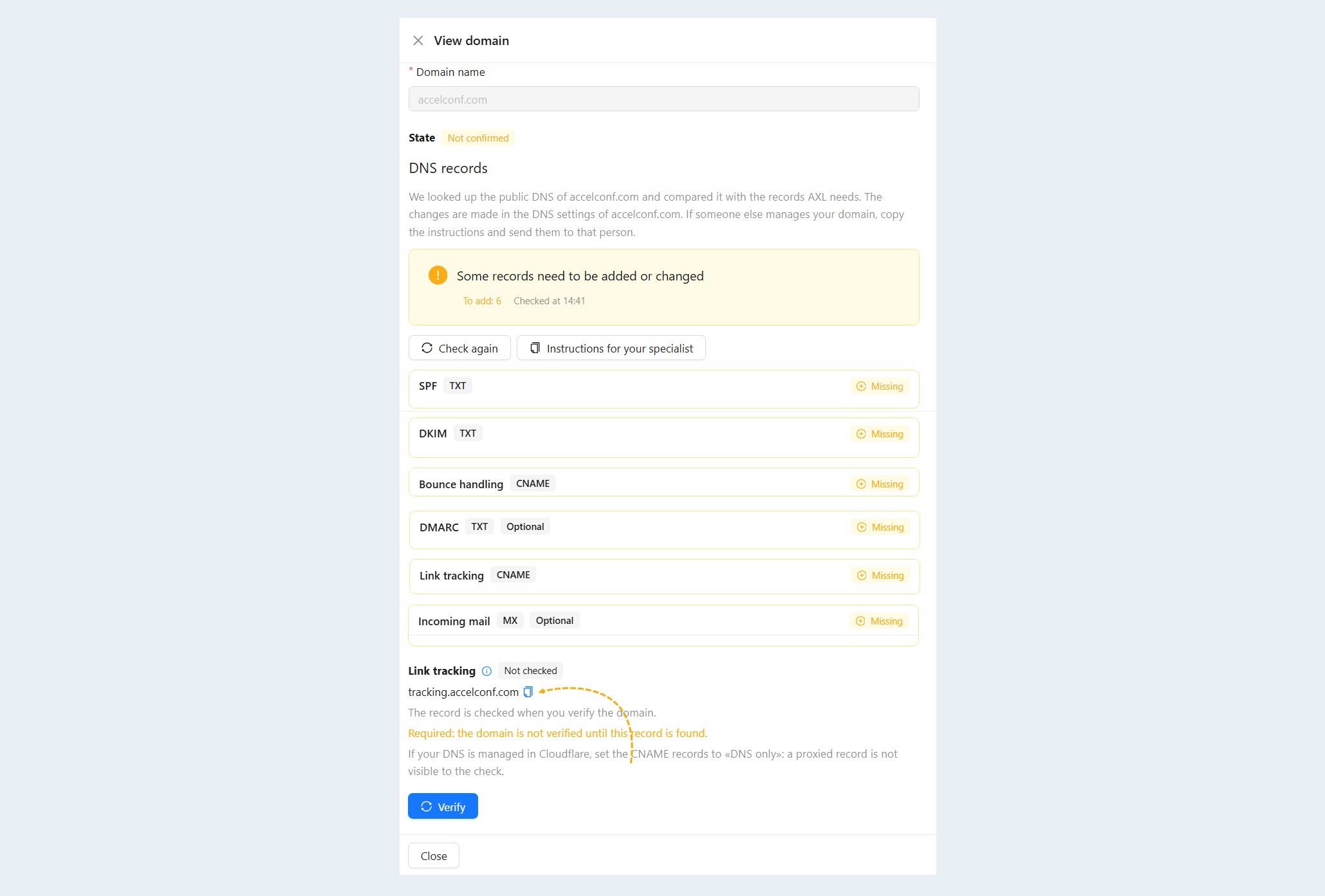
Next, you need to change the DNS settings of your domain to verify it. In the "Domain Creation" window, in the "Sending DNS records" section, copy the title and value of the domain. You will need this information in the next step.
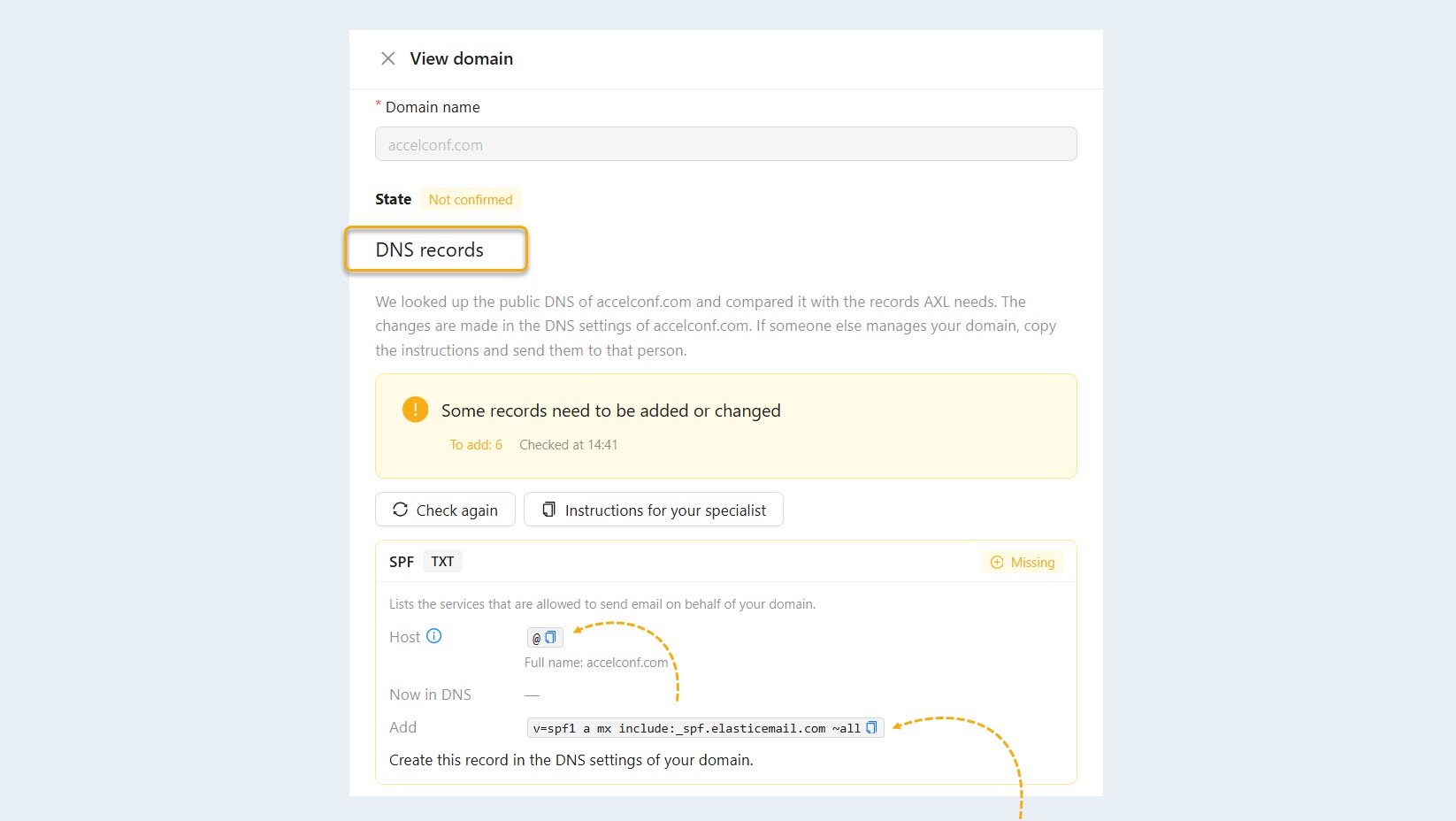
Open the personal account of your domain registrar. Click "Add Record" and select type TXT.
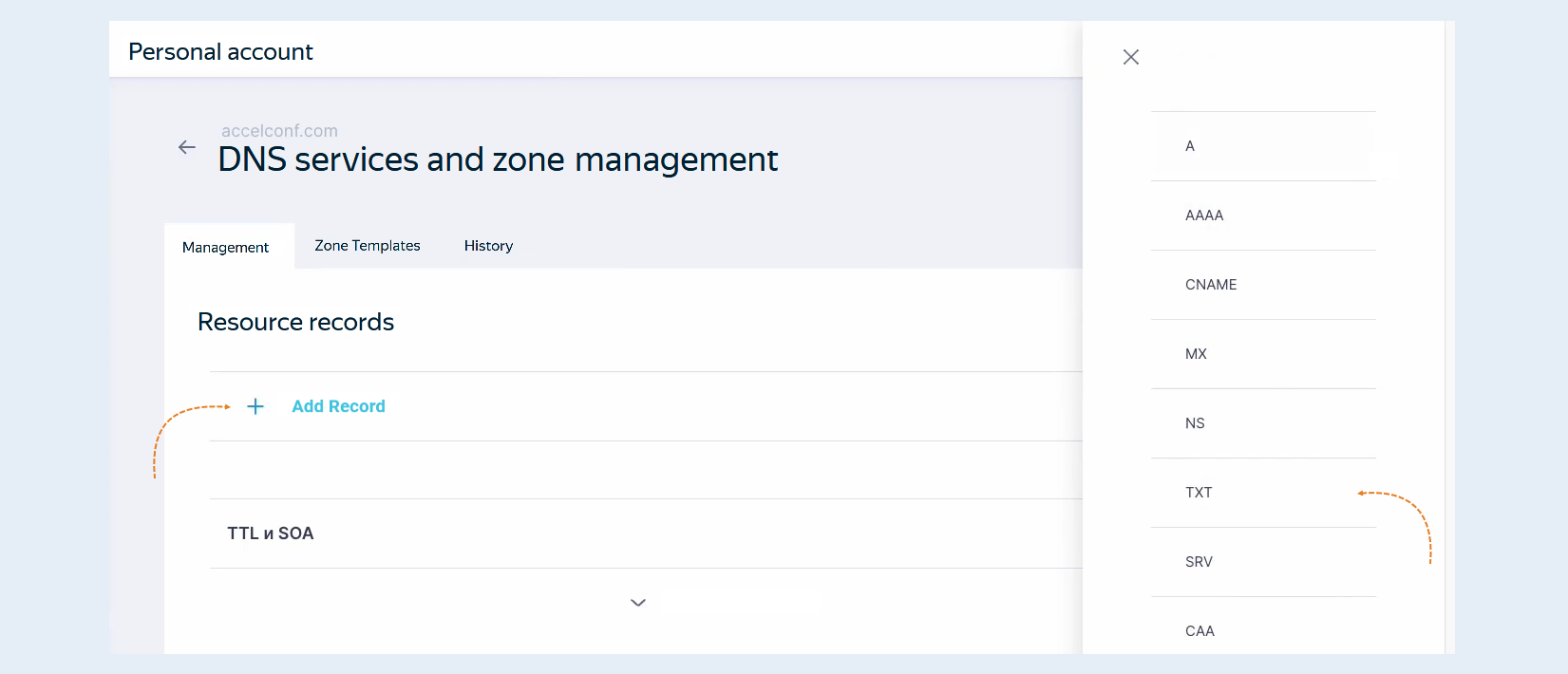
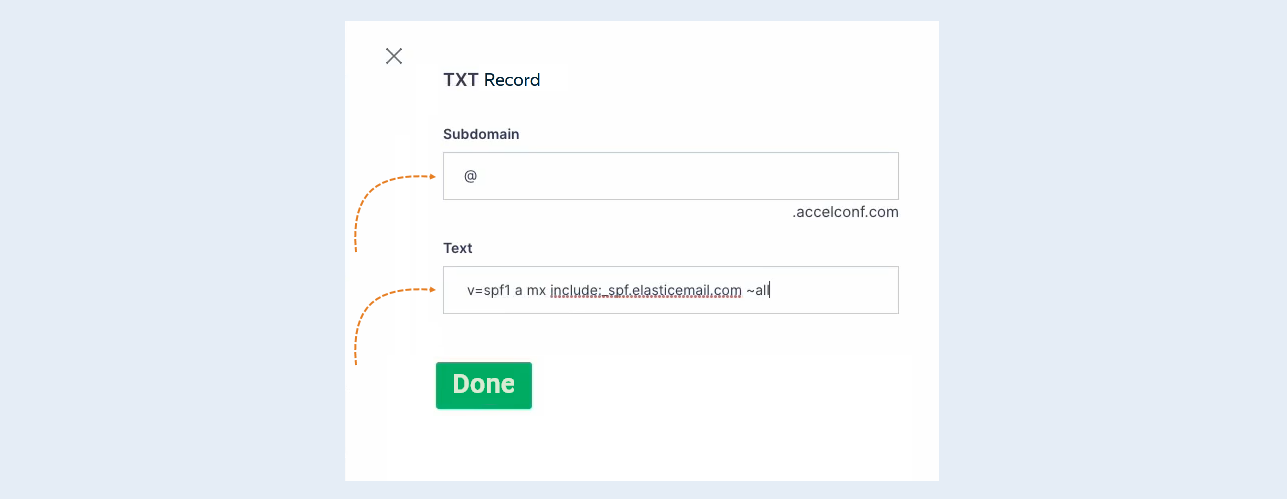
In the opened "TXT Record" window, fill in the fields:
- Subdomain. Paste the title you copied in the previous step.
TXT. Paste the email domain value you copied in the previous step.
Click the "Done" button.
Return to the AXL platform. In the "Sending DNS records" section, copy the title and value of the domain. You will need this information in the next step.

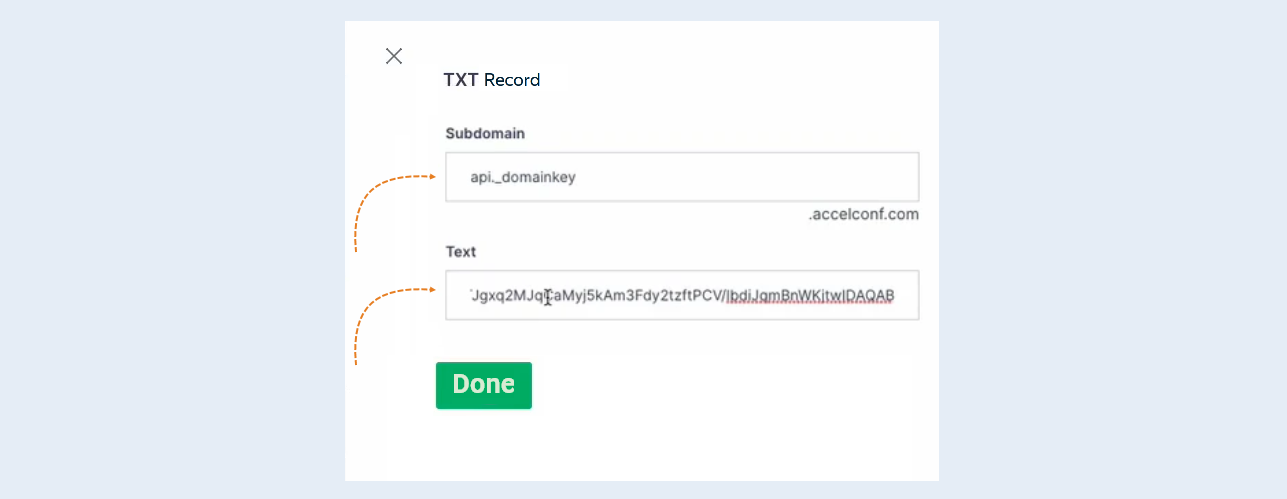
Open the personal account of your domain registrar. Click "Add Record" and select type TXT. In the opened "TXT Record" window, fill in the fields:
- Subdomain. Paste the title you copied in the previous step.
Text. Paste the email domain value you copied in the previous step.
Click the "Done" button.
Return to the AXL platform. In the "Sending DNS records" section, copy the title and value of the domain. You will need this information in the next step.

Open the personal account of your domain registrar. Click "Add Record" and select type CNAME. In the opened "CNAME Record" window, fill in the fields:
- Subdomain. Paste the title you copied in the previous step.
Canonical name. Paste the email domain value you copied in the previous step. Some registrars do not allow a period at the end of the value. If the domain registrar shows an error, remove the period and click "Done" again.
Click the "Done" button.
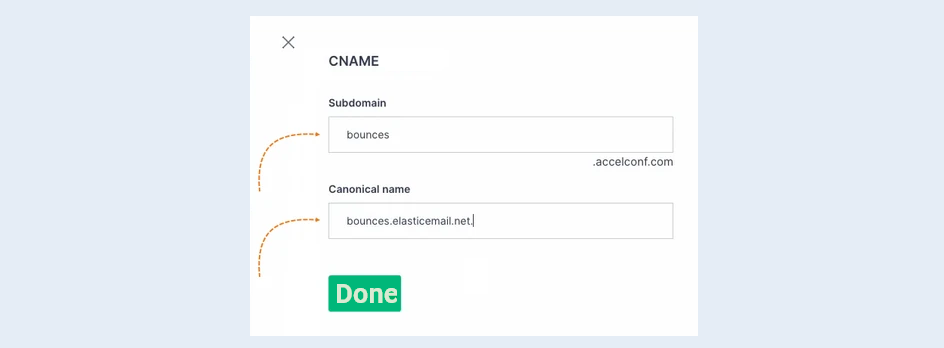
Return to the AXL platform. In the "Sending DNS records" section, copy the title and value of the domain. You will need this information in the next step.

Open the personal account of your domain registrar. Click "Add Record" and select type CNAME. In the opened "CNAME Record" window, fill in the fields:
- Subdomain. Paste the title you copied in the previous step.
Canonical name. Paste the email domain value you copied in the previous step. Some registrars do not allow a period at the end of the value. If the domain registrar shows an error, remove the period and click "Done" again.
Click the "Done" button.
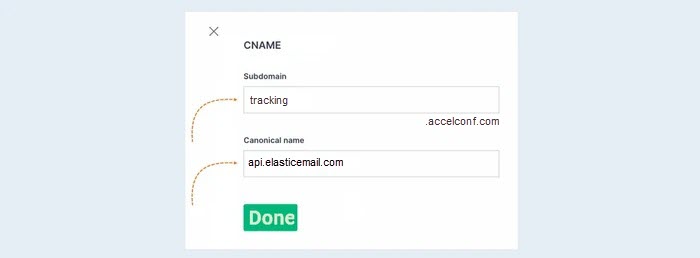
Go back to the AXL platform. In the "Sending DNS records" section, copy the title and value of the domain. You will need this information in the next step.

Open your domain registrar's personal account. Click "Add Record" and select the TXT type. In the opened "TXT Record" window, fill in the fields:
- Subdomain. Paste the host that you copied in the previous step into the Title field.
Text. Paste the value of the mail domain that you copied in the previous step into the Value field.
Click the “Done” button.
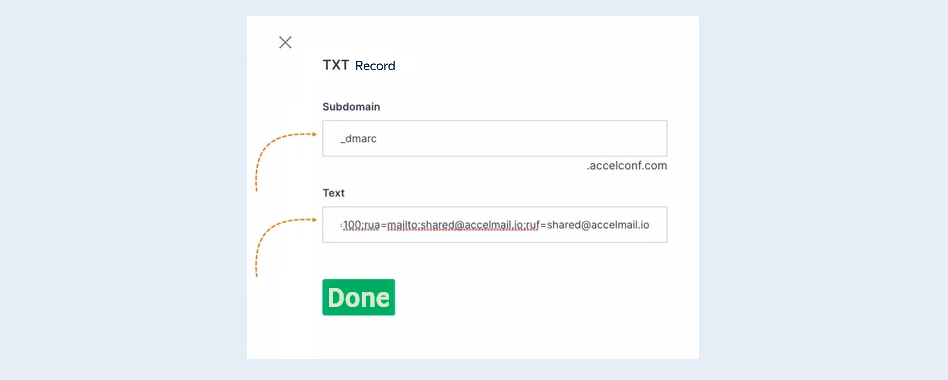
If you want to receive incoming mail, you need to register the following DNS records.
Go back to the AXL platform. In the "Sending DNS records" section, copy the value of the domain. You will need this information in the next step.

Open your domain registrar's personal account. Click "Add Record" and select the MX type. In the opened "MX Record" window, fill in the fields:
- Subdomain. Paste the host of the mail domain that you copied in the previous step into the Title field.
Priority. Select 0 from the list.
Mail Server. Paste the value of the mail domain that you copied in the previous step into the Value field.
Click the “Done” button.
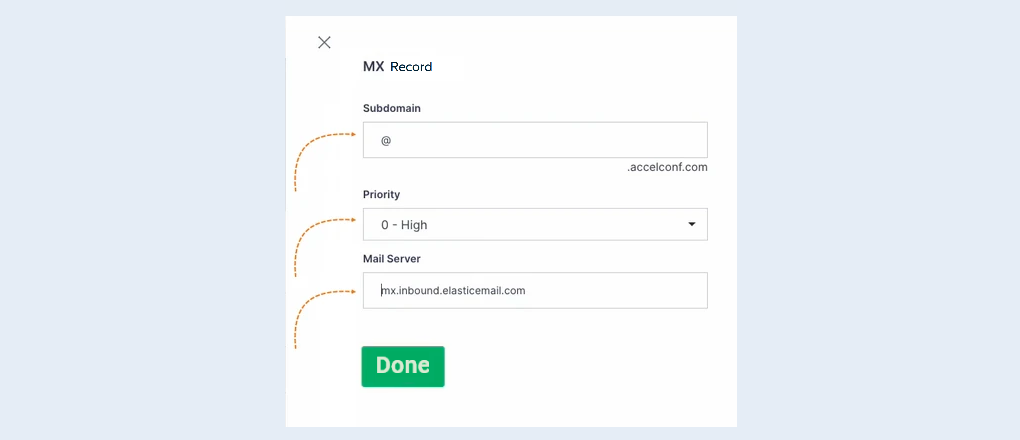
Return to the AXL platform. Click the “Verify” button. DNS settings changes do not take effect immediately. It takes some time for them to come into effect, usually from 5 minutes to 24 hours.
Click the “Close” button.
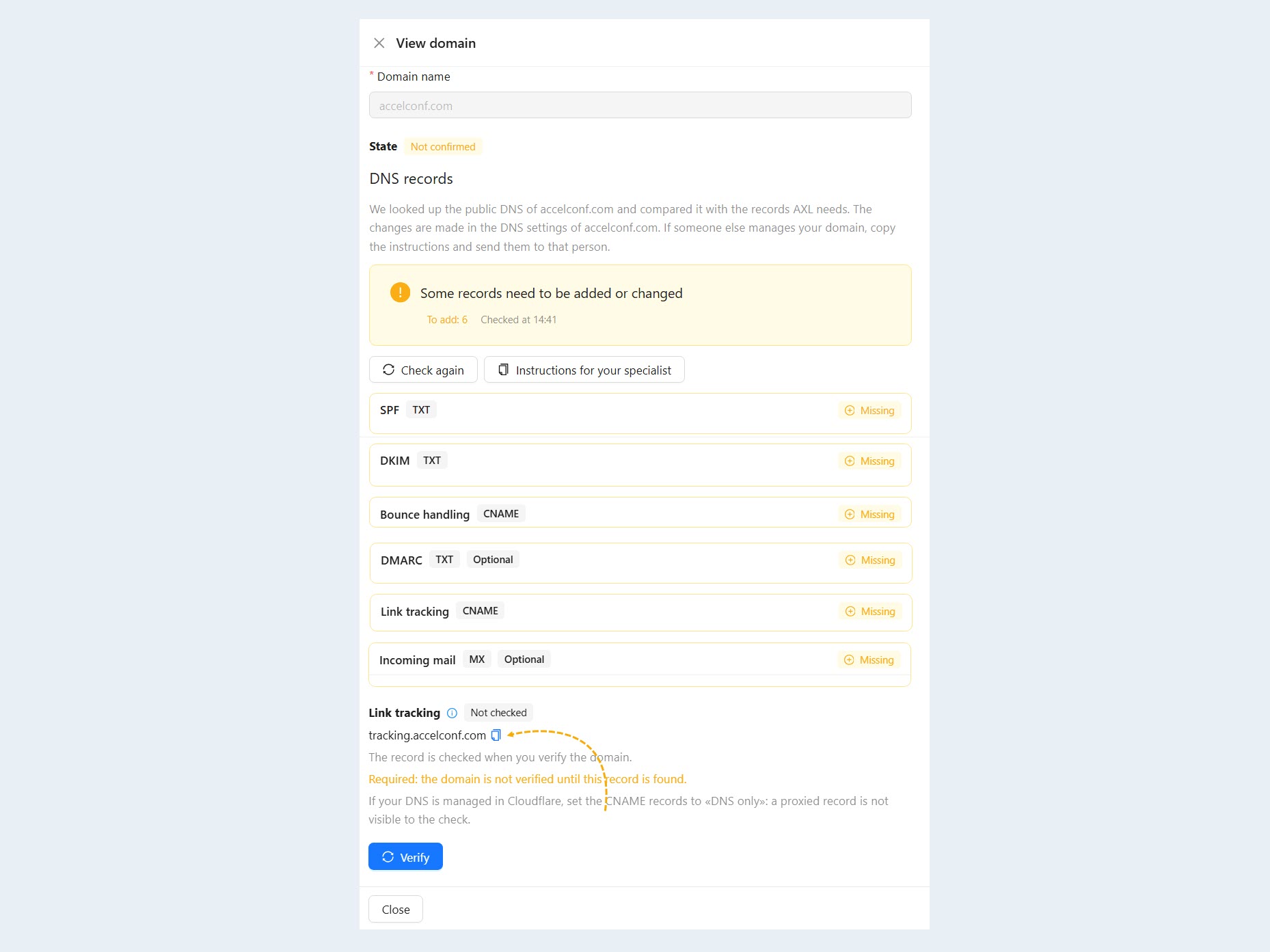
Your domain has appeared in the mail domains list. Once the domain is confirmed, the icon in the "Confirmed" column will turn green. You can edit the domain at any time, add new ones, and delete them. To make changes, click on the domain name or the "Edit" button.
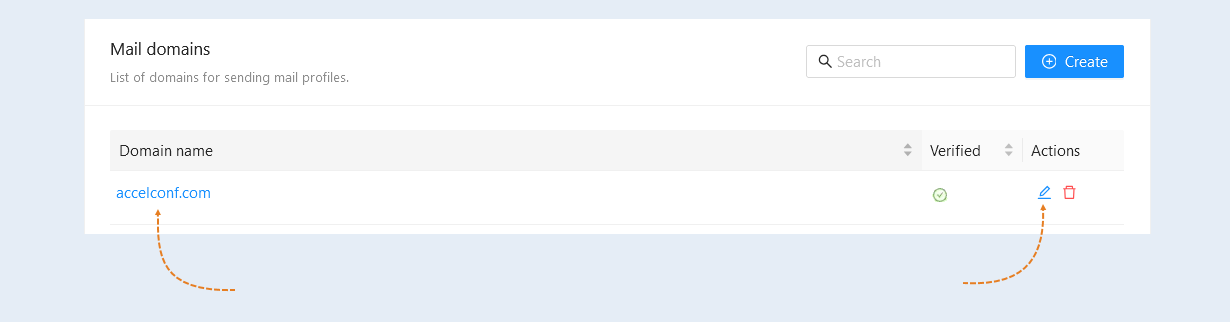
How to create a Subdomain for mail
The procedure for creating a mail subdomain is similar to that of creating a mail domain, except for the "Name" field, where you specify the subdomain name.
First, create a subdomain on the AXL platform. In the "Mail Domains" section, click the “Create” button. A pop-up window will open for adding the domain.
In the opened window, enter the subdomain name and click the “Create” button.
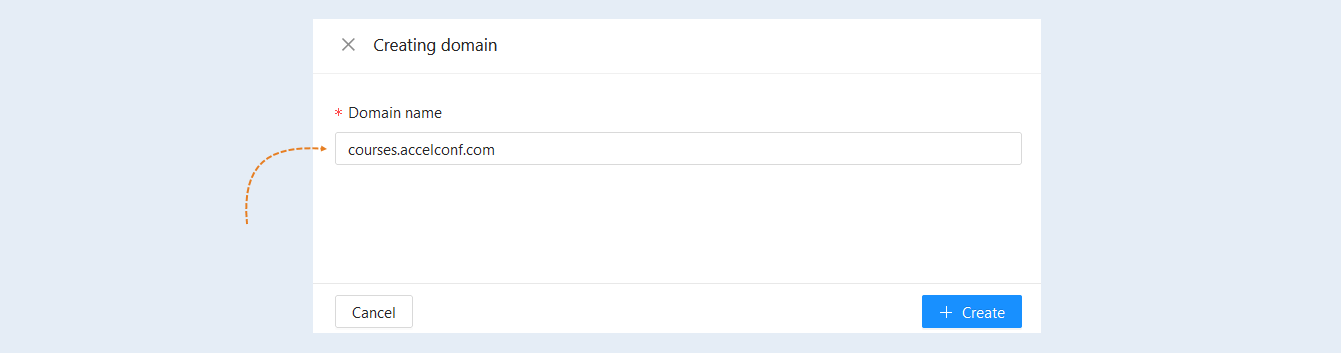
In the "Domain Creation" window, in the "DNS to Send" section, copy the "Host" and "Value" of each DNS settings line one by one. TXT, CNAME, and MX are the resource record types you need to add on your domain registrar's website.
You'll need this information in the next step.
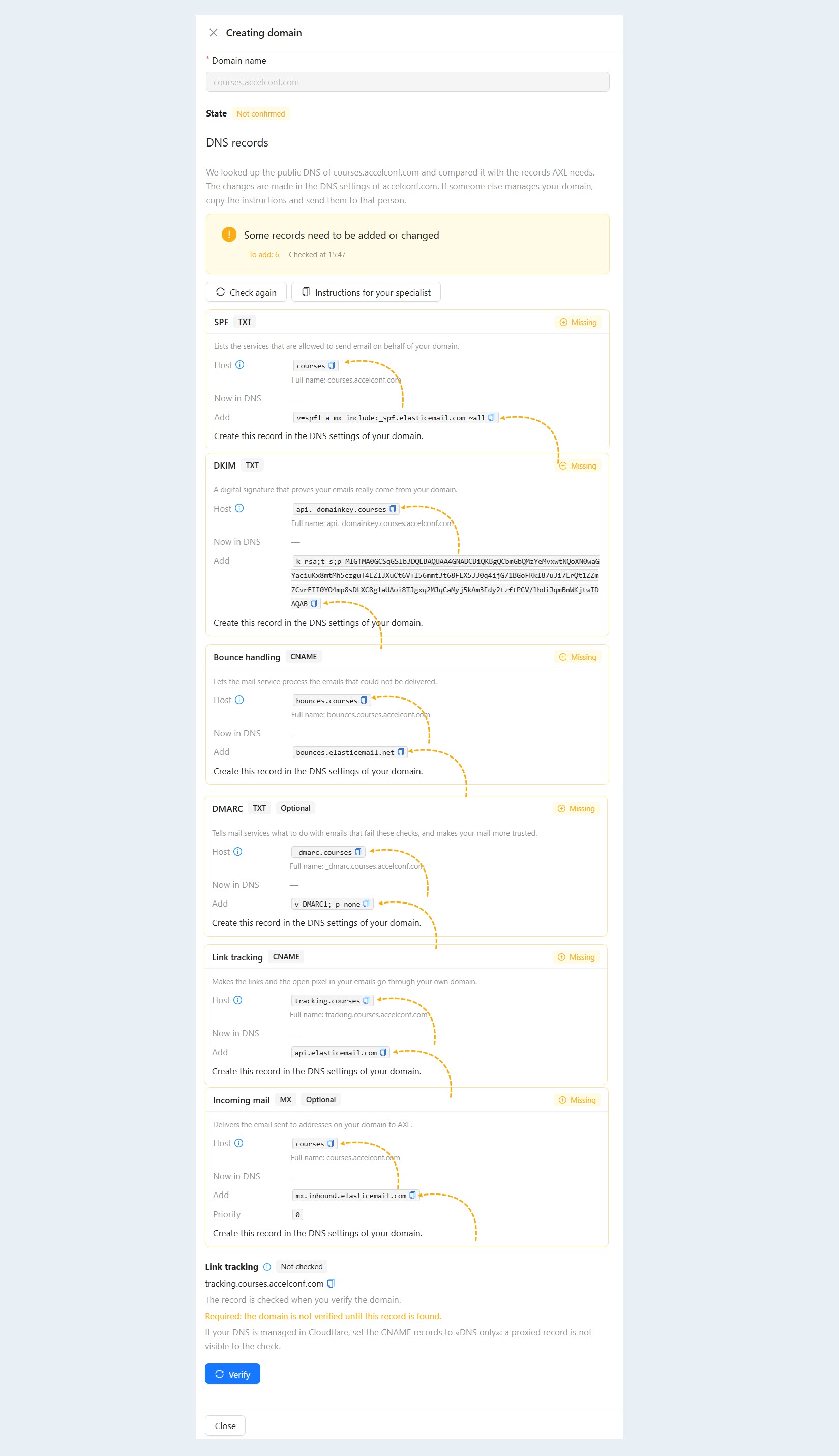
Open your domain registrar's personal account. Sequentially add resource records for each line in "Sending DNS records". Enter the Titles and Values that you copied from the AXL platform in the "Domain Creation" window.
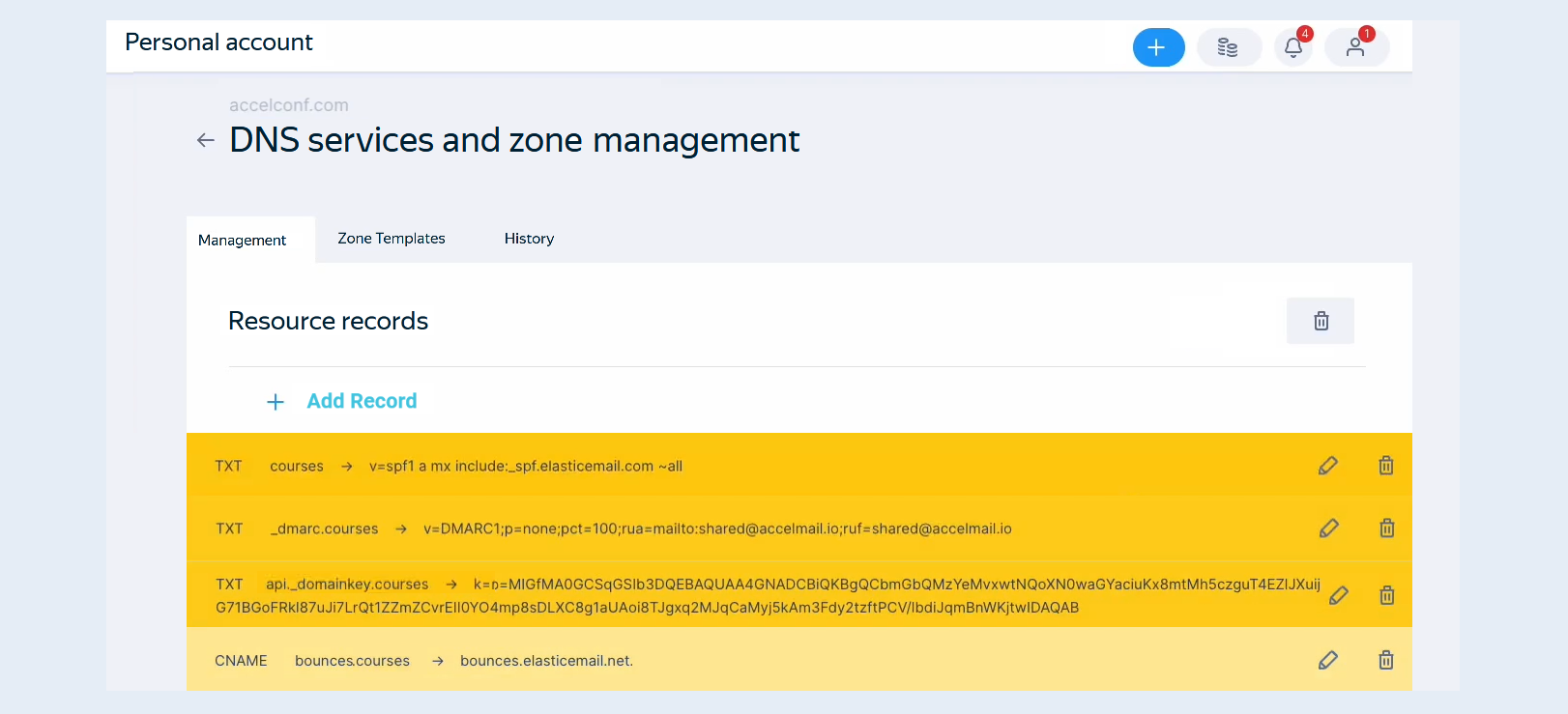
Go back to the AXL platform. Click the “Confirm” button. DNS settings changes do not take effect immediately. It takes some time for them to come into effect, usually from 5 minutes to 24 hours.
Click the “Close” button.