Google Analytics is a tool for tracking and analyzing user behavior data on a website or application. It allows you to gather information about traffic, traffic sources, conversions, time spent on pages, and other key metrics. With its help, you can understand how users interact with your resource, which pages are the most popular, and which need improvement.
By connecting Google Analytics, you gain the ability to track content effectiveness. With Google Analytics, you can fine-tune your digital strategy, optimize campaigns, and elevate your online presence to new heights. It helps to optimize materials, improve user experience, and increase audience engagement.
To connect the application, follow the instructions in this article. Click on the relevant section to go to its description:
1
Creating a data stream in Google Analytics
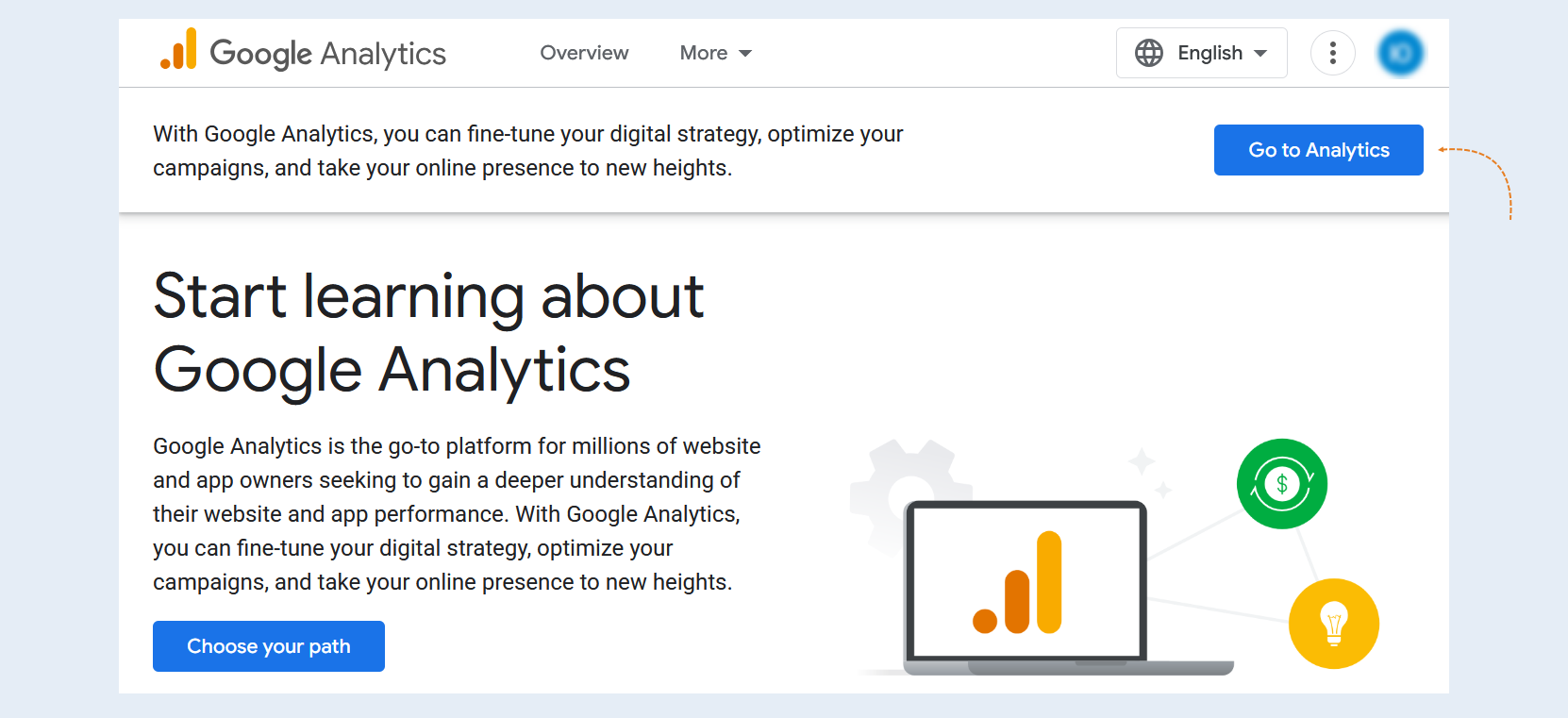
Before you begin, sign up on the official Google Analytics website by following this link.
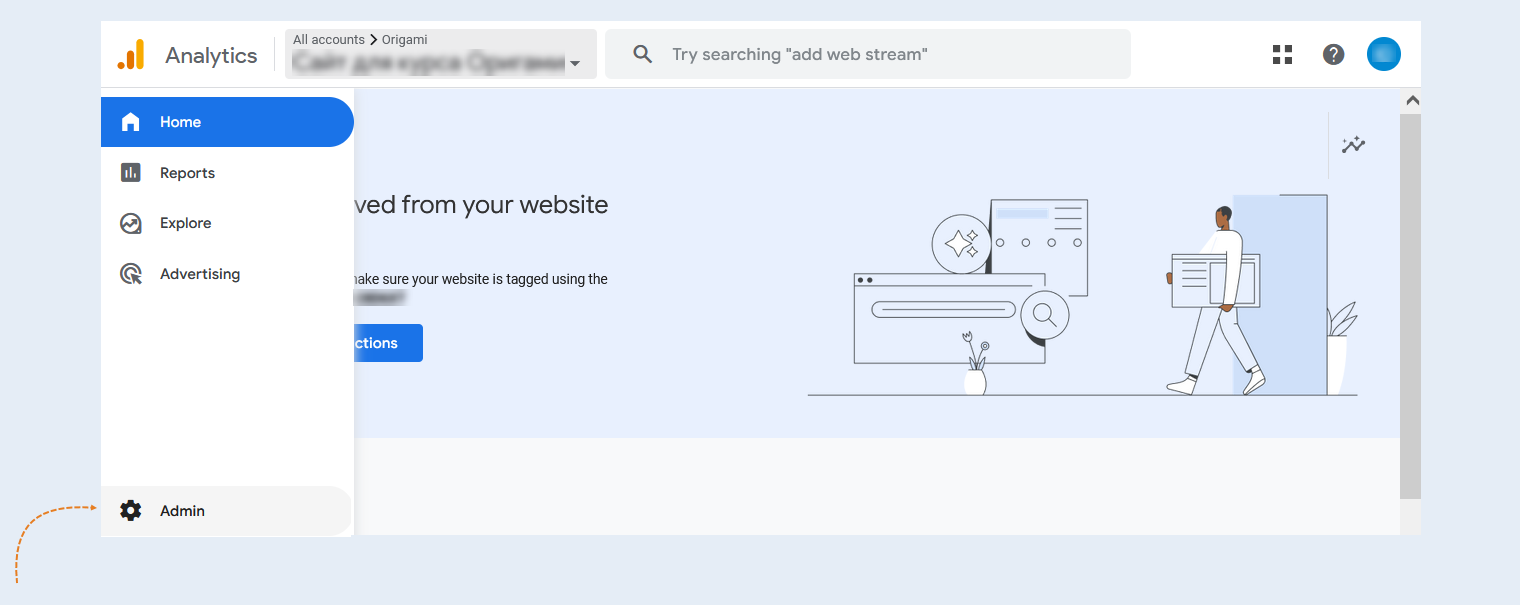
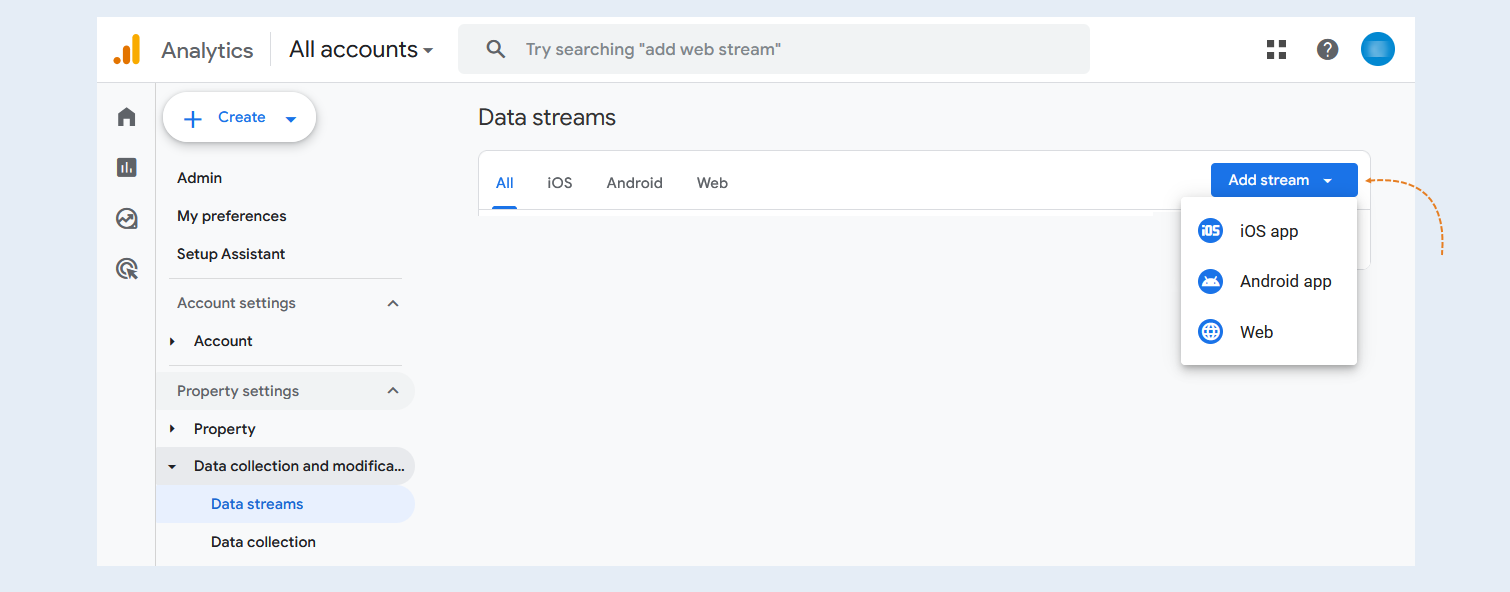
In the upper left corner of the page, open the menu and select the "Admin" tab.
In the "Data Settings" section, choose "Data Streams".
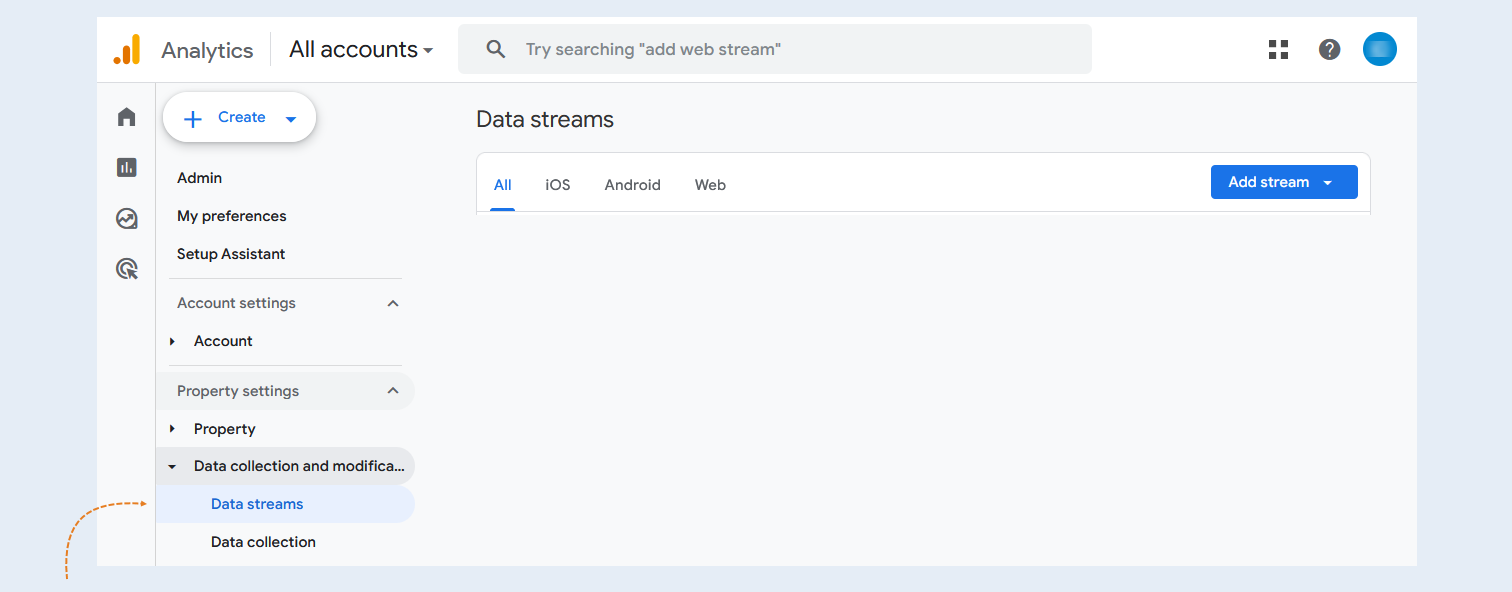
Click the "Add Stream" button and select the appropriate option: iOS App, Android App, or Web.
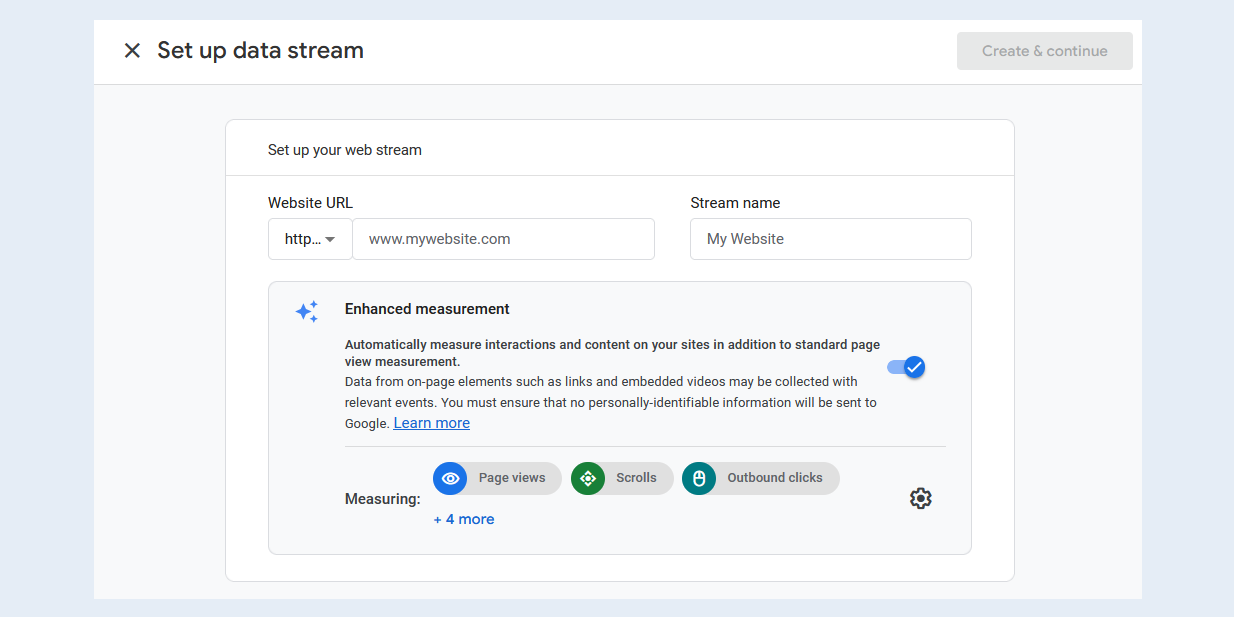
Enter the URL of your main site, for example, "example.com," and the name of the stream, such as "My Resource (Web Stream)".
Below, you can enable or disable enhanced measurement. This feature automatically collects information about page views and other events. After creating the data stream, you will be able to disable any enhanced measurement events you are not interested in individually. Therefore, at this stage, we recommend enabling enhanced measurement.
Click "Create Stream".
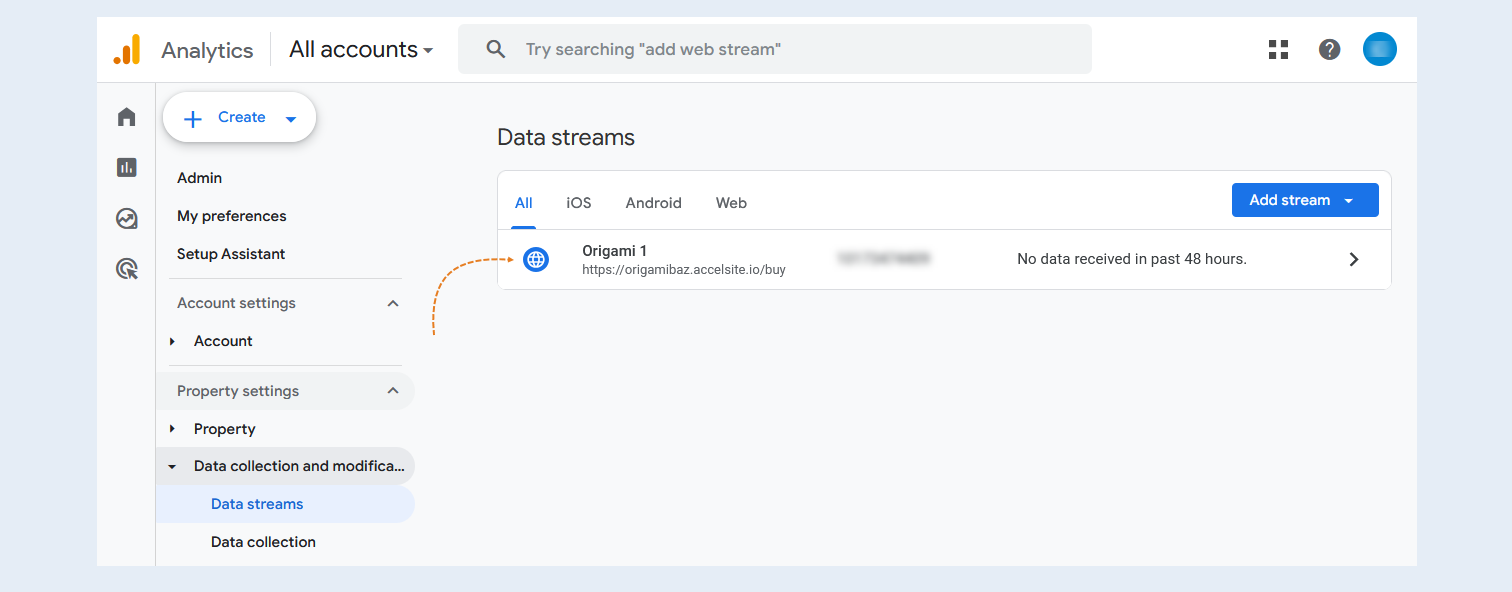
Click on the name of the created stream to access its settings.
Copy the "Measurement Id" associated with the stream. You will need it to connect the application in step №2 of this article.
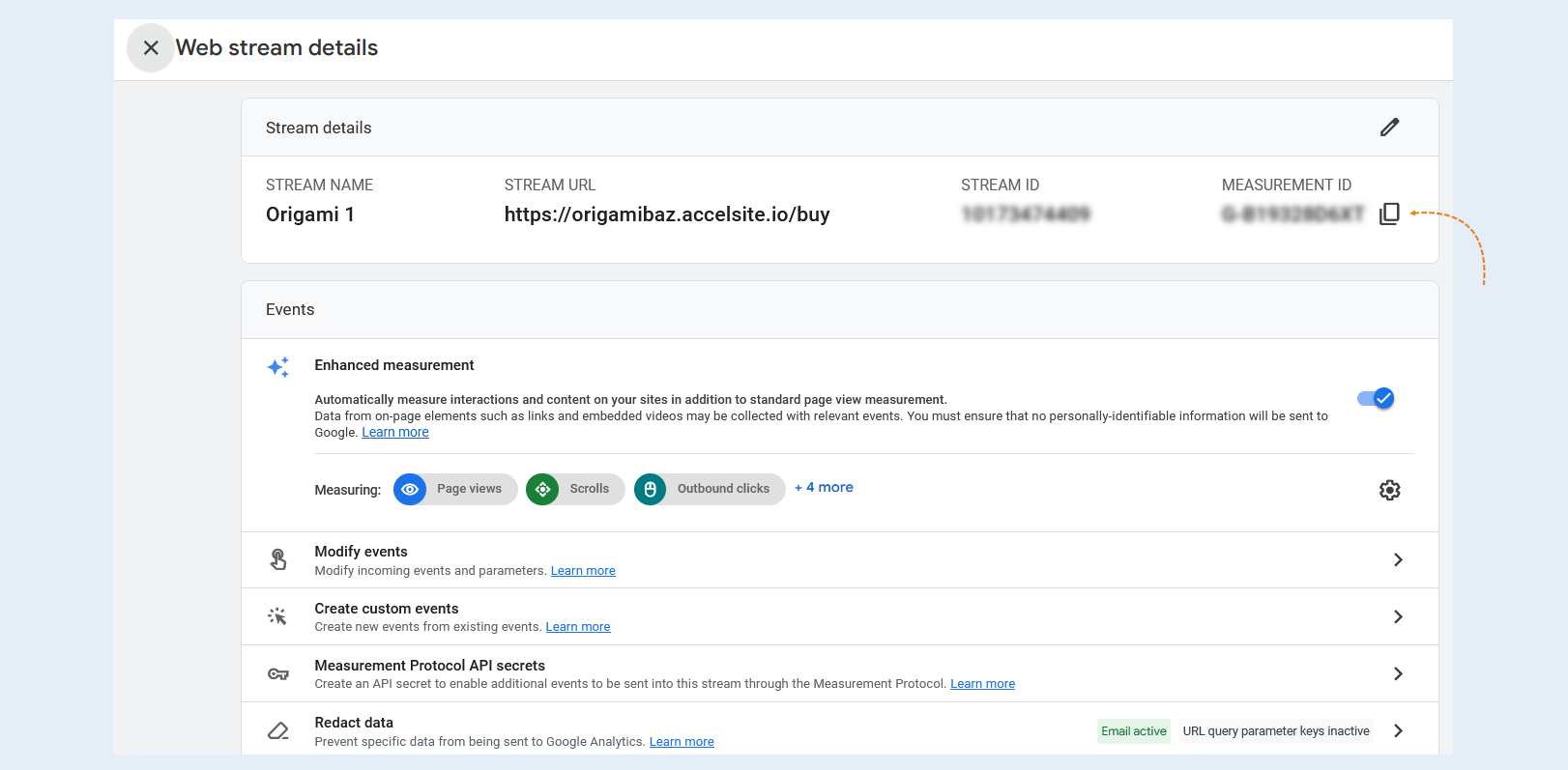
Next, select the "Measurement Protocol API secrets" tab.
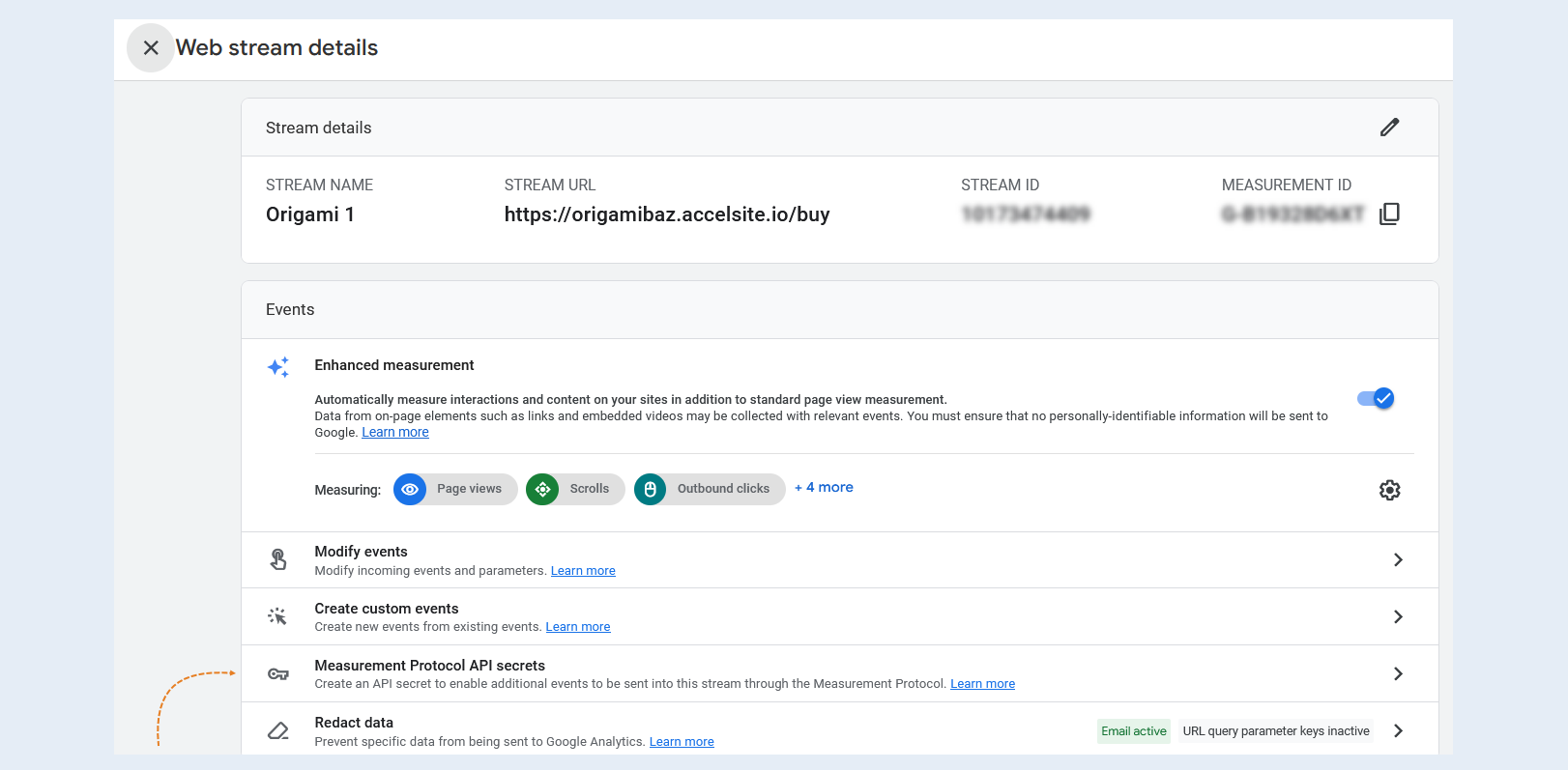
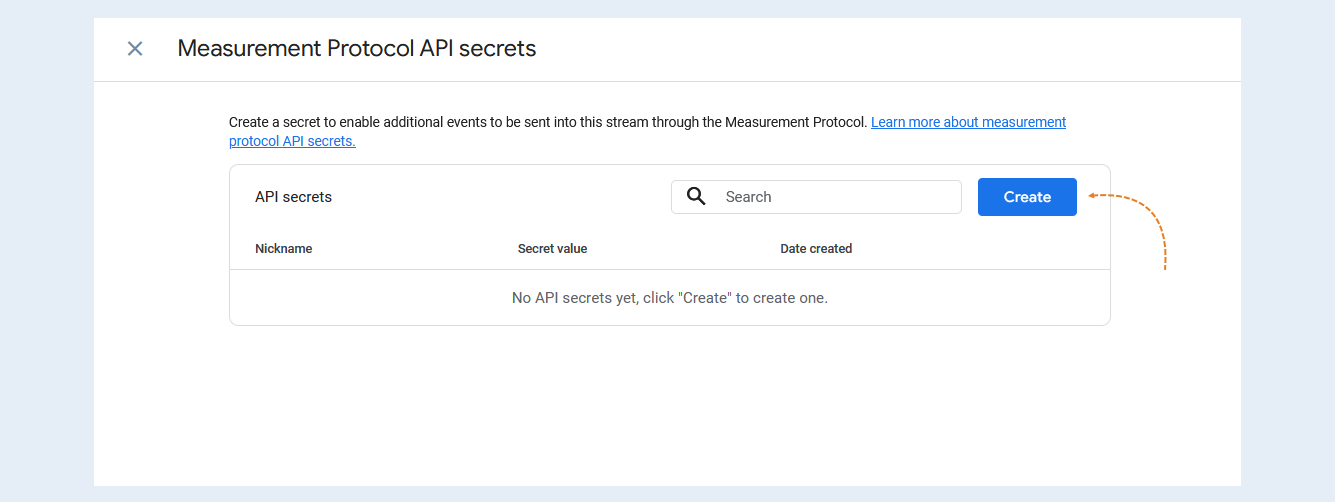
Create a secret API key.
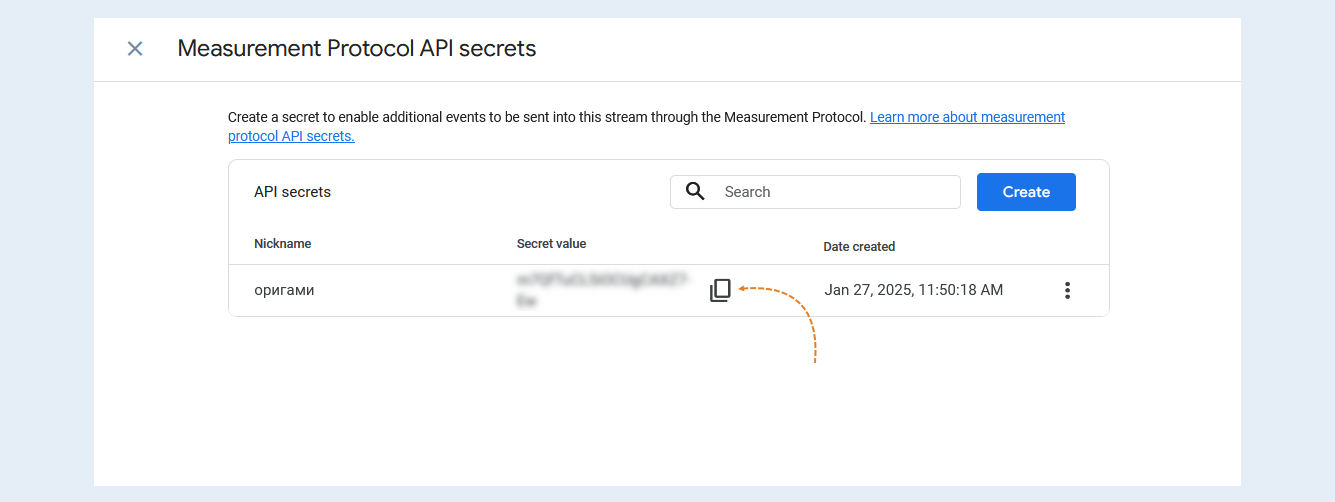
Copy the value of the secret key, you will need it in step №2 of this article.
2
Integration with AXL
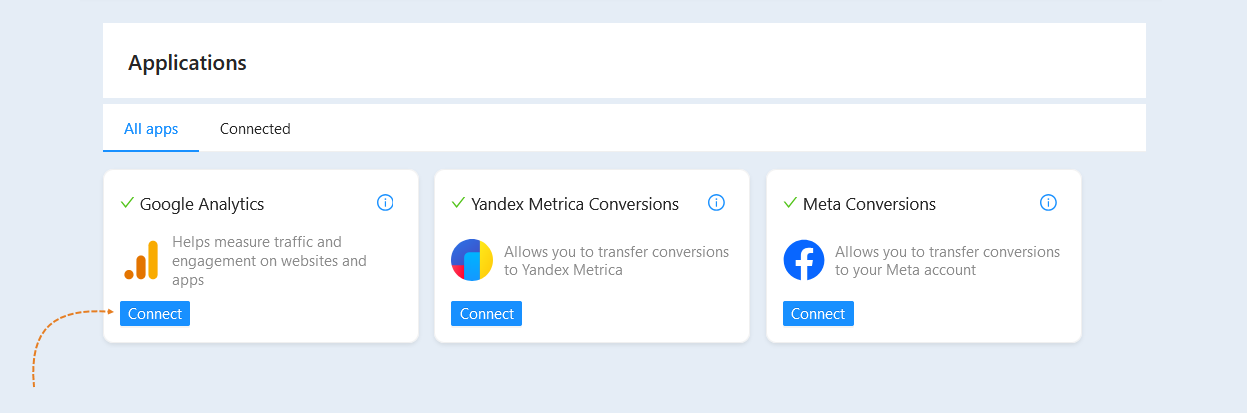
Next, open the AXL platform. Go to the "Applications" section. In the "All Applications" tab, you will find a list of all possible applications to connect to your account.
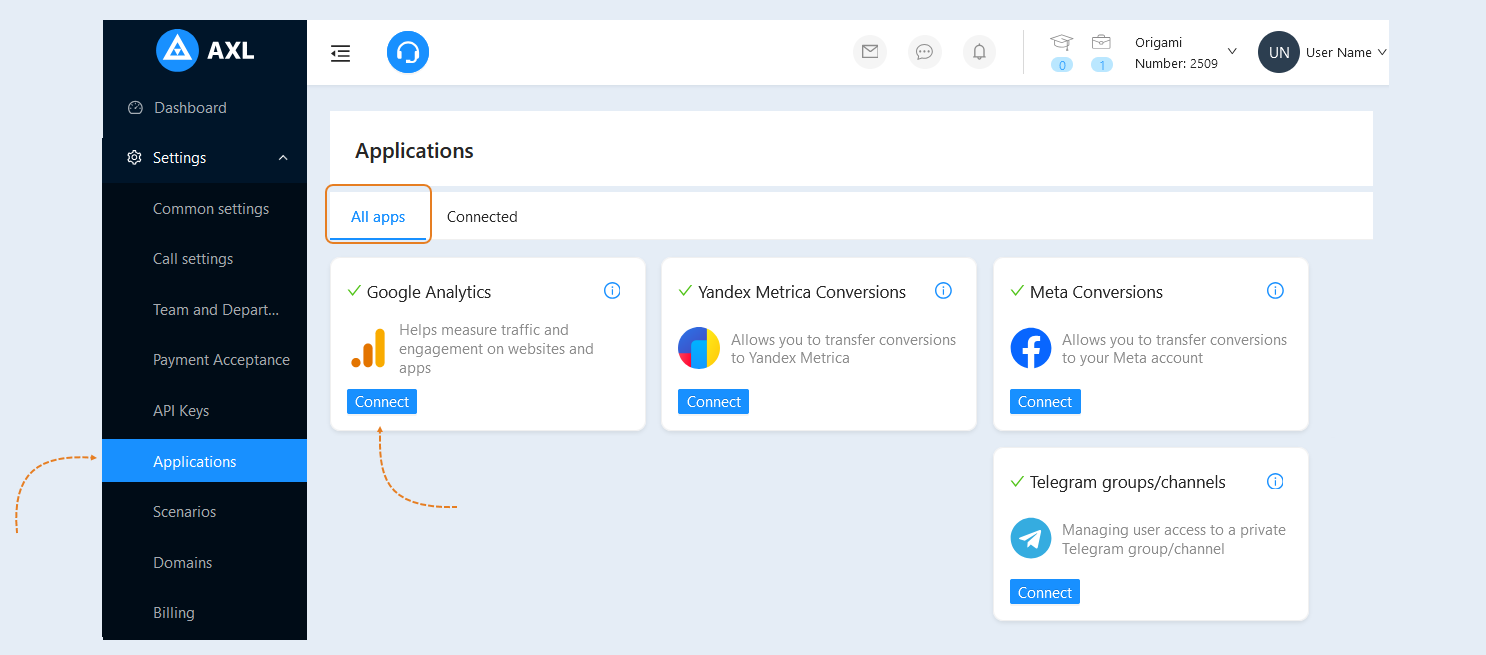
In the "Google Analytics" application card, click the "Connect" button.
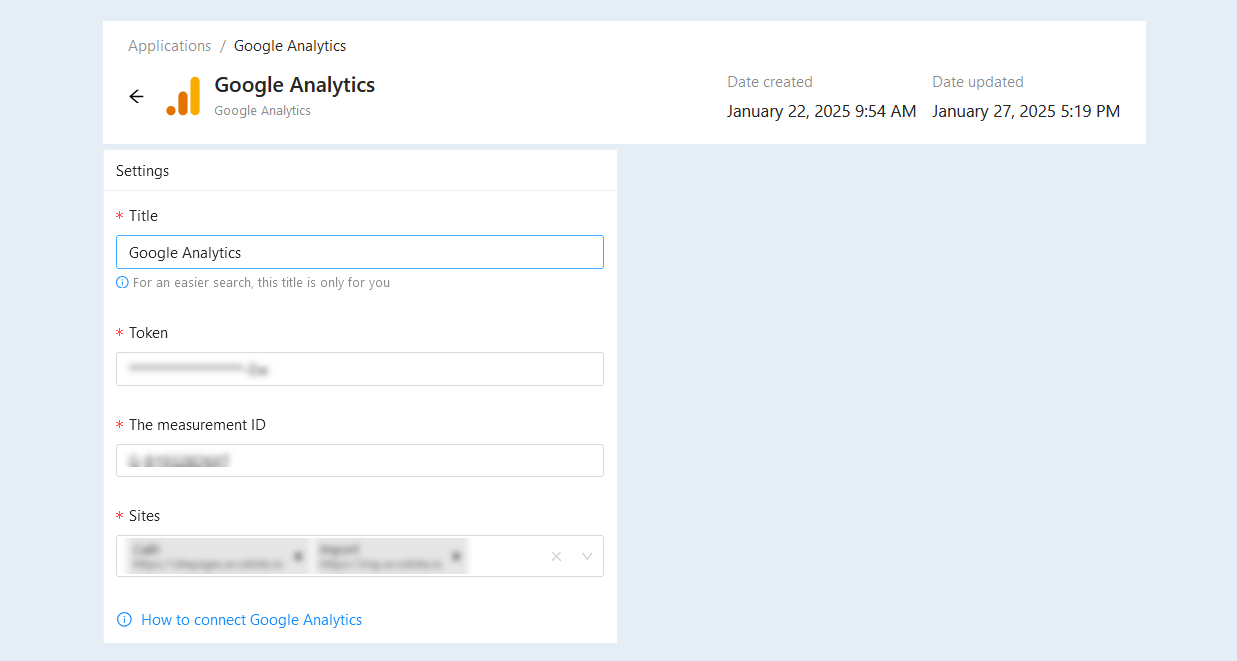
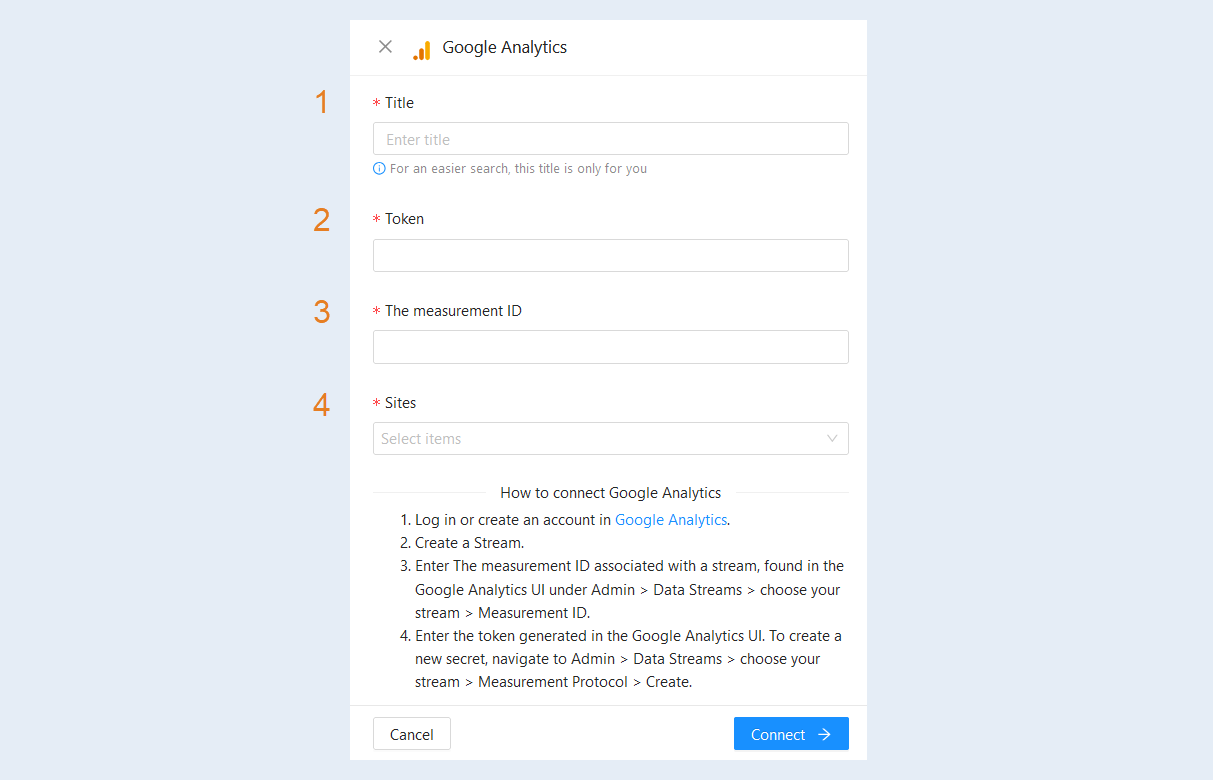
In the opened window, fill in the fields:
Title. Enter a name for the application to make it easier to find; this title is for your reference only.
Token. Paste the "Secret API Key value" that you copied from the Google Analytics website in step №1 of this article.
The measurement ID. Paste the "Measurement Id" that you copied in step №1 of this article.
Sites. Select one or more sites from the offered list. To learn more about creating a site on the AXL platform, read the article "How to Create a Site".
Click the "Connect" button.
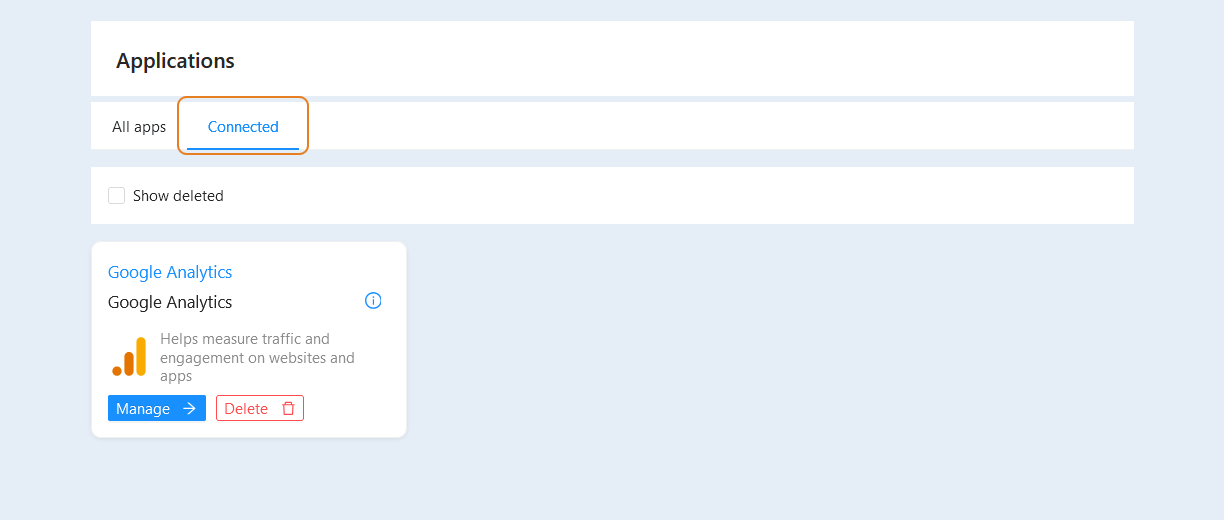
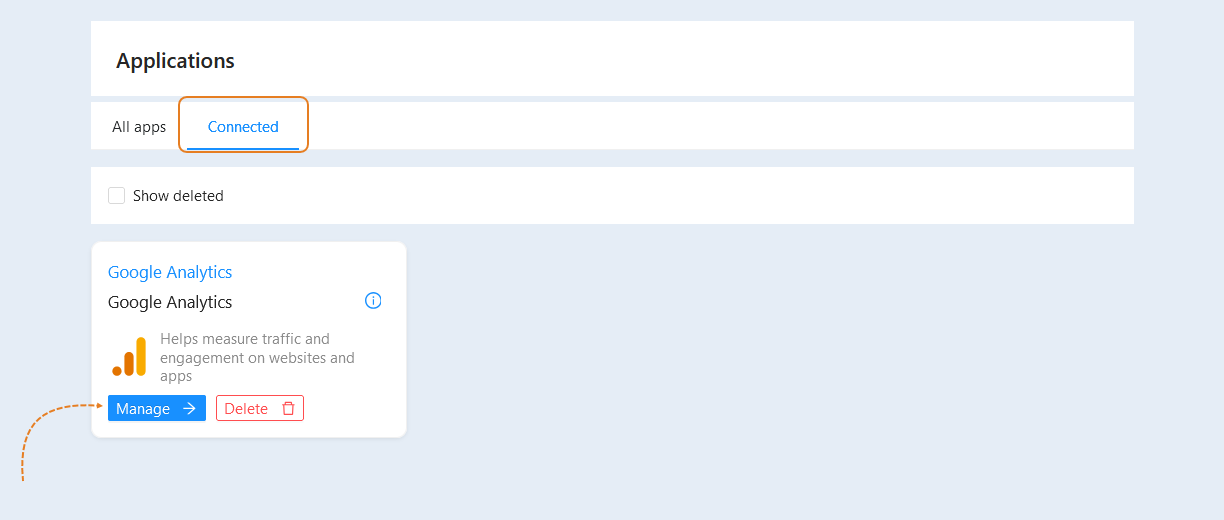
In the "Connected" tab, the Google Analytics application will be displayed.
Click the "Remove" button in the card to delete the application.
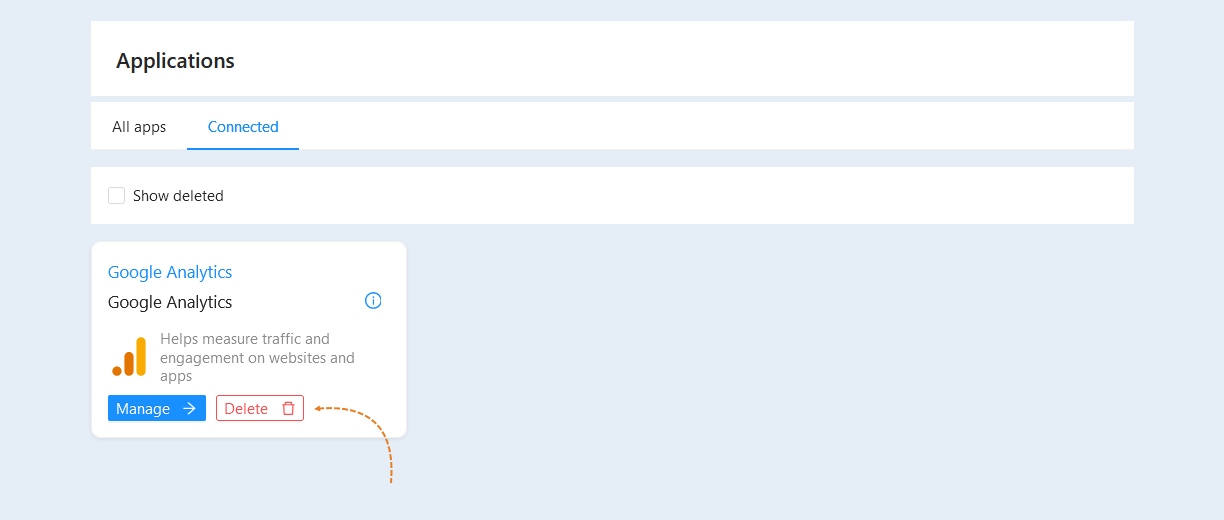
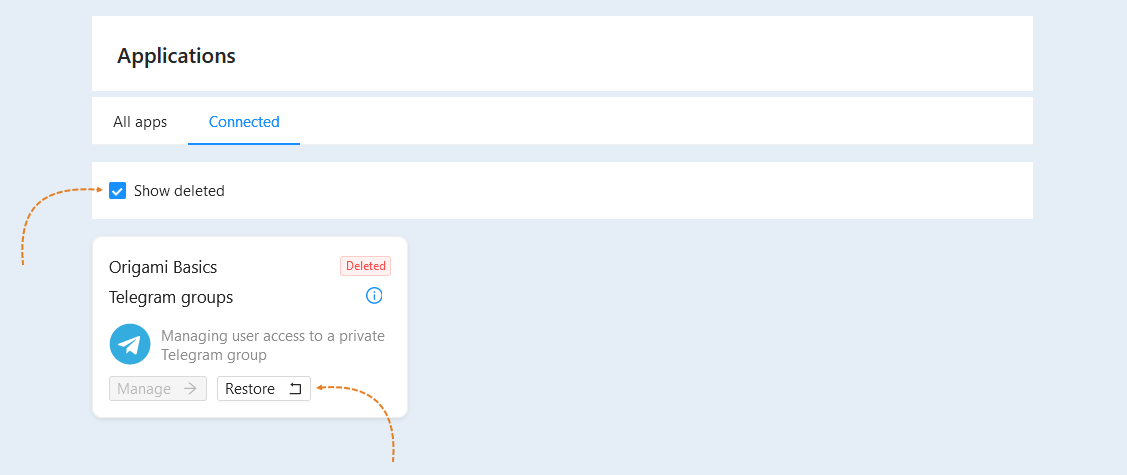
Check the box "Show Deleted" to see the list of deleted applications. You can restore a previously deleted application.
3
Application Settings
To continue with the application settings, click the "Manage" button.
In the opened window, you can change the application settings.