The Curator Agent automatically reviews users’ assignments and can be flexibly configured to follow your course methodology. It analyzes user responses, compares them with reference answers and course materials, and makes a reasoned decision using logic similar to that of a human instructor.
The Curator Agent helps reduce manual grading, speed up feedback, and ensure consistent grading standards across all courses.
Click a section below to jump to its description:
How to Set Up the Curator Agent
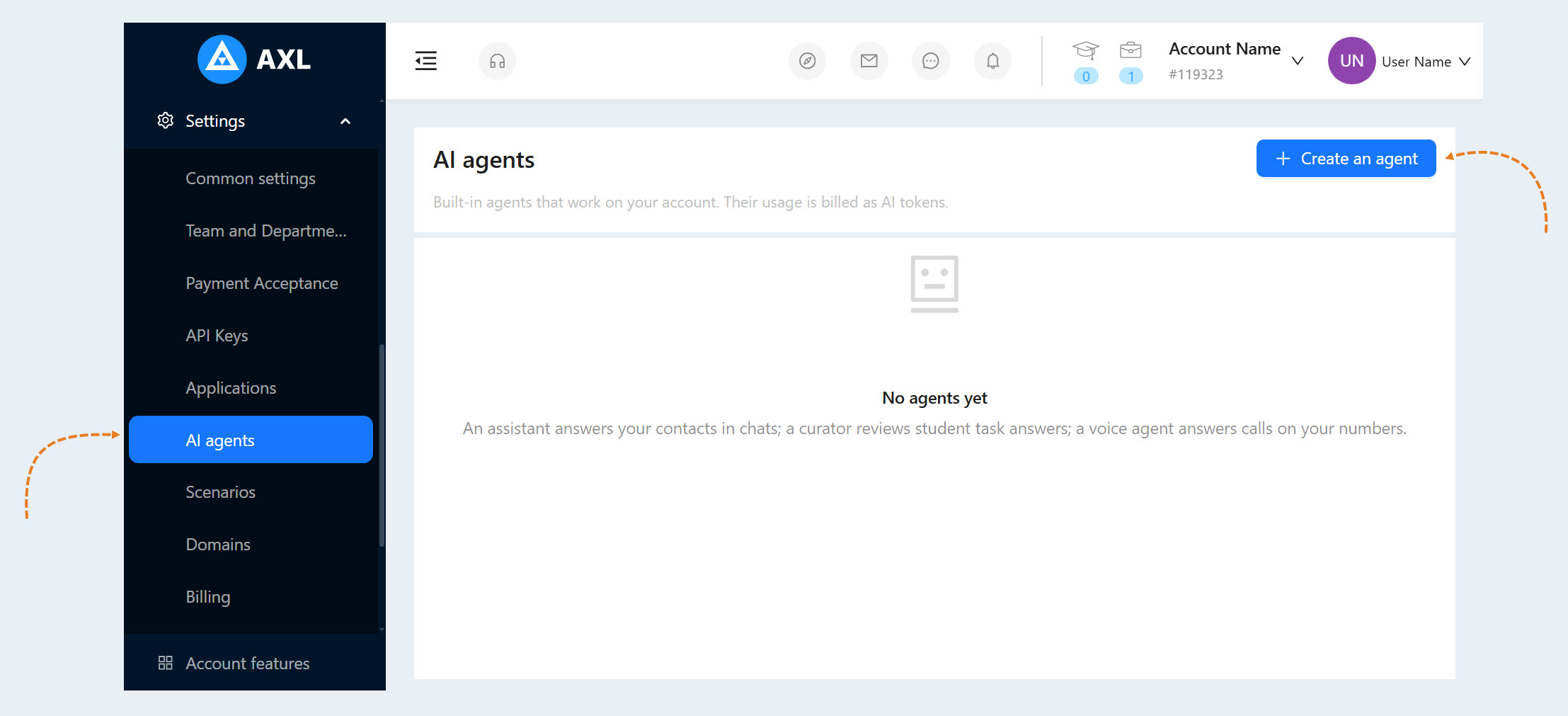
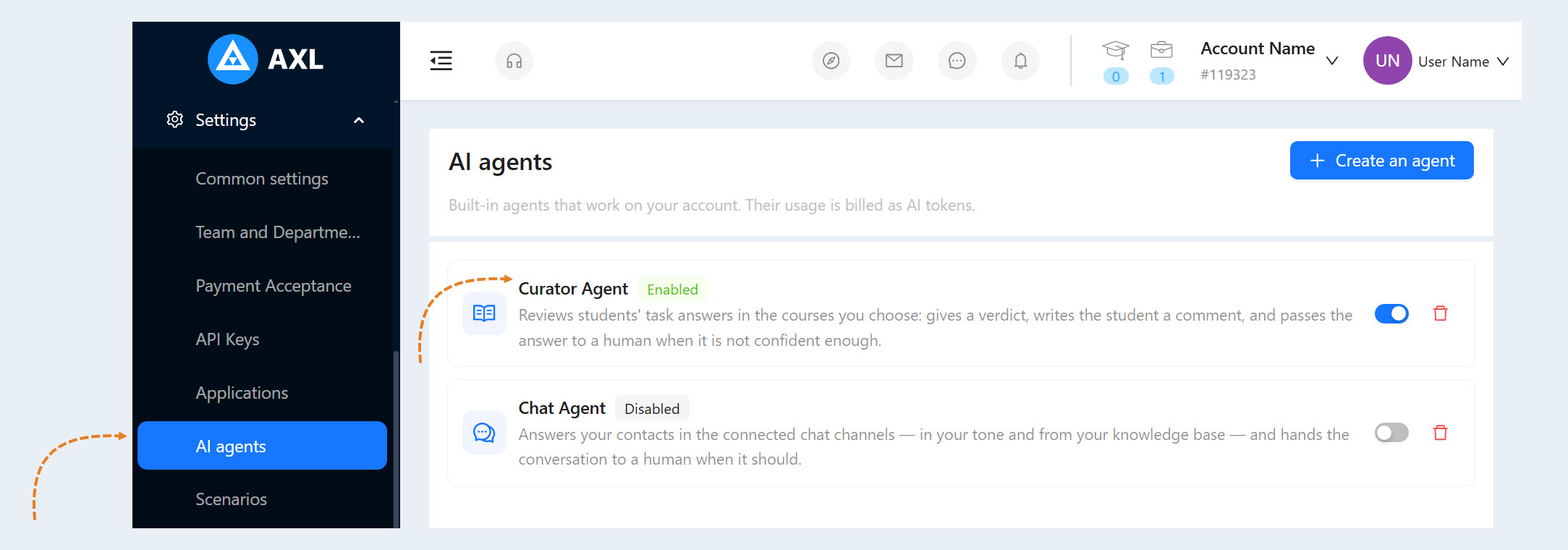
Go to Settings. The AI Agents tab displays a list of all AI agents connected to your account.
Click "Create Agent".
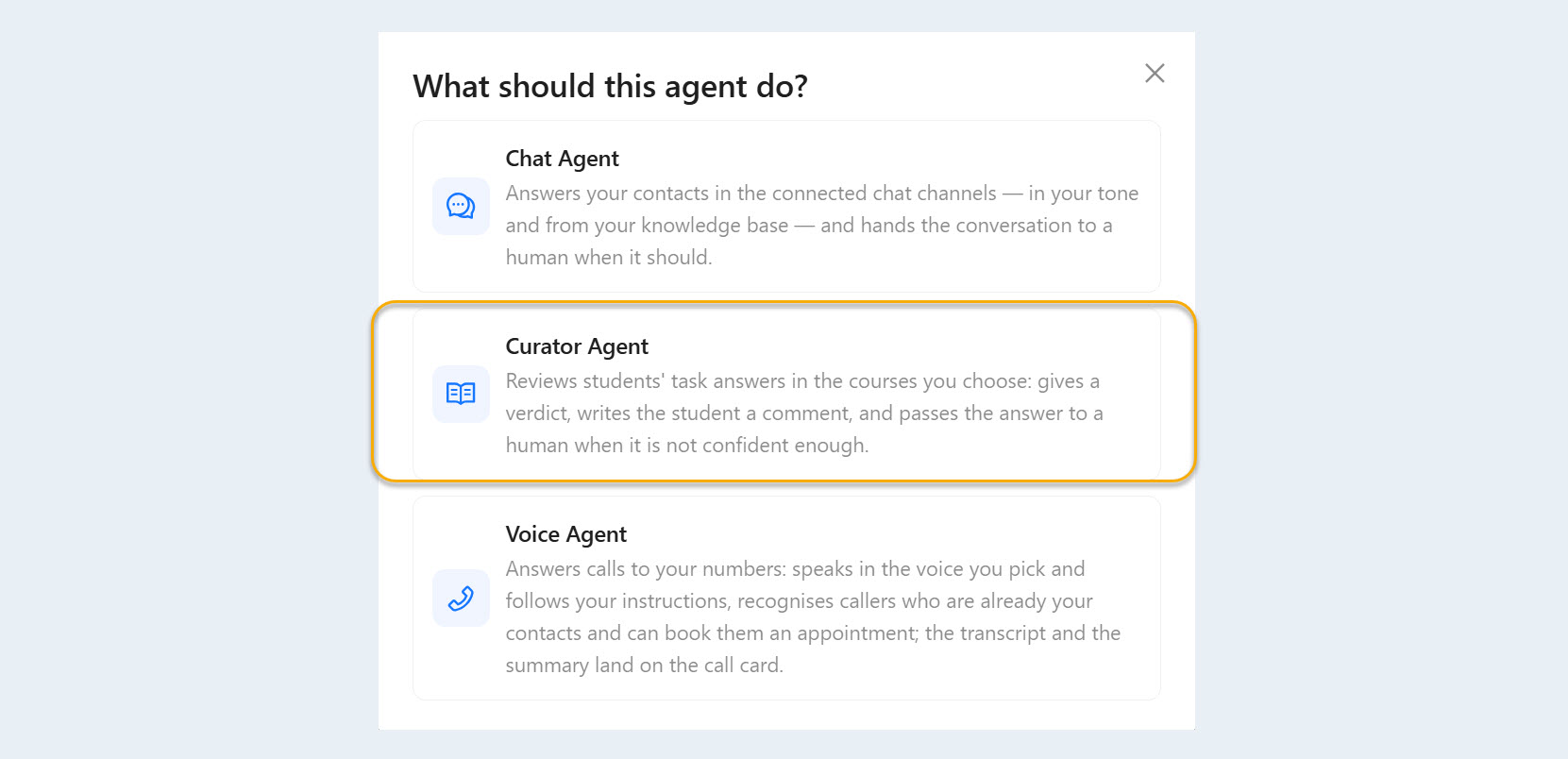
In the "What will the agent do?" pop-up window, select "Curator Agent".
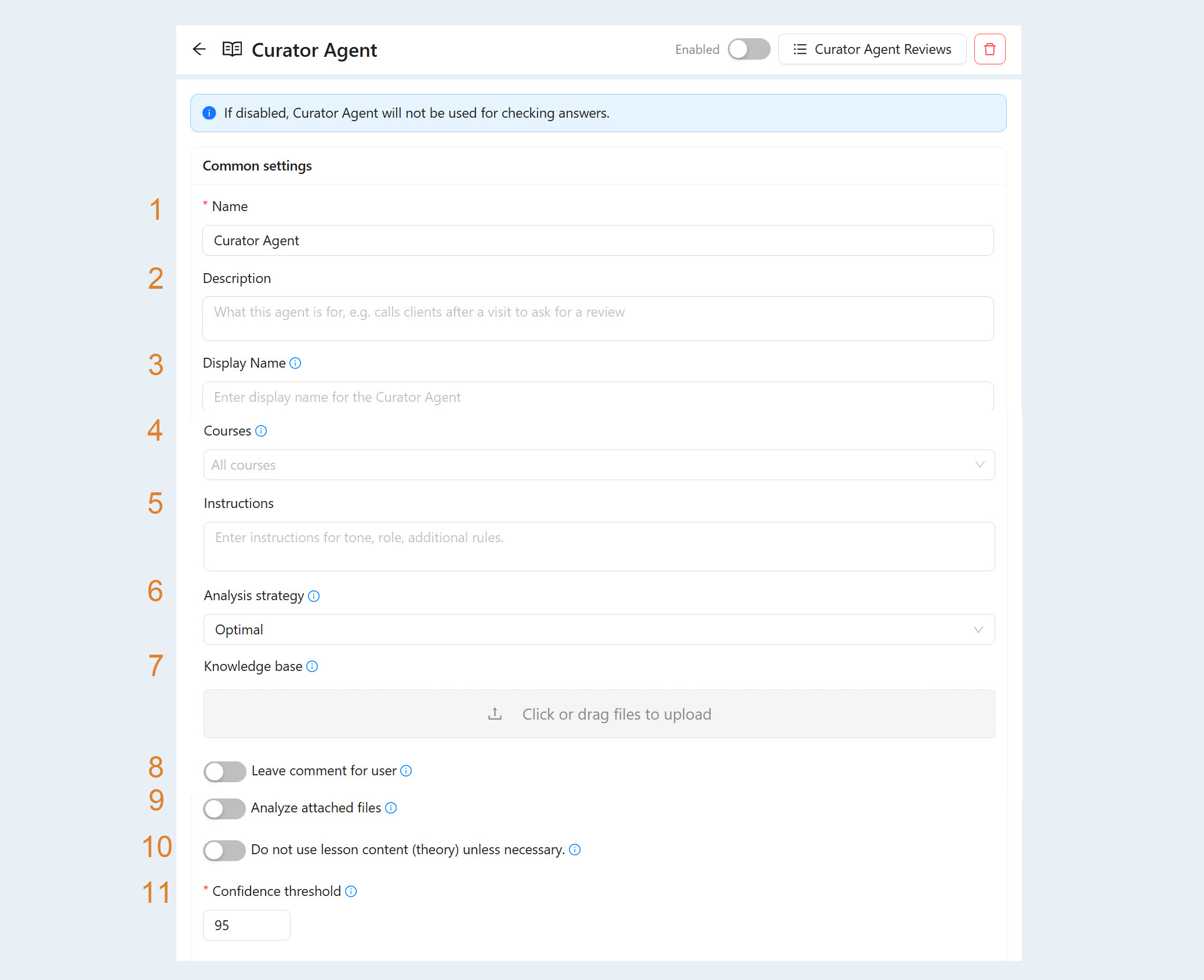
Complete the following fields in the window that opens:
Name. Enter a name for the Curator Agent to make it easier to find. Only you will see this name.
Description. Describe the purpose for which this agent was created.
Display name. Enter the name users will see.
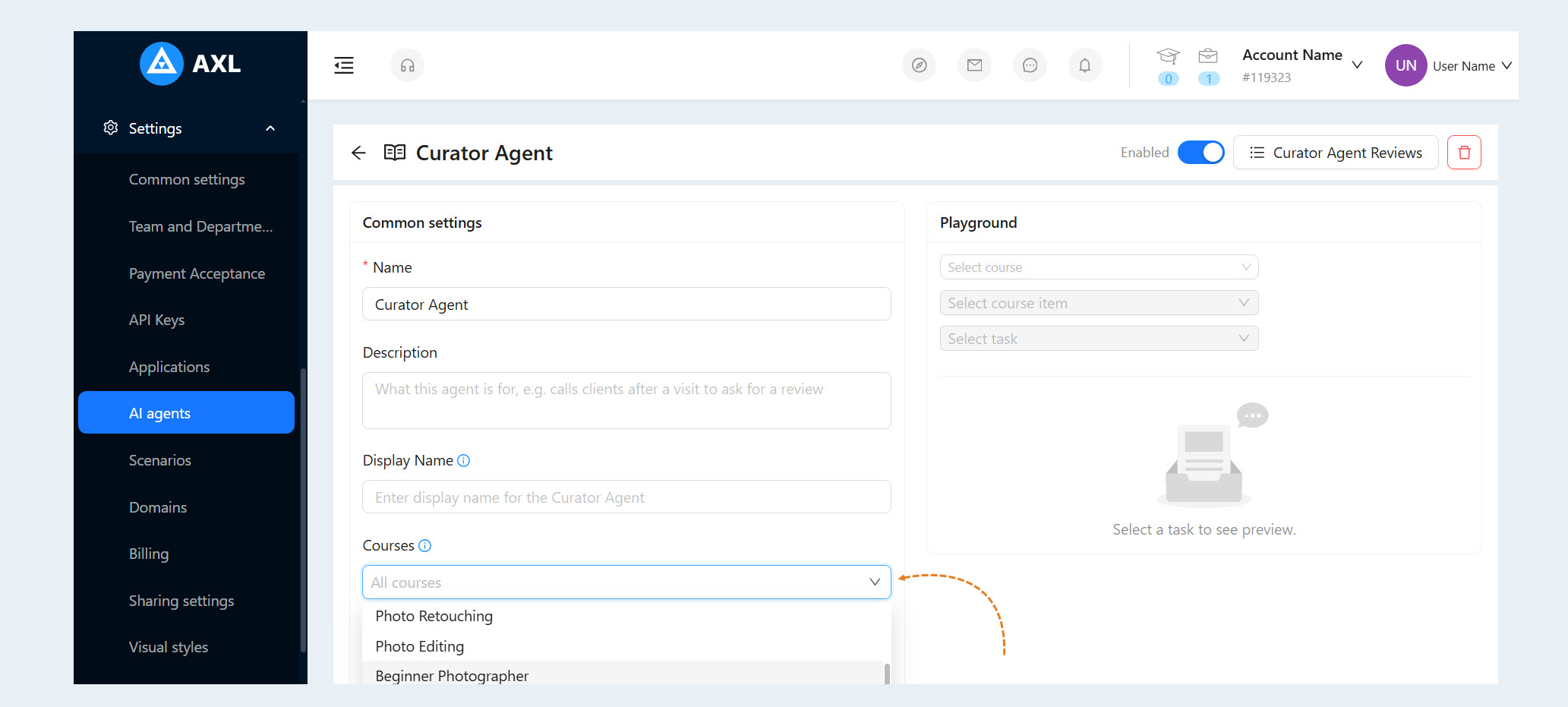
Courses. Select the courses whose assignments the agent will review. If you want the Curator Agent to skip a specific assignment, select Do not review with the Curator Agent for that assignment.
Instructions. Provide instructions about the agent’s tone, role, and any additional rules.
Analysis strategy. Choose how the Curator Agent should balance analysis speed, cost, and quality.
Knowledge base. Add text or attach TXT, PDF, DOCX, or JSON files containing information the Curator Agent should use when reviewing assignments.
Leave a comment for the user. The agent can leave detailed feedback: explain what went wrong, suggest where the user should look for more information, and do so automatically after every review. Enabling this option may increase usage costs.
Analyze attached files. The agent will consider images and documents that users attach to their responses. Enabling this option may increase usage costs.
Do not use lesson content (theory) unless necessary. When this option is enabled, the agent uses the knowledge base and the correct answer, if one is provided, to reduce costs. Otherwise, the agent also uses the lesson theory.
Confidence threshold. If the agent’s confidence level is below the specified threshold, the assignment is automatically sent for manual review.
Click "Save Changes".
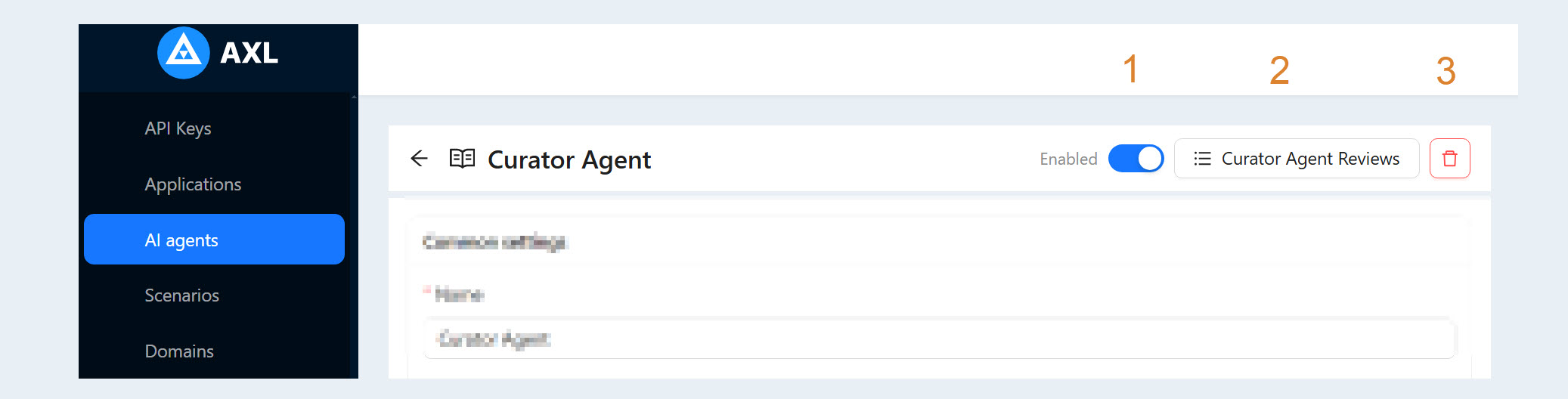
The following controls are available in the top menu:
Enabled. If this toggle is turned off, the Curator Agent will not review learner submissions.
Curator Agent Reviews. This section displays the history of assignments reviewed by the Curator Agent.
Delete. You can delete the agent. Results from previous reviews will be retained.
Let’s take a closer look at each section.
Testing
Go to Settings. The Curator Agent you created will appear on the AI Agents tab. Click the curator’s name to open the AI agent settings.
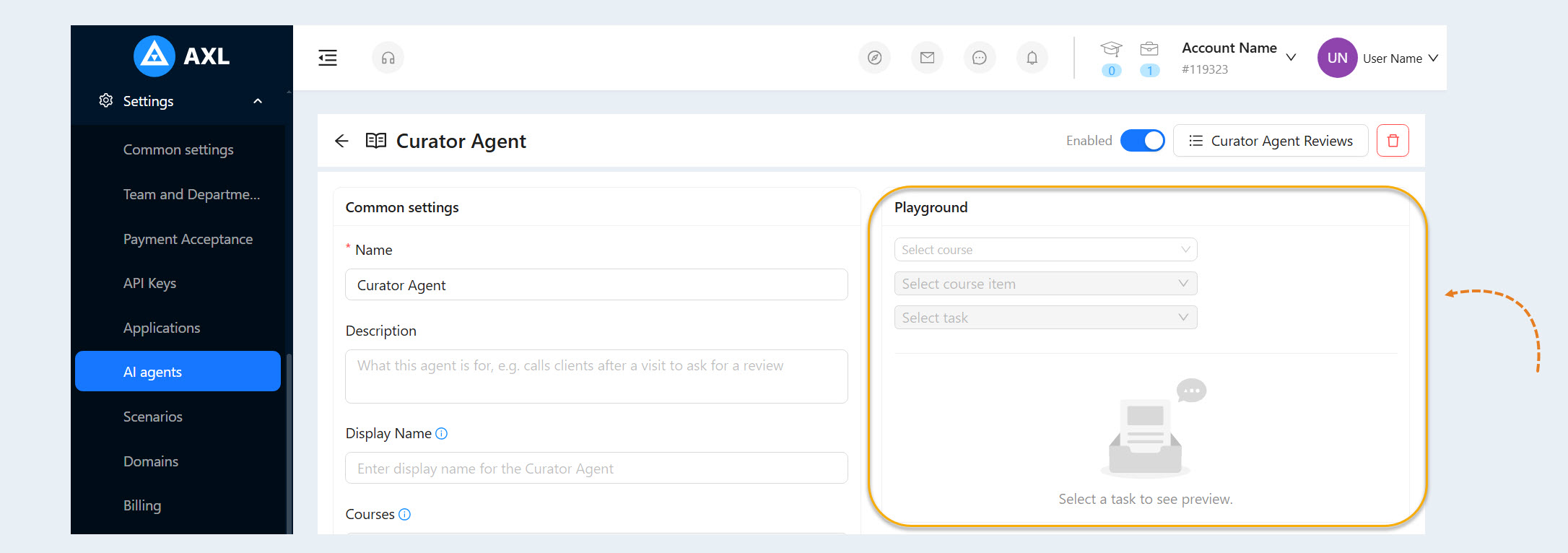
In the Curator Agent settings, you can test how the agent reviews responses.
To test the Curator Agent, select the following:
Select a course. Choose the course you want to use for testing.
Select a course step. Choose a suitable step in that course.
- Select an assignment. Choose the assignment whose responses you want the Curator Agent to review during the test.
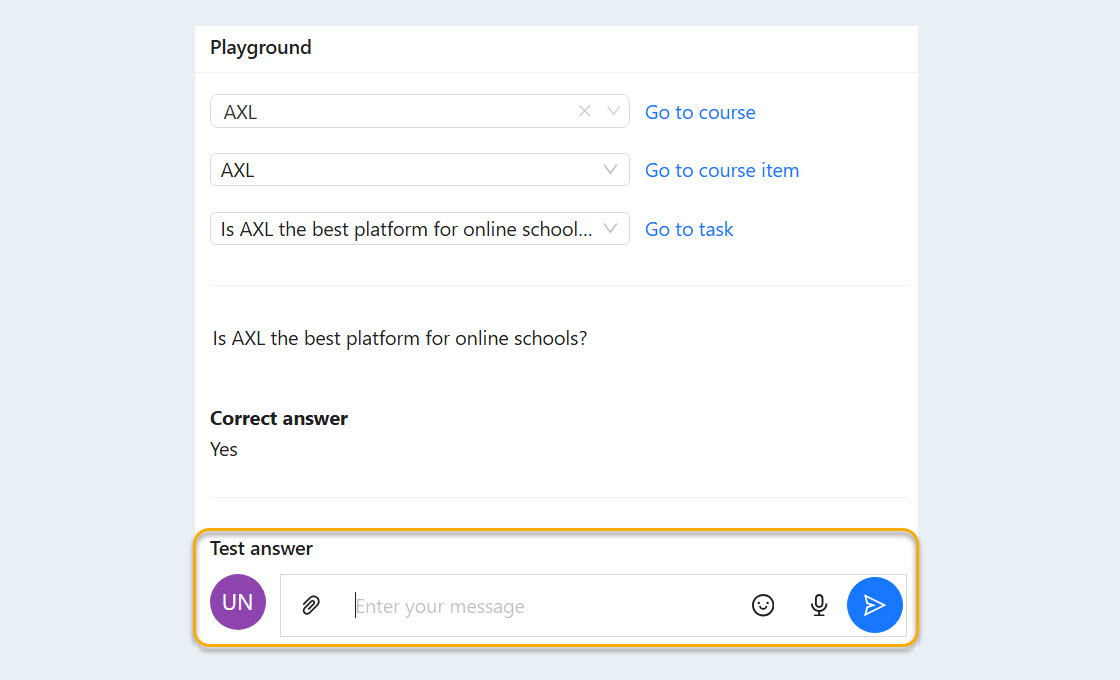
In the Test Response field, enter a sample response to the assignment for the Curator Agent to review.
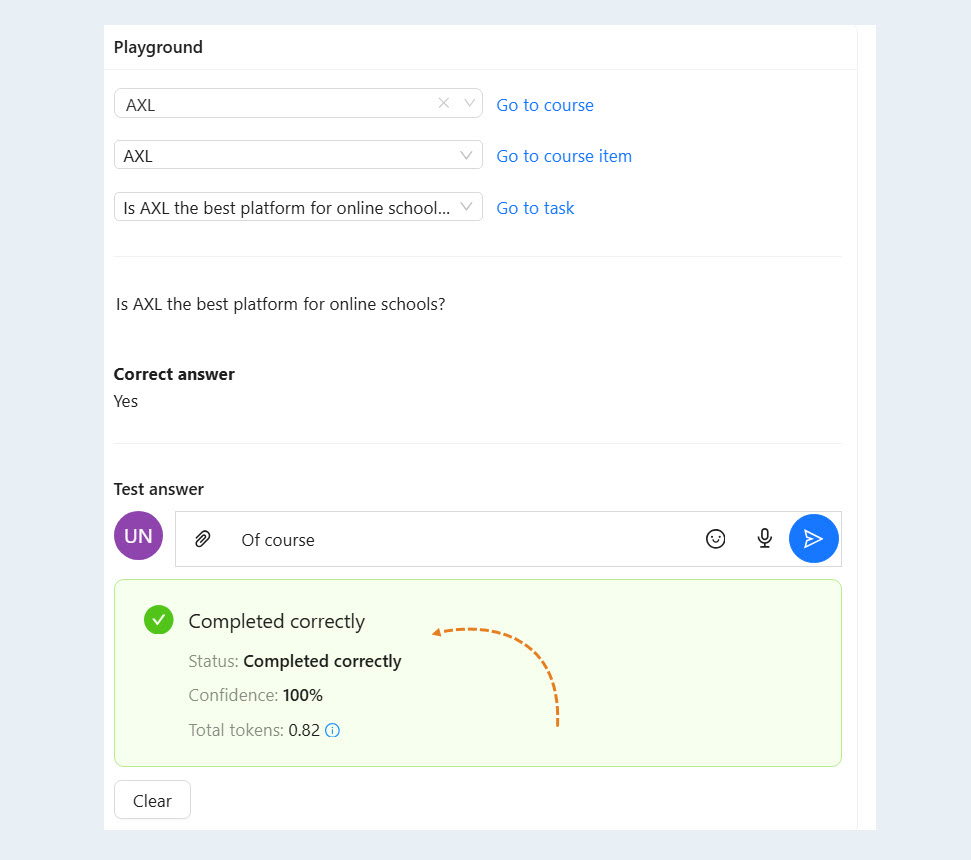
After the test response is entered and submitted for review, the Curator Agent starts an analysis process that is identical to the process used for an actual user response.
Based on its analysis, the Curator Agent determines whether the assignment was completed correctly, displays its confidence level as a percentage, and provides detailed feedback on how well the test response matches the expected answer.
You can run the same test from the settings for a specific assignment in the Courses section.
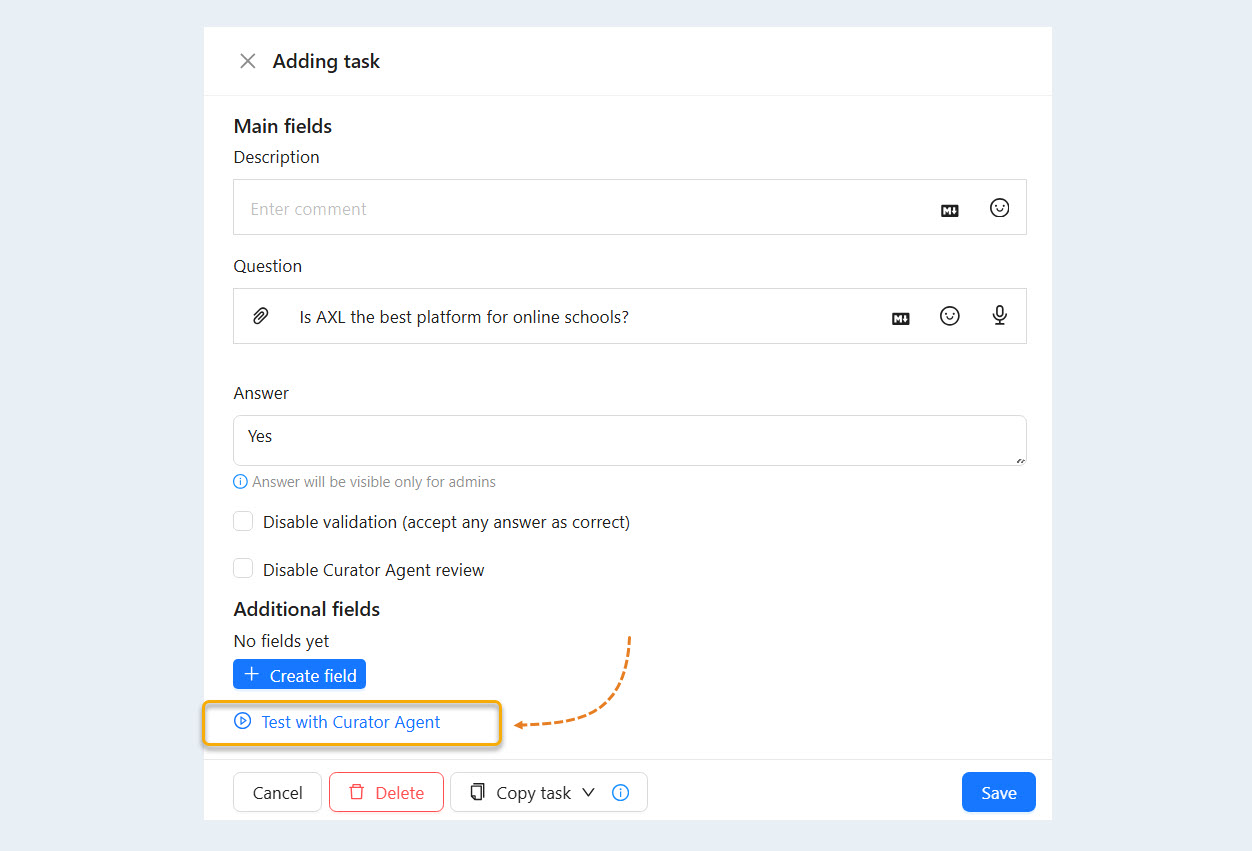
How the Curator Agent Works
When reviewing an assignment, the Curator Agent analyzes the user’s response and compares it with several sources:
The description of the correct answer provided in the assignment settings
The curator’s knowledge base, if one has been uploaded
The lesson theory, if no knowledge base has been provided
The user’s attachments, including audio messages, images, and documents
The agent considers the context of the assignment and does more than simply mark the response correct or incorrect: it also explains the reasoning behind its decision.
Flexible Review Settings
The Curator Agent can be adapted to different course formats and learning models.
The following settings are available:
Enable or disable Curator Agent reviews for a specific assignment
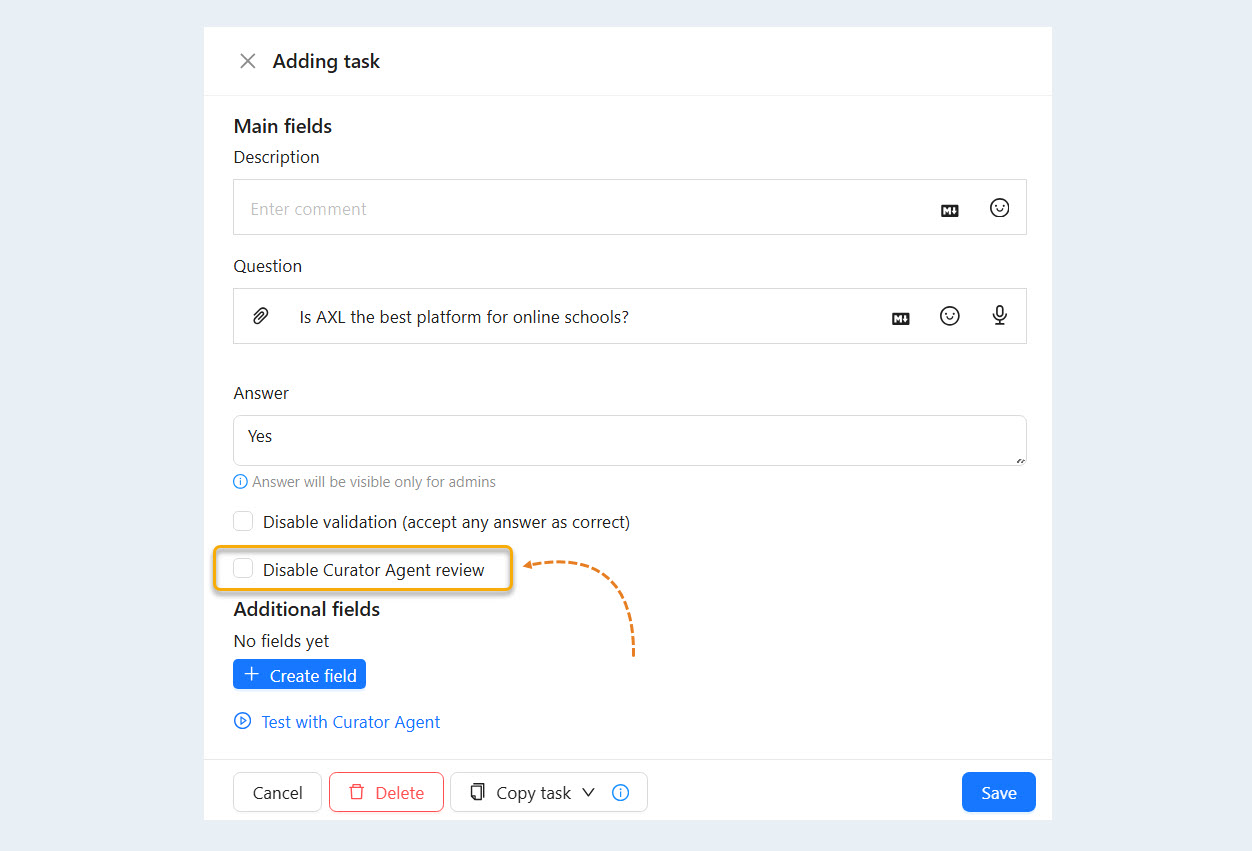
Select all courses or only specific courses
Test the curator on individual assignments before launch
These settings let you roll out AI-assisted reviews gradually while monitoring their quality.
Instructions for the Curator Agent
You can provide custom instructions for each curator to define its review style and rules.
Examples include:
How the agent should communicate with users
The tone of its comments: strict, neutral, or friendly
Whether humor or informal explanations are allowed
Any other instructions
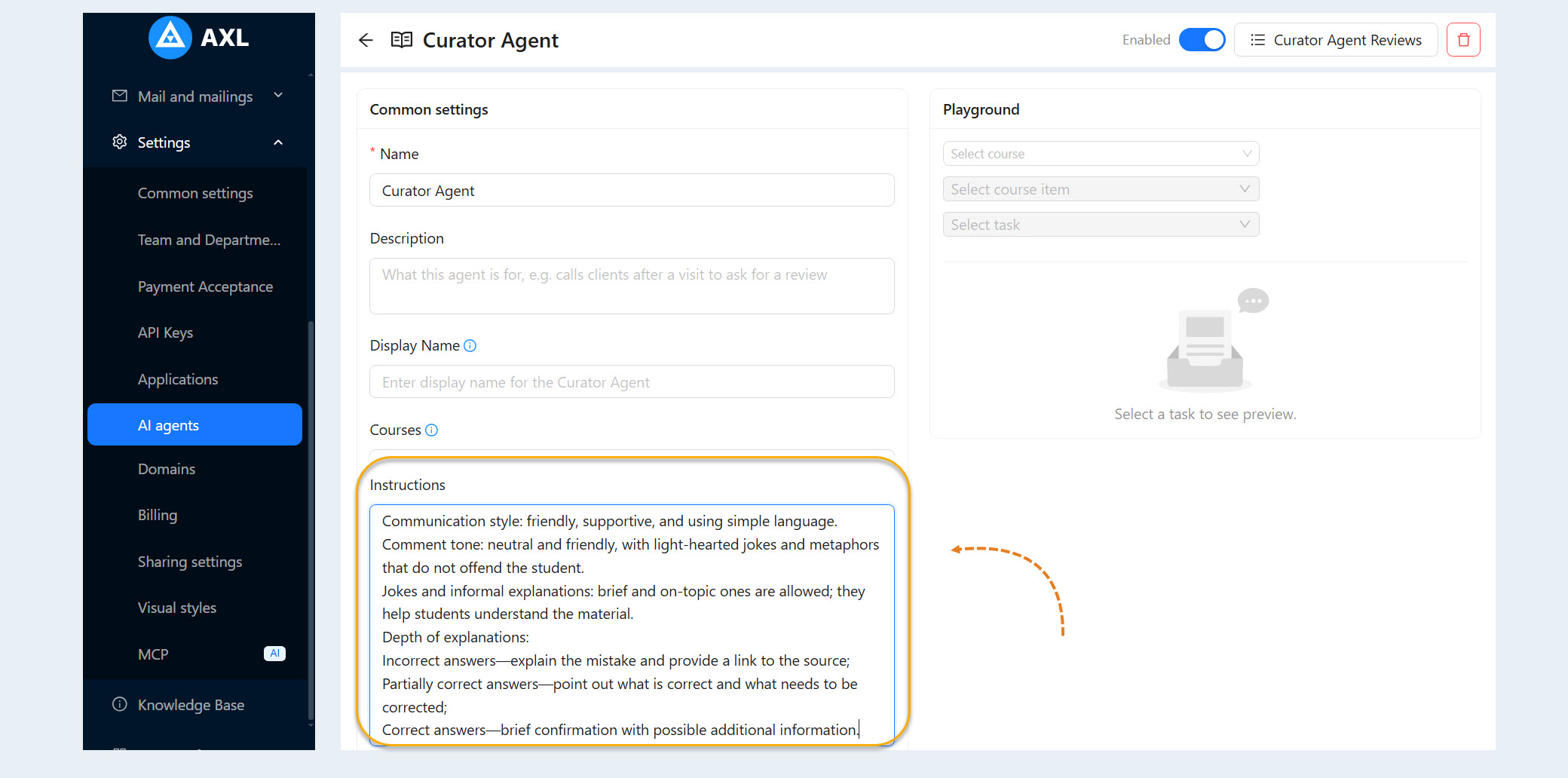
The Curator Agent follows these instructions closely when reviewing assignments and writing comments.
Curator Knowledge Base
You can upload a custom knowledge base in the Curator Agent settings. The agent will use it when reviewing assignments.
Several types of materials are supported:
Text files
PDF
- DOCX
- JSON
Other document formats
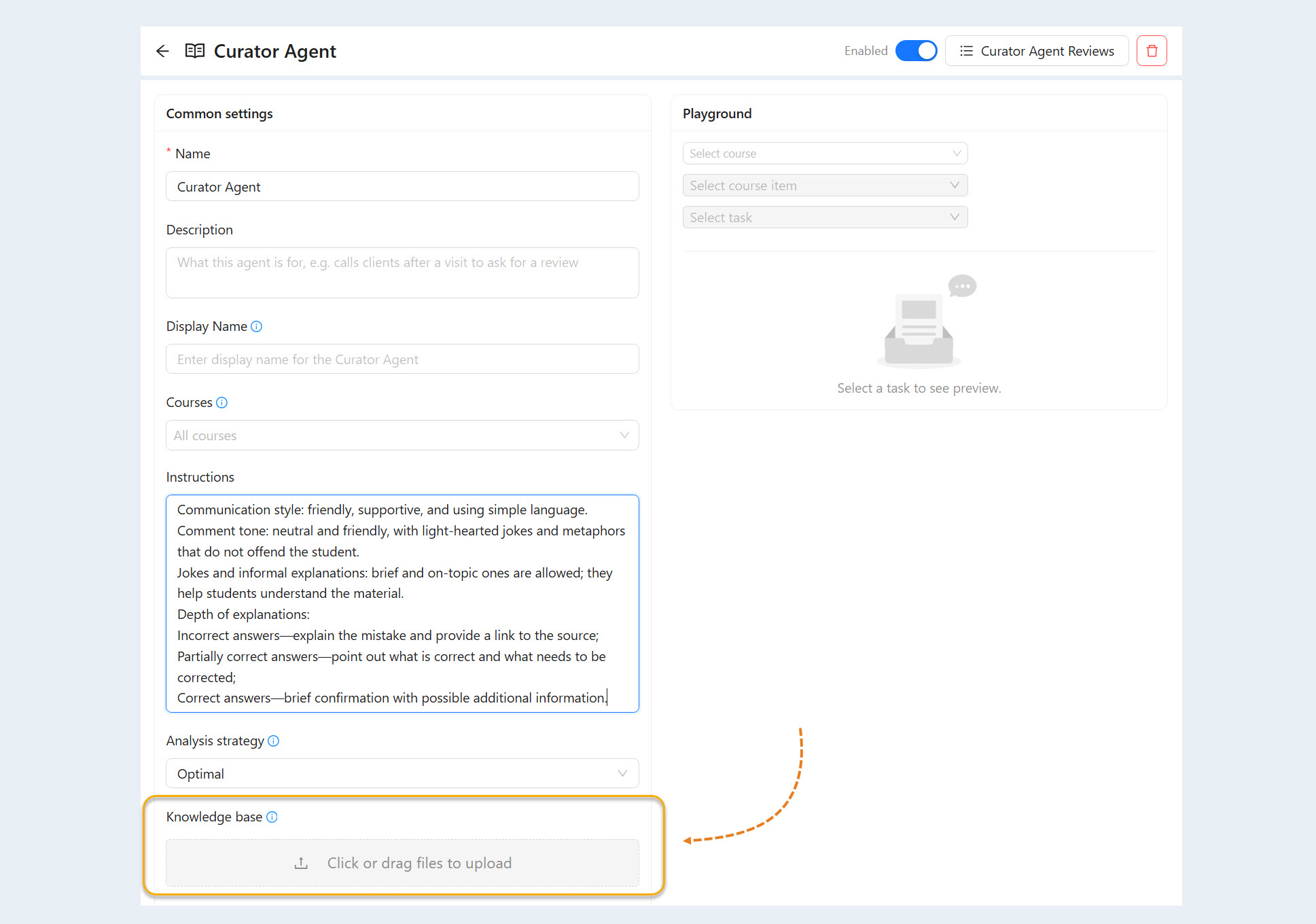
A knowledge base allows the agent to review responses using your terminology, methodology, and internal standards rather than generic criteria.
Comments for Users
After reviewing an assignment, the Curator Agent can automatically leave detailed comments for the user that:
Point out errors
Explain why the response was accepted or rejected
Recommend materials for the user to review
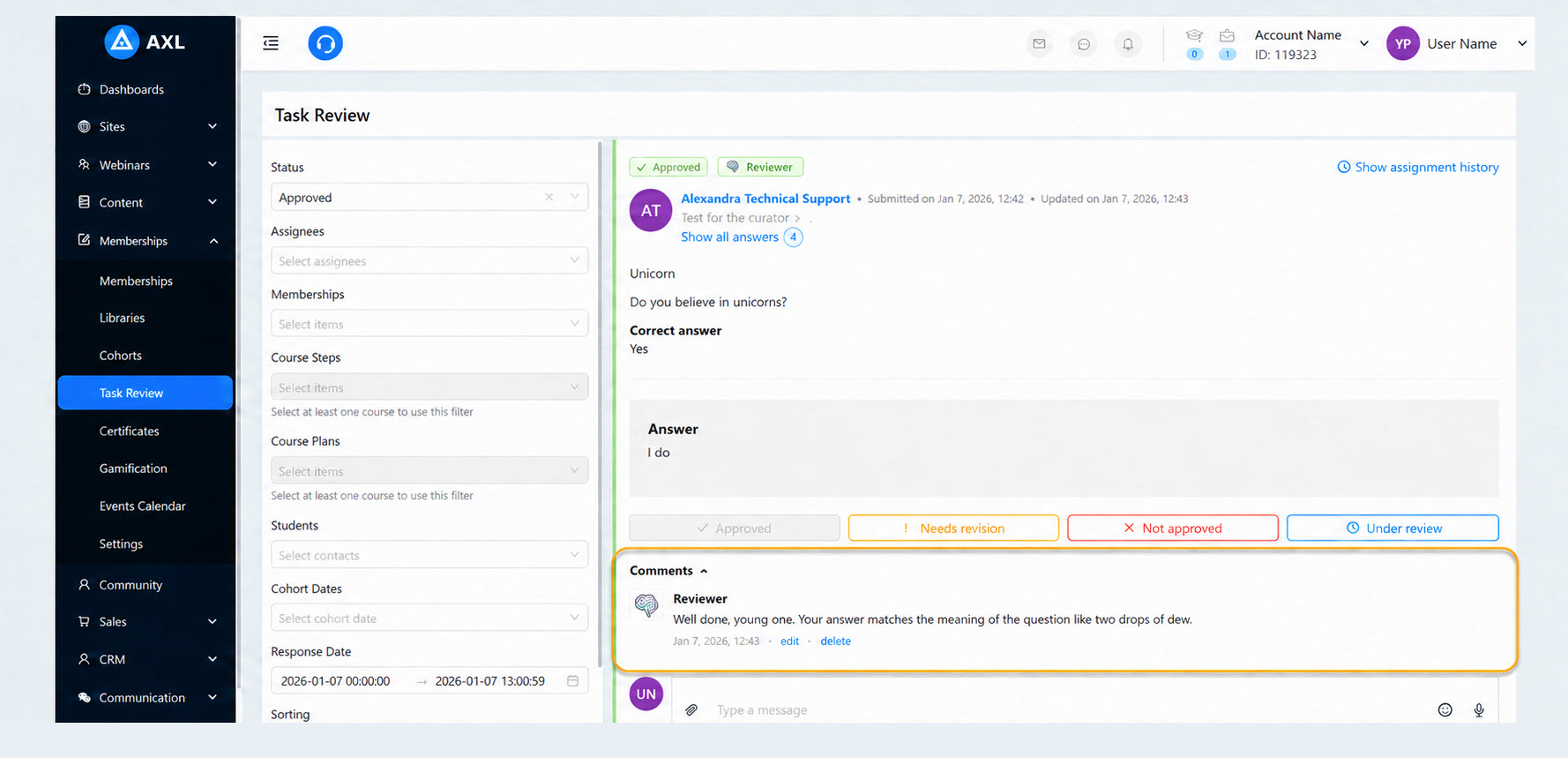
Comments are generated immediately after the assignment is reviewed, without instructor involvement.
Analyzing Attached Files
The Curator Agent can review assignments that include attachments such as:
Images, including screenshots and photos
Documents
Audio messages
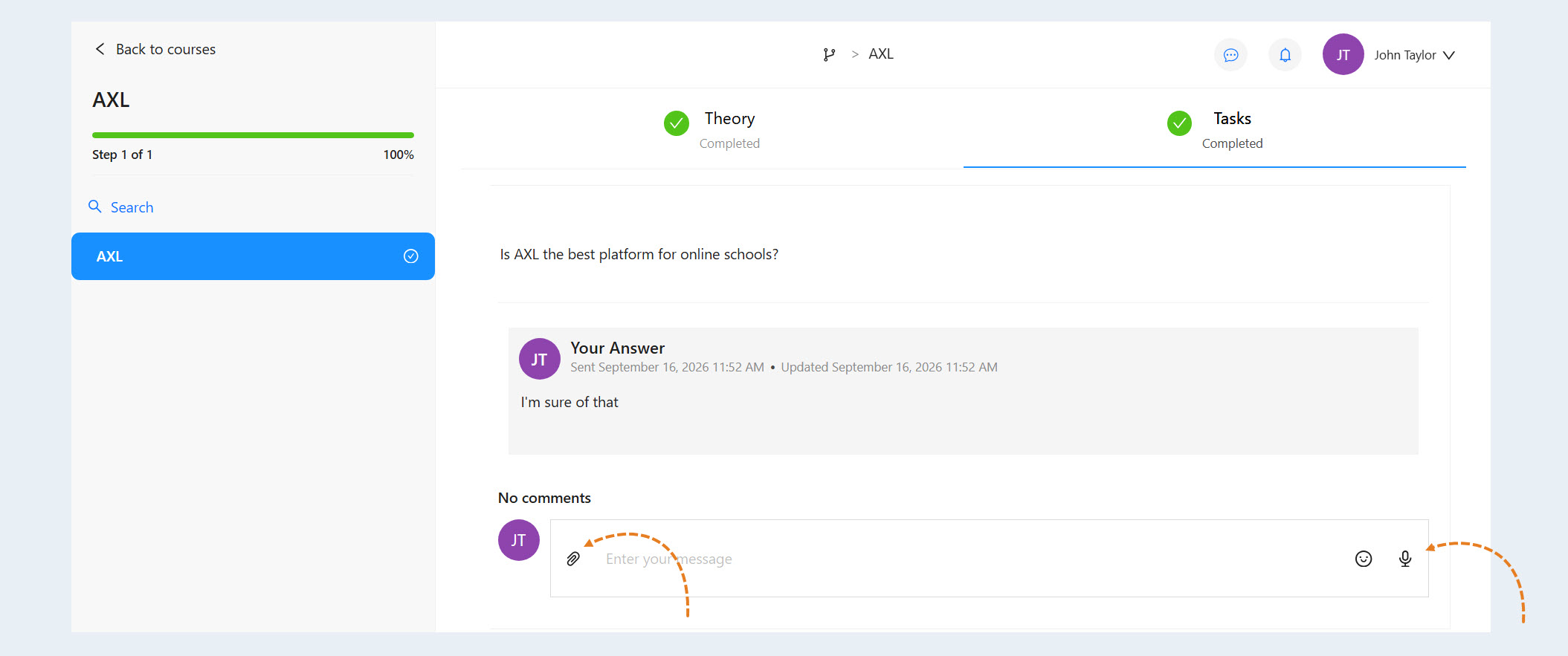
This is especially useful for hands-on exercises, homework, and assignments with visual deliverables.
Confidence Threshold
To help maintain review quality, you can set a minimum confidence threshold for the Curator Agent.
Here’s how it works:
If the Curator Agent’s confidence level is above the specified threshold, the assignment is reviewed automatically.
If the Curator Agent’s confidence level is below the specified threshold, the assignment is automatically sent for manual review.
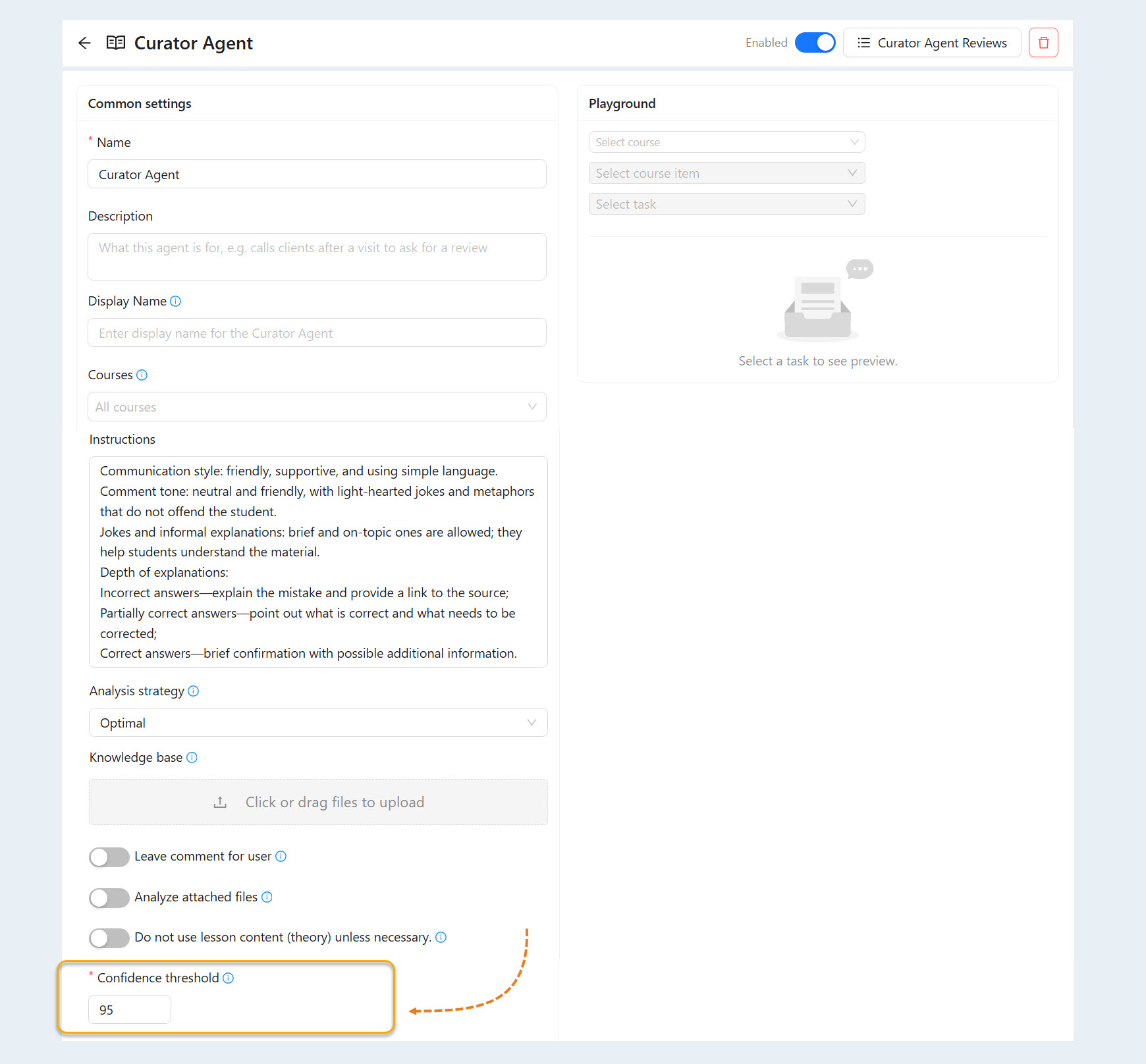
This helps reduce the risk of errors on complex or ambiguous assignments.
Analysis Strategy
You can choose a Curator Agent strategy based on your priorities:
Review speed
Quality of analysis
Processing cost
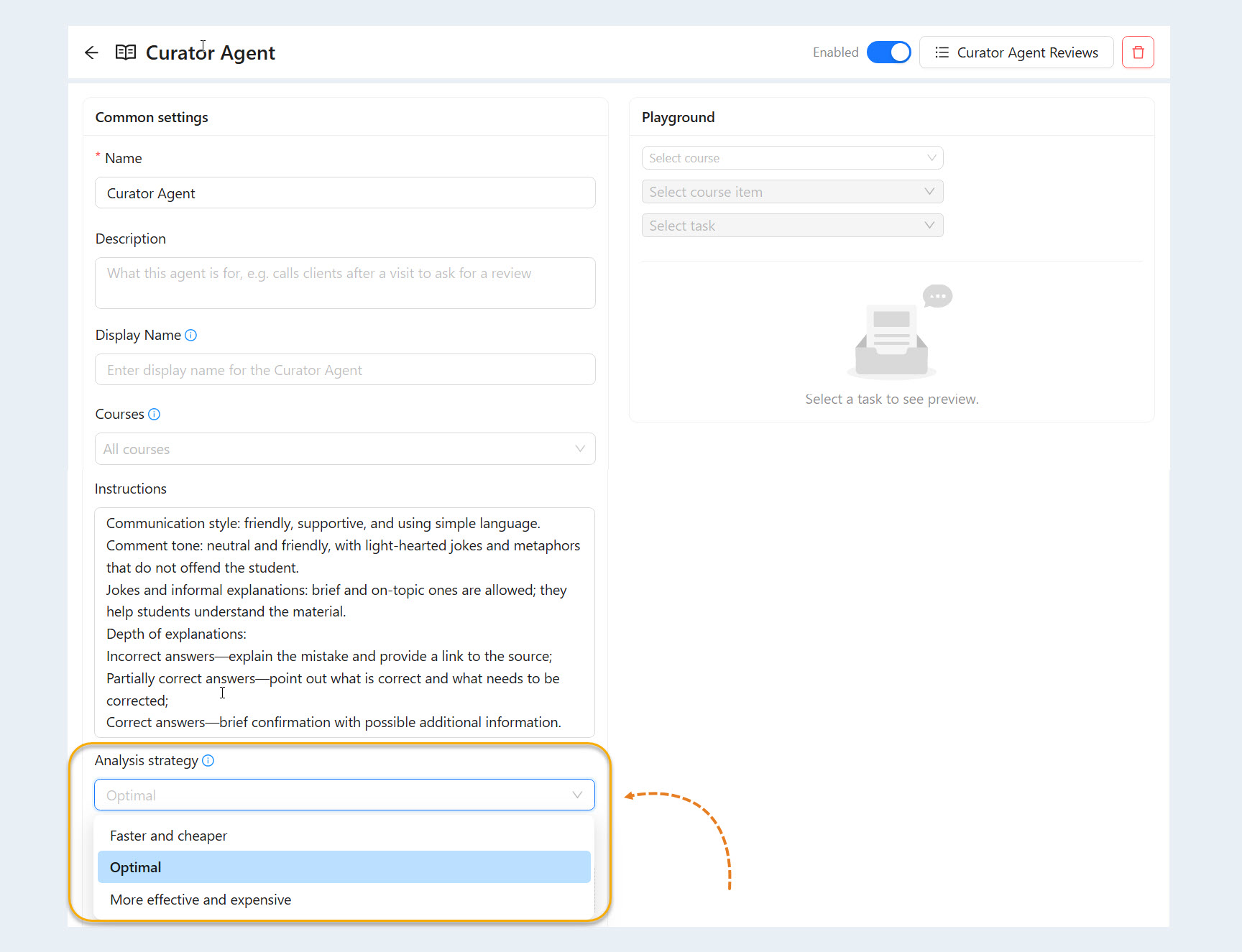
This setting works well for both small courses and large-scale learning programs with many users.
Usage Costs
Curator Agent usage is billed based on the number of tokens actually consumed.
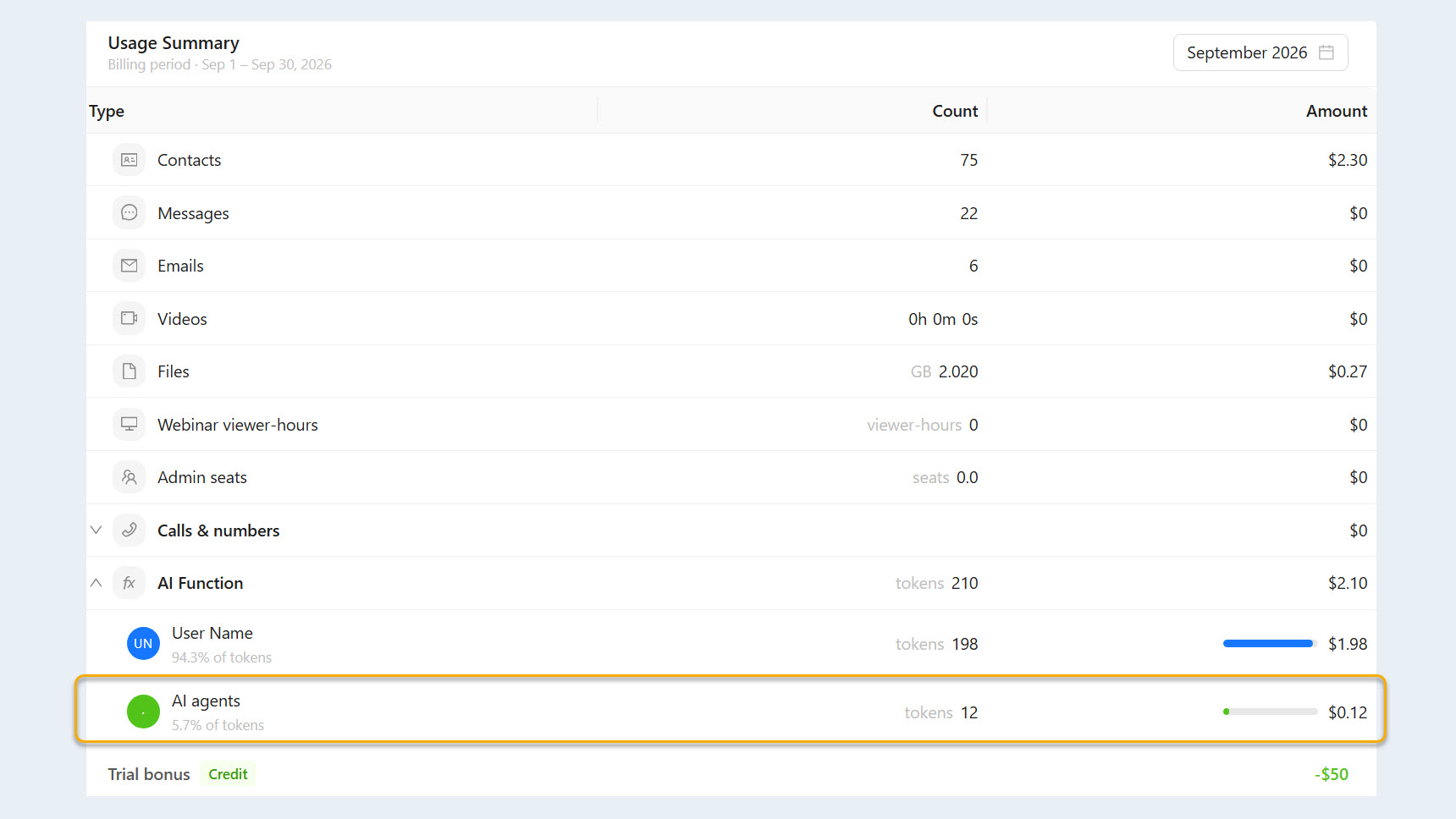
Token usage depends on the selected settings and the complexity of each review.
There are no hidden fees—you pay only for the AI work actually performed.
Business Impact
According to internal estimates, one primary Curator Agent can replace the work of 10–15 reviewers on courses with thousands of users.
As a result, you get:
Less repetitive manual work
Faster assignment reviews
Consistent grading standards
The Curator Agent lets you automate assignment reviews without sacrificing quality or control. The review process becomes transparent, scalable, and tailored to your educational model.
Assignment reviews start working for you—not the other way around.