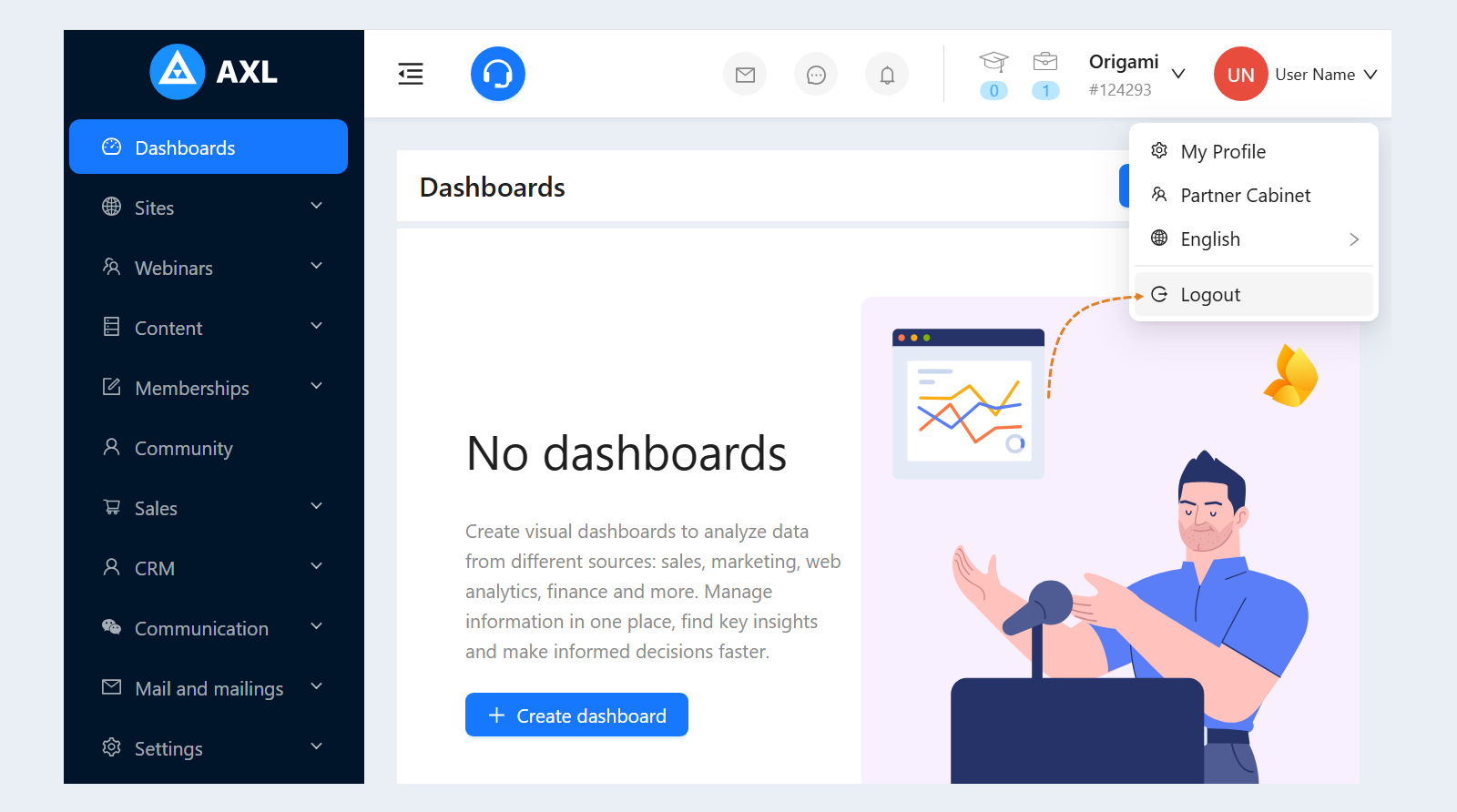
In the upper right corner of the page is the "Profile" section. The profile displays the account holder's personal data: name, email address, phone number, password, etc. You can change your personal data at any time.
Click on your name in the upper right corner of the page to open your profile on the AXL platform. The "Edit Profile" window will open.
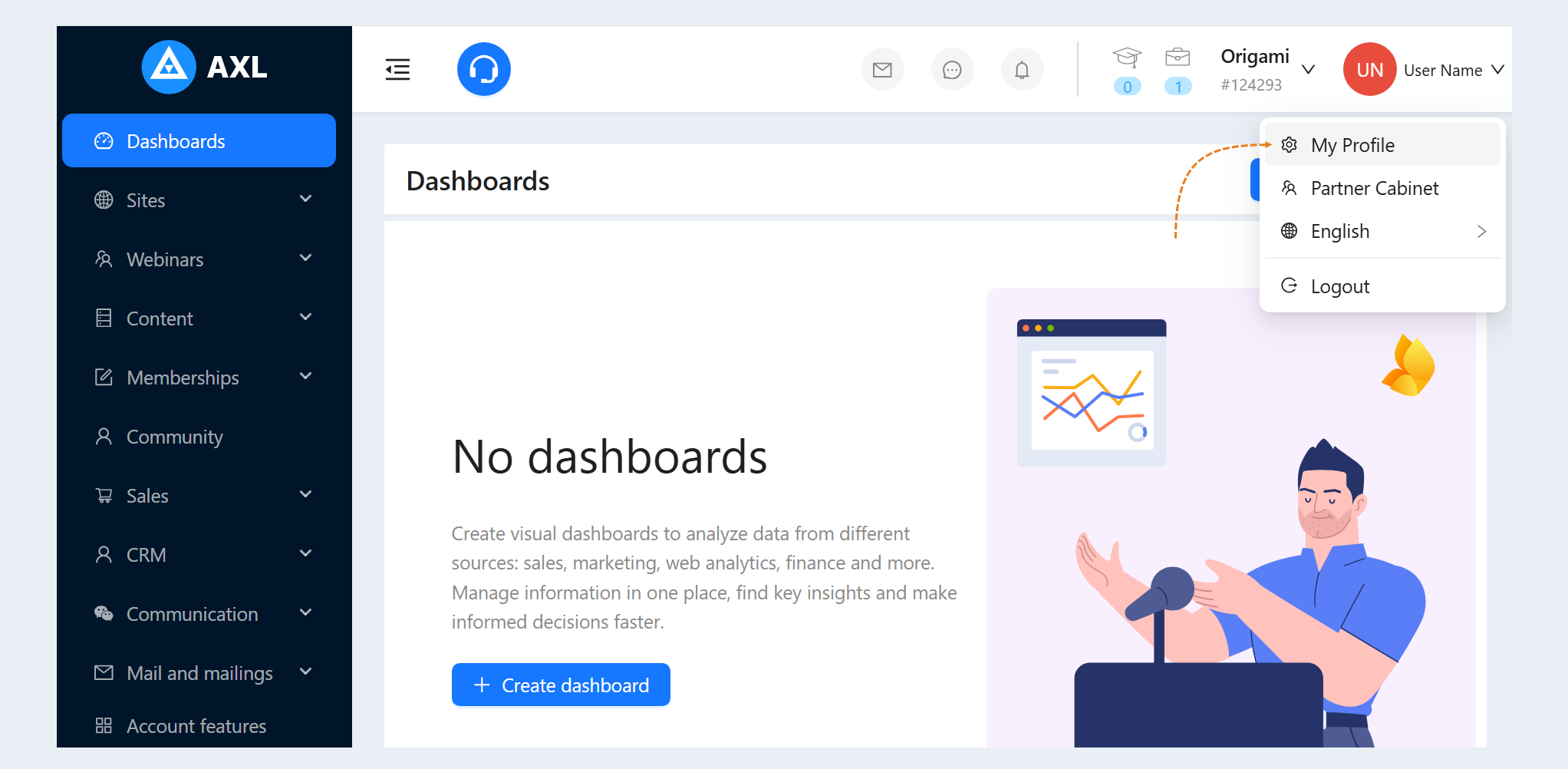
In this article, we will look at the following sections in detail, click on the desired section to go to its description:
Common
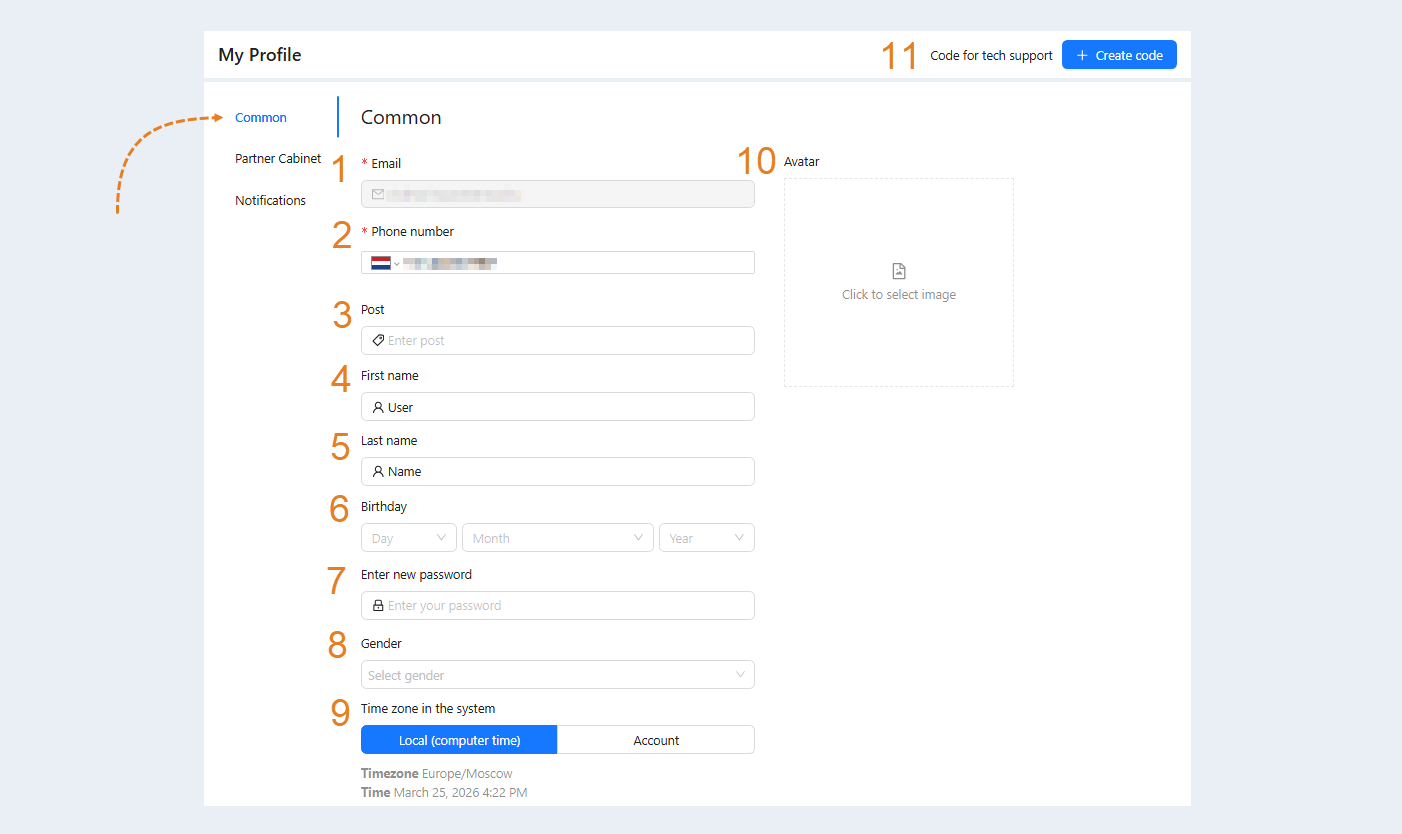
Enter the data:
Email. This is the email you provided when registering on the AXL platform.
Phone number. Select your country from the list and enter your phone number in international format.
Post. Write your position. This field is not mandatory.
First name. Write your first name.
Last name. Write your last name.
Birthday. Specify your date of birth.
Enter new password. Here you can change the password for logging into the system.
Gender. Select your gender from the list: male or female.
Time zone in the system. In this section, you can choose the time zone you want to see when displaying dates. Each administrator can choose the time zone suitable for their location in their profile settings. Select either local time (as on the computer) or account time zone. The time zone and time of the selected zone will be displayed below.
Avatar. Click to choose an image for your profile avatar.
Code for tech support. This is a unique identification code provided to the user, which can be used to contact support. The code also helps technical support quickly identify the user's profile and improve the speed and quality of assistance provided. To generate a code, click the "Create Code" button.
On the right, you can upload your photo or picture.
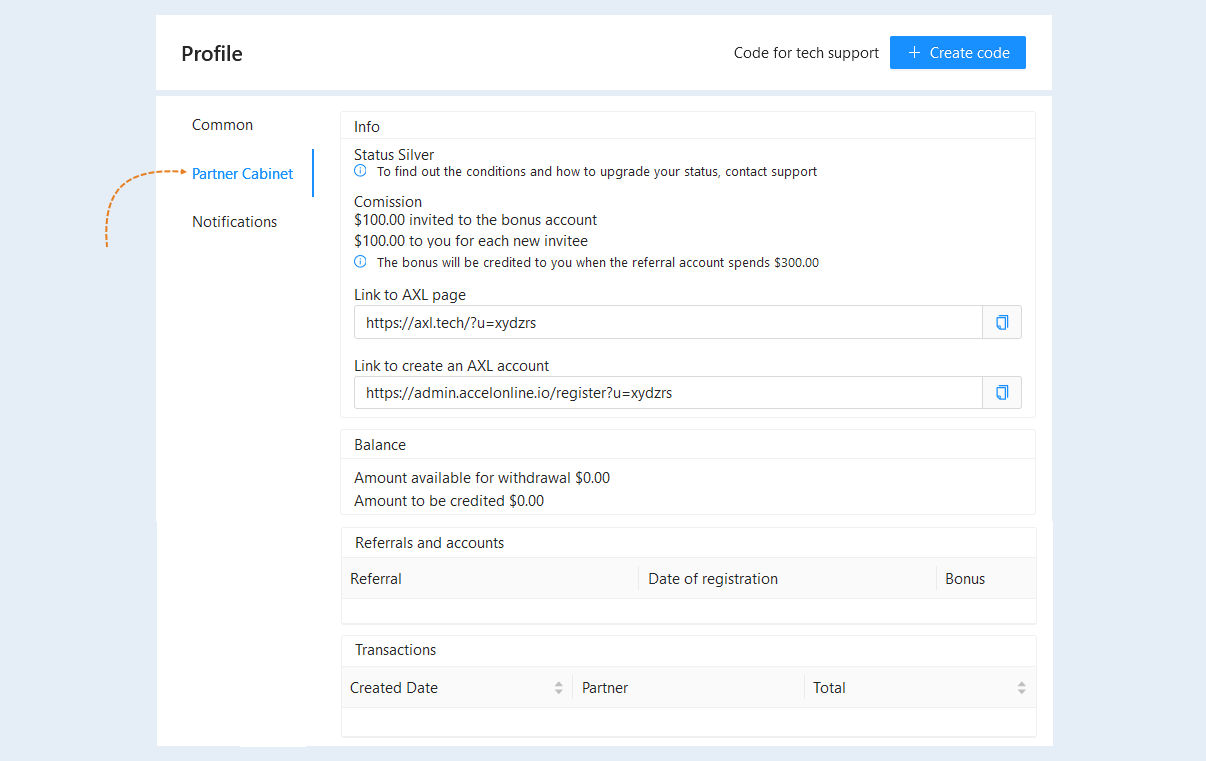
Partner cabinet
Info. In this section, you can see the status, reward terms, and your personal affiliate links.
Balance. The amount available for withdrawal and the amount pending is shown.
Referrals and accounts. A list of partners who have registered using your affiliate link is shown.
Transactions. Payments for your affiliate program are shown.
Notifications
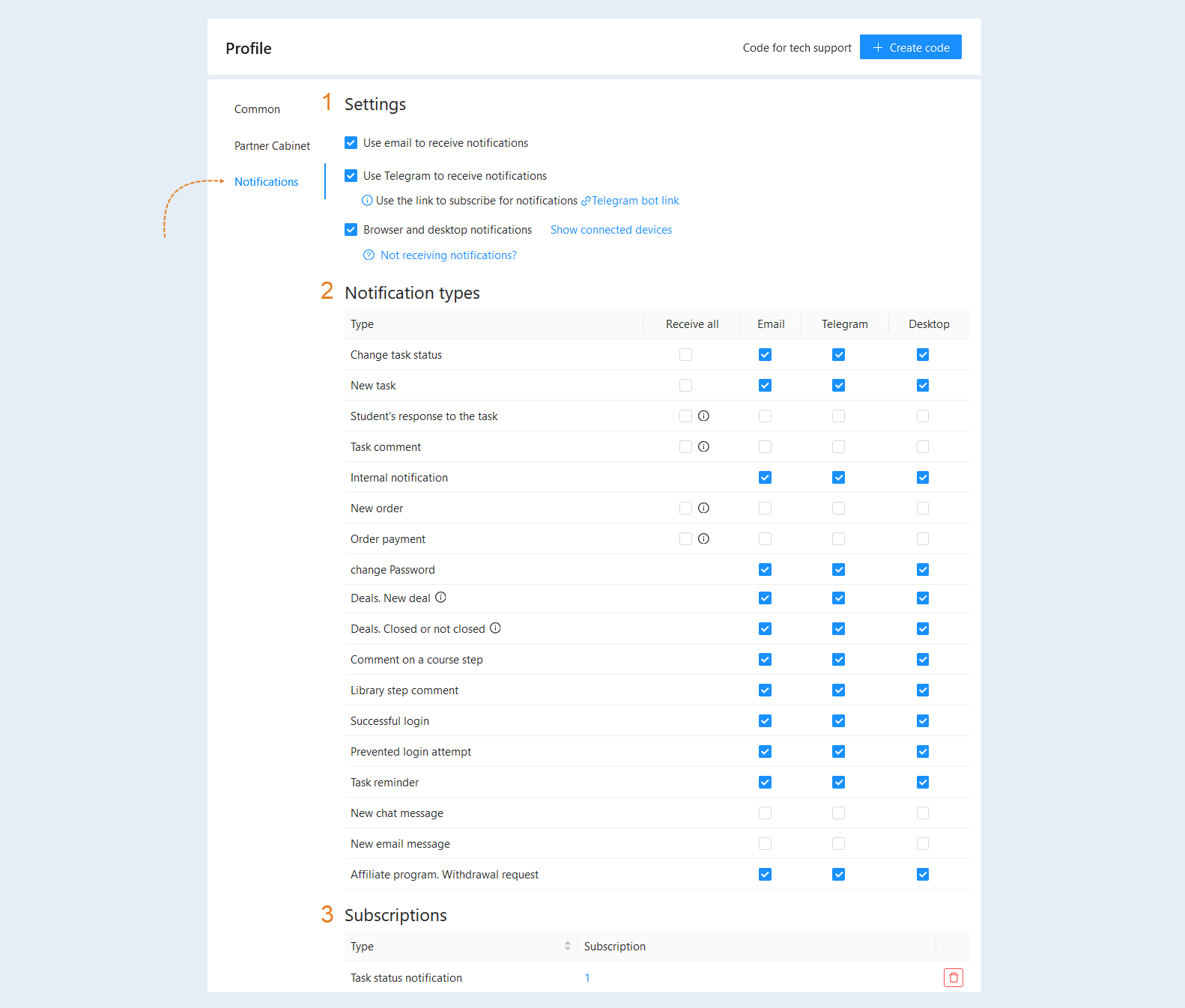
This section is used to inform you about important events and updates on the platform. You can manage notification settings to receive only relevant information.
Open the Notifications tab. This is where you manage your notifications:
- Settings. This subsection allows you to configure where and how notifications will be sent: e-mail, Telegram chat, or in the browser and on the desktop.
Notification types. This subsection allows you to select which events you want to receive notifications about. This helps you focus on the most important aspects and receive notifications about specific events related to courses or users. Select from the list which types of notifications you want to receive and through which channels.
Subscriptions. Here is a list of your subscriptions to notifications.
For more information about this section, see the article "Notifications".
You can change the interface language of your account. Hover over your name in the upper right corner. In the next window, select a language.
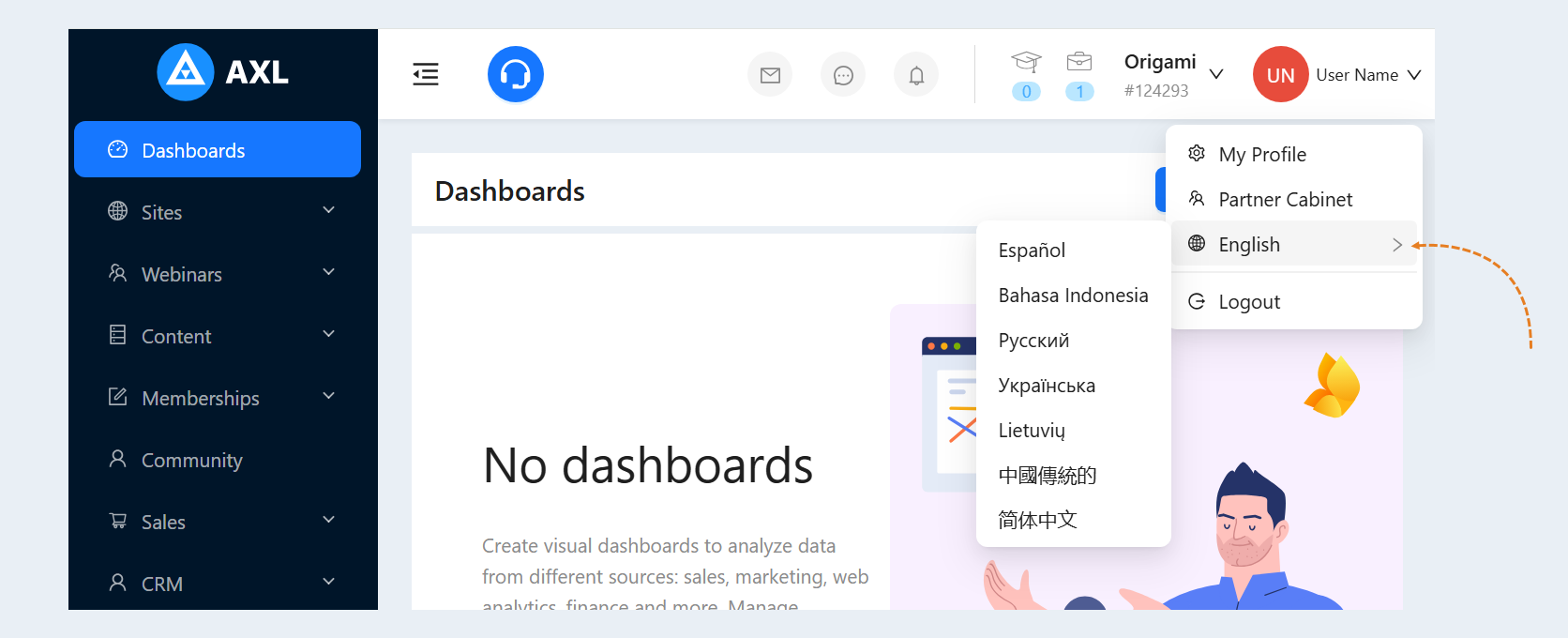
Click the "Log out" button if you want to exit your account on the AXL platform.