The "Account Settings" section allows you to adapt the platform to the needs of a specific educational organization as much as possible, providing more convenient, effective and personalized training for users.
Click on the desired section of the article to go to its description:
Account Settings
The "Account Settings" tab is located in two places on the site: in the top menu - the "Account" button, and in the left menu, in the "Settings" section.
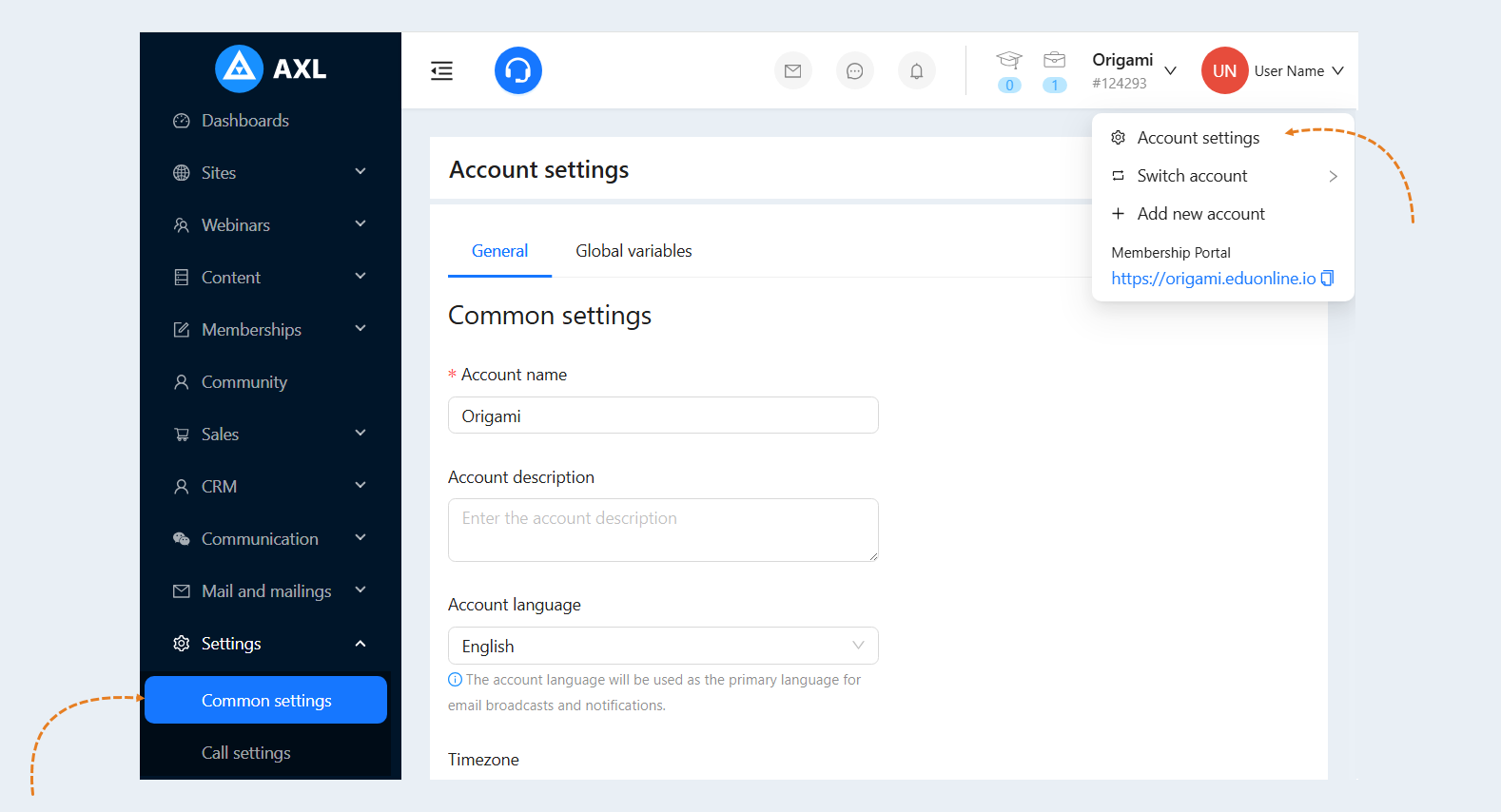
In the Account Settings, you can change the general information about your account. There are two tabs available to you in the "Account Settings" section: general and global variables. Let's look at each tab in detail.
General
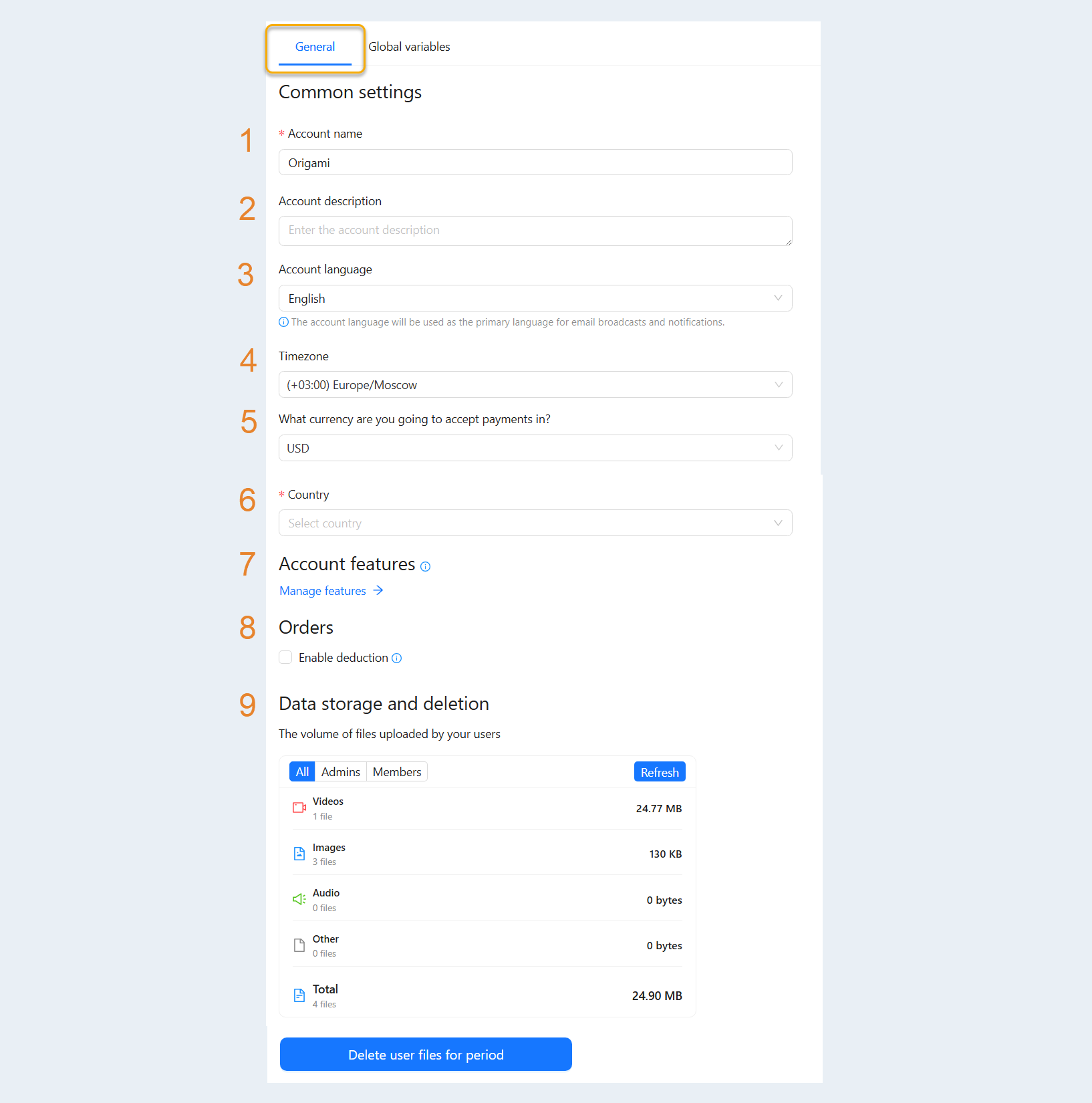
General account settings contain the following information:
- Account name. The name of your account.
- Account description. Add a description of your account. This description will be seen by the account's clients.
Account language. Select the language of the account from the list. The account language will be used as the primary language for mailing letters and notifications.
- Timezone. Select your time zone from the list.
What currency are you going to accept payments in? Select a currency for an account from the list provided.
Country. Select a country from the list.
Account Features. You can choose which features to include in your account.
Orders. The “Enable Deduction” option allows you to add a percentage rate for taxes or other costs associated with product sales. This rate will be factored into the analytics for all products. It provides a more realistic picture of revenue by accounting for expenses that must be deducted from revenue (e.g., taxes, commissions, cost of materials). It also helps assess the profitability of each product and the business as a whole.
Data storage and deletion. This section displays the total size of files uploaded by your members. You can delete old member files to save on storage costs rather than keeping them indefinitely.
After you have made changes to the general settings, click the "Save" button at the bottom of the page.
Global variables
In the "Global Variables" section, you can add and configure your variables.
A variable is a value to be automatically replaced with the data you selected. It can be text, name, e-mail, account name, order number, etc. Variables will automatically replace the data in the text.
Global variables can be used in the theory of course steps, on website pages, in widgets, quizzes and webinar descriptions. To use a global variable, insert {Global.key} into the site page, the theory of the course step, the description of the webinar, widget or email.
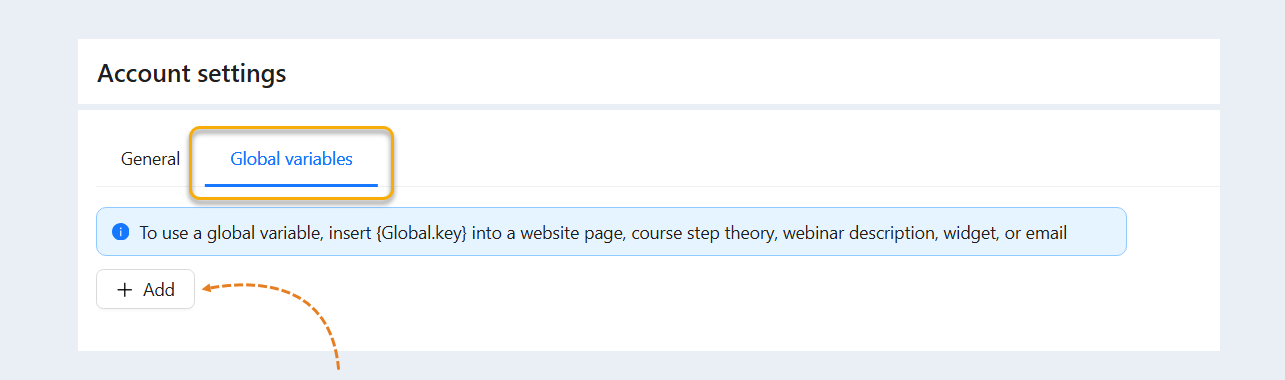
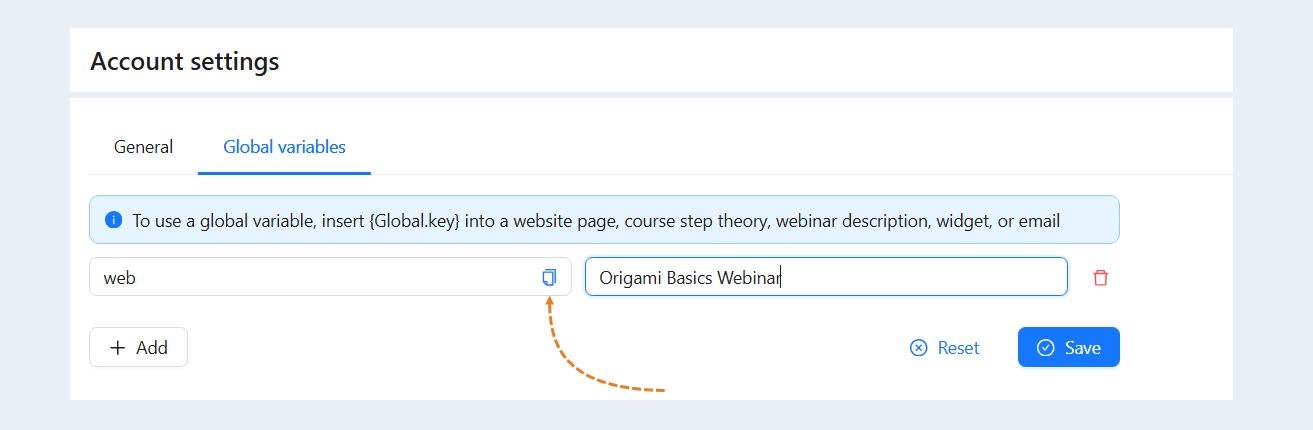
Click the “Add" button. You will have fields to fill in:
- Key. The key can contain Latin letters, numbers and symbols. One line is entered without spaces.
Value. Specify the value of the variable. The text will be changed to this value.
Click the “Save" button.
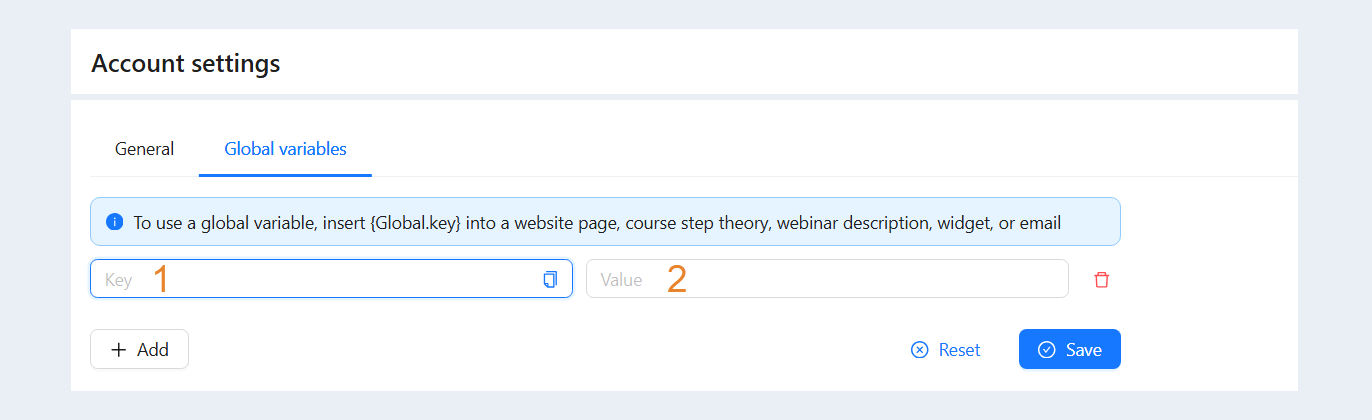
Copy the variable key and replace the word "key" with it in {Global.key}. Example: Global.web.
Next, open the area where you want to use the global variable and insert {Global.key} in the code.
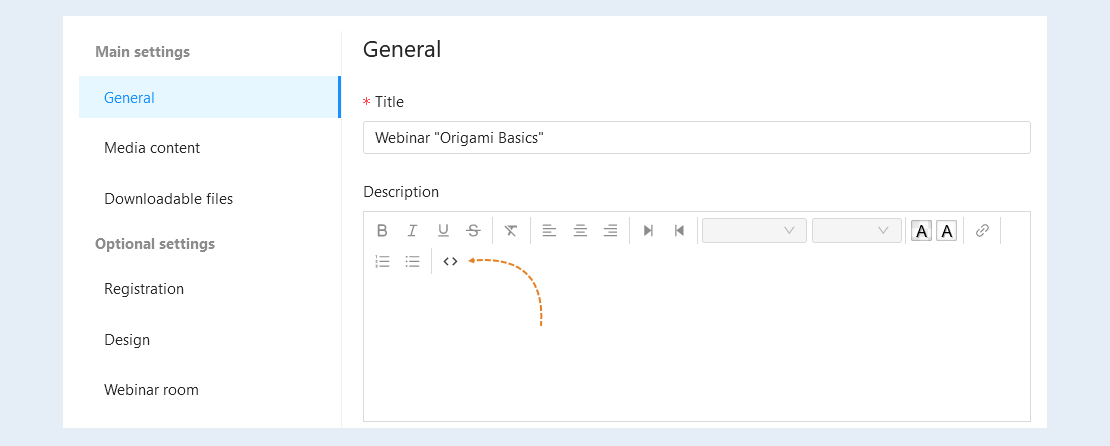
It is considered on the example of the webinar description: open the webinar settings, in the description field, click on the Code "<>" icon.
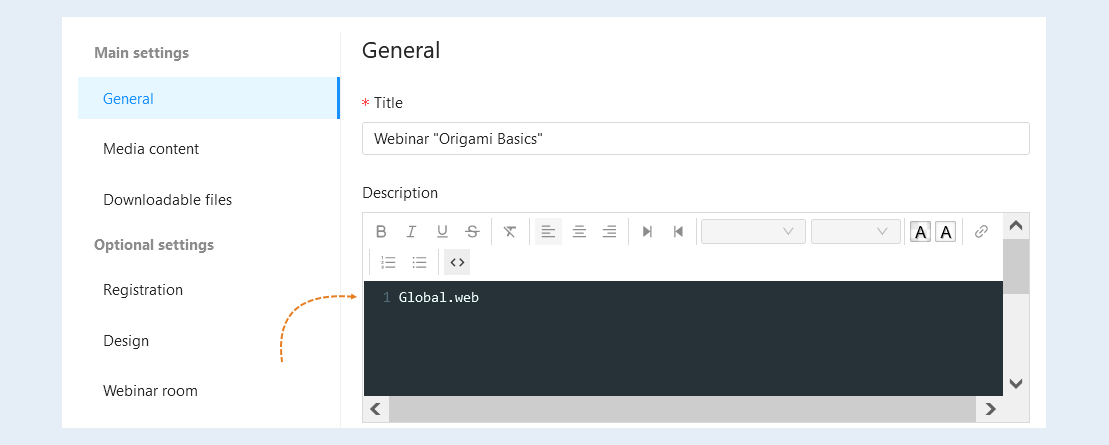
In the code window that opens, paste {Global.key} into the field. And save the changes.
Thus, in the text of the webinar description, the variable key will be replaced with the variable value.
By changing the settings of global variables, the text will be automatically changed in all places where the global variable was previously added and used.