WayForPay is an international financial company that provides online payment services for internet shops and other businesses. It was founded in 2014 and has been successfully operating on both the Ukrainian and international markets since then. WayForPay has offices and partners in various countries, allowing it to serve clients worldwide. The company offers a wide range of services, including accepting payments through bank cards, electronic wallets, mobile operators, online banking, and other methods.
Click on the desired section of the article to go to its description:
1
Registration in WayForPay
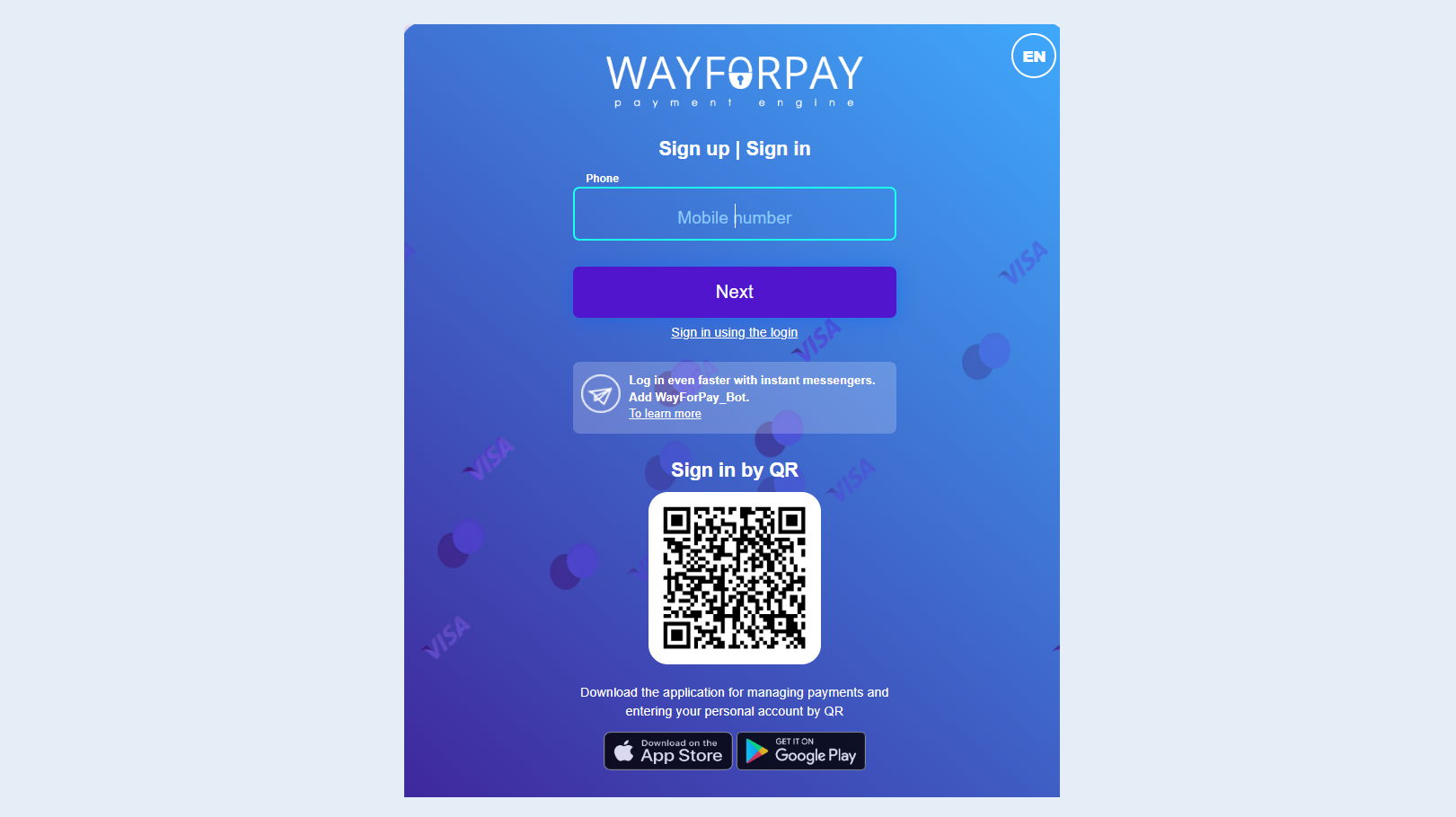
First, create a WayForPay account. Register on the official website using this link. Complete the registration following the instructions of the website.
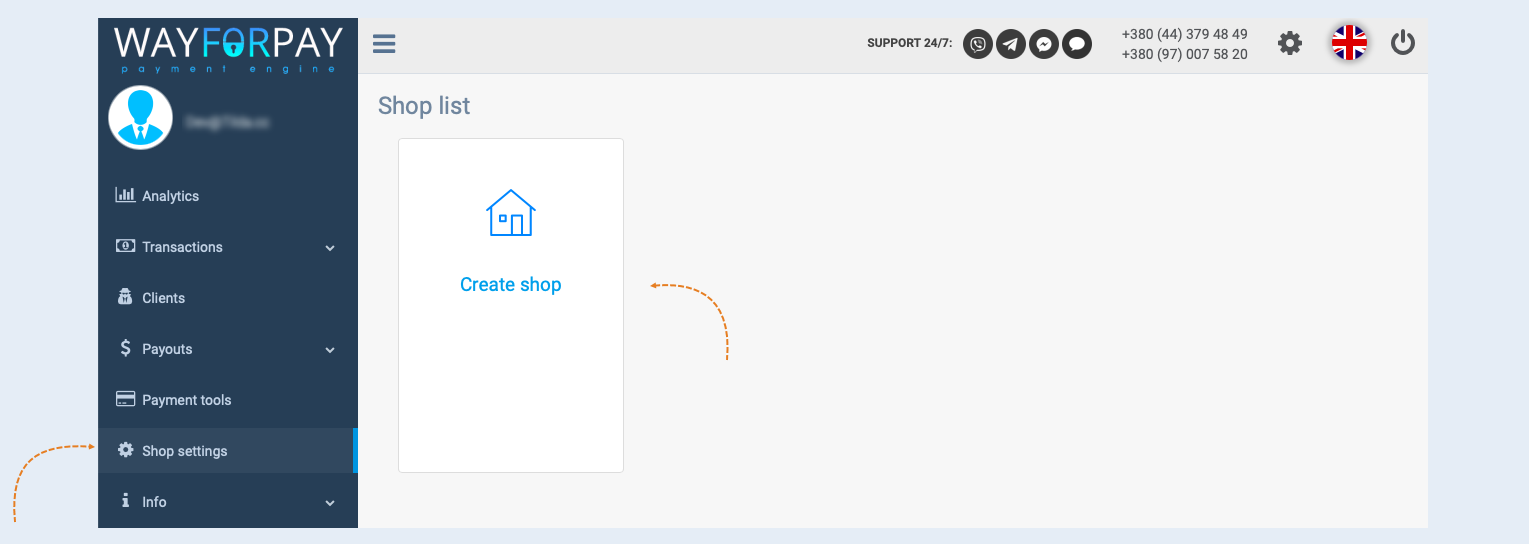
Open the “Shop Settings" section. Click "Create shop" to create and set up a shop for which you will receive payments.
Next, select the created shop and fill in the data to activate the store in the service. The Activation block will tell you what else is needed to switch the shop to active mode.
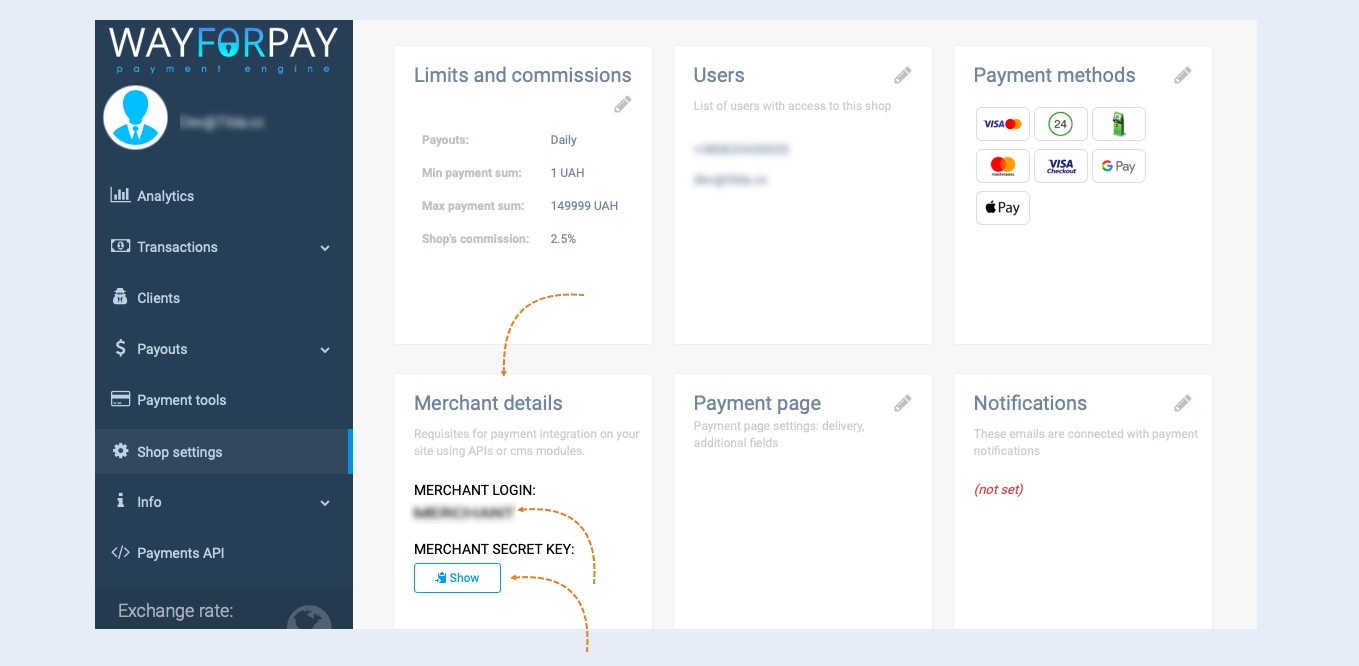
Scroll down to the "Merchant Details" card. Copy the Merchant Login and Merchant Secret Key, you will need these data at the next stage of creating a payment integration.
2
Integration with AXL
Next, you need to integrate the payment instrument into AXL
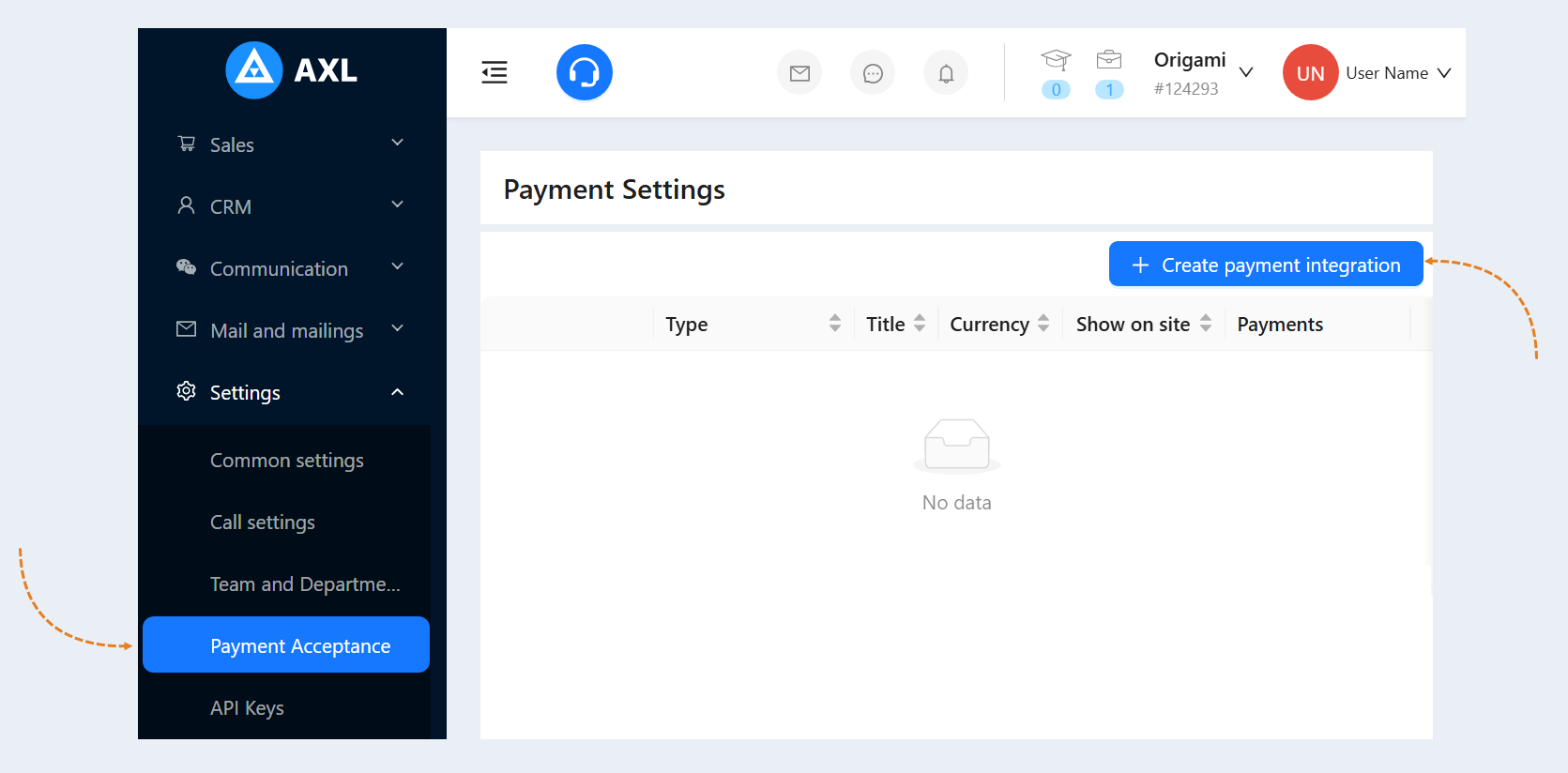
Go to the AXL website. Select the "Settings" section and the "Payment Acceptance" tab. Click the "Create Payment Integration" button.
Select "WayForPay" from the list. In the window that opens, fill in the fields:
- Title. Write the name of the payment instrument.
Description. Add a description of this payment instrument. Customers will see this description on the website.
Payment Button Text. Write the text that will be displayed on the payment button on your website.
Is Primary Payment Method. Check the box if this payment method will be the main one in your account
Show on site. Check this box to make this payment method available on your website.
Save card details for further payments where applicable. Check the box in this line so that when paying for repeated orders, the user does not have to enter the bank card data again. In this case, the subsequent payment will be available to the user in one click. This setting is necessary for making recurring payments. Please note that during the test payments it is necessary to uncheck this box, as test payments may not pass. When you launch payment integration in combat mode, then you should check the box.
Currency. Select the currency in which you plan to accept payments. If you work in different markets in different countries, you can choose the currency for accepting payments in each payment system. For example, by selling courses in dollars through one payment system, you can accept rubles through another payment system. Automatic currency conversion takes place at the international exchange rate.
Account ID. Enter the Account ID that you copied on the WayForPay website in step №1.
Secret Key. Enter the Secret Key that you copied on the WayForPay website.
Show pop-up window. Check the box so that a pop-up window with payment opens when paying for the order, and does not redirect the user to a separate page for payment.
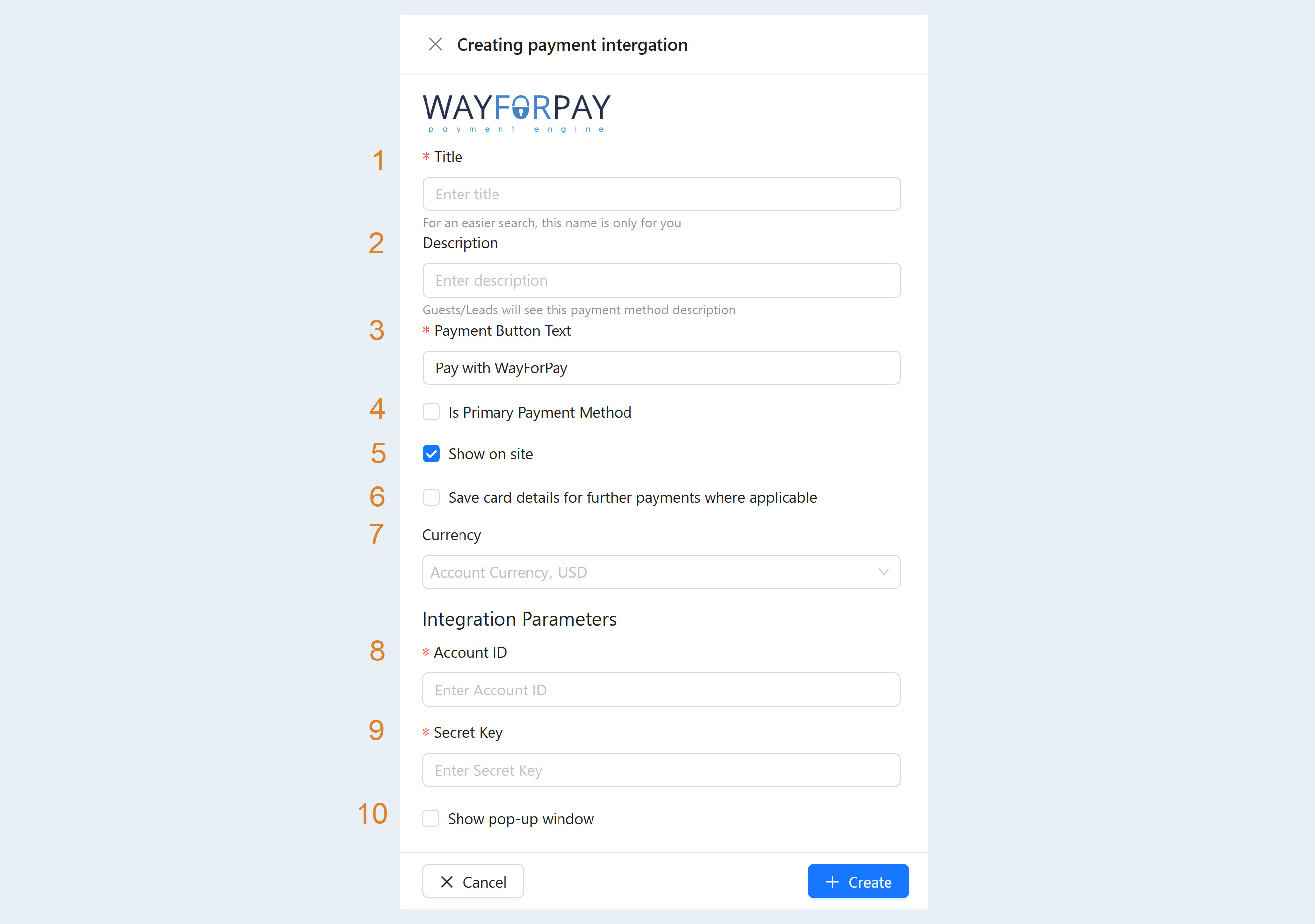
After filling out the form, click "Create". Now you have the "WayForPay" tool in the list of payment instruments.