In the "Deals" tab, you can see a list of all deals in which this contact participates. Here you can add a new deal or make changes to existing ones.
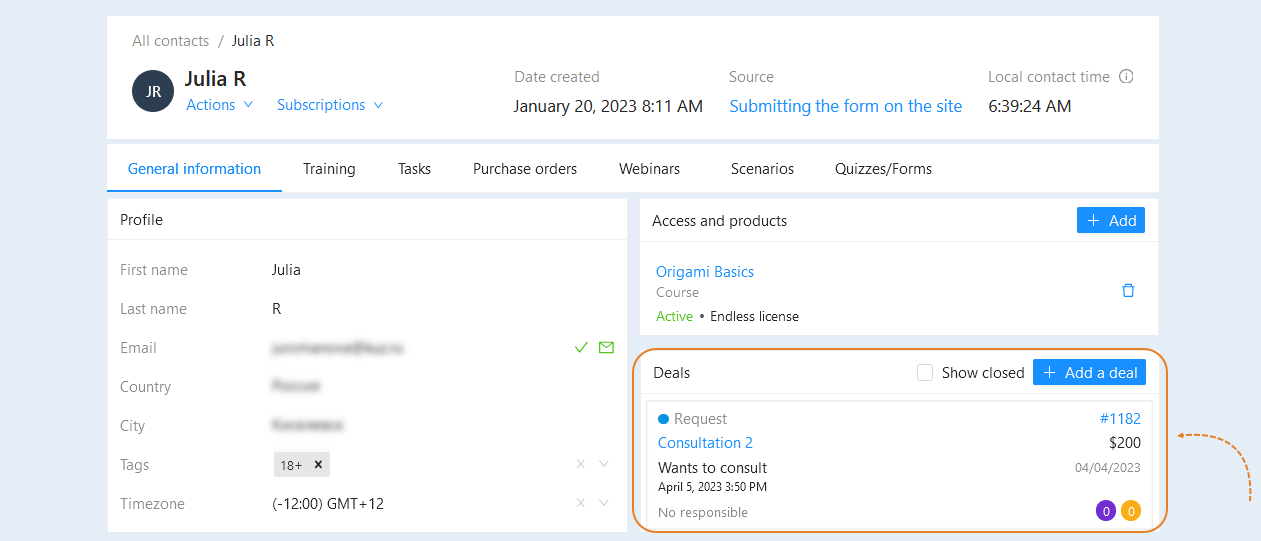
To add a new deal, click the "Add a Deal" button. An additional window will open for you.

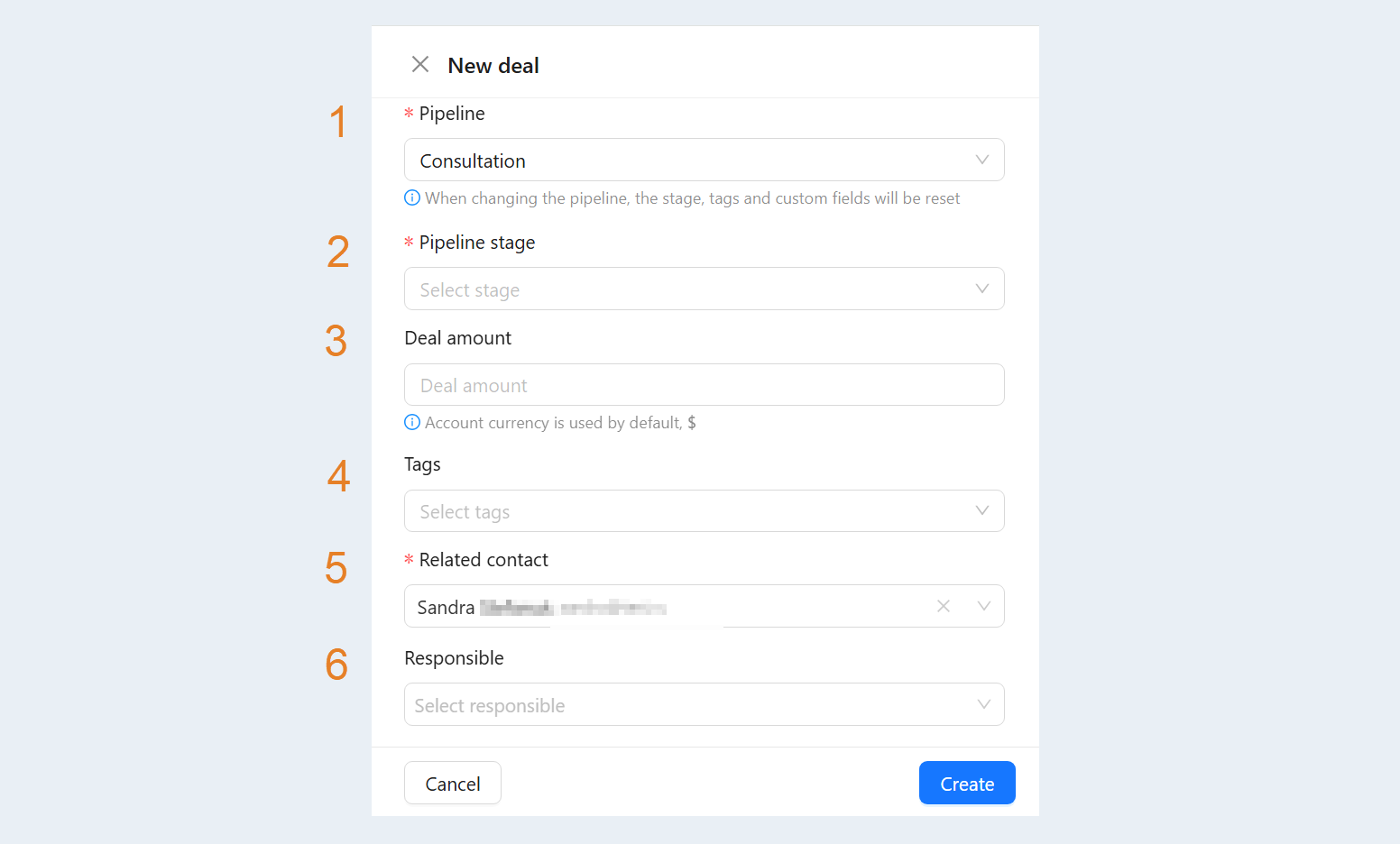
In the window that opens, fill in the fields:
Pipeline. Select the funnel name from the list. After selecting the funnel, additional fields will open to fill in.
Pipeline stage. Select the funnel stage to which you want to add a new deal.
Deal amount. Specify the deal amount.
Tags. Add tags to the deal. Click the Manage Tags button to find or create new tags.
Related contact. By default, a contact has already been added.
Responsible. Set the person responsible for the execution of this deal.
Click the "Create" button. The new deal will appear in the contact's deal list. Here you can see the following information:
- The name of the funnel stage.
The name of the funnel.
Responsible.
Deal number.
The amount of the deal.
Date of creation of the deal.
The number of orders and the number of tasks of the deal.

Click on the funnel name to open its settings. For more information on how to create a funnel, read the article "Deals".

Click on the deal number to open the deal details, view details or make changes. Read more about the deal sections in the article "Deal Details".

Click on the name of the responsible person to open the CRM contact card. Read more about the administrators of your account in the article "Team".

Check the "Show implemented" box to filter out deals that are at the "Successfully closed" stage.