The "Billing" section is intended for access management, as well as for financial transactions related to payment for the use of the AXL platform.
Click on the desired section of the article to go to its description:
Billing
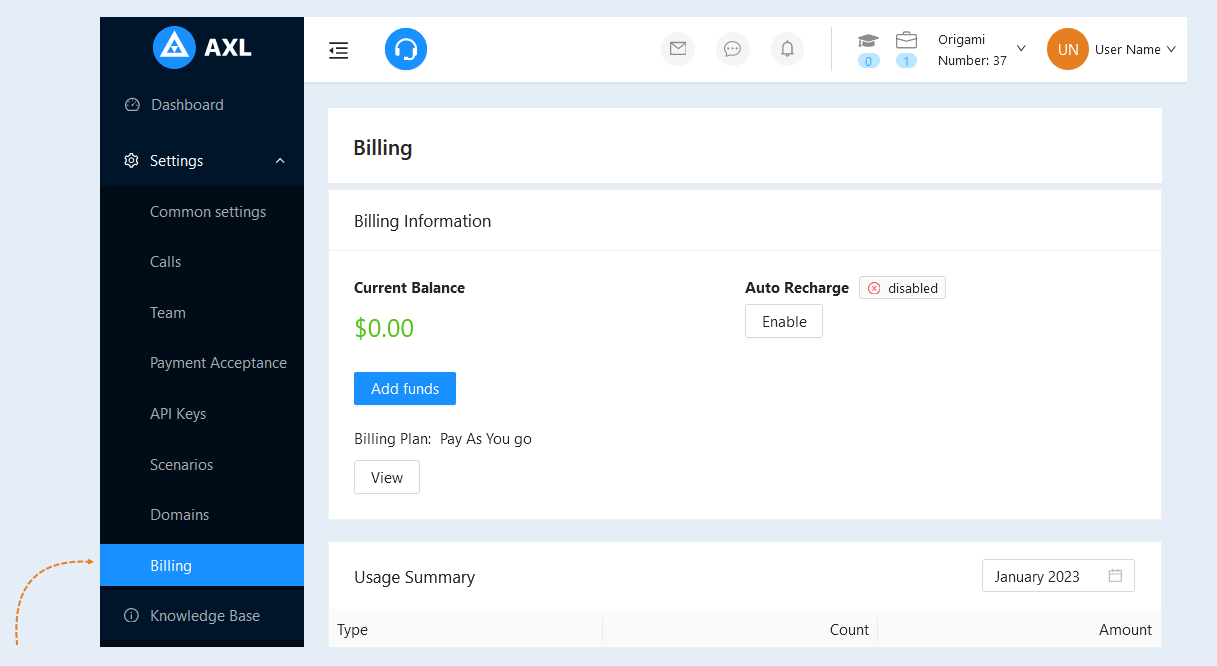
In the "Settings" section, select the "Billing" tab. Here you will find detailed information about your tariff plan, current balance and full transaction history.
Payment Information
Here you see:
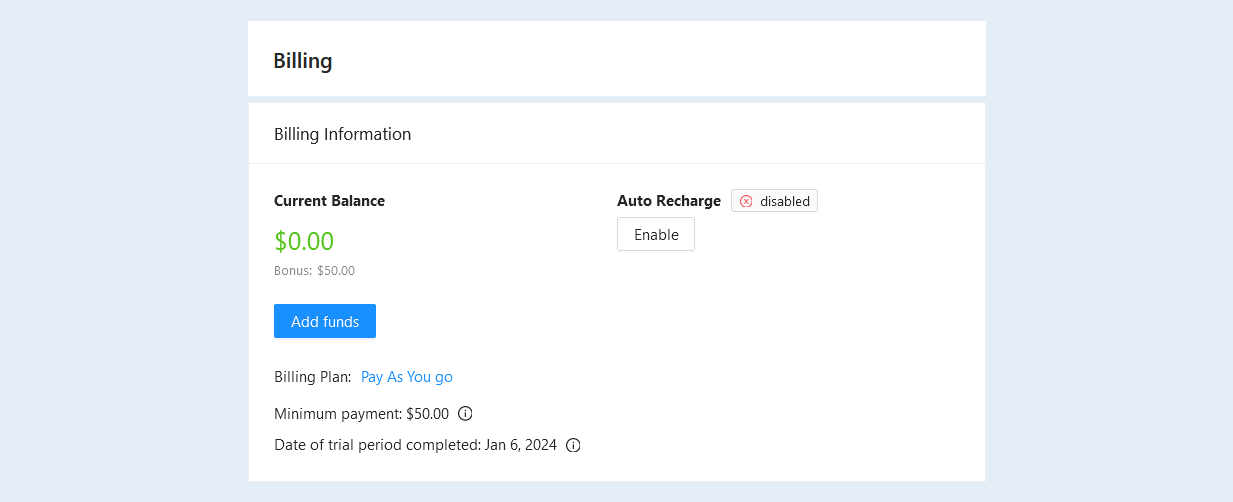
- Current balance. The available amount in your project account is displayed here.
- Billing plan. Here you can see the installed tariff plan. Click the "View" button to find out the details of your tariff plan.
- Auto Recharge. You can set up auto-replenishment of your account, for this you will need to set the payment method and click the "Enable" button.
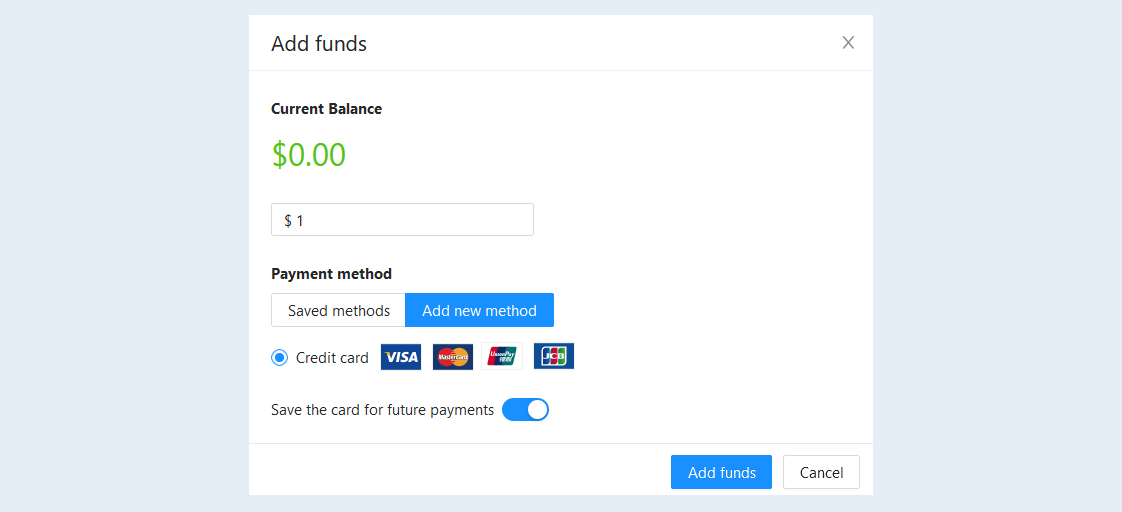
To pay for the established billing plan, click the "Add funds" button and follow the instructions of the system.
Usage summary
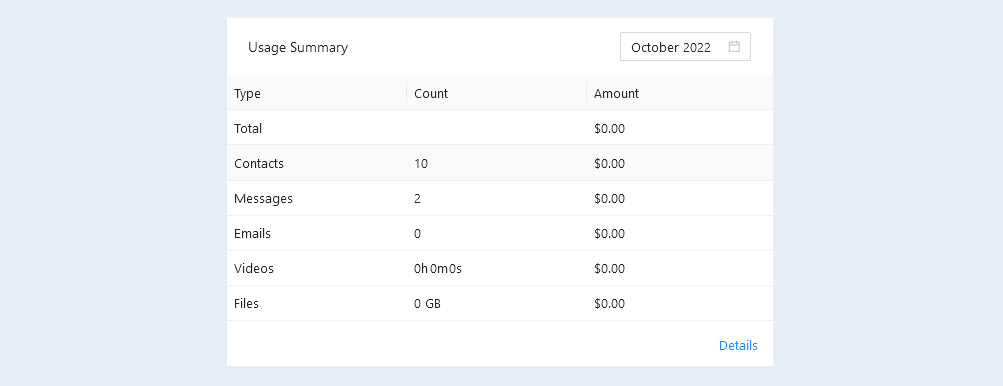
In the "Usage Summary" section, you can see the amount of metrics used. If the volume exceeds the tariff limits, the amount of the surcharge will be shown. To learn more about the number of indicators used, click the "Details" button.
Transaction history
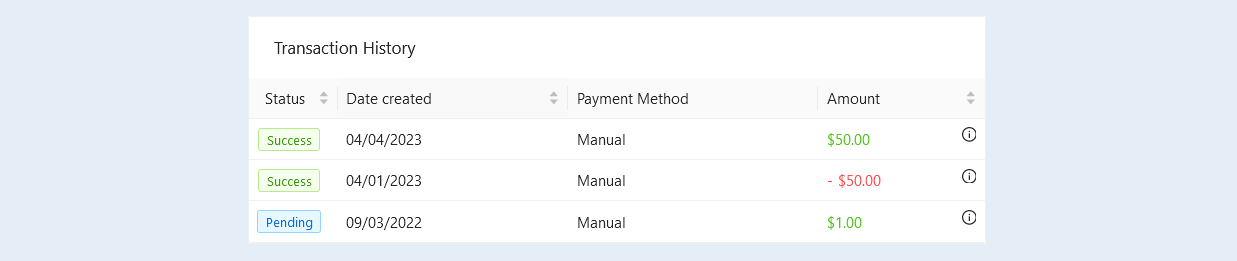
In the "Transaction History" section, you can view a list of transactions you have performed for a specified period. The list for each operation shows the creation date, payment method, the amount for which the operation was performed and the status reflecting the stage of payment processing. You can apply descending or ascending sorting to each column. To quickly search for an operation, use the calendar on the right to set a filter for a certain period.
Payment Methods
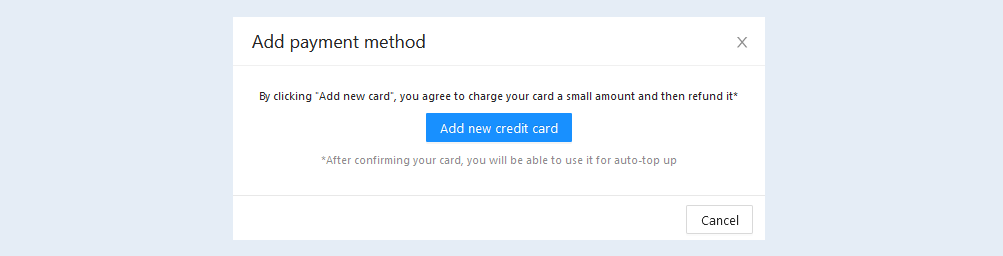
In the "Payment Methods" section, you can see all the payment methods linked to the project. In this section, you can link a new card by clicking the "Add payment method" button.

Click the "Add new credit card" button and follow the instructions of the system.
After confirming your card, you will be able to use it for auto-replenishment.