A voice agent is an AI that talks on the phone for you. It answers calls to your numbers in the voice you choose and follows your instructions. It recognizes callers who are already your contacts, can book them a meeting, fill in a form during the conversation and even sell a product, and it saves the transcript and summary to the call card. The same agent can call your contacts in a call campaign or from an automation.
Voice agents are in Settings → AI Agents, together with chat agents and AI tutors.
Create a Voice Agent
- Open Settings → AI Agents and click Create Agent.
- Choose Voice Agent.
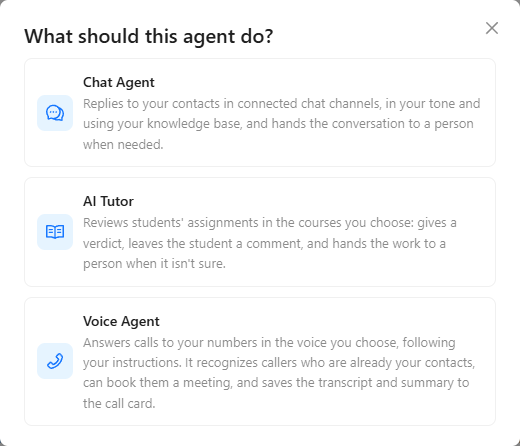
The agent is created switched off, so it doesn't answer anyone before it is ready. The switch at the top of its page turns it on. While it is off, calls to numbers routed to it ring your team instead.
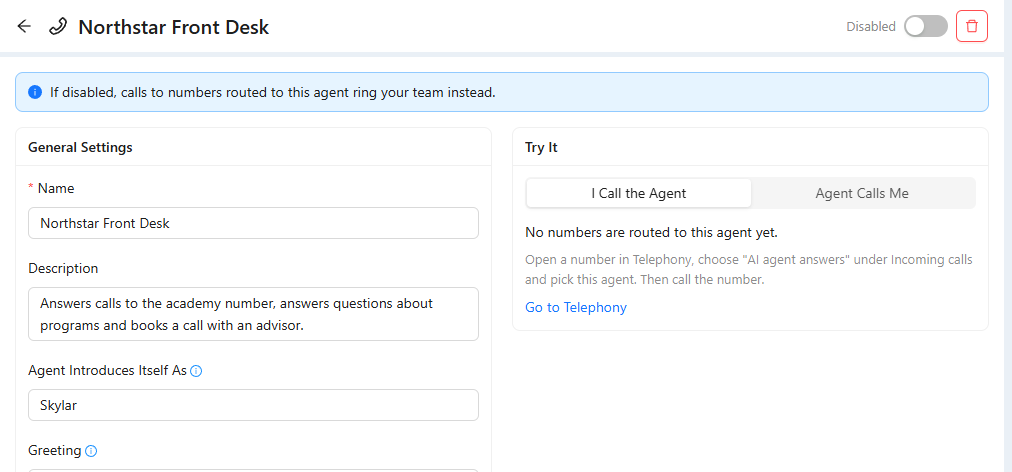
Who the Agent Is
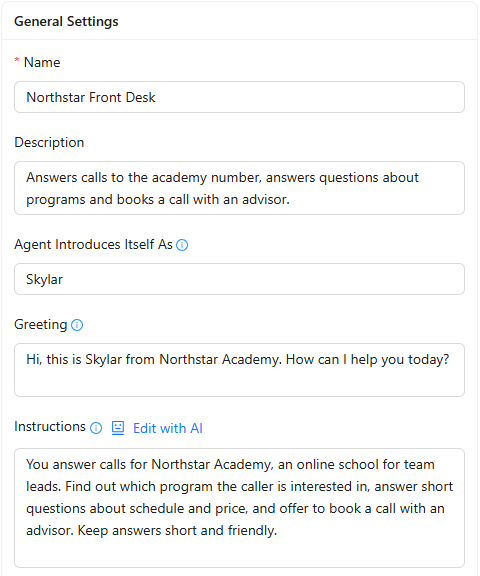
- Name and Description: for you, to tell agents apart.
- Agent Introduces Itself As: the name the agent uses on the call and the name shown in the call history.
- Greeting: spoken word for word the moment the call connects, before the AI is involved, so the caller never waits in silence. Leave it empty to let the caller speak first. Contact tags work here.
- Instructions: who the agent is, what it must find out and how it should end the call. Keep it short: this is spoken, not read. Contact tags such as #Contact.FirstName# are filled in on each call. Edit with AI rewrites the instructions from your request.
You don't need to describe how to talk on the phone. AXL adds its base rules to every agent: short spoken answers, confirming what was heard before acting on it, asking again when something is unclear, never inventing facts, staying on the purpose of the call and ending with a summary. Write only who the agent is and what it must achieve.
What the Agent Can Do
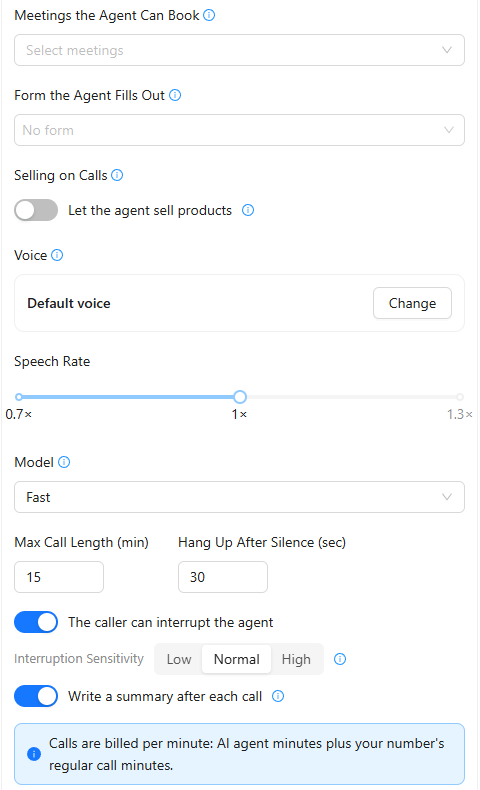
- Meetings the Agent Can Book: booking pages the agent may check and book for the caller during the call. Attach several to cover several people.
- Form the Agent Fills Out: a form whose questions the agent asks during every call, in conversation, and saves the answers.
- Selling on Calls: Let the agent sell products lets the agent create an order during the call and send the payment link. A call campaign or an automation step can have its own selling settings, which then apply instead. The settings are the same as in "Call Campaigns".
Voice and Behavior
- Voice: click Change, listen to the previews and pick a voice. English voices are available for now.
- Speech Rate: from 0.7× to 1.3×.
- Model: Fast answers in about a third of a second and suits scripted calls; Optimal follows long instructions better at about half a second more per answer.
- Max Call Length (min) and Hang Up After Silence (sec): when the agent ends the call.
- The caller can interrupt the agent and Interruption Sensitivity: with Low, the agent keeps talking through short noises and needs a few clear words to stop, which suits noisy lines; with High, it yields the moment the caller starts speaking.
- Write a summary after each call: the transcript is always kept; the summary is paid in AI credits, like call transcription on your numbers.
Click Save Changes at the bottom of the page.
Important: calls are billed per minute: AI agent minutes plus your number's regular call minutes.
Send Calls to the Agent
An agent answers calls only on numbers routed to it. Open Communications → Telephony, click Settings on the number, choose AI Agent Answers under Incoming Calls and pick the agent. You can also keep Ring the Team and let the agent pick up when nobody answers. See "Incoming Calls".
Try It
The Try It card on the agent's page has two modes:
- I Call the Agent: lists the numbers routed to the agent. Call one of them from your phone; the agent picks up, and the card shows the conversation live.
- Agent Calls Me: enter your phone number and the agent calls you from one of your numbers. This is a real call: its minutes and the agent's credits are billed as usual.
Test calls land in the call history with their transcript.
Other Ways to Use the Agent
- Call a list of contacts: "Call Campaigns".
- Call a contact from an automation: "AI Calls".