Accessibility is the provision of access to courses and steps for users based on time, rate, payment, or other terms. To make the course available to users, you need to configure access.
Follow our instructions to set up access.
Click on the desired section of the article to go to its description:
Editing a course
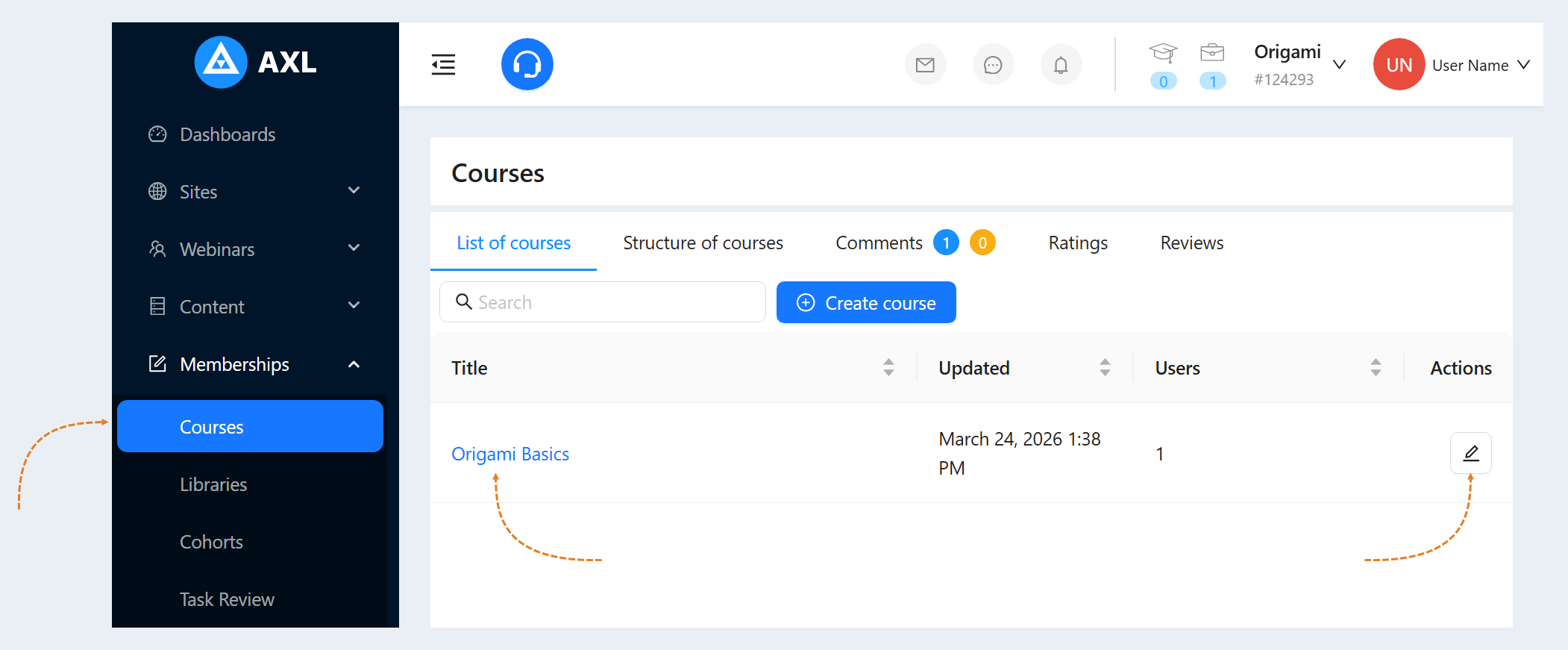
Go to the "Courses and Materials" tab. Select a course and click the "Edit" button.
Settings
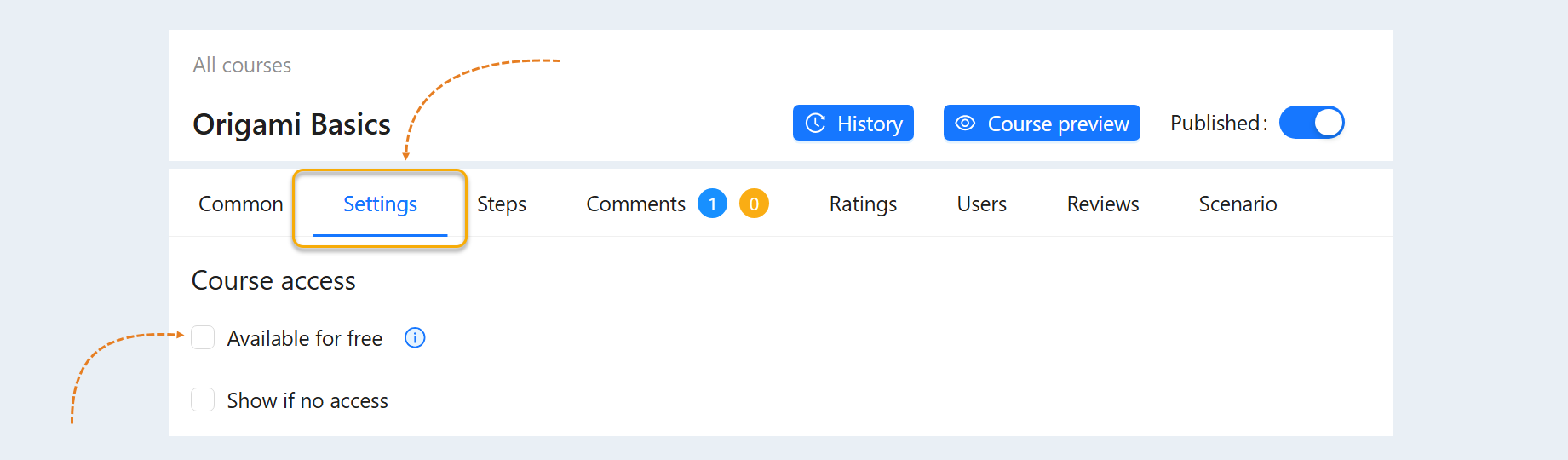
Go to the “Settings” tab.
In the line “Access to the course” you can check the box “Access for free” if you want to provide access to this course free of charge for all registered users.
Note: The presence of free steps in the course will allow you to start the course even if this option is not selected.
Course steps
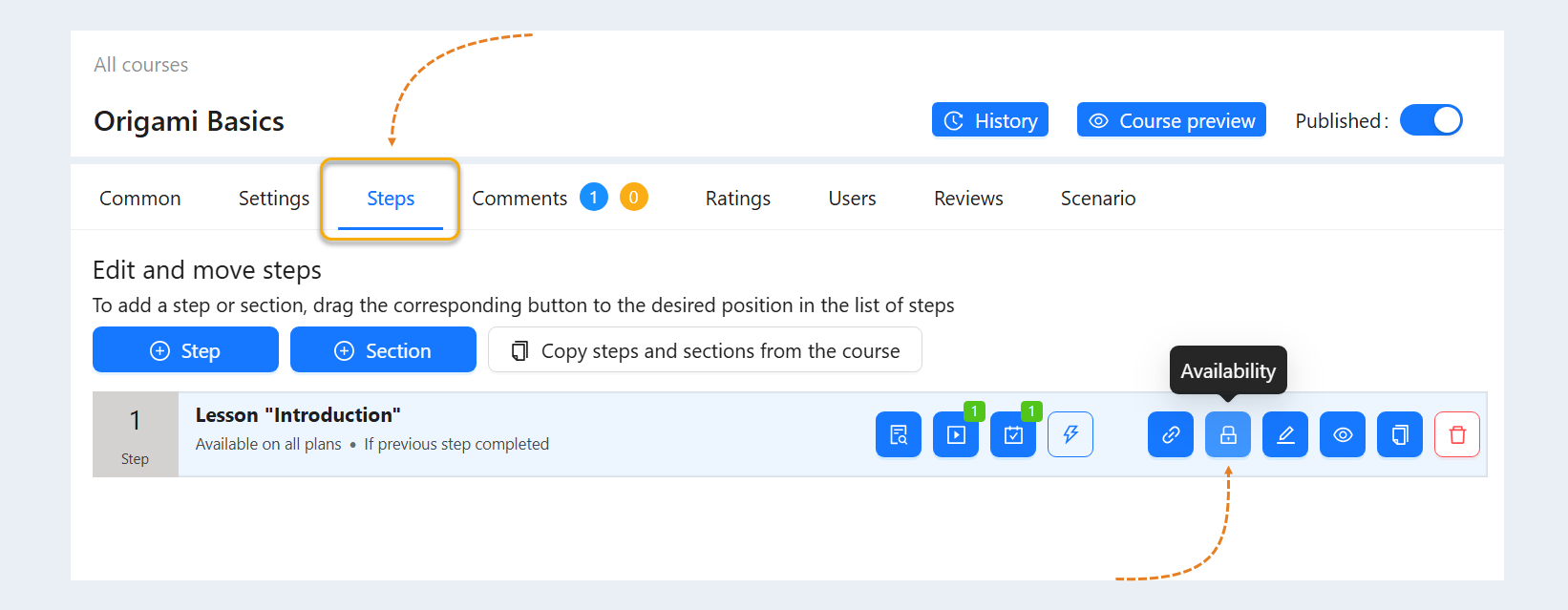
Go to the “Steps” tab. Each section and step has a separate "Availability" button.
Course step access settings
Click the button to configure access to a section or step of the course. In the window that opens, fill in the fields:
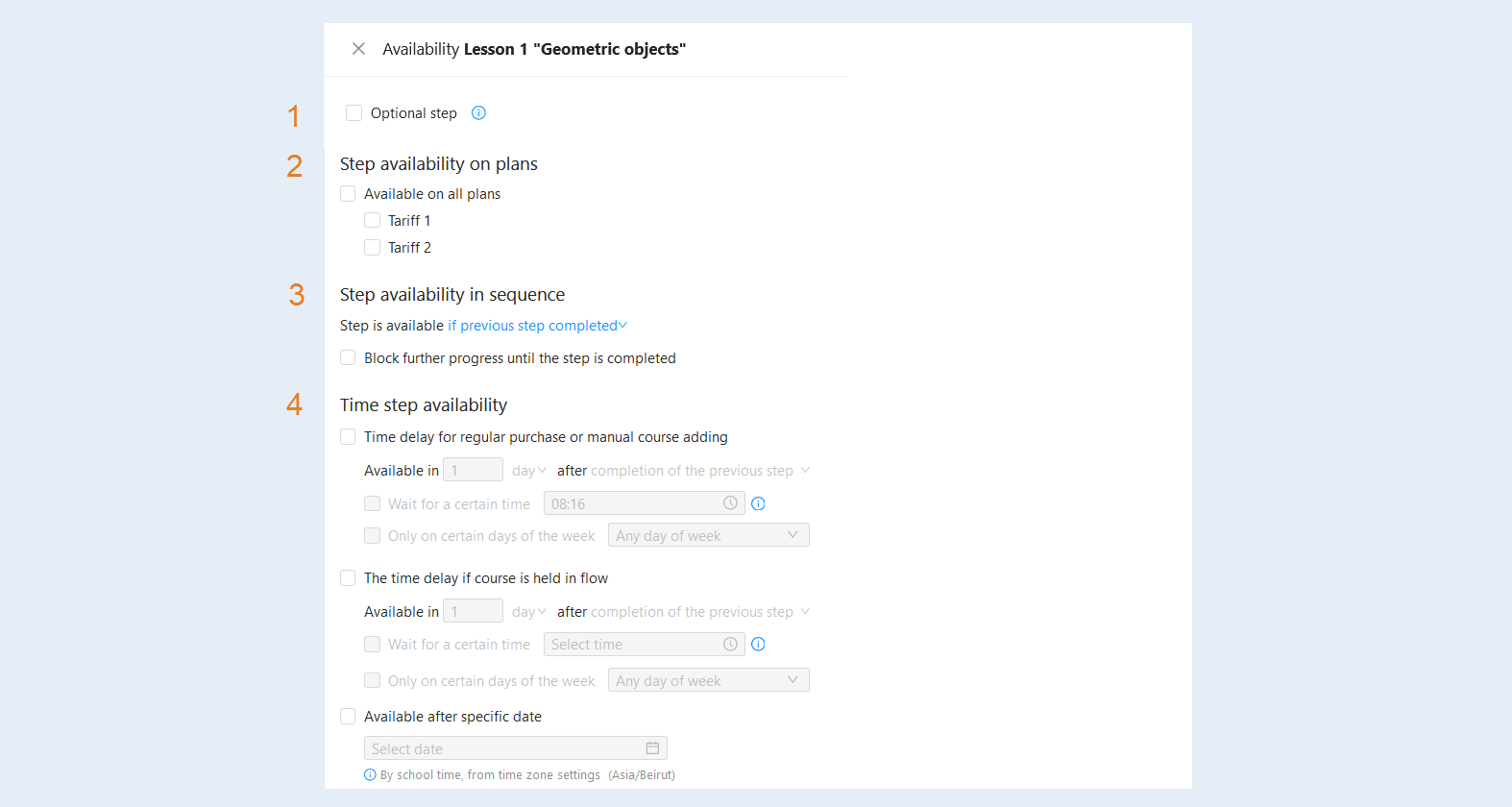
Optional step. Check the box if you want to make this step optional to complete the course.
Step availability on plans. You can restrict the availability of a specific lesson depending on the chosen plan. For example, if you have multiple pricing plans (basic, standard, premium), you can specify which lessons or modules will be available for each plan. Select a plan from the list provided.
Step availability in sequence. Define the order in which the course steps will be available. Choose from the list the condition:
The step is available if the previous step is completed. This option requires the current step to be finished before accessing the next one. It ensures a sequential learning process and helps users not to miss important topics.
The step is available if all previous steps are completed. This option enforces stricter progress control since access to the step will only be granted after all previous steps are completed. This is particularly useful for courses with a complex structure, where mastering each part is important before proceeding to the next.
The step is available regardless of previous steps. This option allows users to freely choose which steps they want to take, without the need to follow a fixed order. This can be beneficial for courses where users have different levels of preparation or interests.
Block further progress until the step is completed. This option protects the user’s experience by preventing them from moving on to the next step until they complete the current one. It helps focus on important information and ensures that the user does not miss crucial aspects of the material.
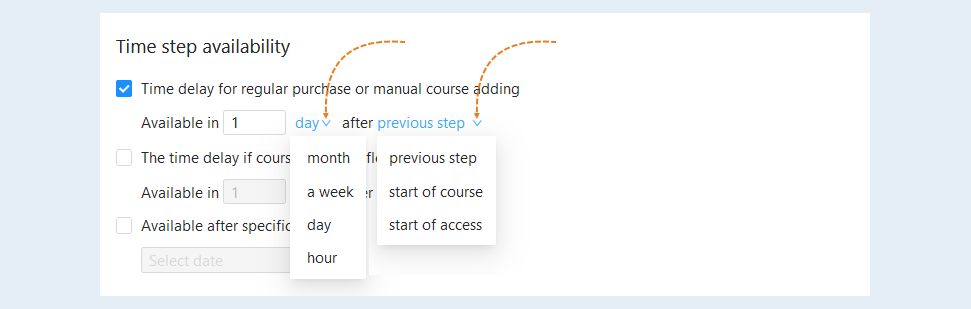
Time step availability. Set a time delay. For example, you may specify a delay of 1 day, allowing the user to complete no more than one step per day. After 24 hours, the next step of the course will become available to them. Check the appropriate box:
Time delay for regular purchase or manual course adding. Check the box to activate the time delay. Then specify when the step will become available to the user: enter the number of hours, days, weeks, or months for the delay. And indicate the condition: the step will become available after completing the previous step, after starting the course, after granting access, after starting the previous section, or after completing the previous section.
- Wait for a certain time. This option allows you to set the exact time when the lesson will become available to users. For example, you can set that the lesson will be available only after 10:00 AM. This can be useful for launching new topics or modules so that all users start studying the material at the same time. It is set according to membership portal time from the timezone settings.
Only on certain days of the week. This option allows access to the lesson only on certain days of the week. For instance, you can specify the lesson’s availability only on Mondays and Wednesdays. This is convenient for courses where classes are held on specific days or for creating a schedule for users.
- Wait for a certain time. This option allows you to set the exact time when the lesson will become available to users. For example, you can set that the lesson will be available only after 10:00 AM. This can be useful for launching new topics or modules so that all users start studying the material at the same time. It is set according to membership portal time from the timezone settings.
The time delay if course is held in flow. Check the box to activate the delay. Then specify the time interval when the step will become available to the user: enter the number of hours, days, weeks, or months for the delay. And indicate the condition: the step will become available after completing the previous step, after starting the cohort, after starting the course, after starting the previous section, or after completing the previous section.
Wait for a certain time. This option allows you to set the exact time when the lesson becomes available.
Only on certain days of the week. This option allows you to open access to the lesson only on certain days of the week.
Available after a specific date. Check the box to activate the delay. Then select the date and time in the calendar when the access to the course step will be opened.
For a time delay, you can choose the number of hours, days, weeks, or months of delay. And specify the condition: “available after the previous step”, “available after the start of the course" or "available after the start of access".
Click the Close button. The step is now available to users. Repeat for each step of the course.