This first lesson shows where everything lives in AXL, so the next lessons are easy to follow. It takes about five minutes.
The Home Page
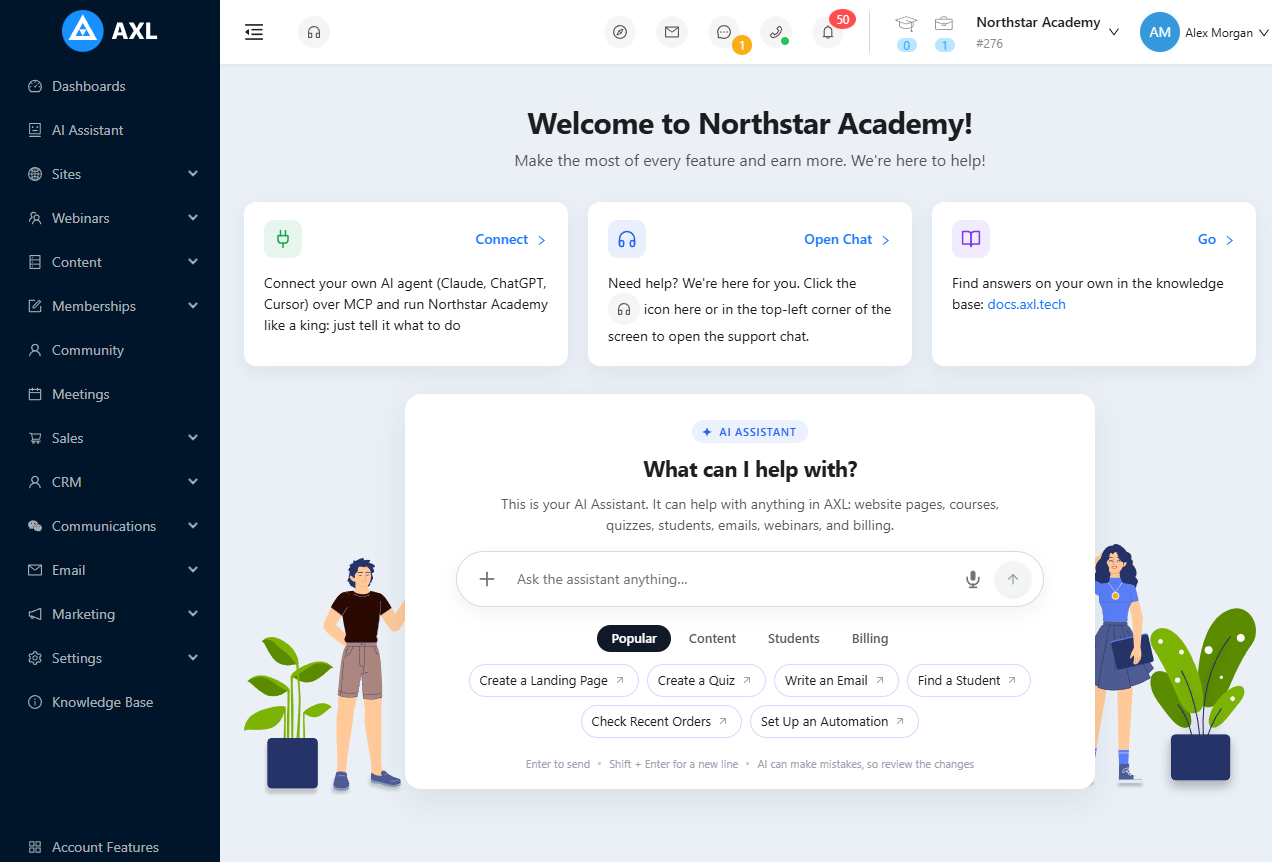
After you sign in, AXL opens the home page. In the middle is the AI Assistant: type what you want to do in plain words, or pick a suggestion such as Create a Landing Page or Write an Email. Above it are three shortcuts: connect your own AI agent, open the support chat, and go to this knowledge base.
Turn Sections On
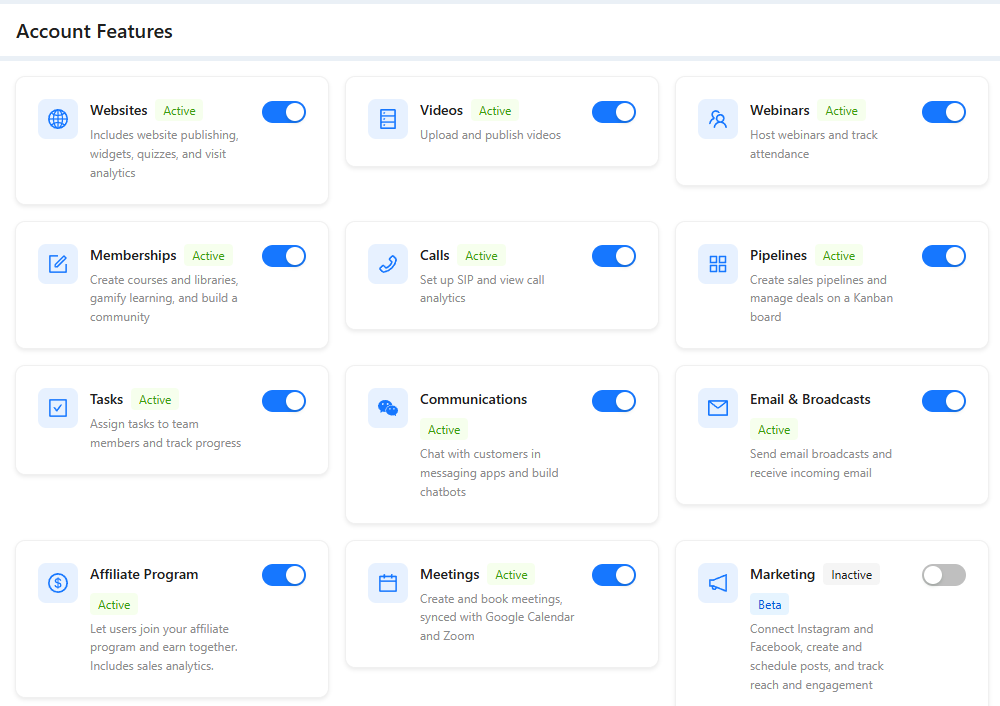
Account Features at the bottom of the menu lists the parts of AXL your account uses. Turn on the switch for what you need, for example Calls for telephony; if a section is missing from the menu, check here first. This page is available to team members with full account rights.
Invite a Colleague
- Open Settings → Team & Departments and click Create Invite.
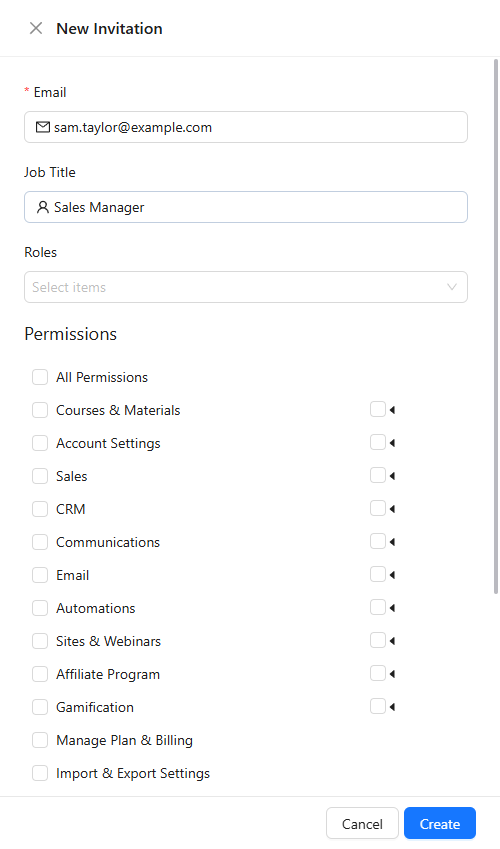
- Enter their Email and Job Title, then choose a role or tick the Permissions they need.
- Click Create. They receive an email with a link to set up their login; someone who already has an AXL account gets an invitation to join yours.
More in "Team and Departments".