Mobbex is a payment service that provides convenient tools for accepting online payments. The company offers services for receiving payments through credit cards, electronic wallets, and other online payment systems.
Mobbex was founded in Argentina in 2014 and has since expanded its operations to other countries in Latin America, such as Brazil, Chile, Peru, Mexico, and others. The company also works with clients in the USA and Europe.
Mobbex offers its clients a wide range of services, including secure online payments, billing automation, analytics, and more, to help companies simplify the process of accepting online payments and increase conversion rates.
Click on the desired section of the article to go to its description:
2
How to create my Development credentials
In order to access our API it is necessary to have an API Key and an Access Token. To obtain them you must follow the following steps:
1. Login to the Developers Portal with the merchant's credentials.
2. Create a new application from the "+" button or Manage an existing one.
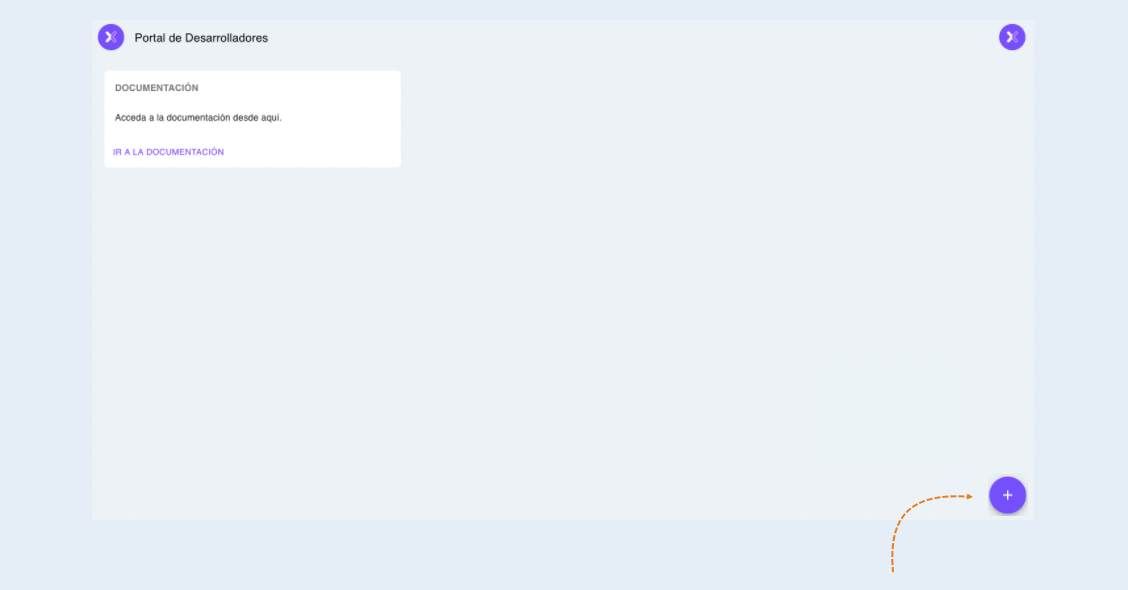
Name: Enter the name of your application to identify it.
Description: You can enter any information that allows you to identify why you use it or what you use it for.
Application's URL: Put the link to the website. This is for reference purposes only.
4. Enter the application from the Manage button.
5. Obtain access to an Entity through the option Request Access and enter the CUIT of the ENTITY (account created in Mobbex) to request authorization to that ENTITY. Or View Credentials to use those of an already authorized Entity.
6. Return to the Mobbex console and in the APP/E-Commerce section you will see that an Application is requesting access. Click on Authorize. Note: the View Application option will not take you anywhere.
7. Enter again to Developers Portal and Manage the desired application. There you will now be able to see the ENTITY that was authorized and View Credentials.
Having obtained both keys you can proceed to generate the API requests.
3
Integration with AXL
Next, you need to integrate the payment instrument into AXL.
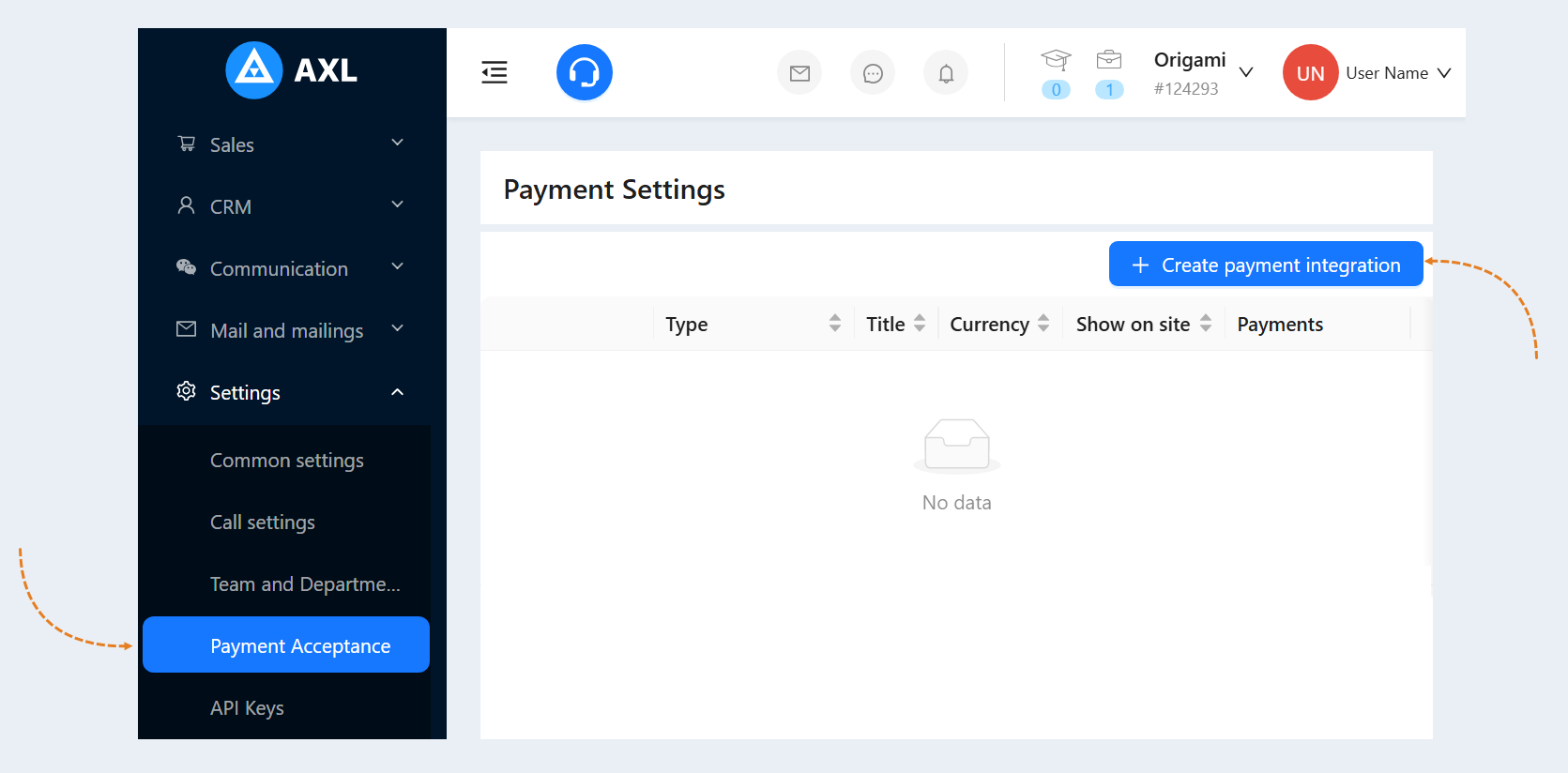
Go to the AXL website. Select the "Settings" section and the "Payment Settings" tab. Click the "Create Payment Integration" button.
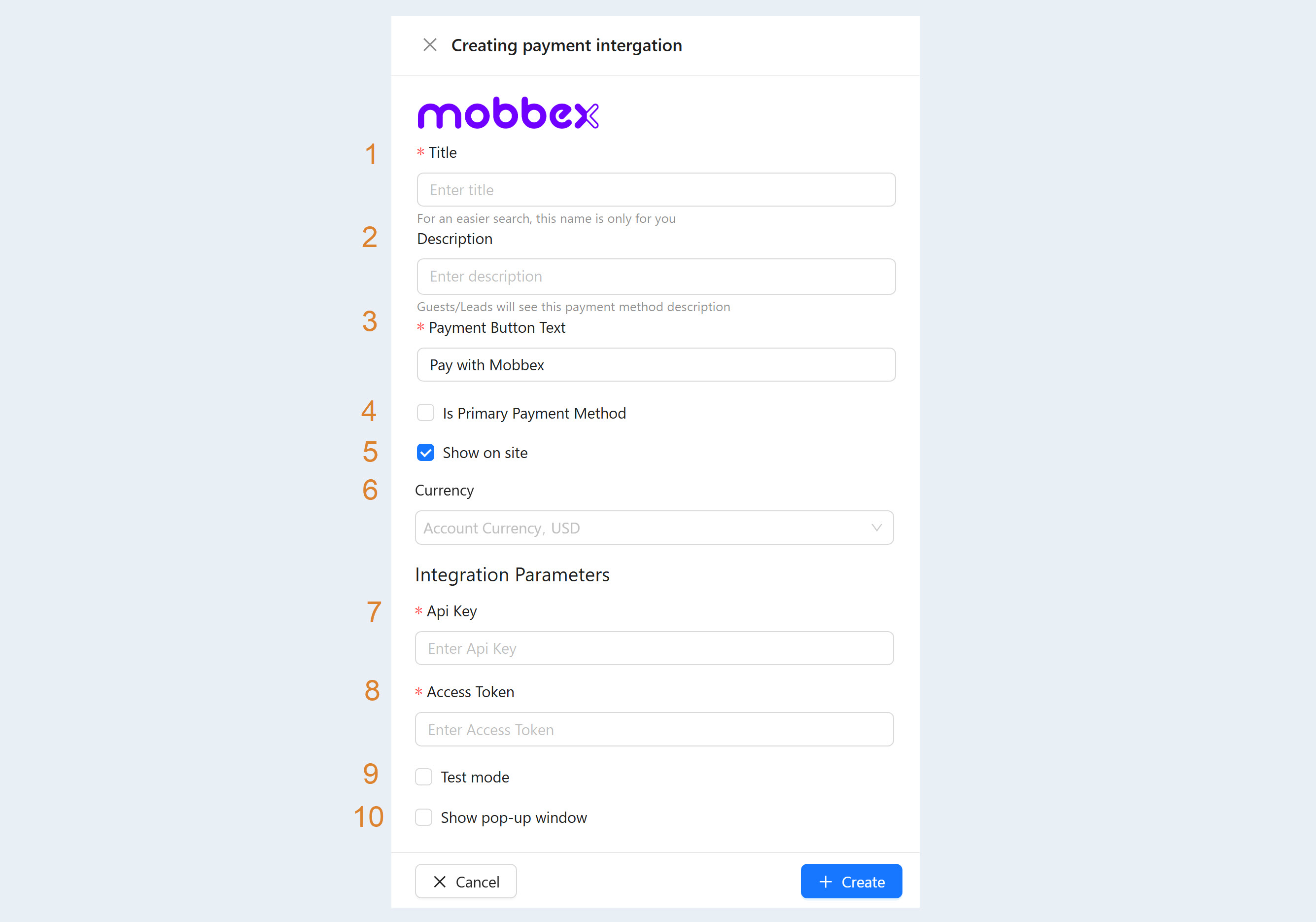
Select "Mobbex" from the list. In the window that opens, fill in the fields:
- Title. Write the name of the payment instrument.
Description. Add a description of this payment instrument. Customers will see this description on the website.
Payment Button Text. Write the text that will be displayed on the payment button on your website.
Is Primary Payment Method. Check the box if this payment method will be the main one in your account.
Show on site. Check this box to make this payment method available on your website.
Currency. Select the currency in which you plan to accept payments. If you work in different markets in different countries, you can choose the currency for accepting payments in each payment system. For example, by selling courses in dollars through one payment system, you can accept rubles through another payment system. Automatic currency conversion takes place at the international exchange rate.
Api Key. Enter the Api Key that you copied on the Mobbex website in step №1.
Access Token. Enter the Access Token that you copied on the Mobbex website.
Test mode. Check the box to make a test payment (without money).
Show pop-up window. Check the box so that a pop-up window with payment opens when paying for the order, and does not redirect the user to a separate page for payment.
After filling out the form, click "Create". Now you have the "Mobbex" tool in the list of payment instruments.