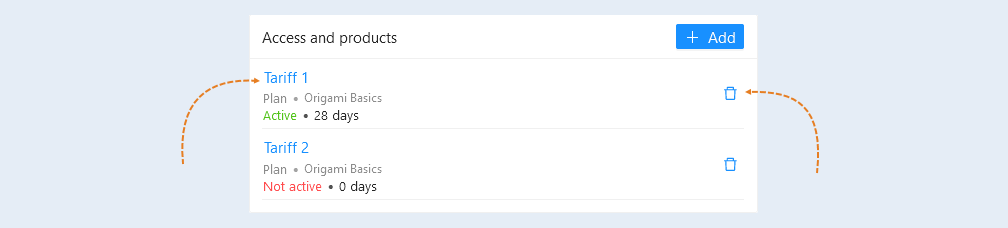
In the "Access and Products" tab, you see a list of courses that this contact has access to. Here you can add access to specific courses, products, streams, libraries. And set the duration of access.
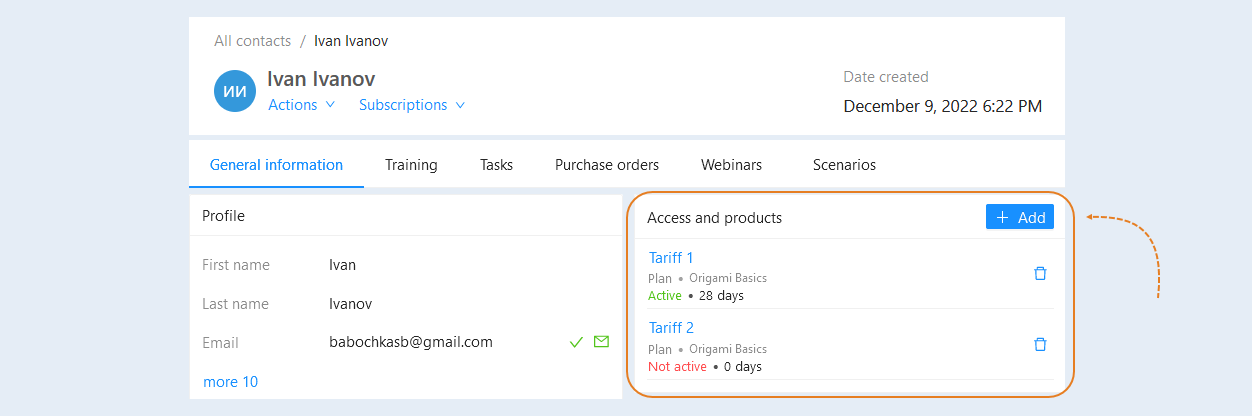
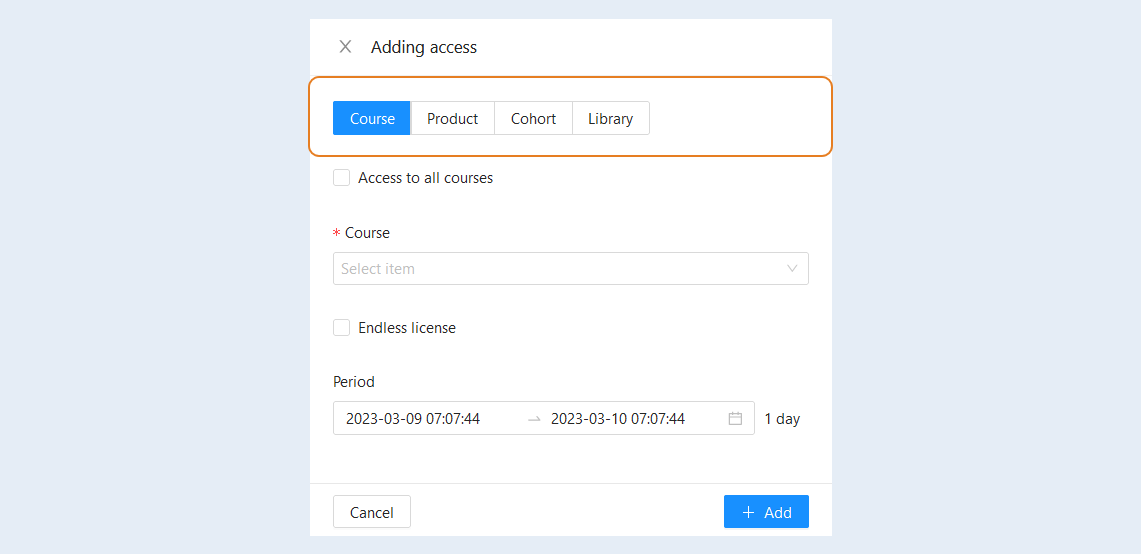
To add access to a product, click the "Add" button. An additional window will open for you. First select a product:
- Course. Courses are a set of lessons grouped by topic. Select a course from the list of courses you have created. Next, you need to select a tariff. If you do not have tariffs, then leave this field blank. Read more about the courses in the "Courses" article.
Product. A product is something that you sell to your customers through the AXL platform (digital product, physical product, service, course, subscription or stream). Select a product from the list. Read more about the products in the article "Products and services".
- Flow. A stream is an event (webinar, course, etc.) that is tied to a specific date. Select a stream from the list. For more information about streams, see the "Flows" article.
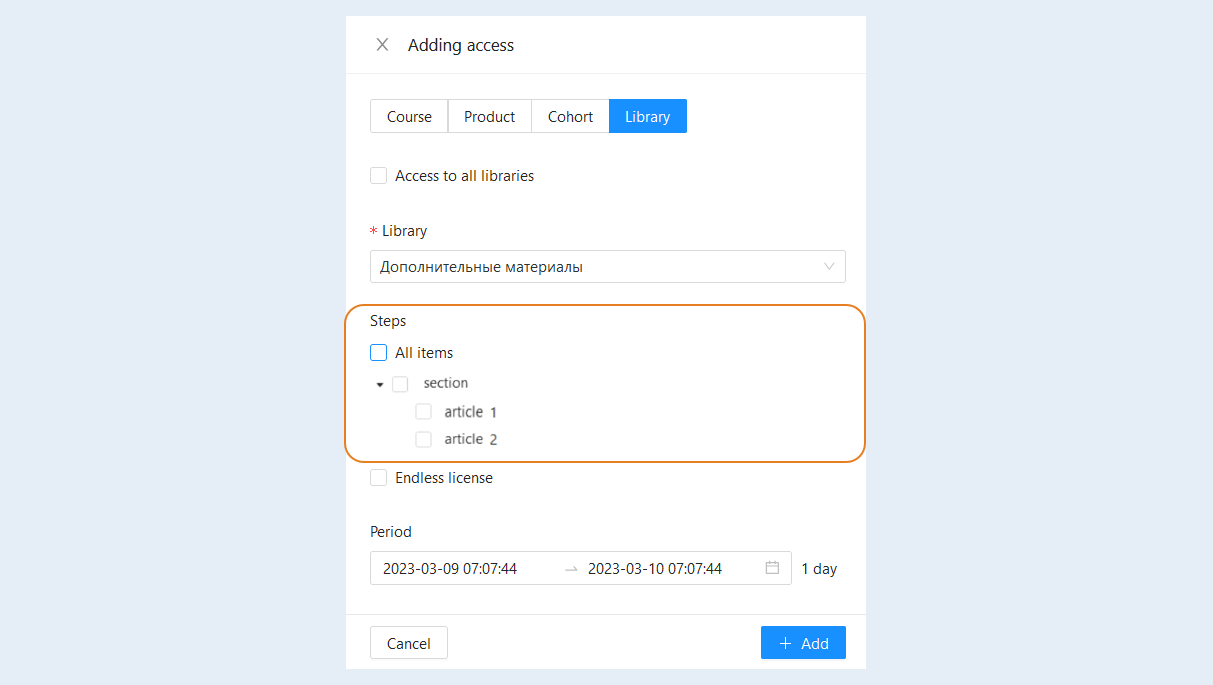
- Library. The library is learning materials that are not included in the courses. It can be a knowledge base, reference material, a set of articles. Select a library from the list. Next, you can select individual steps in the library or all elements. Read more about libraries in the "Libraries" article.
The slide below shows what adding access would look like for each of the products:
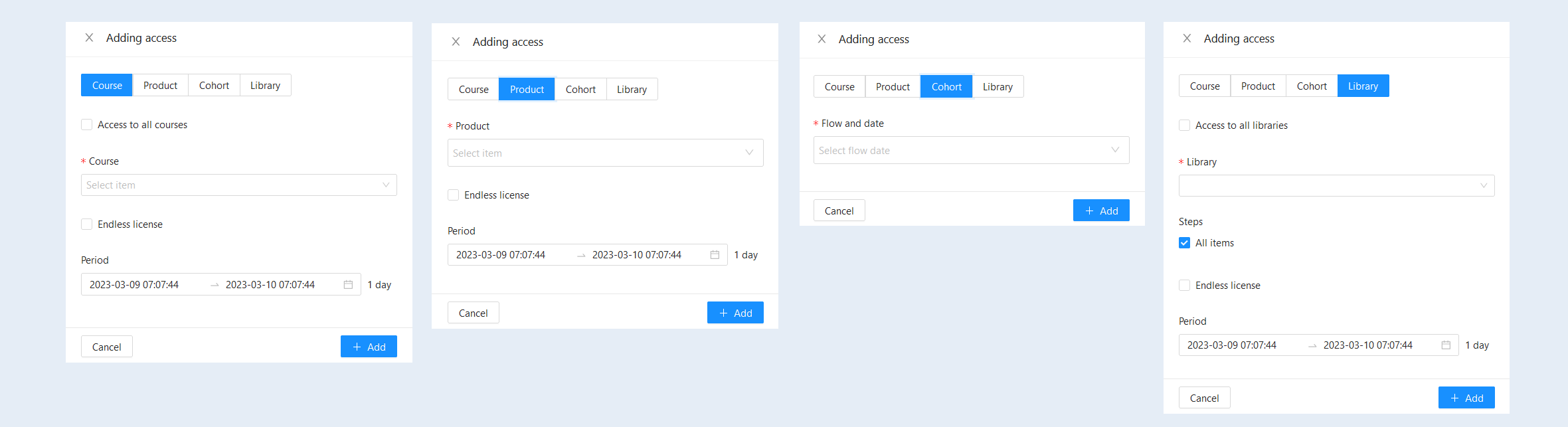
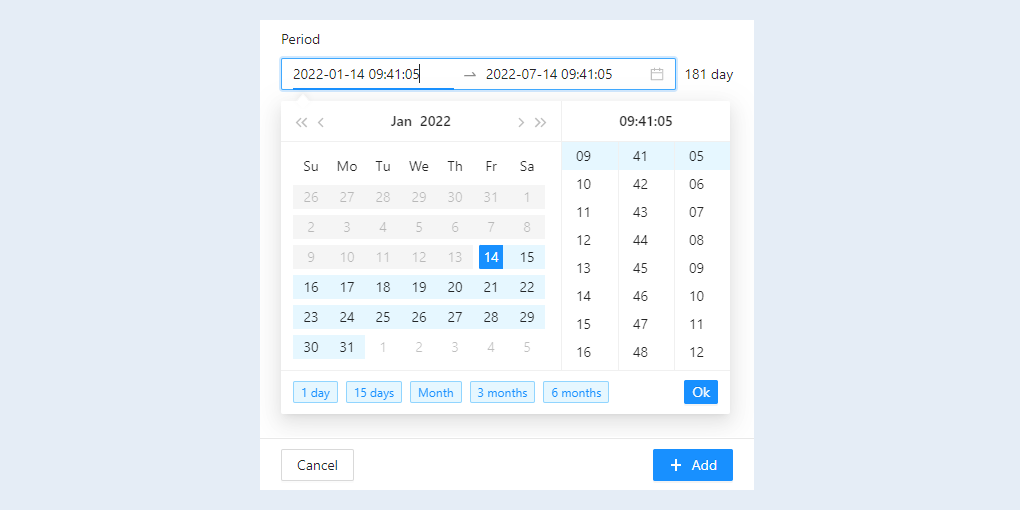
Next, fill in the fields for the selected product: select the product itself from the list and specify the duration of access for the client. Select a date and time on the calendar to start access. You can then specify an expiration date and time, or choose from the options: 1 day, 15 days, month, 3 months, 6 months. Click the "OK" button.
If you select the "Library" product, you must specify the steps that will be available to the contact. You can select one or more steps from the list, or check the "All elements" checkbox - this is full access to all steps in the library.
Click the "Add" button. The added product will appear in the "Access and Products" tab.
Click on a product name to view details or make changes. On the right is the "Delete" button. Click to remove access to the product.