Connect an existing Zadarma virtual PBX to AXL to use its telephony integration. You need a configured Zadarma account, its API key and secret key, and permission to manage call settings in AXL.
This article covers obtaining the credentials and adding the integration. Configure the PBX and its extension lines in Zadarma before connecting it to AXL.
Set Up Zadarma
Sign in to your Zadarma account, or register one if needed. Create and configure your virtual PBX, including its extension lines and incoming-call routing. Follow the official Zadarma CRM integration guide for the provider prerequisites.
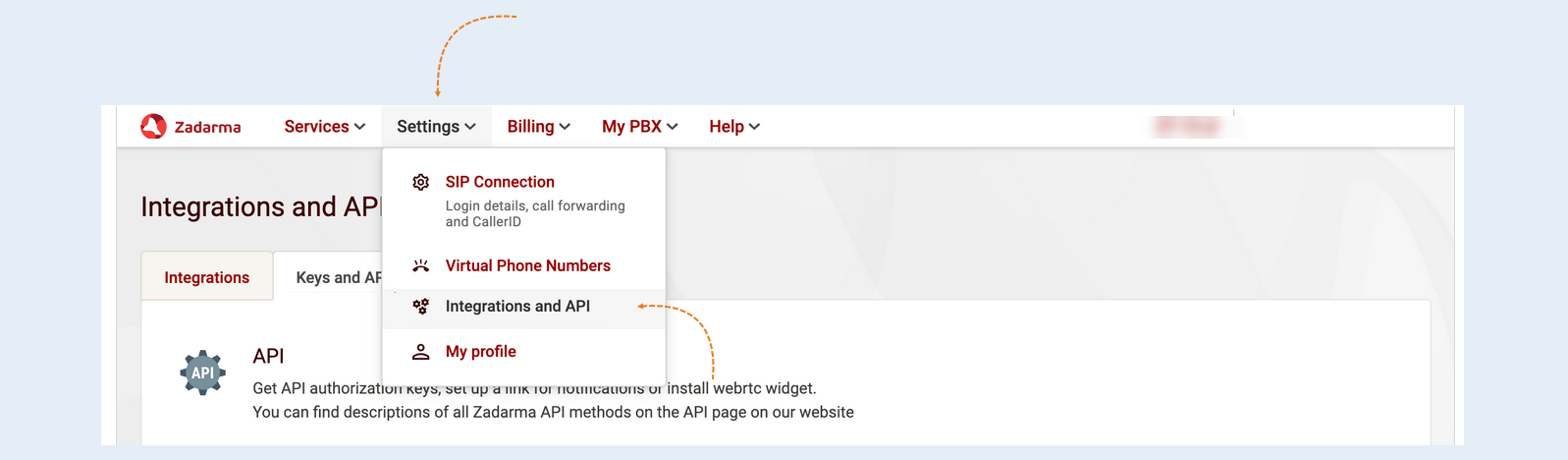
In your Zadarma account, open Settings → Integrations and API and locate the API-key section.
Generate API credentials if your account does not already have them, then copy the Key and Secret. An account with existing credentials may show Change keys; you do not need to replace working credentials merely to copy them. See Zadarma API documentation for current authorization requirements and limits.
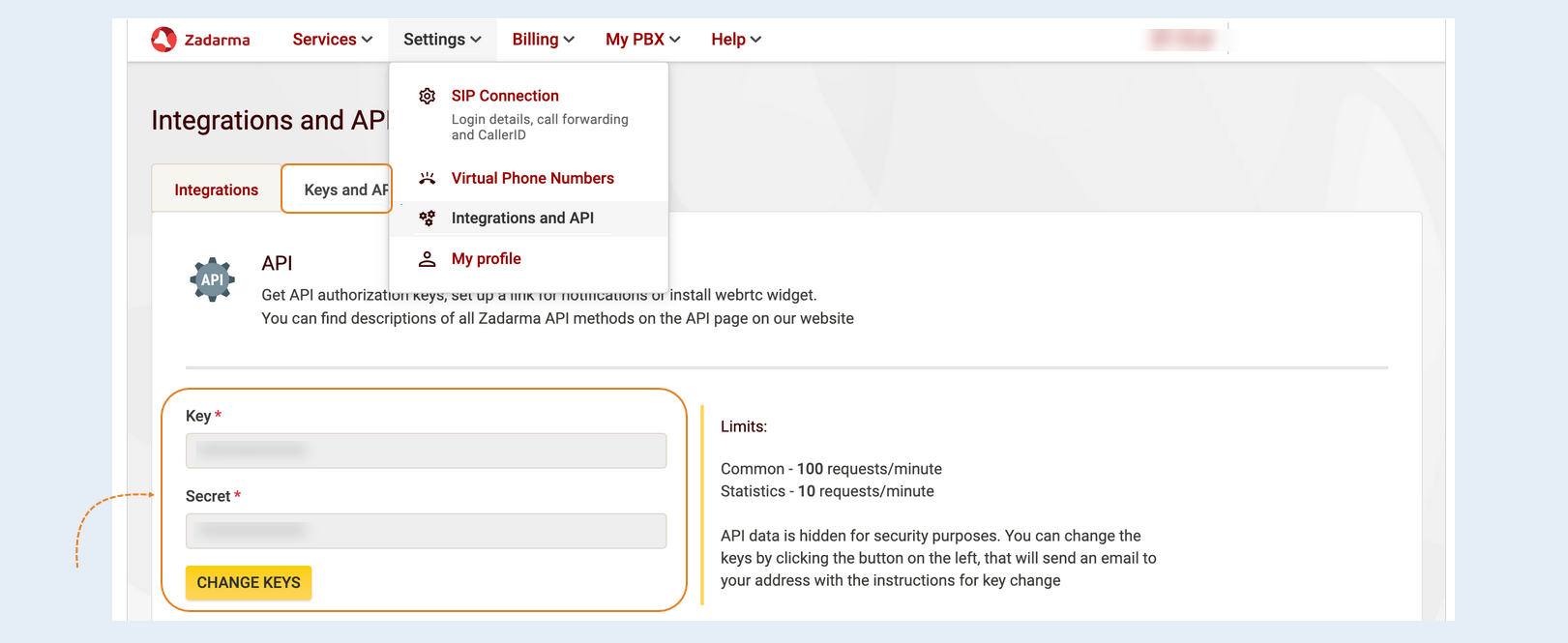
Follow any confirmation instructions shown by Zadarma, including email confirmation if requested. Keep the key and secret private: enter them only in the intended integration settings, and do not include them in screenshots or public messages.
Connect Zadarma to AXL
In AXL, go to Communications → Telephony and open Integrations. Click Add Integration.

Complete the Add Integration form:
- Integration Type: choose Zadarma.
- Key: paste the API key from Zadarma.
- Secret Key: paste its matching secret.
Both credential fields are required when creating the integration.
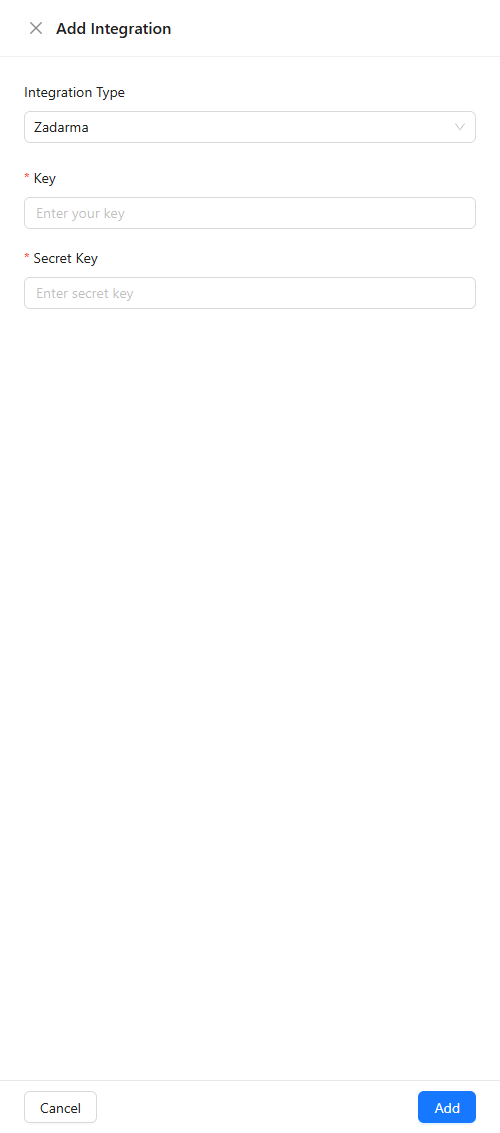
Review the credentials, then click Add when you are ready to connect. AXL checks the provider credentials and configures the Zadarma call-notification URL. The integration appears in the list only after these steps succeed.
If AXL reports an error, check the key and secret, the PBX setup, and whether the same Zadarma account is already connected to another AXL account. Correct the cause before retrying. Adding credentials alone does not demonstrate that an extension can make or receive calls; finish the provider and extension configuration before using the integration.
After calls are available in AXL, use the Analytics and History tabs under Telephony to review call volume, duration, outcomes and related sales metrics. Read Calls Analytics for report filters and metric definitions.