In the "Webinars" tab, you see a list of webinars attended by this contact.
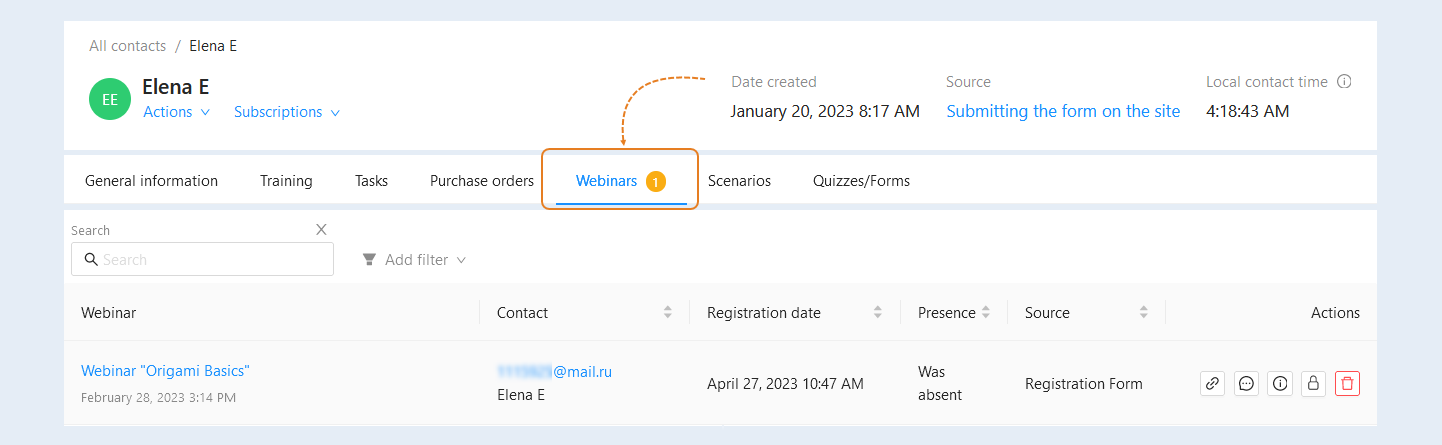
Here you can see the list of webinars and contact details:
Webinar. The name of the webinar, the date and time of the event are indicated.
Contact. The contact's email address, the contact's first and last name, which he indicated when registering for the webinar.
Registration date. Date and time of the user's participation in the webinar.
Presence. In this column, you can see the amount of time that this contact was present at the webinar, in numerical and percentage terms.
Source. The source by which the participant registered for the webinar.
Partner. The contact of the partner in the affiliate program is specified.
Actions. Here you can perform actions with a contact.

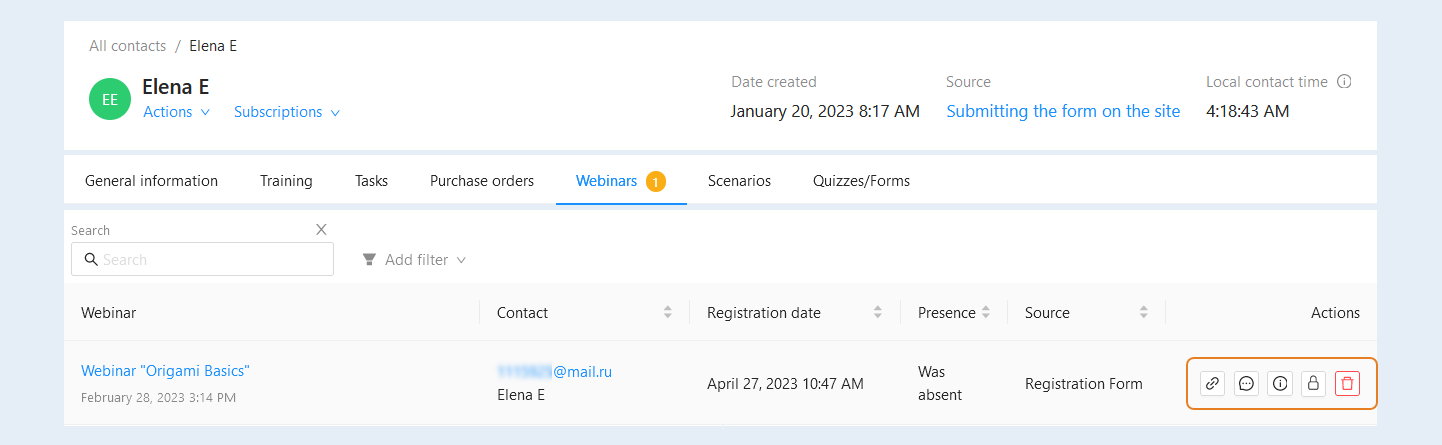
The following buttons are available in the "Actions" column:
Copy the link. Click to copy the link to the webinar.
Webinar chat messages. Click the button to go to the list of messages sent by the webinar participant. In the upper part of the webinar chat message window, filters are available for you to quickly search for the desired message. You can also upload a list of messages to your device (computer, laptop, tablet) in one file (in CSV or XLSX format). This way you can quickly transfer a large number of messages.
Webinar participant details. Click the button to open a window with detailed information about the webinar participant and session information. You can go to the membership portal's website and view the course of study inside the user's personal account, on his behalf.
- Blocking. Click the button if you want to block access to this webinar.
- Delete. Click the button to delete this line.
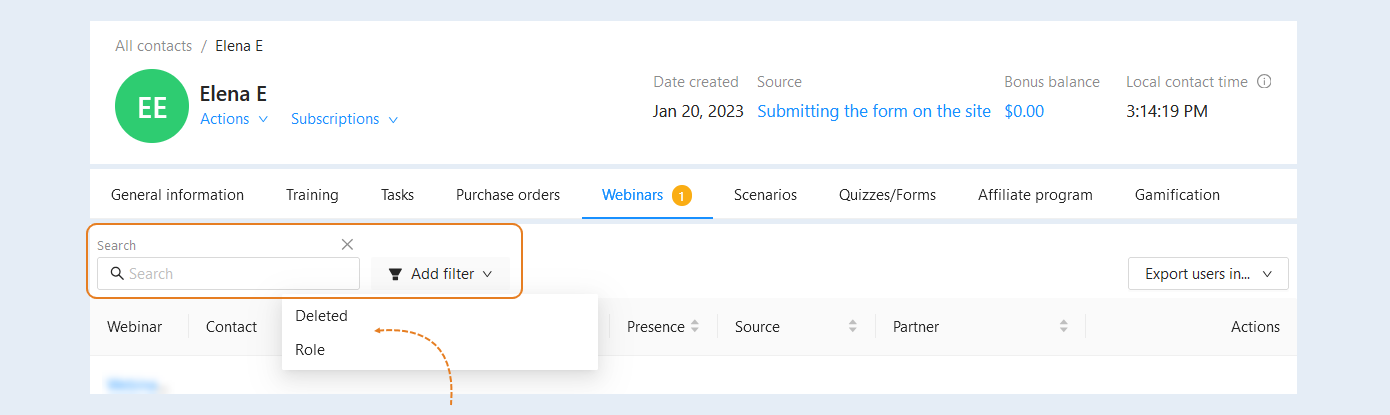
At the top of the "Webinars" page, you see search strings. Here you can choose information about the webinars and the participant:
- Search. Free keyword search.
Click the "Add Filter" button and select a filter condition from the list:
- Deleted. You can open the list of remote webinars.
Role. Select a role from the list: guest, moderator, presenter.
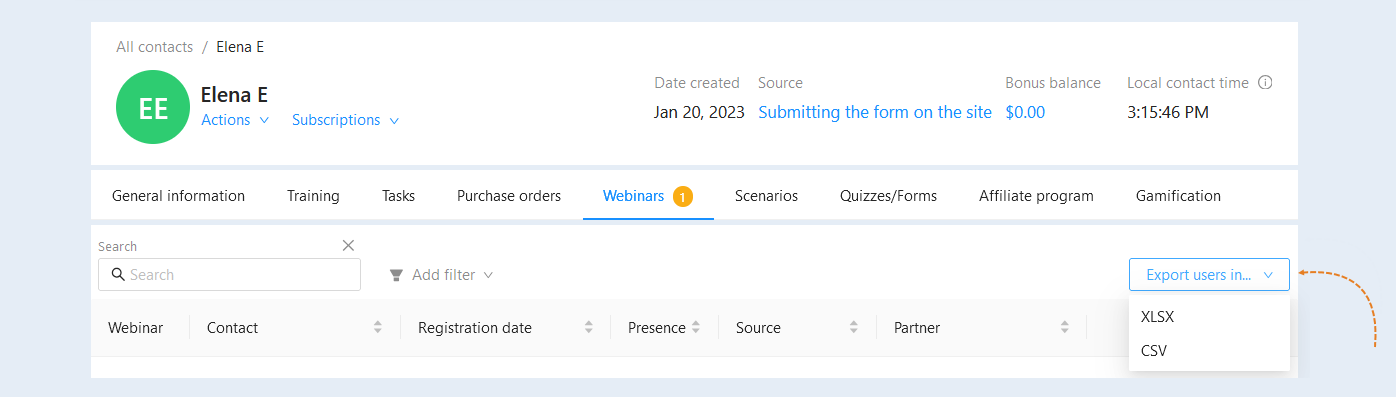
The "Export users in" button is located in the upper-right corner of the page. Exporting users allows you to save and analyze data about webinars outside the platform. Exporting allows you to get a list of data from webinars in which this contact participated, in an easy-to-analyze format (XLSX or CSV).