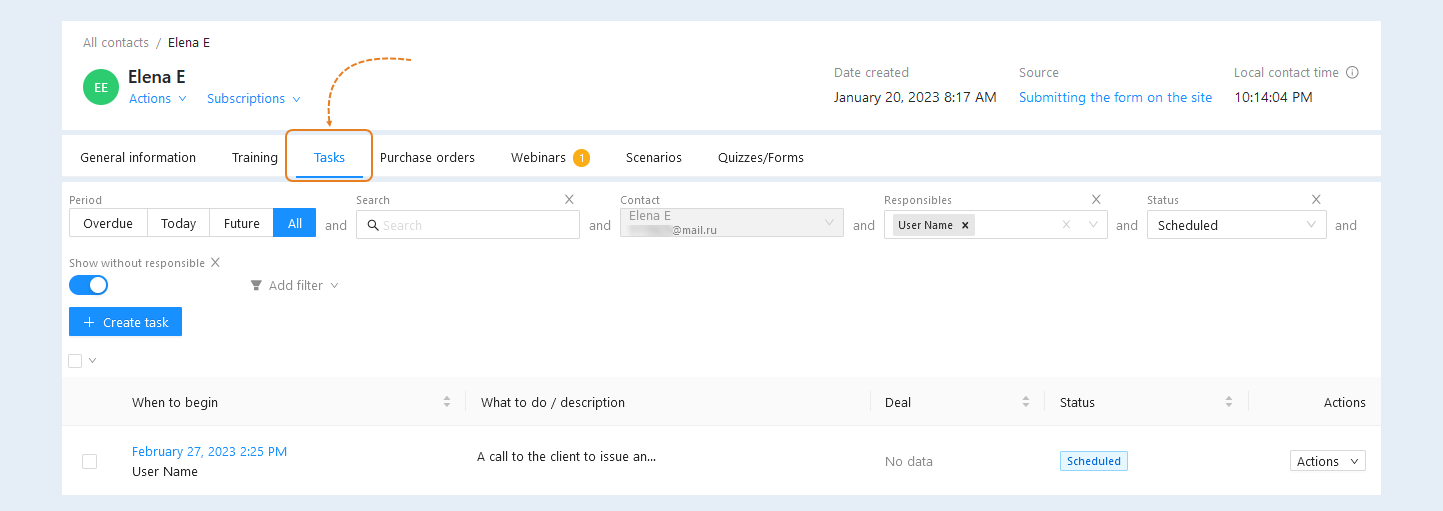
In the "Tasks" section, you can add new tasks to this contact, as well as see a list of existing tasks.
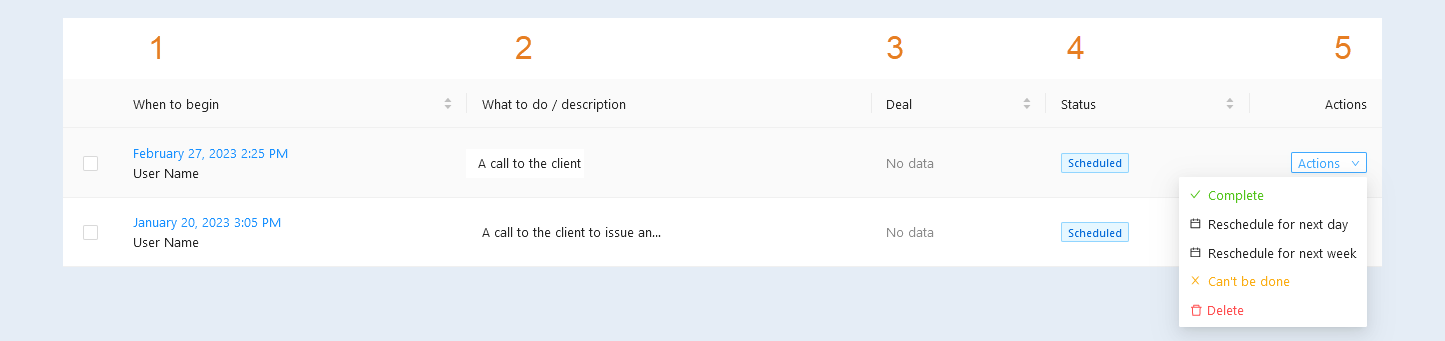
In the task list, you can see detailed information about each task:
When to begin. In this field you can see the date on which the task is scheduled to be completed and the name of the responsible person who must complete this task.
What to do/description. This field shows the task: a call, a letter, an invitation, and the like.
Deal. The number and stage of the transaction in which this task is located is indicated. Click on the transaction number to open the transaction details.
Status. Task completion status: active, completed, or cannot be completed.
Actions. Here you can select the status of the task from the list: complete, cannot be completed or delete.
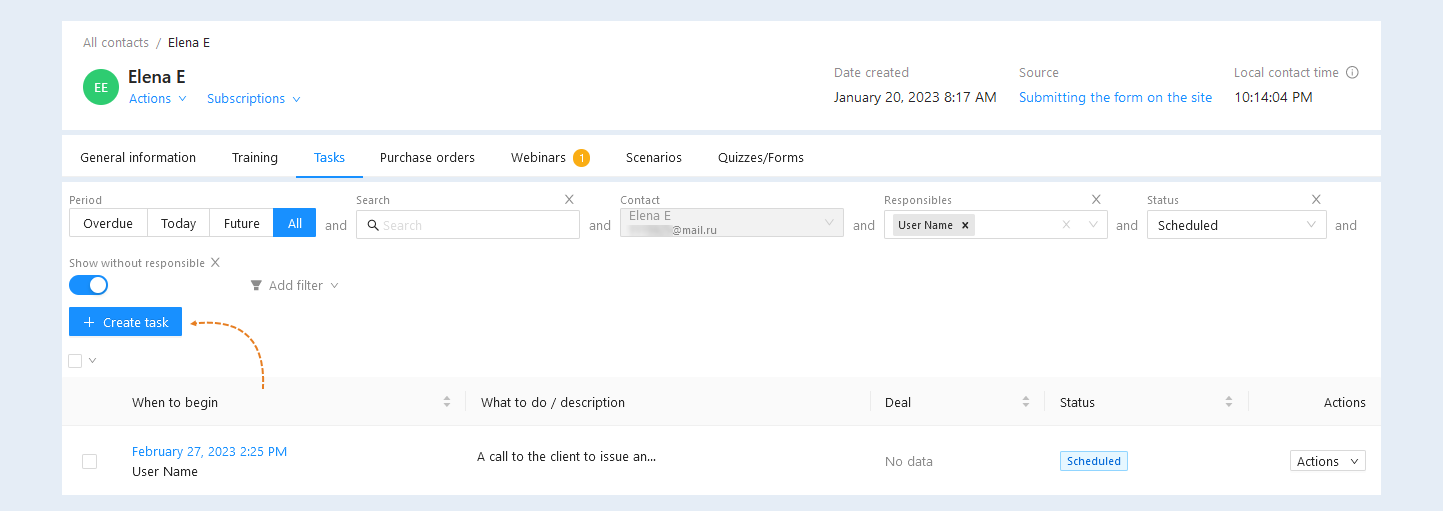
To add a task, click the "Create task" button in the upper right corner. Read more about how to add a task in the "Tasks" article.
Filters are available at the top for a quick search:
Period. Select the time period to search for tasks: overdue, tasks for today, for the future, or all.
Search. Enter a description or comments on the tasks.
Contact. The contact is specified.
Status. This column displays the status of the task: active, completed, cannot be completed. The task list opens by default with the Active filter enabled.
Show without a responsible person. Move the slider to the active position to sort the tasks without an assigned responsible executor.
Add a filter. Click the "Add Filter" button and select a filter from the suggested ones:
Begin date. This condition highlights the tasks that were created on certain dates. Select the date range.
Created date. Select a filter to sort the tasks created on the selected dates.
Completed date. This condition highlights tasks that will be completed on certain dates.
Overdue. Select a filter to sort the overdue tasks.
Responsible. Select a responsible admin or several responsible ones from the list.
Extended filter. Select the advanced filter to create different combinations of conditions for selecting tasks. An additional window "Filtering and search terms" will open for you. Here you define the conditions for creating a task list. For more information about the filtering conditions, see the article “Filtering and search terms".
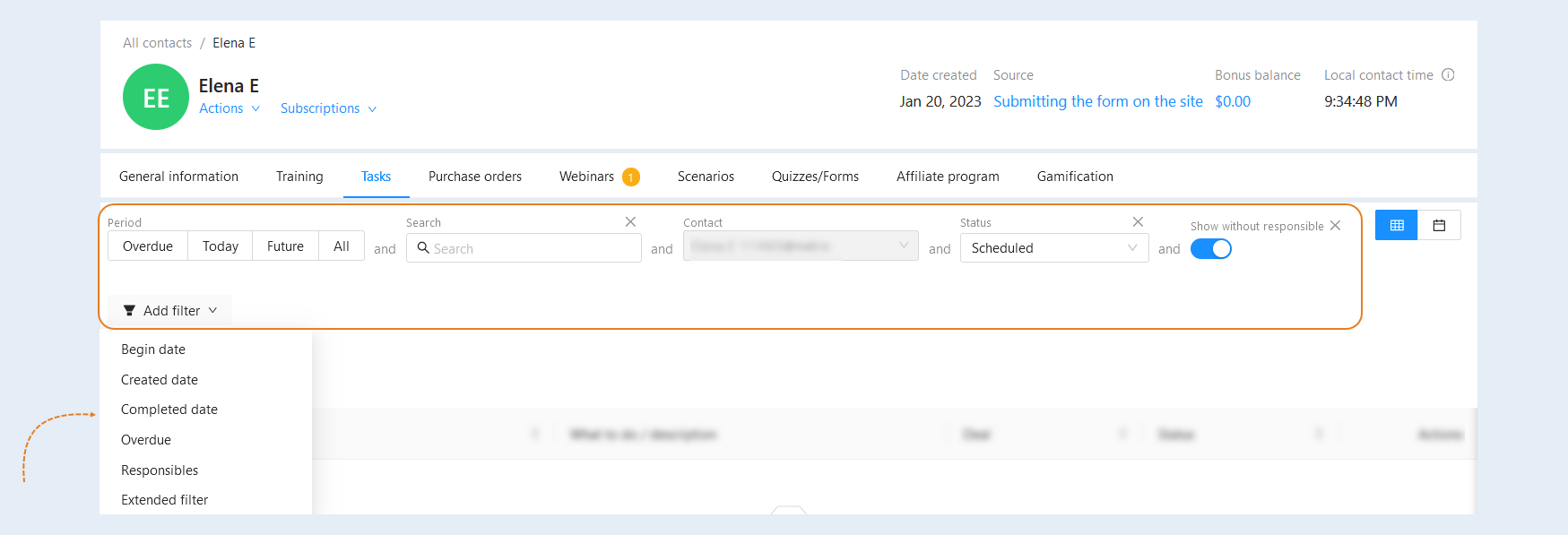
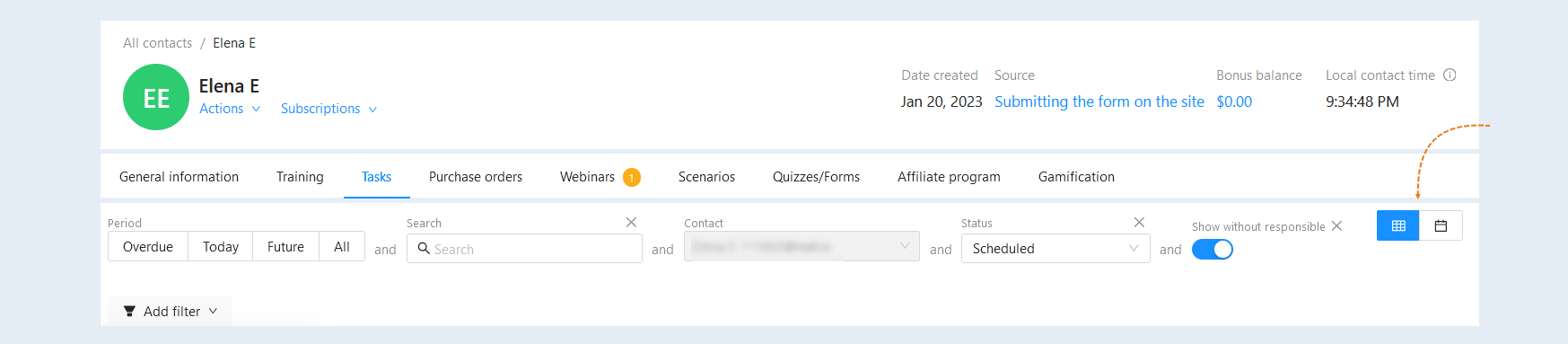
The "View" buttons are available in the upper right part of the page. You can change the section's appearance and set it as a table or calendar. This is a useful feature that helps you adapt the interface to your specific needs and preferences.
- Table. Tasks are displayed in a list, where each row represents a separate task, and the columns contain information. It is convenient for quick review and comparison of tasks, as well as for working with a large amount of data.
Calendar. Tasks are displayed as a calendar, where you can see their distribution by day, week, or month. This is useful for planning and time management when tasks are tied to specific dates.