Viber is an application for messaging and calls over the internet. It allows users to send messages, audio and video recordings, as well as make calls to other devices with Viber installed, using Wi-Fi or mobile data. Viber also supports creating group chats and exchanging stickers.
You must first have the Viber application installed on your smartphone. Detailed instructions on how to install the Viber app on your smartphone can be found on the website.
1
To connect the Rakuten Viber chatbot for business, submit an application to create a chatbot according to the instructions.
After the application is approved, the business client can proceed to sign the contract and agree to the Terms and Conditions.
Every calendar month, Viber charges the owners of chatbots for service, as well as for messages initiated by the chatbot. Read more about the tariff card in the article.
After creating a chatbot, you will receive a token for Viber authentication. The Viber chatbot token can be found on your bot's "Settings" page in your Viber account. Copy and save it. You will need the token at the next stage of connecting the channel.
2
Return to your account on the AXL platform. Go to the "Communication" section, the "Chat Channels" tab. Click the "Create chat channel" button and select the line "Viber" in the list of channels.
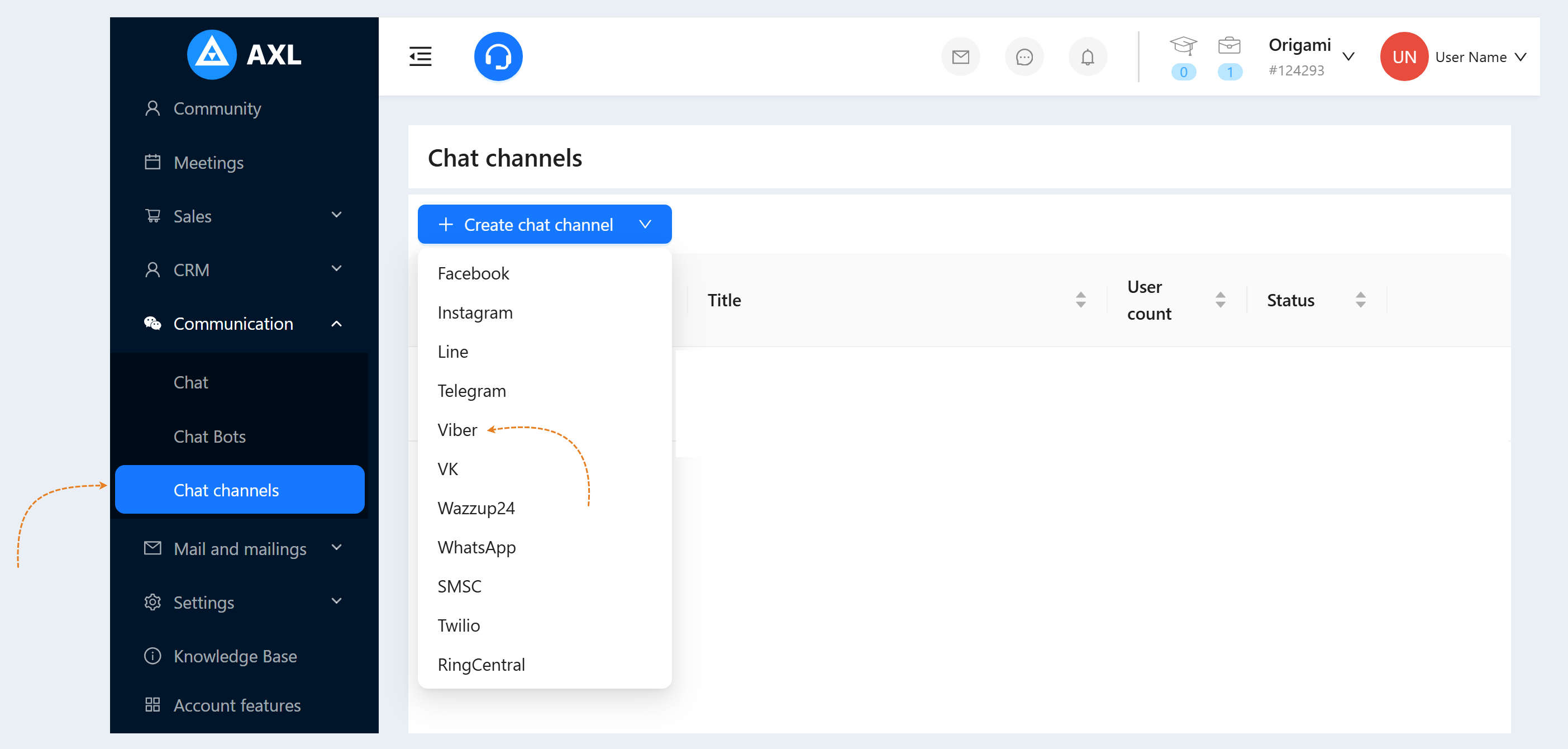
In the window that opens, fill in the fields:
Title. Enter the name of your channel.
Colour. Set the color of the messenger icon.
Broadcast disabled. Check the box to disconnect this channel from the mailing list.
Default chatbot scenario. Select a scenario from the list. This scenario will work if the guest goes to the bot via a direct link (through a search, sent by a friend) and does not run a specific scenario.
Token. Insert the Viber token copied in step №1 of this article into the given string.
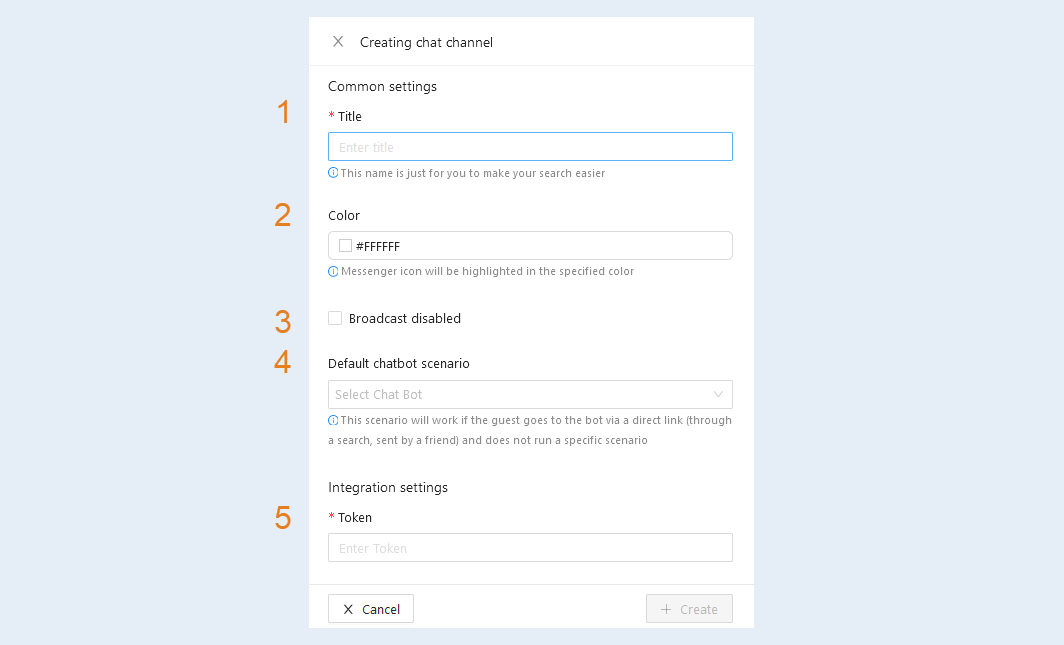
Click the "Create" button. The Viber channel you created will appear in the chat channel list.