Users are clients who have a registered account with your membership portal on the AXL platform.
In the "Users" tab, you see a list of users who have paid for access to training courses and materials in your membership portal. As well as users who have registered on the page, but have access only to free products.
Click on the desired section of the article to go to its description:
Course users
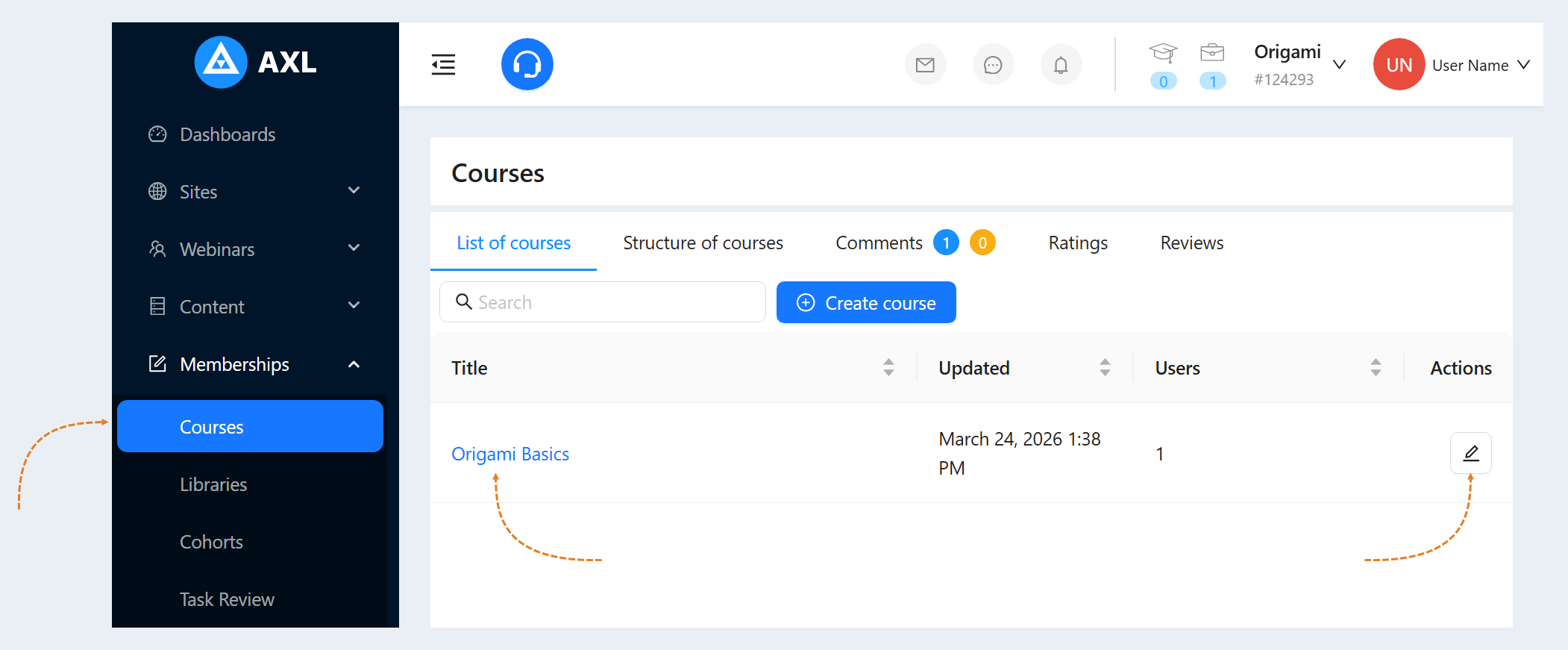
Go to the Courses and Training section. Select a course from the list. Click on the course name or the "Create course" button.
Go to the "Users" tab.
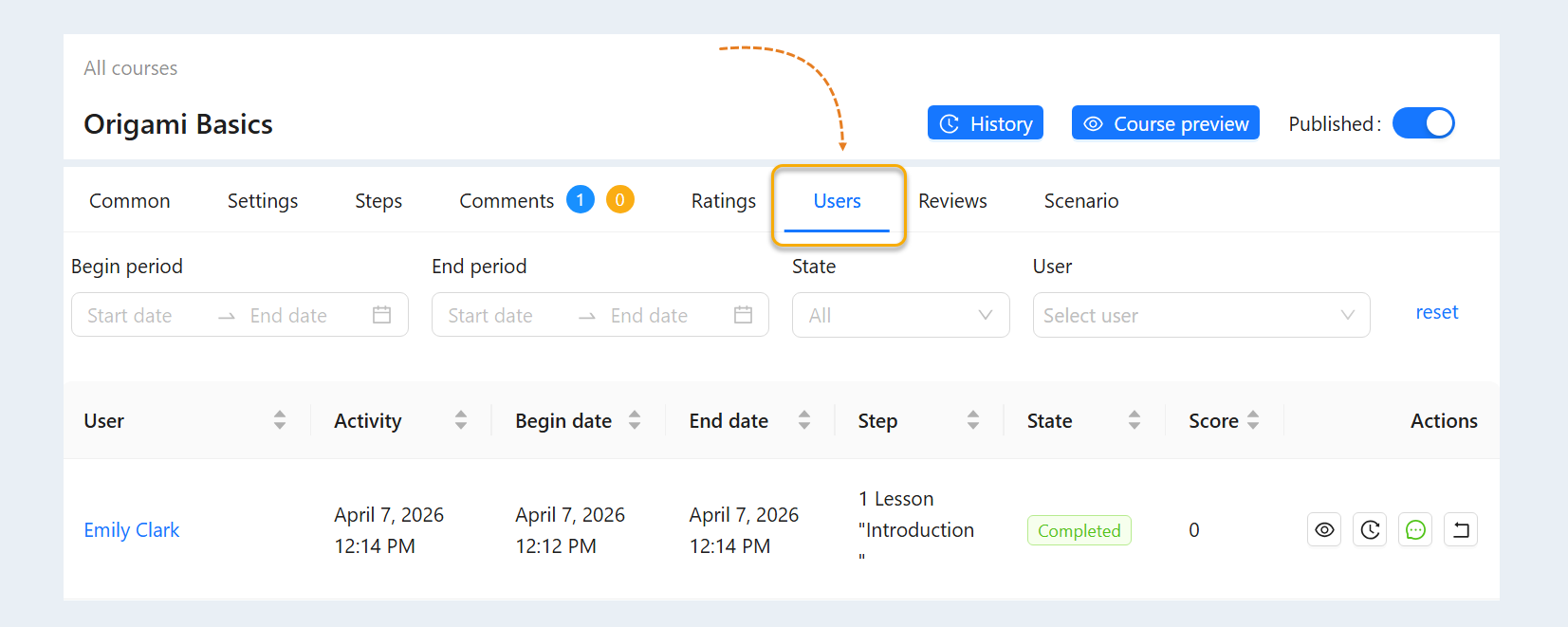
Search lines are located at the top of the page:
- Begin period. Set the start time for the course.
- End period. Set the time frame for the end of the course.
- State. Select from the list the state of training on the course: not started, active, completed.
- User. Select the user's name from the list.
- Reset button. Click to reset filtering settings.
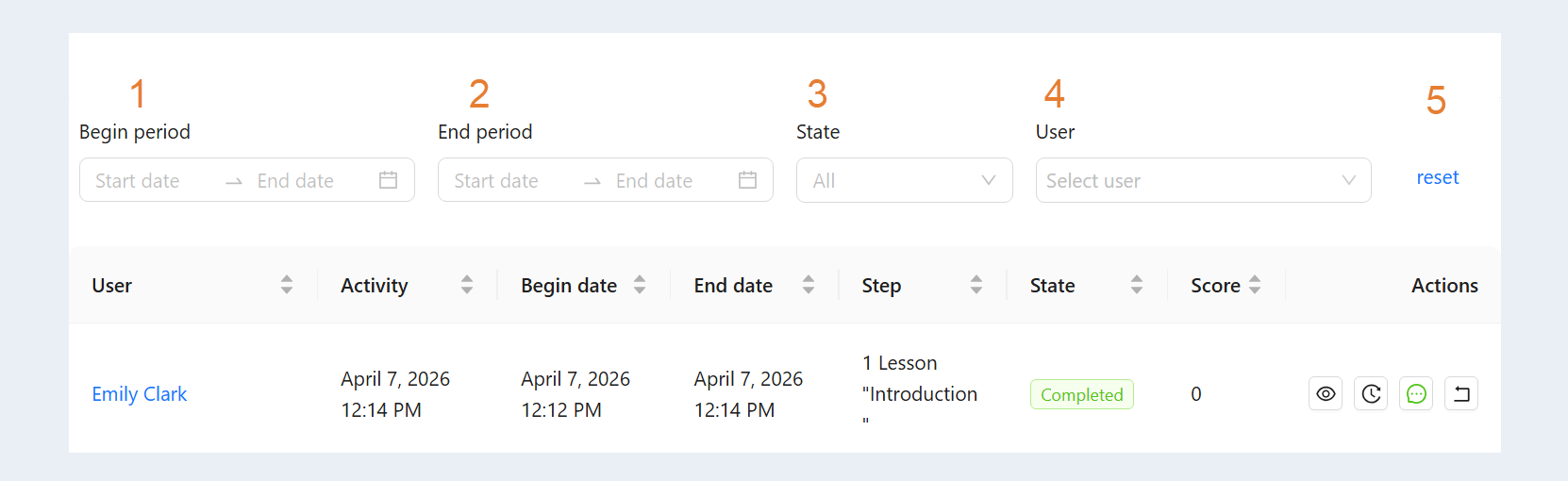
With the help of search strings, you can quickly find users by the necessary conditions. For example, those users who have not started their studies.
Users list
In the "Users" section, you can see the following information:
- User. Here you see the user's first and last name.
- Activity. The date the user was last active on the course.
- Begin date. Shown here is the start date for the course.
- End date. Shown here is the completion date of the course.
- Step. This shows the step of the course the user is currently on.
- State. The status of the course is shown here: started, completed, active.
- Score. This column shows the number of points a user has earned in this course.
- Actions.
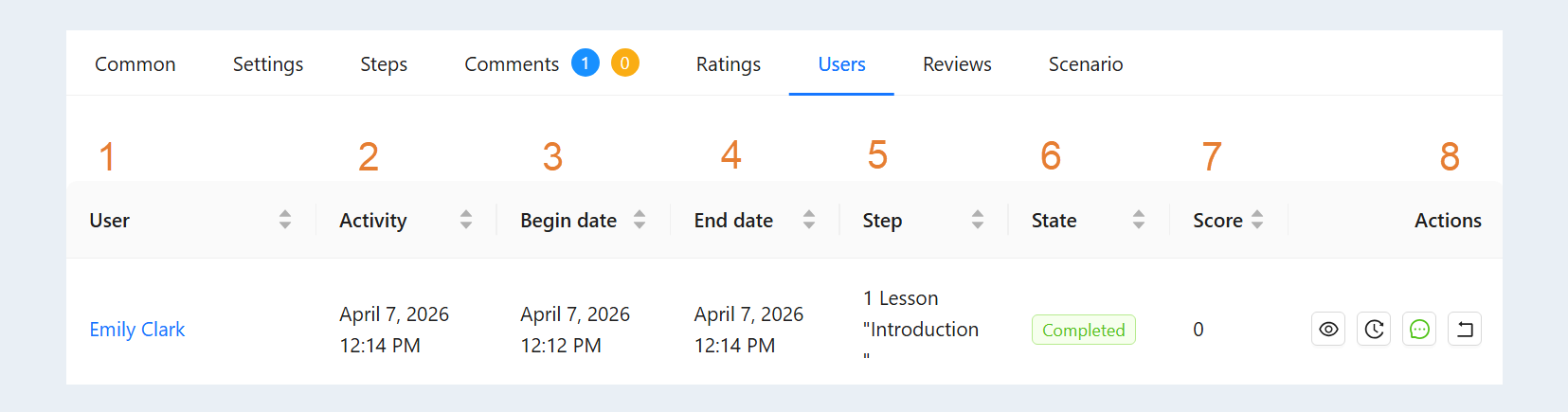
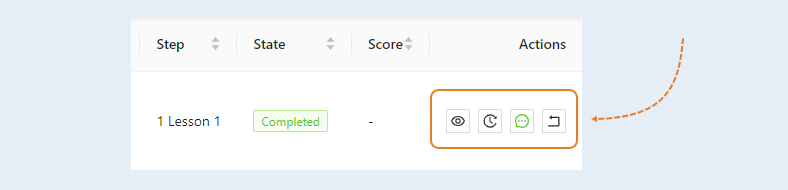
In the Actions column, you can view information and make changes:
- View button. Click this button to go to the user's account and see the course on behalf of the user.
- History button. Click on the button to view the user's detailed learning history.
- Feedback button. Hover over the button to see the commentary for this course.
- Cancel Course End button. Click on the button to cancel the course completion for that user. This option is necessary if you need to make changes to the user's answers or if changes were made to the course itself (added a step, test, assignment, etc.).
When you click on a user's name, you are redirected to the User Contact page in the CRM section. Read more about user contacts in the article "Contact card".