In the AXL Email Editor, you can create and edit email content and design, work with HTML code, and use the AI Assistant. You can edit an email using natural-language prompts or make changes manually in the editor. Using the AI Assistant is a paid feature.
This article covers the main features of the Email Editor.
Click a section below to jump to its description:
How to Open the Editor
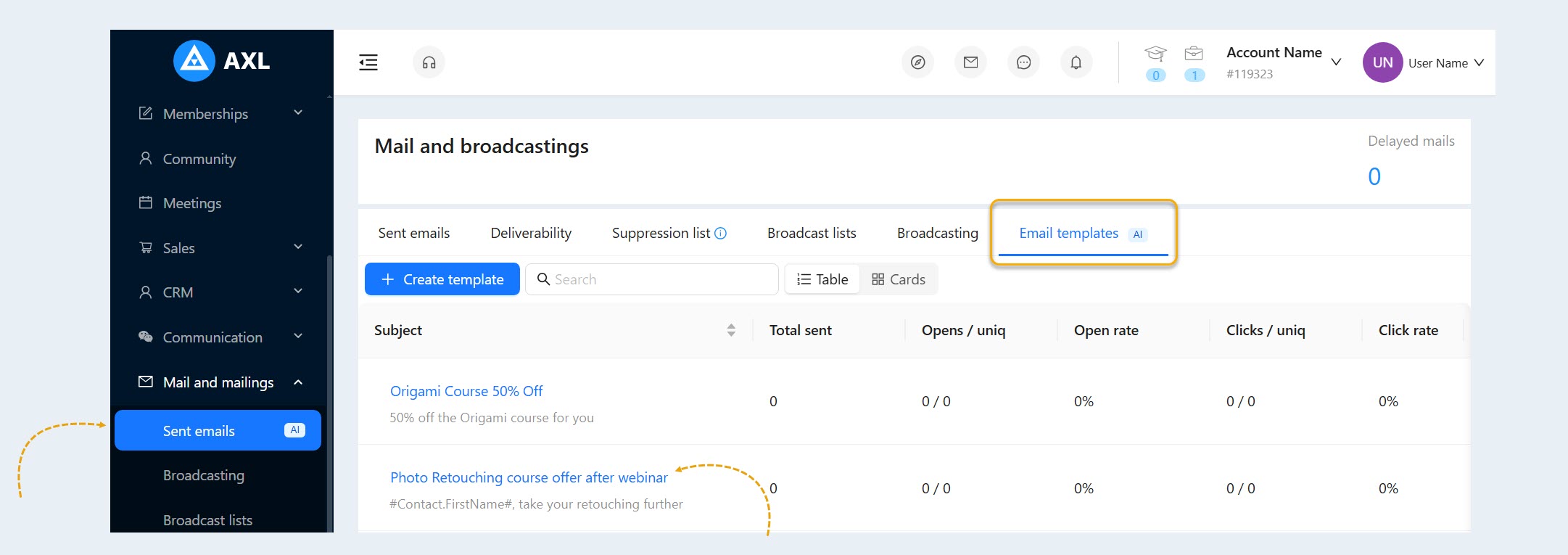
Open the email section and select the email template you want to edit, or create a new template. The Email Editor will open.
Here, you can edit the email content and design manually or use the AI Assistant.
Editing an Email with AI
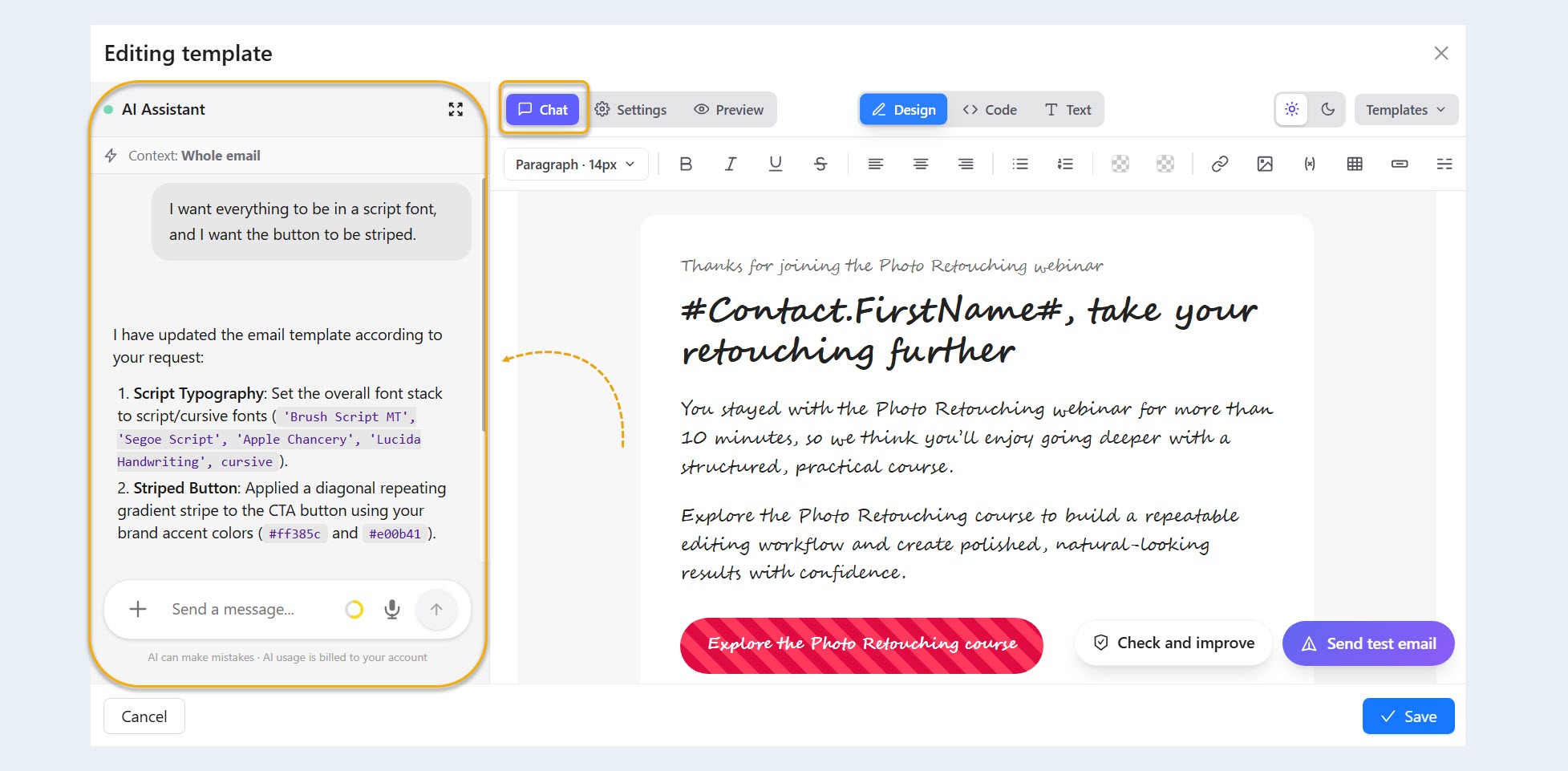
Open the AI Assistant chat and describe the changes you want to make to the email. You can write your request in plain language.
For example:
“Make the email copy shorter.”
“Change the button color to black.”
“Make the text green.”
“Add a section describing the product.”
“Change the email design.”
“Rewrite the email for webinar attendees.”
You can include several changes in a single request. For example: “Change the font, make the button black, and make the text green.”
The AI Assistant will apply the requested changes to the email. Once the request is complete, review the result. If you need to make additional changes, send another request or edit the email manually.
Editing an Email Manually
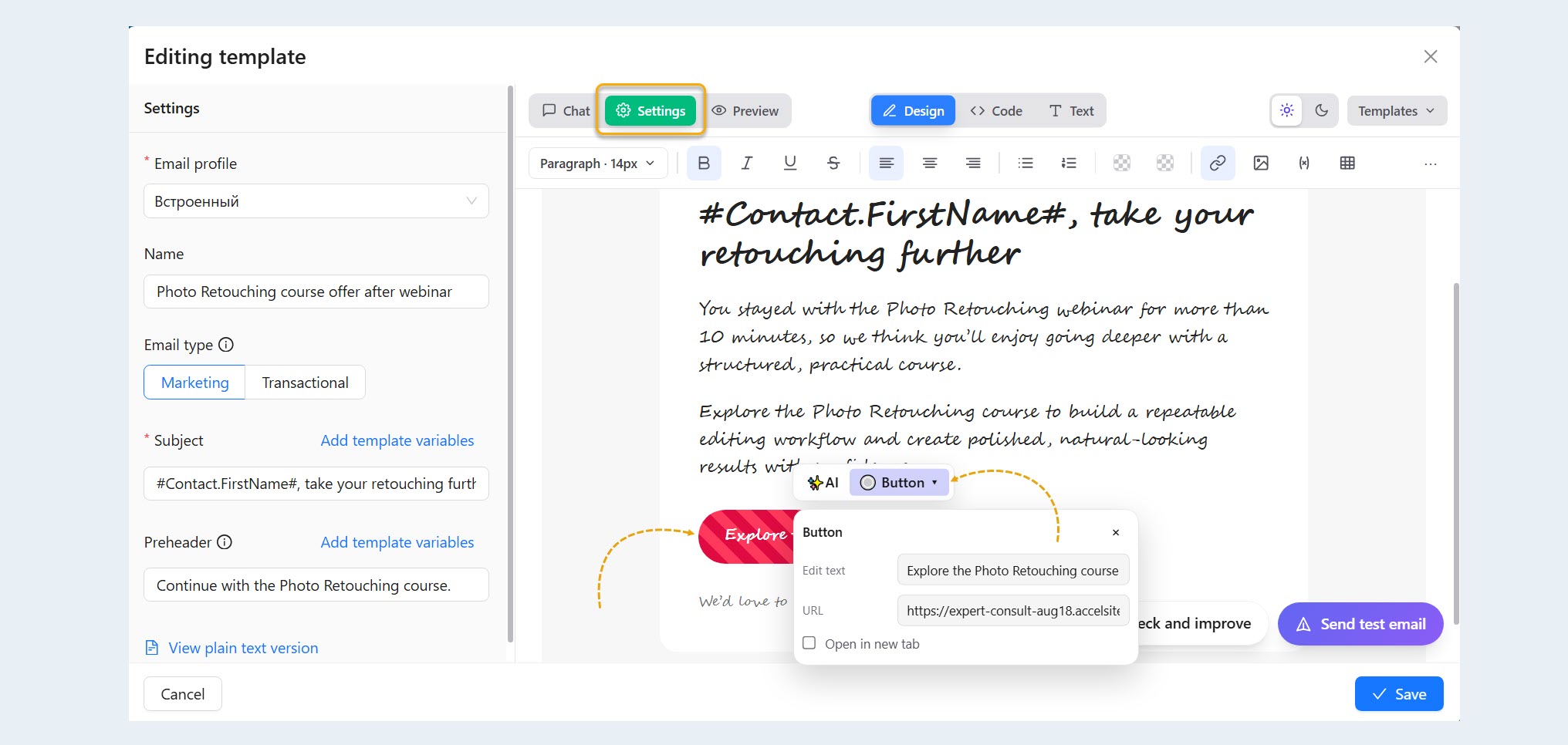
You can make small changes directly in the editor without using the AI Assistant. You can edit the text and individual email elements manually.
For example, you can:
edit the text;
change formatting;
add or edit a link;
change the settings of individual elements;
adjust the design.
Manual editing is useful for making small changes after working with the AI Assistant. For example, you can use AI to change the structure and design of the entire email, then manually update a specific phrase or link.
Working with HTML Code
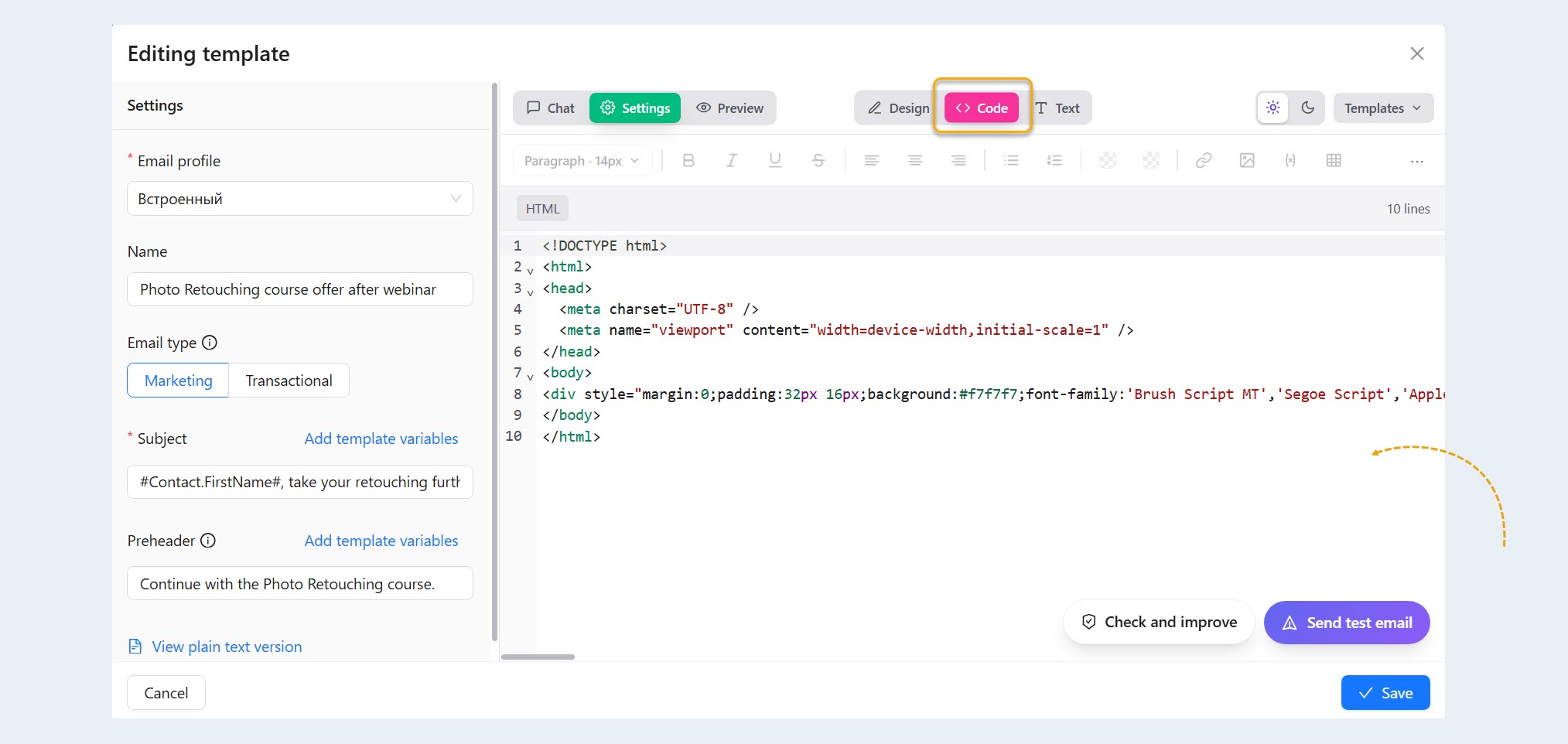
The editor allows you to work with the email’s HTML code.
Use this mode if you need to edit the markup manually or make more precise adjustments to the email.
After making changes, save the email and check how it looks.
Previewing an Email
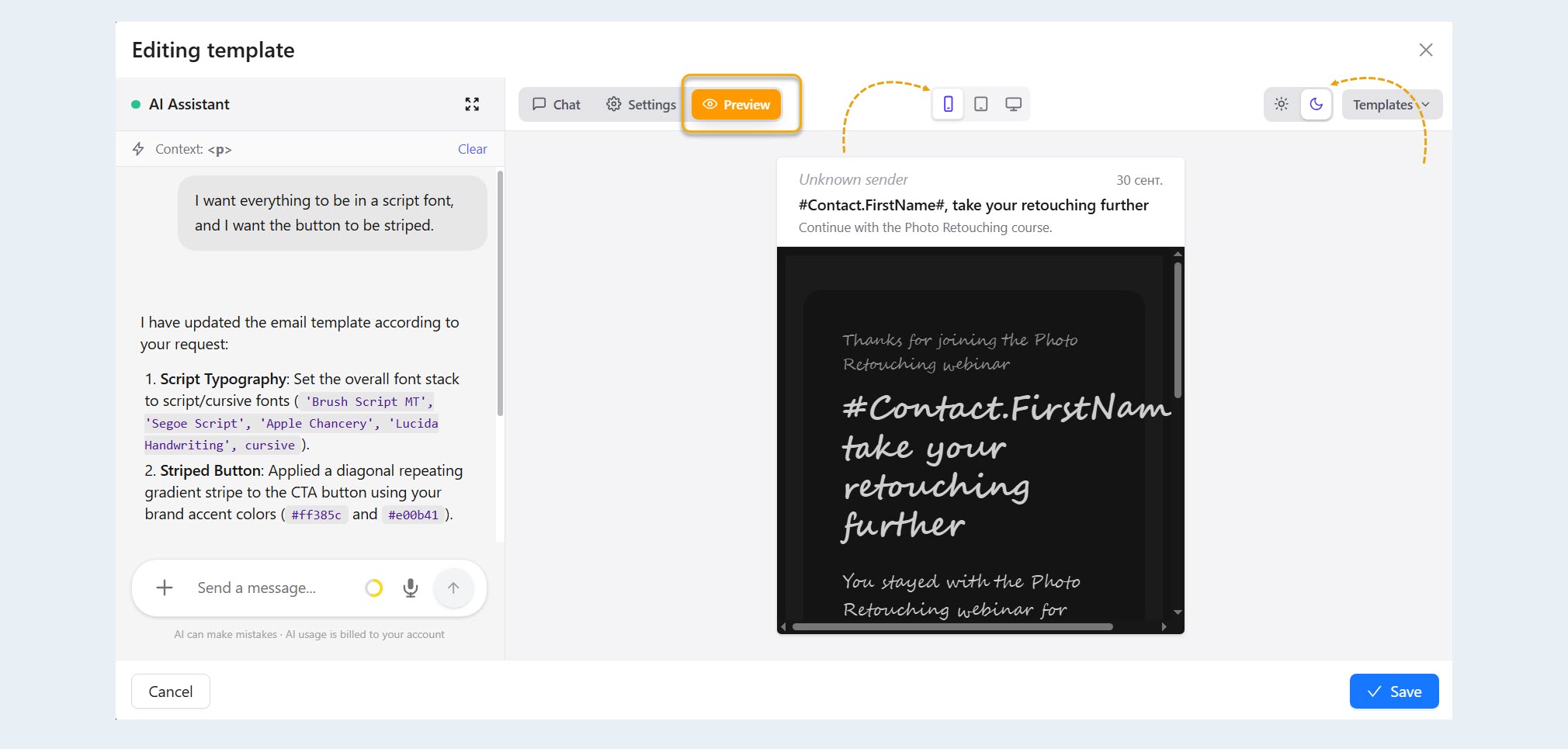
Before using an email in a campaign, open the preview. Here, you can see how the email will look on a phone, tablet, and computer, as well as in light and dark themes.
Check the following:
email copy;
element placement;
images;
design;
links;
buttons.
If you find an issue, return to the editor and make the necessary changes manually or with the AI Assistant.
Checking an Email
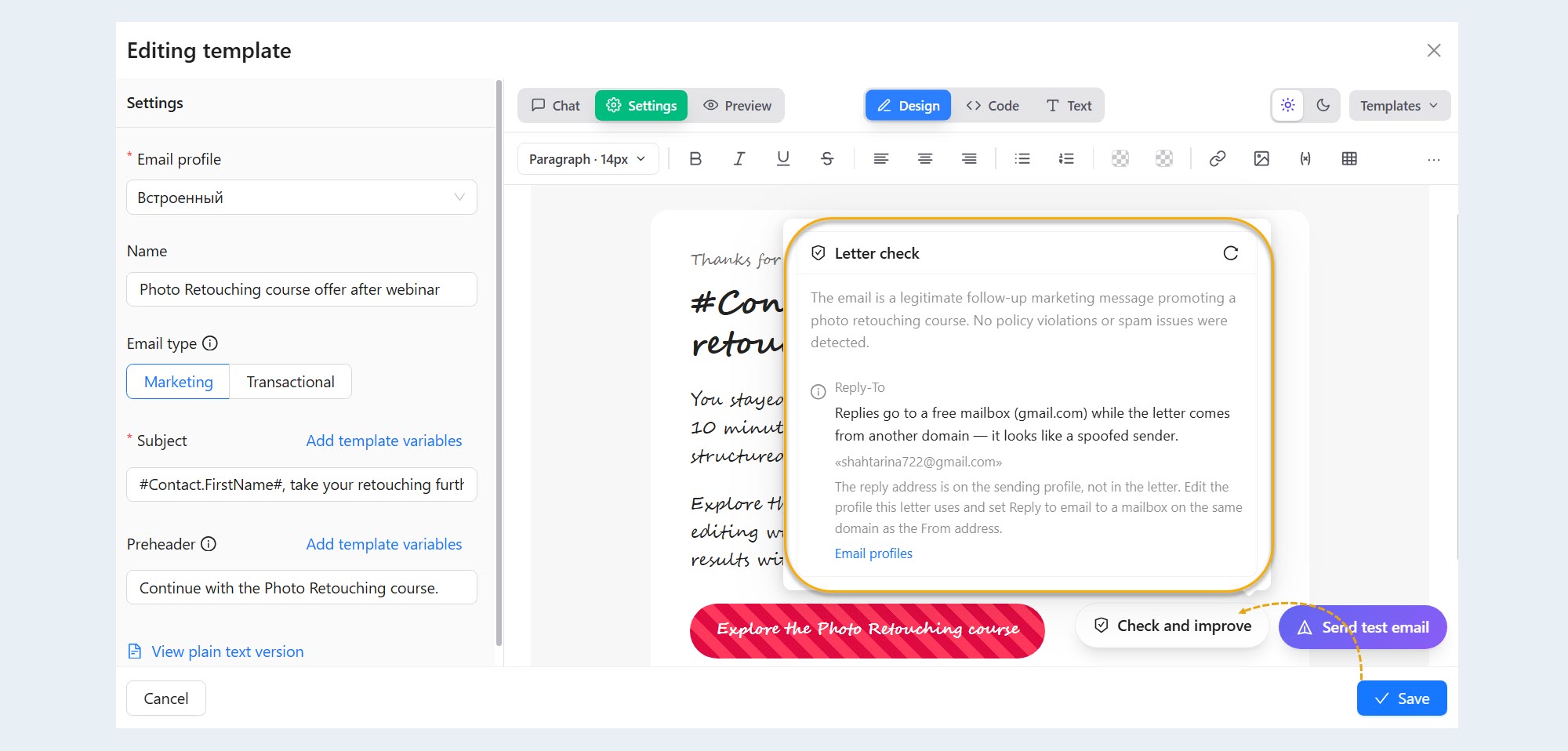
To check an email, click “Check and Improve” at the bottom of the editor.
The system will analyze the email and display any detected issues and recommendations. For example, the check may take into account sender settings and other factors that can affect email deliverability.
You can apply the recommendations automatically or make the necessary changes manually. After making corrections, you can run the check again.
The check helps identify potential issues before the email is sent and can reduce the likelihood of the email landing in spam. However, passing the check does not guarantee inbox placement. Deliverability also depends on sender reputation, domain settings, recipient engagement, and the rules of the recipient’s email provider.
Sending a Test Email
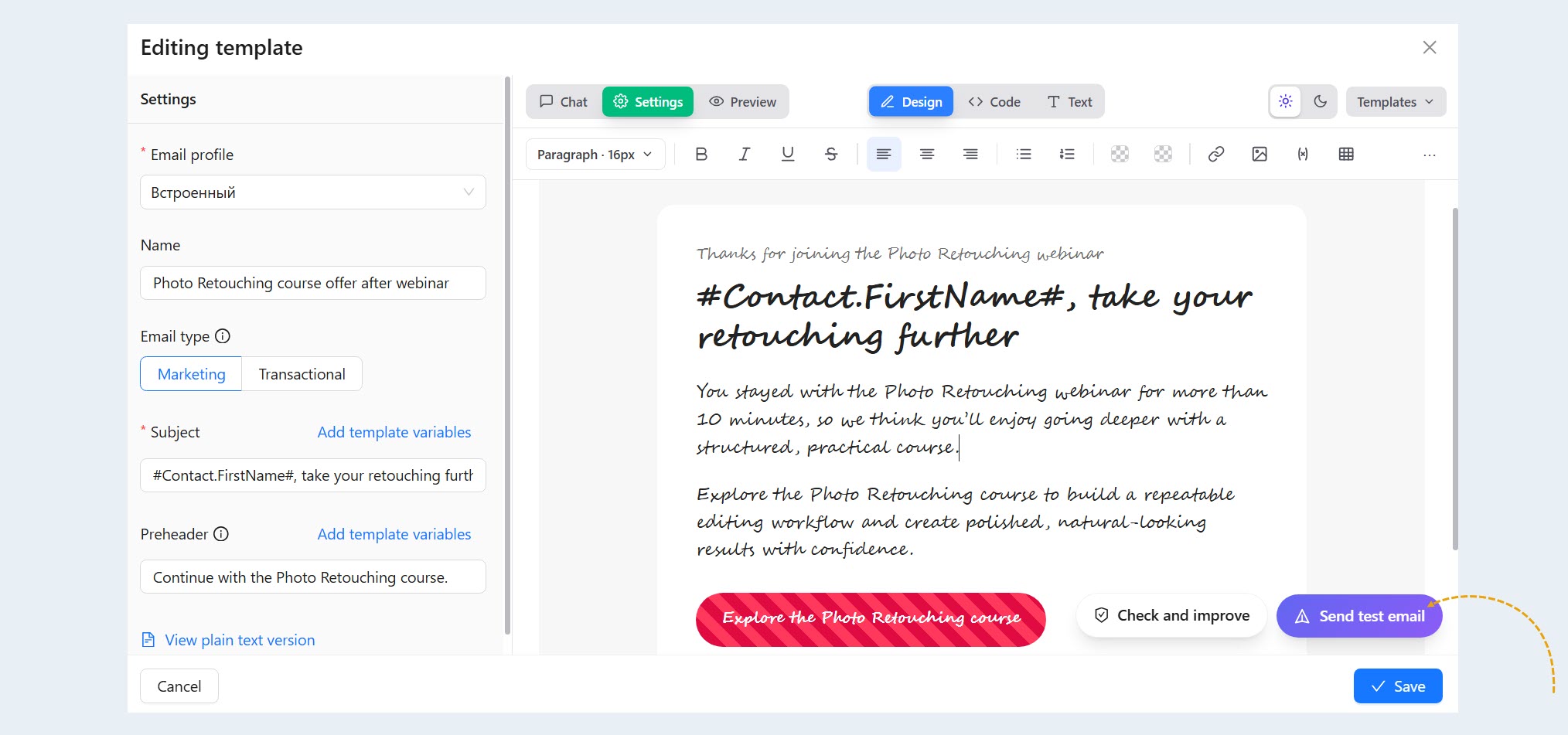
Before launching an email campaign, we recommend sending a test email. Enter the email address where you want to receive the test email and click the send button.
Open the test email and check how it appears in your email client, whether the links work correctly, and whether the main elements are displayed properly.
If you need to make changes, return to the editor, update the email, and run the check again.
Email Type
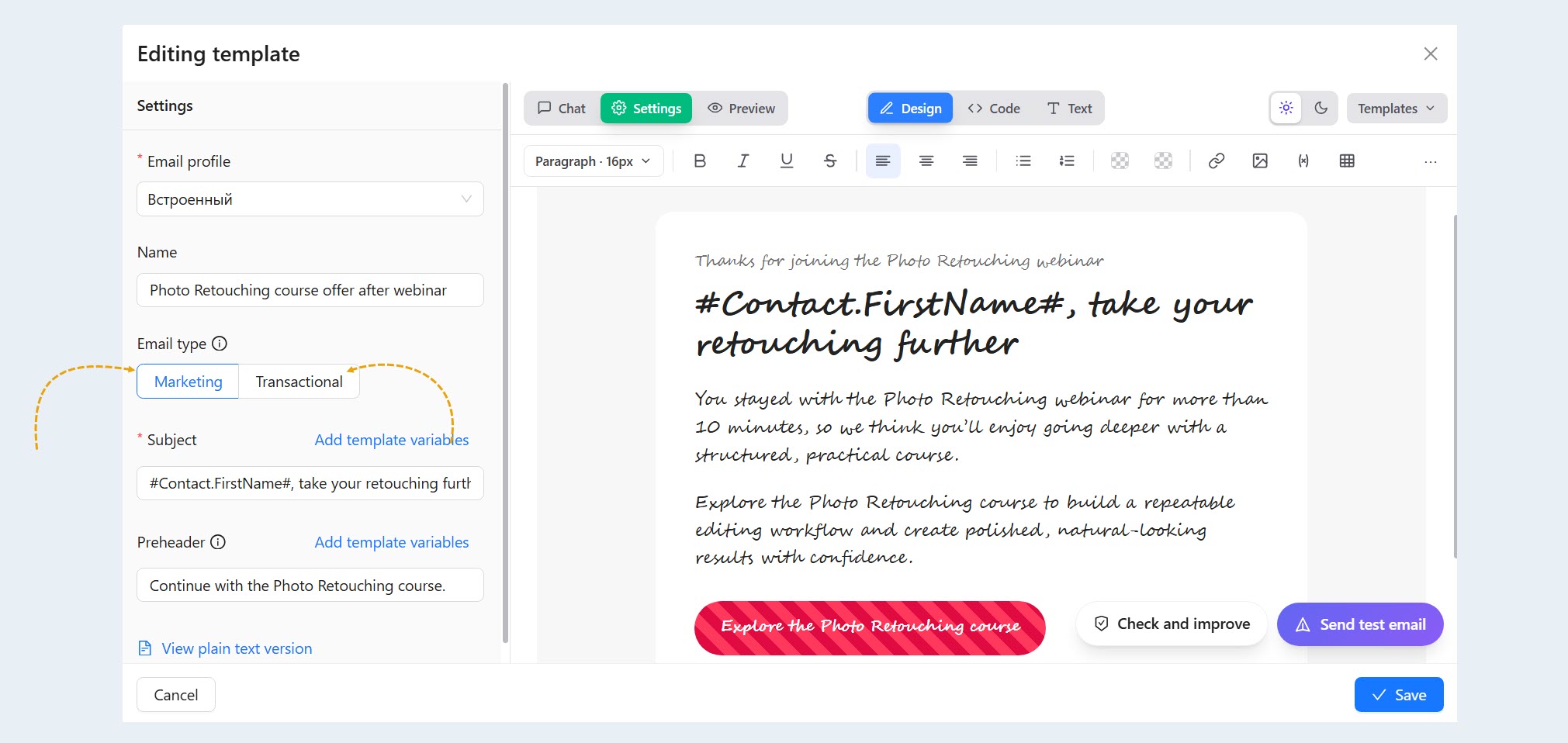
In the template settings, select one of the options in the Email Type field: Marketing or Transactional.
A transactional email is sent in response to an action taken by the recipient. For example, it may be a booking or order confirmation, access details, a receipt, or another notification related to an action the recipient has taken.
Transactional emails:
do not include an Unsubscribe link;
do not track link clicks;
can be sent to recipients even if they previously unsubscribed from marketing emails.
Transactional emails are not intended for advertising or marketing campaigns.
A marketing email is intended for email campaigns, promotional offers, announcements, and other marketing communications. These emails include an unsubscribe link and collect click-through statistics.
Correctly separating transactional and marketing emails helps email providers identify the nature of the messages more accurately and may help improve deliverability.
Important: Select the email type based on the email’s actual purpose. Do not use the Transactional type for marketing messages.
AI Assistant Pricing
The cost of using the AI Assistant is calculated based on actual AI usage. Charges are deducted from your account balance. Manual email editing does not incur AI usage charges.
AXL uses its own billing unit, the AXL token: 1 AXL token = $0.01.
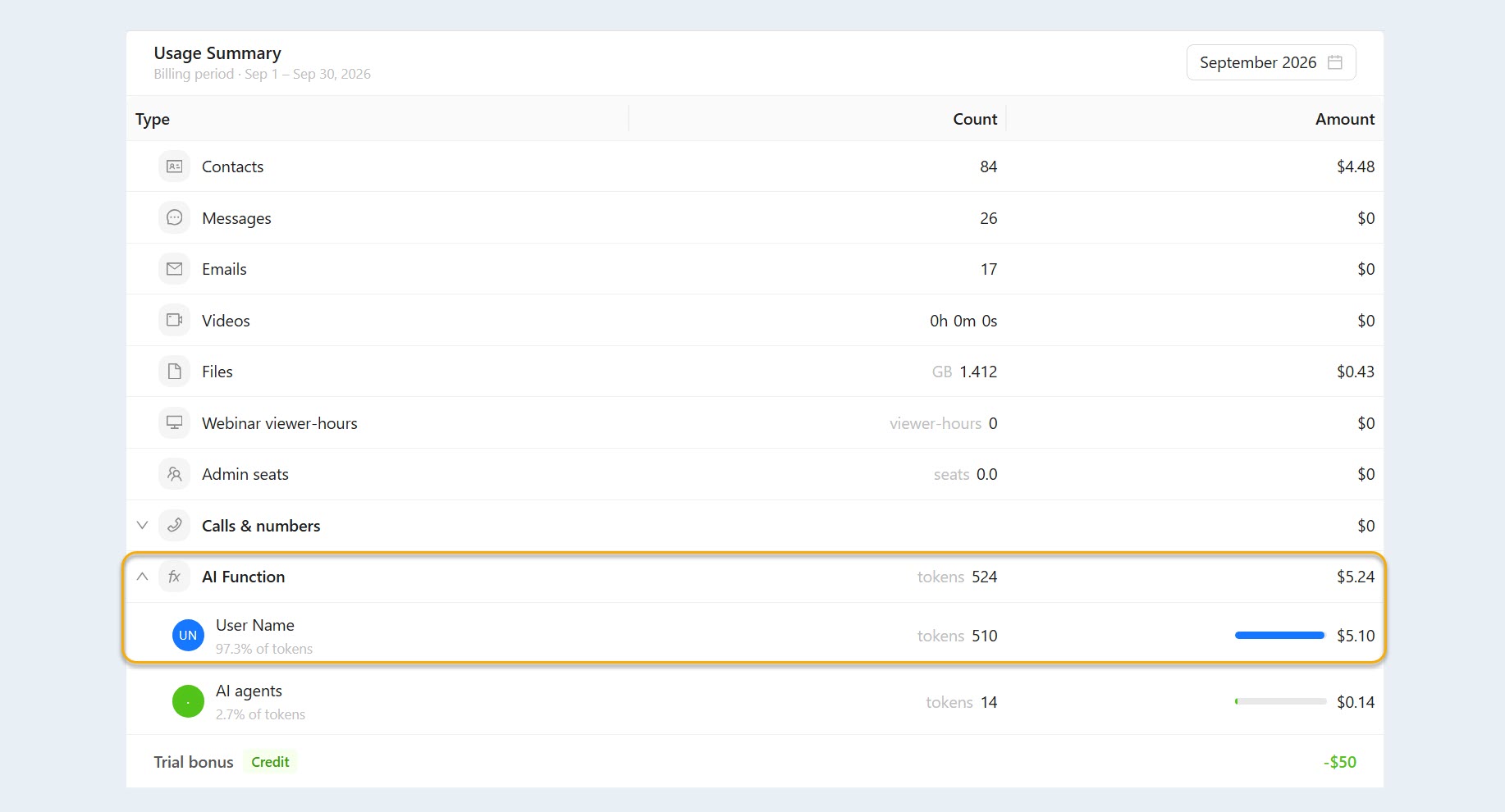
By default, the AI usage limit is set to $10. The account owner can change or remove this limit in the billing section.
The number of tokens used depends on the scope and complexity of the task. For example, making a small change to an email will typically require fewer resources than creating or substantially redesigning an entire email.