Let's take a closer look at the process of holding a webinar on the AXL platform. Click on the desired section of the article to go to its description:
Opening a webinar room
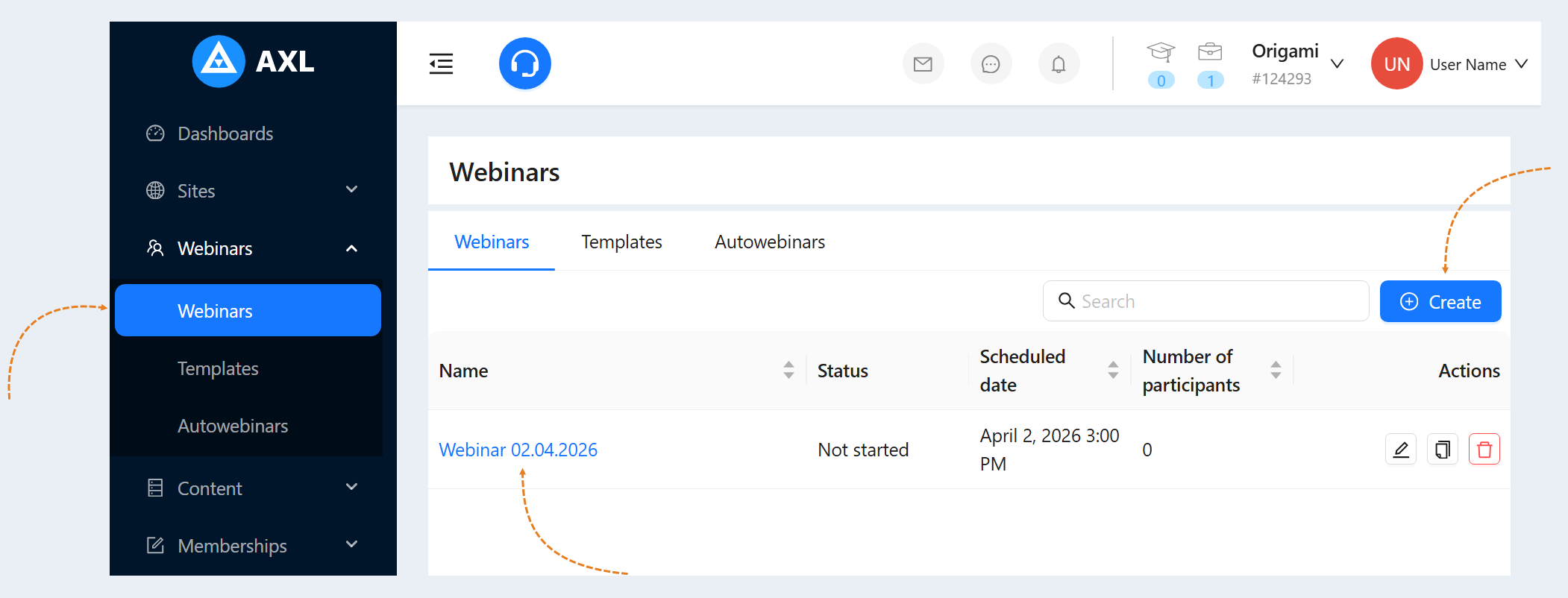
Go to the "Webinars" section. Select a webinar from the list and click on the name of the webinar or the "Edit" button.
For more information on how to create a webinar, see the article "Webinars".
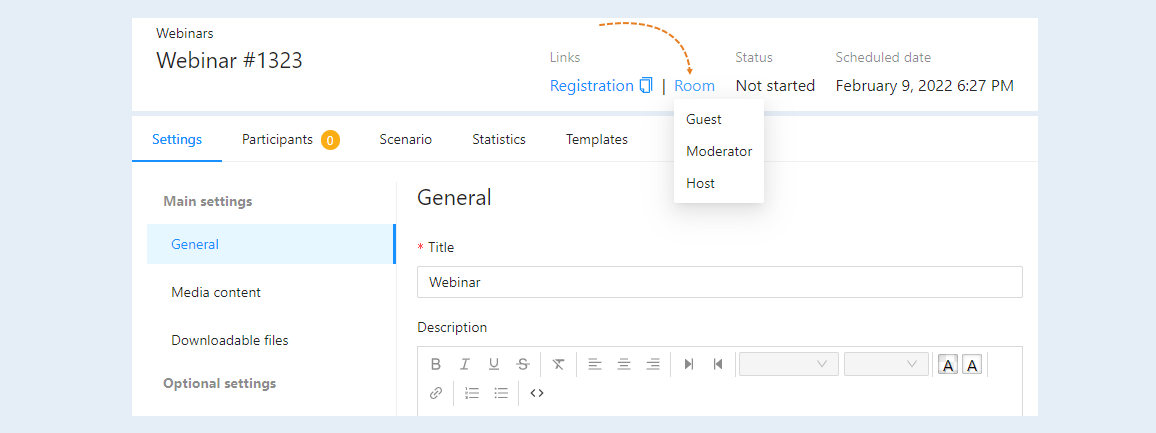
To start the webinar, click the "Room" button, select the "Host" role.
The Host has the highest level of access, full control over the presentation, microphone and video.
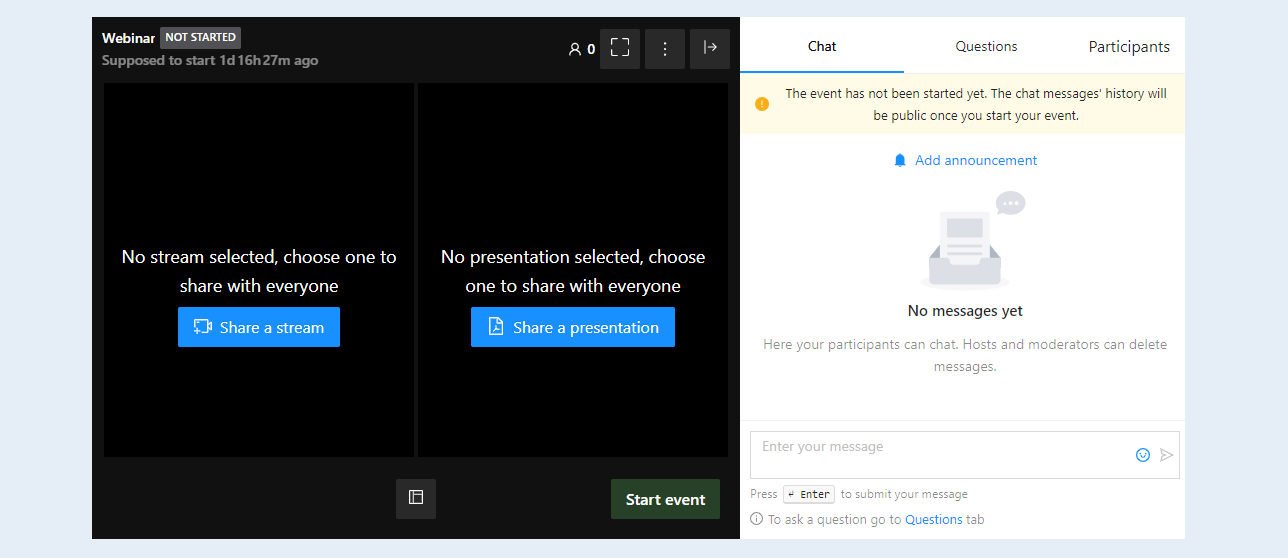
A webinar room will open for you. Read more about how the webinar room is arranged in the article "Webinar room".
Adding a presentation
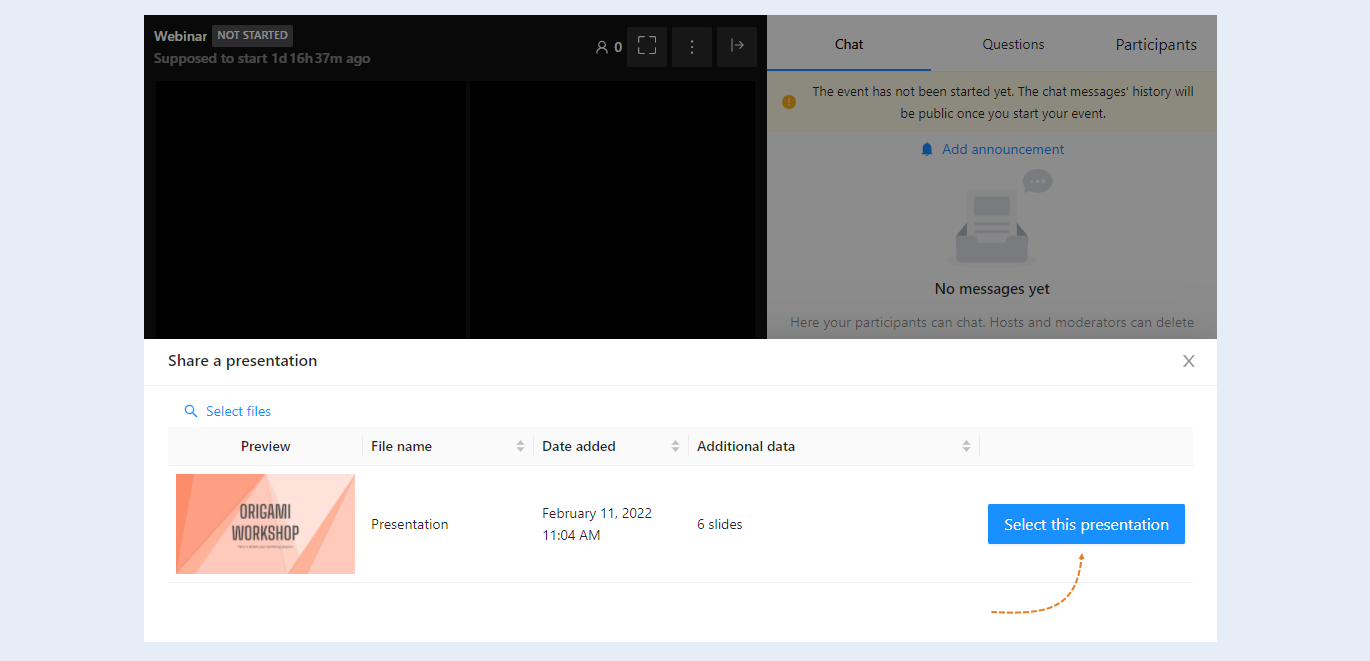
Click the Share Presentation button. An additional window with a list of previously loaded presentations will open at the bottom. Select a presentation from the list. Click the Select This Presentation button. If there are no uploaded files in this list, then click the "Upload file" button and upload the presentation from your computer.
Next, you need to start the broadcast (live broadcast) on a third-party service, for example youtube, and insert the link into the webinar room window.
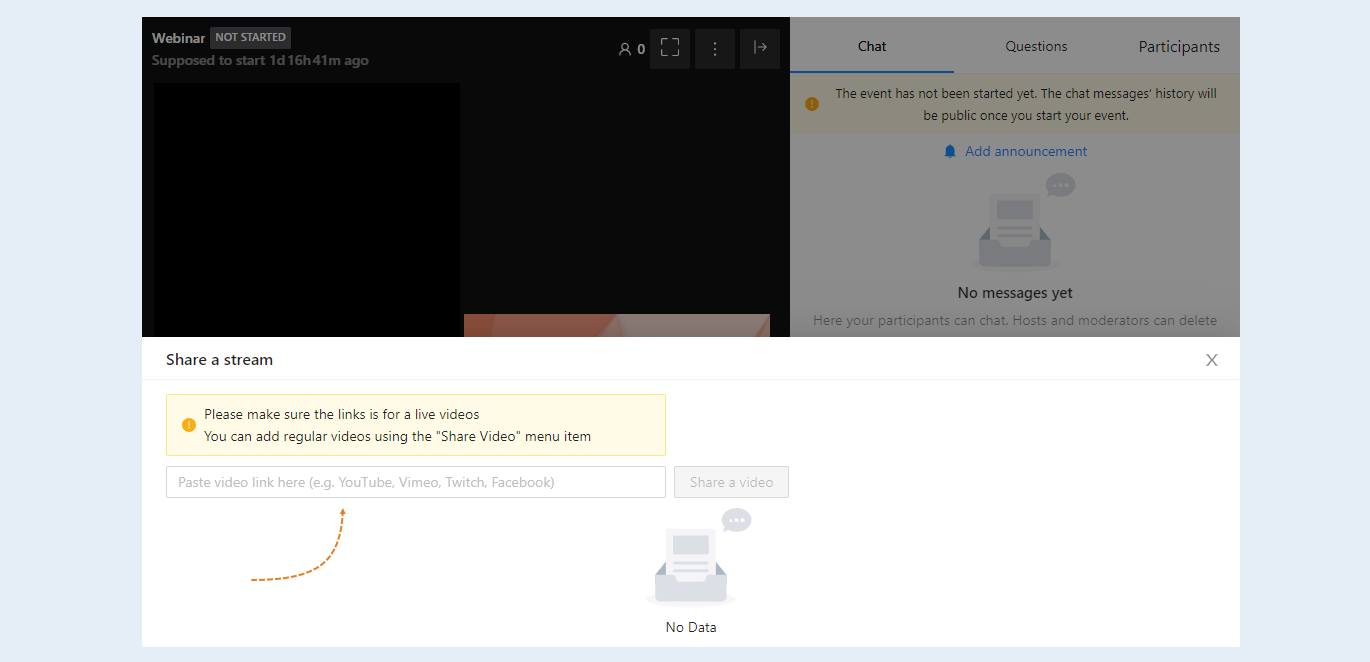
Click the Share Stream button. An additional window will open at the bottom of the page. Paste your broadcast link into the row and click the Share Video button.
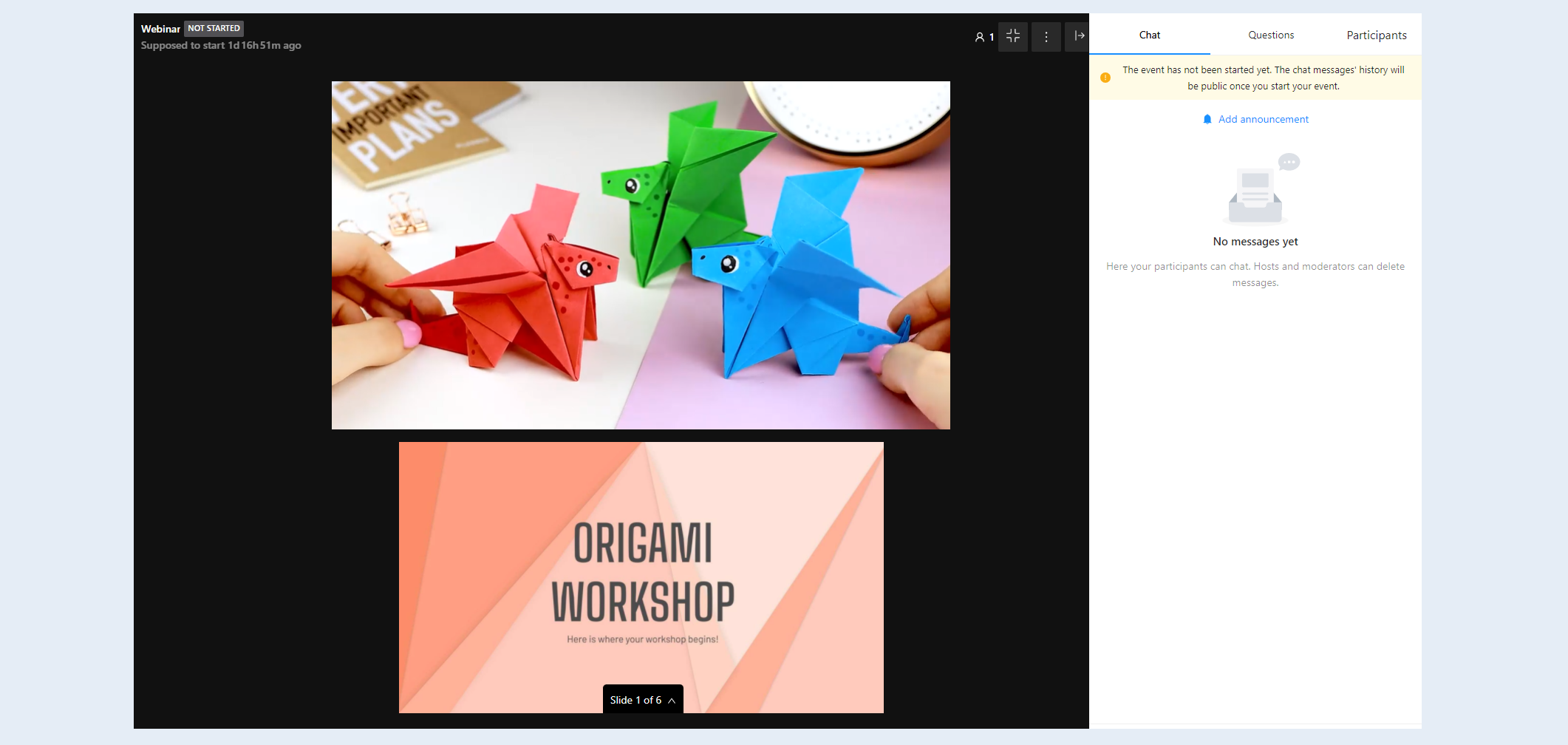
The broadcast window will display the broadcast you started (live broadcast). You can change the position of the broadcast window: expand to full page, position horizontally or vertically, enlarge or reduce the broadcast window or presentation window.
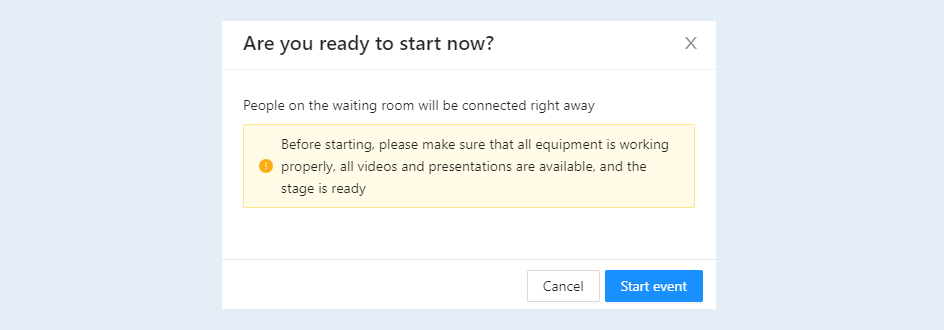
Once you've added your broadcast and presentation link, you can start your webinar. Click the Get Started button in the lower right corner. Confirm the start of the webinar - click the "Start" button again.
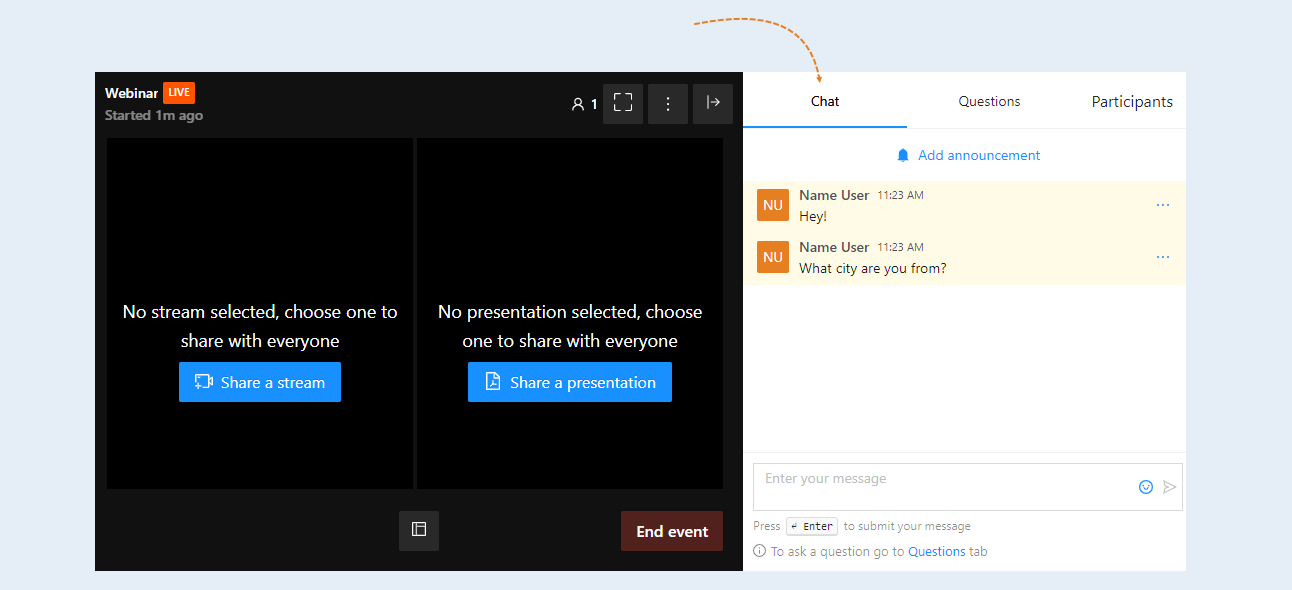
The webinar has been launched. In the upper right corner you will see a red "On Air" icon - the broadcast is in progress. Webinar attendees can now see your broadcast and presentation.
Participants chat
On the right is the "Chat" field. Here you can see messages from webinar participants. And you can also see the questions of the participants, the number of participants, their personal data.
Please note that when entering the webinar room, or after refreshing the page, the last 30 comments will be loaded. This is done to speed up the system. You can view the full list of webinar participants' messages in the webinar settings in the "Chat Messages" section.
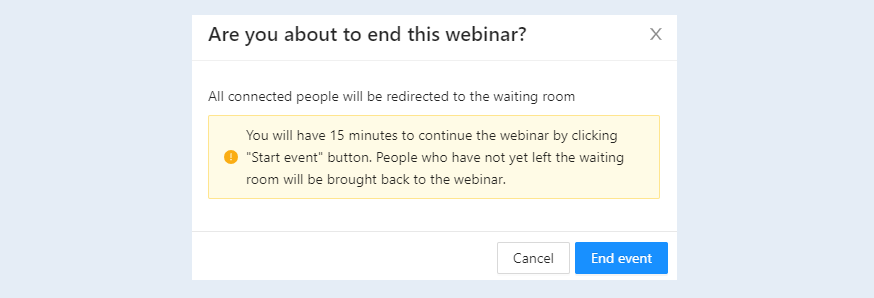
To stop the broadcast and end the webinar, click the "End" button in the lower right corner. Then confirm completion in the additional window.
The recording of the webinar is saved automatically, but is not available for viewing. You can use this recording only to connect the autowebinar. Read more in the article "Autowebinars".