A dynamic mailing list is built from conditions: for example, customers who bought a product, or students who were active in your Membership Portal in the last 3 days. You then send broadcasts to the list. This article shows how to set up the conditions of a list; the conditions themselves are described in "Filtering and Search Terms".
Creating a Mailing List
Go to "Email" → "Mailing Lists".
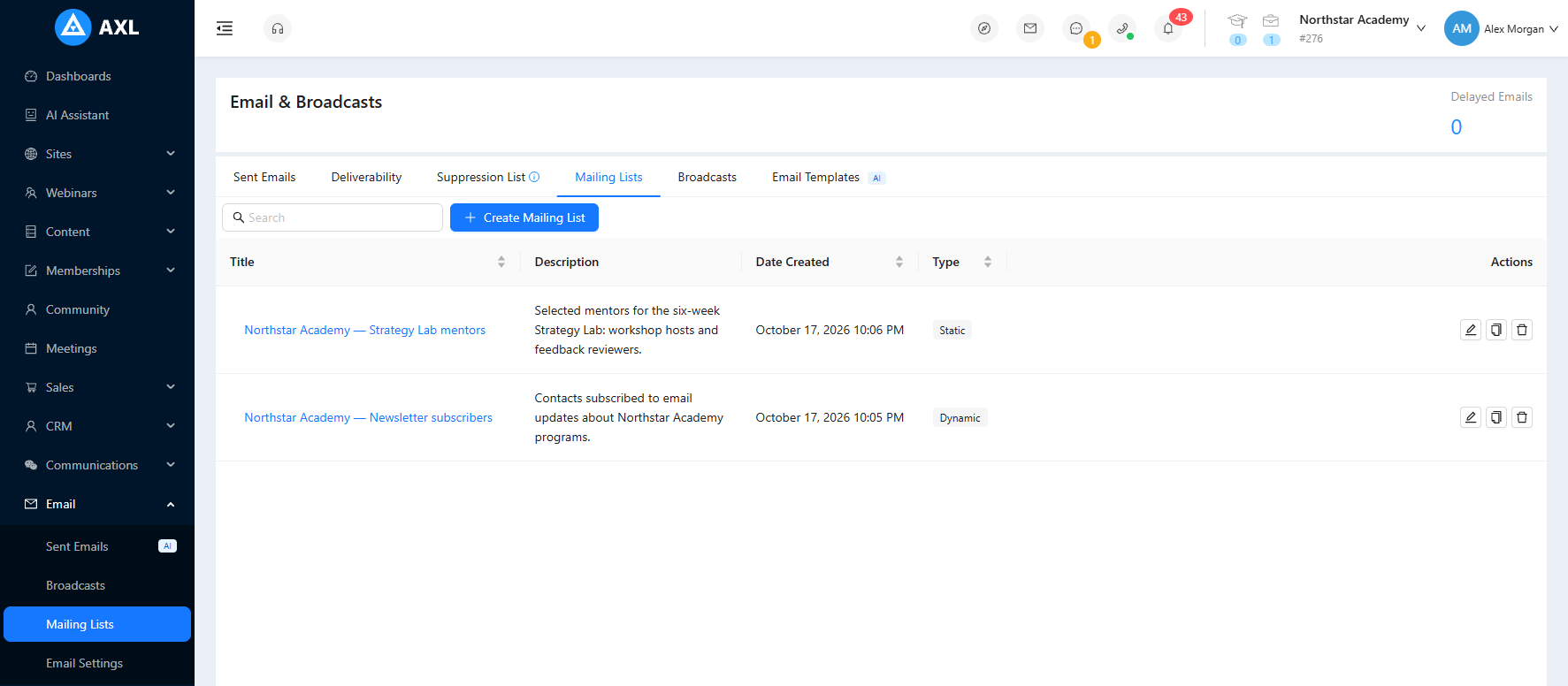
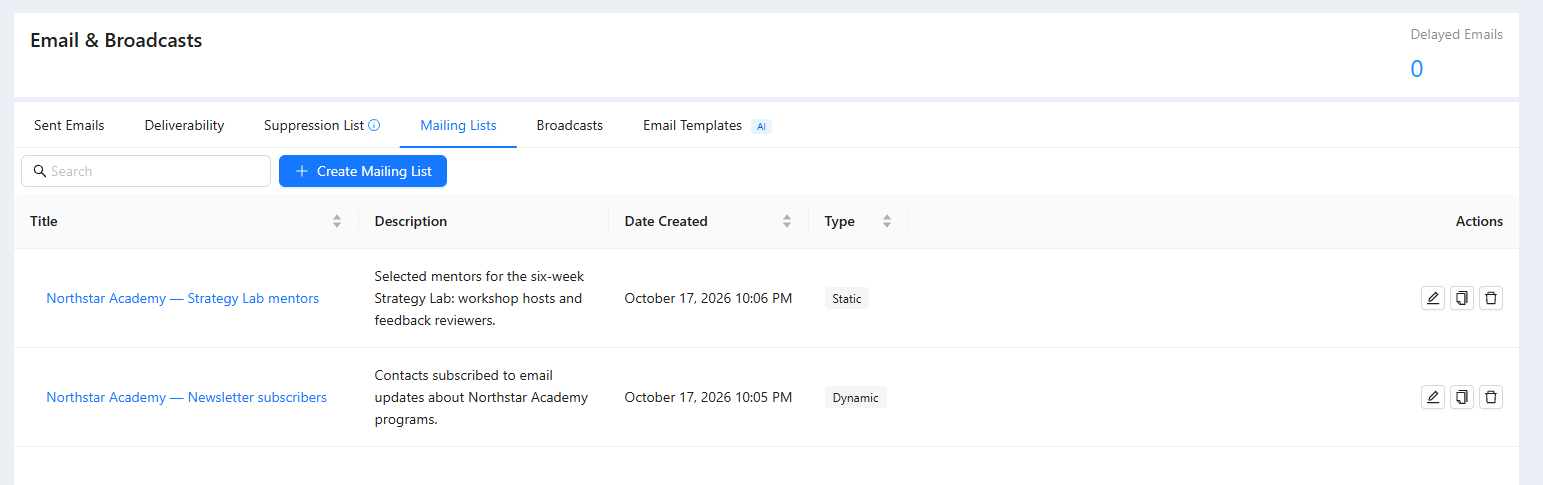
Click the "Create Mailing List" button, or click the "Edit" icon next to an existing list.
A panel opens: "New Mailing List" when you create a list, or "Edit Mailing List" when you edit one. Set "Type" to "Dynamic" (the default for a new list), then enter a title and, if you like, a description. The conditions appear below. To add one, open the "Select a filter" dropdown next to "Add 'OR' Condition" and choose a condition from the list. To start another group, click "Add 'AND' Condition Group".
The "AND" and "OR" conditions are logical operations that decide how conditions are grouped. Conditions inside one group are joined by OR, and separate groups are joined by AND.
- AND condition group: All the criteria must be met at the same time. For example, take the condition "A student must complete course A AND course B to receive a certificate." The student has to complete both courses to reach the goal.
OR condition: Meeting at least one of the criteria is enough. For example, "A student can receive a certificate if they complete course A OR course B." The student can pick either course, and completing it is enough to get the certificate.
"AND" conditions are stricter, while "OR" conditions give more freedom of choice.
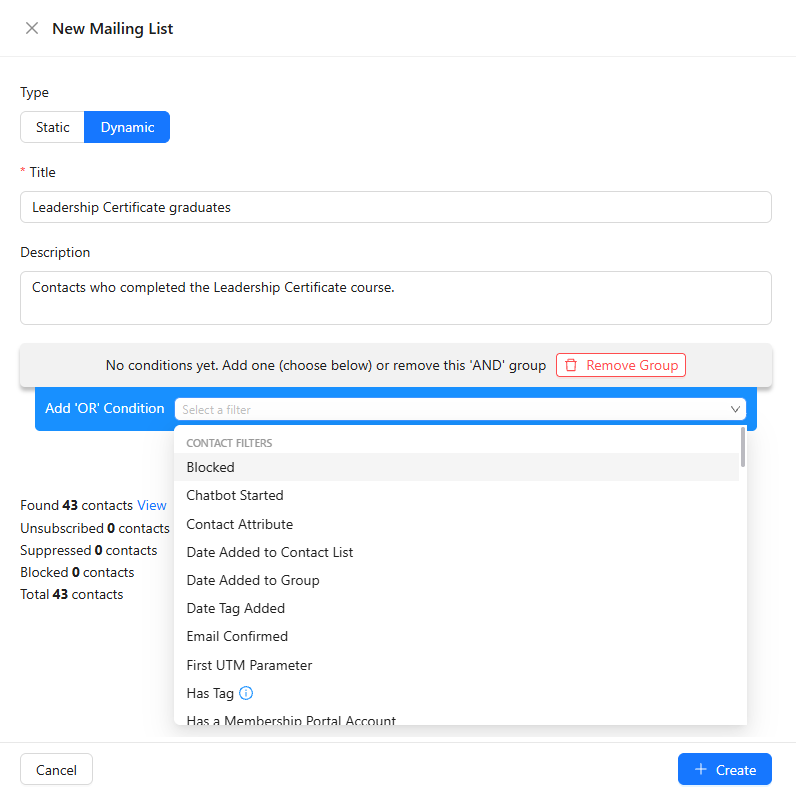
A mailing list can use every contact condition: see the full list with their settings in "Filtering and Search Terms".
For example, to match contacts who completed either Leadership Foundations or Team Communication and have a phone number, put the two Course Completed conditions in one OR group. Add a second AND group containing Contact Attribute → Phone → Specified. Use View to check the matched contacts before saving the list.
Example of a Filter Condition
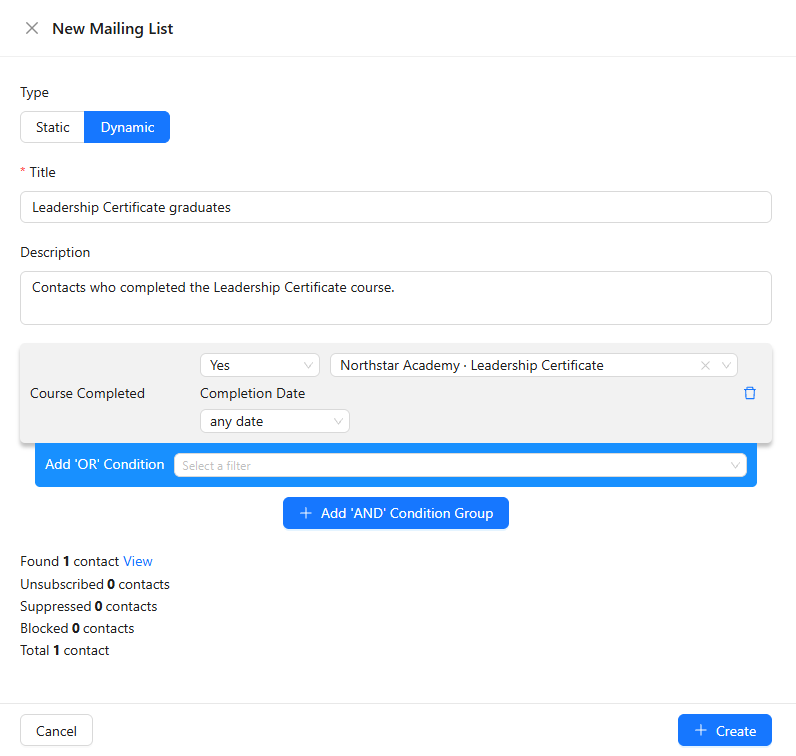
Pick a condition from the list, for example, "Course Completed". A "Yes" or "No" option appears. Choose "Yes". If you choose "No", the list shows contacts who have not completed the course. Next, select a course from the courses in your account. If you click "View", the matching contacts open in a separate panel.
Click "Create" (or "Save" if you are editing an existing list). Your mailing list now has a ready-made targeted audience: the contacts who completed the course you chose. You can send a broadcast to these contacts or export the list.
This is a simple example with a single condition. You can build more complex lists by adding more conditions.
How a Dynamic List Works
- A dynamic list keeps only its conditions. The contacts are selected again when a broadcast to the list starts, so contacts who match at that moment can enter the broadcast audience, including contacts added after you created the list. Delivery still depends on the eligibility checks below and the sending result.
- An email broadcast skips contacts without an email address, contacts who unsubscribed from email broadcasts and blocked contacts, whatever the conditions say.
- To check who matches now, click View under the conditions before you save the list.