Contacts are the people you work with: leads, customers and students. All of them live in CRM → Contacts. Here is how to get your first ones in.
Add a Contact
- Open CRM → Contacts and click Add Contact.
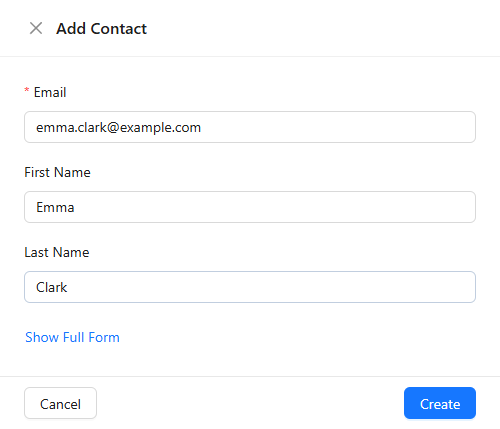
- Enter the Email (required), the first and last name. Show Full Form adds the phone, tags and other fields.
- Click Create.
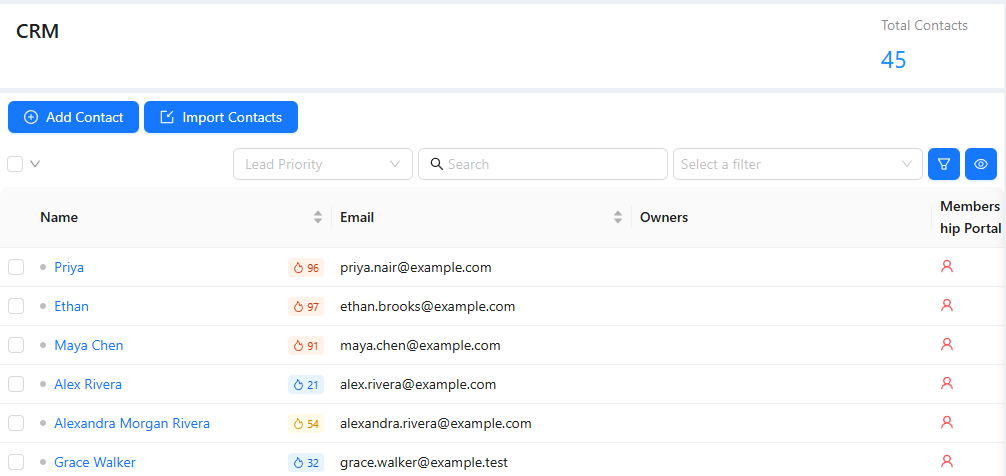
Import a List
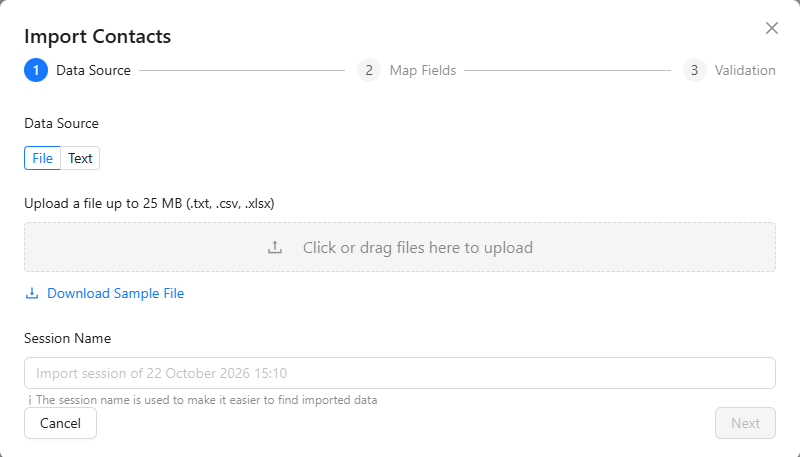
- Click Import Contacts.
- Upload a TXT, CSV or XLSX file up to 25 MB, or paste the list as text. Download Sample File shows the expected layout.
- Click Next, match the columns to contact fields, then check the result on the Validation step and start the import.
A row whose email or phone matches an existing contact updates that contact instead of creating a duplicate. See "Importing Contacts".
Open a Contact Card
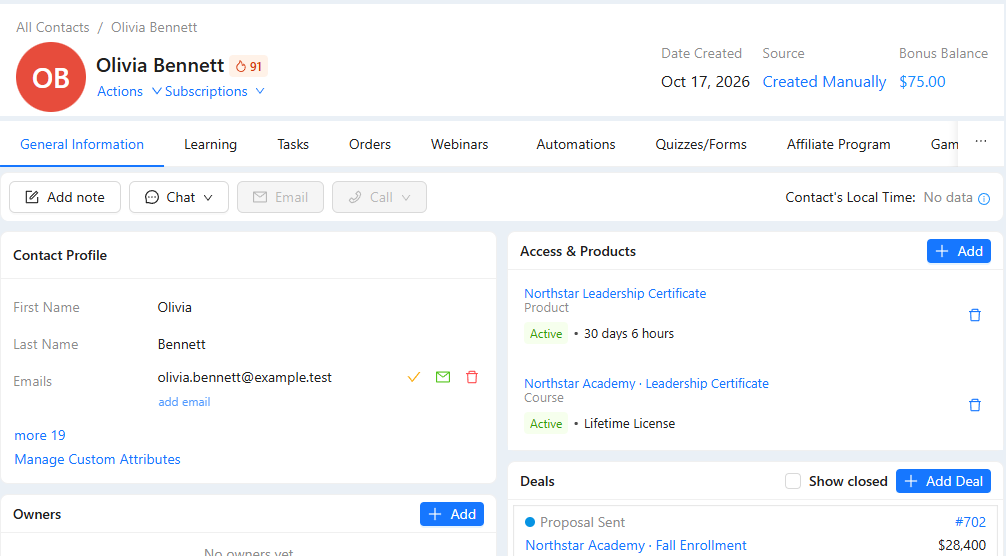
Click a name to open the contact card. Its tabs collect everything about the person: learning, tasks, orders, webinars, automations and forms. The buttons under the tabs add a note, start a chat, send an email or place a call.
Tag Contacts
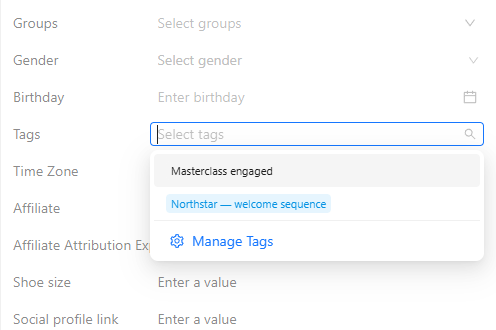
Tags help you sort contacts and target broadcasts. In the Contact Profile, click more and pick a tag in the Tags field; Manage Tags creates new ones.
Important: adding a tag can start automations that react to tags. Check your automations before tagging many contacts at once.
Contacts also arrive on their own, for example when someone submits a form with an email or phone on your website. More in "Contacts".