PayPal is the largest debit electronic payment system. Allows customers to pay bills and purchases, send and receive money transfers.
Follow our instructions to connect PayPal payment service and integrate it into your AXL account.
Click on the desired section of the article to go to its description:
1
PayPal registration
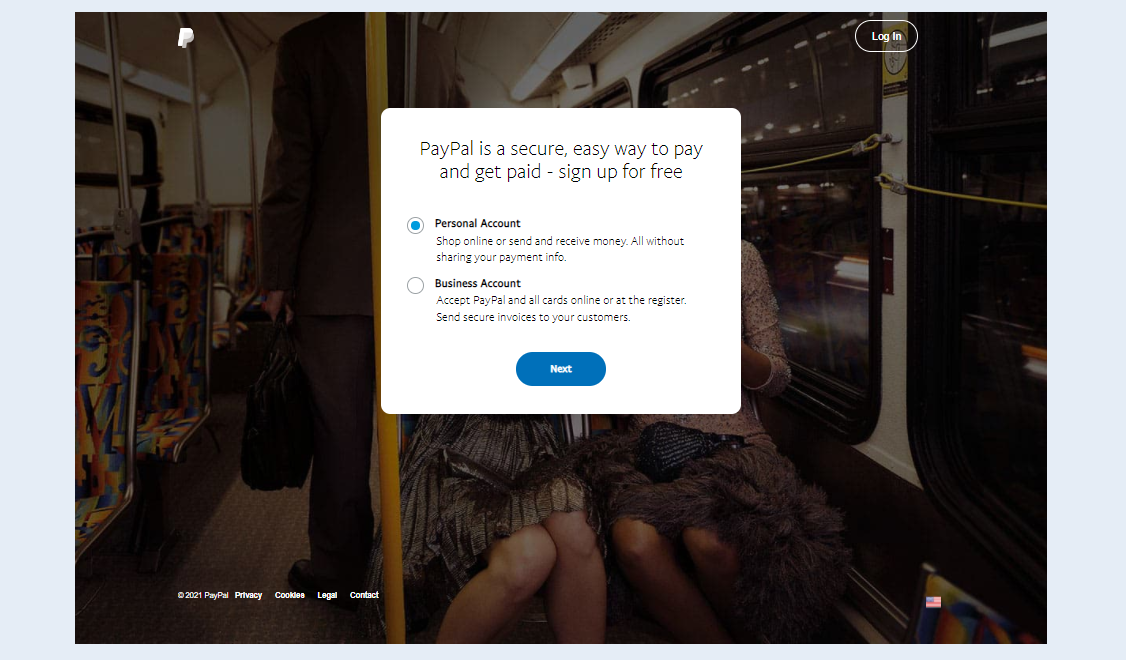
Follow this link to register with PayPal. Select the type of PayPal account: "Personal account" or "Corporate account" and click the "Continue" button.
2
Phone number
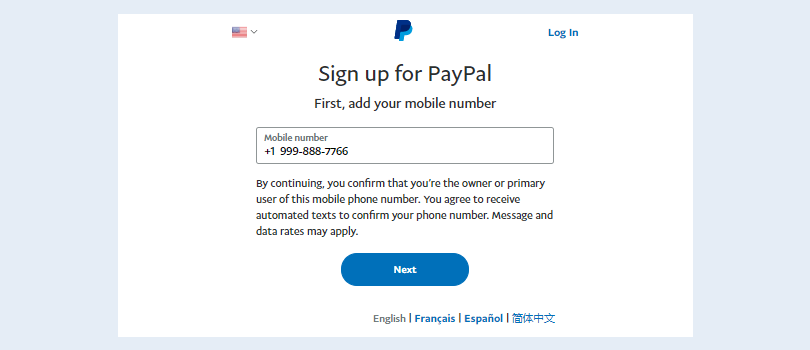
Enter your phone number and then enter the code that will come to your number.
3
Personal PayPal account
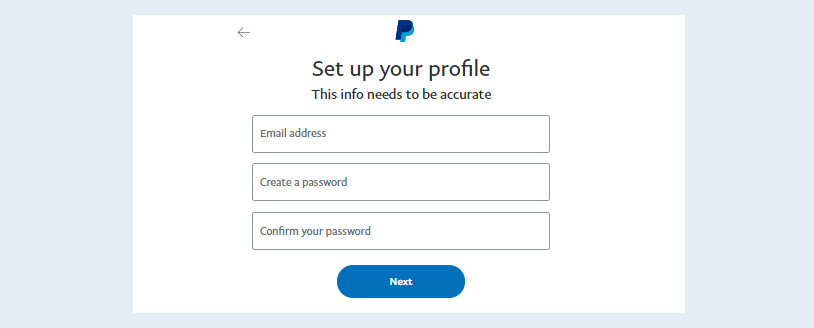
If you choose a personal account, then the following form will open for you:
- Email address. Write the address to which your PayPal account is attached.
- Create a password. Create and write a password for the account.
- Confirm password. Re-enter your password.
4
Personal data
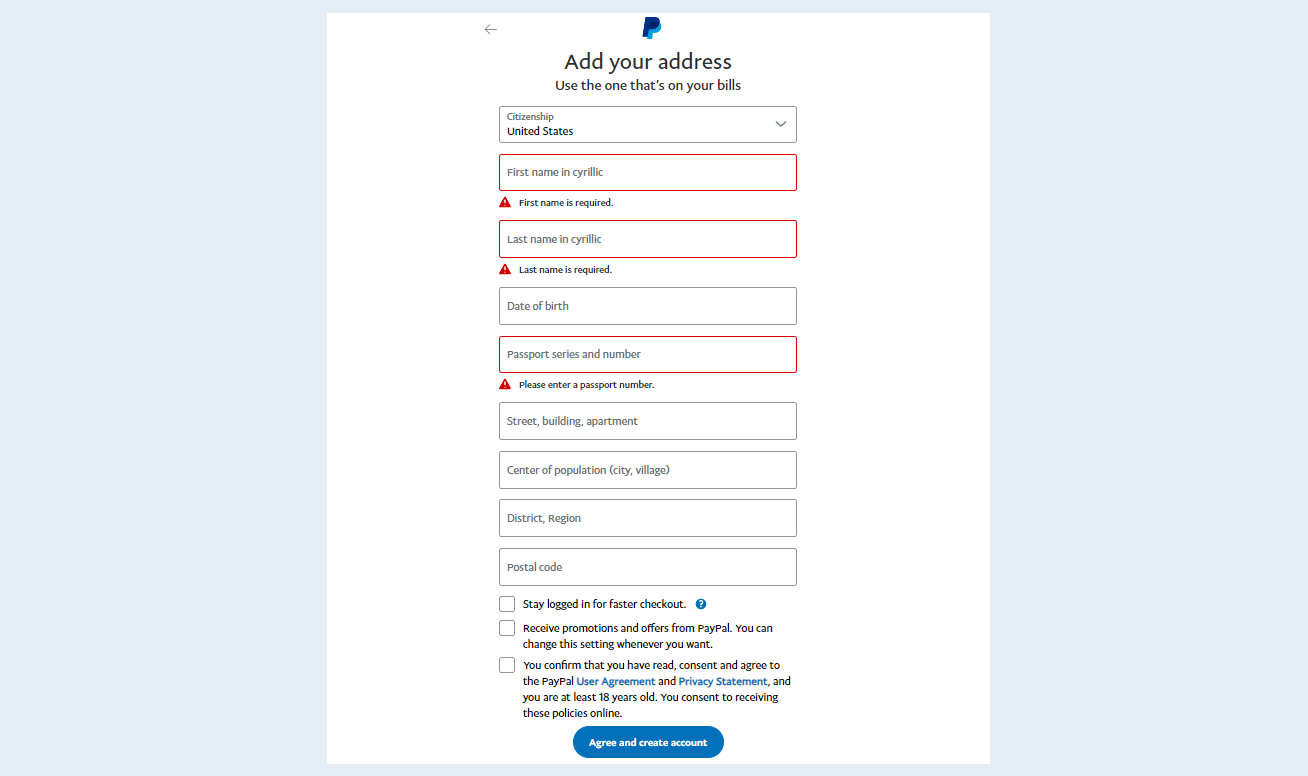
Next, you open a form in which you must indicate your personal data: citizenship, last name, first name, patronymic, date of birth, passport series and number, SNILS number, residence address, postal code and telephone number. Check the box below to accept the User Agreement and Privacy Statement.
Click the "Confirm and open an account" button. After confirming your details, your account will become active and you can use it to receive payments.
5
Corporate account PayPal
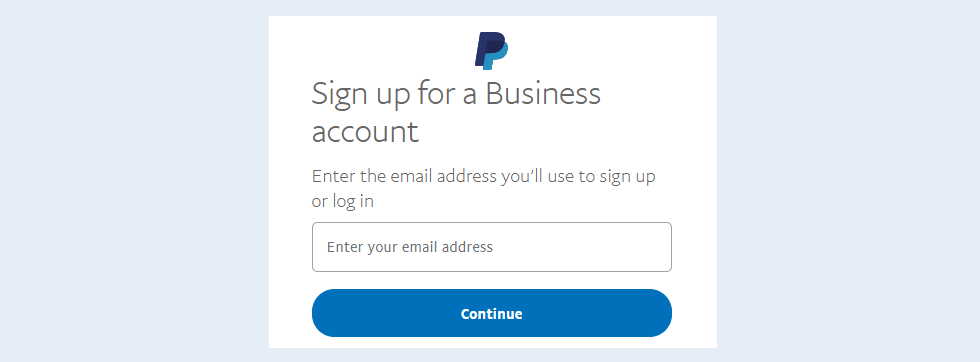
If during registration you choose "Corporate account", then you will see the following form for filling out: specify the e-mail address to which the corporate account will be linked. Next, set a password for your personal account.
6
Company data
Next, you will see a form in which you need to enter data about your company: login and password for the account and information about the legal entity (IE) and the main currency for the account.
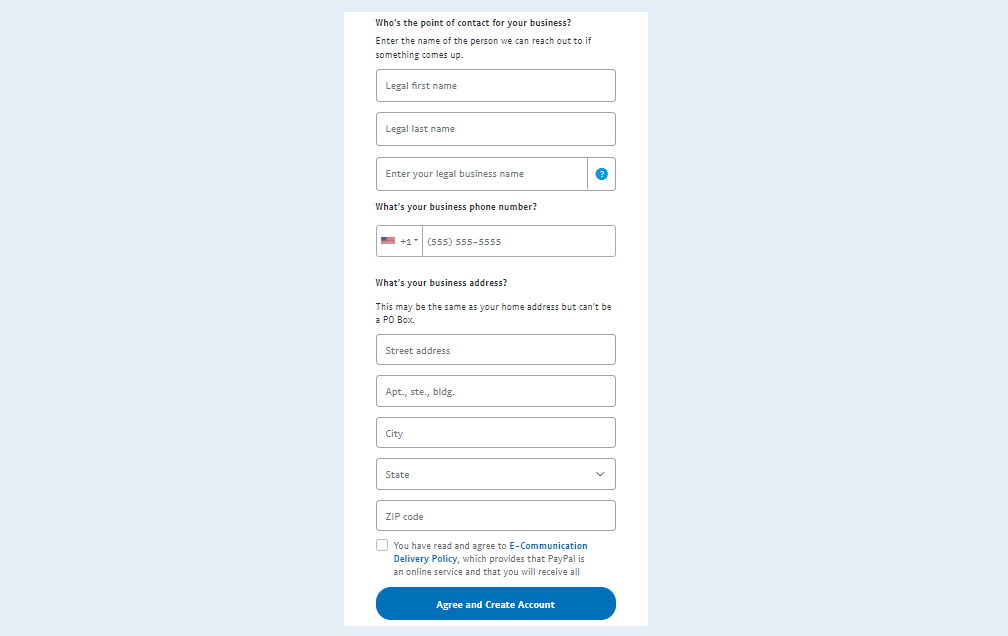
After filling out the form, click on the "Agree and Continue" button. The following form will open: information about a legal entity. Fill in your company details. And after that, another form will appear: information about the main representative of your company. You can add an employee of your company to your corporate account to track payments or perform other functions.
After filling out these forms, the invoice will be ready for use.
7
Integration with AXL
After the account is created, integrate with AXL. Return to the AXL website, go to the "Settings" section, the "Payments settings" tab. Click the Create Payment Integration button. Select "PayPal" from the list. Fill in the fields in the window that opens:
- Title. Write a name for this type of payment instrument.
- Description. Add a description of the payment method that your customers will see.
- Payment button text. Enter the text that will be displayed on the payment button on your website.
- Is primary payment method. Check the box if you want to make this payment method the main one.
- Show on the site. Check the box for this type of payment to appear on the site.
- Save card details for further payments where applicable. Check this box so that users do not have to re-enter their credit card information when paying for recurring orders. In this case, users will be able to complete subsequent payments with a single click. This setting is required for processing recurring payments. Please note that you must uncheck this box when making test payments, as test payments may not go through. When you launch the payment integration in production mode, you should check this box.
Currency. Choose the currency in which your customers will pay for purchases. If you work in different markets in different countries, you can choose the currency for accepting payments in each payment system. For example, by selling courses in dollars through one payment system, you can accept euros through another payment system. Automatic currency conversion takes place at the international exchange rate.
Client ID. Copy your unique PayPal application ID (Client ID) and paste it into this field.
Secret key. Copy your secret key and paste it into this field.
Test Mode. Check this box to test the payment method.
Show pop-up window. Check the box to have a payment pop-up window open when the order is being paid for, rather than redirecting the user to a separate payment page.
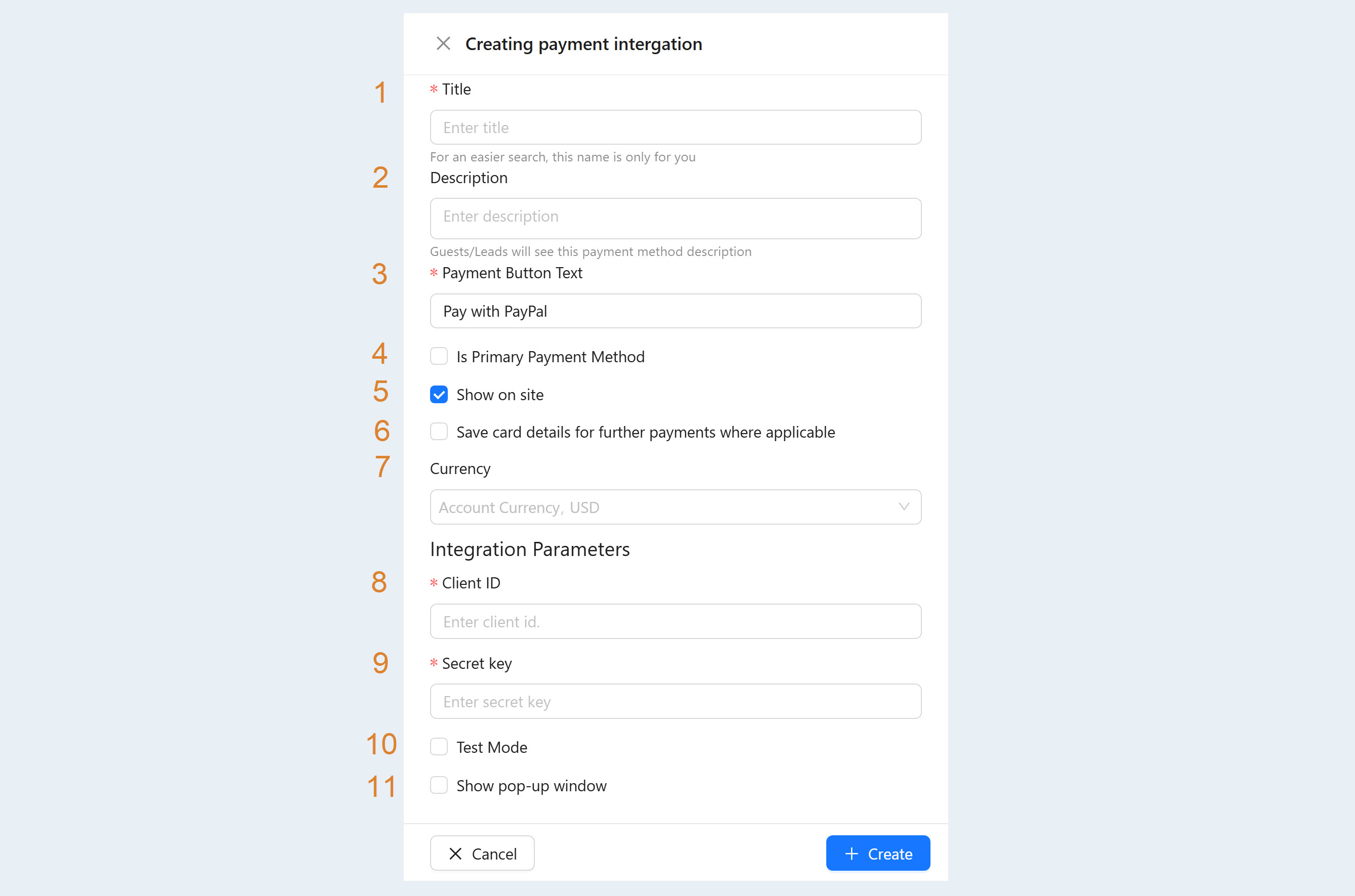
After filling out the form, click "Create". Now you have PayPal in the list of payment instruments.