Square, Inc. - is an American technology company developing solutions for receiving and processing electronic payments.
The company's main product - the Square Register card reader terminal, allows individuals and entrepreneurs in the USA, Canada, Australia, Japan, Great Britain, Ireland, France and Spain to accept debit and credit cards on their iOS or Android smartphone or tablet. It is possible both to manually enter card data and to read it using Square Reader, which connects to a smartphone or tablet via the headphone input. The Square Register tablet application combines the functionality of a traditional cash register and a POS terminal for bank cards.
Square Register is the simplest way to accept credit card payments and has all the features you need to create an elegant experience at your counter.
Click on the desired section of the article to go to its description:
1
Registration in SquareUp
To connect SquareUp, you need to have an account. Register on the official SquareUp website at this link.
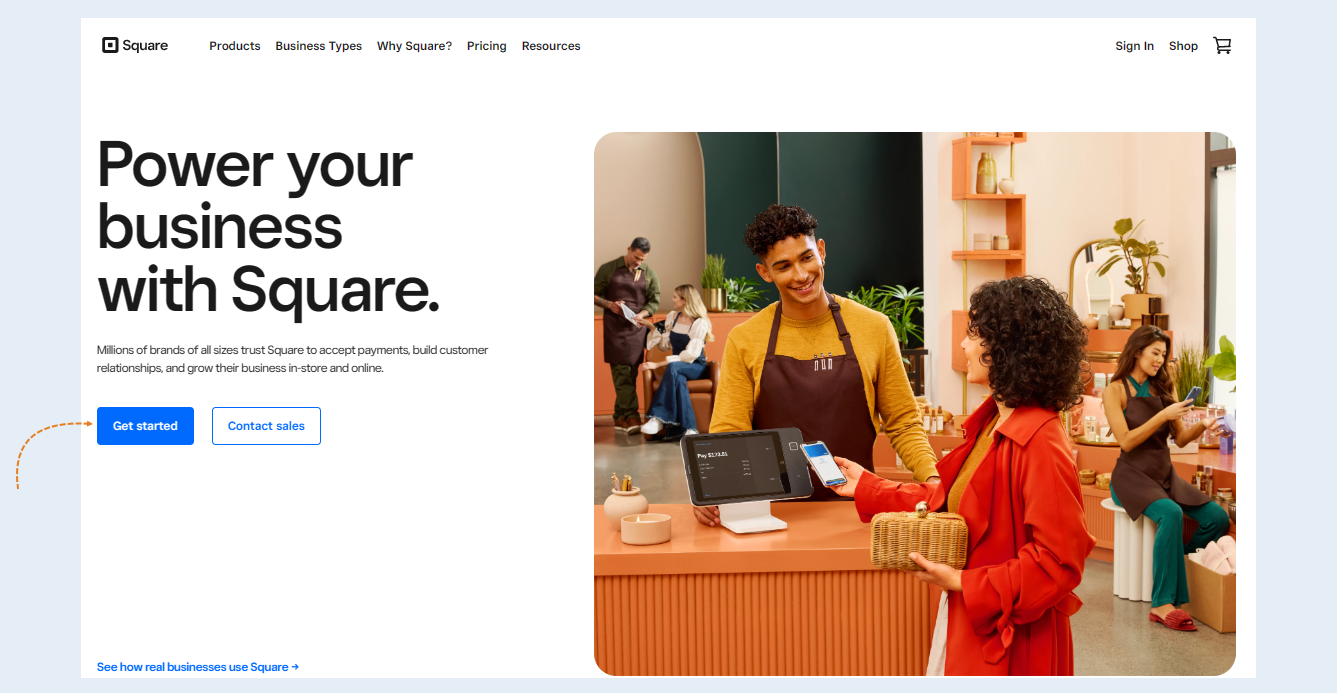
Click the "Get started" button.
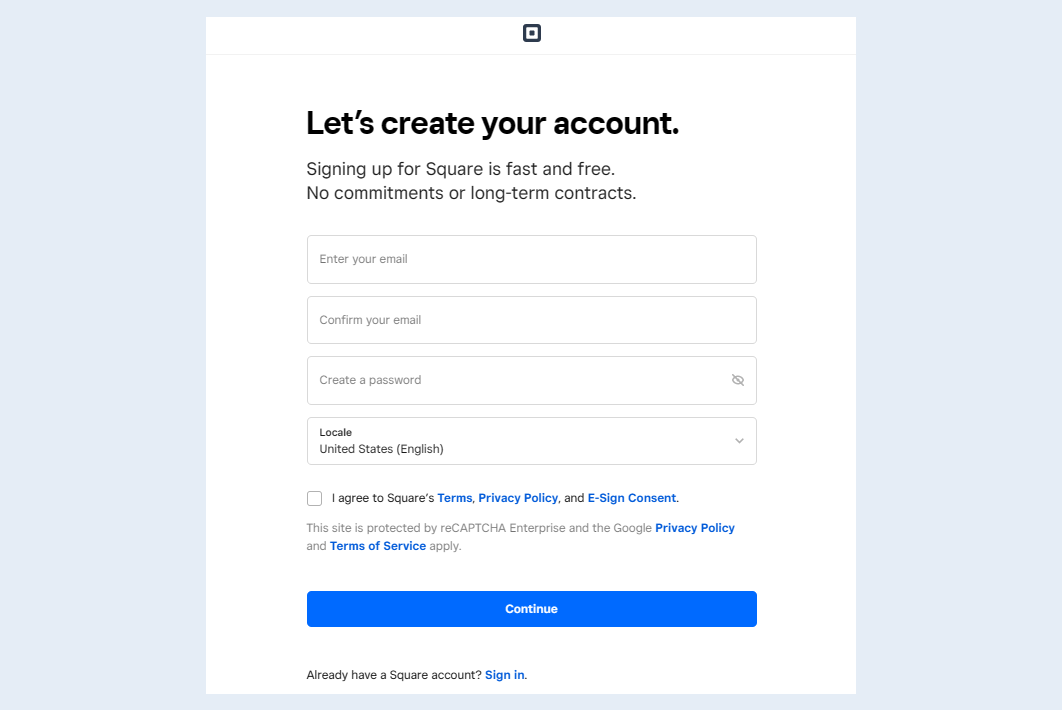
In the space provided, enter your Email Address. Create a Password and Select your Country. Agree to Square’s Terms, Privacy Policy, and E-Sign Consent. Click "Continue" and follow promptings to complete your registration.
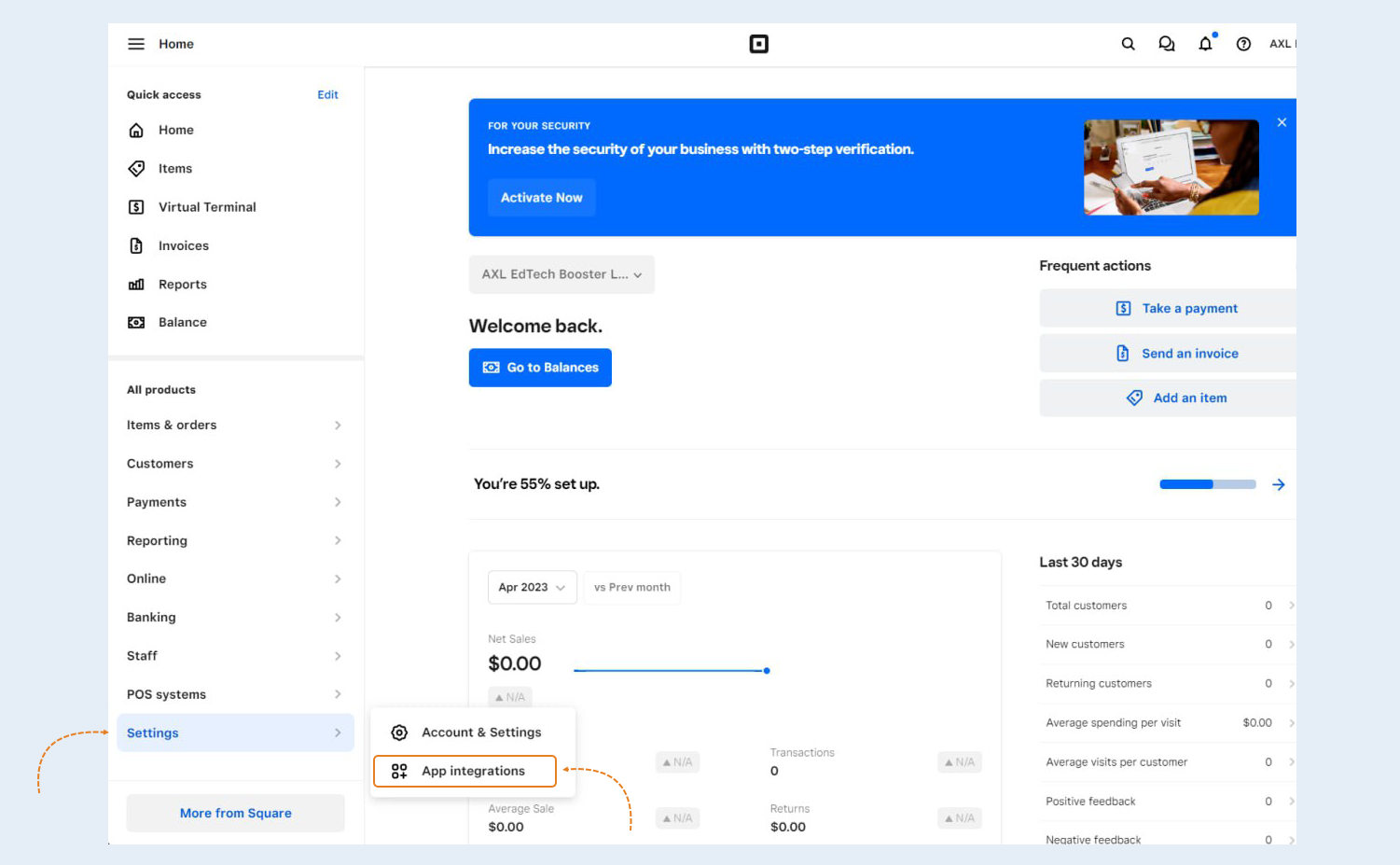
After successful registration, log in to your personal account SquareUp.
Setup Sandbox API for the test transaction. Go to the "Setting" section and then "App Integrations".
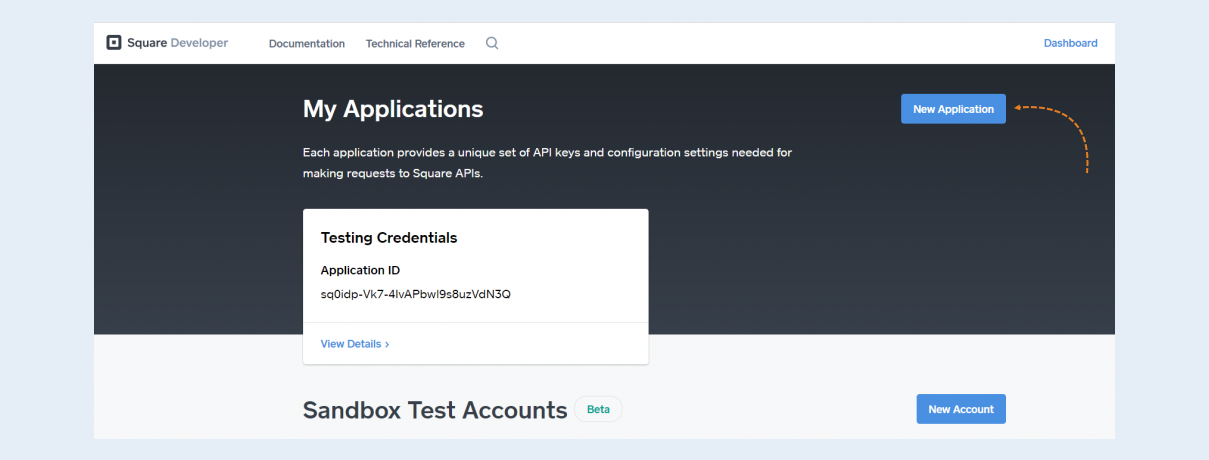
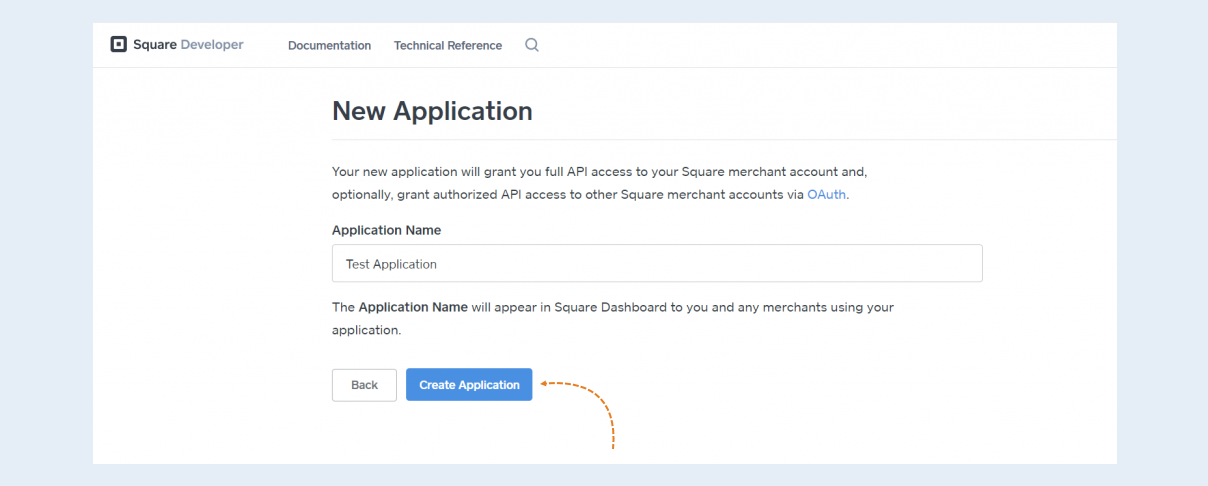
Click on “New Application” to create a new application.
Insert your application name and click on the “Create Application” button.
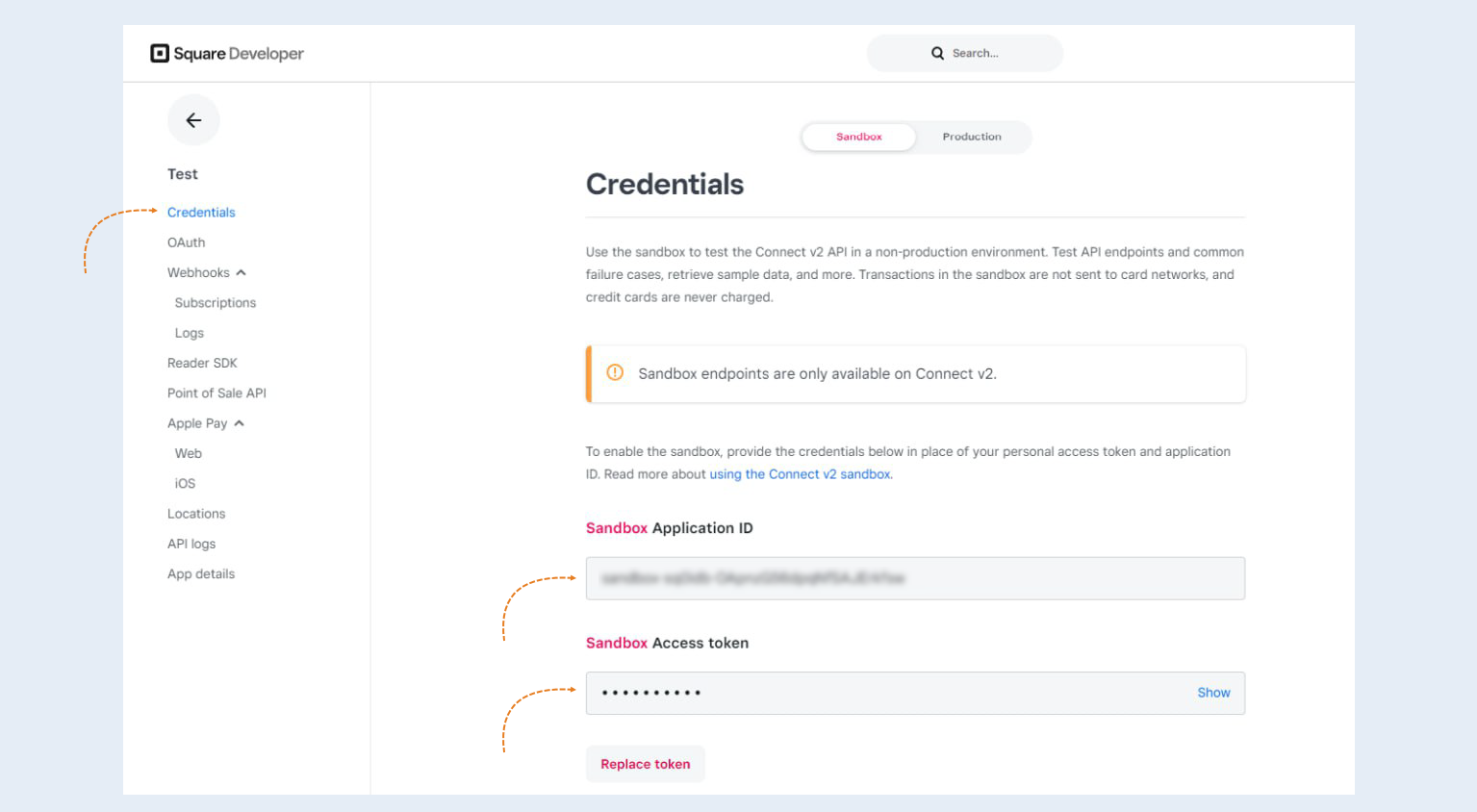
Now your sandbox mode is active. You can now copy the App id and Access token.
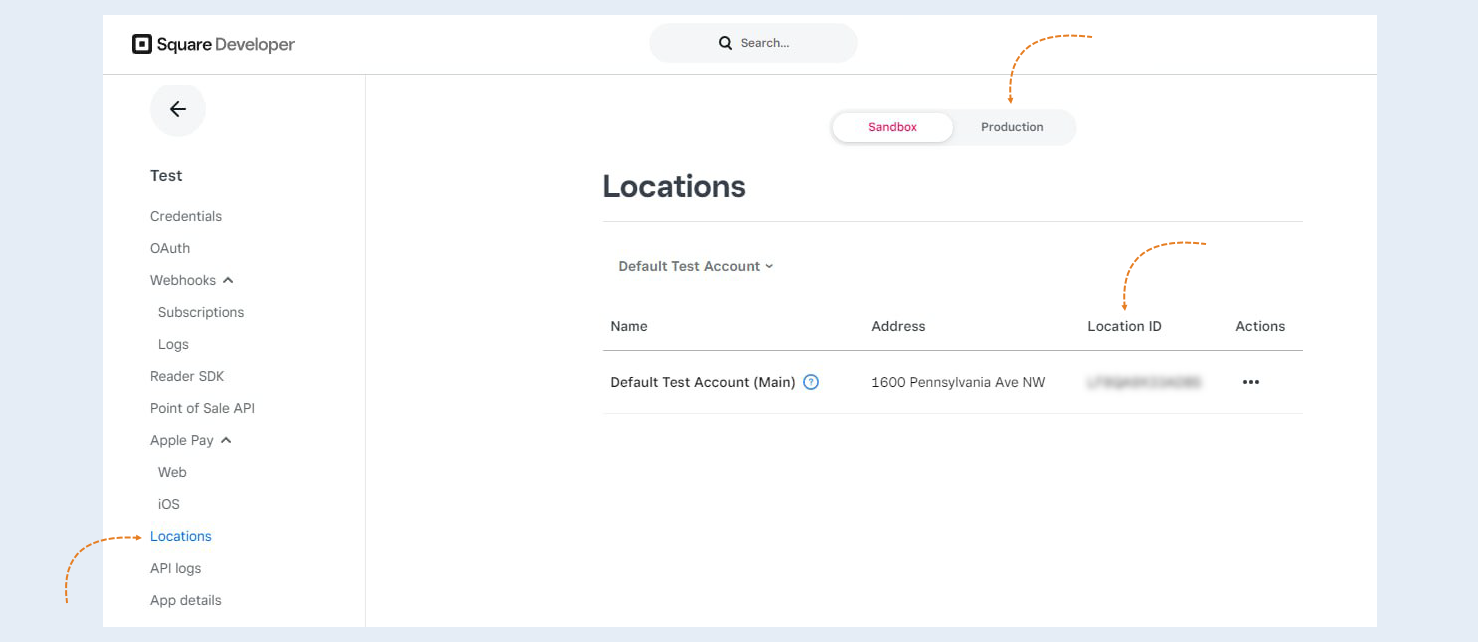
The Location ID for your Square account can be found in the "Locations" tab of your Developer Dashboard.
Before copying the application ID, access token, and location ID, check that in the center of the page says “Production Settings”. If it says “Sandbox Settings”, click those words and it will switch to production. Production credentials are needed for live sales.
2
Integration with AXL
Next, you need to integrate the payment instrument into AXL. In order for your customers to be able to pay for the services of your account, it is necessary to embed payment forms in your account.
Go to the AXL website. Select the "Settings" section and the "Payment Settings" tab. Click the "Create Payment Integration" button.
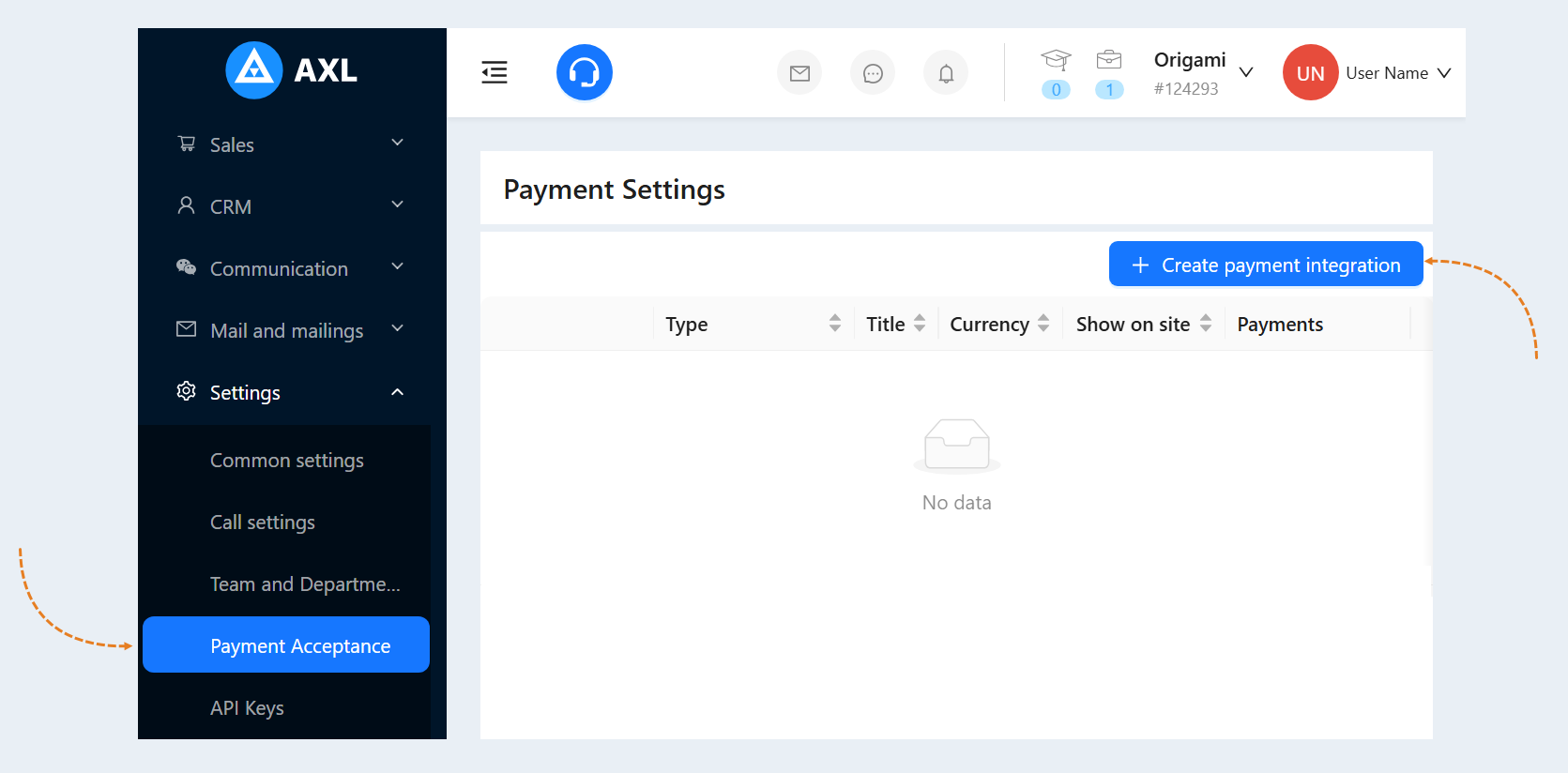
Select "SquareUp" from the list. In the window that opens, fill in the fields:
Title. Write the name of the payment instrument.
Description. Add a description of this payment instrument. Customers will see this description on the website.
Payment Button Text. Write the text that will be displayed on the payment button on your website.
Is Primary Payment Method. Check the box if this payment method will be the main one in your account.
Show on site. Check this box to make this payment method available on your website.
Save card details for further payments, where applicable. Check the box in this line so that when paying for repeated orders, the user does not have to enter the bank card data again. In this case, the subsequent payment will be available to the user in one click. This setting is necessary for making recurring payments. Please note that during the test payments it is necessary to uncheck this box, as test payments may not pass. When you launch payment integration in combat mode, then you should check the box.
Currency. Select the currency in which you plan to accept payments. If you work in different markets in different countries, you can choose the currency for accepting payments in each payment system. For example, by selling courses in dollars through one payment system, you can accept euros through another payment system. Automatic currency conversion takes place at the international exchange rate.
Application ID. Write here the number of your Application ID in SquareUp.
Location ID. Enter the Location ID that you copied on the SquareUp website.
Access token. Enter the Access token that you copied on the SquareUp website.
Test mode. Check the box to make a test payment (without money).
Show a pop-up window. Check the box so that a pop-up window with payment opens when paying for the order, and does not redirect the user to a separate page for payment.
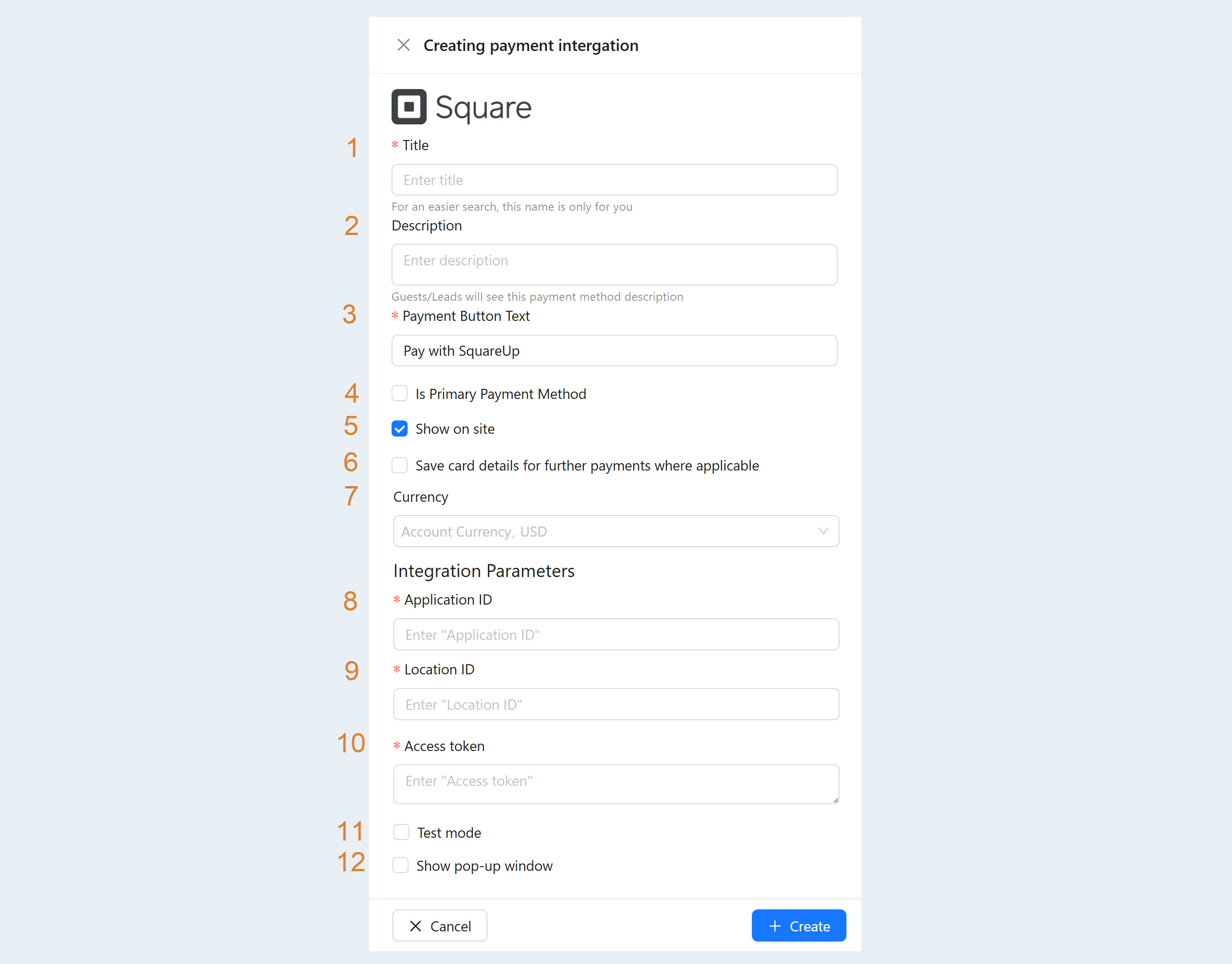
After filling out the form, click "Create". Now you have the "SquareUp" tool in the list of payment instruments.