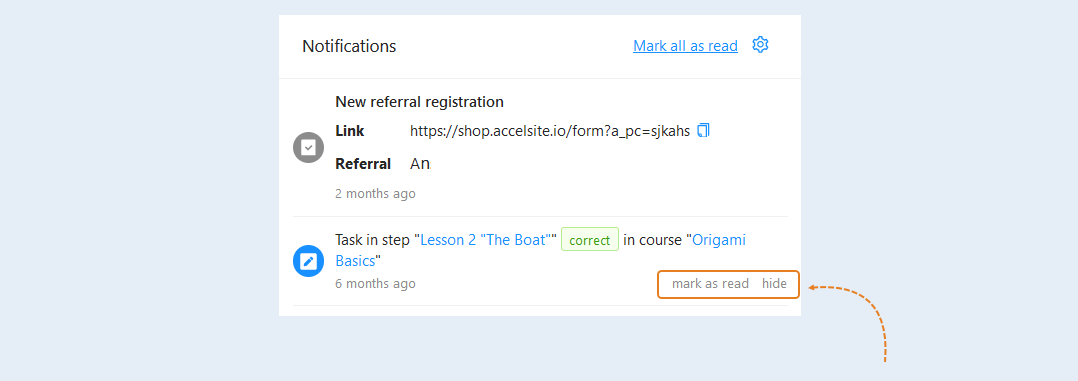
Notifications are designed to alert users about various events that occur in their account on the AXL platform.
In this article, we will look at the following sections in detail, click on the desired section to go to its description:
How to set up notifications
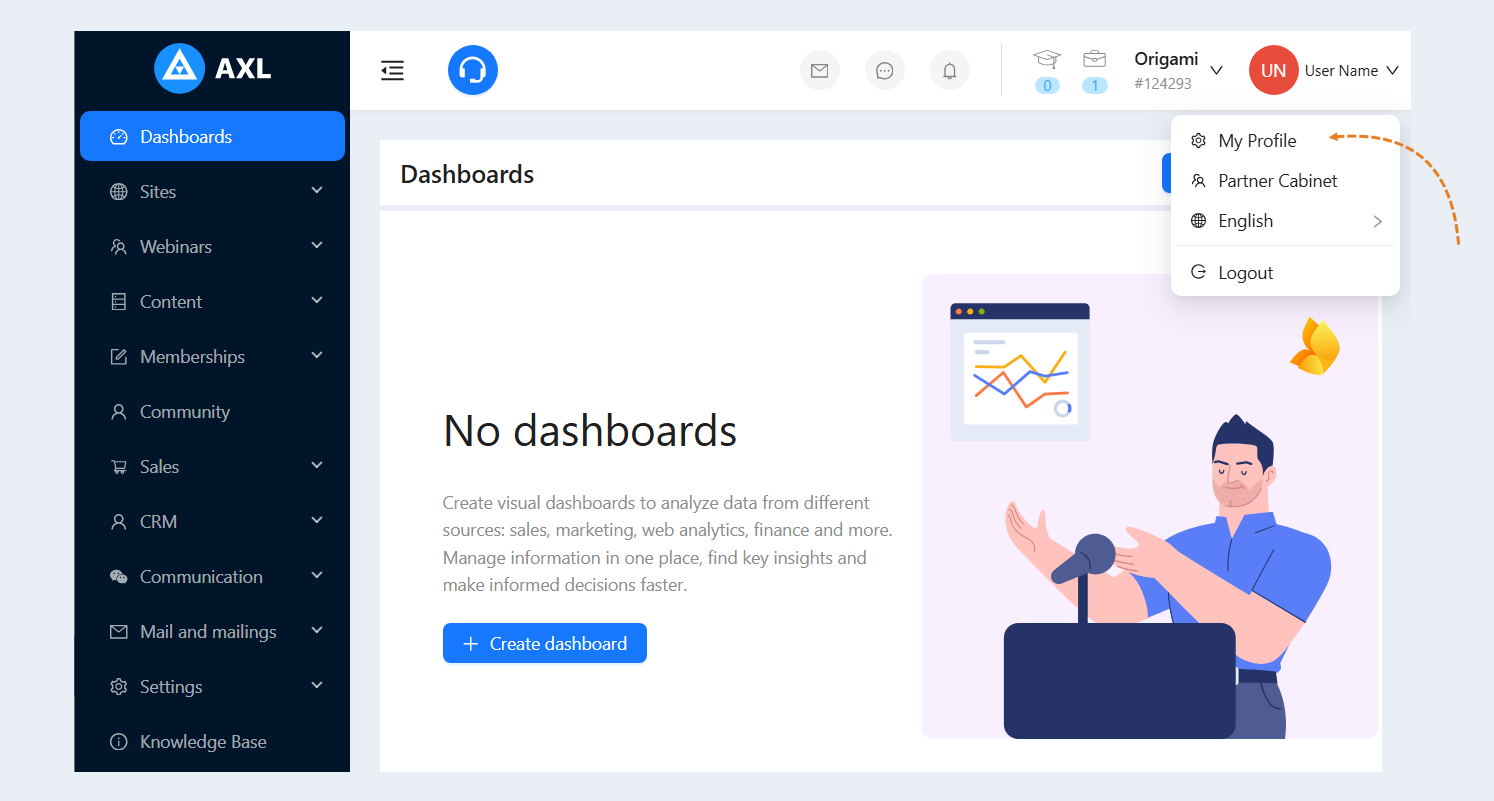
To set up notifications, go to the "Profile" section.
Select the "Notifications" tab.
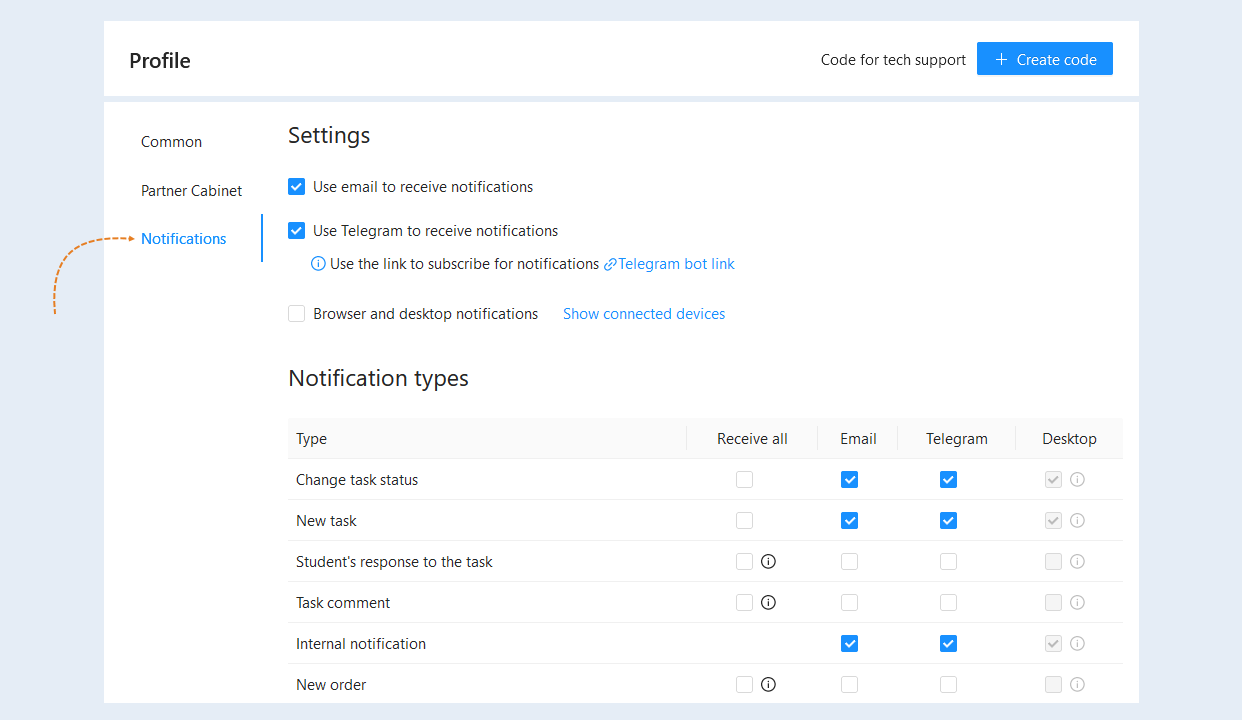
Here you can set up notifications for your account.
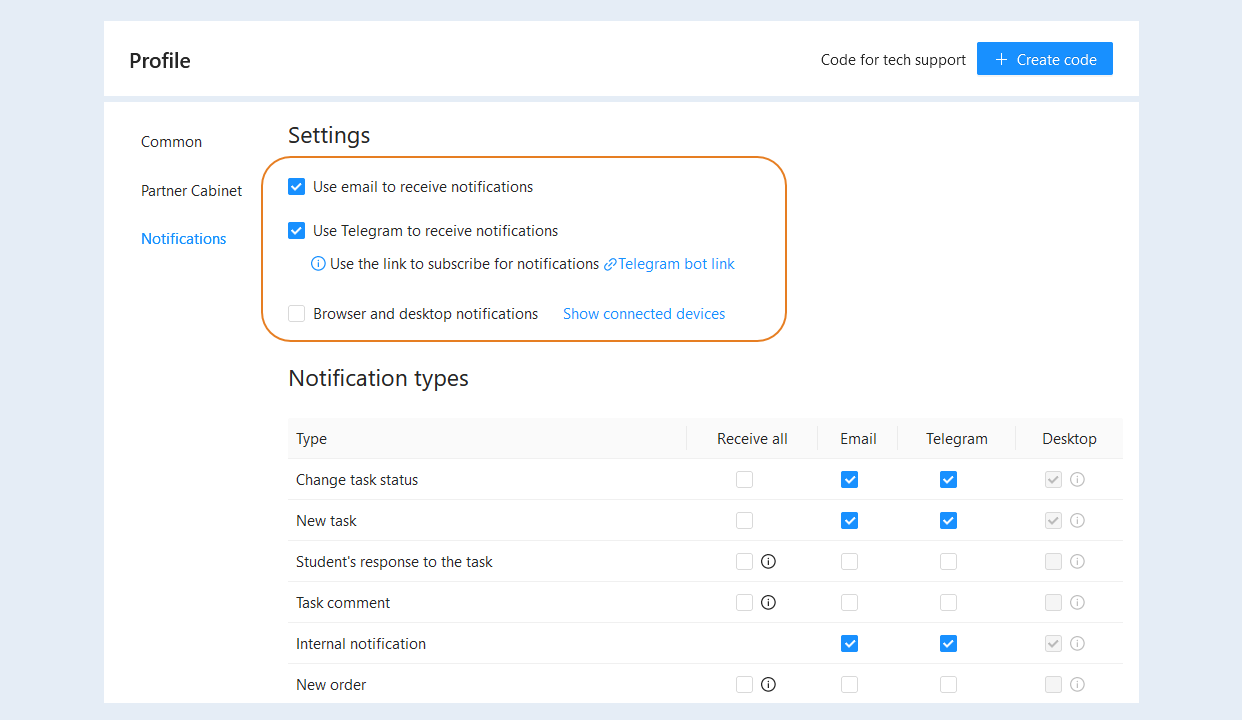
In the settings, select where you will receive notifications: email address, Telegram and/or desktop.
Next, define the types of notifications:
Change task status. This notification will notify you about a change in the status of a task in the CRM section.
New task. This notification will notify you about the creation of a new task.
- The user's response to the task. This notification informs you about the receipt of an answer from a user in the training course in your Мembership Portal.
- Task comment. You will receive a notification that the user has left a comment on the assignment in your training course.
- Internal notification. You will receive a notification about events within your account and messages from the team.
New order. You will receive a notification about the creation of a new order.
- Order payment. You will receive a notification about the receipt of payment for the order.
- Change the password. You will receive a notification about a password change to your account on the AXL platform.
Deals. New deal. This notification informs you about the addition of a new deal. Notifications will be for deals in which you are responsible.
Deals. Implemented or not implemented. This notification informs you that the deal has been moved to the "Successfully implemented" and "Not implemented" stages. Notifications will be for deals in which you are responsible.
Comment on a course step. This notification will notify you about a new comment on the course step.
Library step comment. This notification will notify you about a new comment on the library step.
Successful login. This notification will notify you about a successful login to the your account.
Prevented login attempt. This notification will inform you about an unsuccessful attempt to log in to the your account.
Task reminder. This notification will send you a reminder of the tasks you have subscribed to.
New chat message. This notification will inform you when new chat messages appear.
New email message. This notification will inform you when new email messages are received.
Affiliate program. Withdrawal request. Withdrawal request. This notification will notify you about requests for withdrawal of commission under the affiliate program.
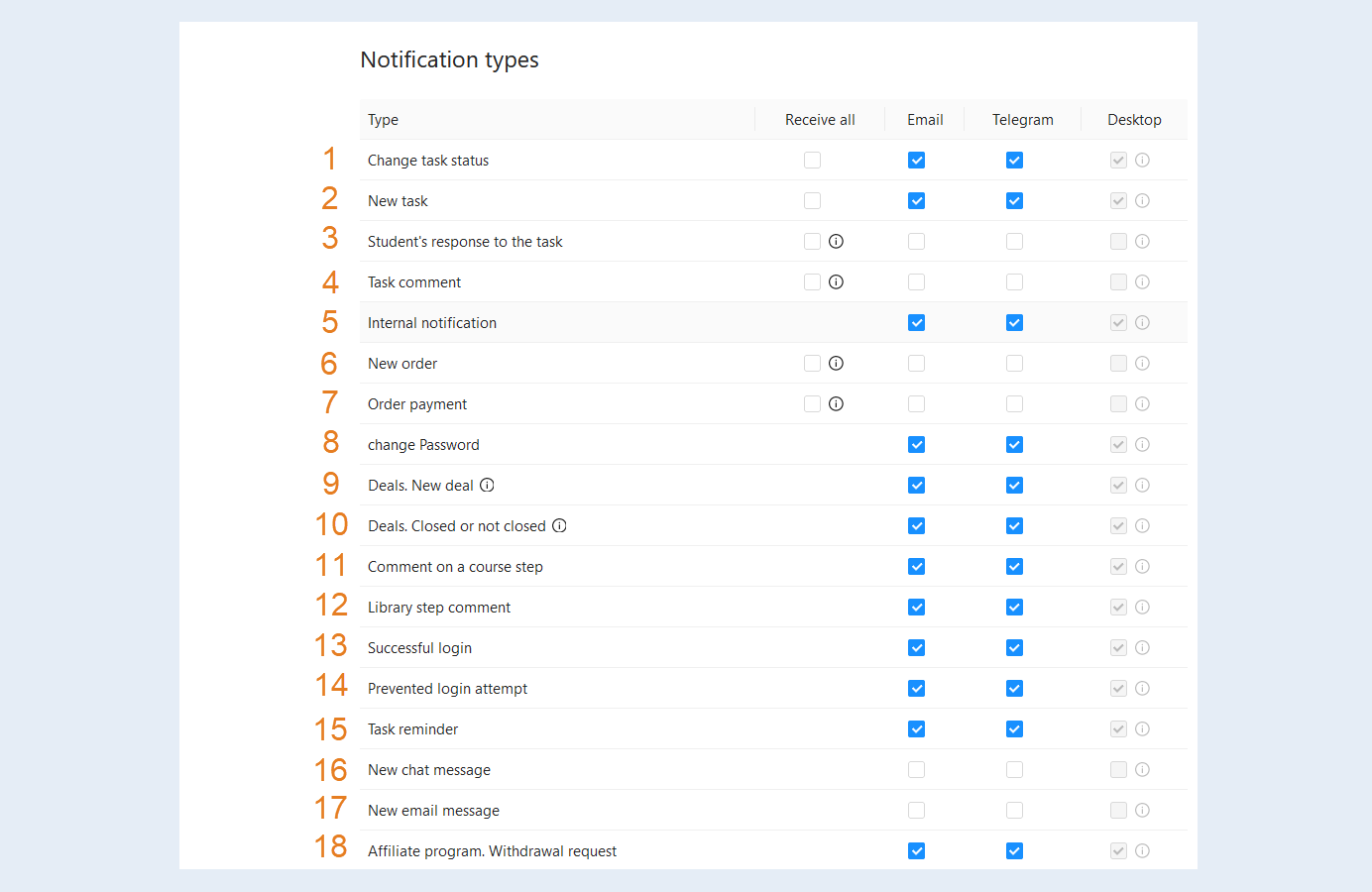
Notifications in the user's personal account
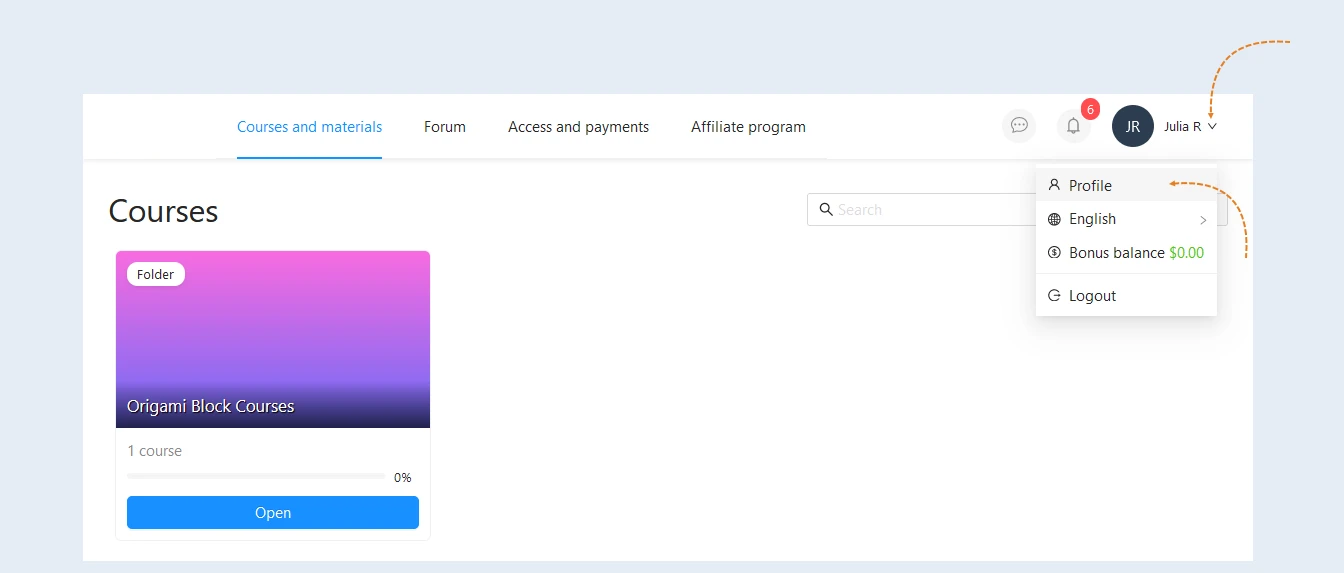
Notifications can also be set up in user accounts. To do this, the user goes to his personal account in your online project. Selects the "Profile" section.
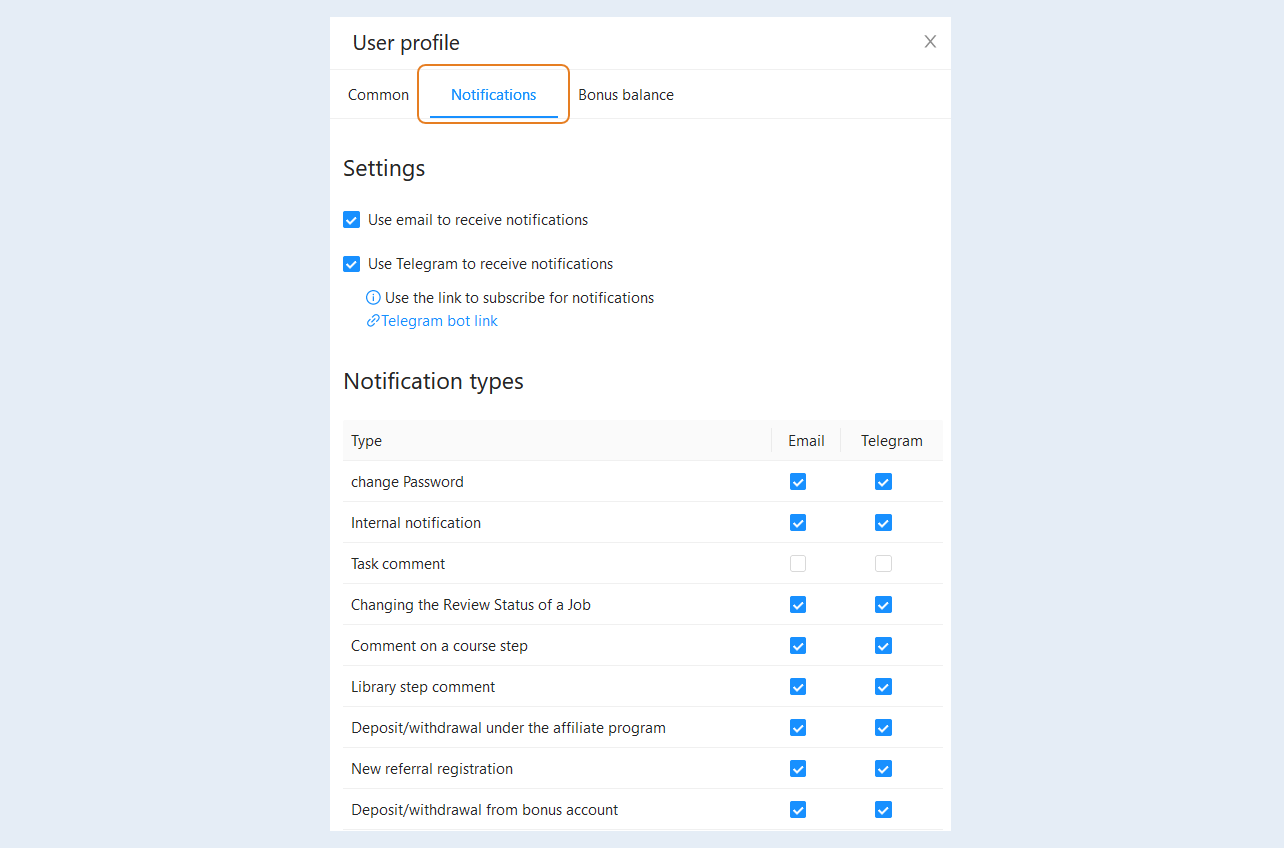
Goes to the "Notifications" tab. And chooses the settings that are convenient for him: receive notifications by email or/and in Telegram. And also selects the types of notifications:
- Changing the password. The user will receive a notification about a password change to their personal account in your account.
- Internal notification. The user will receive a notification about changes within the account.
- Task comment. This notification will notify the user about a new comment on his completed assignment in your Мembership Portal.
- Changing the Review Status of a Job. The user will receive a notification that his assignment has been checked and the status of the assignment has changed (accepted, sent for revision, not accepted).
Comment on a course step. The notification will notify the user about a new comment on the course step.
Library step comment. The notification will notify the user about a new comment on the library step.
Deposit/withdrawal under the affiliate program. The notification will notify the user about accruals and write-offs under the affiliate program.
New referral registration. The notification will notify the user about the registration of a new user (referral) by the user's affiliate link.
Deposit/withdrawal from bonus account. The notification will notify the user about accruals and write-offs from the user's bonus account.
New notifications
Notifications are displayed in the personal account on the AXL platform in the upper right corner as a red icon. The number indicates the number of new notifications.
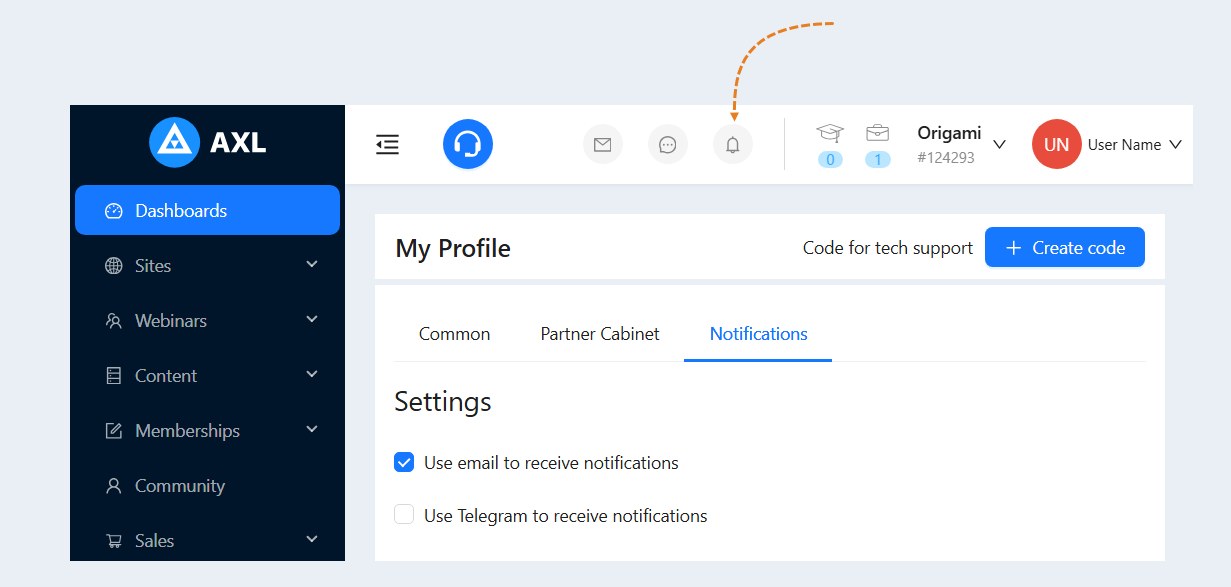
Users also receive notifications in their personal account of your Мembership Portal, in the upper right corner as a red icon. The number indicates the number of new notifications.
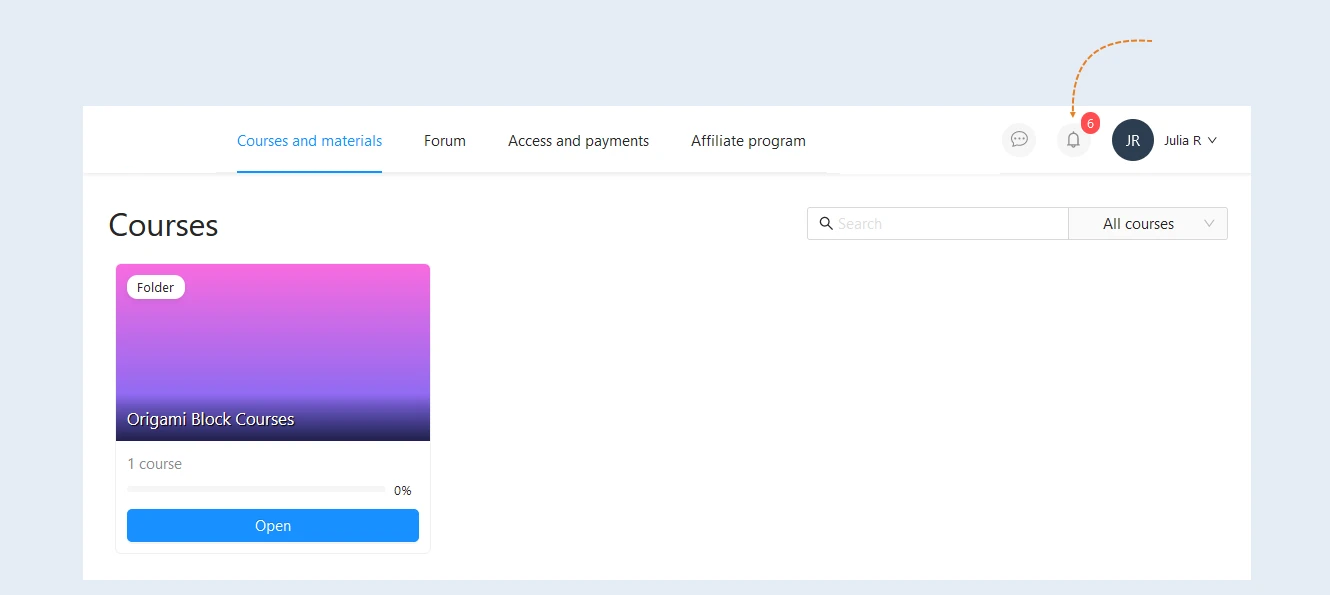
Click on the notification icon to read it. An additional window will open for you. Here you can see the event that occurred on the platform. And you can mark the notification as read or hide it.