An affiliate program is a form of cooperation between a seller and partners when selling a product or providing services on the AXL platform. The purpose of the affiliate program is to attract new customers and increase sales. Read more about how to set up an affiliate program in the article "Affiliate Program".
The partner program scenario is a sequence of events and actions. The scenario reacts to manipulations within the partner program and performs retaliatory actions. In the "Scenario" section, you can automate processes and set up a sequence of events and actions for the affiliate program.
Creating an affiliate program scenario
Go to the "Sales" section, the "Affiliate Program" tab. Next, go to the "Scenario" tab.
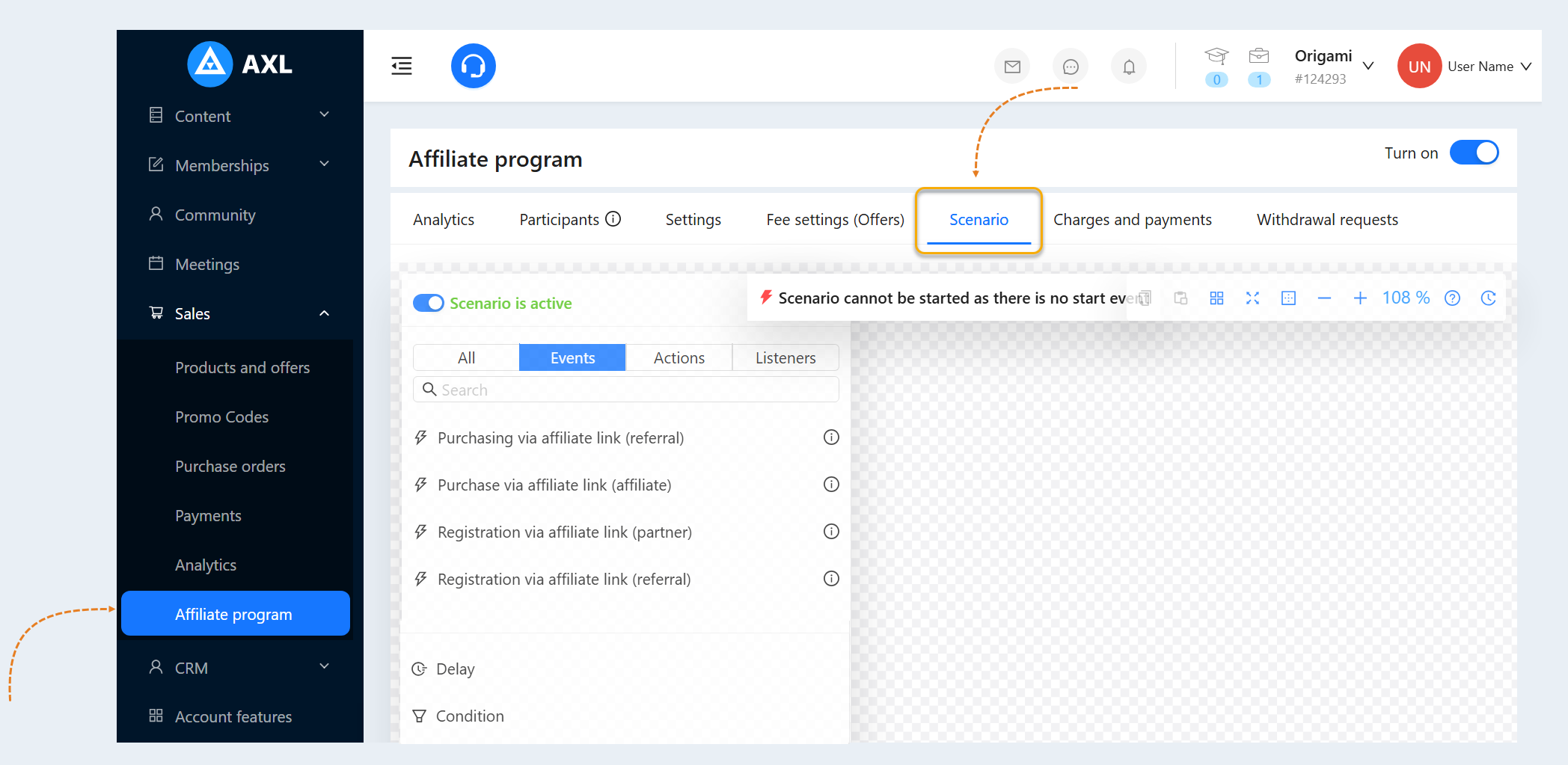
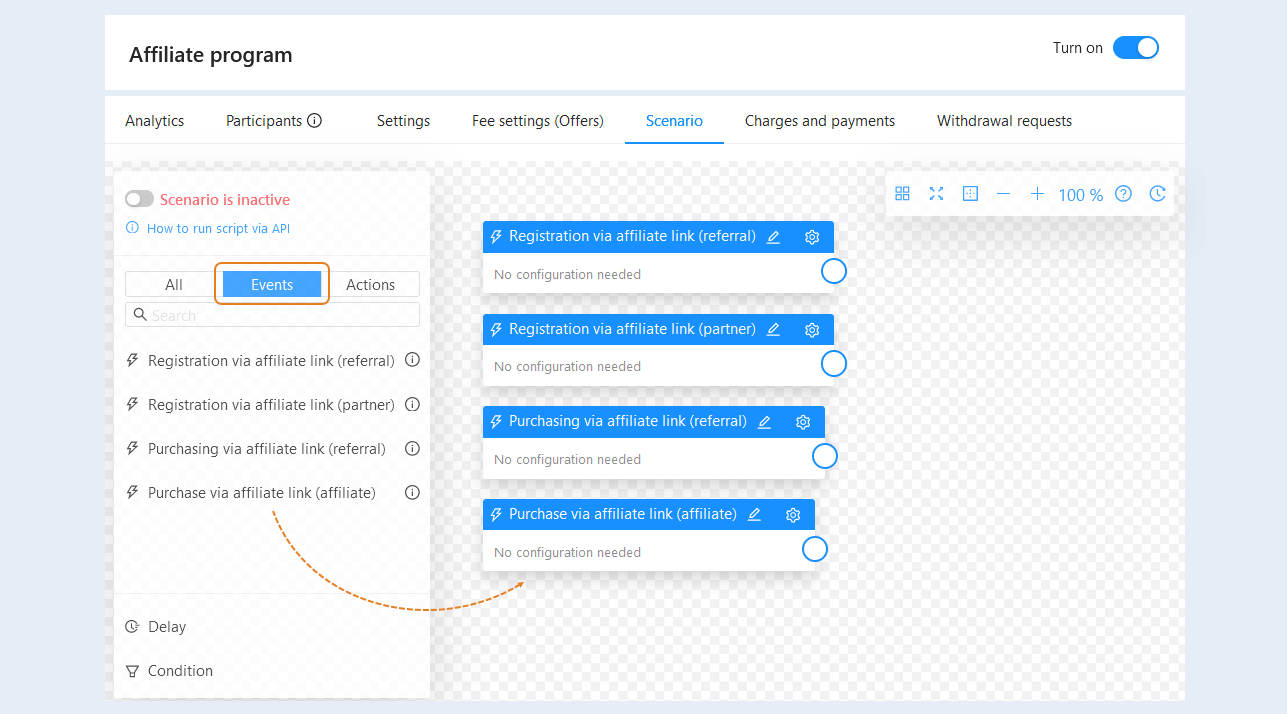
Select the event to trigger the scenario and drag it into the scenario field. There are four possible events for the affiliate program:
- Registration via affiliate link (referral). This event triggers the scenario when the user has registered through the form using the partner link. When selecting this event, further steps of the scenario will be performed with a referral (an invited user who has registered). For example, a registered user will be awarded bonuses.
Registration via affiliate link (partner). This event triggers the scenario when the user has registered through the form using the partner link. When selecting this event, the further steps of the scenario will be performed with the partner whose link the registration took place. For example, the inviting user will be awarded bonuses.
Purchase via affiliate link (referral). This event triggers the scenario when the user has paid the cost of the product. Further steps of the scenario will be performed with the buyer who bought using the affiliate link.
Purchase via affiliate link (partner). This event triggers the scenario when the user has paid the cost of the product. Further steps of the scenario will be performed with the partner whose link was used to make the purchase.
No additional configuration settings are required for events.
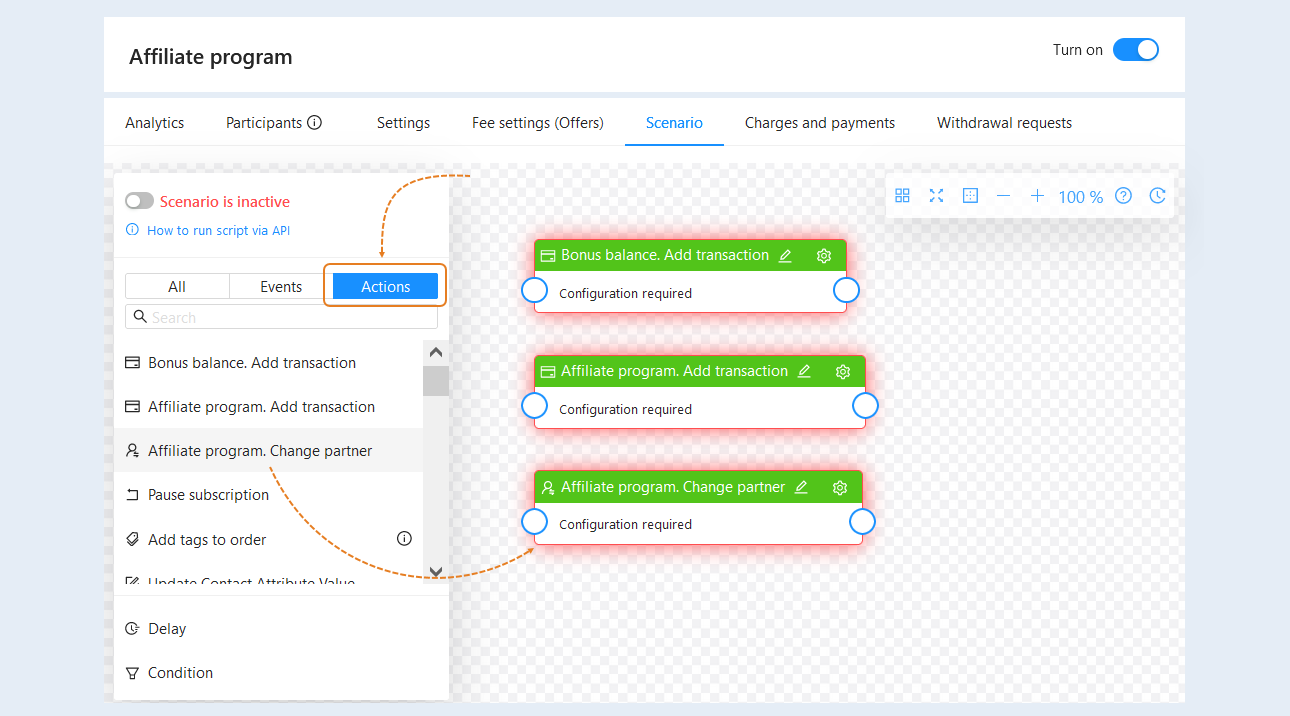
After that, you need to add actions to the scenario. Open the Actions tab, select an action from the list and drag it to the scenario field. The following actions are often used for an affiliate program:
- Bonus balance. Add transaction. This action creates a transaction for replenishment of the bonus account or debiting from the user's bonus account. The bonus account is presented in the form of bonus credits, which are reflected in the user's personal account in the currency of the account. The user can use them to purchase products or receive certain privileges or services. Bonus credits are not subject to withdrawal.
Affiliate program. Add transaction. This action creates a transaction for replenishment or debiting, for the implementation of the affiliate program.
Affiliate program. Change partner. This action allows you to replace the contact's partner or reset the partner. If you want to reset the partner, leave the "Partner" field empty.
For more information about the remaining actions, read the article “Types of actions in the scenario and their configurations".
For each action, you need to perform settings - configuration. Click on the "Settings" button in the upper right corner of the action, then open the node settings.
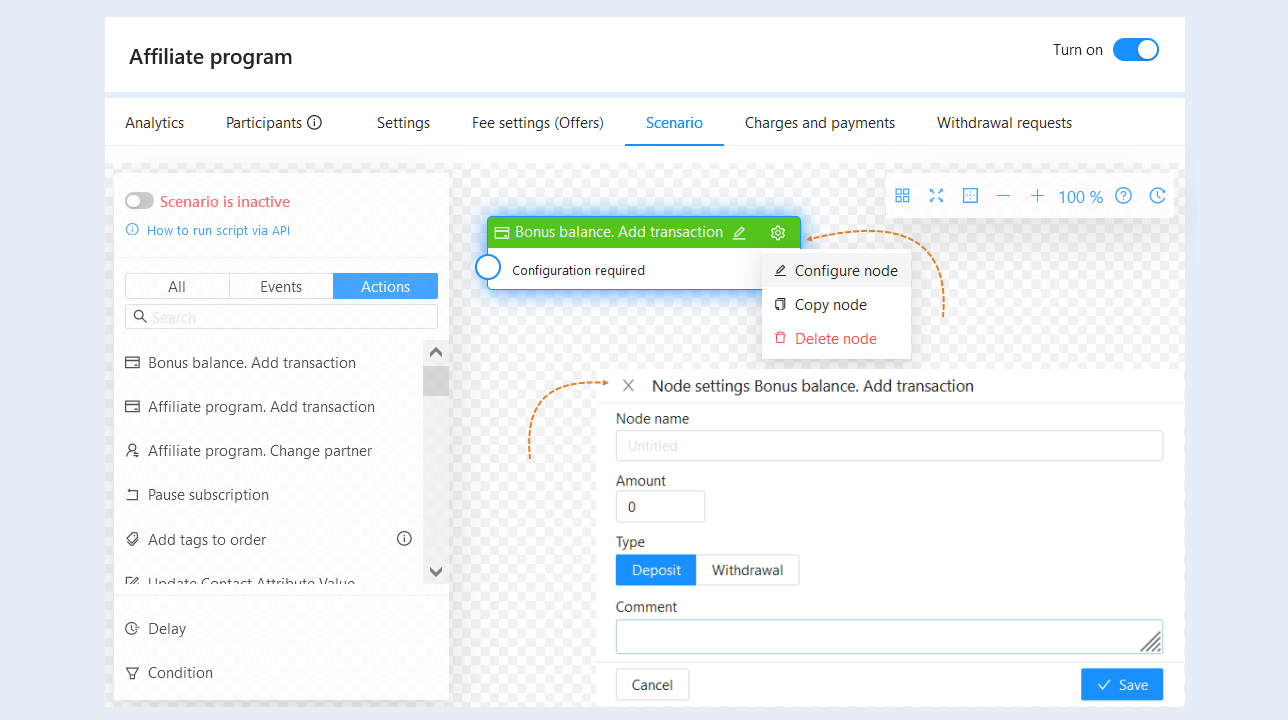
In the configuration settings of actions such as "Send Email" or other actions, you can add variables.
A variable is a value to be automatically replaced with the data you selected. This can be the contact's name, e-mail, account name, order number, etc. Variables will automatically replace the data in the email. For example, specify the variable “Contact Name” and when sending an email, this variable is replaced with the recipient's name.
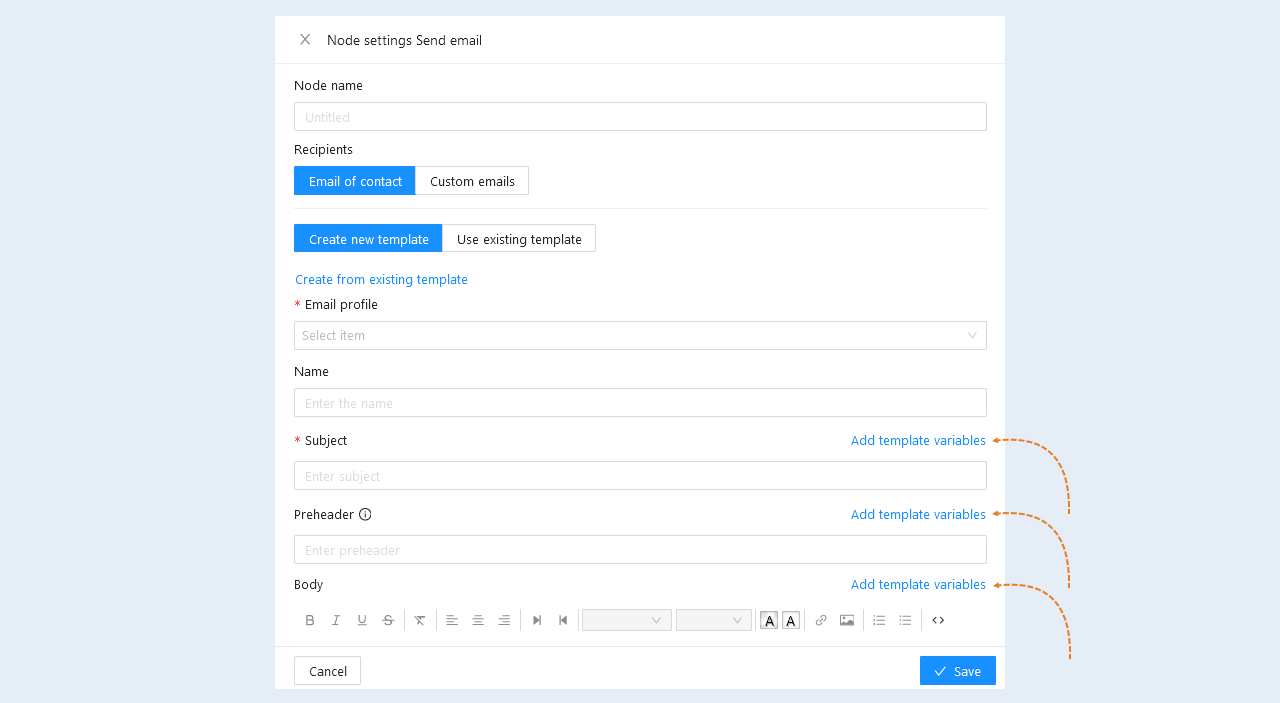
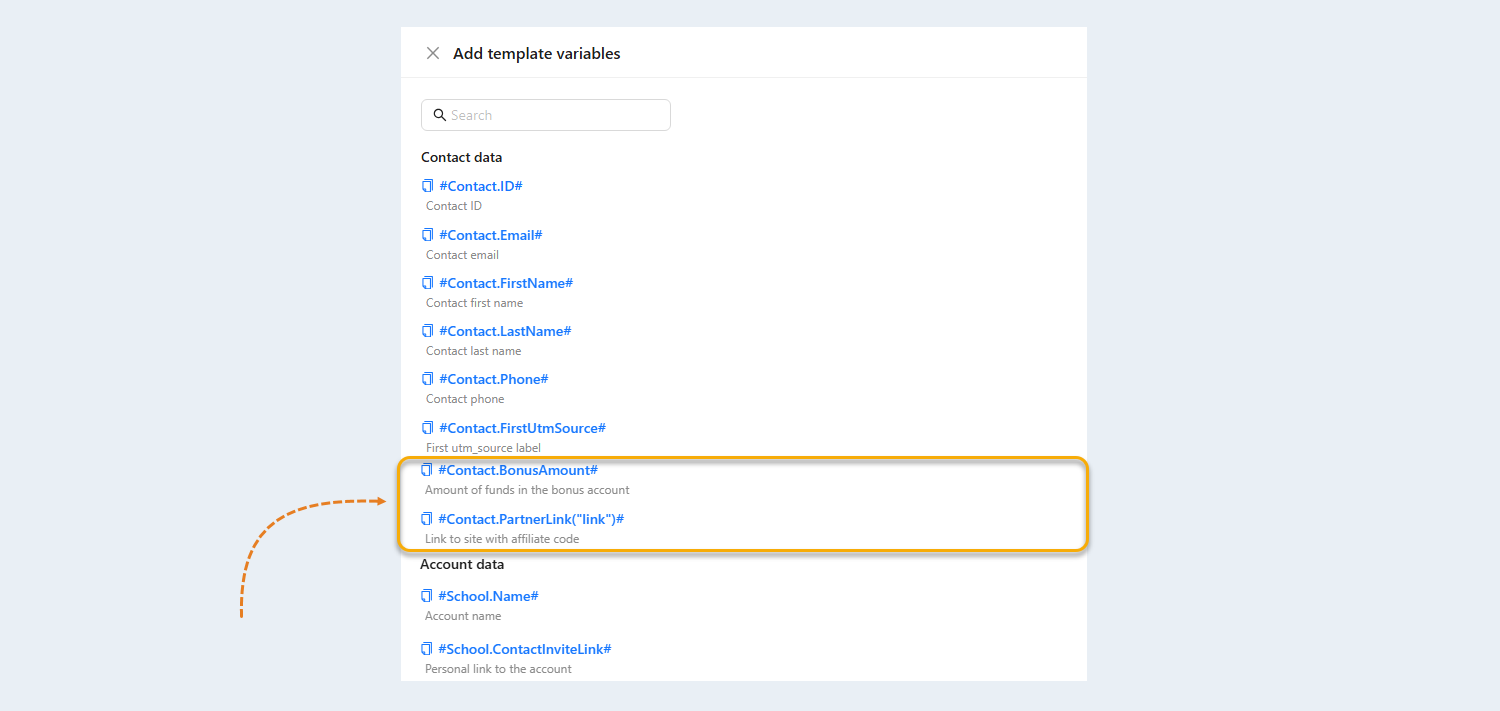
Click the "Add template variables" button next to the corresponding section. A list of variables will open on the right. Select the necessary variables from the list.
The variable "Link to site with affiliate code" adds a personal link to the partner's website to the text. The partner can copy this link and send it to people to whom he wants to recommend your product. After registering or making a purchase using this link, the new user will be assigned to the partner.
The variable "Amount of funds in the bonus account" allows you to add data about the current status of the user's bonus account to the text.
For more information about the other variables, read the article “Variables in the scenario".
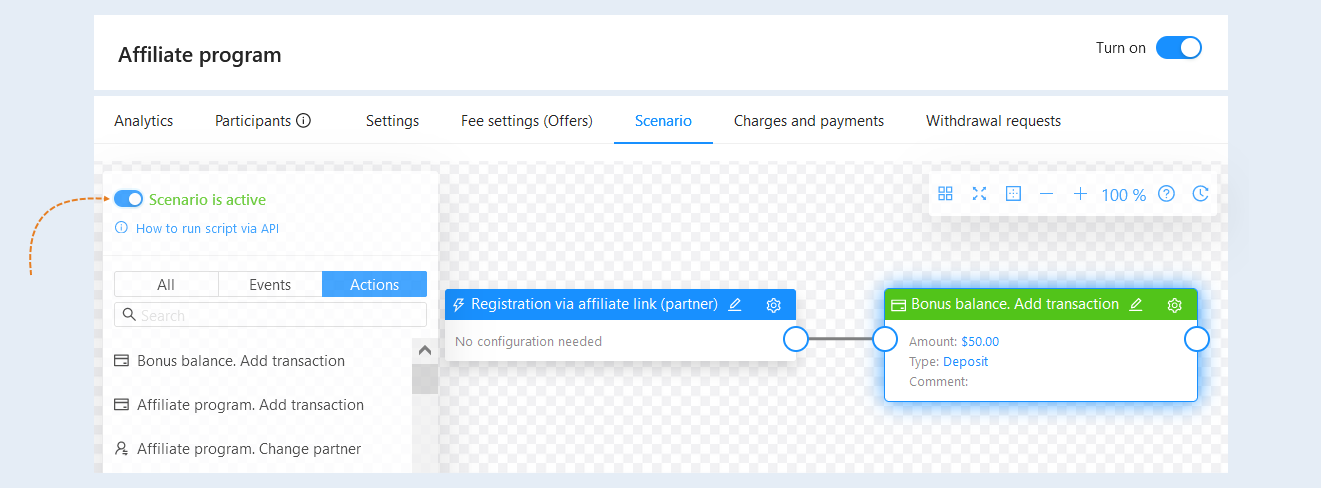
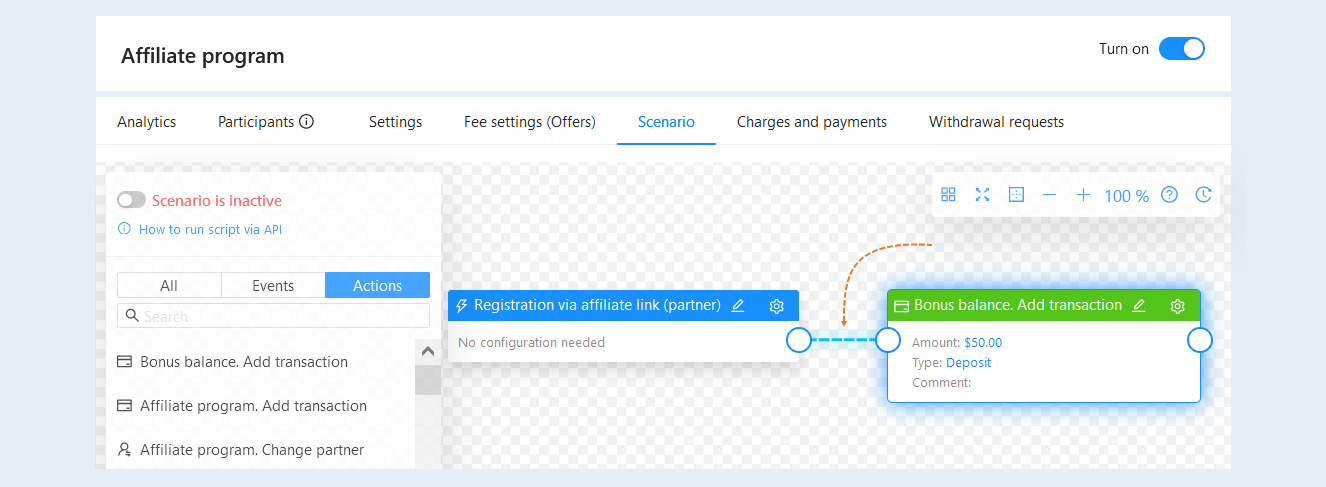
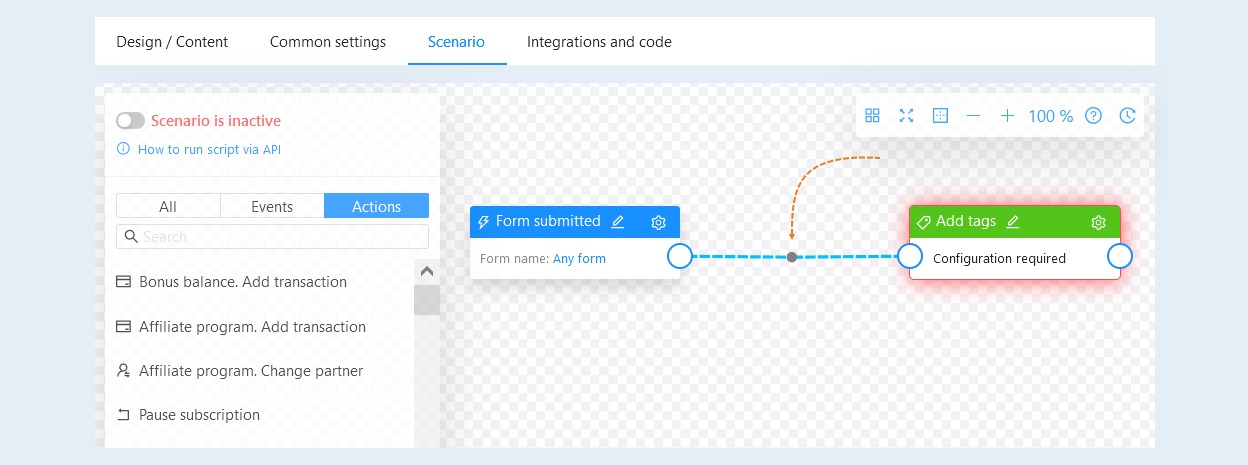
Next, you need to connect the event and the action together. You can create one or more links between events and actions. To remove the link between the scenario elements, double-click on the link.
You can use the function of adding points to connections to create chains. To add a reference point, select the location on the communication line where you want to add the point. Left-click on the place selected on the line and simultaneously press the Ctrl key on the keyboard. Next, you can grab a reference point and move its location to the script field.
To delete a reference point, double-click on the point. Double-clicking on the line will delete the line and all reference points on it.
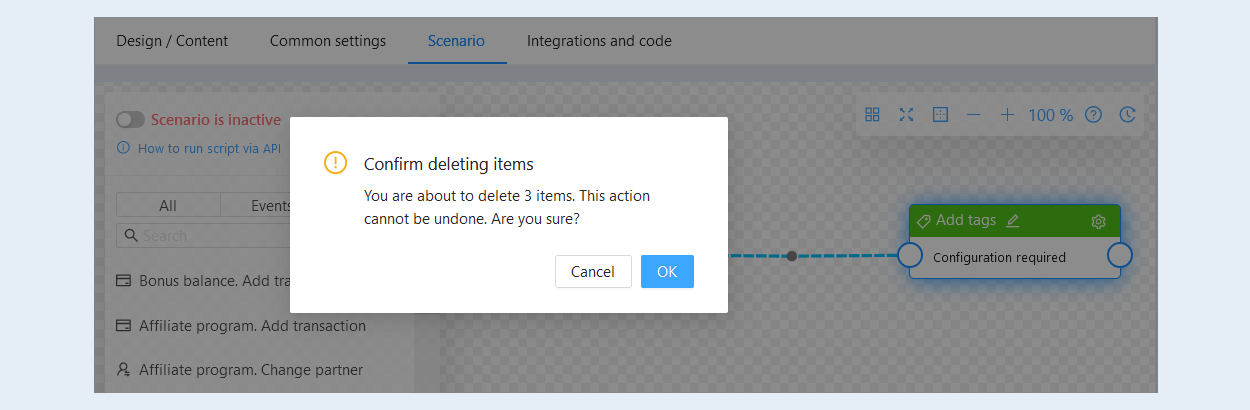
To massively delete scenario steps, hold down the Shift key and select the desired events and actions by clicking on them with the mouse. Next, press the Delete or Backspace key and confirm the deletion of the selected scenario steps.
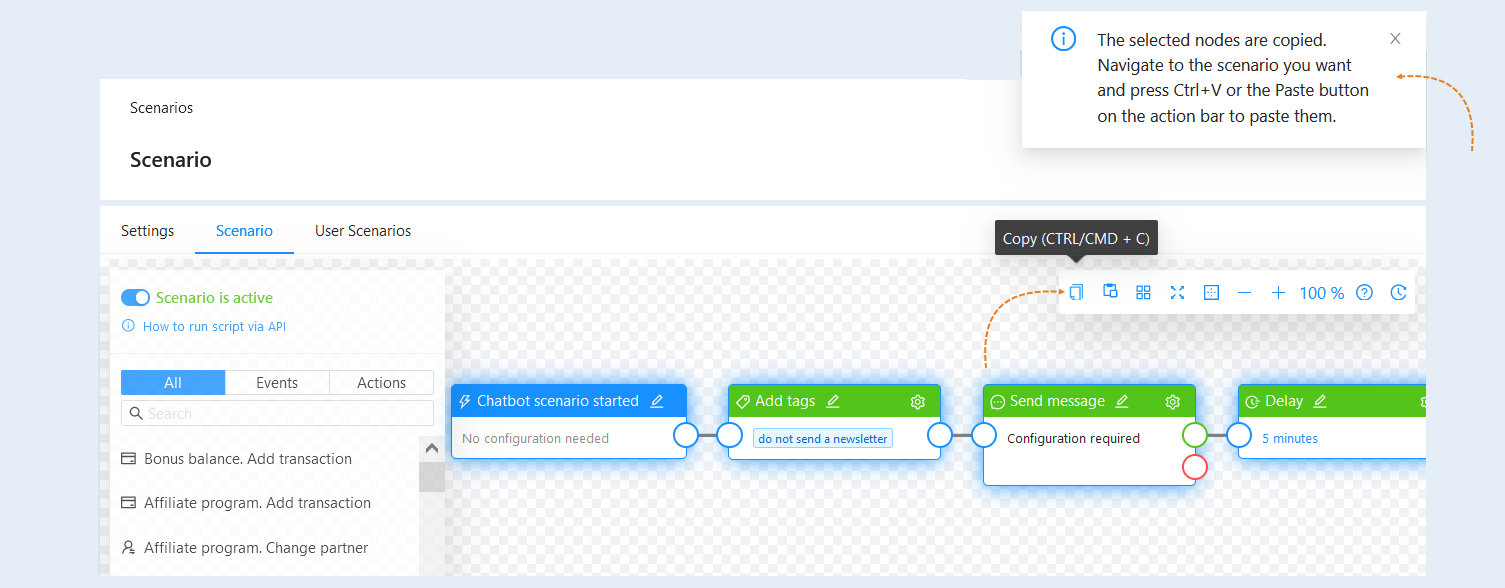
You can copy steps and connections between scenarios within one account. Press Shift and select the desired steps by clicking on them with the mouse. The selected scenario steps will be highlighted with a blue border.
Then copy the selected steps by pressing the "Copy" button or Ctrl + C on the keyboard. A message will appear in the upper right corner stating that the scenario steps have been copied.
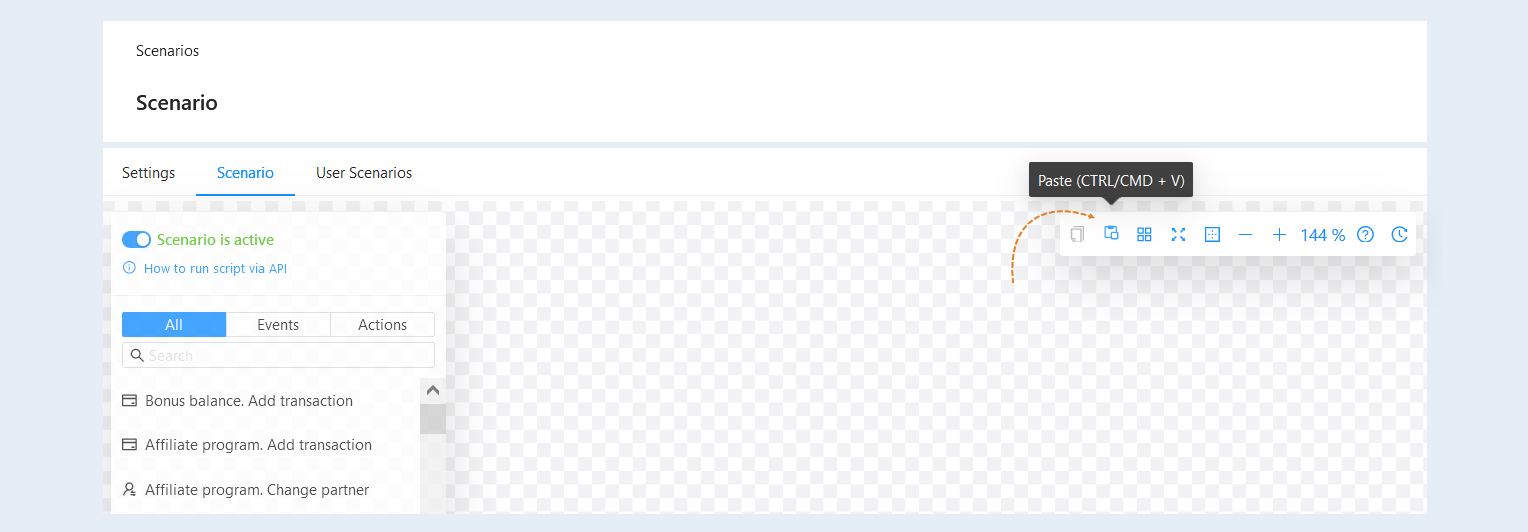
Open another scenario of your account. Please note that transferring scenario nodes only works within the same account. Press the "Paste" button or Ctrl + V on the keyboard. The scenario steps will be copied to the new scenario.
Now your scenario is ready. To activate the scenario, move the slider to the active position.