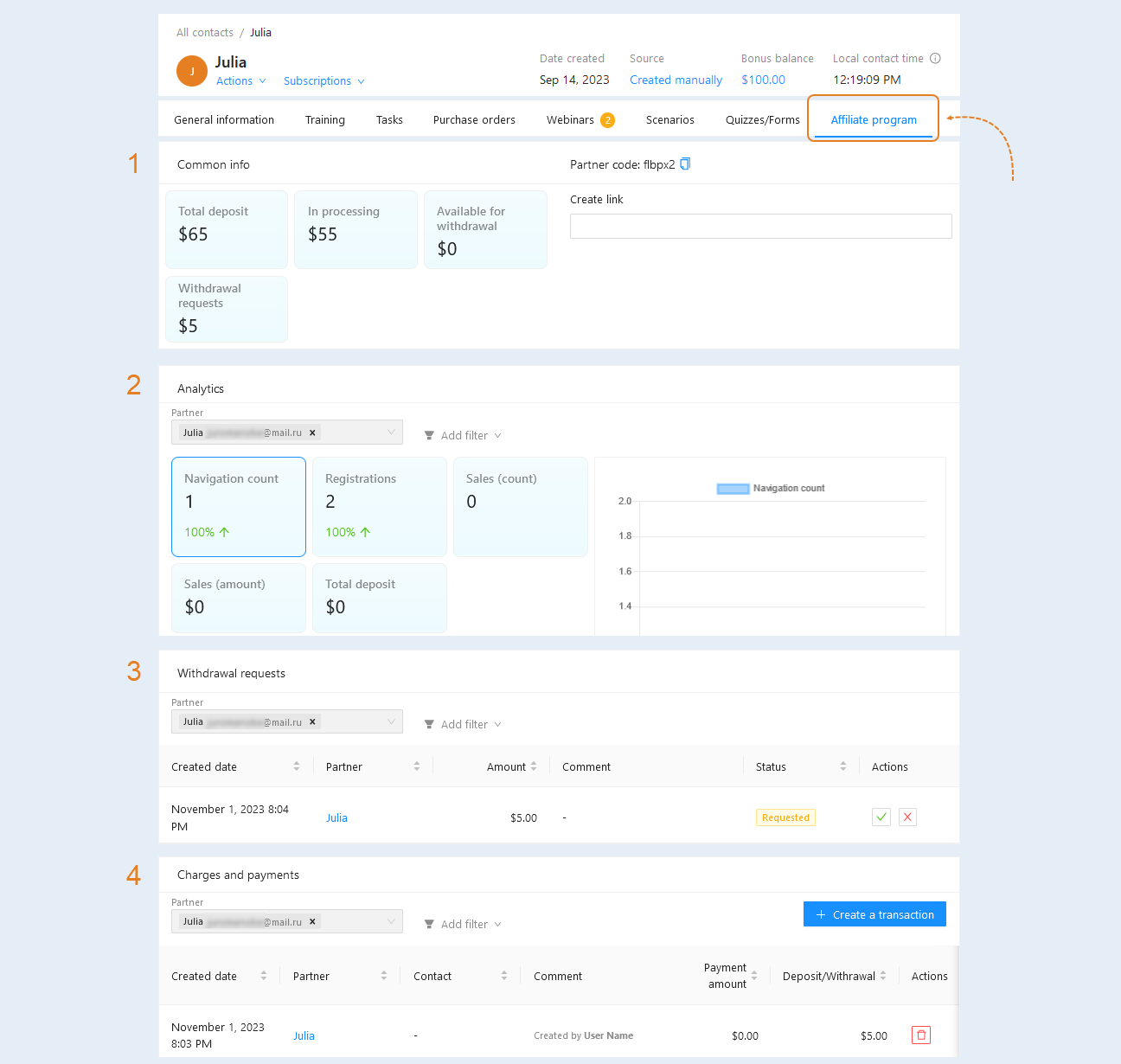
The "Affiliate Program" section is duplicated in the contact card. In this tab, from the contact card, you can create unique affiliate links for the selected contact, create transactions, approve or reject commission withdrawal requests. Also, personal analytics of the partner program is available in the partner card. Read more about the affiliate program in the article "Affiliate Program".
In the "Affiliate Program" tab, you can see the following sections:
- Common info. The section provides general information about the accrued commission, as well as shows the partner's personal code and links.
Analytics. This section shows the partner's personal analytics.
Withdrawal requests. This section shows a list of all partner requests for commission withdrawal.
Charges and payments. This section shows a list of all charges and payments to the partner.
The sections of the affiliate program are discussed in more detail below.
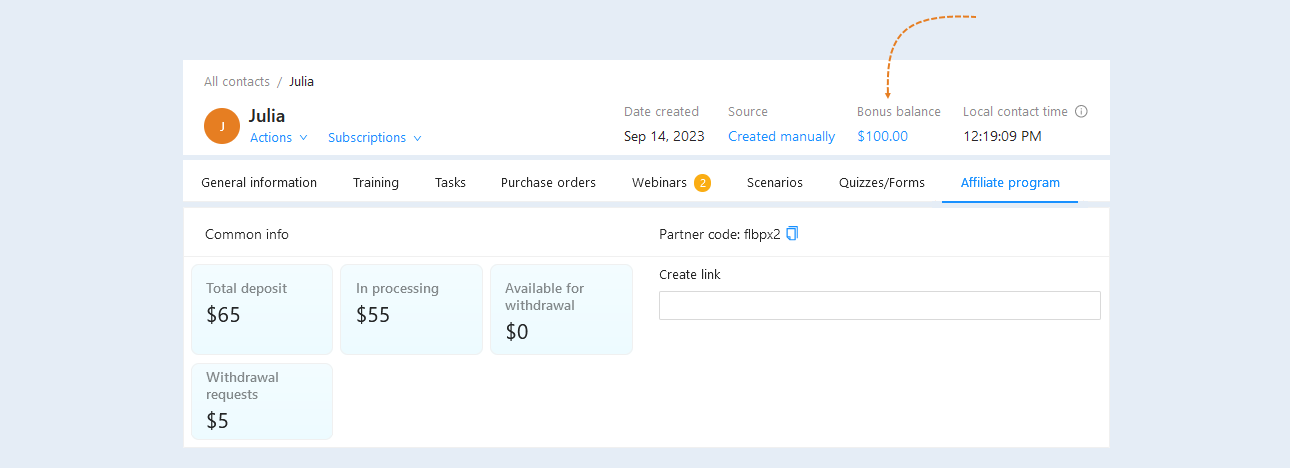
The user's bonus balance is shown at the top of the contact card. The bonus balance is presented in the form of bonus credits, which are reflected in the user's personal account in the currency of the account. The user can use them to purchase products or receive certain privileges or services. Bonus credits are not subject to withdrawal.
For more information about the bonus balance, read the article "Bonus balance".
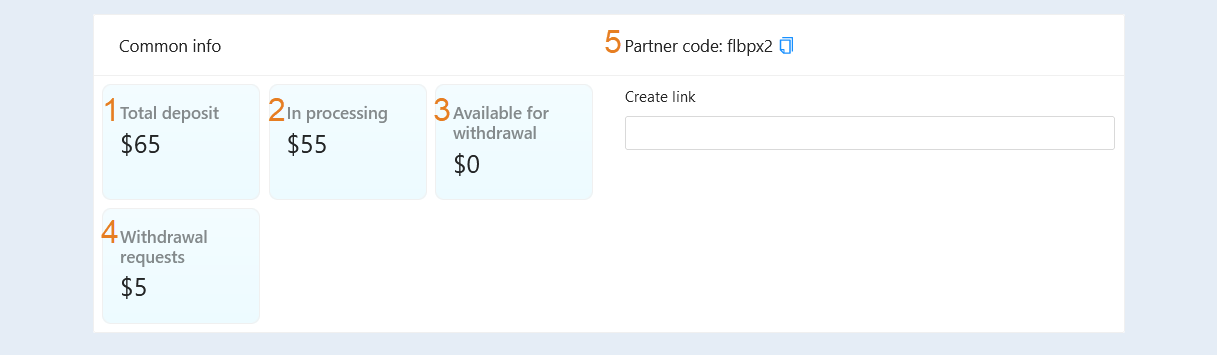
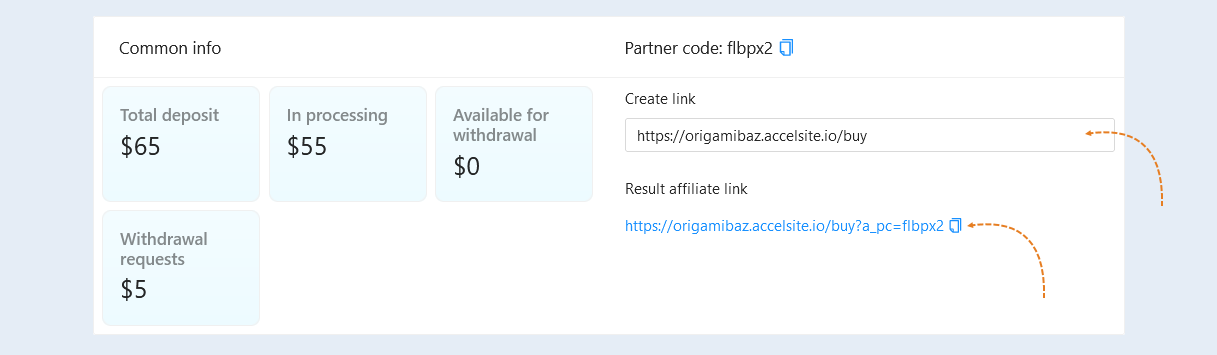
Common info. This section shows the accruals of the commission to the partner and payments under the affiliate program. In the section you see:
Total deposit. The total amount of the accrued commission.
In processing. Accruals that are in processing. If you have set a deadline in the settings of the partner program in the item "The period when the commission becomes available for withdrawal", then after this period, new transactions will become available for withdrawal. If you set 0 days, the commission will immediately become available for withdrawal.
Available for withdrawal. The amount of accruals available for withdrawal today.
Withdrawal requests. The amount of accruals awaiting confirmation by the account administrator.
Partner code. The partner code is a special unique identifier that is issued to the partner when registering in the system. The code is indicated in the affiliate link and interest on sales is accrued on it. Copy the partner's code.
Paste the link to the website or form in the "Create link" field and get the result affiliate link. Then copy the result link.
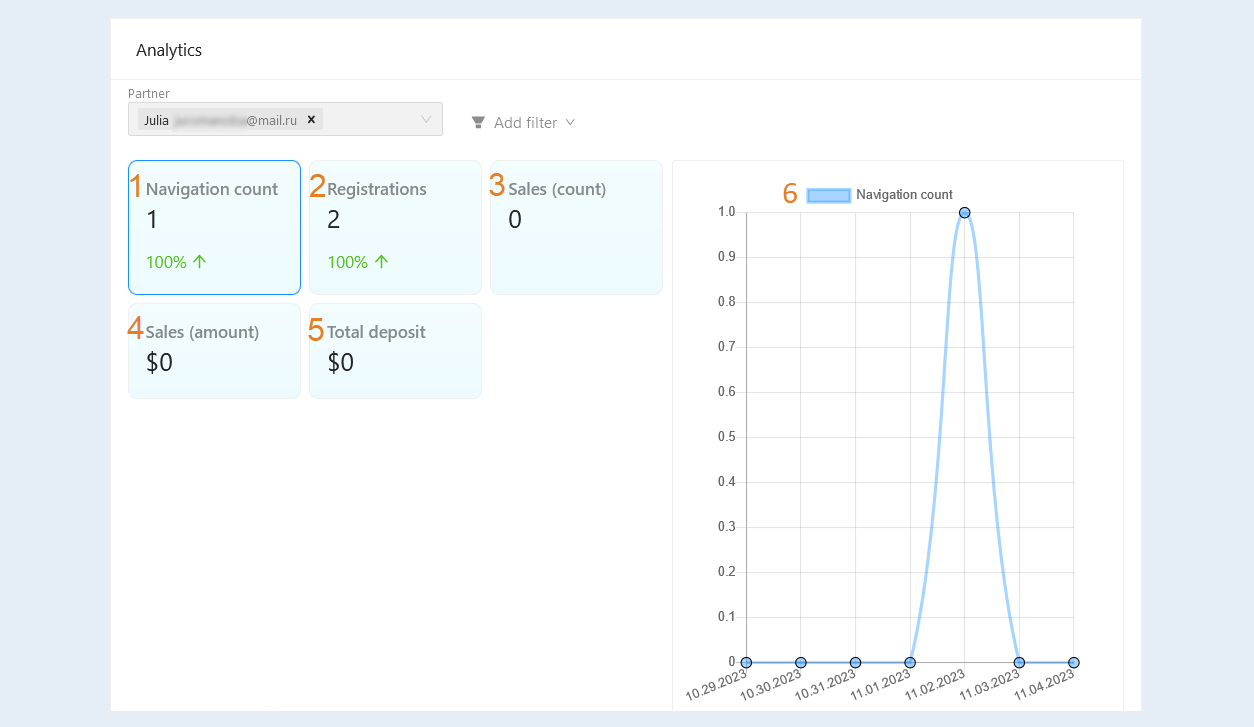
Analytics. This section shows the partner's personal analytics. Reporting helps analyze partner program data. Provides complete information about its performance, helps to identify strengths and weaknesses and identify potential opportunities for improvement. In the tab you can see the following sections:
Navigation count. The number of people who clicked on affiliate links is indicated.
Registrations. The number of users who have registered using partner links is shown.
Sales (count). The total number of sales by partner link m is reflected.
Sales (amount). The total amount of sales via affiliate links is reflected in the currency of the account.
Total charges. The amount of the commission to partners is shown.
Chart. The analytics of the affiliate program is shown in the form of a graph. Click on one of the sections described above to see the graph for each section separately. Use the filter to see statistics for specific dates or set a time interval.
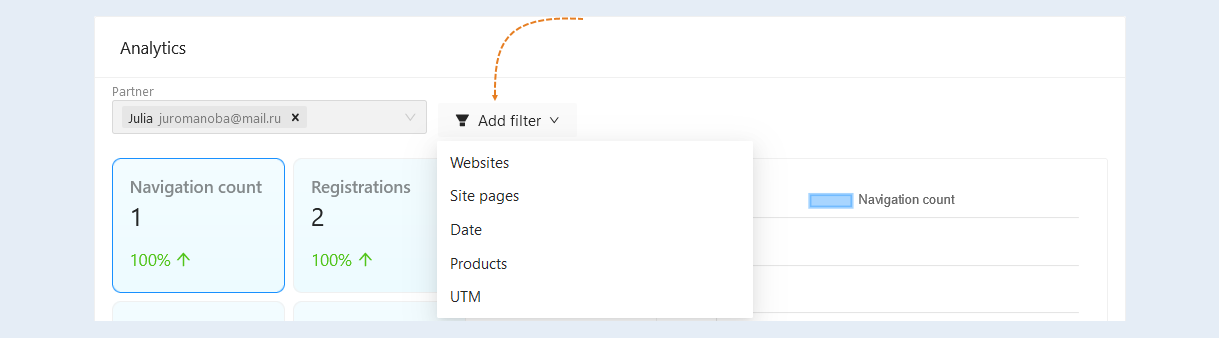
A filter is available to you at the top of the section. Use it for more detailed customization. Click the "Add Filter" button and select a filter condition from the list:
- Websites. This condition highlights the actions performed on individual sites. Select one or more sites from the list.
Site pages. This condition highlights the actions performed on the selected pages of the site. Select the site pages from the list.
Date. Select a date or set a time interval to see the analytics for the selected time period.
Products. This condition highlights actions related to a particular product. Select one or more products from the list.
UTM. You can specify the value of the UTM tag to select only those partner programs in which contacts have clicked on this UTM tag.
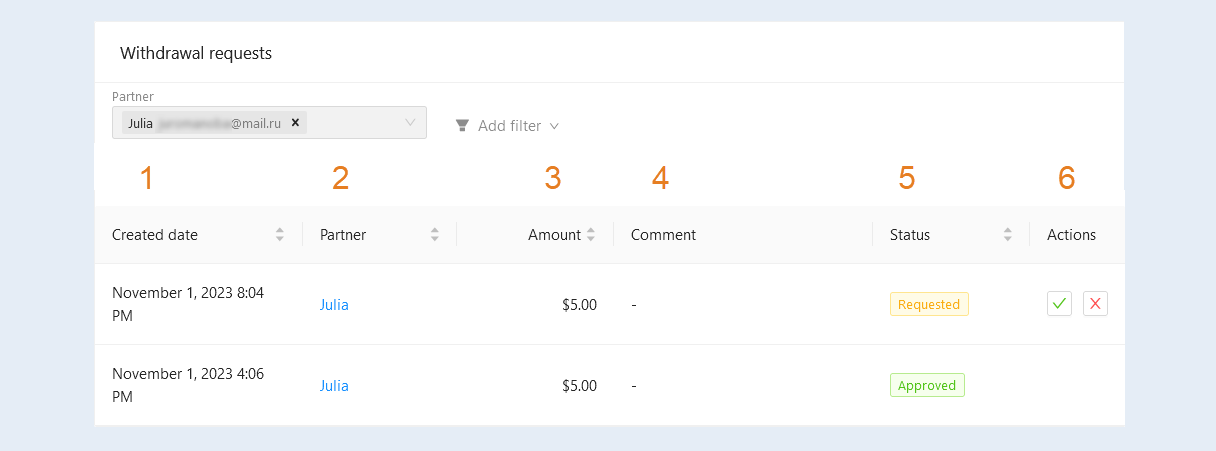
Output requests. This section shows all the partner's requests for commission withdrawal. You can manage requests: confirm or reject requests. In the list of requests you can see the following information:
Created date. The exact date and time of the output request creation is shown.
Partner. The partner's contact is specified. Click on the name to open the contact card.
Amount. The amount of commission available for withdrawal is shown.
Comment. A comment to the request is shown.
Status. The request status is shown: new, approved, rejected.
Actions. The buttons are available to you here:
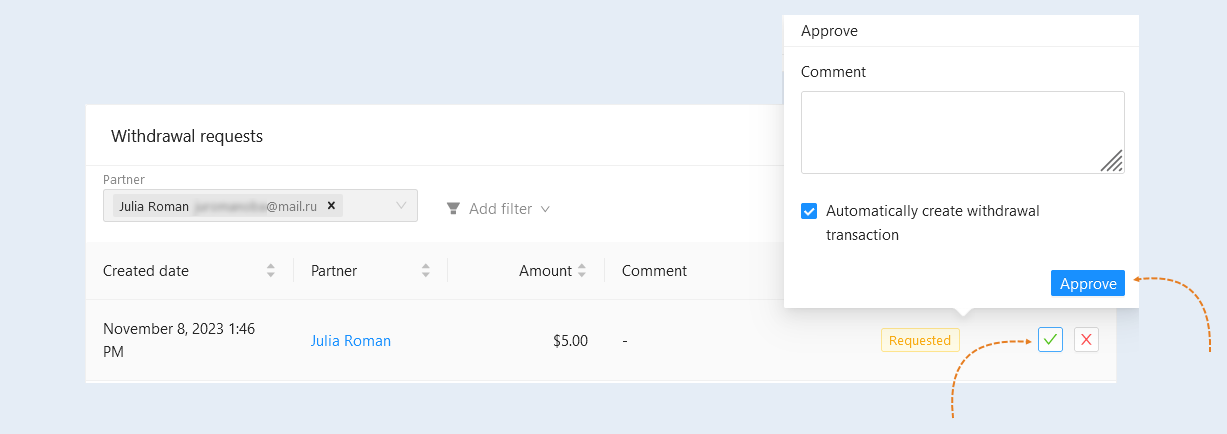
The “Approve" button.
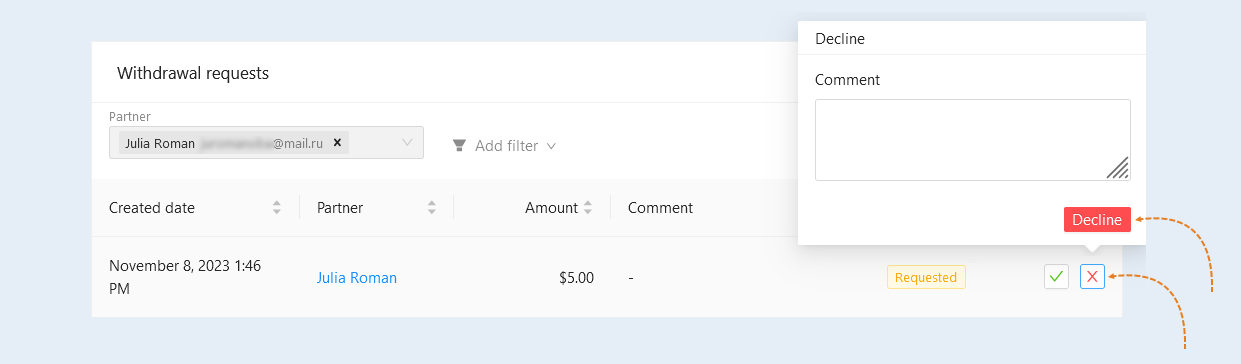
The “Decline" button.
Click the "Approve" button to confirm the withdrawal request. In the window that opens, add a comment. Check the box "Automatically create a withdrawal transaction" so that a write-off transaction is automatically created in the "Accruals and payments" section. And click the "Approve" button.
Click the "Decline" button to reject the withdrawal request. In the window that opens, add a comment on rejecting the request and click the "Reject" button.
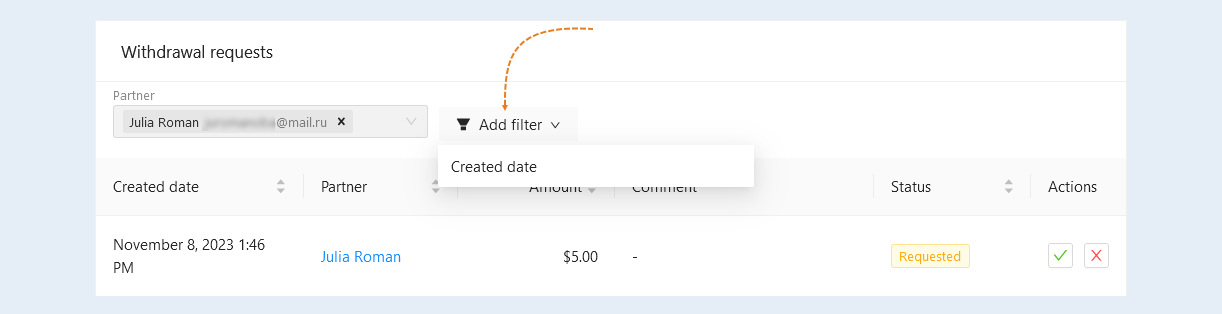
A filter is available to you at the top of the section. Click the "Add Filter" button and select a filter condition from the list:
Created date. You can filter output requests by date or for a selected time period.
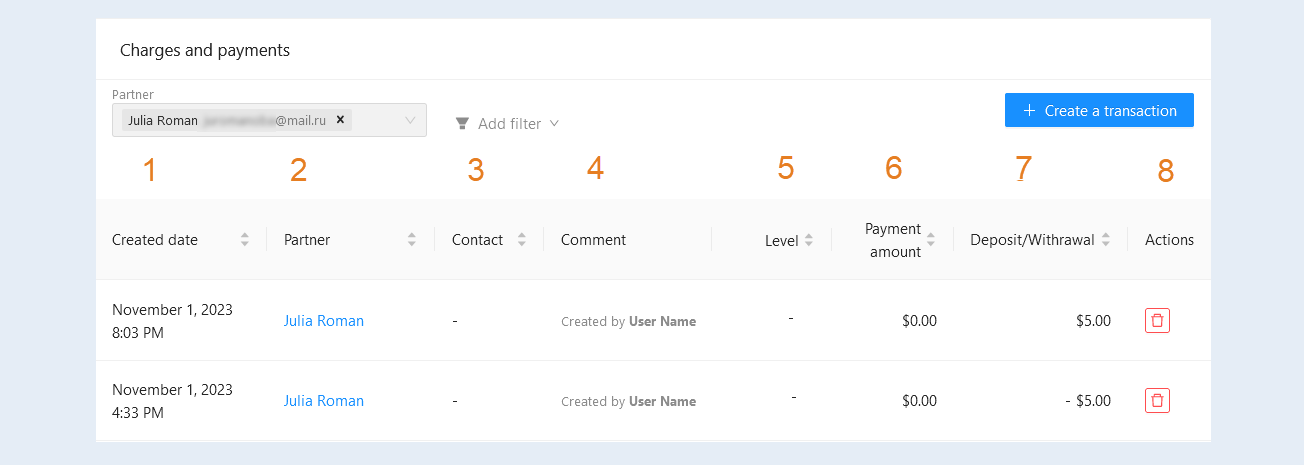
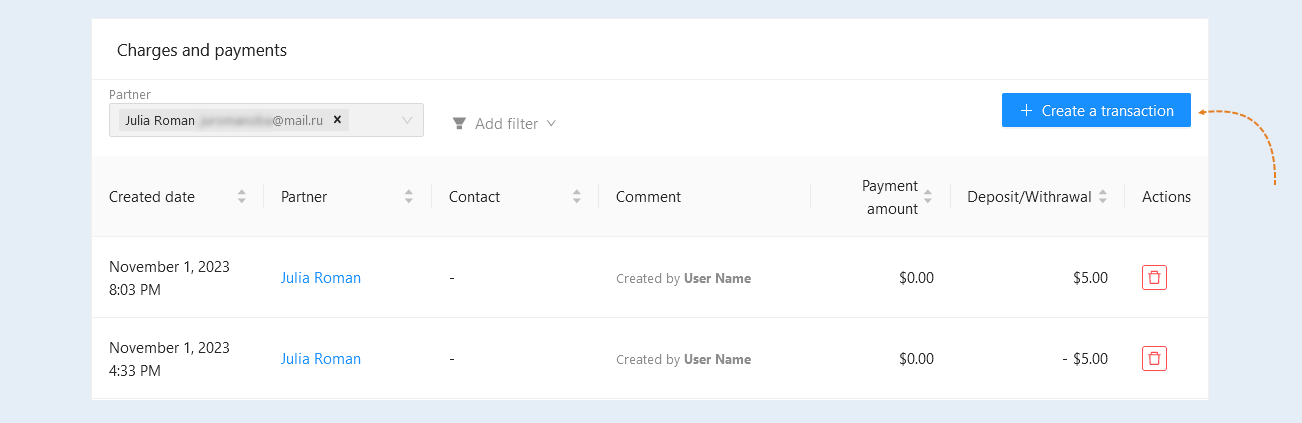
Accruals and payments. In this section you can see the entire history of accruals and payments to partners. You see the following information:
Created date. The exact date and time of the transaction creation is specified.
Partner. The partner's contact is specified. Click on the name to open the contact card.
Contact. The referral's contact is specified.
Comment. A comment on the transaction is shown and by whom the transaction was created.
Level. The user level in a multi-level system is shown. You can add or change the number of levels in the Settings tab of the affiliate program.
Payment amount. The amount paid by the referral when purchasing the product via the affiliate link is indicated.
Deposit/Withrawal. The amount of the commission charged to the partner is indicated. The write-off is shown with a minus sign.
Actions. Buttons are available to you here:
The “Delete" button. Click to delete the transaction.
You can also create new transactions. To do this, click the "Create Transaction" button.
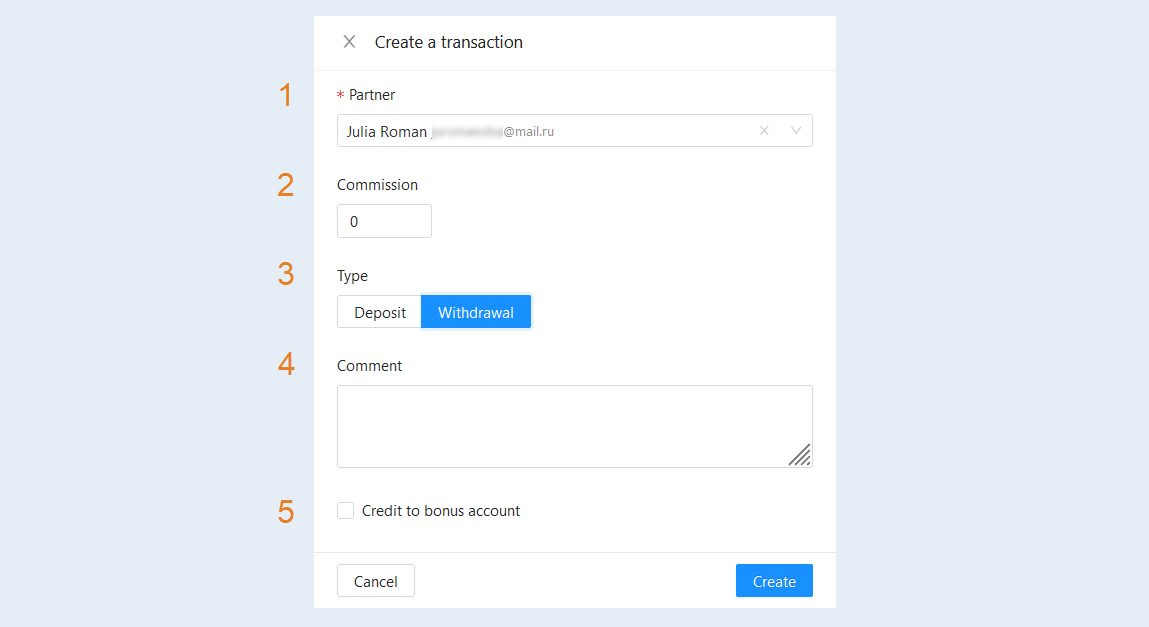
In the window that opens, fill in the fields:
- Partner. This field is filled in automatically and corresponds to the partner from whose card you are creating a transaction.
Commission. Specify the amount of the commission to the partner.
Type. Select the commission type: replenishment or debiting.
Replenishment is a transaction for crediting a commission.
A write-off is a transaction to write off a commission.Comment. Add a comment to the transaction.
Credit to bonus account. When choosing the "Debit" transaction type, you can withdraw the commission or add it to the user's bonus account. Check the box to add to the bonus account.
For more information about the bonus balance, read the article "Bonus balance".
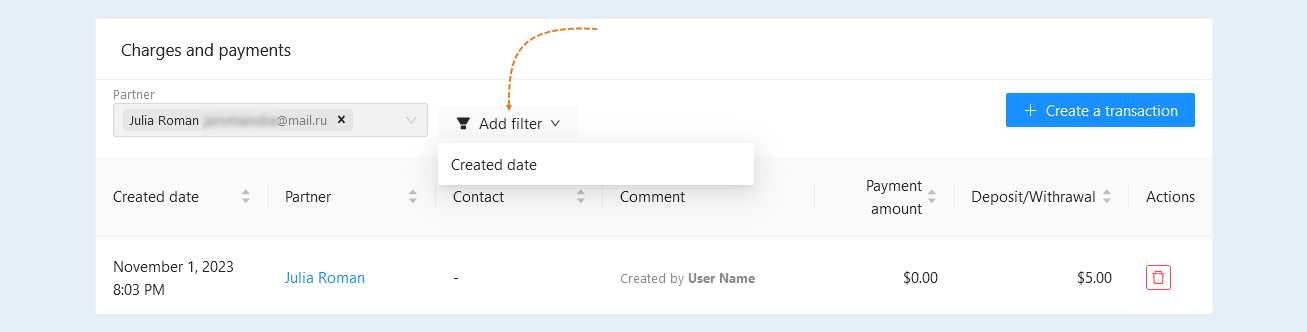
A filter is available to you at the top of the section. Click the "Add Filter" button and select a filter condition from the list:
Created date. You can filter accruals and payments by dates or for a selected time period.