In this article, we will take a detailed look at the general settings of the site pages. Select a section to jump to its description:
Creating a Website Page
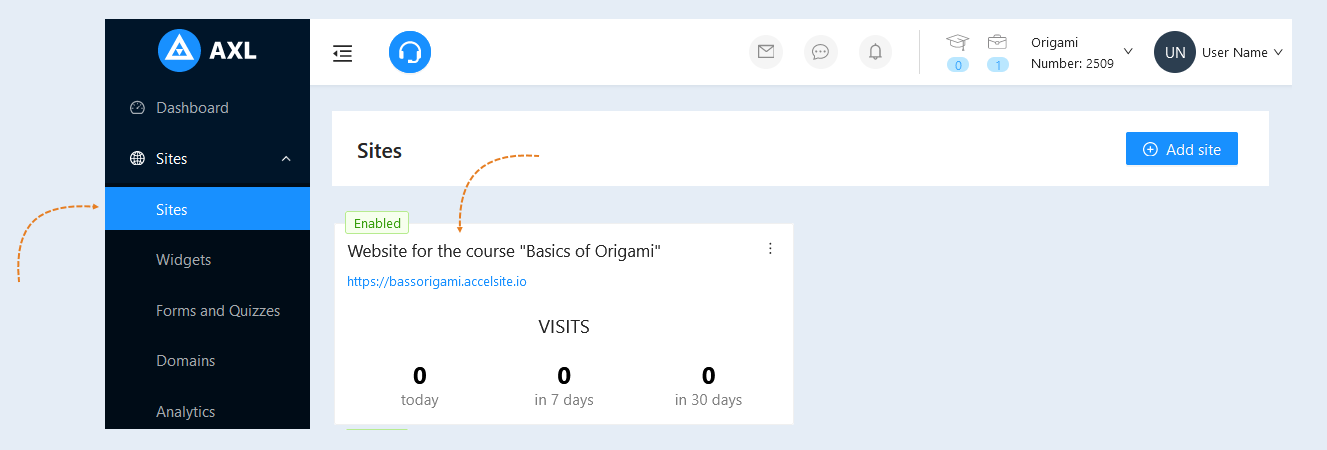
Go to the "websites" tab, open a previously created website or create a new one. For more information on how to add a website, read the article "How to Create a Website".
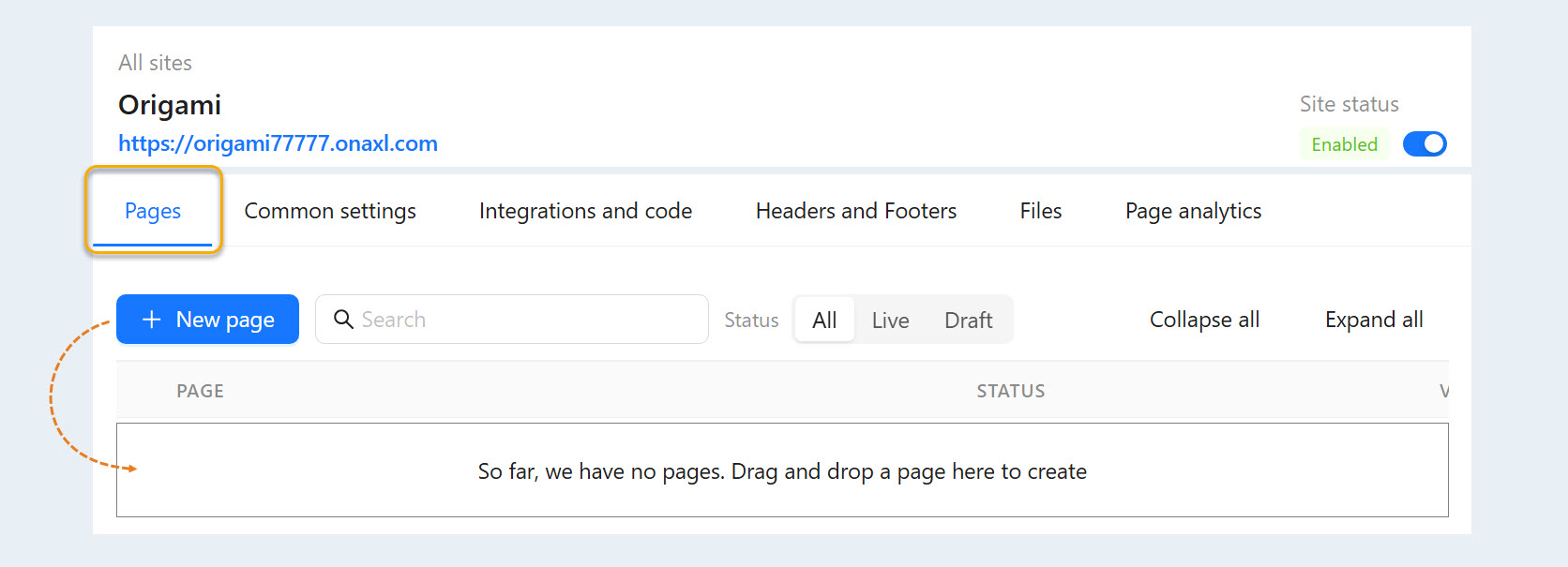
In the Pages section, you can add one or more pages to your website. To add a new page, click "New Page".
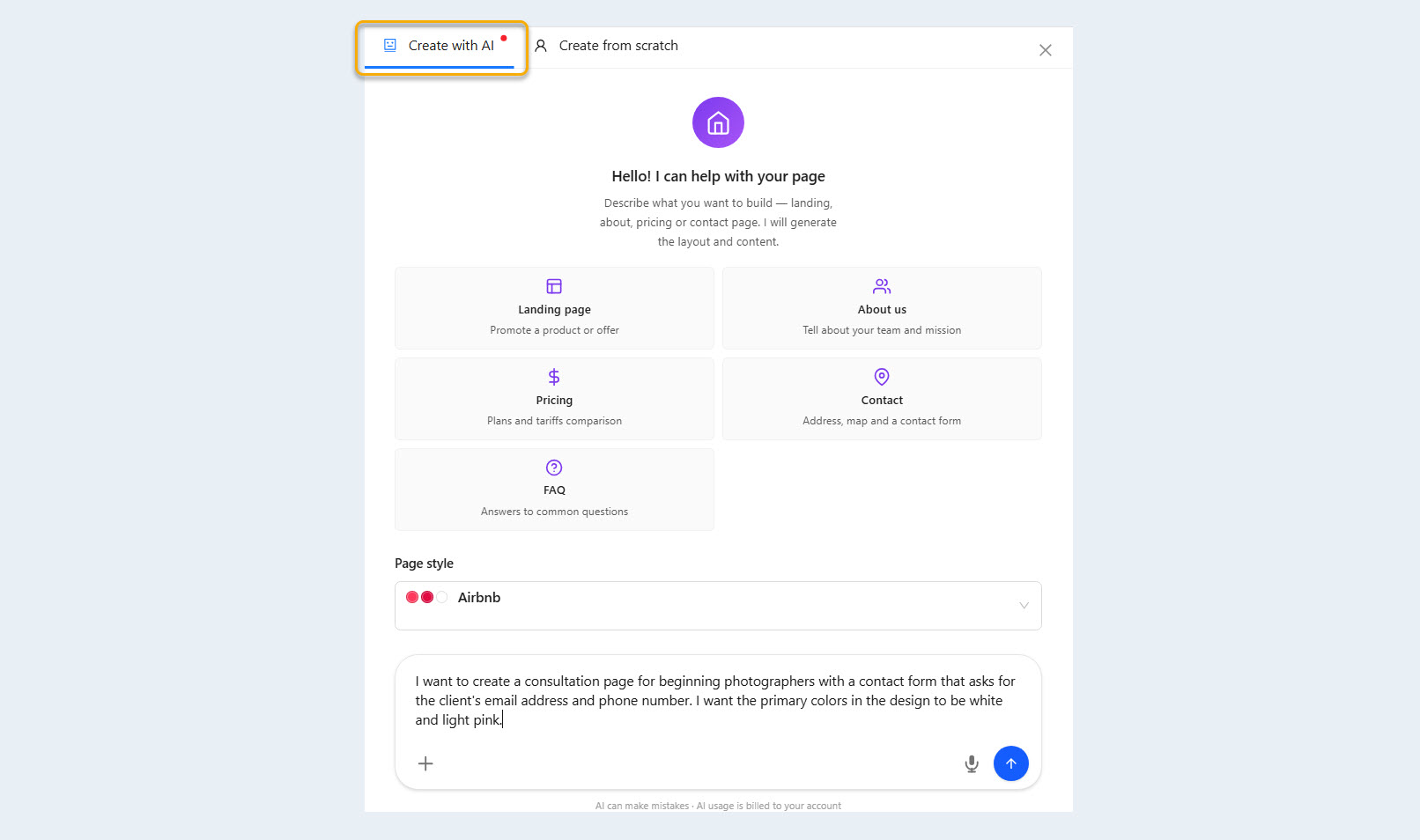
Next, choose how you want to create the website page: from scratch or with the help of the AI assistant.
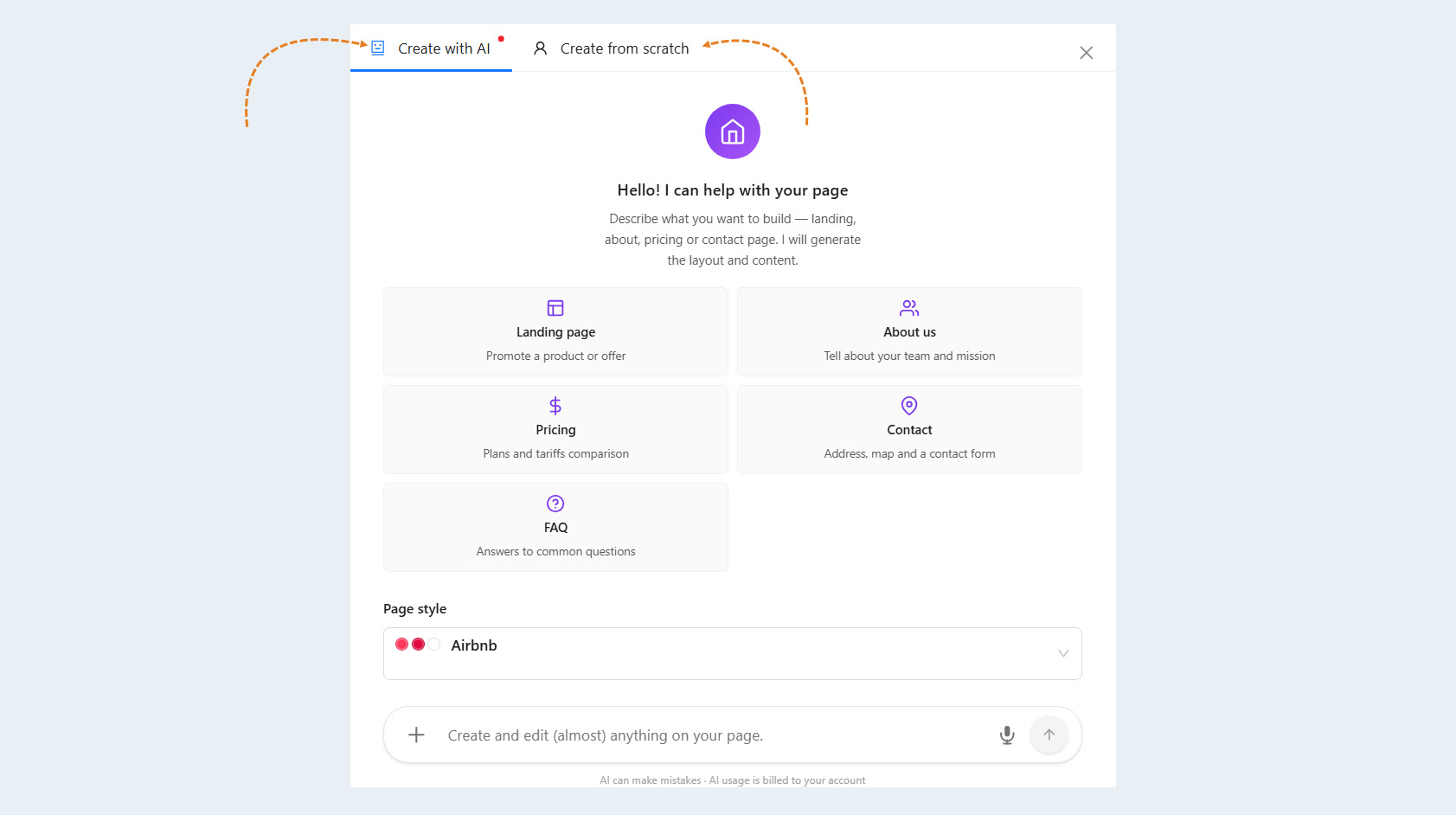
If you select Create with AI, a window will open where you can choose a prompt template for the AI assistant or enter your own instructions. Each AI request is billed separately, and the cost is calculated individually. Select a template or enter your instructions, then click Send. The AI assistant will create a website page based on the instructions you provided.
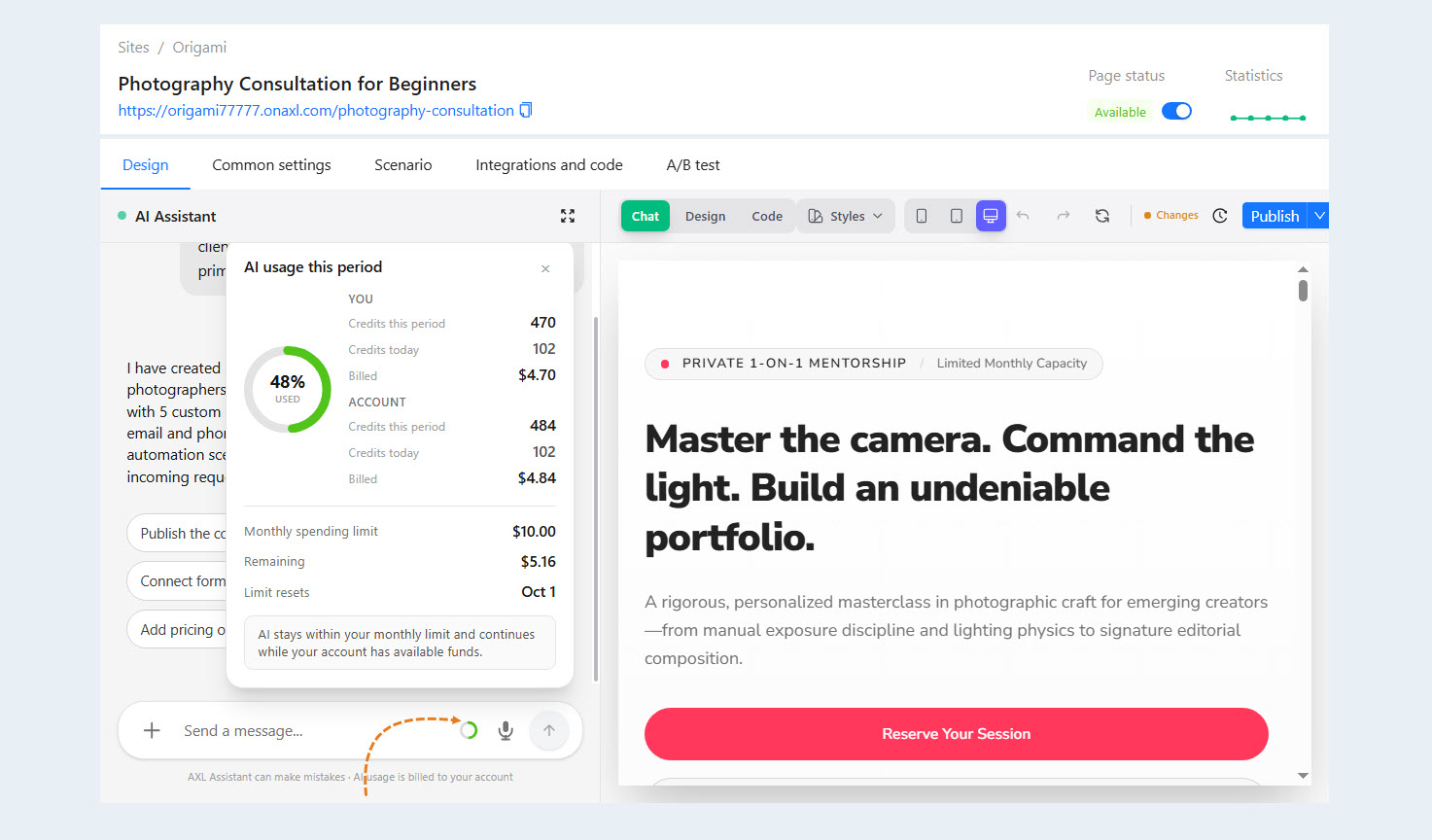
To see how much you have spent on the AI assistant, click the circle to the left of the voice message button.
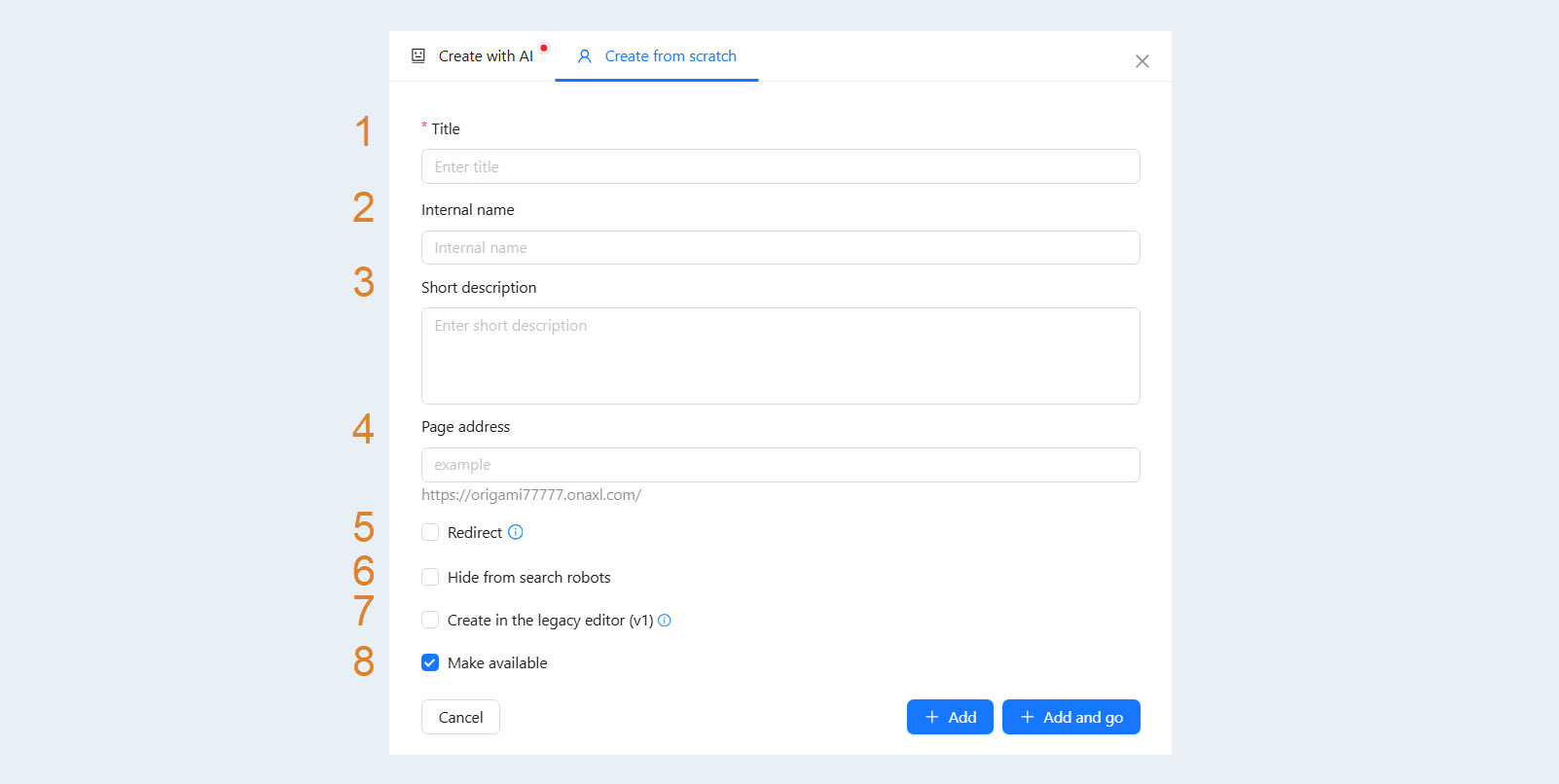
If you select Create from Scratch, complete the following fields:
Title. Specify the page title.
Internal name. Add an internal title that will only be visible to you and not shown to users.
Short description. Visitors of the website will see this description. This field is optional.
Page address. Enter the page address in the field. The full address of the page will be shown below.
Redirect. If you want to enable redirection to another website, check the box and enter the website address where the visitor will be redirected in the field that opens.
Hide from search robots. This feature is used if you do not want search engines to find your site. This option allows you to control whether search engines can index pages. When this option is enabled, search robots (for example, Googlebot) are instructed not to index certain pages or the entire site. This can be useful to protect confidential information (such as the stages of website development or testing) or to keep up-to-date content that temporarily should not be searchable.
Create in the Old Editor (v1). The page will open in the old block editor instead of the AI editor. You can switch it to the AI editor later from the Design tab.
Make available. Check the box to enable website accessibility for visitors.
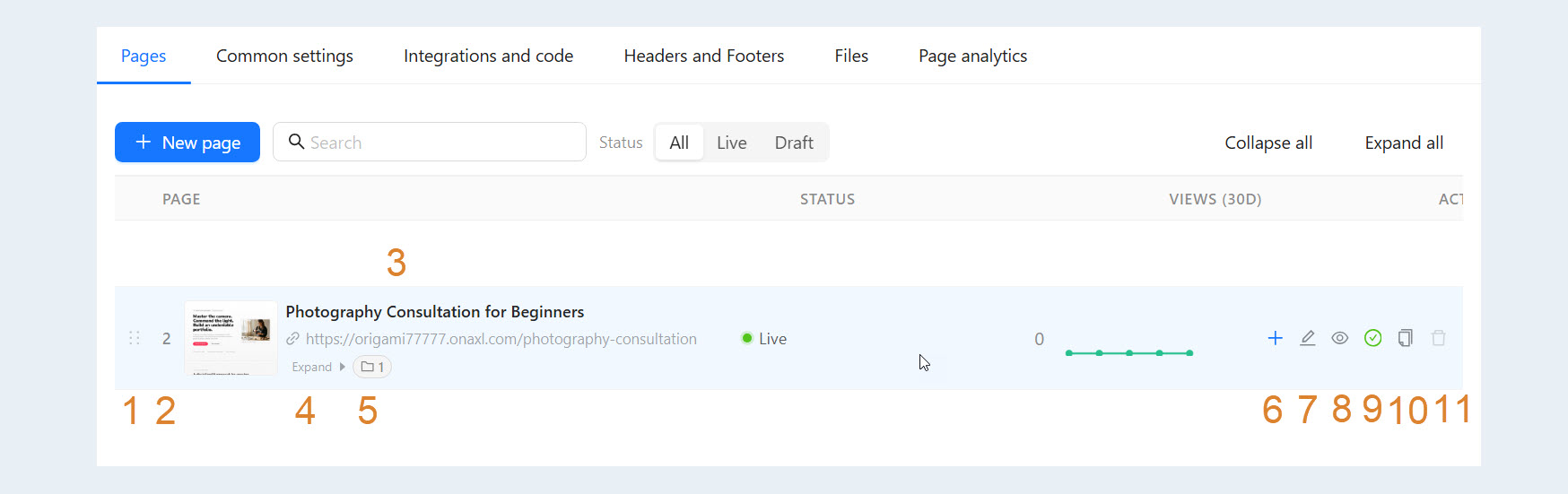
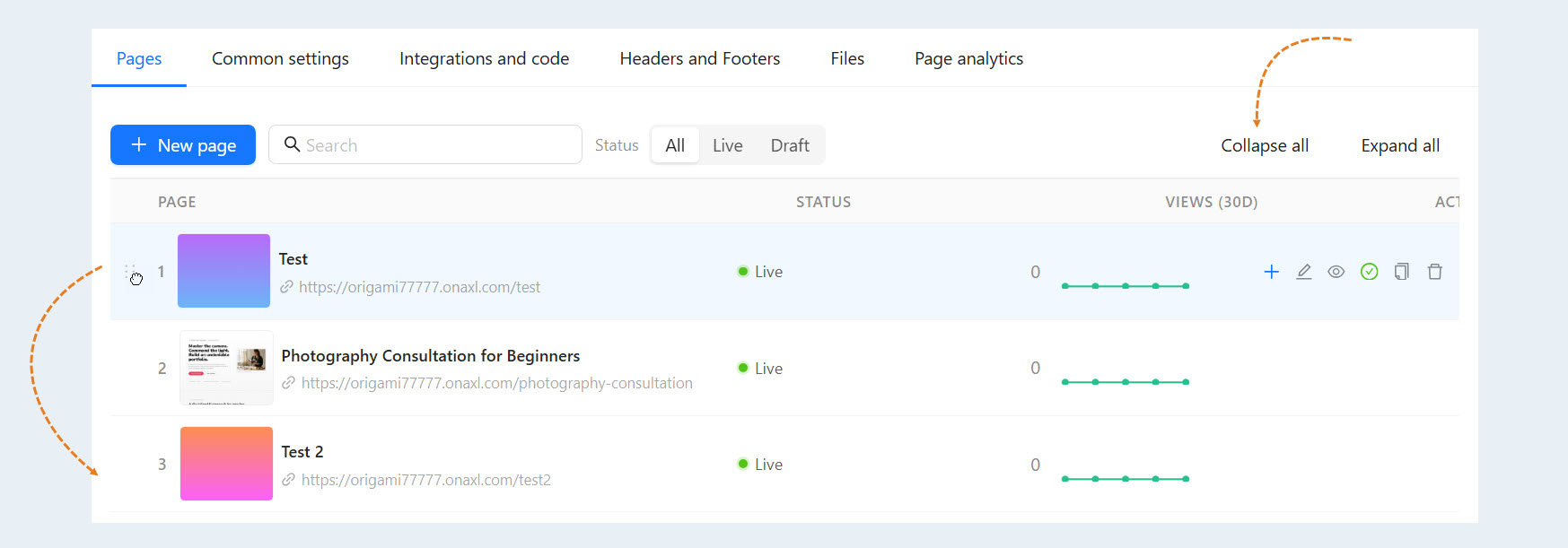
Click the "Add" button. The created page will appear in the list. Here you can see the following information:
Move. Use this control to reposition the page.
- Number. The page's ordinal number.
Page name and its web address.
"Hide/expand" button. Click to collapse or expand the sublist of subpages in the section. This field will be shown if you are creating a hierarchy of website pages.
Number of subpages in the section. This field will be shown if you create a hierarchy of website pages.
Add Child Page. Click to add a subpage.
"Edit" button. Click to open the website page for editing or adding content.
Preview. Click to preview the website page.
"Make unavailable" button. After clicking this button, the page will become inaccessible to visitors.
"Copy" button. Click to copy the page.
"Delete" button. Click to delete the page.
You can rearrange the pages by dragging and dropping them. Hover over the page row, hold the left mouse button, and move the page relative to others, up or down. You can also make a page a "subpage" of another.
In the top right corner, there is a "Collapse all" button. Click to hide all subpages in the list and only show the main pages.
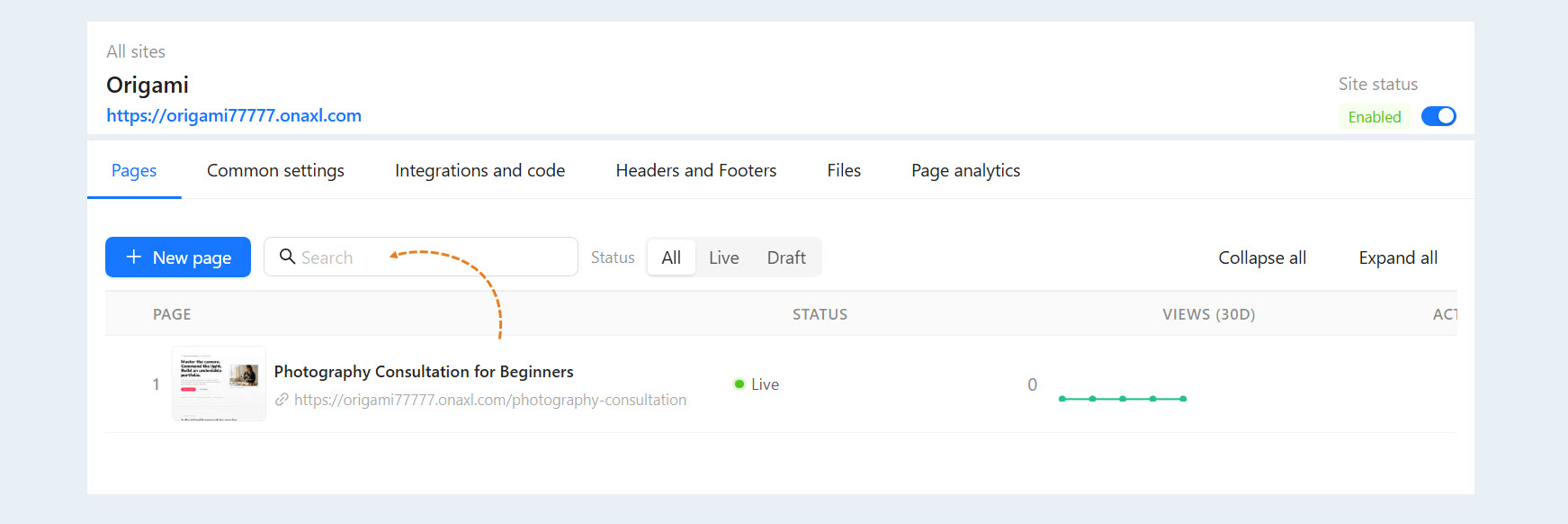
A search bar is available at the top of the section. Use it to quickly find the page you need.
Page Settings
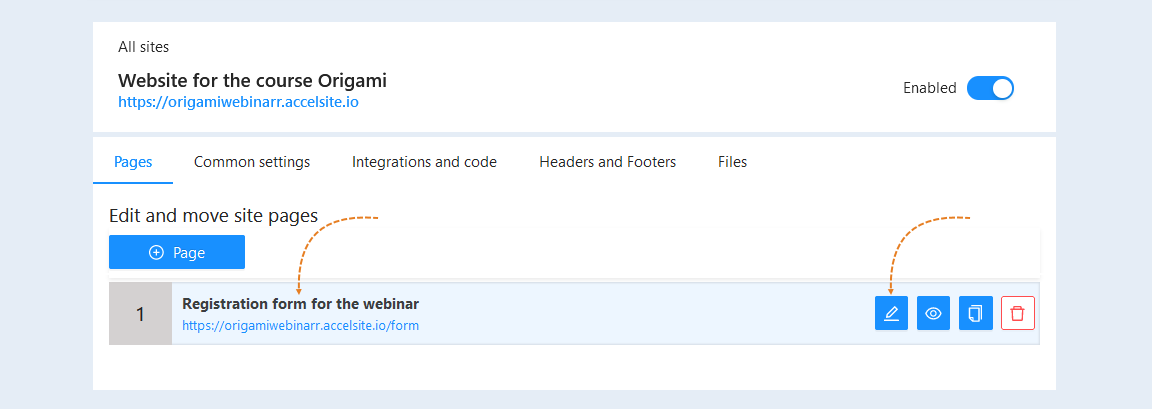
After creating a website page, you need to configure it and add content. Click on the page title or the "Edit" button to open it.
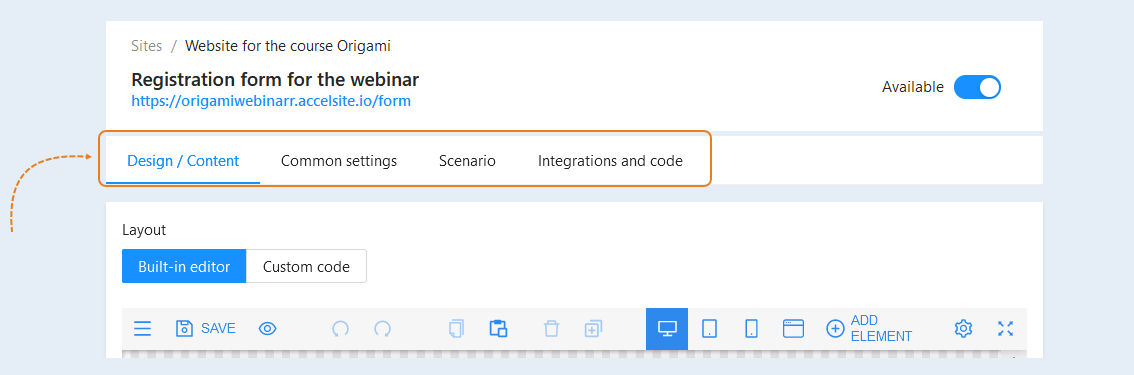
At the top of the page, you will see the following tabs:
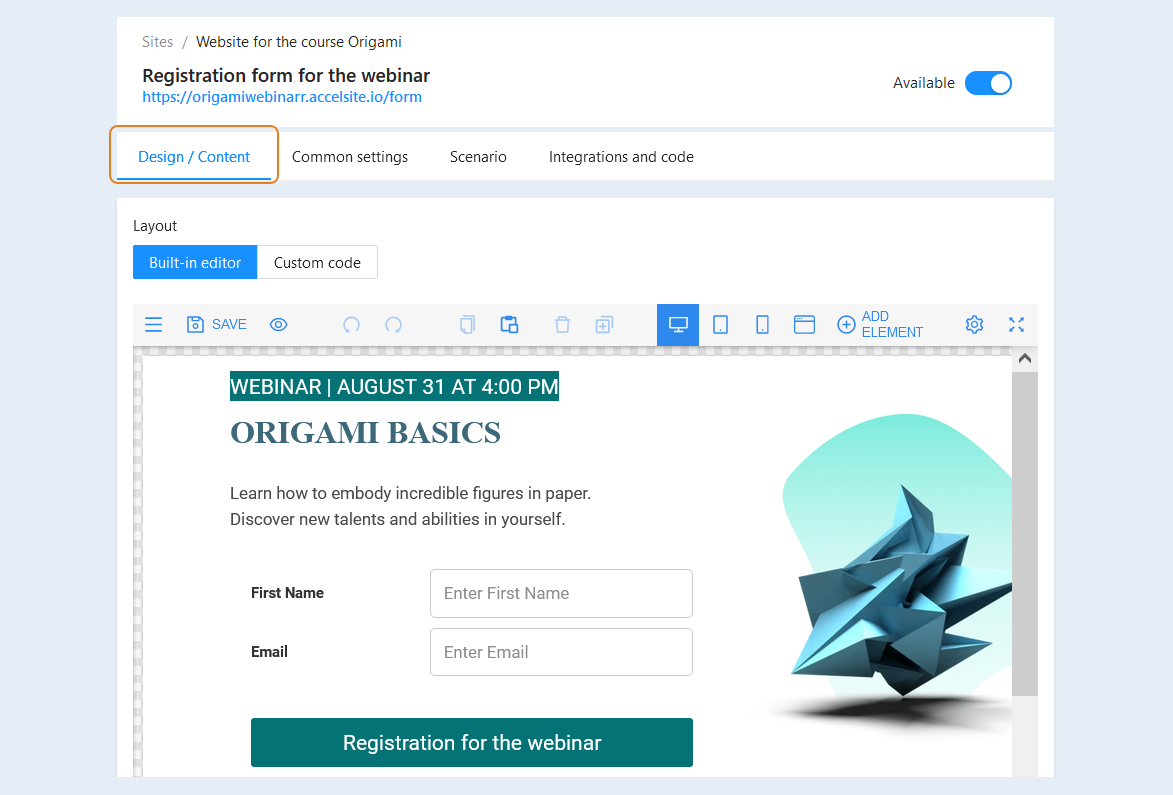
- Design/Content. This tab is responsible for the appearance of the page and its content content. Here you can edit design elements and add text, images, videos, and other multimedia elements.
Common settings. This tab contains the main parameters of the page, such as the name, page address, language, as well as other general settings that affect the functioning of the page.
Scenario. This tab allows you to create a scenario for a website page. The scenario defines the sequence of events and actions between you and your potential client, the visitor to the site page.
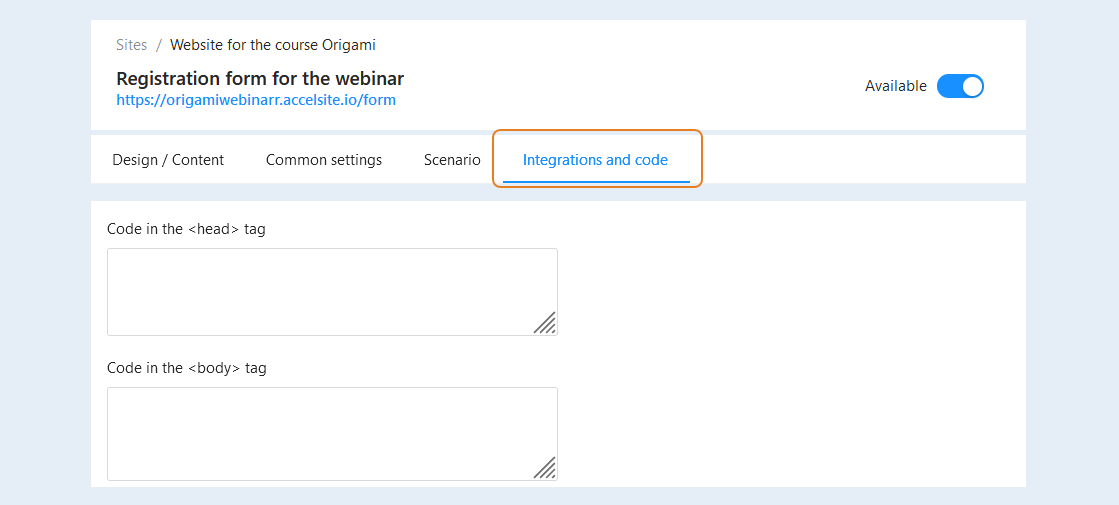
Integration and code. This tab includes settings for embedding third-party code.
Each tab is described in detail below.
Design/Content
In this tab, you can fill the page with content and create a unique design.
Page design includes the visual layout of the entire page: color scheme, element placement, fonts, images, illustrations, and other graphic elements. The goal of design is to create an attractive, user-friendly, and aesthetically pleasing interface that will enhance the convenience and satisfaction of users when visiting the site.
Page content is the informational content presented on the page. It can include text, images, videos, audio, graphics, and other types of media elements. The content should be informative, understandable, and correspond to the goals and objectives of the website. It should also be unique and high-quality in order to engage and satisfy the needs of the target audience of the site.
Both aspects - design and content - are important for creating an appealing website page that will be effective in achieving its goals and attracting users. For more details on how to do this, read the article "Page Editor Overview".
Common settings
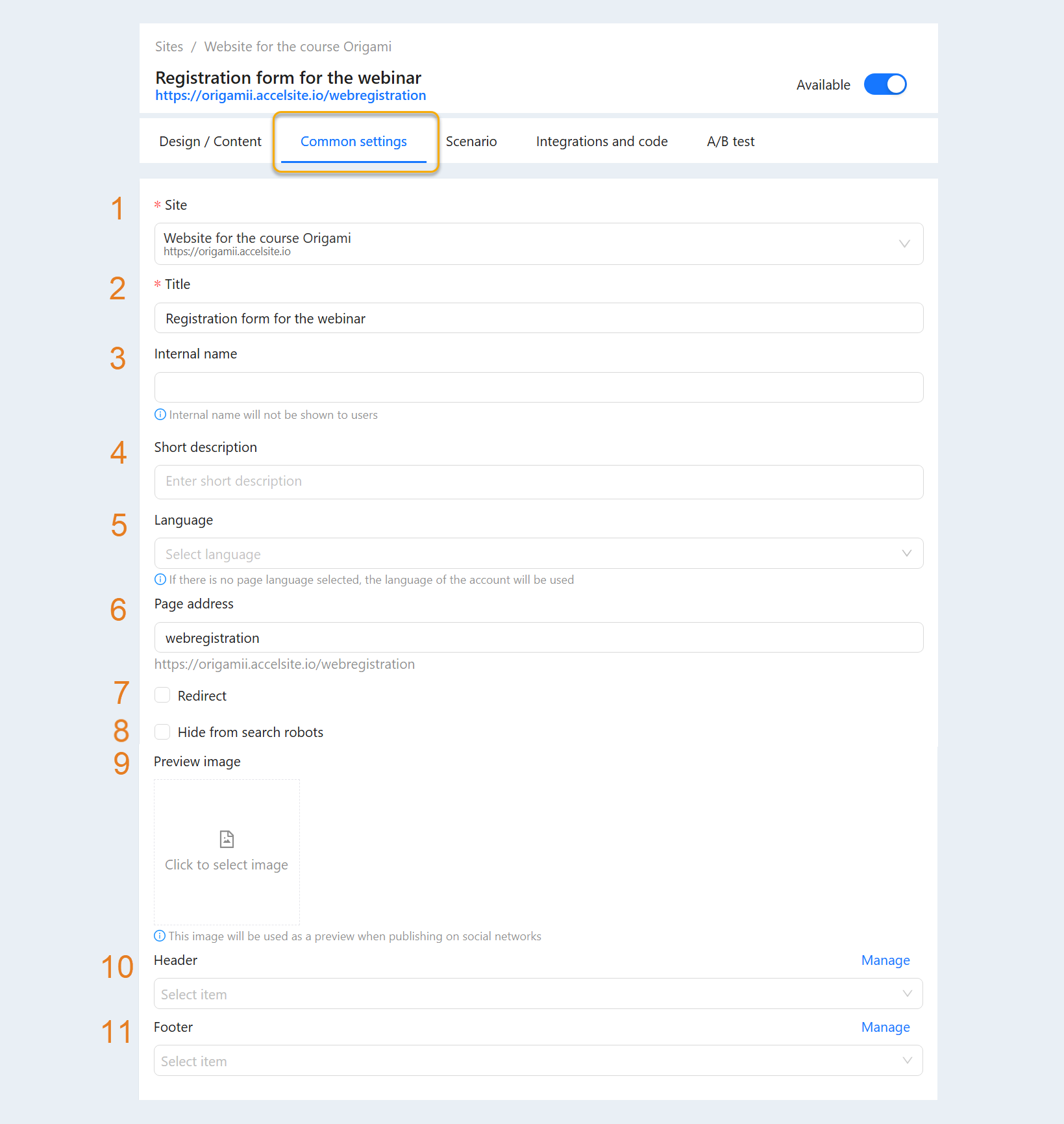
In the "General Settings" tab, you can make changes to the page settings:
- Site. You can move the page to another site by selecting it from the provided list.
Title. The page title is displayed here. You can change the title.
Internal name. The internal title will only be visible to you and will not be shown to users.
Short description. You can add a brief description. This field is optional.
Language. Select the language in which the page content will be displayed. If no language is selected for the page, the account's default language will be used.
Page address. The page address is displayed here. You can change it.
Redirect. If you need to enable redirection to another site, check the box and enter the website address where the visitor will be redirected.
Hide from search robots. This feature is used if you do not want search engines to find your site.
Preview image. Click on the icon to upload an image from your device. This image will be used as a preview when published on social networks.
Header. The header is a block at the top of the website page that is visible on all pages of the site. In this block, you can place a logo, site menu, contacts, language switcher, shopping cart, and more. Select a header from the provided list. Click the "Manage" button to go to the "Headers and Footers" section of the site. For more information on how to create and customize a header, read the "Headers and Footers" article.
Footer. The footer is a block at the bottom of the page that is visible on all pages of the site. In this block, you can place contacts, details, links to other pages, and duplicate the site menu. Click the "Manage" button to go to the "Headers and Footers" section of the site. For more information on how to create and customize a footer, read the "Headers and Footers" article.
Scenario
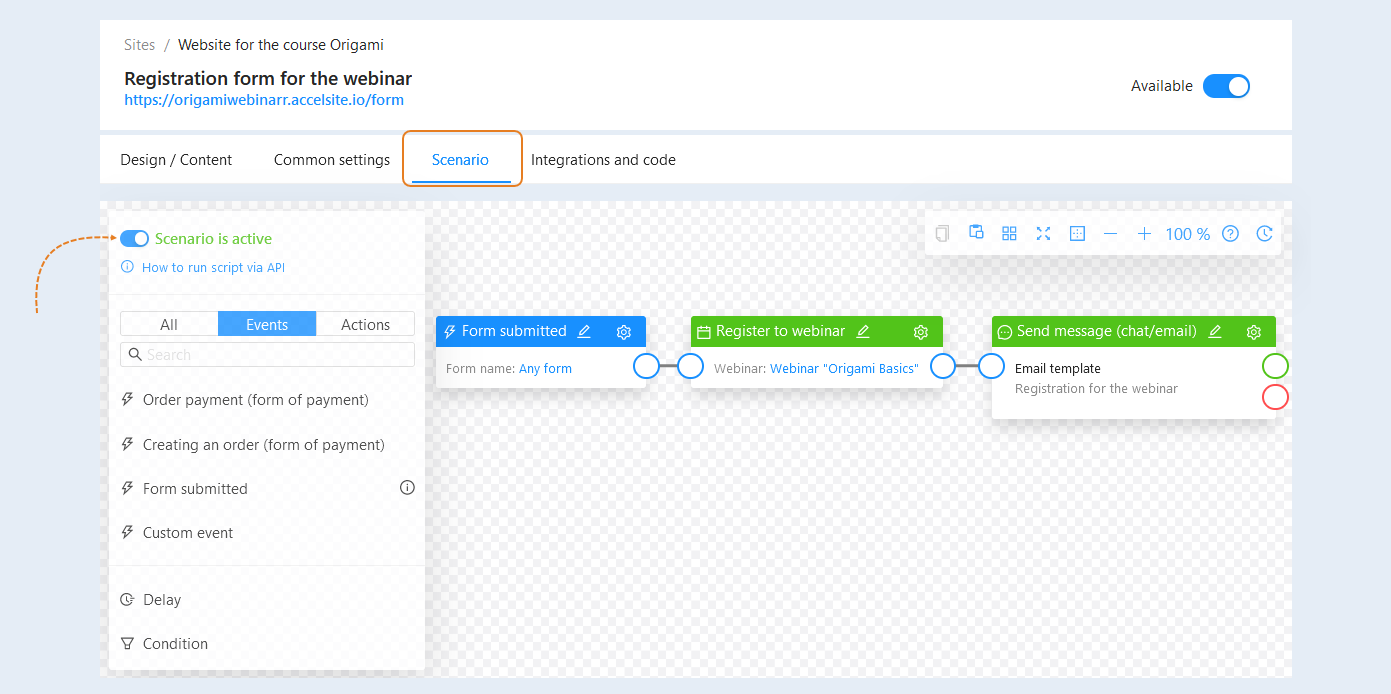
In this tab, you can create a scenario for a website page.
The site scenario is a sequence of events and actions on the websites of your account on the AXL platform. The scenario reacts to the user's manipulations on the site and performs retaliatory actions. In fact, this is a sequence of interaction between the seller (that is, you) and site visitors, through automated processes (for example, sending e-mail).
For more information on how to do this, read the article "Site Scenario".
Integrations and code
Code is a special element that allows you to embed non-standard elements into a page. This option is for programmers or web design specialists. You can embed special code in the or tag.