AXL Live Stream lets you broadcast a webinar right from the webinar room: your camera, microphone and screen go to viewers with less than a second of delay, and the recording is saved to Videos. You don't need YouTube or another streaming service. You can also send the picture from OBS, vMix or a hardware encoder.
Prepare the Broadcast
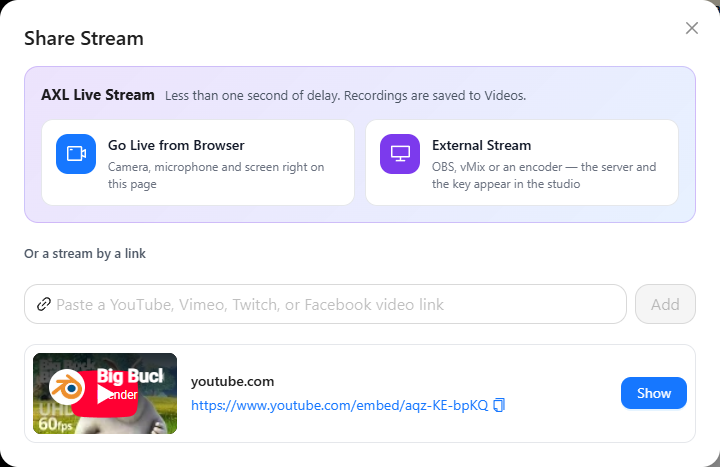
Enter the webinar room as Host (see "Hosting a Webinar"). Click Share Stream on the stage. Under AXL Live Stream, choose how you will broadcast:
- Go Live from Browser: your camera, microphone and screen, right on this page.
- External Stream: OBS, vMix or an encoder. The server and the stream key appear in the studio.
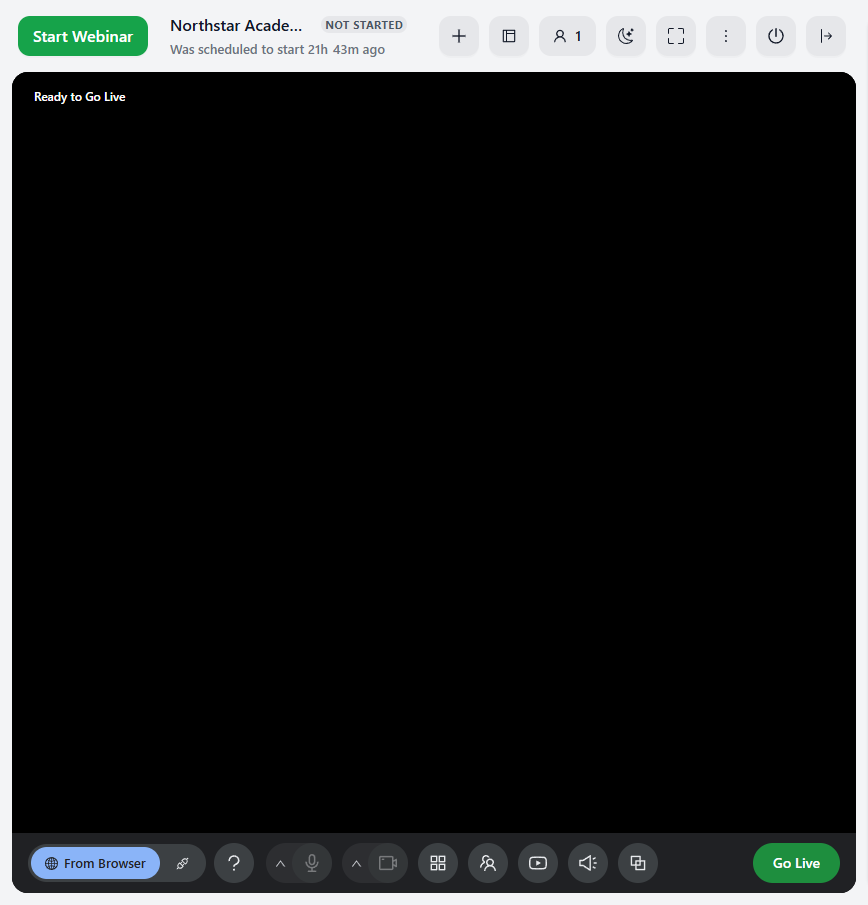
The studio opens on the stage and starts preparing the broadcast. It takes about a minute; when the stage shows Ready to Go Live, you can start.
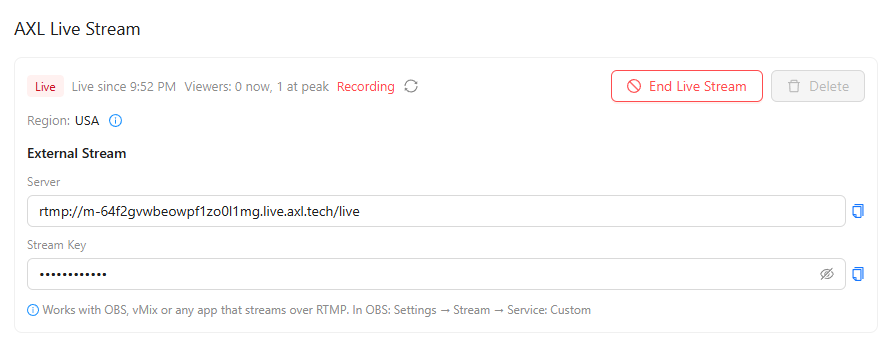
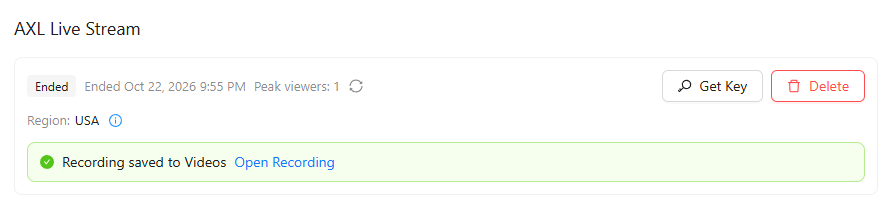
The live stream also appears in the webinar settings, in Content & Slides → AXL Live Stream. There you see its state, the viewers, the recording and the region, and you can end the broadcast. The stream key becomes available automatically an hour before the webinar starts; to get it earlier, click Get Key.
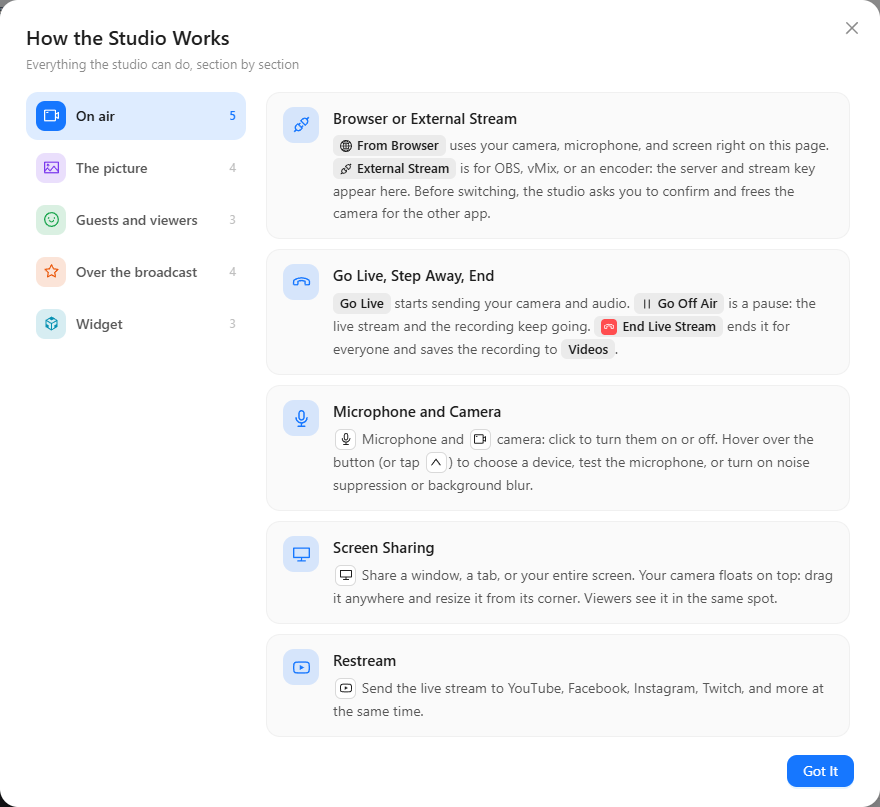
The ? button in the studio opens How the Studio Works, a short guide to every studio control.
Camera and Microphone
When you choose Go Live from Browser, your browser asks for access to the camera and microphone. Click Allow. The round buttons at the bottom of the studio turn the microphone and the camera on and off; a red button means the device is off.
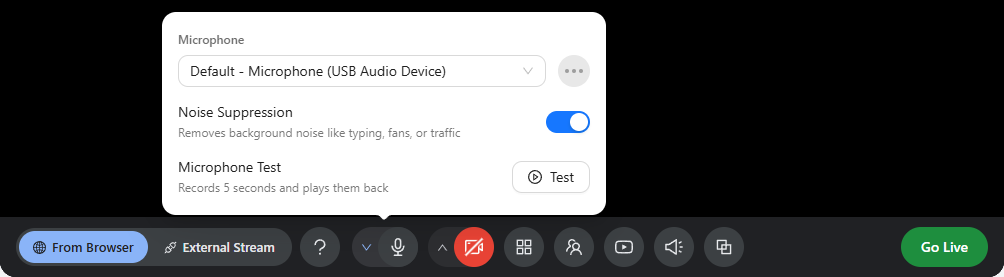
Click the arrow next to the microphone button for its settings: choose the microphone, turn Noise Suppression on or off, and click Test under Microphone Test. The test records 5 seconds and plays them back, so you hear yourself as viewers will.
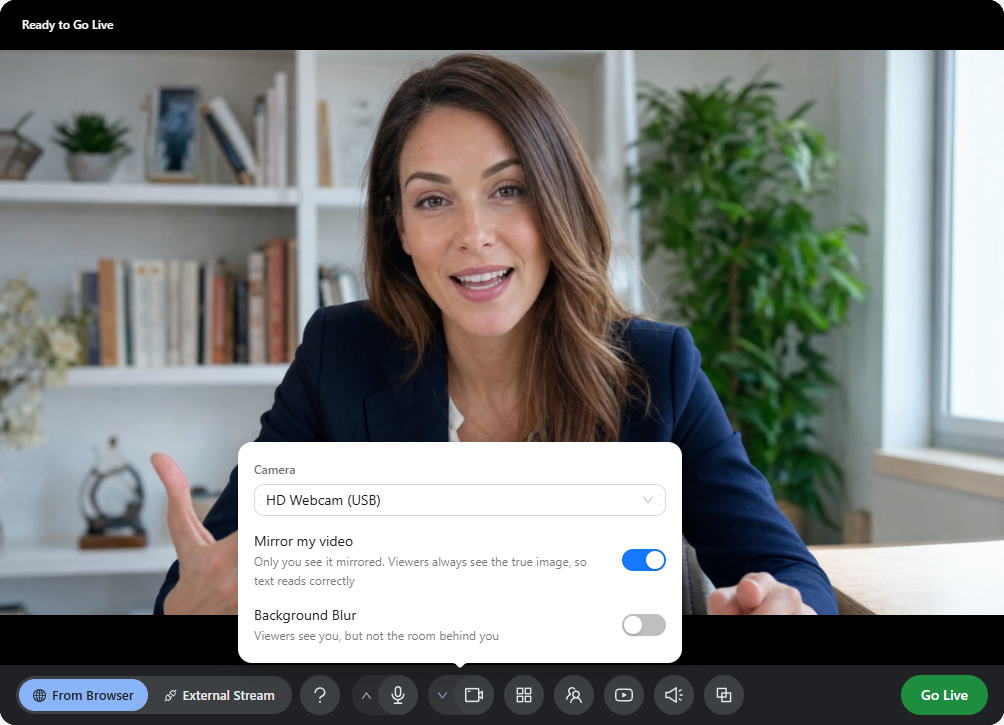
The arrow next to the camera button opens the camera settings: choose the camera, turn Mirror my video on or off (only you see the mirrored picture; viewers see the true image, so text reads correctly) and turn on Background Blur to hide the room behind you.
Go Live, Go Off Air and End the Broadcast
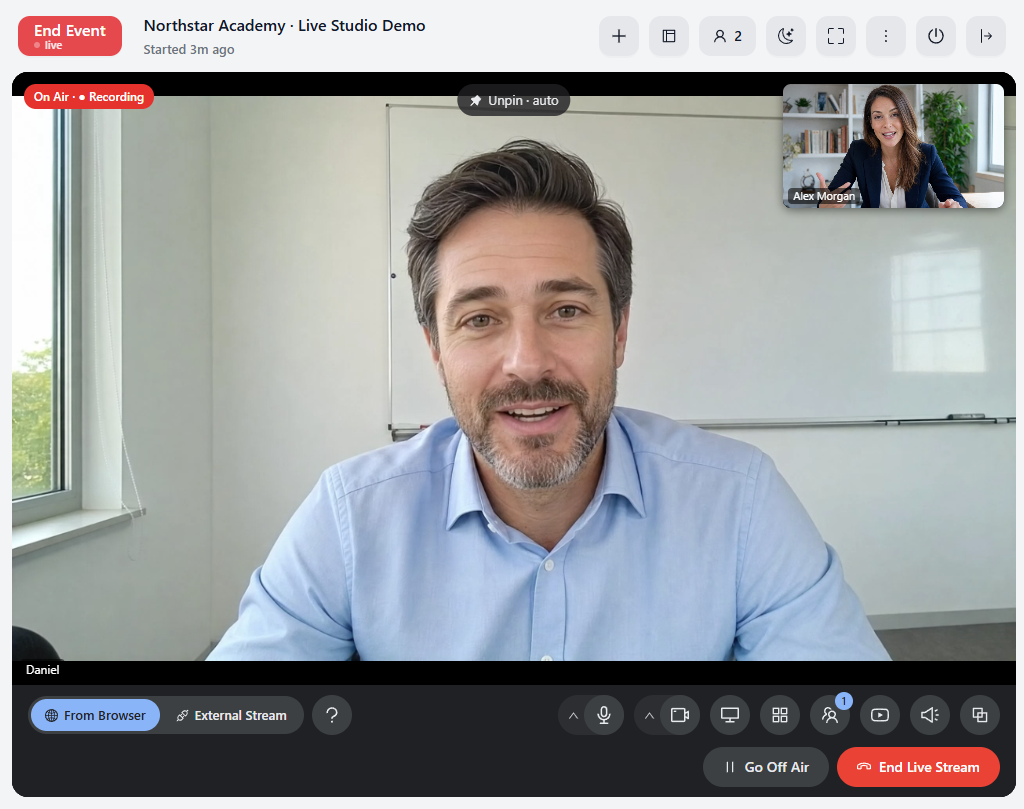
Click Go Live. Your camera and sound start going to viewers, and the stage shows On Air. Once you are on air, the recording starts too.
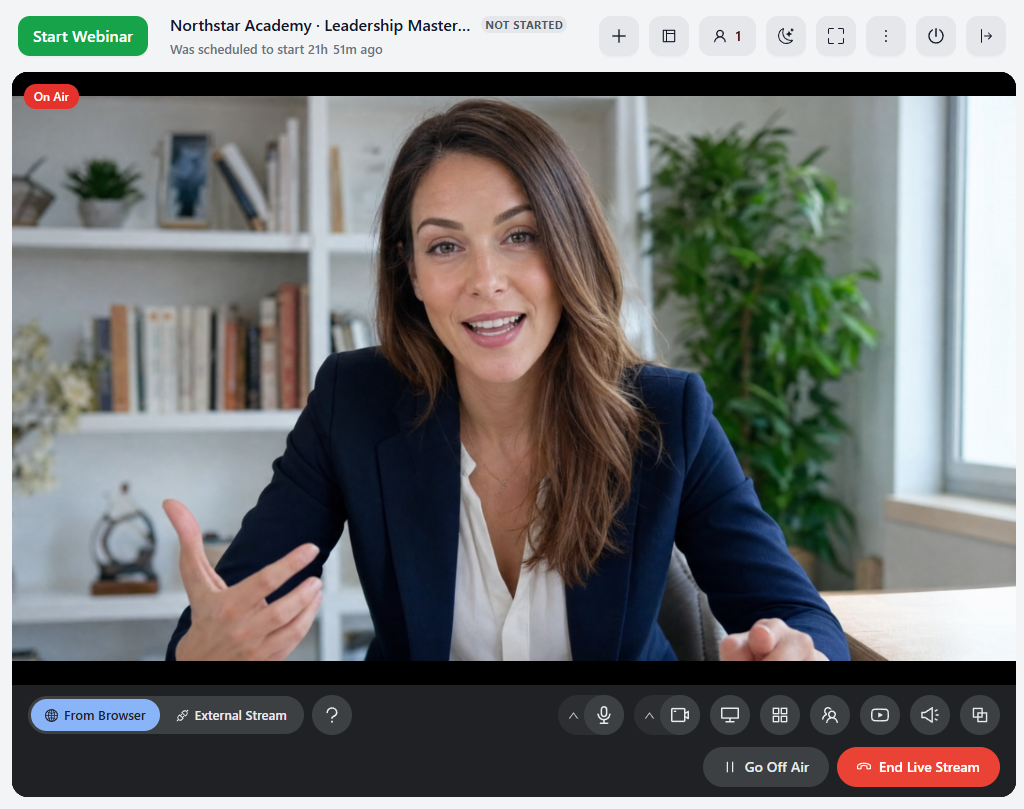
- Go Off Air is a pause: your camera and microphone stop, but the live stream and the recording keep going. Use it for a break or to switch to an external stream. Go Live brings you back.
- End Live Stream ends the broadcast for everyone and saves the recording to Videos. The studio asks you to confirm first.
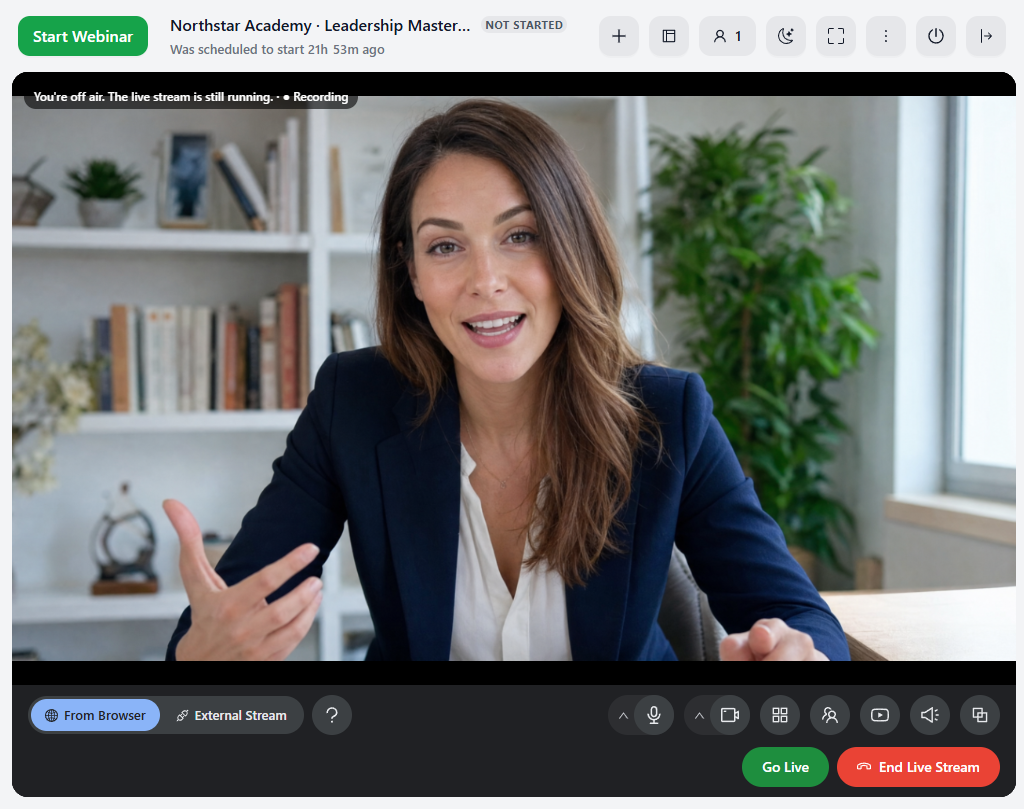
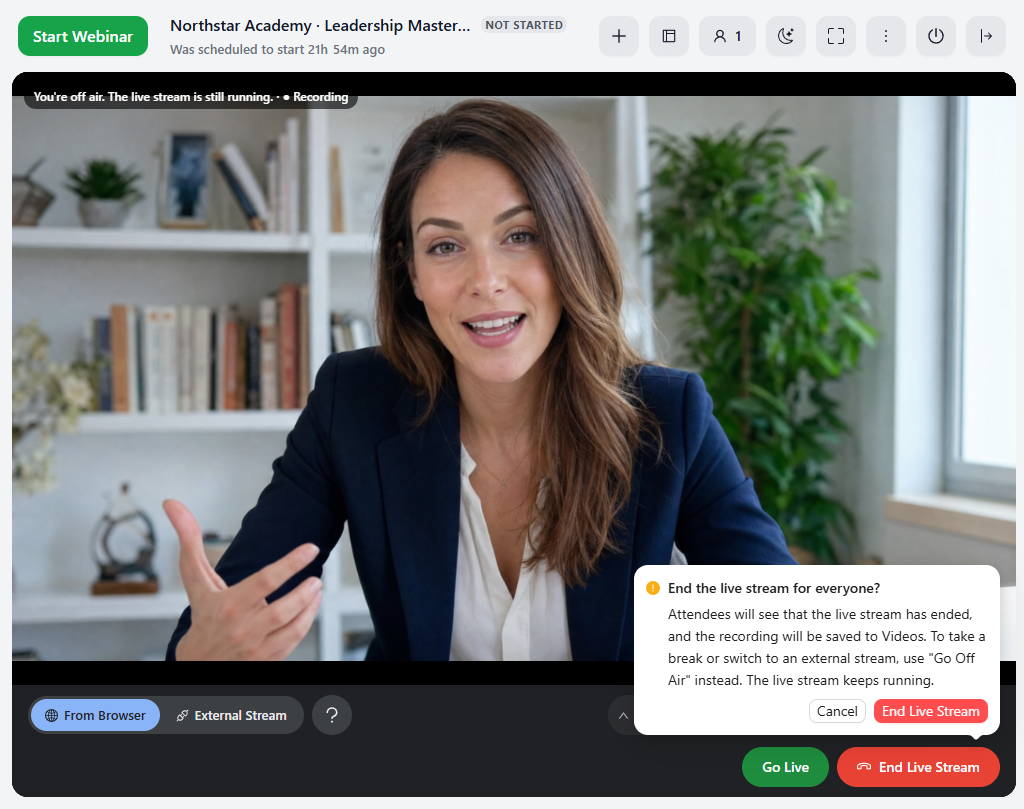
The broadcast and the webinar are separate. Start Webinar and End Event in the room header open and close the webinar for attendees: the chat, the stage and the attendee list. Go Live and End Live Stream only control the picture and sound you send, so you can go live and check everything while the webinar is still Not Started.
Share Your Screen
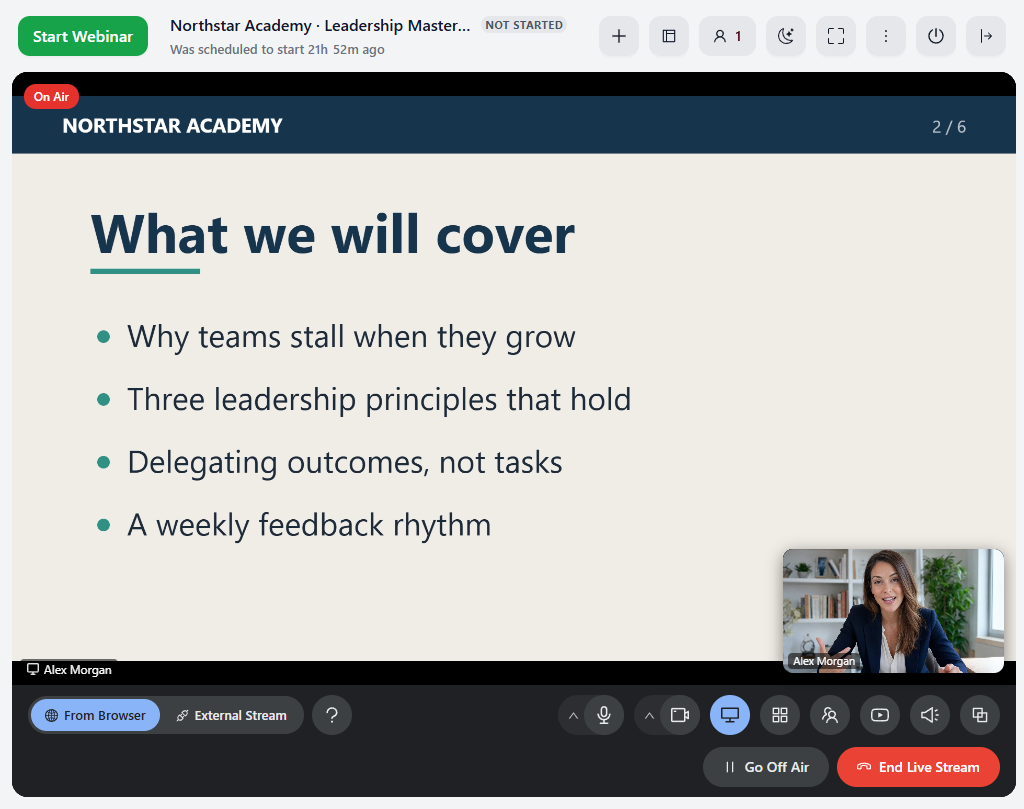
Click the screen button in the studio and choose a browser tab, a window or your entire screen. The screen fills the stage, and your camera floats over it in the corner; drag it anywhere and resize it from its corner. Viewers see it in the same spot. To return to the camera, click the same button again (Stop Sharing).
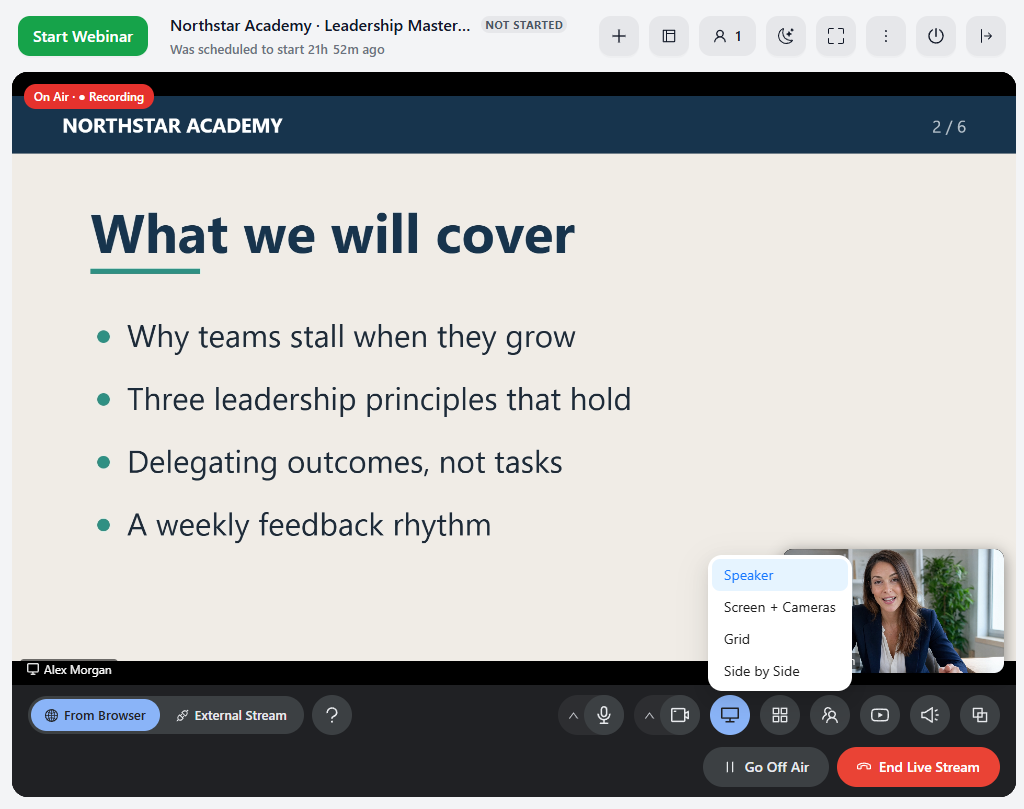
The What viewers see button picks how the broadcast picture is laid out: Speaker, Screen + Cameras, Grid or Side by Side. To keep one camera large for everyone, see "Focus on a Speaker" below.
Guests on Stage
You can bring an attendee on stage with their camera and microphone, for example a co-speaker or a student with a question. The webinar must be started and you must be live.
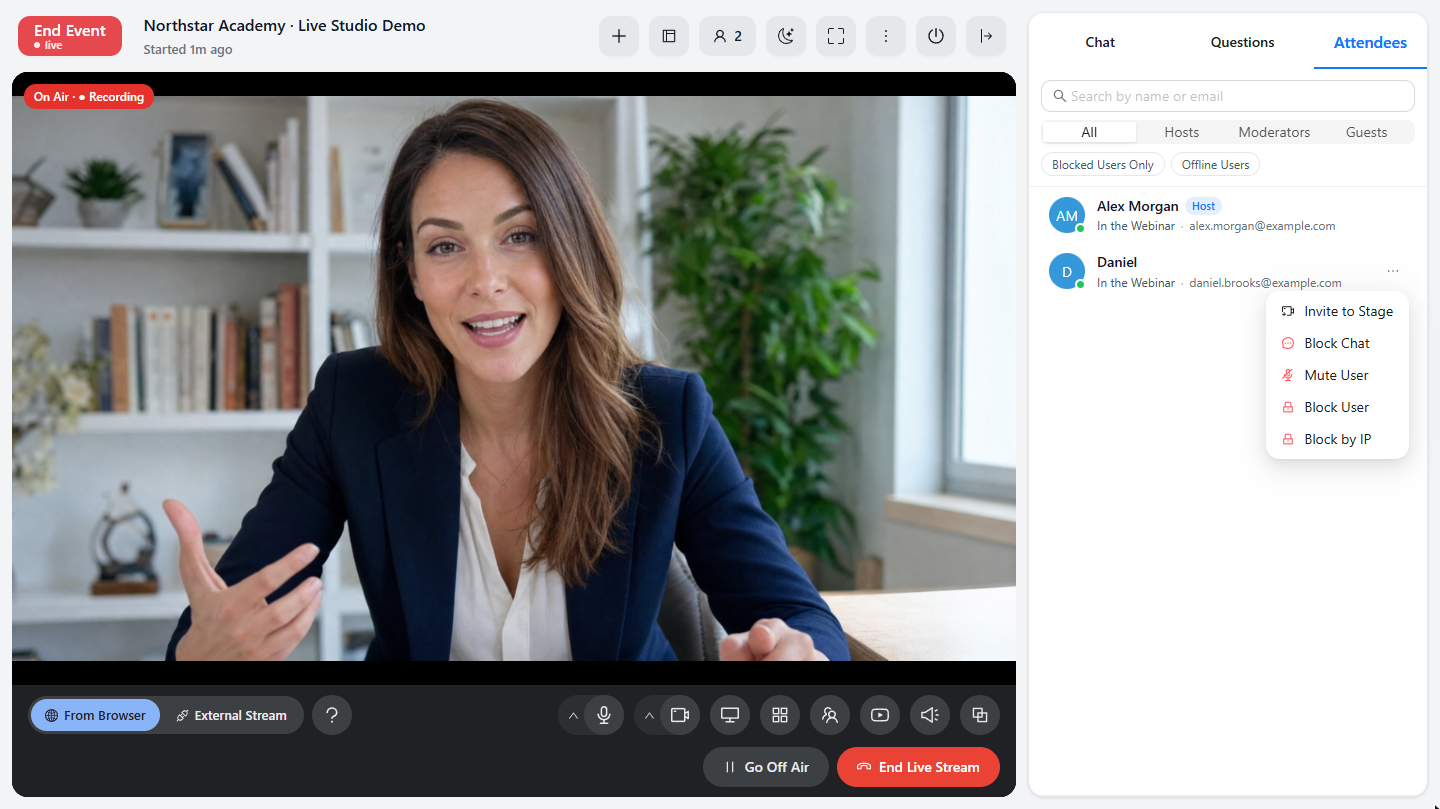
- Open the Attendees tab in the room, click the three dots next to the person and choose Invite to Stage.
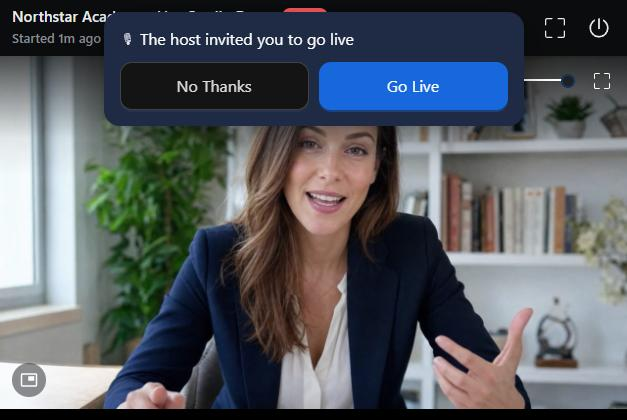
- The attendee sees The host invited you to go live and clicks Go Live (or No Thanks).
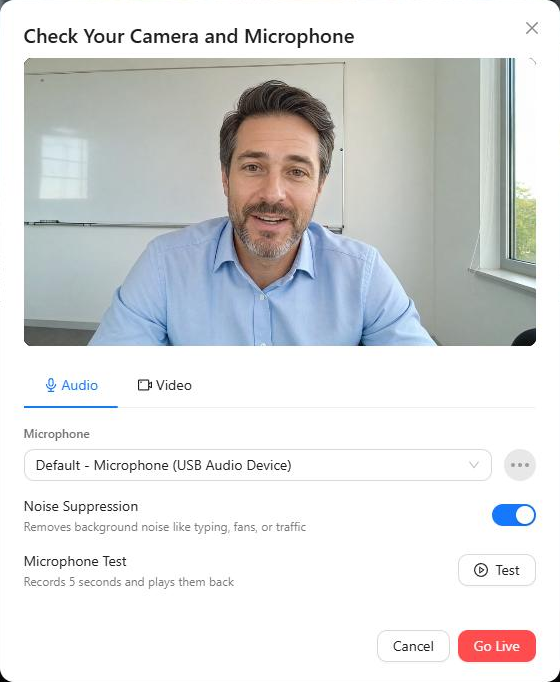
- The attendee checks their camera and microphone in Check Your Camera and Microphone: the picture, the Audio and Video tabs, the microphone test. Then they click Go Live and appear on stage.
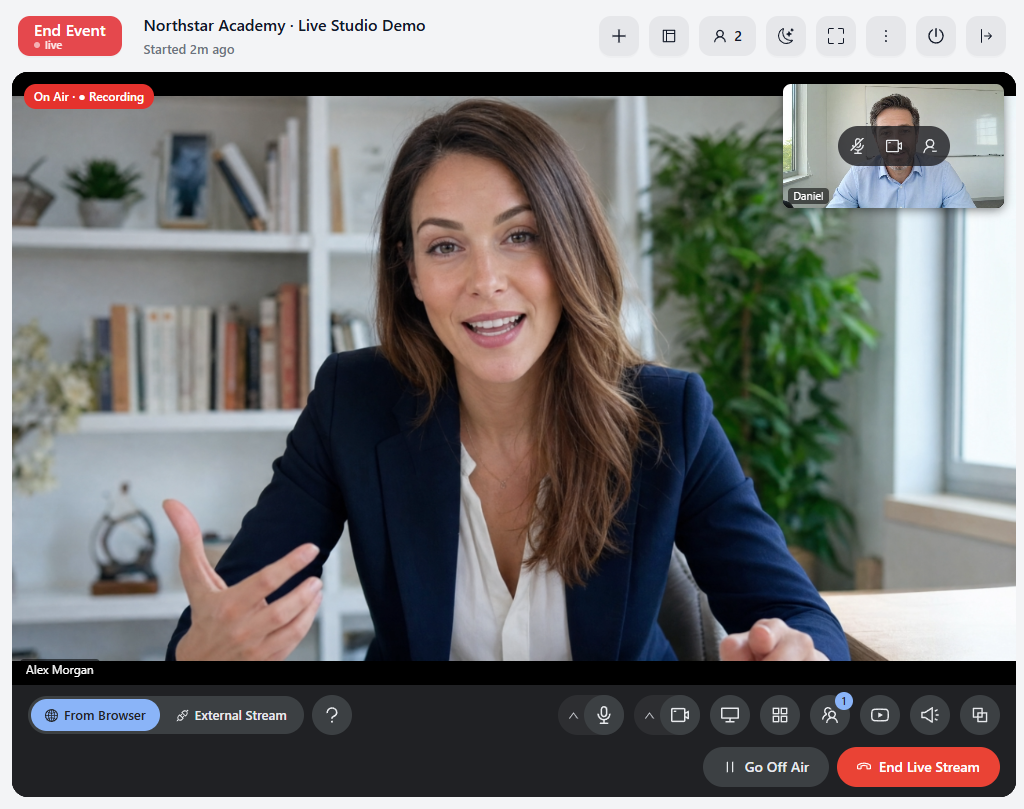
The Guests on Stage button in the studio shows how many guests are on stage. Hover over a guest's camera to turn off their microphone (Turn off their microphone), their camera (Turn off their camera), or take them off the stage (Remove).
Focus on a Speaker
When there are several cameras, the broadcast follows whoever is speaking. To keep one person in focus, choose Grid in What viewers see and click that person's camera: it fills the stage for everyone, and the other cameras move to the corner.
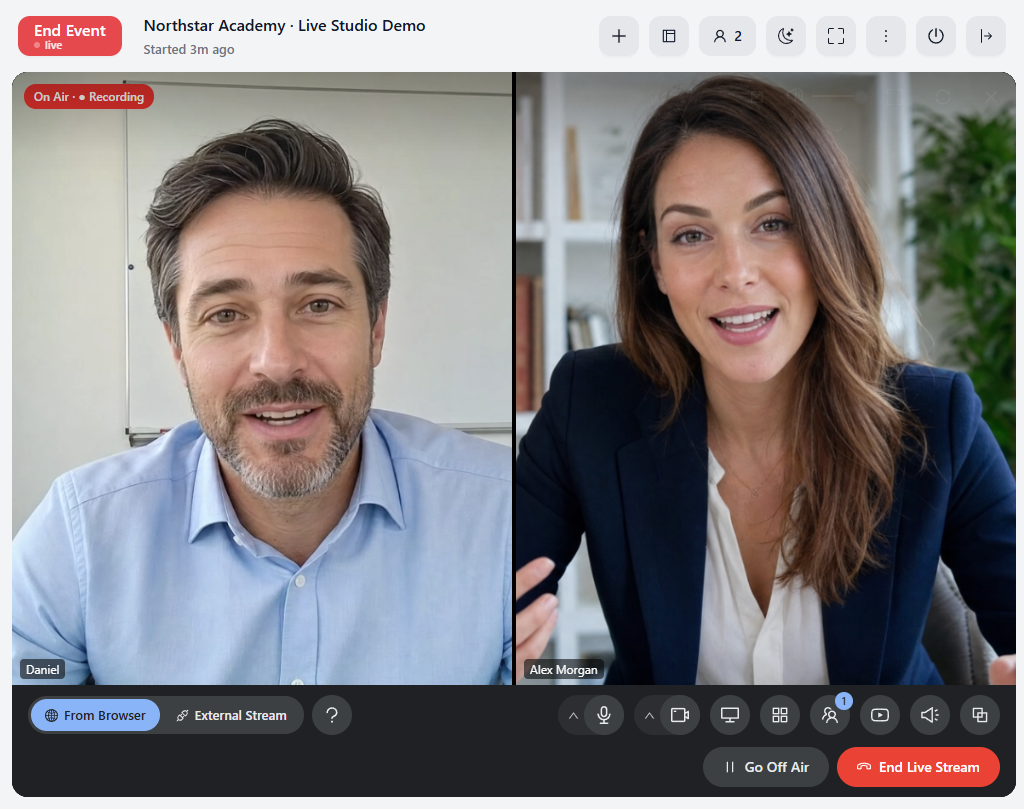
The Unpin · auto label at the top shows that the camera is pinned. Click it to unpin and let the broadcast follow the speaker again. Viewers can also enlarge any camera just for themselves; this does not change what others see.
Broadcast from OBS or vMix
Click External Stream in the studio bar. The studio confirms the switch and frees your camera for the other app. Copy the Server and the Stream Key. In OBS, go to Settings → Stream → Service: Custom, paste both, then click Start Streaming. When the picture arrives, the studio shows it; until then it waits for the stream signal. Keep the stream key private.
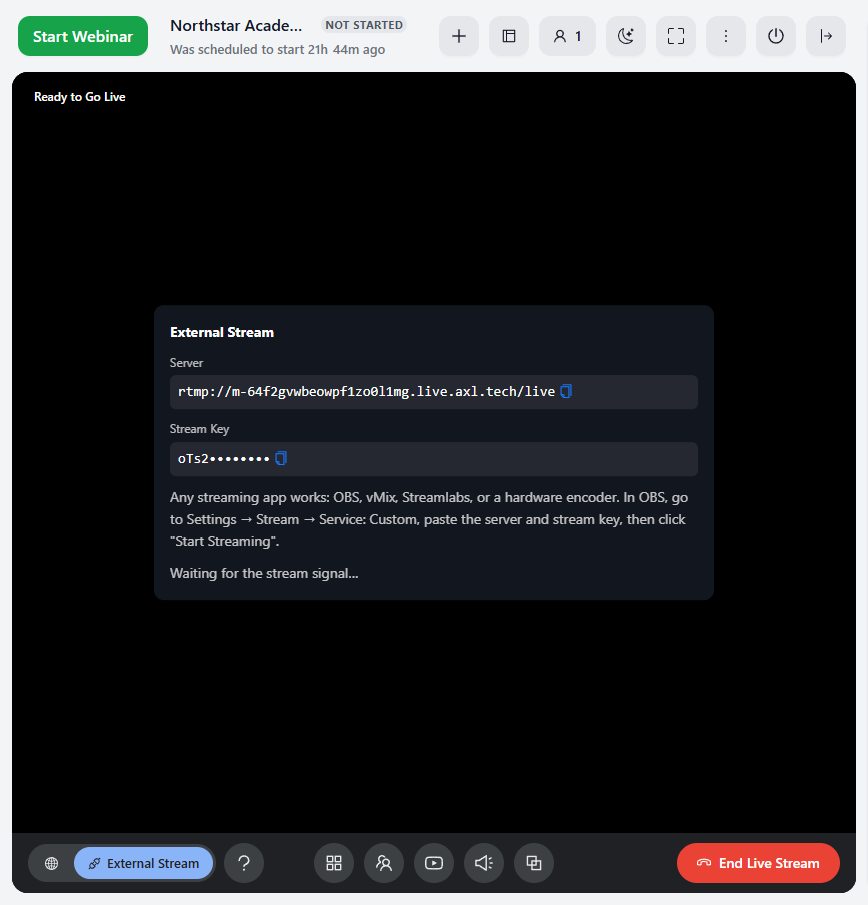
Only one app can use the camera at a time. If OBS holds the camera and you switch back to From Browser, the studio says the camera is busy: close OBS or stop its camera, then click Try again.
Restream and the Recording
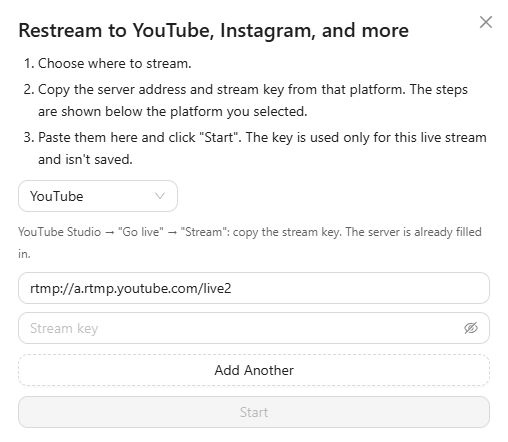
The Restream button sends the live stream to YouTube, Facebook, Instagram, Twitch and other platforms at the same time. Choose the platform, copy the server address and stream key from it (the steps are shown under the platform), paste them and click Start. Add Another adds one more platform. The key is used only for this live stream and isn't saved.
The recording starts when you first go live and is saved to Videos when you end the live stream. It may take a few minutes to process; the webinar settings show The recording is being processed and will appear in Videos until it is ready, then Recording saved to Videos with an Open Recording link.
The recording and the restream get the broadcast picture: cameras, the shared screen, On Screen elements (timer, QR code, name tags, text) and Sounds. Buttons under the broadcast, polls, widgets, reactions and the chat are seen only in the webinar room.
What Viewers See
- Viewers watch with less than a second of delay and with sound. If the browser blocks sound until the first click, a click anywhere on the page turns it on.
- Viewers can enlarge any camera just for themselves and keep watching in a floating window (picture in picture) while they do something else.
- On a phone, the picture is at most 720p to save data. If the connection is weak, the player switches to a steadier stream with a few seconds of delay by itself.
If the Camera or Microphone Doesn't Work
- No access to the camera or microphone: allow the camera and the microphone in your browser's site settings, then click Try again.
- The camera is busy or The microphone is busy: another program is using it, for example OBS, Zoom, Skype or another browser. Close it and click Try again.
- No camera found or No microphone found: connect the device or pick another one in the camera and microphone settings, then click Try again.
- Viewers can't hear you: run Microphone Test in the microphone settings and check that the microphone button isn't red.