In this article, we will consider in detail the sequence of actions for embedding a video. Click on the desired section of the article to go to its description:
Adding videos to the AXL platform
Go to the "Content" section, the "Video" tab. For the convenience of sorting and searching uploaded videos, create folders. Click the "Create Directory" button.
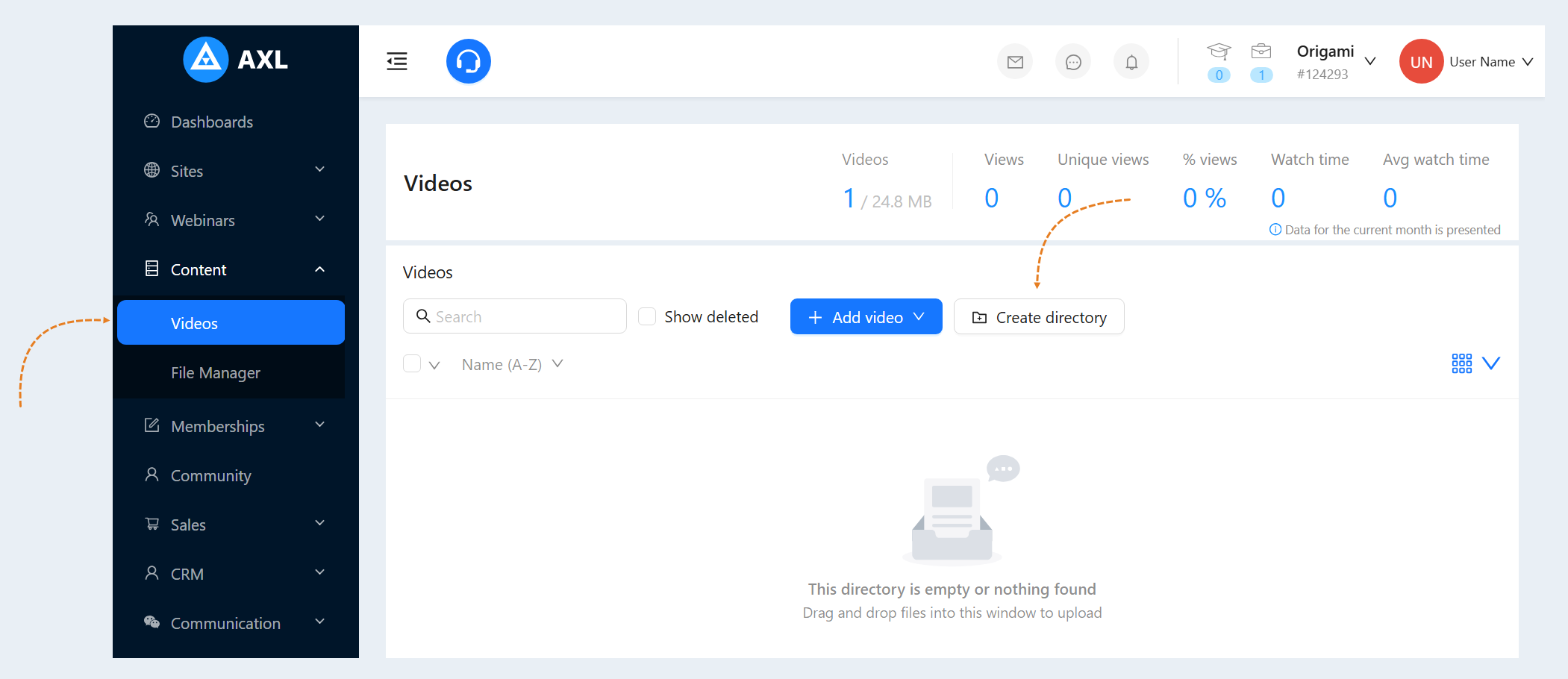
You will see the "Create Directory" window. Specify the name of the folder and click "Create".

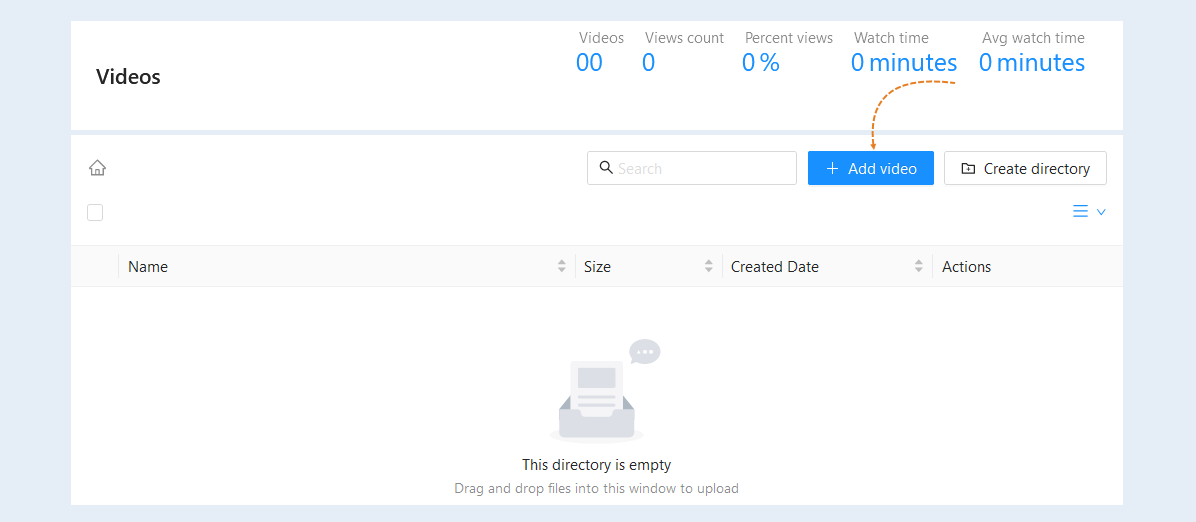
Inside the created folder, you can create either another folder, thus creating a chain of folders. Or you can upload a video to it. To do this, click the "Add Video" button.
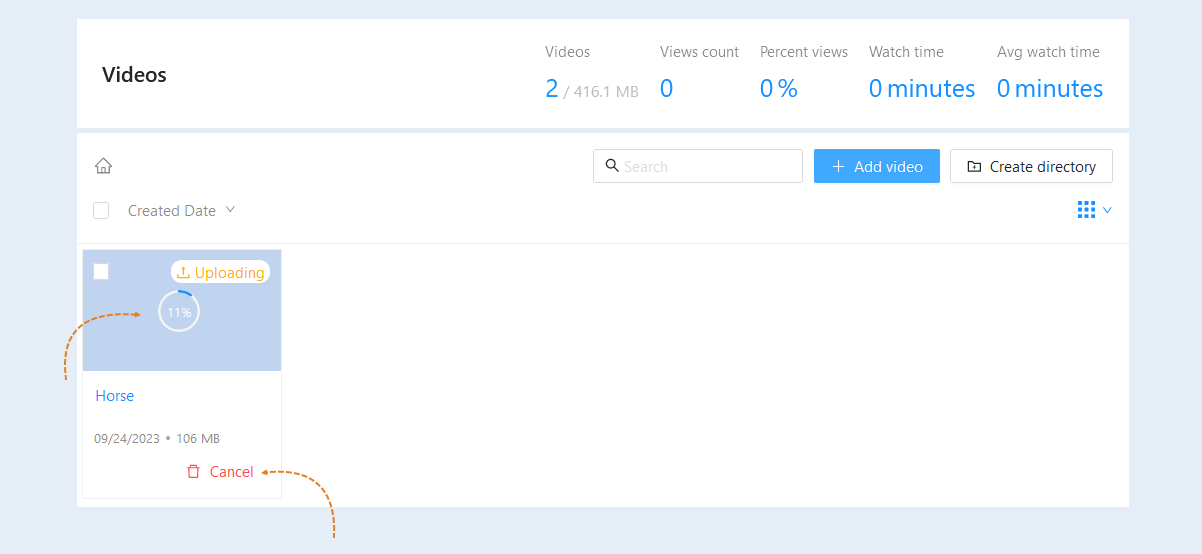
Select the file on your device (computer, laptop). The selected file will be uploaded to your account on the AXL platform. During the video upload, its card will be created. Here you can see the percentage of video downloads to the platform. Click the "Cancel" button to cancel the video download.
We recommend that you stay on this page until the video is fully loaded. And do not refresh the page to avoid loading failures.
After adding the video to the platform, it appeared in the video list. For accelerated access to the embed code of the video, the "Embed" button is placed in the video list.
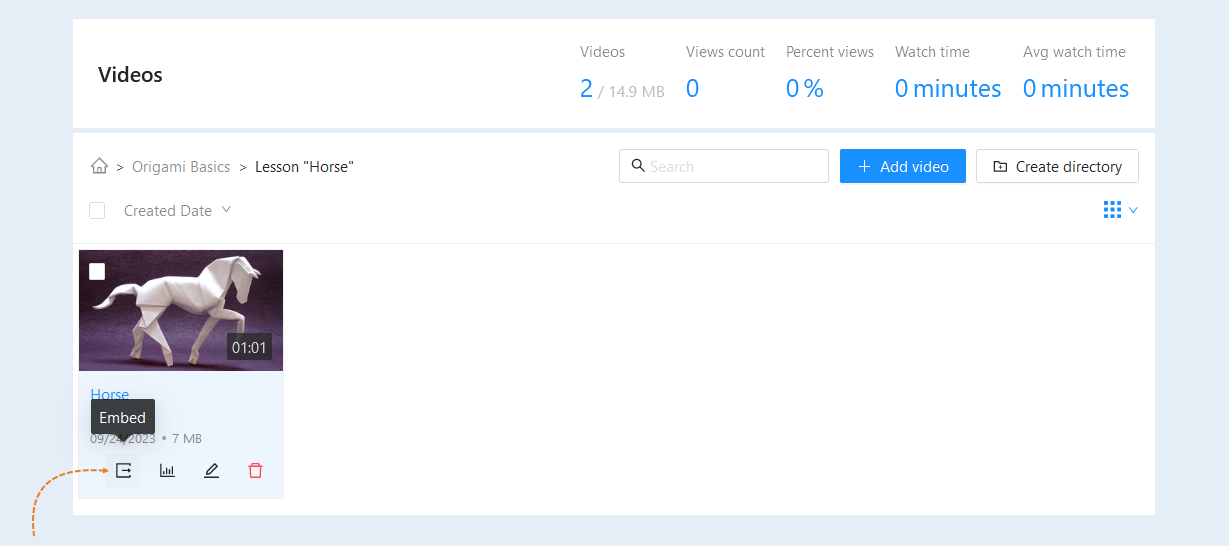
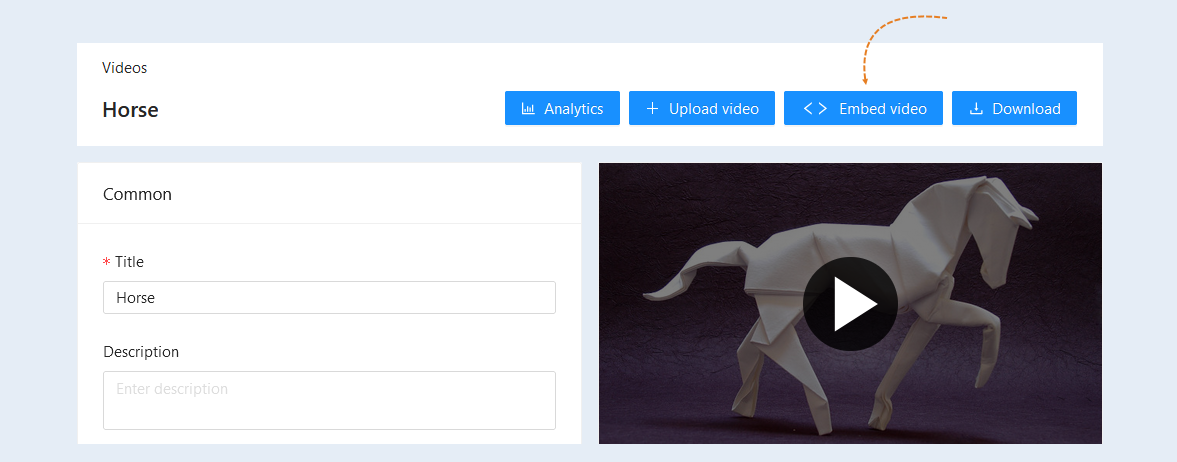
The button is also available inside the video card. Click on the video title or the "Edit" button to open the video card. The "Embed video" button is available at the top. Click the button to copy the code to embed the video on the web page.
You will have an additional window for embedding videos on the site.
- Code. This code is necessary to embed the video on a web page: website, social network, membership portal, etc. Copy and place the code on the page you need.
Width. The width of the video window is specified.
Height. The height of the video window is specified.
Show controls. The controls are the standard start, pause, forward, backward buttons. You can hide these elements. To do this, uncheck the line.
Show the title. You can choose whether to show the title while watching the video or hide it from viewers.
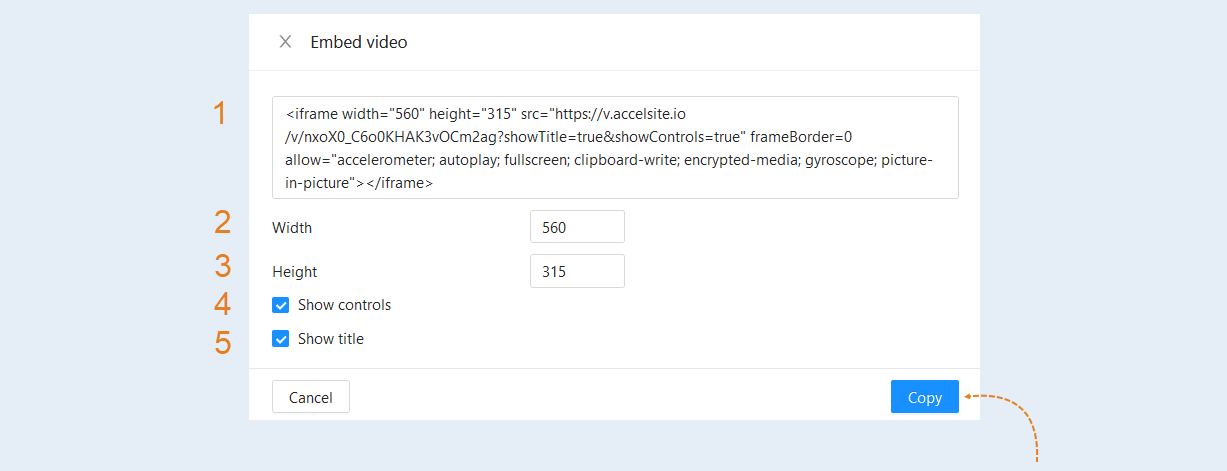
Click the "Copy" button. The video code will be copied to the clipboard. You can add this link to your course or to a website created on the AXL platform, and the link can also be added to a third-party website or social networks.
How to insert a video into a course lesson
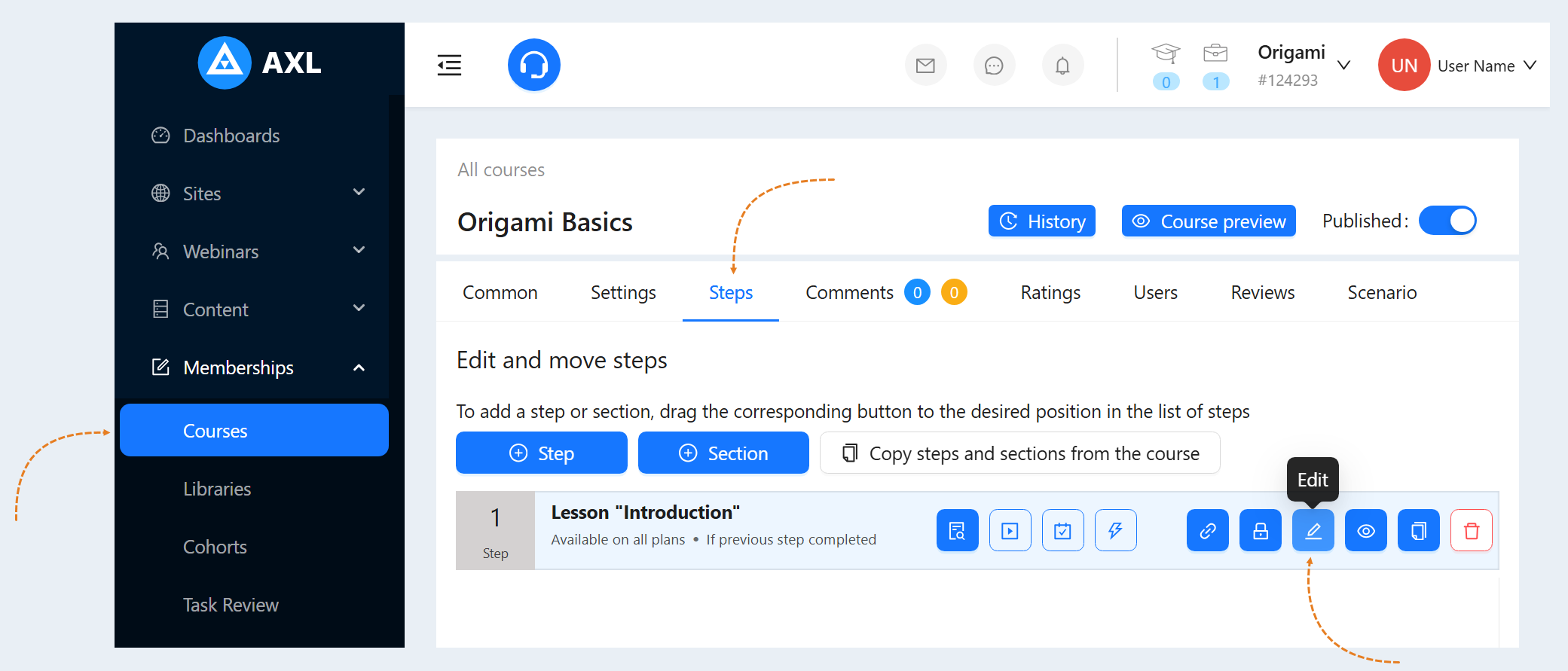
To add a video to a course lesson, go to the "Courses and Training" section, the "Courses" tab. Open a previously created course or create a new one. Add lessons (steps) to the course. Read more about how to create a course in the article "How to create a course in 5 minutes".
Go to the "Steps" tab, click on the lesson name or the "Edit" button to open the course step.
In the course step, go to the "Theory" tab. Click the "Add Item" button and select the "Video" item from the list. Add the "Video" element by dragging the video into the page field.
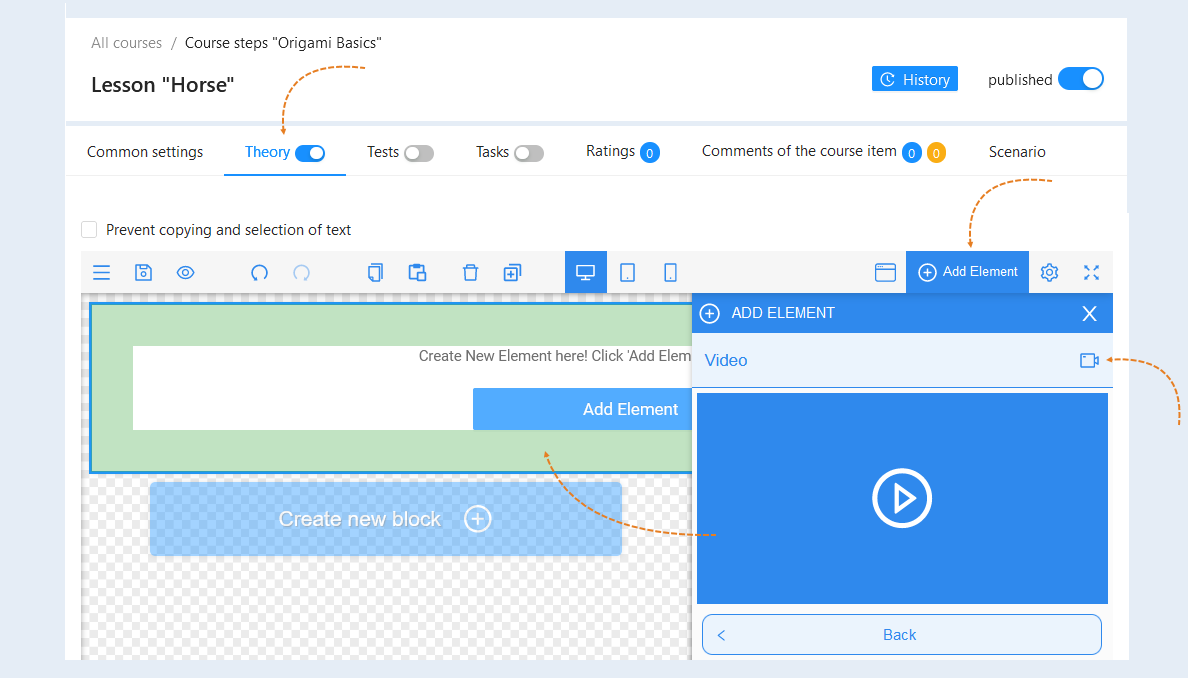
Select the whole "Video" element, the "Settings" panel of the element opens on the right. In the "Link to video" field, paste the previously copied video code. Click the "Save" button.
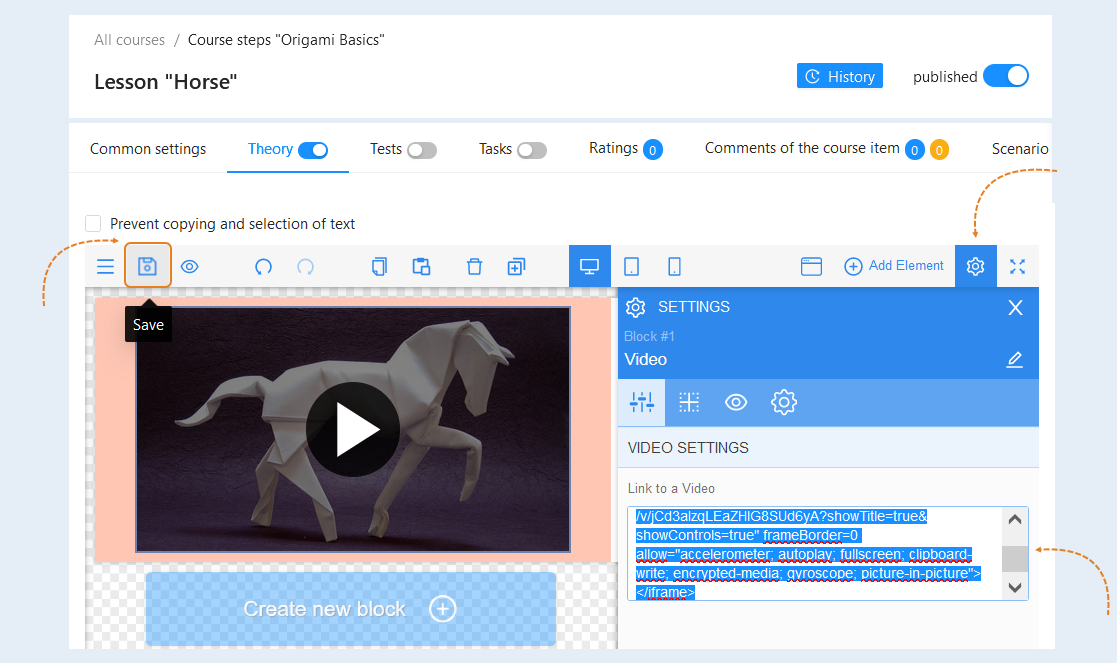
Thus, the video will be added to the course lesson.
How to insert a video into a website page
To add a video to the site page, go to the "Sites" section. Open a previously created site or create a new one. Read more about how to create a website in the article "How to create a website".
Open the website page, the "Design" tab/Content". Click the "Add Item" button and add the "Video" item by dragging the video into the page field.
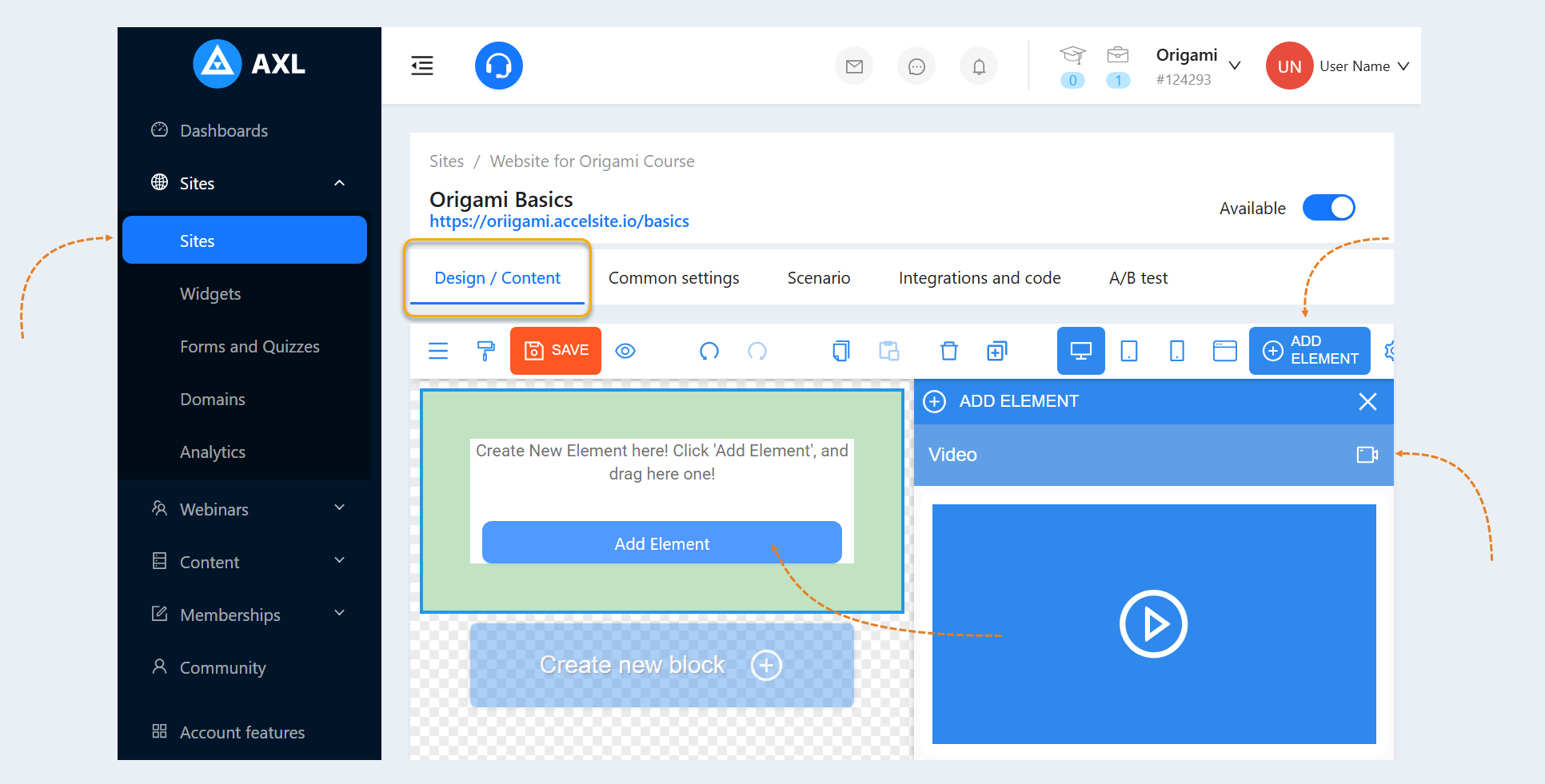
Select the entire video element, the "Settings" panel of the element opens on the right. In the "Link to video" field, paste the previously copied video code. Click the "Save" button.
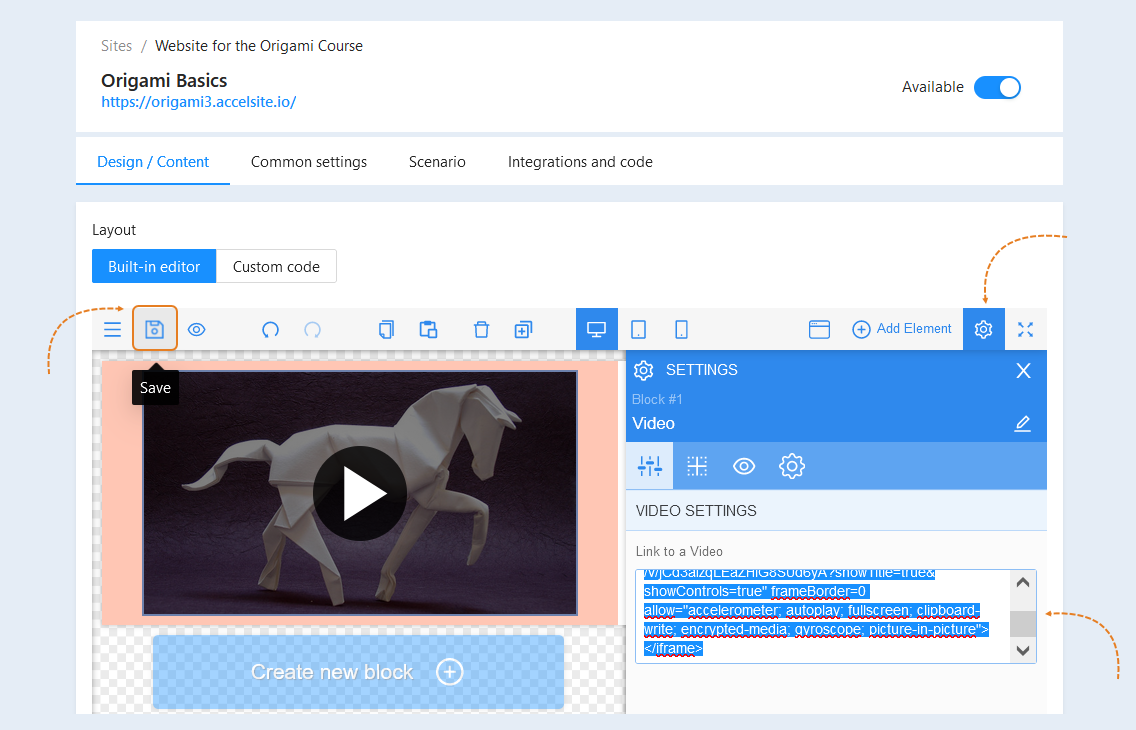
Thus, the video will be added to the site page.
How to update the video version
You can update the outdated version of the video in one click in all places (courses, websites, etc.) where it was uploaded. To do this, go to the "Content" section, the "Video" tab. Click on the video title or the "Edit" button to open the video card.
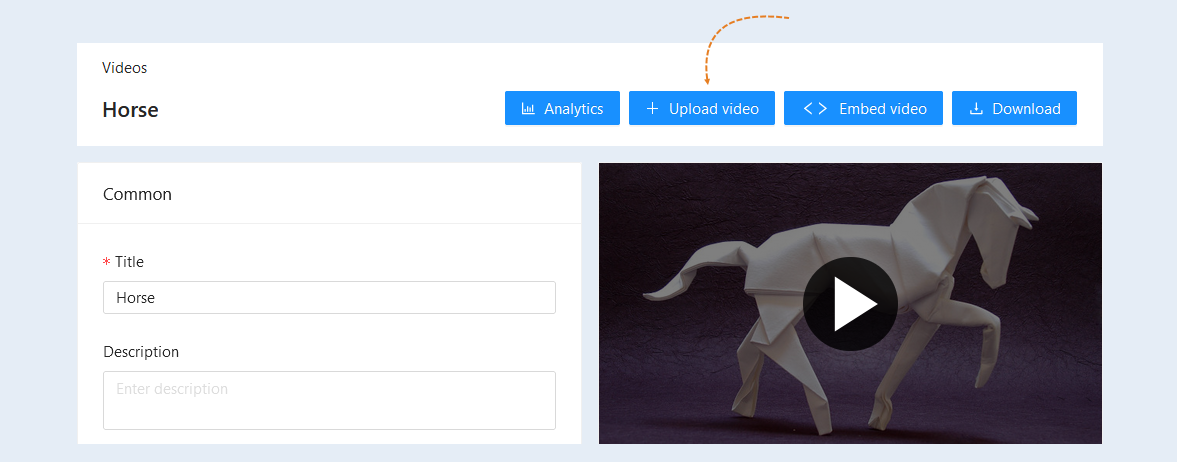
To download a new version of the video, click the "Upload Video" button. Select a new file on your device (computer, laptop). The selected file will be uploaded to the video card.
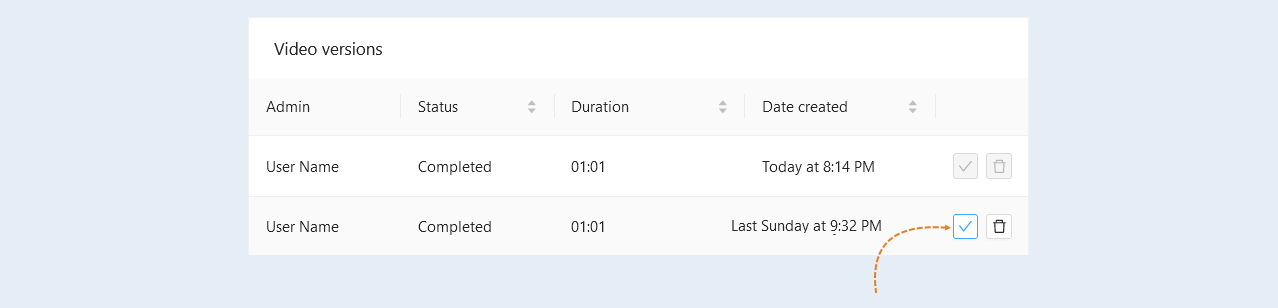
A new downloaded version will appear in the "Video Versions" section.
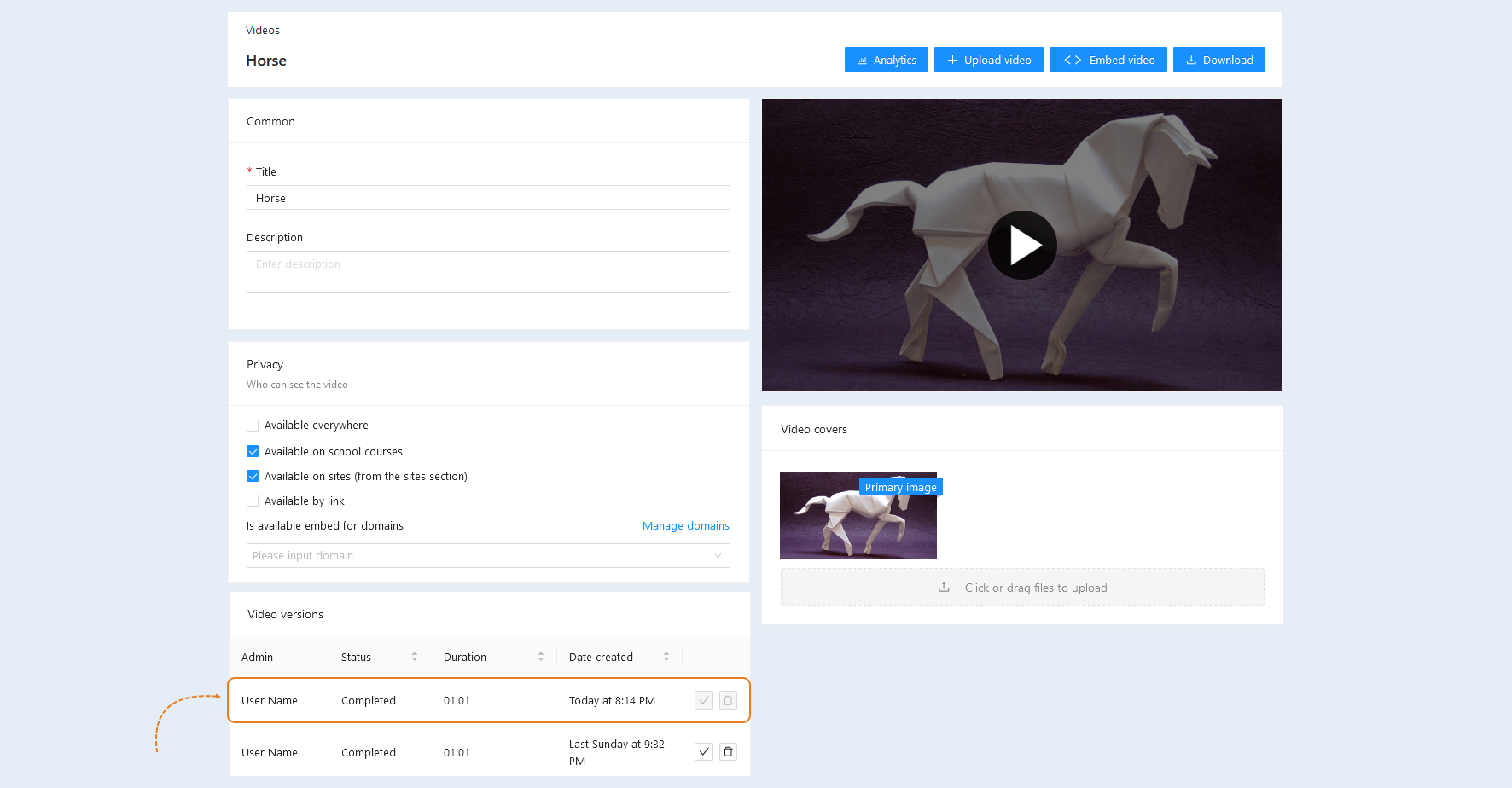
The new version of the video will automatically be installed current and updated in all used sites and courses.

If you want to go back to the original version, check the box next to the original version. The video will be updated instantly.