BitPay is a payment service for accepting cryptocurrency payments for goods and services. This platform accepts cryptocurrencies such as Bitcoin (BTC), Ethereum (ETH), Bitcoin Cash (BCH), Litecoin (LTC), Wrapped BTC (WBTC), Dogecoin (DOGE), Shiba Inu (SHIB), ApeCoin (APE), Polygon (MATIC). The BitPay wallet is available for Windows, Linux, macOS and mobile operating systems iOS, Android, Windows Phone.
All buyers need to do is choose cryptocurrency as a payment method on the website and pay the bill from their wallet. In this article, we will tell you how to enable payment acceptance using BitPay in your account.
Click on the desired section of the article to go to its description:
1
Registration in BitPay
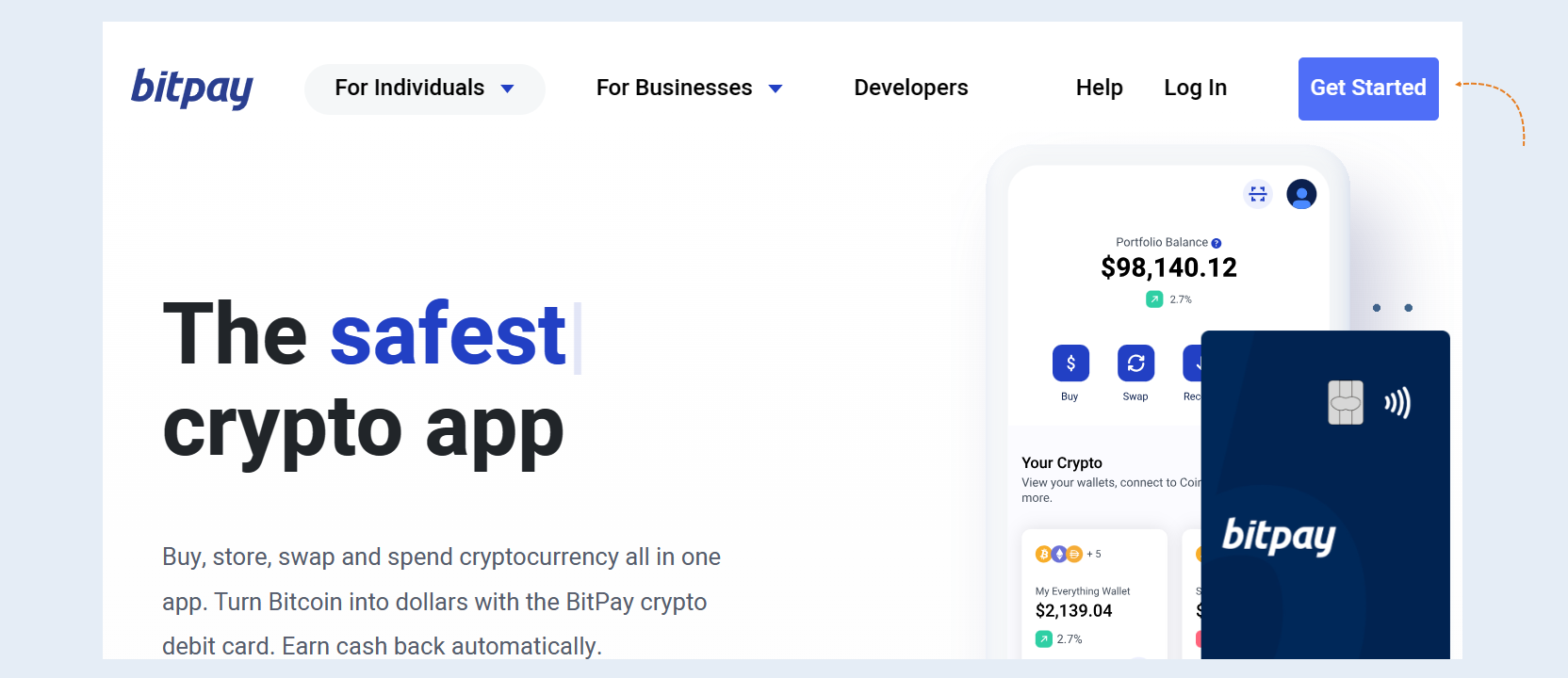
To get started, create a BitPay account. Register on the official BitPay website using this link. Click the "Get Started" button.
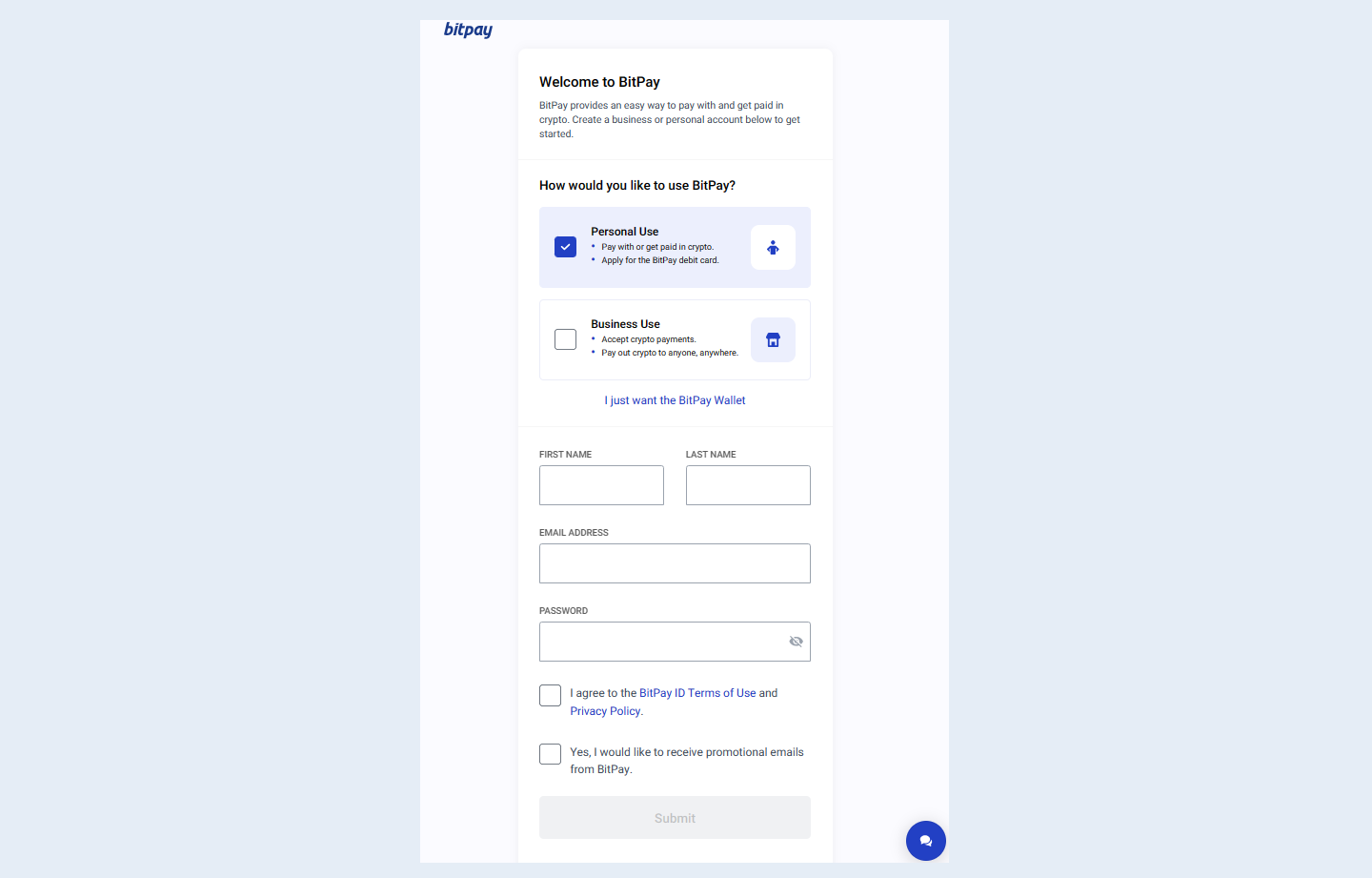
Fill out the form and enter the data: first name, last name, email address and password. A message with a link to complete the installation process will be sent to the specified email address. After clicking on it, registration is considered completed.
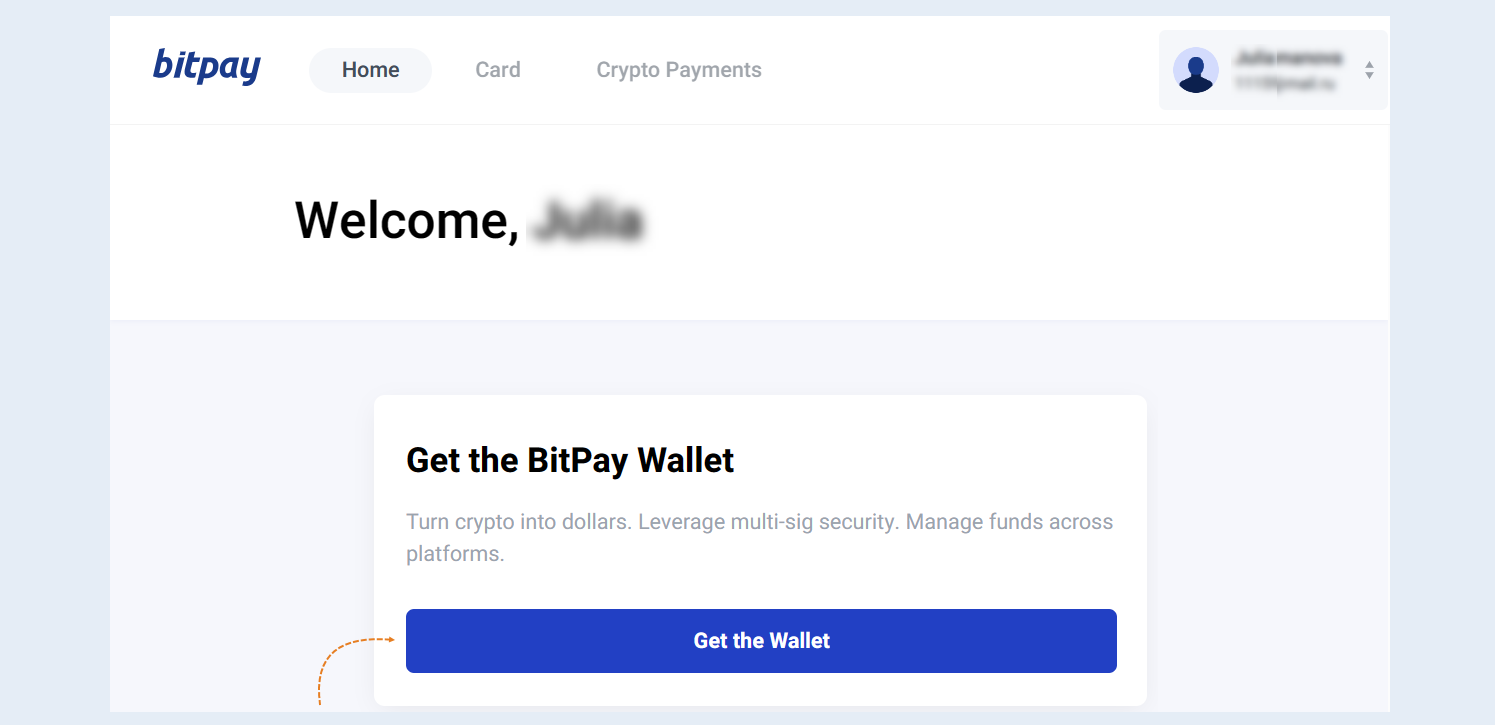
To install the BitPay cryptocurrency wallet, you need to download the application from the official store for the corresponding operating system. Click the "Get the Wallet" button and download the app.
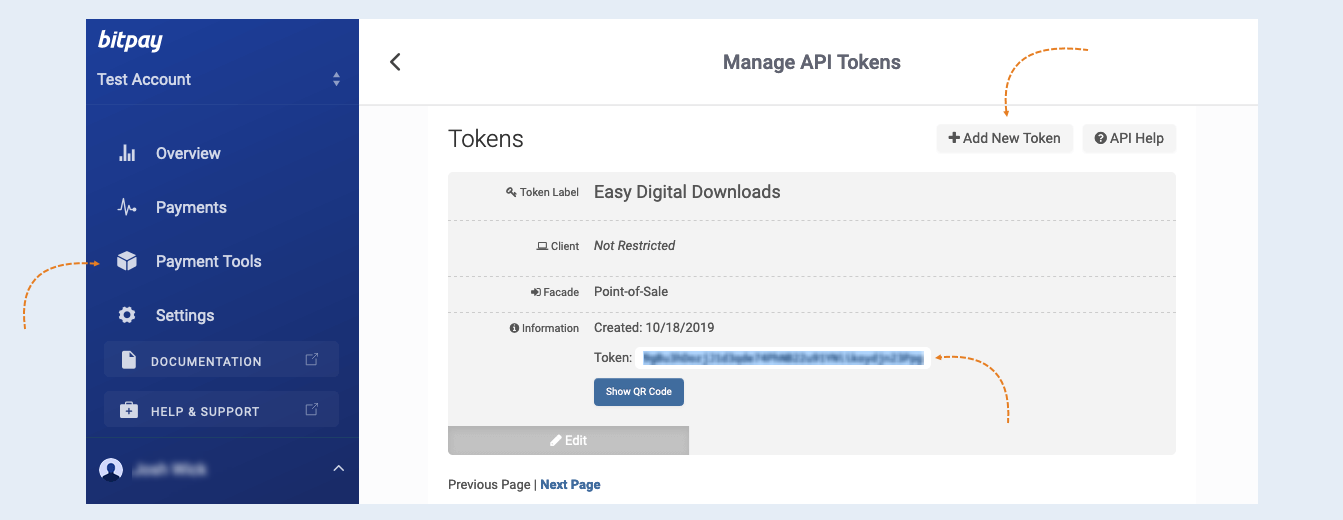
Login to your BitPay merchant account and go to the API token settings. Open the "Payment Tools" section in the sidebar. Сlick on the "Add new token" button: indicate a token label (for instance: Easy Digital Downloads), make sure the "Require Authentication" checkbox is not ticked and click on the "Add Token" button. Copy the token value.
2
Integration with AXL
Next, you need to integrate the payment instrument into AXL. In order for your customers to be able to pay for the services of your account, it is necessary to embed payment forms in your account.
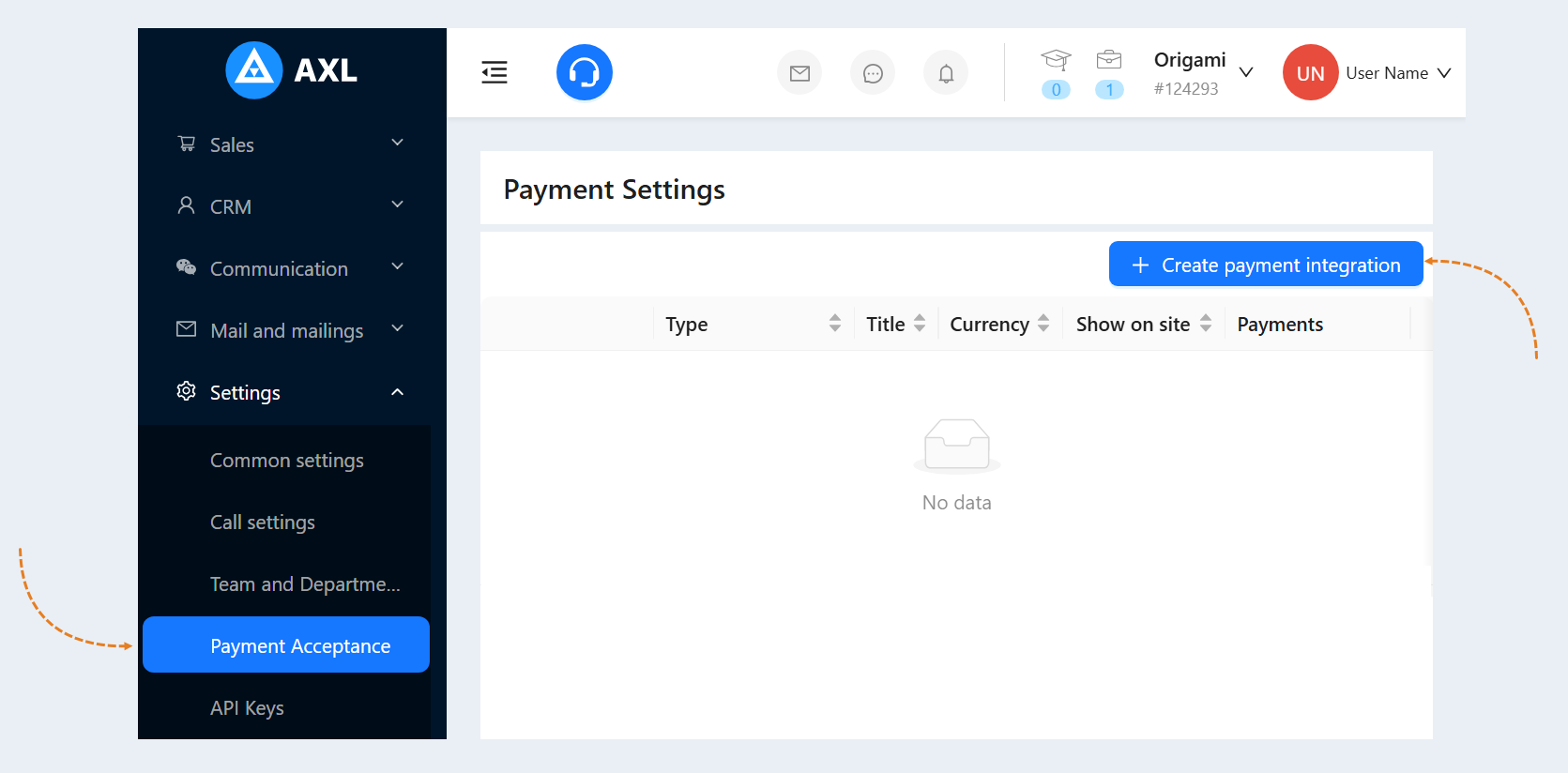
Go to the AXL website. Select the "Settings" section and the "Payment Settings" tab. Click the "Create Payment Integration" button.
Select "BitPay" from the list. In the window that opens, fill in the fields:
- Title. Write the name of the payment instrument.
Description. Add a description of this payment instrument. Customers will see this description on the website.
Payment Button Text. Write the text that will be displayed on the payment button on your website.
Is Primary Payment Method. Check the box if this payment method will be the main one in your account.
Show on site. Check this box to make this payment method available on your website.
Currency. Select the currency in which you plan to accept payments. If you work in different markets in different countries, you can choose the currency for accepting payments in each payment system. For example, by selling courses in dollars through one payment system, you can accept euro through another payment system. Automatic currency conversion takes place at the international exchange rate.
Token. Enter the token that you copied on the BitPay website.
Test mode. Check the box to make a test payment (without money).
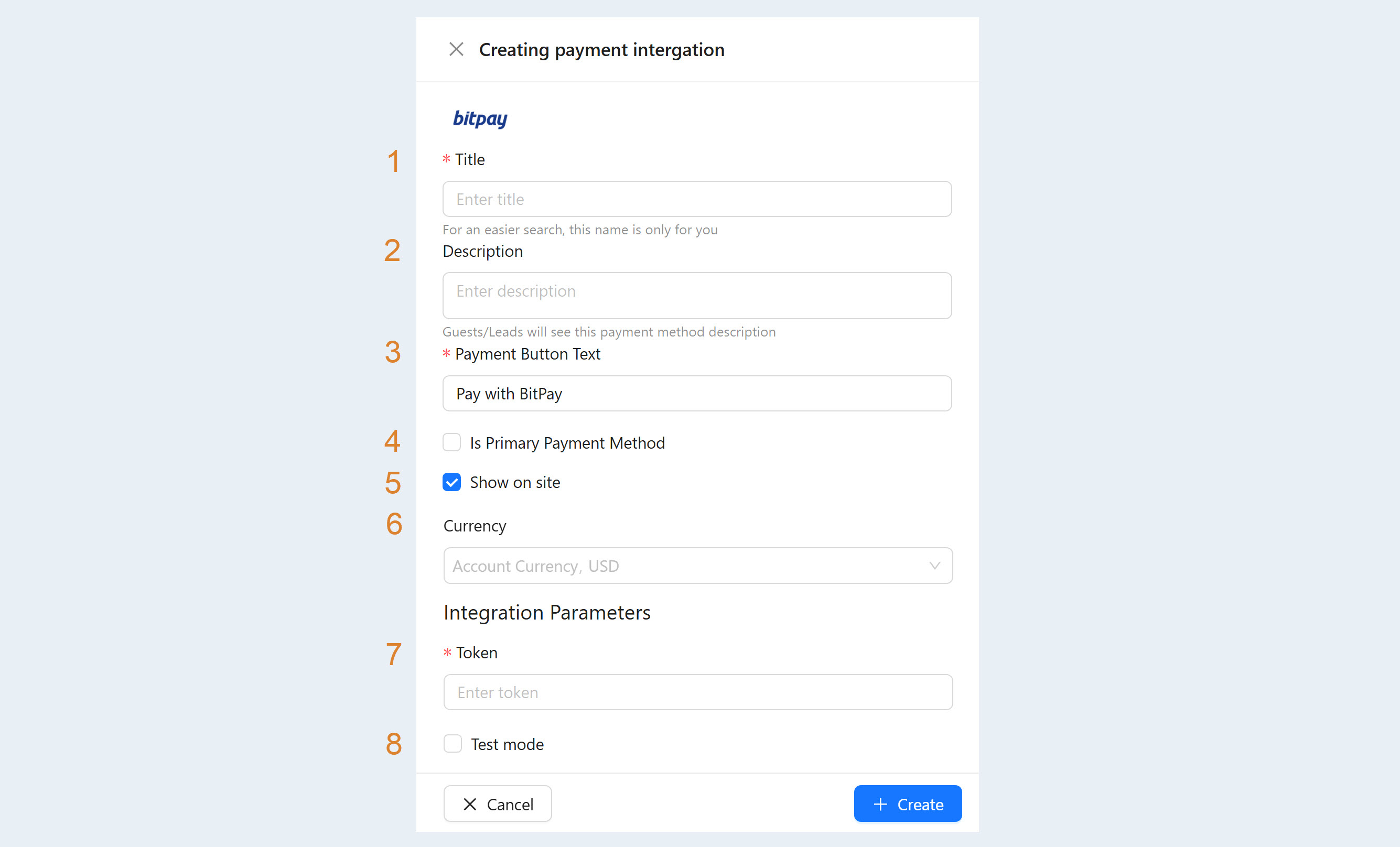
After filling out the form, click "Create". Now you have the "BitPay" tool in the list of payment instruments.