In the section “Reviews” you can see user reviews about your courses or about individual steps within the course. After completing each course, the user will be asked to leave a review.
Click on the desired section of the article to go to its description:
General list of reviews
Go to the "Courses" section, open the "Reviews" tab. This tab displays a general list of user reviews for all courses.
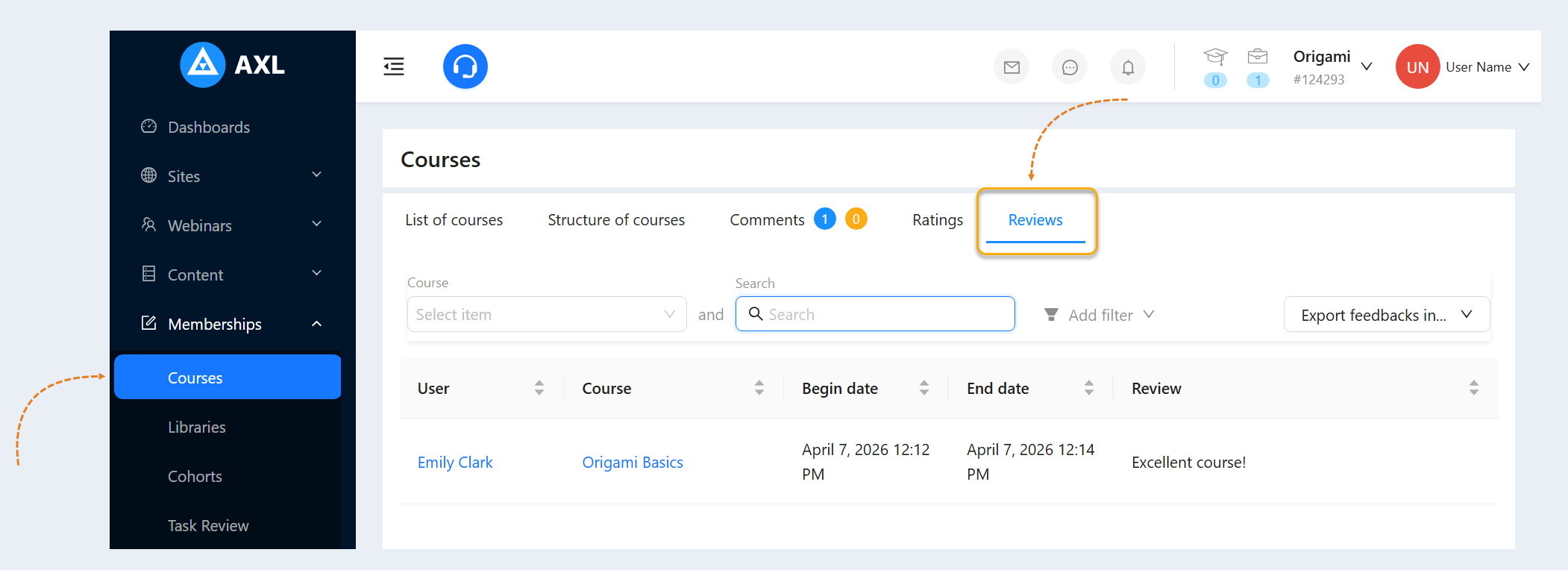
List of course reviews
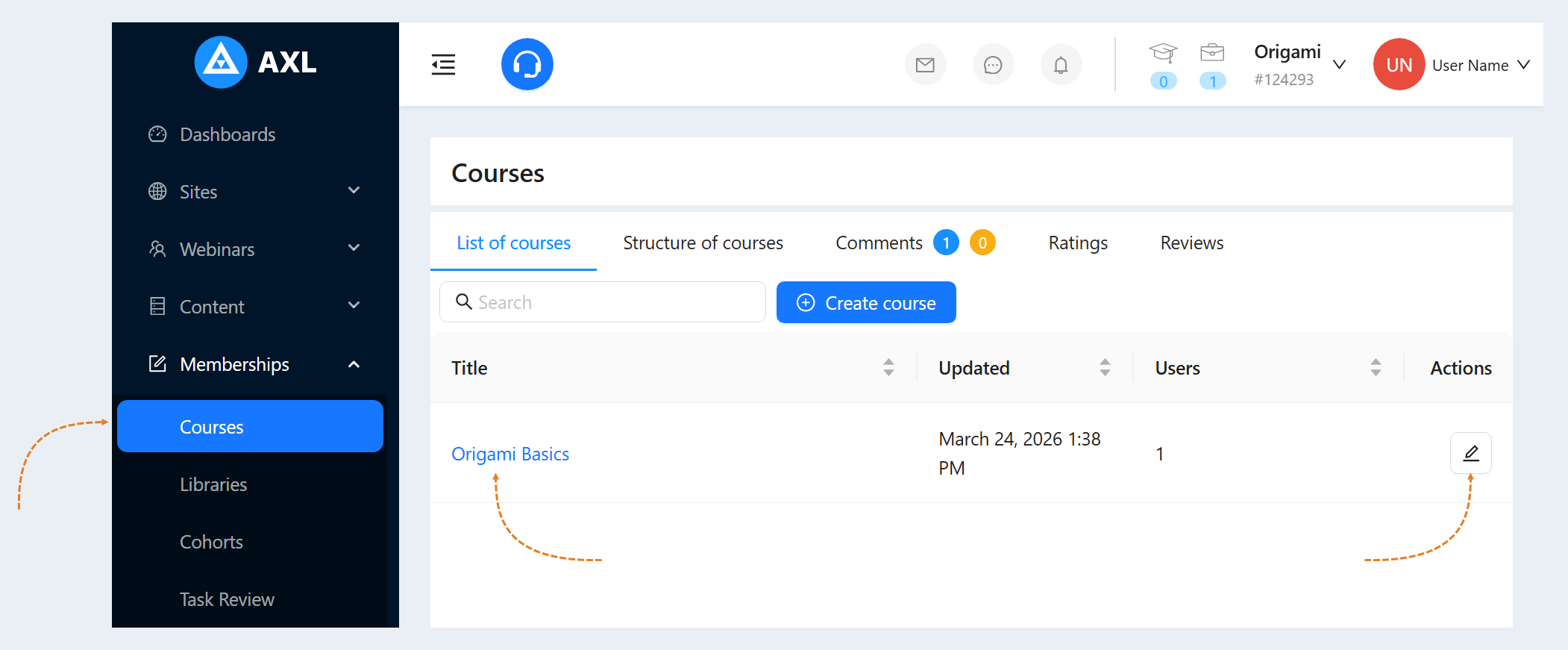
Go to the “Courses" tab. Open the previously created course. To do this, click on the course name or the "Actions" button.
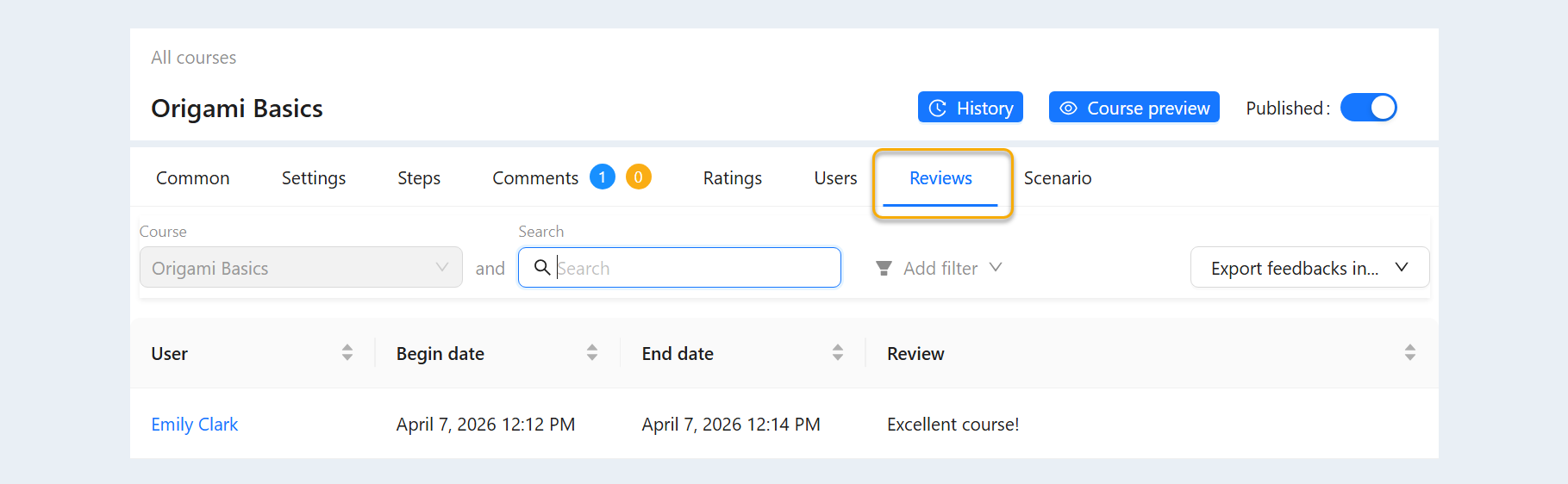
Next, go to the “Reviews” tab. Reviews of users of this course will be displayed here.
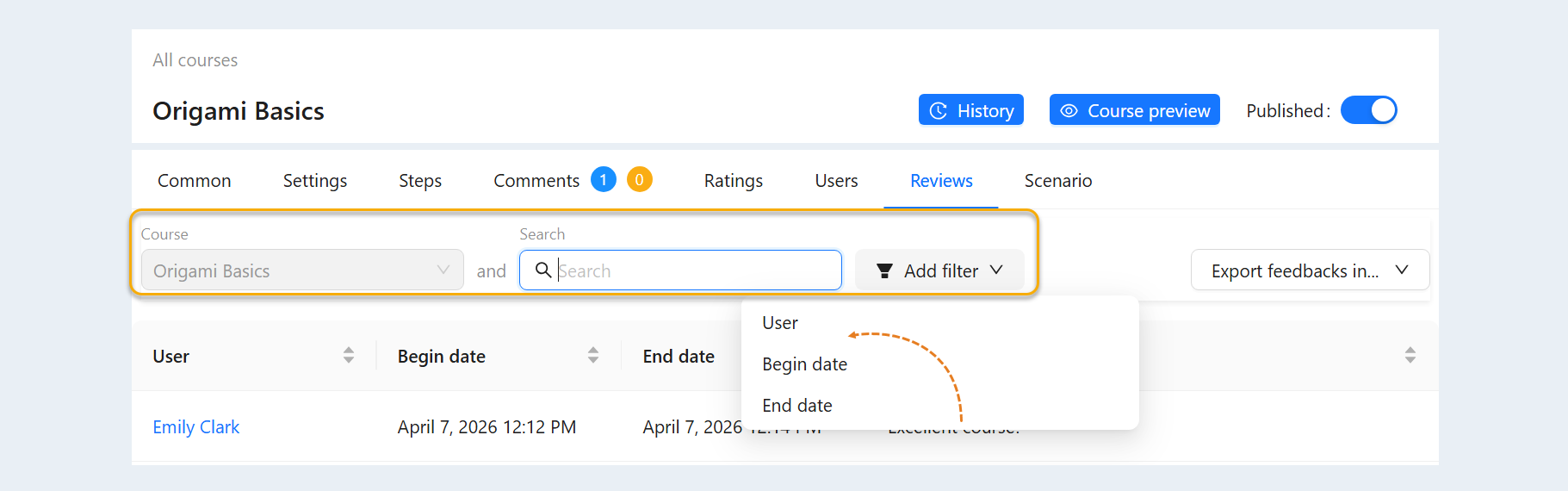
At the top of the page there are search lines for managing reviews. You can select reviews by the following parameters:
Course. By default, the course has already been selected, in the settings of which you have opened reviews.
Search. Free keyword search. Enter any word in the search bar.
Click the "Add Filter" button and select a filter condition from the list:
- Contact. This condition highlights the reviews associated with the selected contact. You can select one or more contacts from the list.
Begin date. This condition highlights the reviews by the start date of the course. Select the date range.
End date. This condition highlights the reviews by the end date of the course.
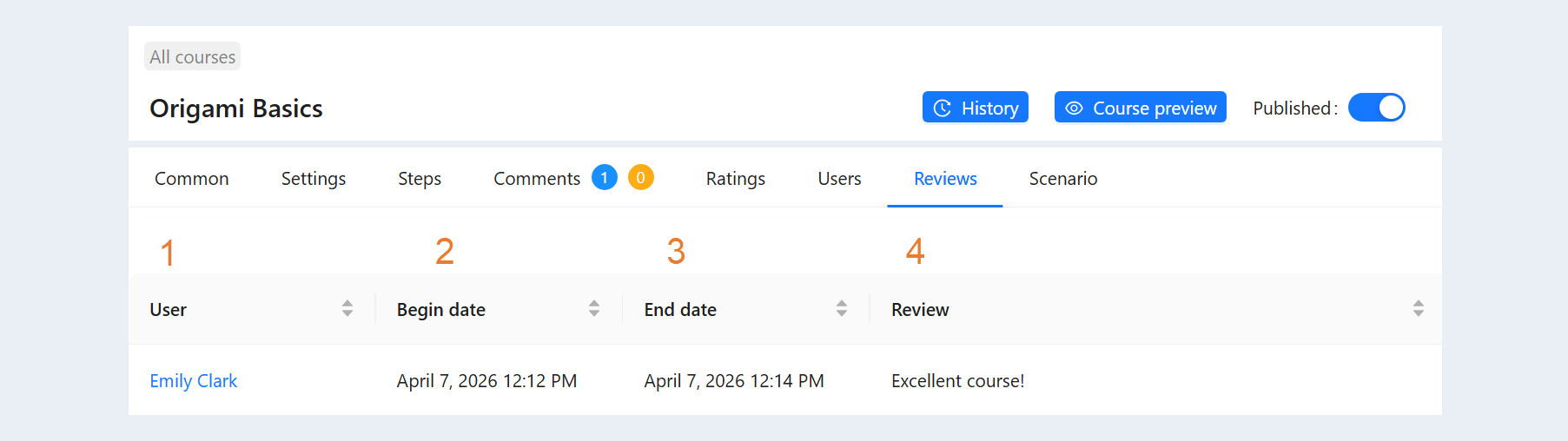
Below is a list of reviews. Each review is displayed in a separate line and contains the following information:
- User. Click on the user's name to open the user card.
Begin date. The start date of the course is indicated.
End date. The end date of the course is indicated.
Review. The text of the user's review.
The "Export feedbacks in" button is located in the upper-right corner of the page. Exporting allows you to save and analyze data outside the platform in XLSX or CSV format.
This option is needed to assess user satisfaction, identify the strengths and weaknesses of the course, and use reviews for marketing purposes (for example, posting positive reviews on a website).
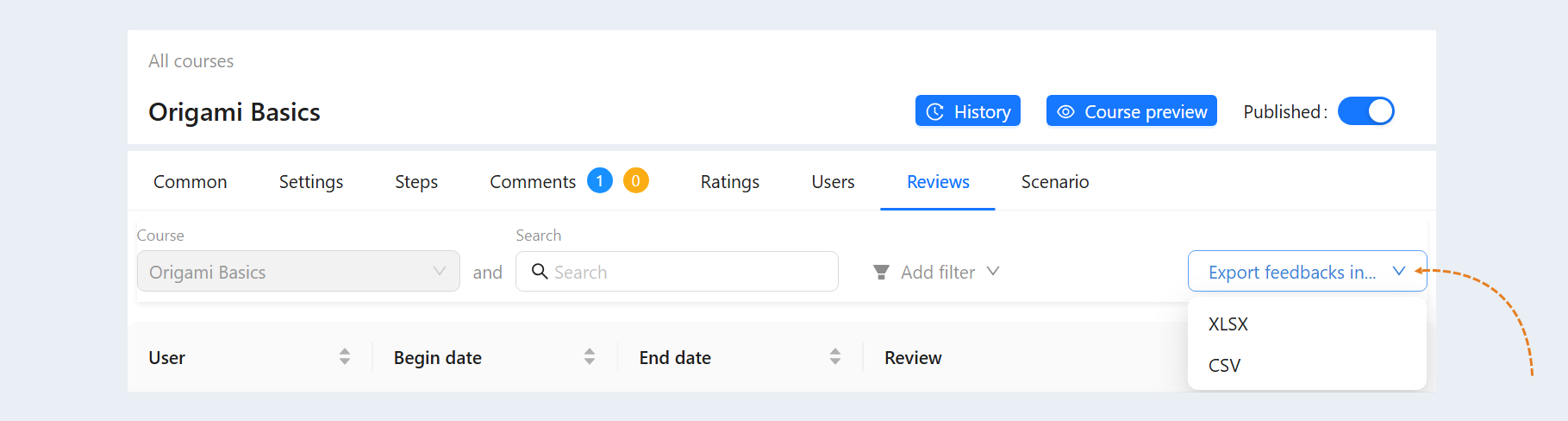
Click the "Export feedbacks in" button and select the desired file format (XLSX or CSV). Next, you can download the created file by clicking the "Action" button and selecting the "Download" action.