Chat is a section for communication between administrators and users inside your account on the AXL platform.
The "Chat" section differs from the "Dialogues" section in that in the chat you communicate with users of your account through all connected channels: telegram, VKontakte, viber, facebook. Read more about communication channels in the article "Chat channels". And also in the "Chat" section you can make calls and video calls to users of your account.
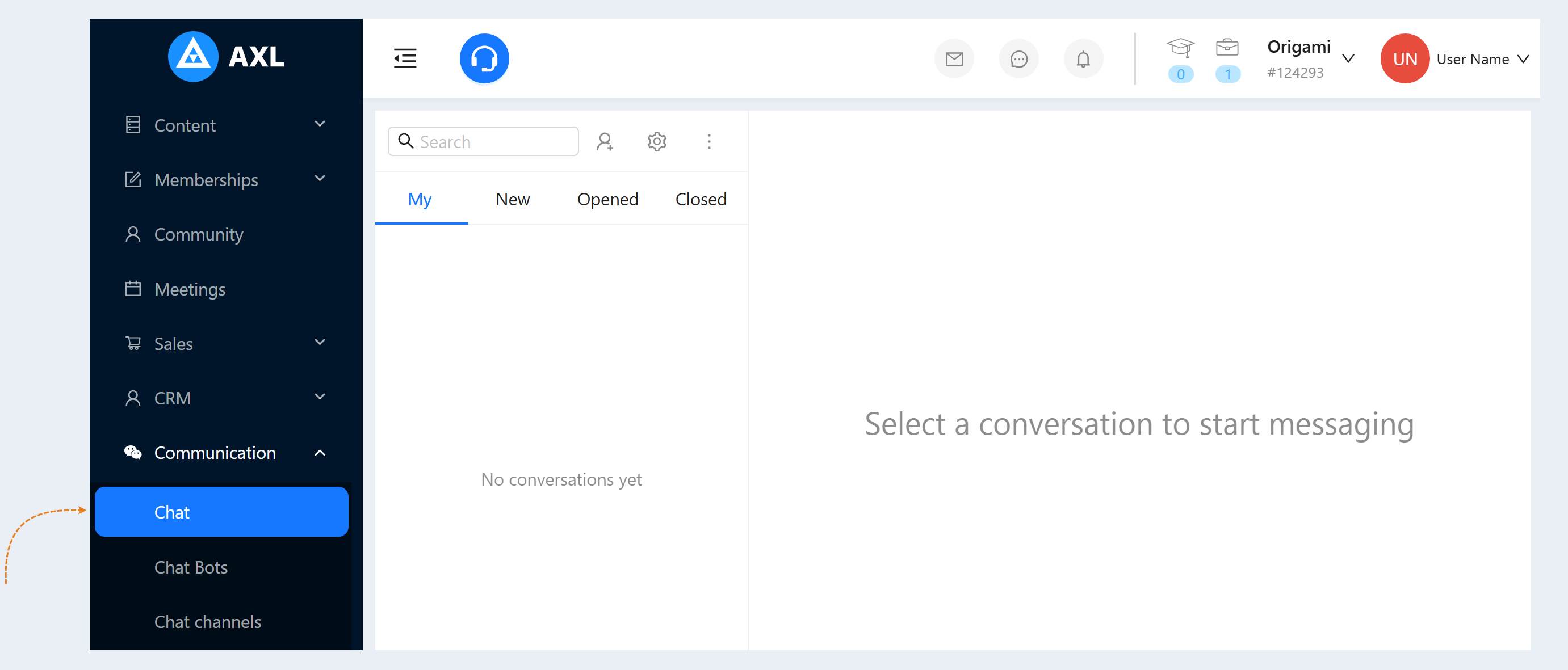
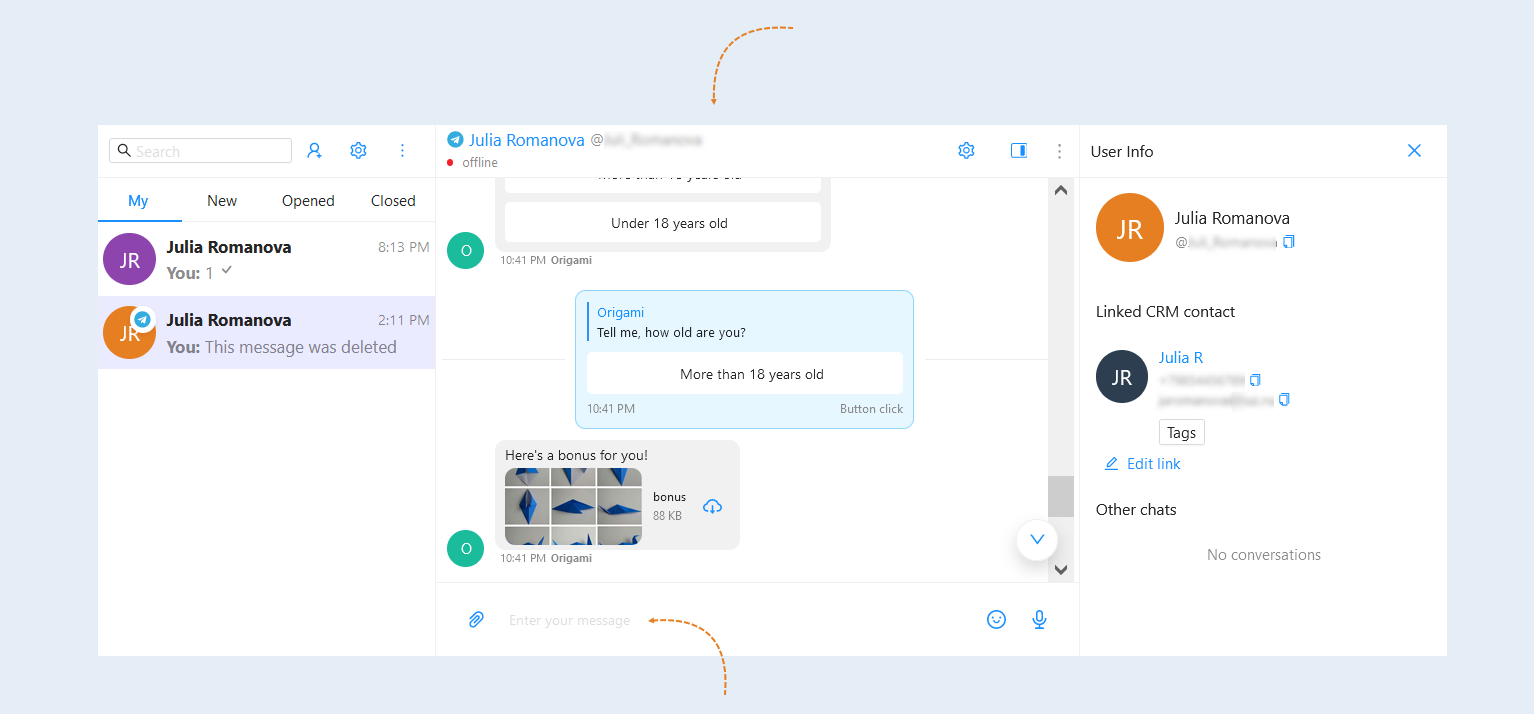
Go to the "Communication" section, the "Chat" tab. Here you can see all the chats with the registered users of your account.
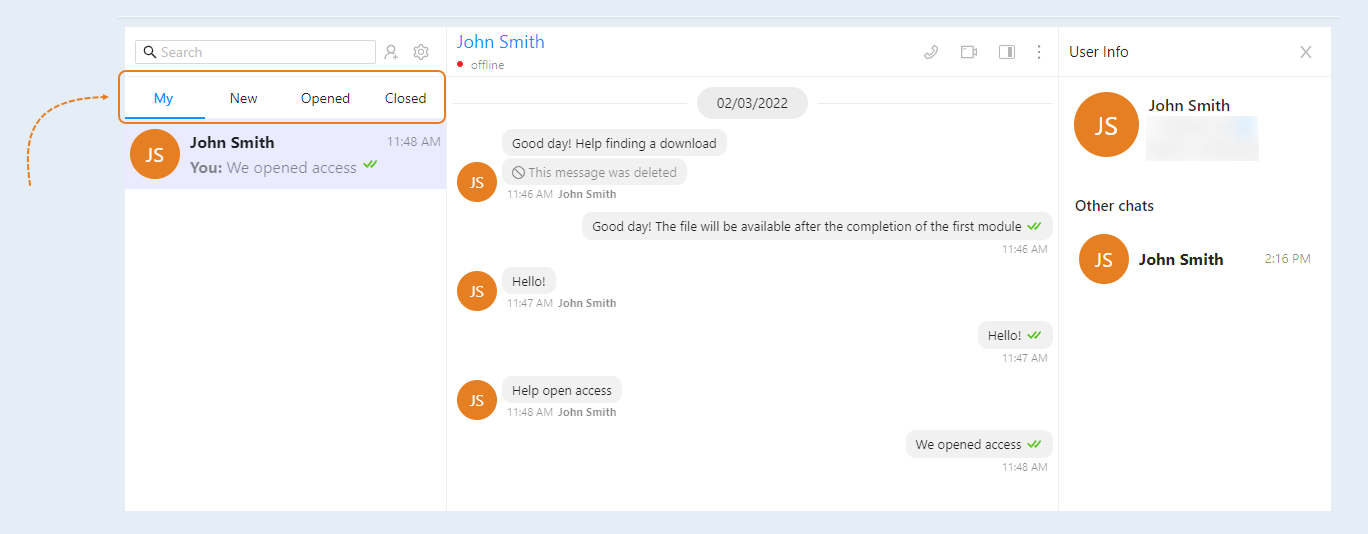
On the left is the chat panel:
- My. Here you can see chats with those users with whom you started correspondence.
- New. Here you see new chats.
- Opened. In this tab you can see open chats.
- Closed. Here you can see the private chats.
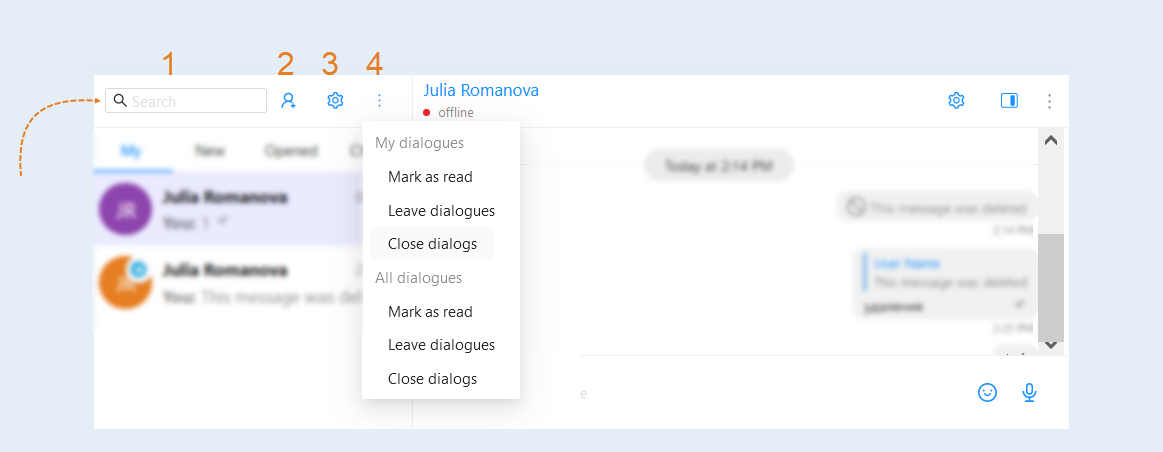
The search bar is available at the top. And also you see the buttons:
- Search. Enter the user's name to find correspondence with him.
Add Conversation. Click to start a new dialog. You will see a list of users. Select a user from the list and start a dialogue with them.
Open settings. Click to open a window with interface settings and additional devices. In this window, you can select the font size in the chat (from 75 to 200%), as well as configure access to your device's microphone to record voice messages in chats.
Actions.The following actions are available to you here:
- My dialogues.These actions will be performed only for your dialogs.
- Mark as read.
Leave dialogues.
Close dialogs.
All dialogues. These actions will be performed for all dialogs.
- Mark as read.
Leave dialogues.
Close dialogs.
- My dialogues.These actions will be performed only for your dialogs.
In the central part there is a window of correspondence with the user. Here you can read the correspondence with the user and write a response. In the response to the user, you can attach a file, add an emoji and record a voice message.
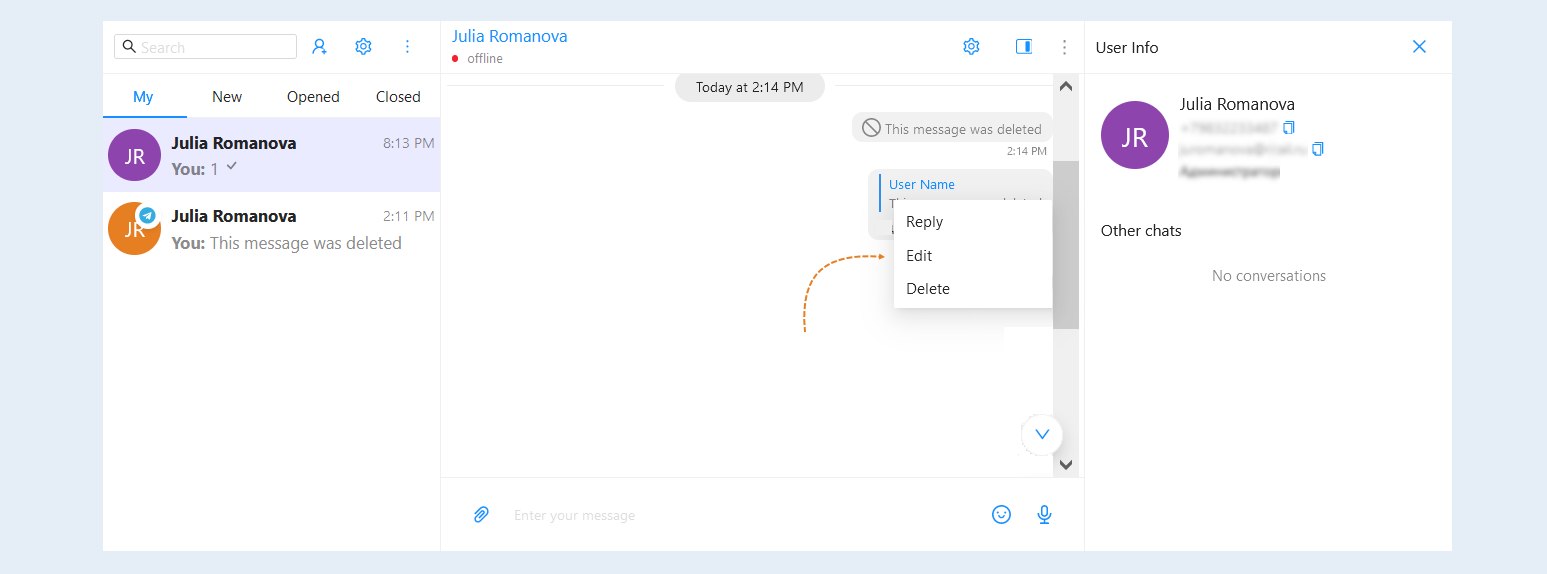
You can perform actions with the selected message in the chat: reply to the selected message, edit or delete the message. To do this, hover the mouse cursor over the desired message in the chat and right-click to open a pop-up window with commands.
You can also delete a message sent from the mailing list or from the script from the chat. After deletion, an informational message "This message has been deleted" will appear.
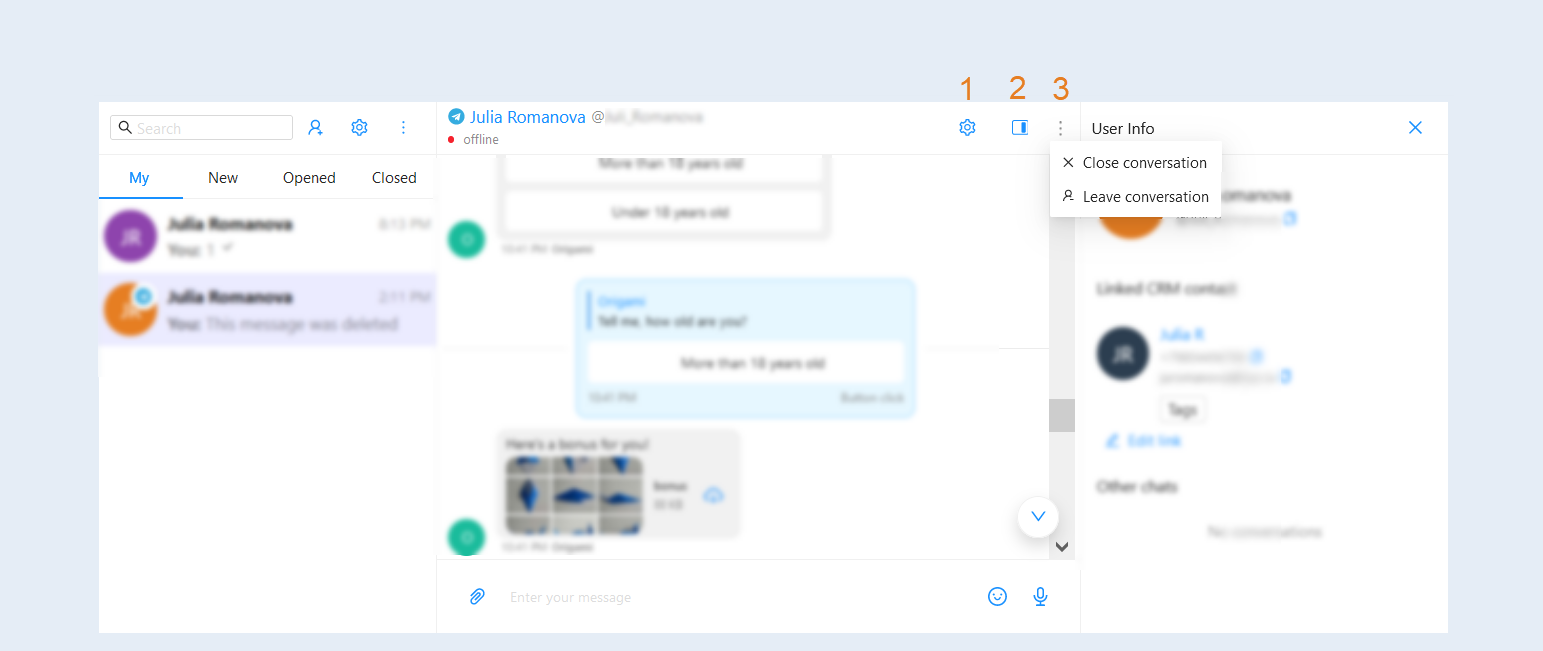
There are buttons in the top row:
- The "Open Settings" button. Click to open a window with interface settings and additional devices.
The "Hide/Display" button user information. Click to hide or display the right panel with the user's contacts.
The "Actions" button. Click on the three dots and choose what to do with this correspondence:
- View profile info. Click to see information about the user, the associated CRM contact and other chats with the user.
Close conversation. Click to end the current session with the user.
Leave conversation. Click to exit the current dialog.
Hide bot messages. Move the slider to the active position to hide the messages that were sent by the bot. This can be useful if the bot's messages distract from the necessary information.
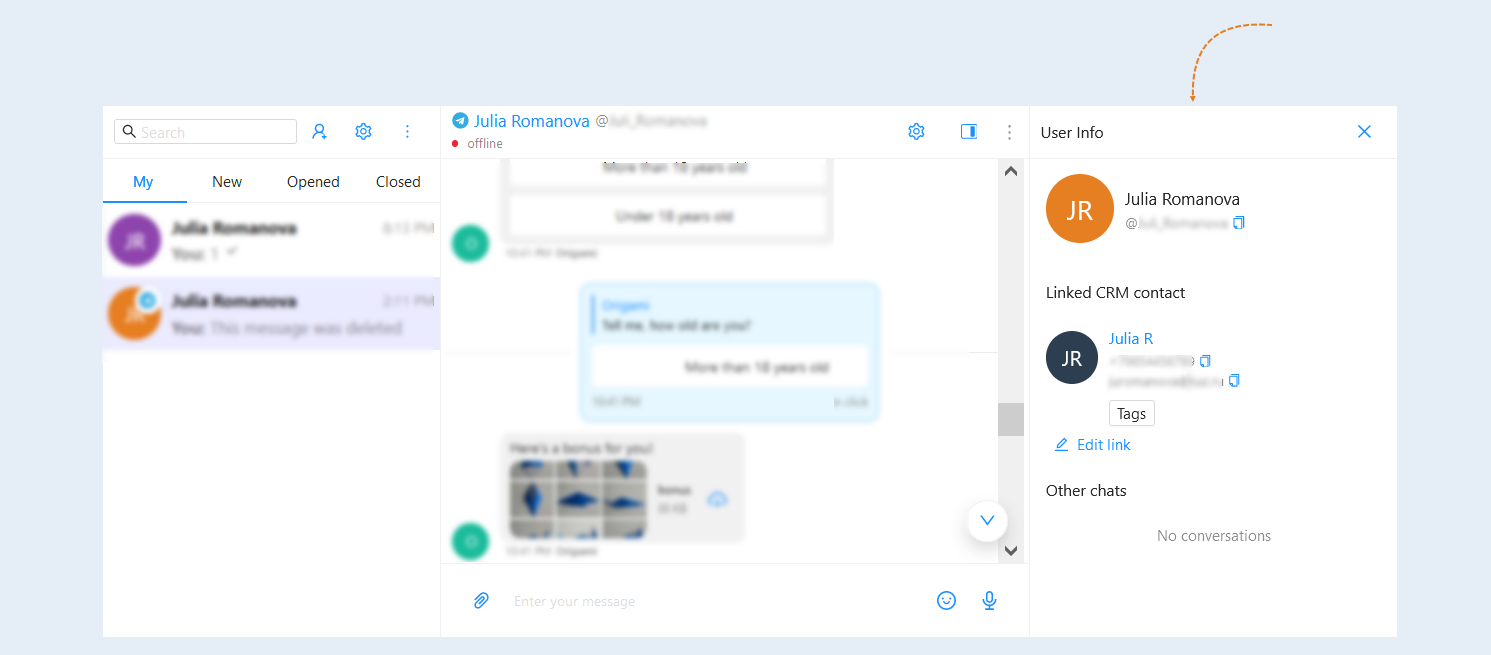
Information about the user that he specified during registration.
- First name, last name and avatar.
Telephone.
Email.
Linked CRM contact. If available, the associated contacts and tags are shown. You can also manually link a contact by clicking the Edit button.
Other chats. A list of other chats in which a dialogue with this contact is conducted is shown.