Website Chat adds a chat button to your website. Visitors introduce themselves and ask a question, and the conversation lands in Communications → Chat, in the same inbox as Telegram and WhatsApp, linked to a contact in your CRM. The same chat can also replace the support chat in your membership area.
You set the chat up once: create the channel, adjust how the widget looks and behaves, then turn it on for your AXL sites or paste one line of code on any other site.
Create the chat
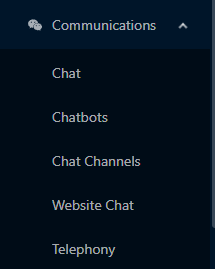
- Open Communications → Website Chat. If the account has no website chat yet, the New Channel panel opens right away. If you already have one, its settings page opens; with several, you see the list of channels. You can also add one from Communications → Chat Channels → Add Channel → Website Chat.
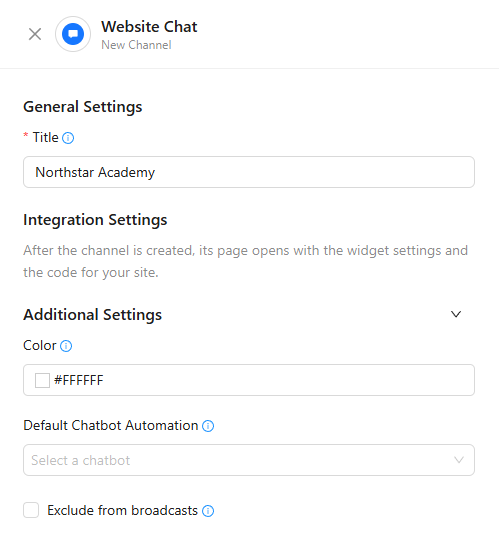
- Enter a Title, for example the name of your school. Visitors see it in the chat; it also helps you tell channels apart in the inbox.
- Optionally open Additional Settings: Color sets the color of the channel icon in your inbox, Default Chatbot Automation and Exclude from broadcasts work as for other chat channels (see Chat Channels); you can leave them as they are.
- Click Create. The channel page opens with the widget settings and the code for your site.
Set up the widget
The channel page has the Settings, Users and Automations tabs. On Settings, the form is on the left and a live Preview on the right updates as you type. Use the buttons above the preview to check each state: Home, Offline, Form, Empty Chat, Chat, Hint and No Connection. When you change anything, Reset and Save Changes appear at the bottom of the page; click Save Changes to apply the settings, and you see Channel saved.

Membership area
Show this chat in the membership area makes this chat the chat button in your membership area, in place of the old support chat. Only one chat can be used there, so turning it on for one channel turns it off for the other. The switch is shown when the Membership Portal feature is on.
Appearance
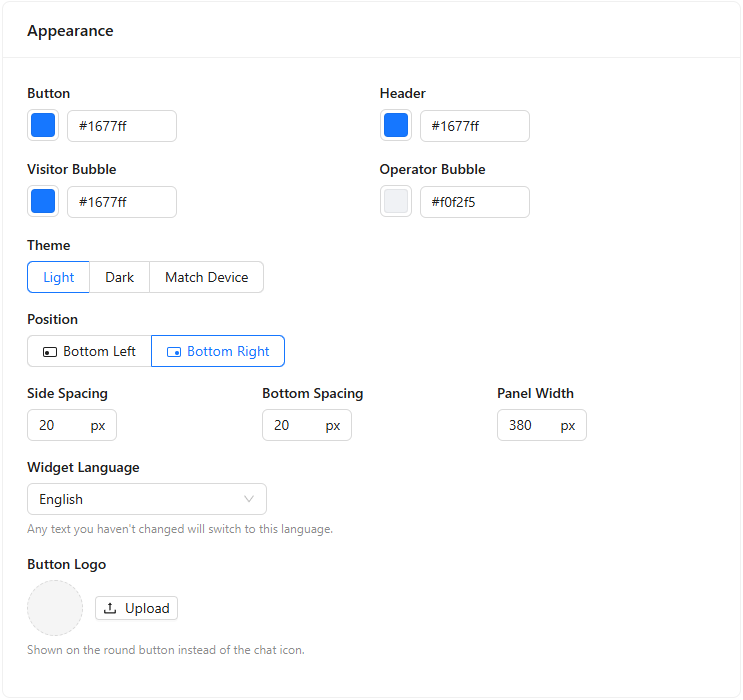
Choose the colors of the Button, Header, Visitor Bubble and Operator Bubble, the Theme (Light, Dark or Match Device), the Position (Bottom Left or Bottom Right) and the spacing and Panel Width in pixels. Widget Language switches every text you haven't changed to the selected language. Button Logo replaces the chat icon on the round button.
The chat moves smoothly when it opens, changes screens and shows new messages. To show it without motion, open Additional Settings at the bottom of the page and turn off Animations: the chat then changes with short fades only. Visitors whose device is set to reduce motion always see the chat this way, even with Animations on.
Home screen
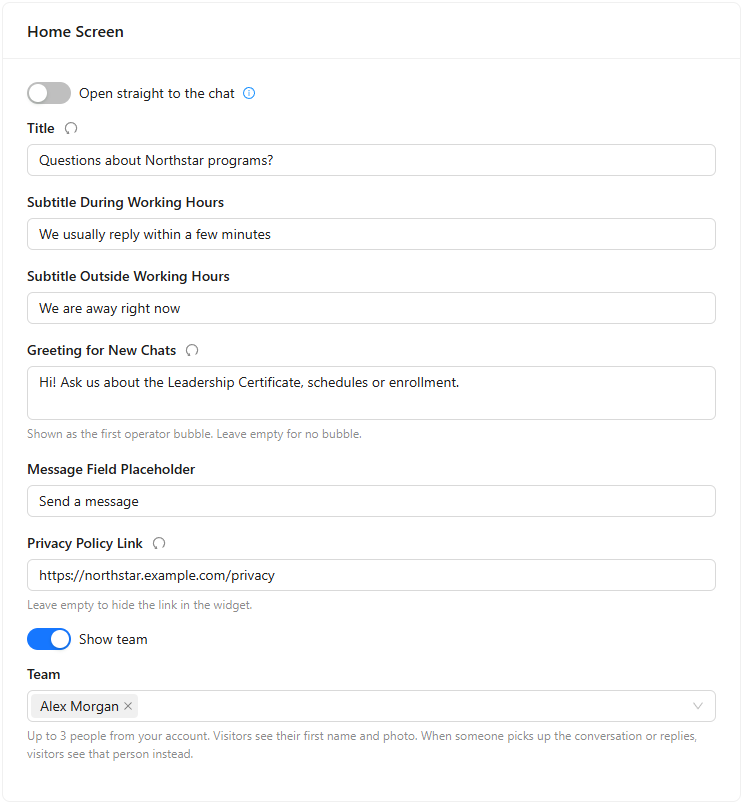
The home screen is what visitors see when they open the chat. Set its Title, the subtitles during and outside working hours, the Greeting for New Chats (shown as the first operator bubble; leave it empty for no bubble), the Message Field Placeholder and the Privacy Policy Link (leave it empty to hide the link). Open straight to the chat skips the home screen: the button opens the conversation with your greeting, and the home screen text and links are not shown.
Turn on Show team and pick up to three people from your account in Team. Visitors see their first name and photo. When someone picks up the conversation or replies, visitors see that person instead.
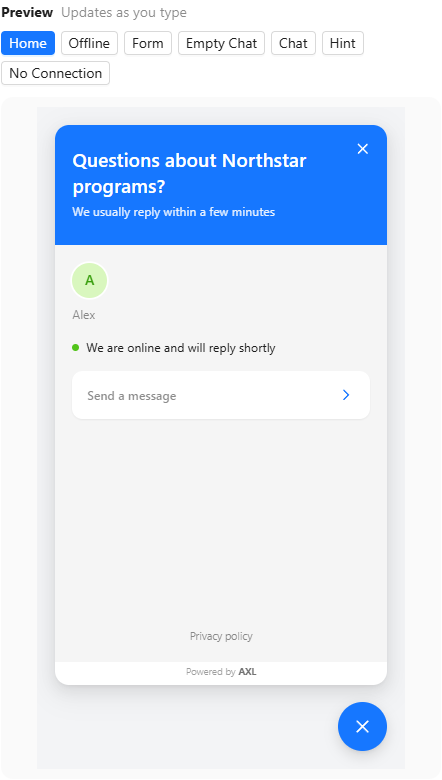
Under Other Ways to Reach Us, set the Section Title and click Add Link to add up to six links: Telegram, WhatsApp, Instagram, Facebook, Viber, Email, Phone or Website. For each link choose the type, enter the address or username and the text visitors see.
Reply time and working hours
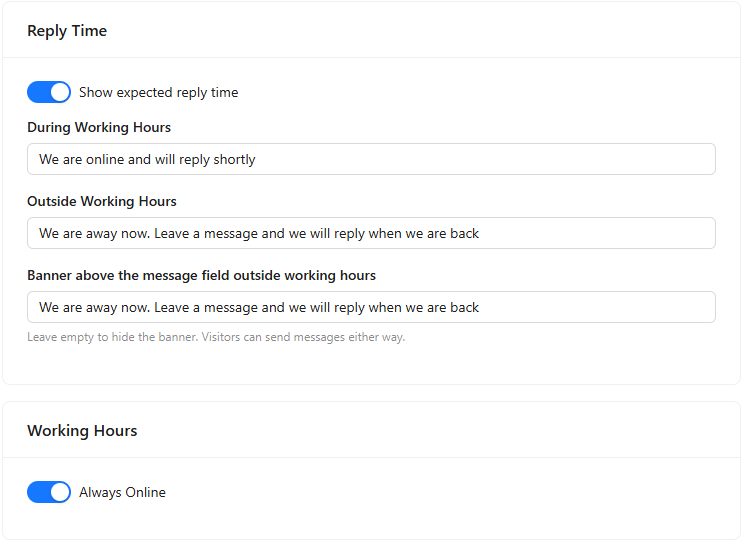
Show expected reply time shows a line such as We are online and will reply shortly; set separate texts for working hours and outside them. The Banner above the message field outside working hours is optional: leave it empty to hide it. Visitors can send messages either way. In Working Hours, keep Always Online or turn it off to set your opening hours.
Lead form
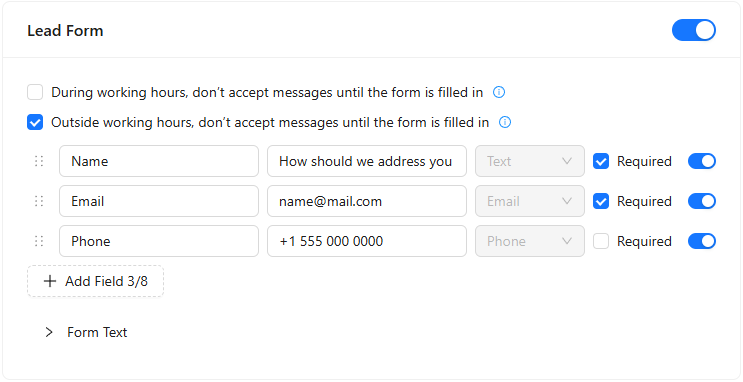
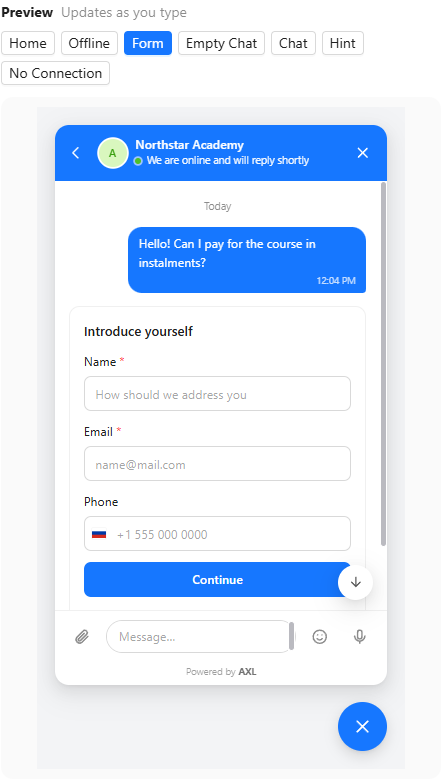
The Lead Form asks visitors for their details. When its switch is off, visitors never see the form and can write right away. By default the form asks for Name and Email; the Phone field is in the list but switched off — turn it on if you need it. For each field you can change the label and the hint inside it, mark it Required or turn it off with the switch on the right; drag fields by the handle to reorder them. Click Add Field and pick a contact field — a standard one such as City or Birthday, or one of your custom fields — and the visitor's answer is saved to that field of the contact (up to eight fields). A list field shows its options, a date field a date picker, a yes/no field a checkbox. Any field except Name and Email, the Phone included, can be deleted. Expand Form Text to change the Form Title, the Button Text and the error messages visitors see: Empty Required Field, Invalid Email, Incomplete Phone Number and Network Error.
With During working hours, don't accept messages until the form is filled in, the visitor's first message waits until they fill in the form. The same option for outside working hours makes sure you have their contact details when you reply later; with Always Online it has no effect. With both boxes unchecked the form can be skipped. The details are saved to the contact in your CRM.
Message field
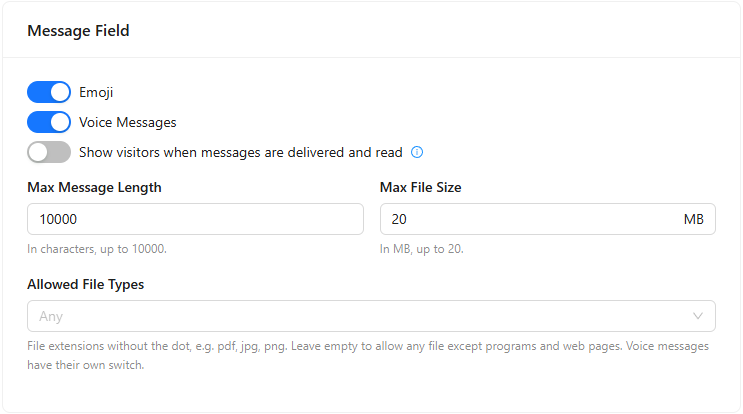
Turn Emoji and Voice Messages on or off. Show visitors when messages are delivered and read adds check marks: one means the message reached the chat, two mean a team member opened the conversation, or a team member, the AI Assistant or an automation replied after it. You can lower the Max Message Length (up to 10,000 characters) and Max File Size (up to 20 MB), and limit Allowed File Types by extension. With no types listed, any file is allowed except programs and web pages.
Where to show and triggers
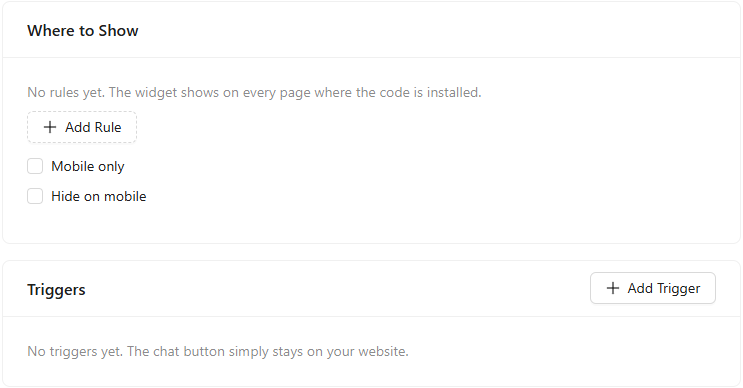
By default the widget shows on every page where its code is installed. Click Add Rule under Where to Show to limit it to certain pages, or check Mobile only or Hide on mobile. Triggers let the chat react to visitors, for example show a hint on certain pages: click Add Trigger, name it and set the Page URL conditions. All conditions must match; with no conditions, any page matches. Without triggers, the chat button simply stays on your website.
Show the chat on your sites
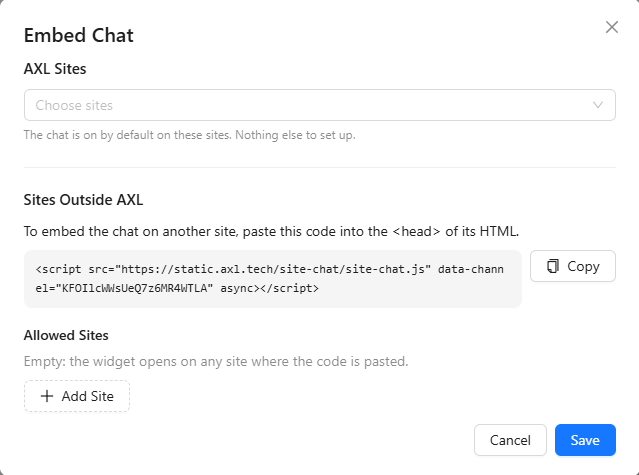
Click Embed on Site in the channel header. The Embed Chat window has two parts:
- AXL Sites: choose your sites built in AXL. The chat is on by default on these sites; nothing else to set up. A site can show only one chat; if a site already shows another chat, AXL tells you which one.
- Sites Outside AXL: copy the code and paste it into the
<head>of the HTML of your other site. Optionally click Add Site to list the sites that may use the code; with an empty list, any site with the code can show the chat.
Click Save to apply the choice.
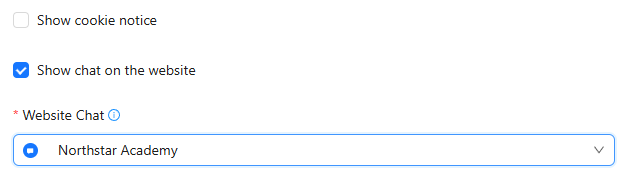
You can also turn the chat on from the site itself: open the site in Sites, go to Account Settings, check Show chat on the website, choose the chat in Website Chat and click Save Changes.
The header of the channel page shows the result, for example AXL sites: 1 · Other sites: any with the code.
To open the chat from your own button, change it on some pages or fill in the visitor's details from your site, use the For Developers card at the end of the settings form; all settings, commands and events are in "Website Chat SDK for Developers".
Reply to visitors
New website conversations appear in Communications → Chat, next to your other channels. Until a visitor introduces themselves, the conversation is labeled Guest and gets an automatic name, such as an adjective and an animal, so you can tell guests apart. When the visitor fills in the form, the name and email appear in the conversation and the details go to the linked CRM contact. If the page already knows the visitor (for example, after they filled in a form or paid on your AXL site), the chat signs them in as that contact and the form is not asked again.
If an AI agent answers the chat, it hands the conversation to your team when it can't help (and when it can't answer at all). The visitor sees a note in the chat that the conversation was passed to your team and that the reply will come in the same chat. The conversation moves to the queue in Communications → Chat, and team members with access to chats get a notification — in the bell, as a push, in Telegram or by email, as set in their notification settings.
Conversation rating
When you close a website conversation, the chat asks the visitor to rate it. The scores show how happy visitors are with your replies and point you to the conversations that went wrong. Rating is on for every website chat by default.
Close a conversation
- Open Communications → Chat and the conversation.
- Click Close in the conversation header, to the right of the visitor's name. In a narrow window it is a check mark icon; hover over it to see the hint.
The header then shows Closed, and within seconds the visitor sees How would you rate the conversation? in the chat. The question is not sent when you close conversations in bulk from the list or mark them as read, and when nobody from your side answered the visitor.
What the visitor sees
Five faces, from Very bad (1) to Great (5). After a score of 1, 2 or 3 the chat asks What could we do better? and the visitor can write a comment. The visitor can change the score until they write in the chat again, but not later than 7 days after the question.
Where to see the ratings
In the conversation, a line in the middle of the chat says Visitor was asked to rate the conversation. When the visitor answers, the line shows the face, the score (for example Visitor rated the conversation 4/5) and the comment in quotes.
All ratings are in Communications → Chat Analytics on the Website Chat tab. CSAT there is the share of scores 4 and 5 among the visitors who rated: if 8 of 10 visitors chose 4 or 5, CSAT is 80%. See "Chat Analytics".
Turn rating off or change the question
- Open Communications → Website Chat and the channel's Settings tab.
- In the Conversation rating card, turn off Ask the visitor to rate the conversation after you close it, or change the Question. Rating above the preview shows the card as the visitor sees it.
- Click Save.
When you change the widget language, the question follows the new language unless you have edited it.