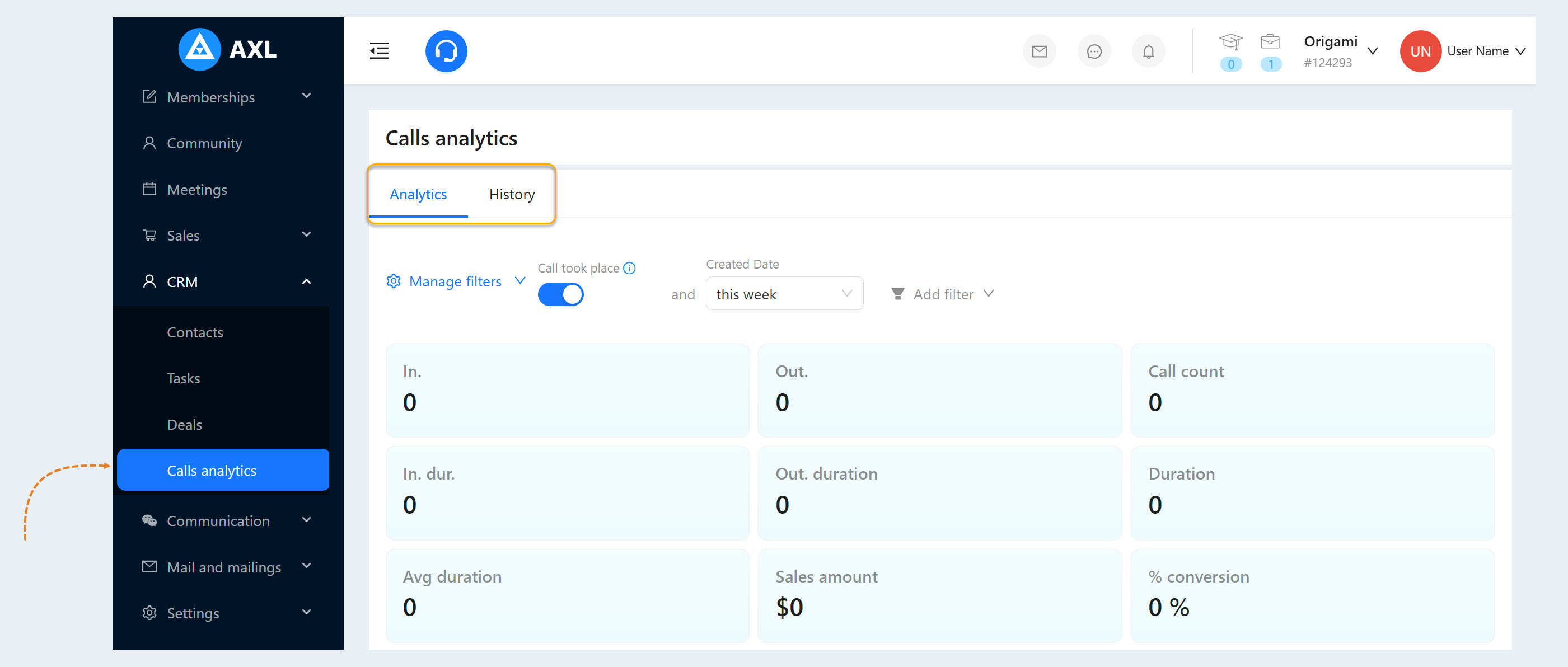
Telephony is located in the "Communication" section → "Telephony" (page address: /telephony). On the AXL platform, you can make outgoing calls to your clients and receive incoming calls: get a phone number from AXL on the "Numbers" tab or connect your own IP telephony on the "Integrations" tab. This article describes the tabs of the page, connecting an integration, its common settings, the account balance and internal numbers.
Click on the desired section of the article to go to its description:
Connecting Calls
Go to the "Communication" section in the left menu and select "Telephony". The section is available to administrators with the "Telephony" access right. The page has the following tabs:
- Numbers. Phone numbers of your account bought from AXL: the "Connect a number" button, number settings and the team that answers calls. The "Call and SMS rates" button shows the prices.
Call settings. The list of call results that a manager selects right after a call. AI uses the same list when it analyzes calls.
SMS registration. The registration of your business that is required to send SMS from your numbers.
Analytics and History. Call statistics by administrator and the list of calls. Read more in the article "Calls analytics".
Call campaigns. Calling a list of contacts with a voice AI agent.
Integrations. Connecting your own IP telephony provider: Zadarma, OnlinePBX, Novofon, Mango Office, RingCentral, Kcell or Twilio.
If you already have an account with a telephony provider, connect it on the "Integrations" tab. Otherwise, it is faster to get a number from AXL on the "Numbers" tab.
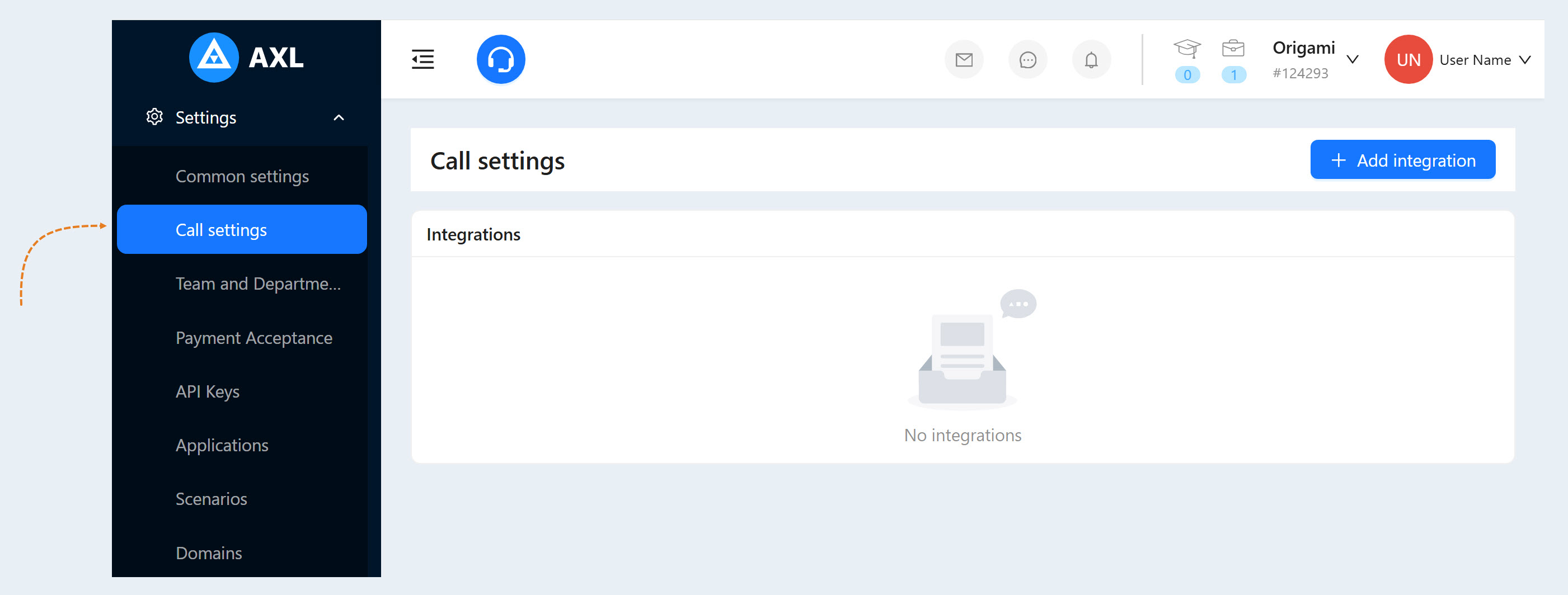
To connect your own telephony, open the "Integrations" tab and click the "Add integration" button in the upper right corner of the page. In the window that opens, select the integration type, enter the keys from your telephony provider's account and click "Add". Read more in the article "Connecting IP telephony from Zadarma".
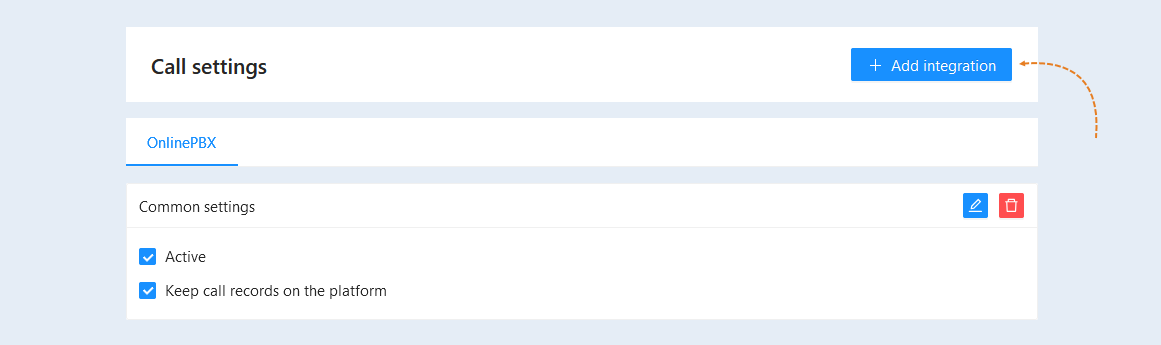
Once the integration is connected, it appears on the "Integrations" tab. Select the integration to open its settings.
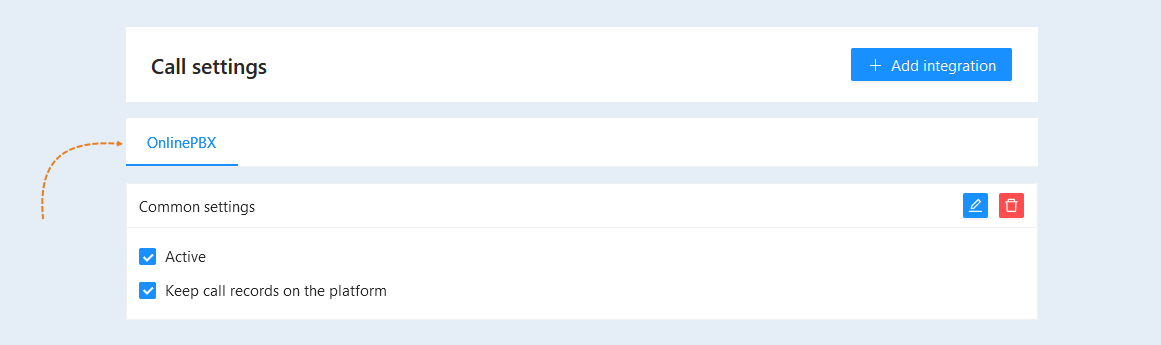
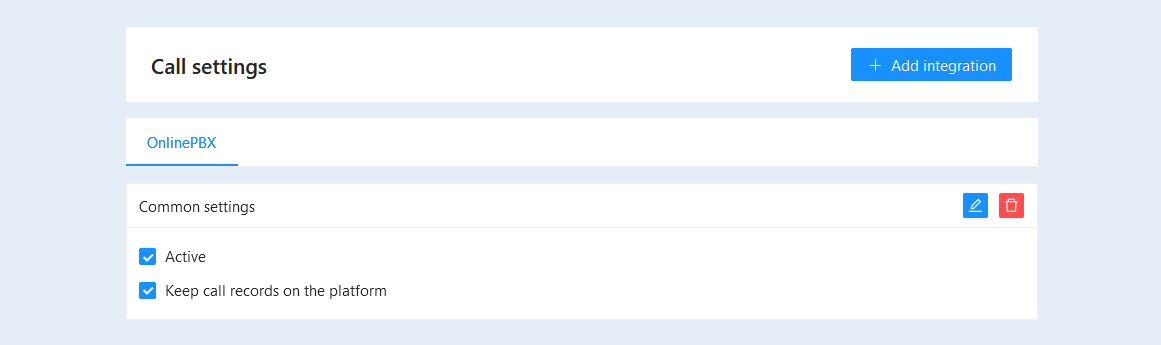
Common settings
In this block, you configure the integration. Check the boxes in the following fields:
- Active. Turns the integration on or off.
Keep call records on the platform. Check the box if you want to save the recordings of calls between your administrators and clients on the platform. For the recording to be saved, call recording must also be enabled in your telephony provider's account.
Transcribe calls. The platform converts call recordings into text. Available when call records are kept on the platform.
Summarise calls with AI. AI writes a short summary of each conversation. Available when call transcription is enabled.
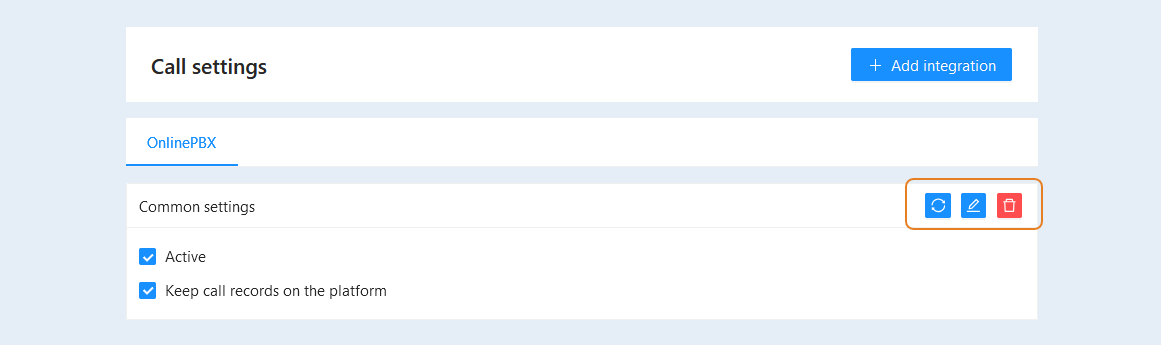
On the right side of the block, you have the following actions available:
- "Sync" button. Click to synchronize this call integration.
"Edit" button. Click to make changes to the integration settings.
"Delete" button. Click to delete the integration.
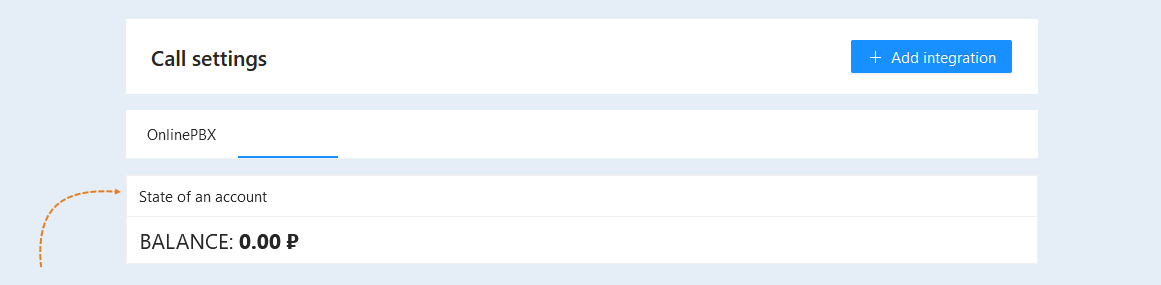
State of an account
In this block, you can see the current balance of your account with the telephony provider.
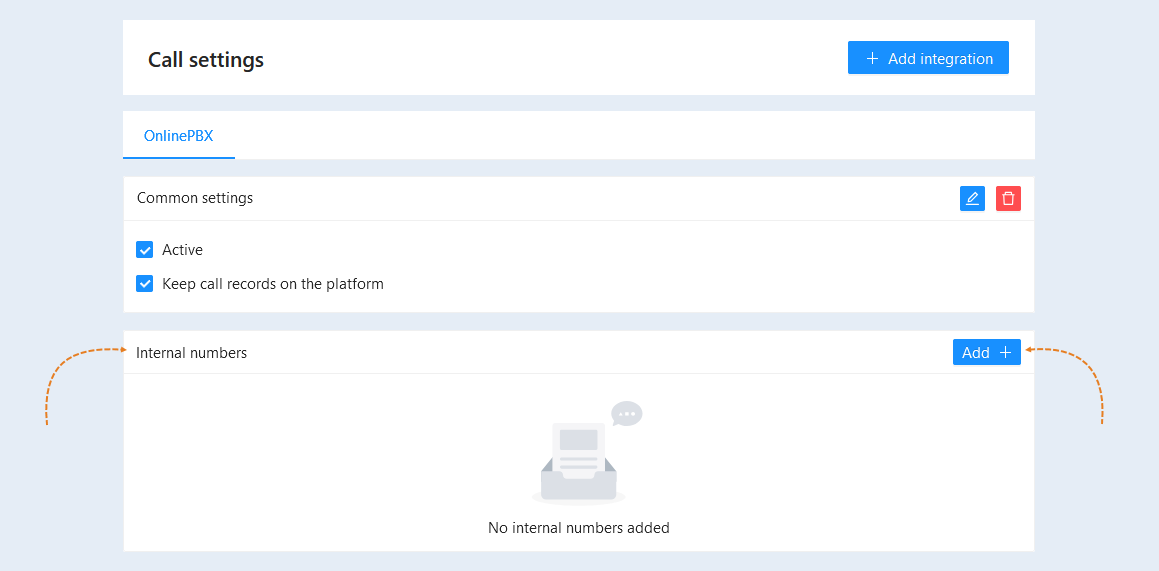
Internal Numbers
Add internal numbers for account employees. Internal numbers provide staff with a convenient way to communicate and interact, promoting a more efficient learning and collaboration process.
Next to each administrator, there are buttons to edit and delete. You can make changes to an administrator's data at any time, or remove an employee from the account.
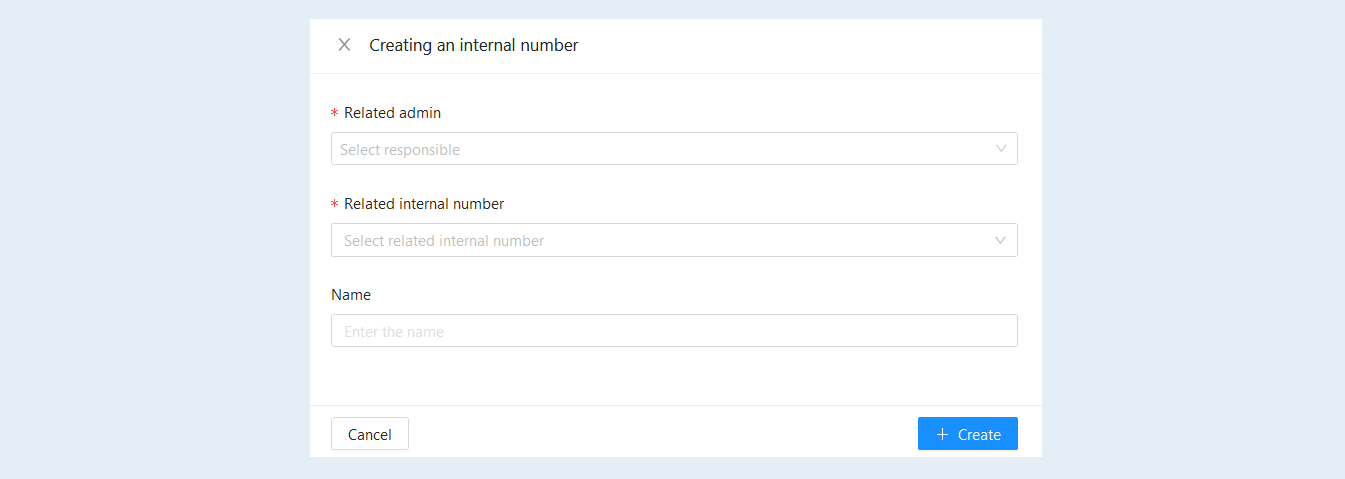
To add an internal number, click the "Add" button.
In the opened window, fill in the fields:
Related admin. Choose the responsible administrator from the list.
Related internal number. Select the associated internal number from the suggested list.
Name. Enter a name for the internal number.
Click the "Create" button.
On the "Analytics" and "History" tabs of the "Telephony" page, you can view detailed reports and the history of calls made. Call analytics is necessary to obtain valuable data such as the volume of calls, their duration, sales amount and conversion rate. These metrics help to improve the quality of customer service and optimize business processes in the company.
Read more in the article "Calls analytics".