A letter template is a pre-prepared text of an email to be sent to a contact.
You can create email templates and use them in various mailing lists. Templates allow you to quickly create mailing lists. You just use the prepared text. Such text is easy to edit and create a new mailing list based on it.
You can edit an already created template in the "Letter templates" tab. And to create new templates - in the "Mailings" tab.
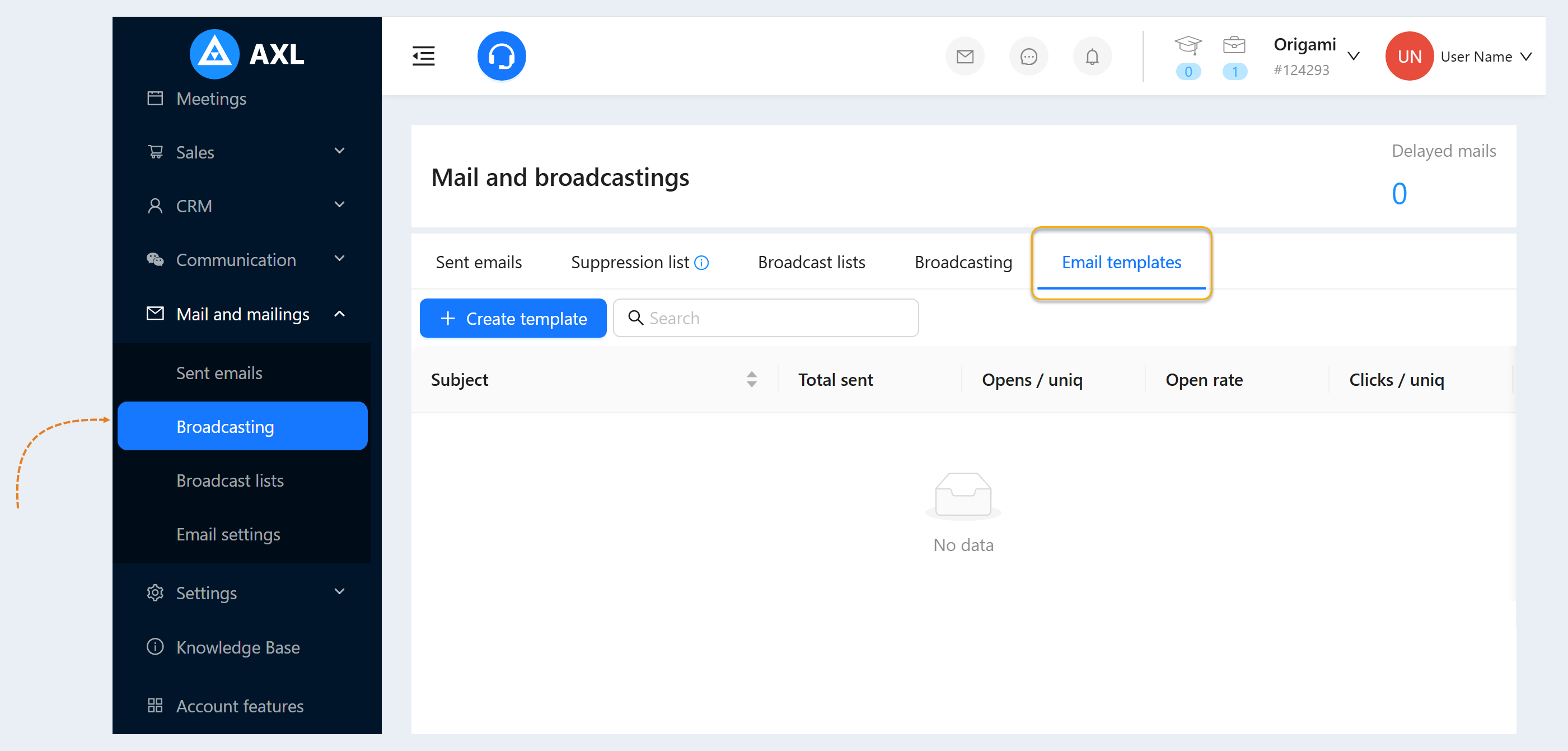
Go to the "Mail" section. Select the Broadcasting tab. Then select the "Letter Templates" tab from the top menu.
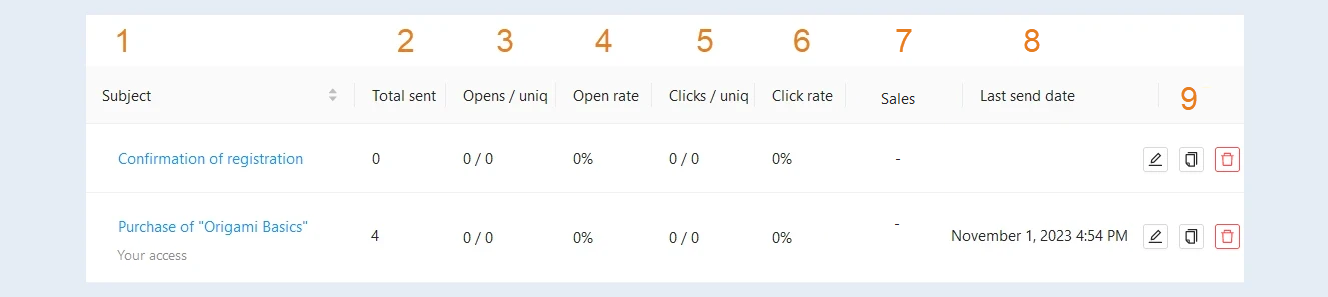
Here you can see existing email templates and newsletter statistics:
- Subject. The name of the template and the subject of the letter are specified.
Total sent. The number of emails sent.
Opens / unique. You can see the number of times a given letter has been opened and the number of unique users. The number of message openings can be higher if the user has opened the message several times.
Open rate. The number of openings as a percentage of the total send list.
- Clicks / unique. The number of clicks on the link in the letter (including repeated clicks) and the number of unique clicks.
Click rate. The number of clicks on a link as a percentage of the total number of open emails.
Sales. In this column, you can see information about the number of sales or revenue that was received as a result of the emails sent. This column helps you evaluate the effectiveness of your template.
- Last dispatch date. Date and time of the last sending of this letter.
Actions. The buttons are available to you here:
- The "Edit" button. Click on the button to make changes to the template.
The "Copy" button. Click to copy the template.
The "Delete" button. Click on the button to delete the template.
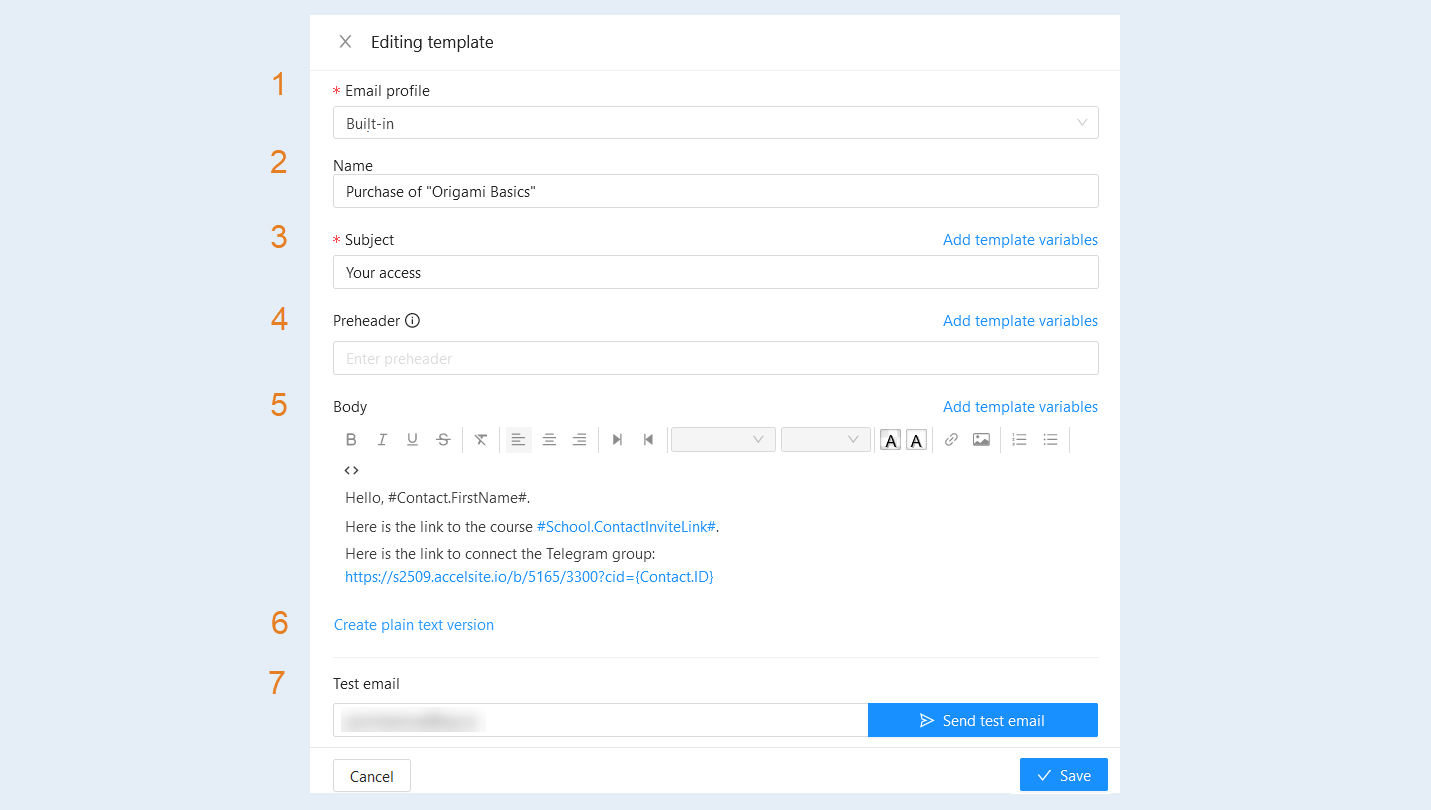
You can edit the existing template. Click on the subject line. Make changes in the window that opens:
Email profile. Here you select a service from the list with which the newsletter will be sent. Read more in the "Mail settings" article.
Name. The name of the template is specified.
- Subject. Here you can see the subject line and you can edit it.
Preheder. A piece of text that appears in the mailbox immediately after the sender's name and subject line.
- Body. You can see the text of the letter and you can edit it.
- Create plain text version. Click on the button "Create" text version of the letter "or" Delete text version of the letter. "This version is needed for better delivery of letters.
- Test email. Enter your email address and click the submit button. Then check your email and see how the email is displayed in the browser.
Click the "Save" button.
You can create a template in the “Broadcasting” tab under “Email Templates”. Click “Create Template.”
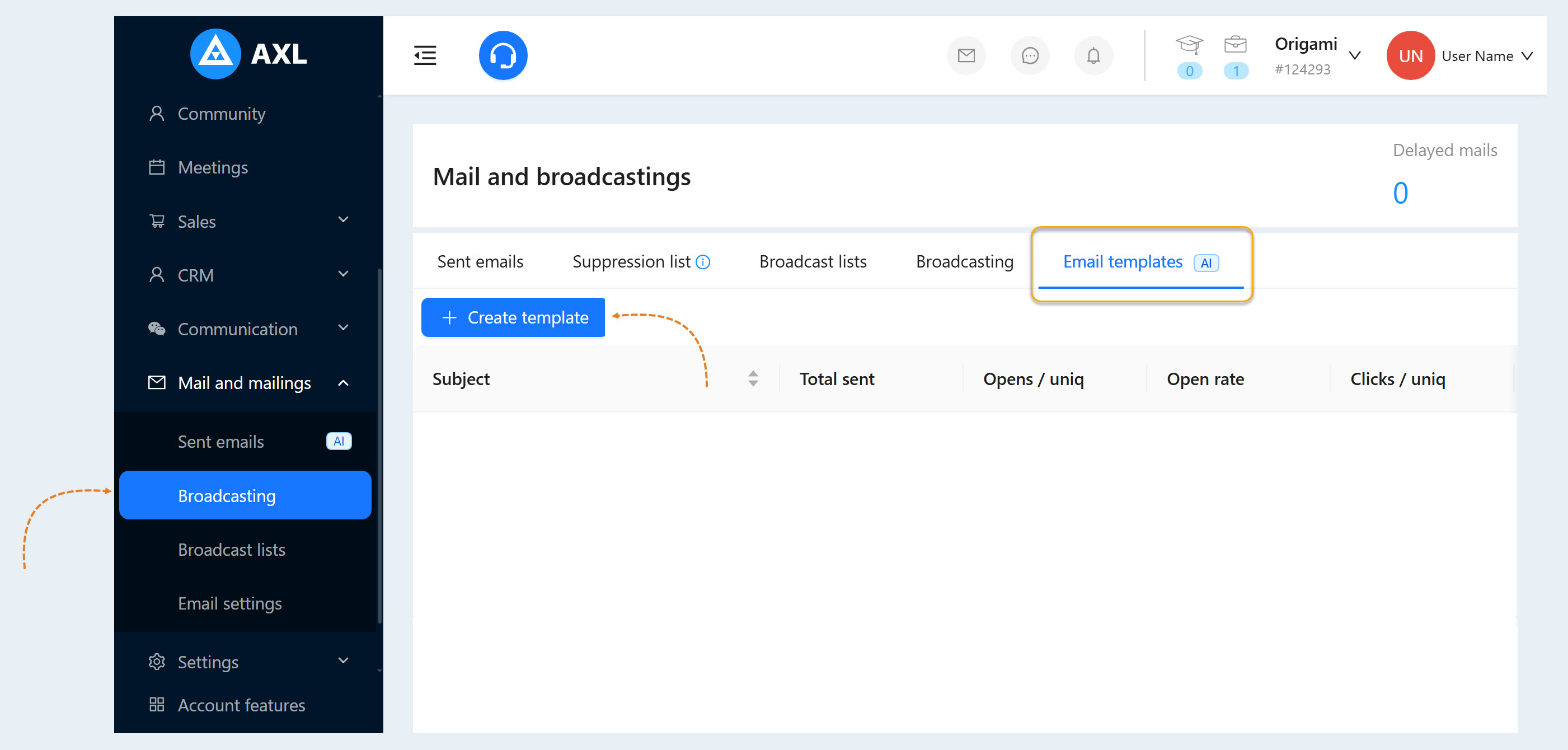
There are three options for creating a template:
- Create with AI. Interact with the AI assistant and create a template using text commands. Each request is billed separately, and the cost is calculated on a case-by-case basis.
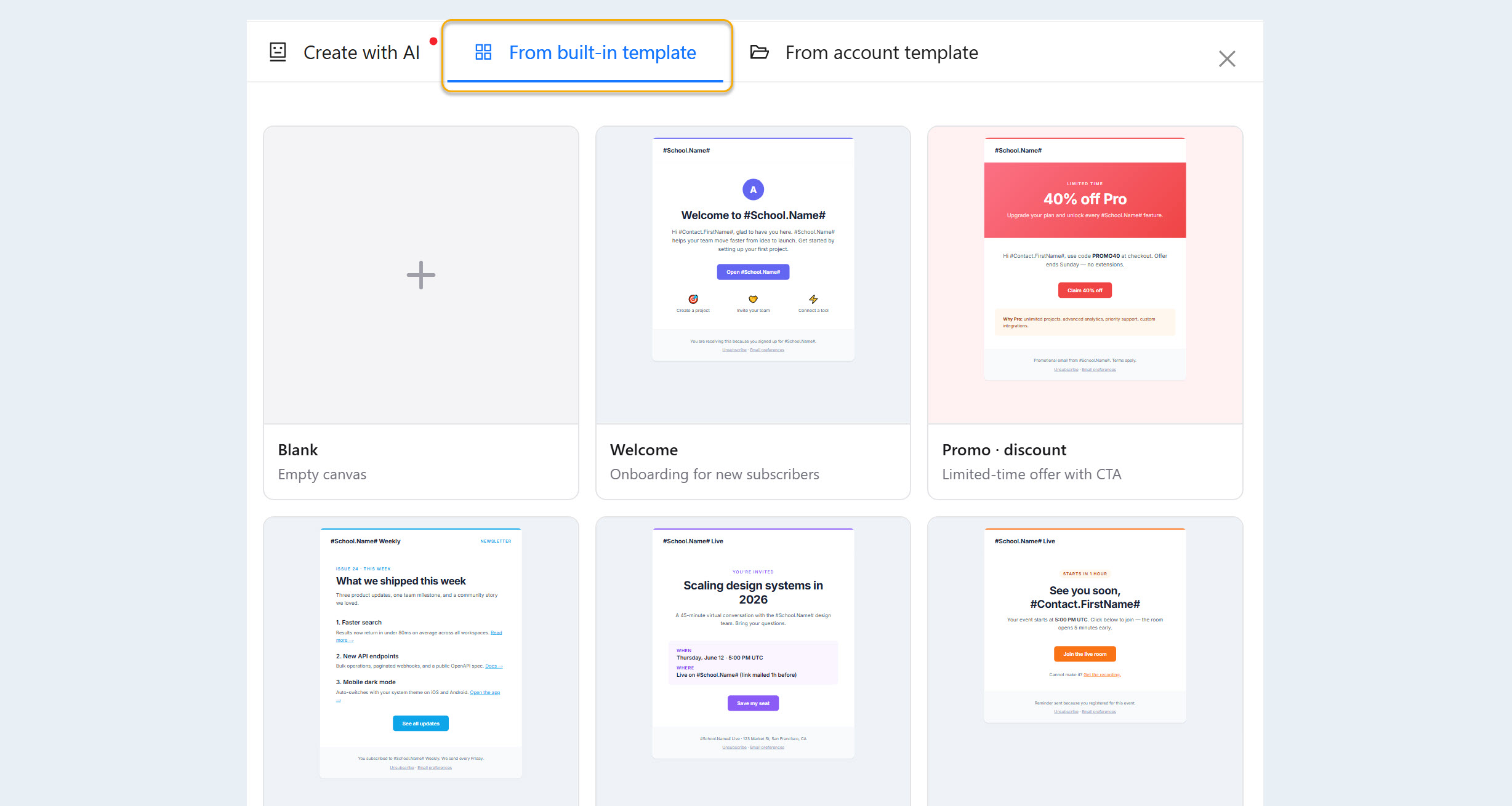
- From a built-in template. Create a template based on the platform’s pre-designed templates. Once created, you can edit the template and customize it to suit your needs.
- From account templates. Create a template based on existing templates in your account. You can modify and customize the template to suit your needs.
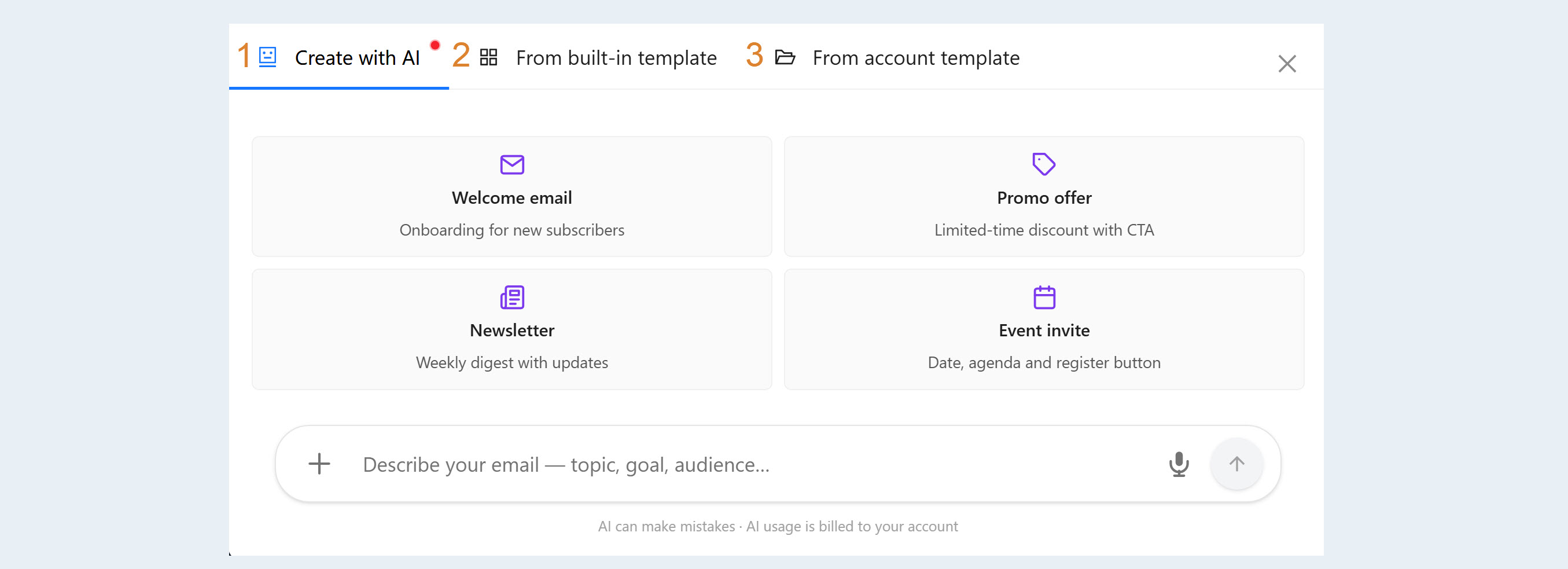
Let's take a closer look at each option.
Creating a template using AI. You can choose a template suggested by the system or enter your own instructions.
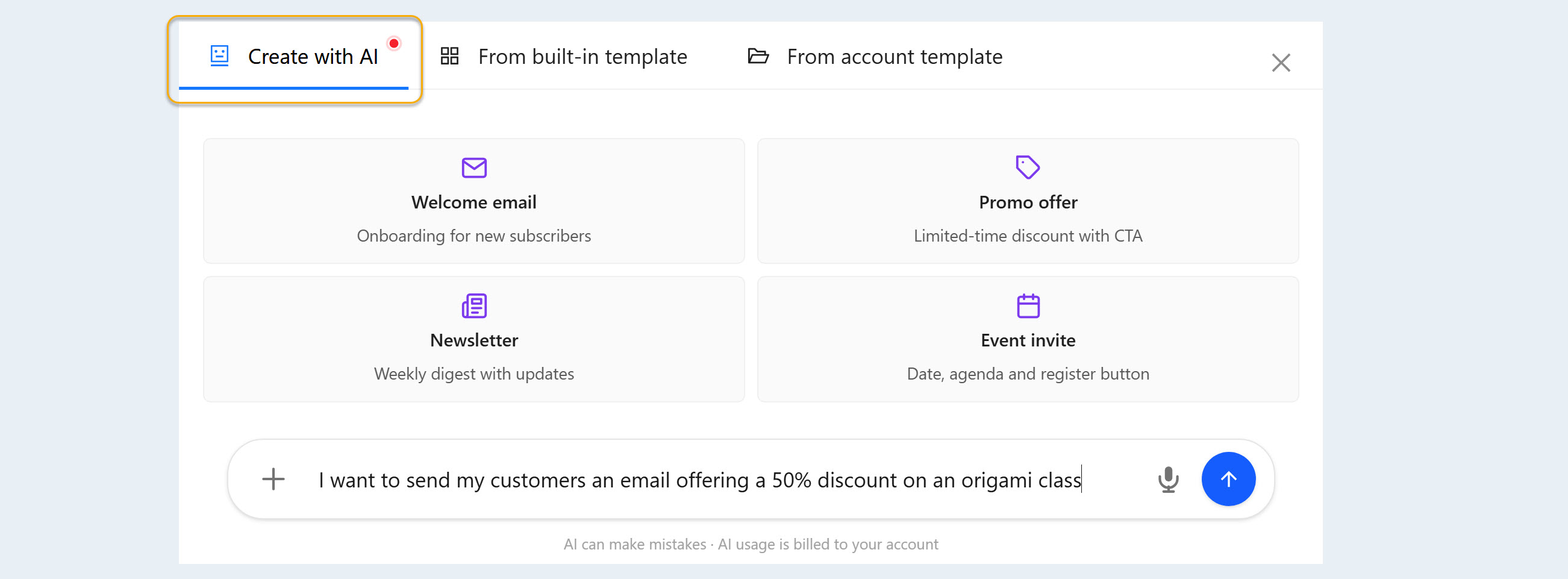
The AI assistant will generate a letter template based on your instructions.
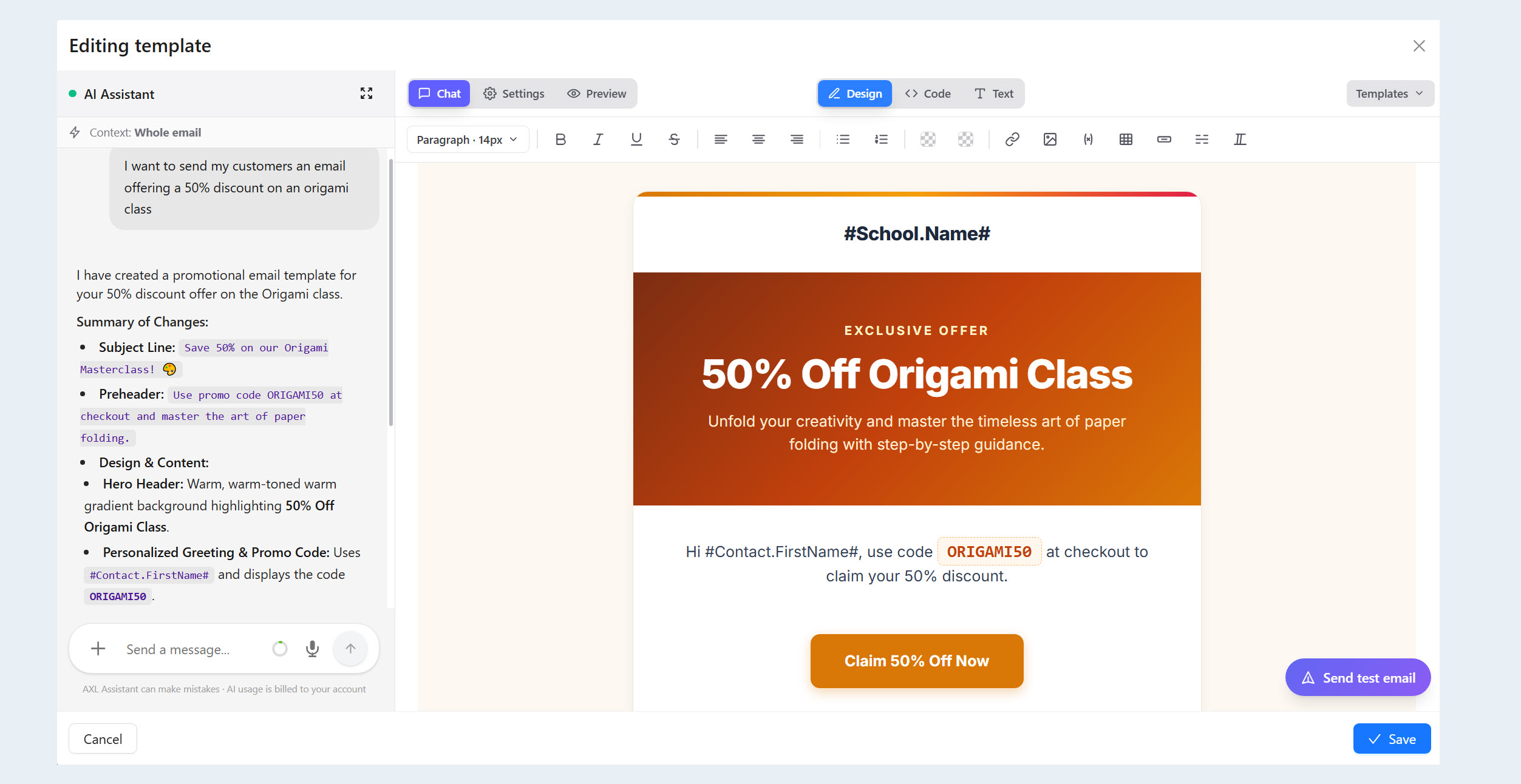
Create from a built-in template. Choose one of the platform's ready-made templates and customize it to suit your needs.
Create from account templates. Select one of the templates available in your account. Once created, you can modify the template and customize it to suit your needs.
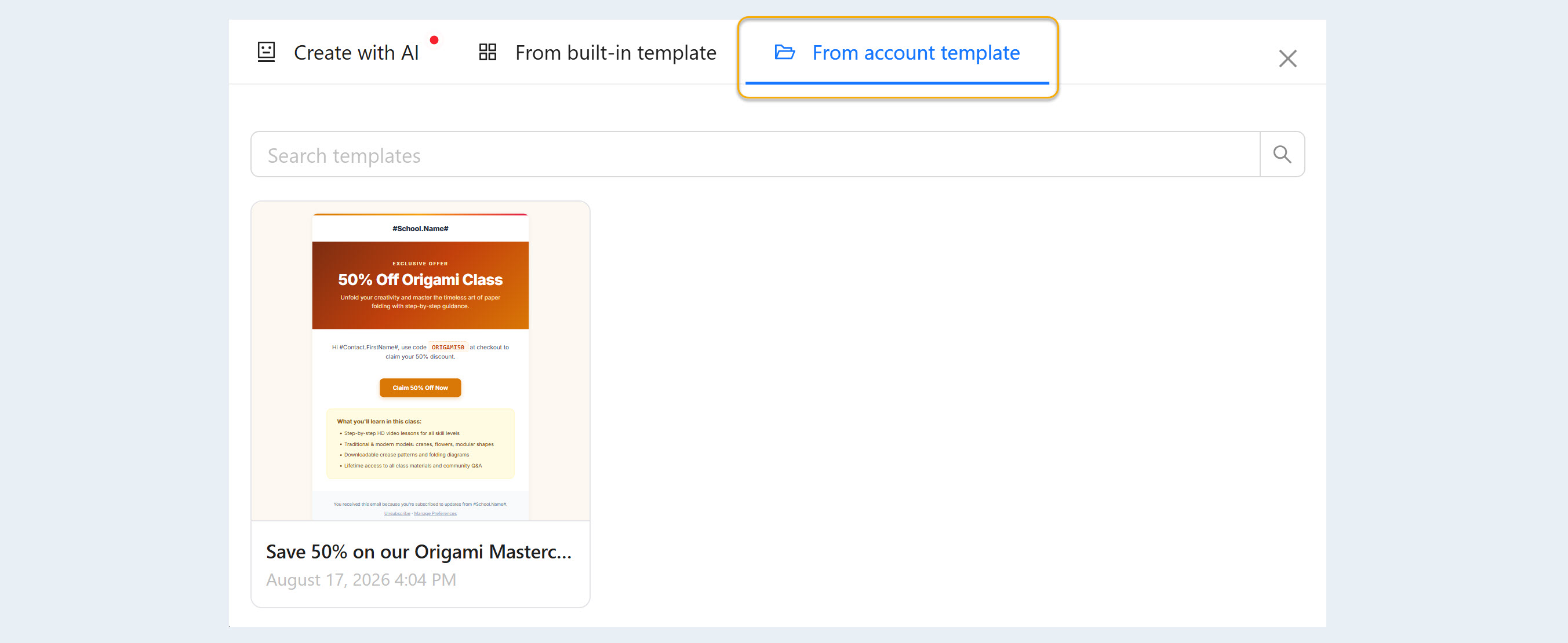
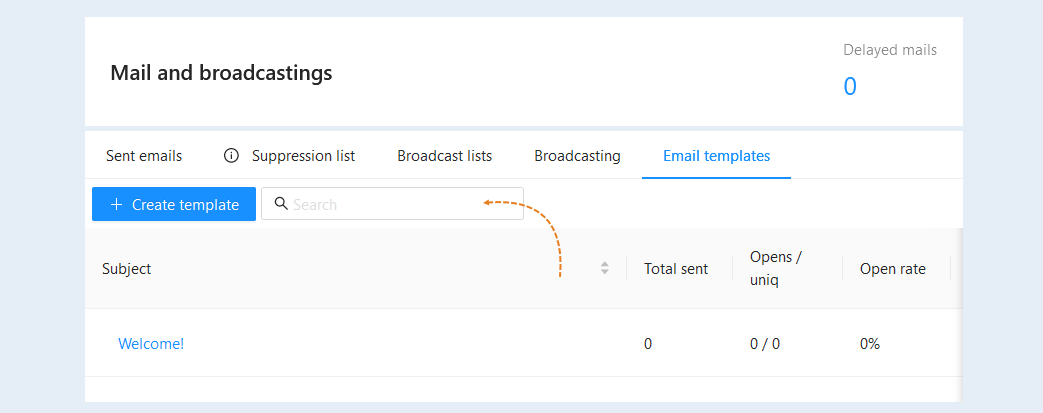
A search bar is available at the top of the section. Use it to quickly find the desired template.