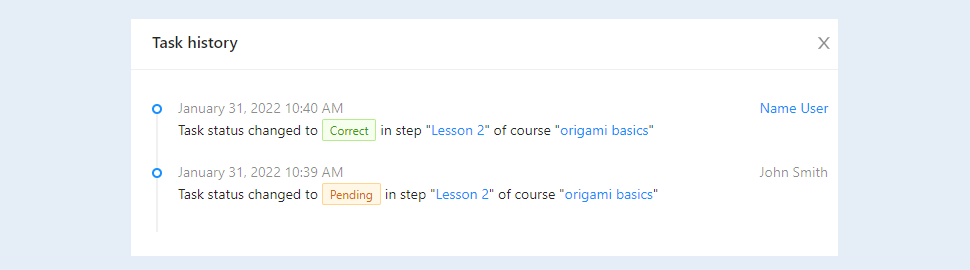
Assignments are pre-prepared written assignments for users of the course, in which the user must write an answer in free form. Also, the user has the ability to attach files to the answer to the assignment.
In the Assignment Review section, you can see user responses to assignments that you have created in Courses.
Click on the desired section of the article to go to its description:
Checking assignments
Go to the "Task Review" section.
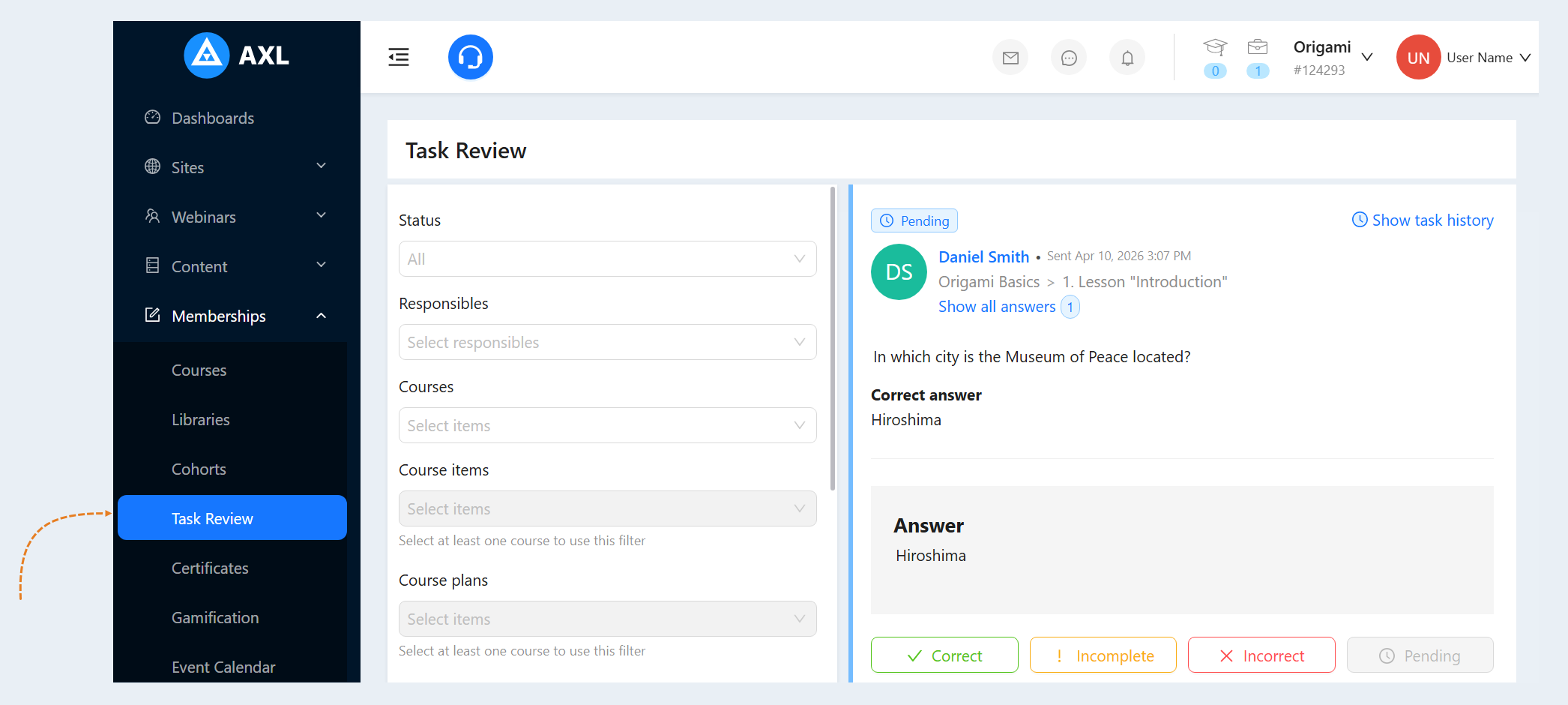
On the left is the task list control panel:
- Status. Select the status of the task from the list: under review, approved, needs to be added, not approved, under revision.
Responsibles. Select the responsible employee.
Courses. Select a course from the list.
Course items. Select the course steps from the list.
Course plans. Select course rates from the list.
- Users. Select a user from the list if you want to view assignments for a specific user.
Cohort dates. Select a stream from the list.
- Date of answer. Set a date or time span to filter responses for a specific period (for example, a month or today).
- Sorting. Select from the list:
New first - all new answers from users will be shown in this list.
First blocking, then new - this list will show all the answers that block the user's transition to the next lesson. That is, the user cannot continue learning until the answer to the assignment is approved by the membership portal administrator.
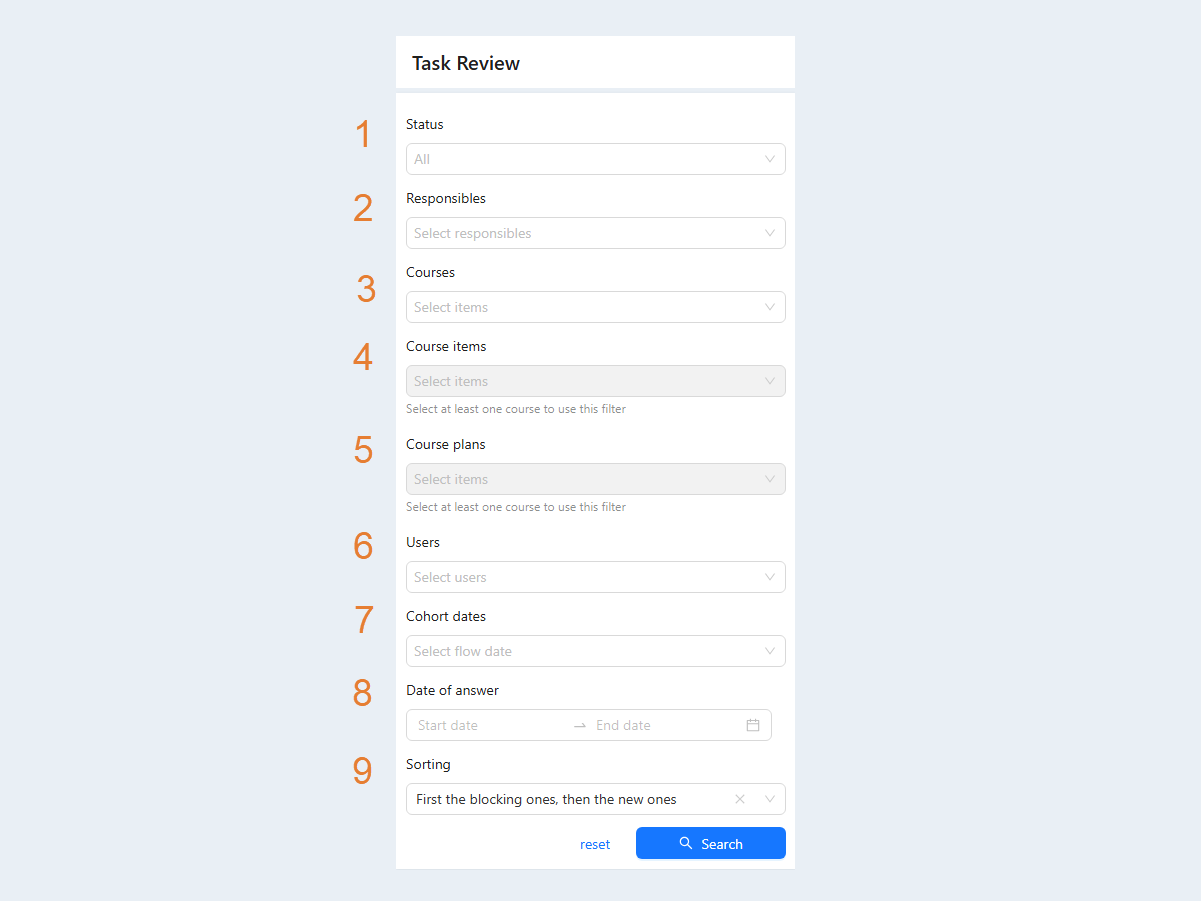
Click the Search button. In the field on the right, users' answers according to the specified criteria will be displayed. And click the “Reset” button to clear the job filter.
Users' Answers
Users' answers to assignments are displayed on the right.
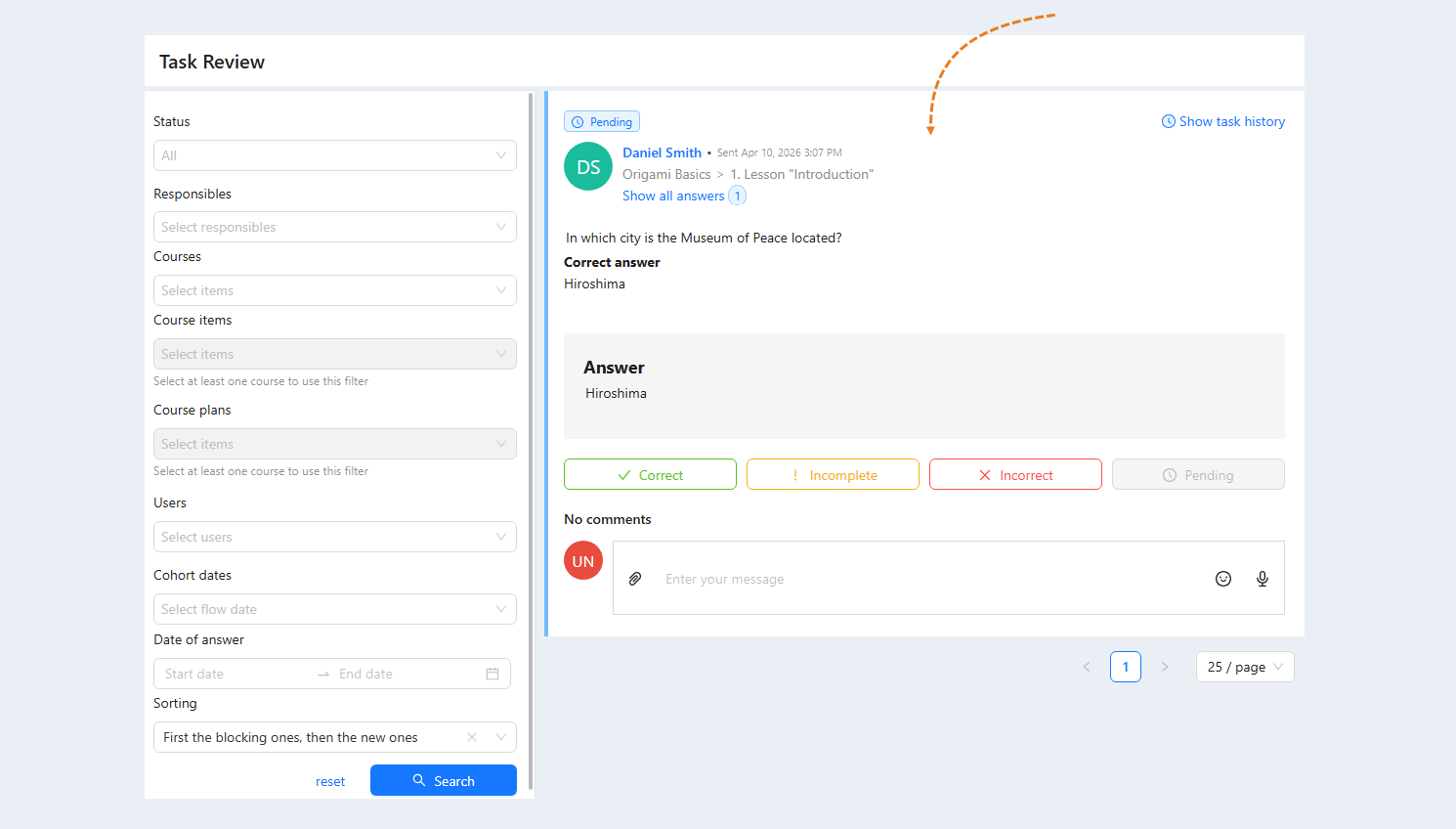
- At the top you can see the user's name. Click on the name to open the CRM contact card. The date of the user's response and the date of the changes are shown below.
Next - the name of the course - section - lesson. The “Show answers for this step" button. Click to see the answers of one selected user for this step of the course.
The “Show all answers" button. Click to see all the answers of one selected user.
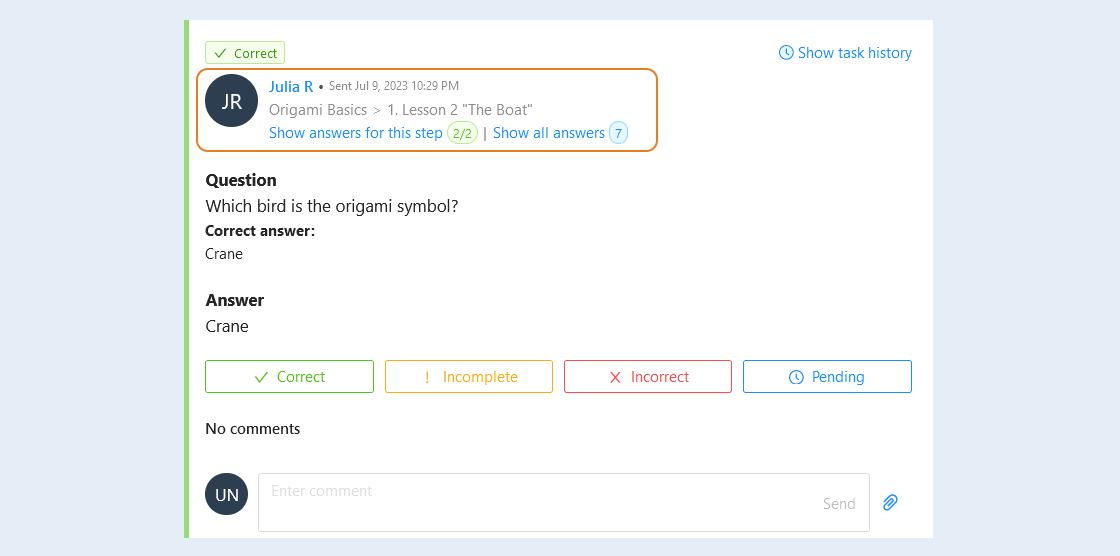
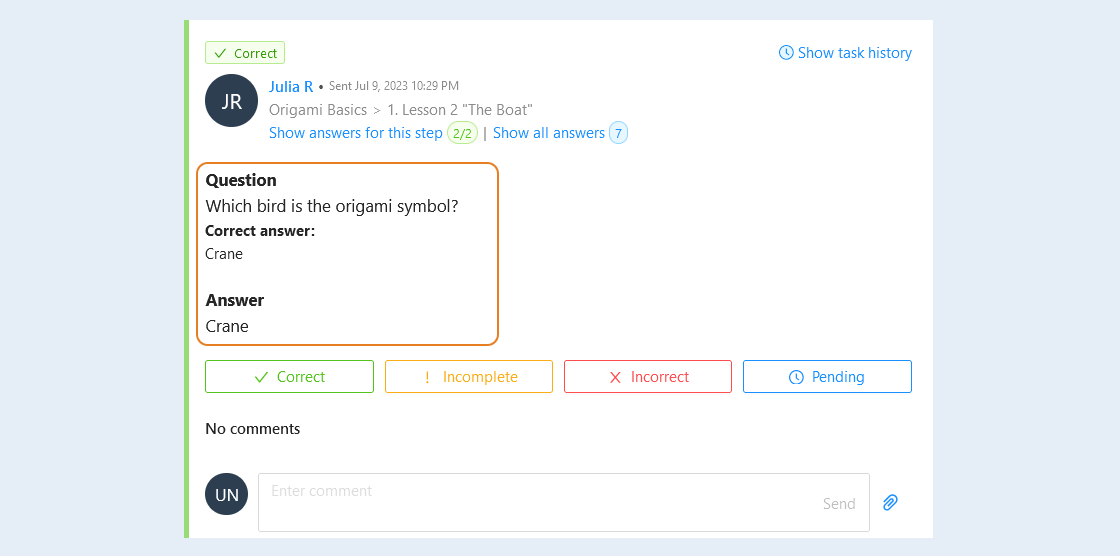
Below you see:
- Question. You can see the question in the assignment.
- Correct answer. Here you see the correct answer to the question (the user does not see this answer).
- Answer. You can see the user's answer to the question.
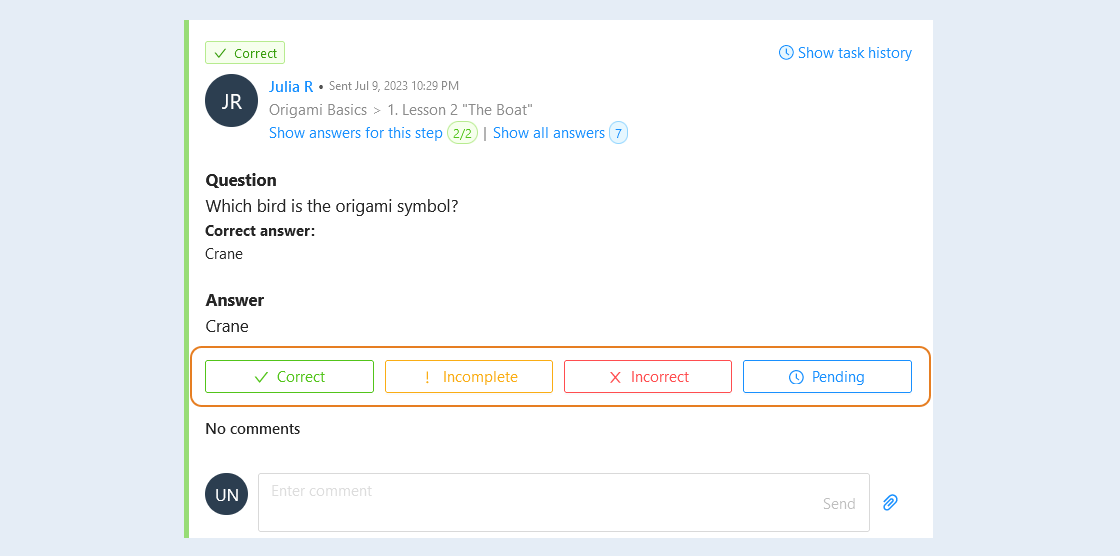
Buttons:
- Correct - click to approve the user's answer (if the assignment is automatically checked, this button will not be available for clicking).
- Incomplete - click if the user needs to complete the answer.
- Incorrect - click if the answer is not correct and needs to be corrected.
- Pending - press the button if additional time is required to check the task.
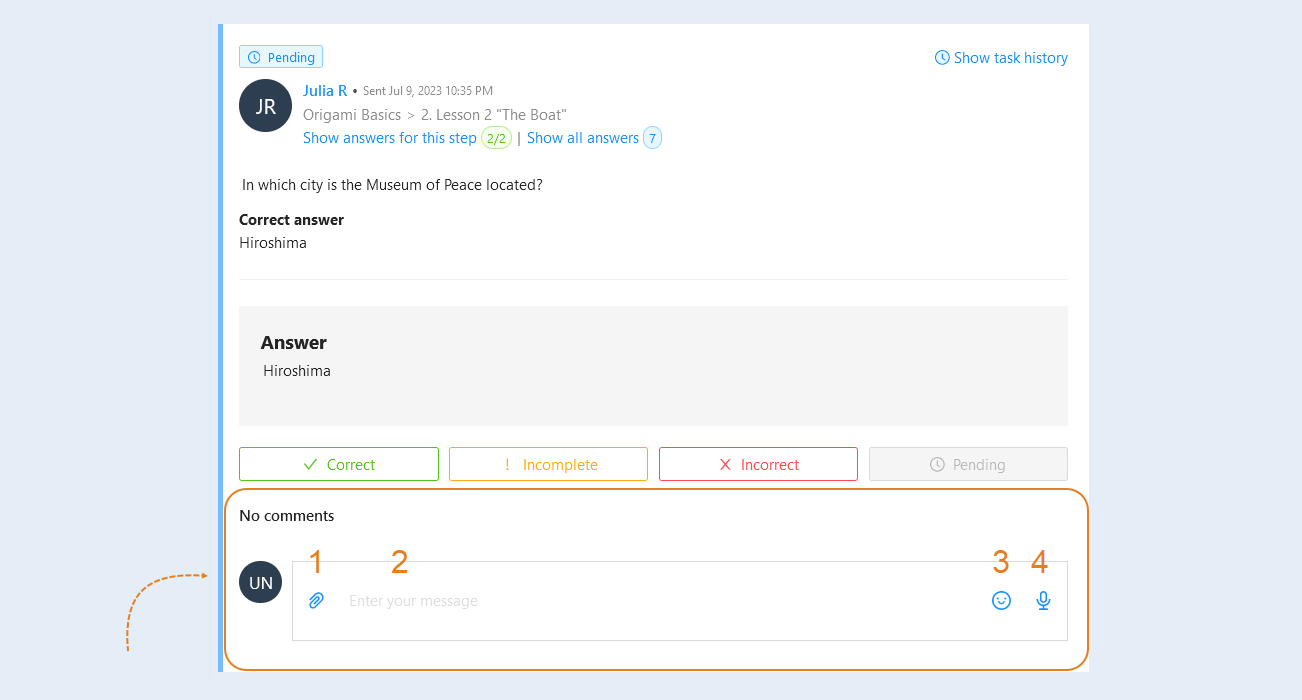
A comment. In this field you can write a comment to the user's answer and attach files.
- Files. You can attach files to a comment. Click the "Attach Files" icon and select a file from your device.
Enter your message. Add the text of the comment.
Emoji. You can add special characters to the text. They help to convey the emotional coloring of the text, make it more vivid and understandable for the user. In addition, emojis can replace some words or phrases, saving space and improving the perception of the text.
Voice recording. You can add a voice response from the curators or a voice comment. Voice input can make learning more interactive, which contributes to deeper learning of the material. Tap the "Voice Recording" icon to record an audio message instead of typing text.
In the upper right corner there are icons:
- Response status. Here you can see the status of the response: approved, needs to be completed, not approved, under review.
The "Blocking Step" icon indicates that the supervisor must evaluate the user's work and approve the assignment before the user can proceed to the next stage.
- Show job history button. Click on the button to see the history of a given user's answer to the assignment.

An additional window will open in which you will see the history of this task and all the changes that were made.