In the "Theory" section, you upload content for your online course (video, text, downloads, pictures).
This section is a page editor so you can create a unique look for your course. For more information on what a page editor is and how to use it, see the article "Page editor overview".
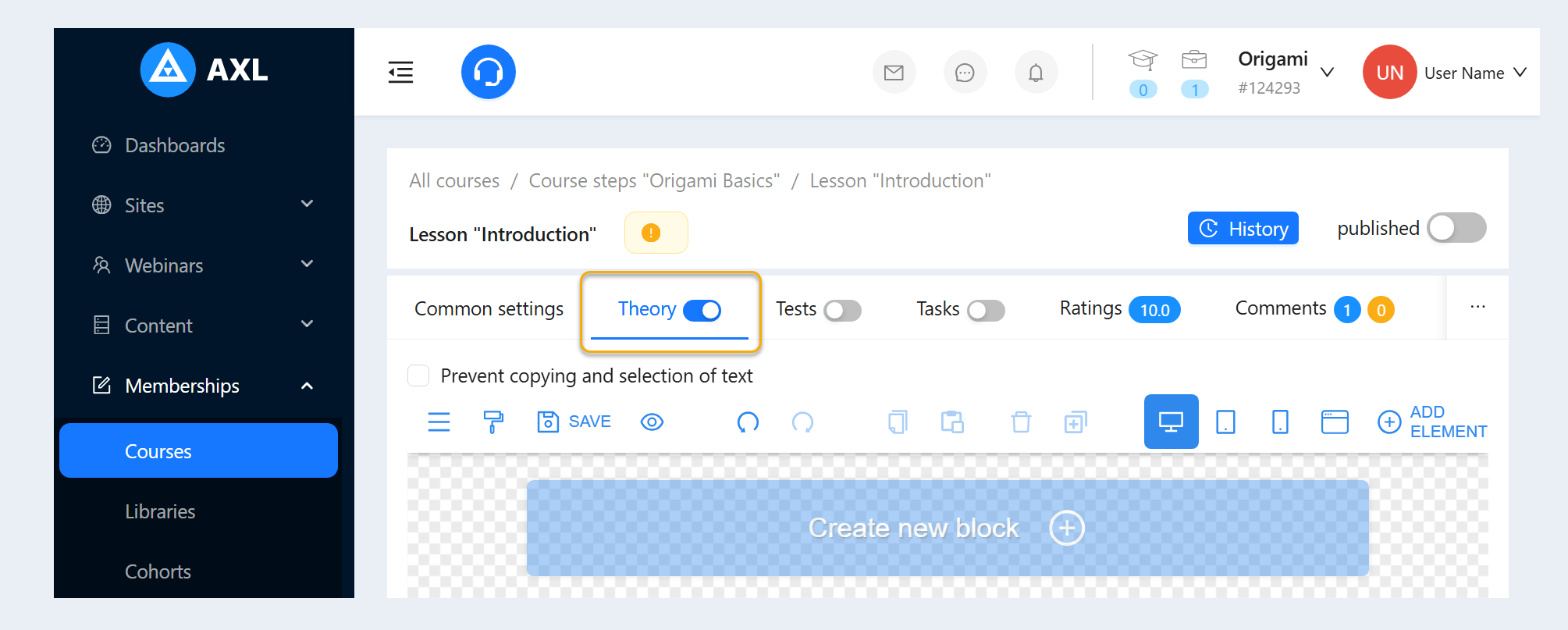
Let's take a closer look at how to add content to the Step Theory.
Click the Create New Block button. An additional window will open with ready-made templates for various blocks.
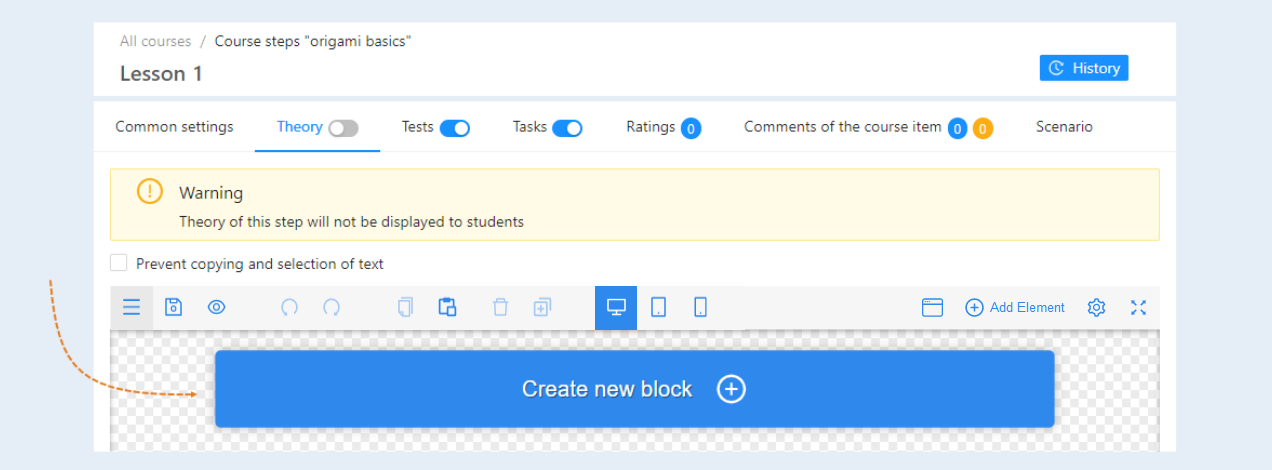
Select a Block from the list of templates. You can choose a text block, a video block, a cover and more. Next, in the right part of the window, select the type of block and click on it. In our example, we select a Video block.
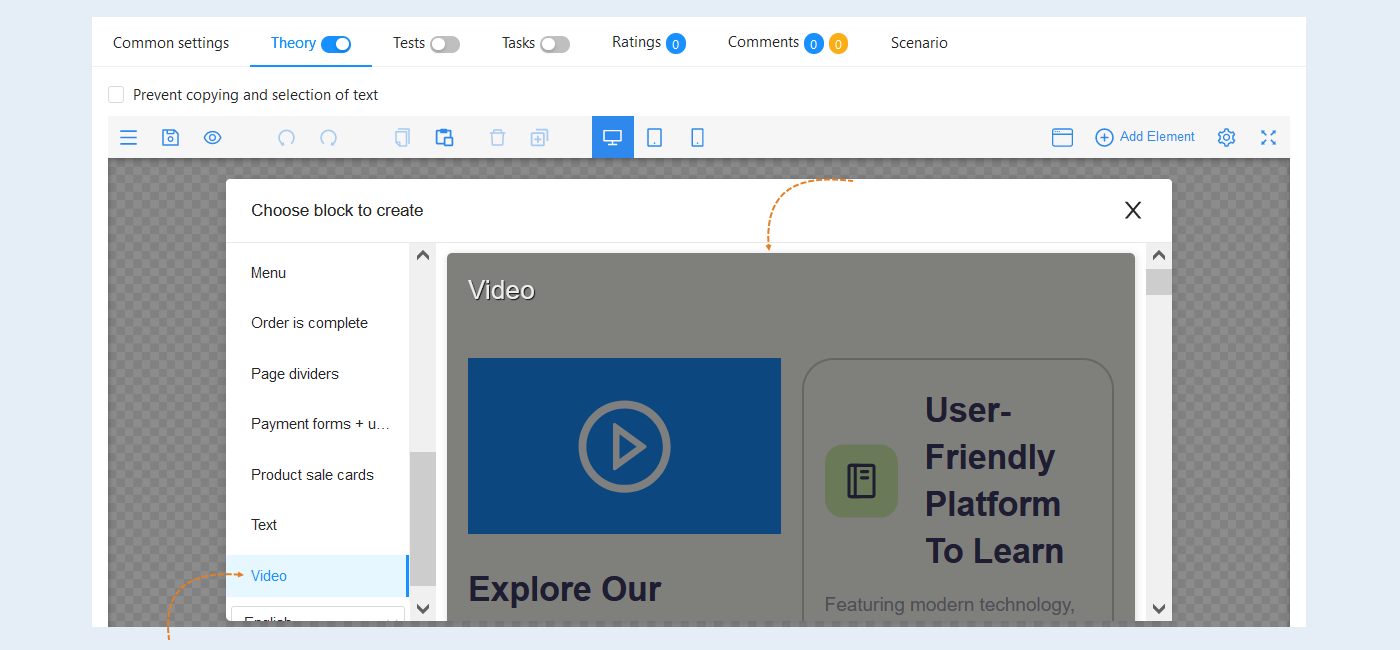
Select the entire block to edit it. The "Block Settings" panel opens on the right. Make the necessary changes. For more information about the block settings, read the article "Column Block Settings".
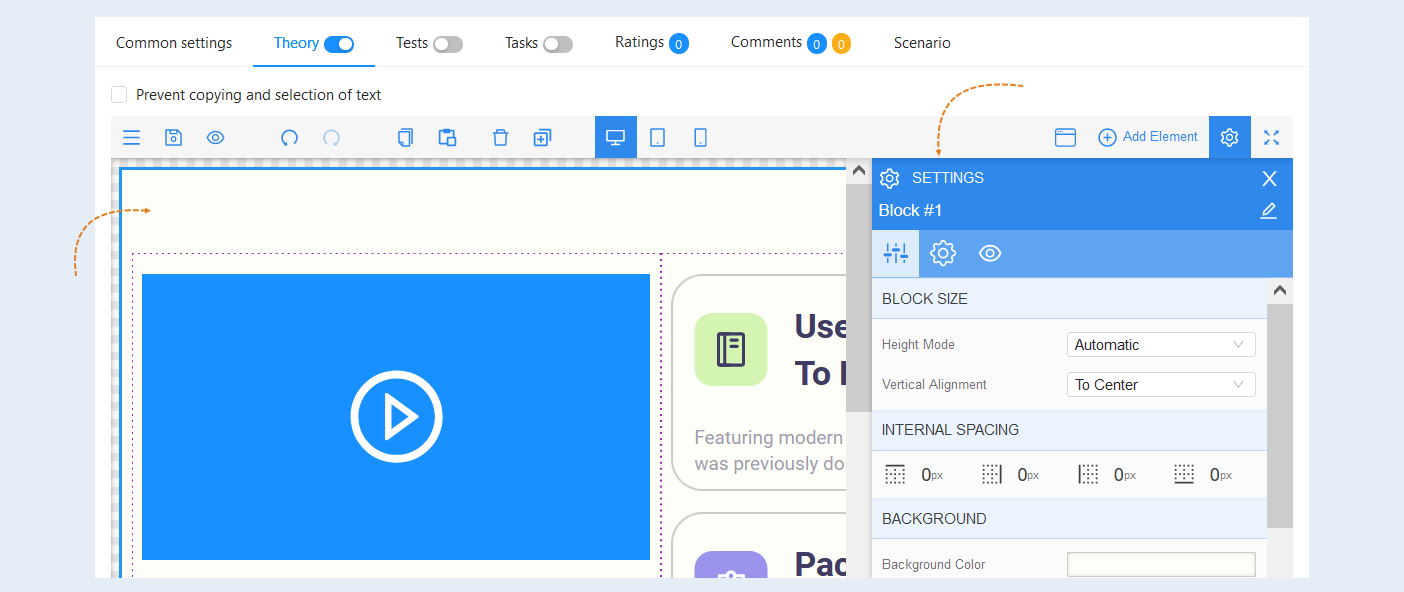
Next, select a separate element inside the block to edit it. In this example, the video element is highlighted. The settings of this element will open on the right.
For more information about the settings of the elements, read the article "Elements".
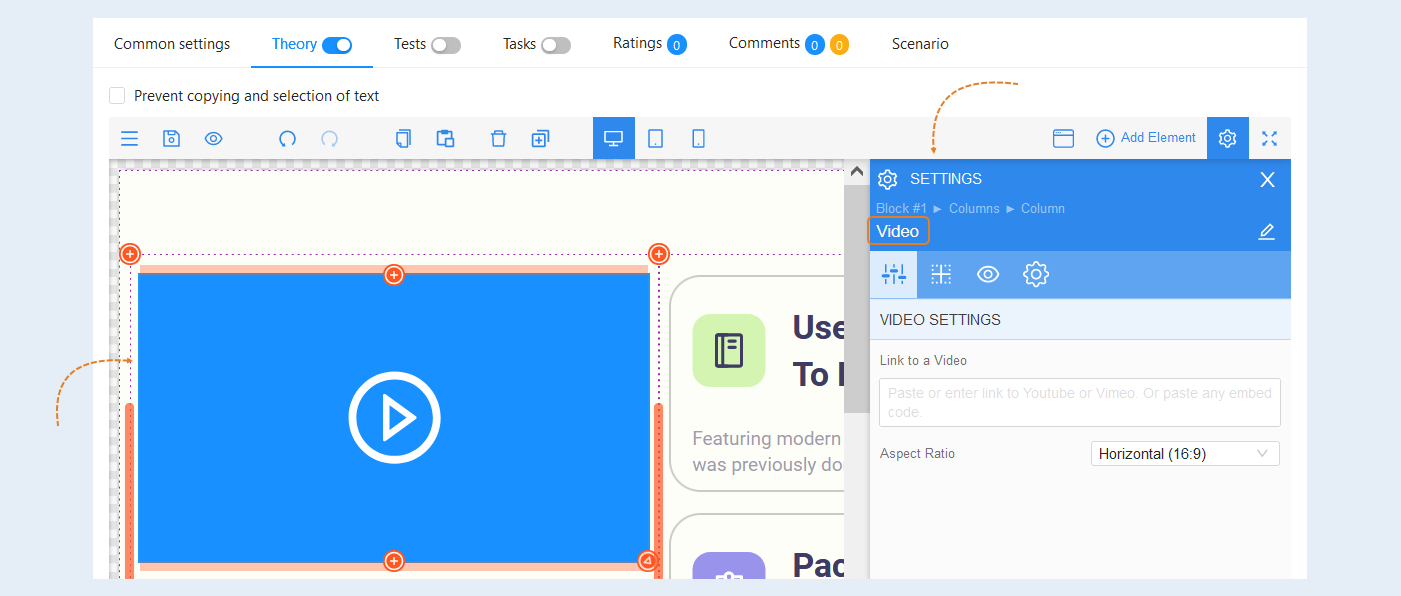
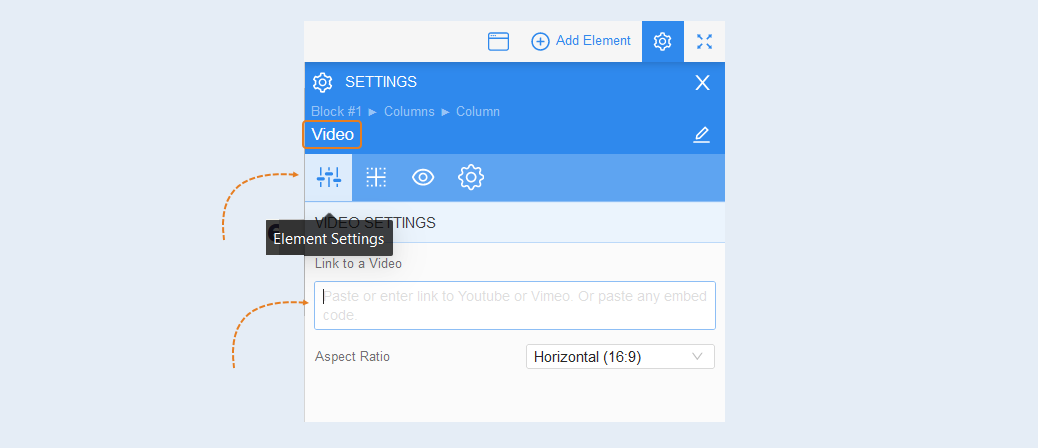
In the Video element settings, select the "Element Settings" tab. Insert the link to your video in the "Link to video" line.
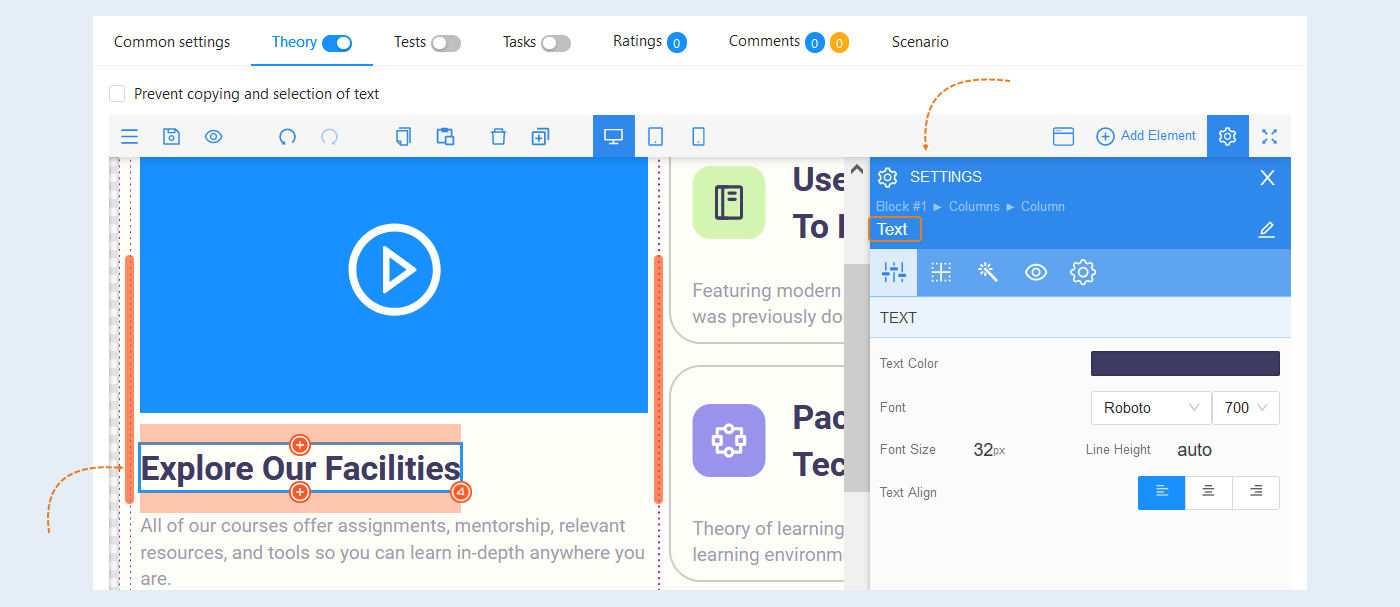
Then proceed to editing text elements. Select an element so that its settings open on the right. Make the necessary changes.
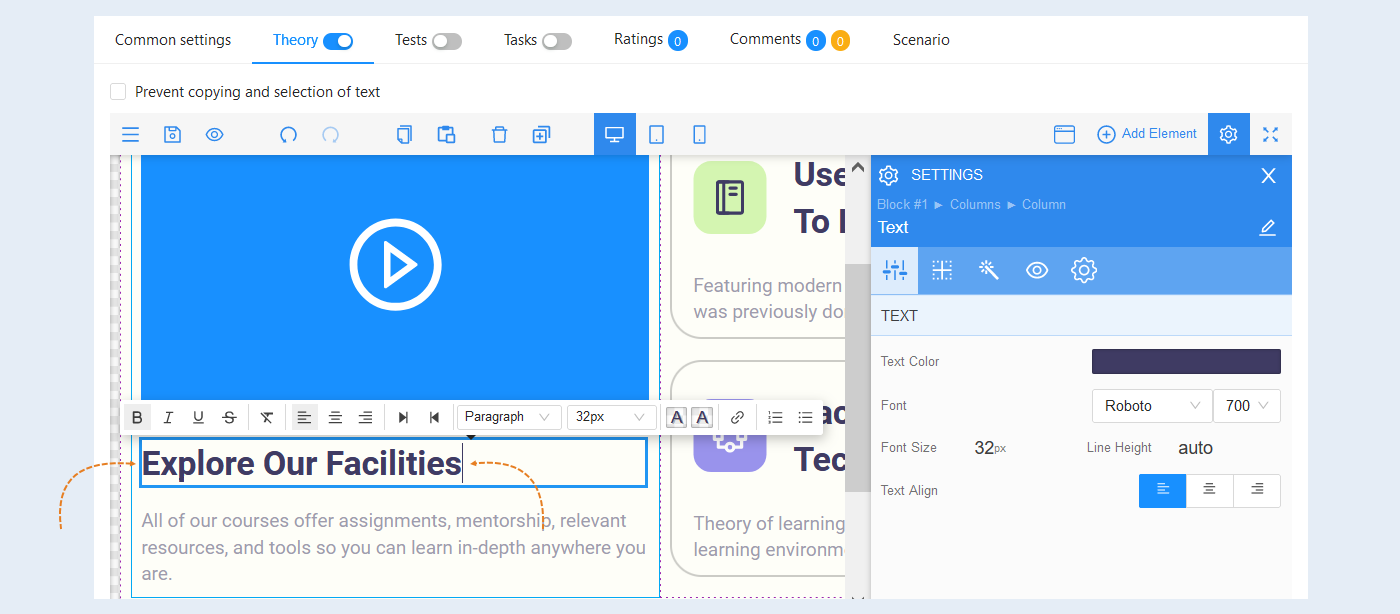
To change the text, double-left-click on the text of the label. The text will become editable.
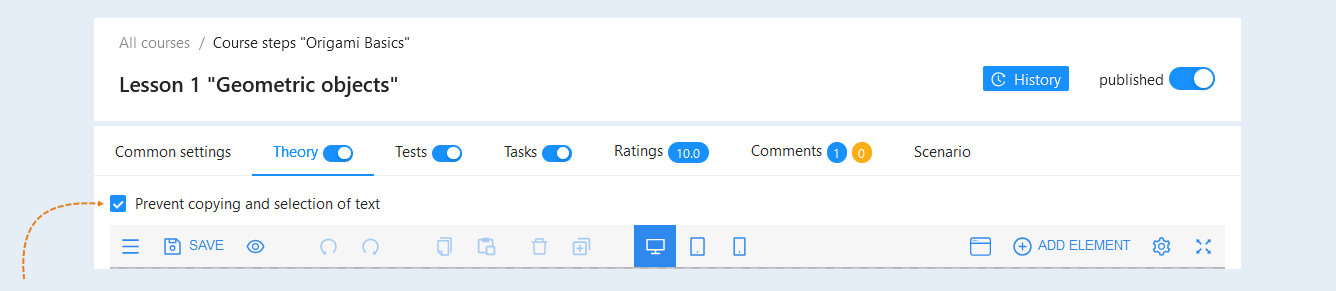
Check the box "Prevent copying text selection" to limit users' ability to select and copy text from lesson materials.
The restriction on copying helps prevent unauthorized use or distribution of content. The prohibition on copying may also encourage users to read and reflect on the material more carefully, rather than simply copying the text. This can contribute to a deeper understanding of the information."
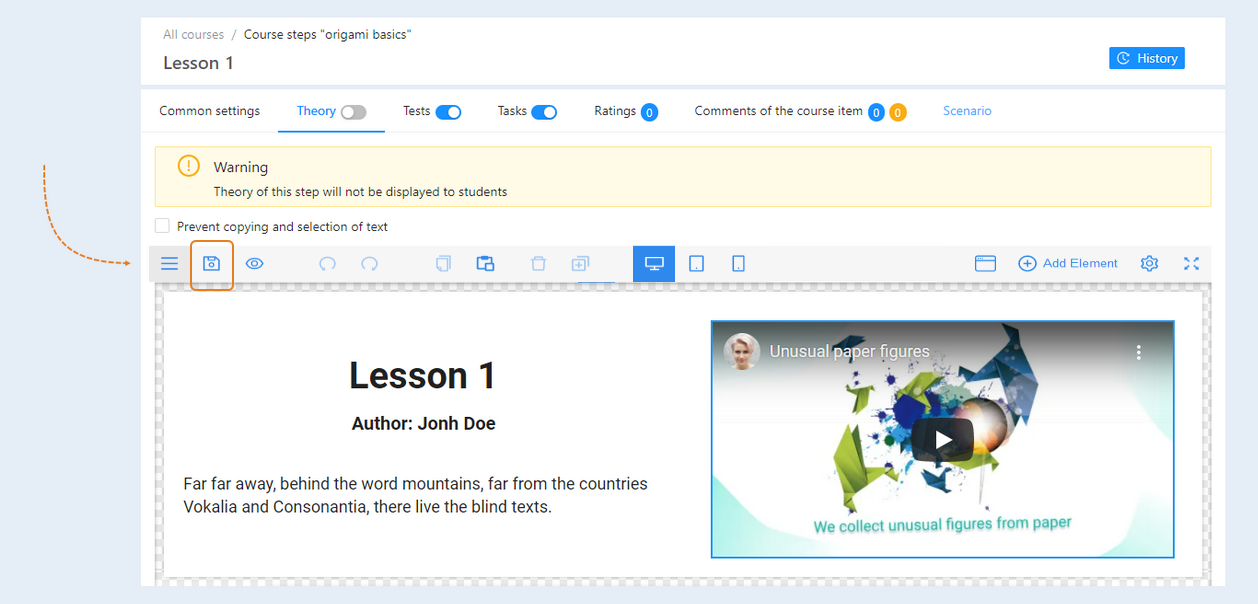
After completing the block settings, click the "Save" button.
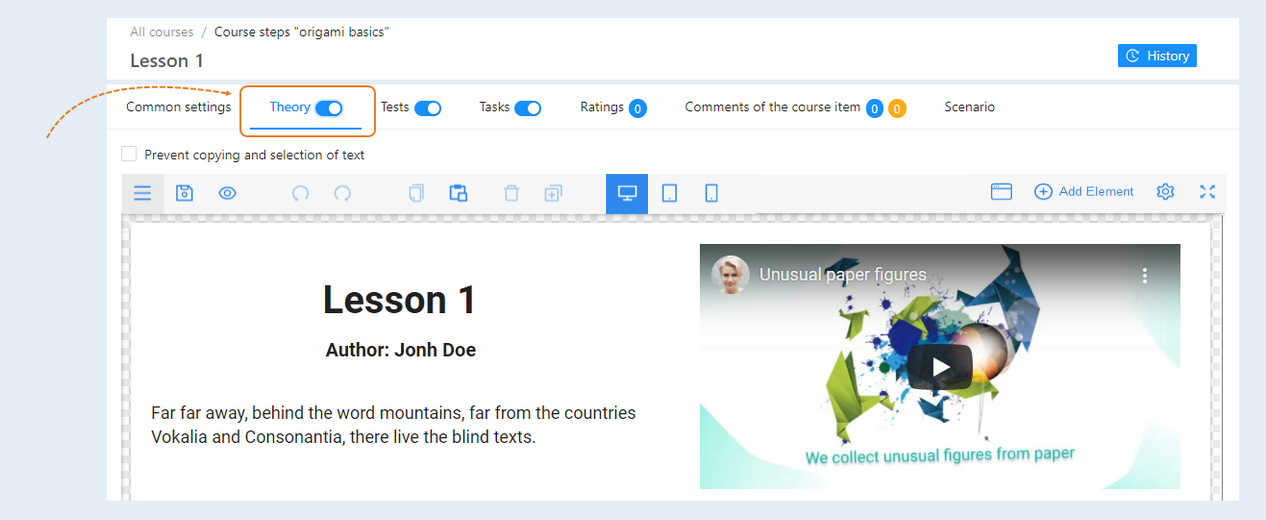
Turn on "Theory Visibility".
Go back to the list of course steps. Enable the visibility of the step by clicking the "Publish" button.
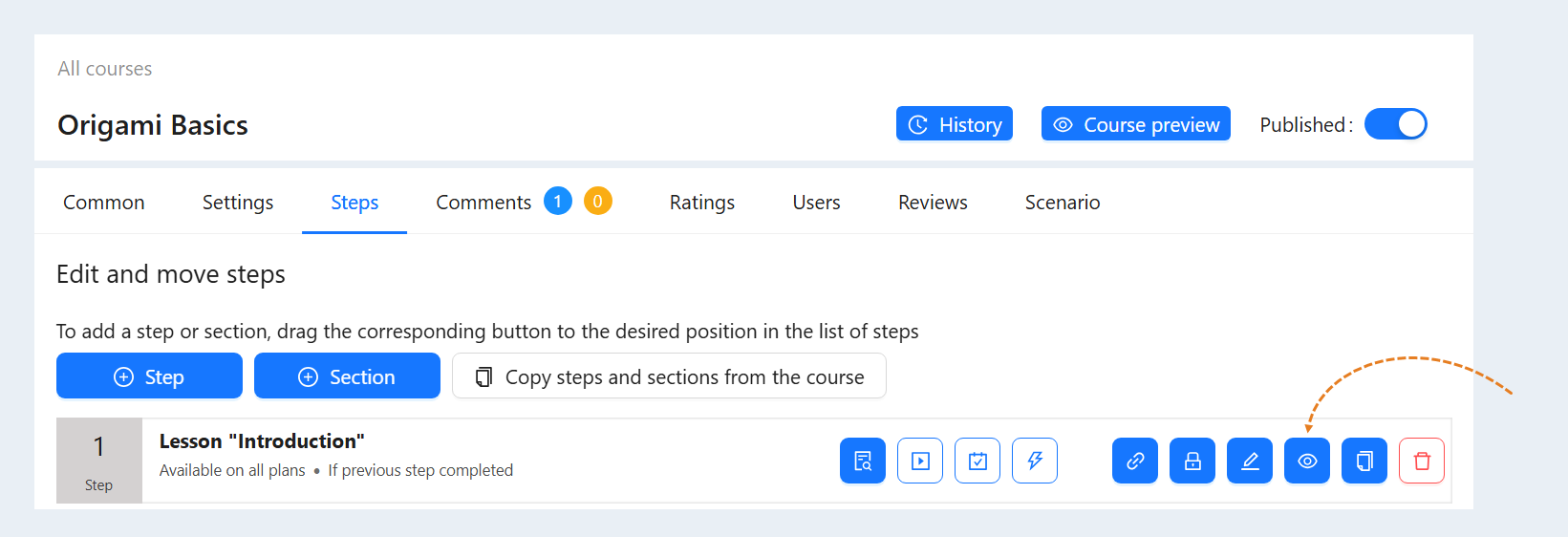
This lesson is now available to users. Repeat these steps for all subsequent lessons.