The website chat adds a chat button to your pages. Visitors write to you, and you answer from AXL.
Set Up the Chat
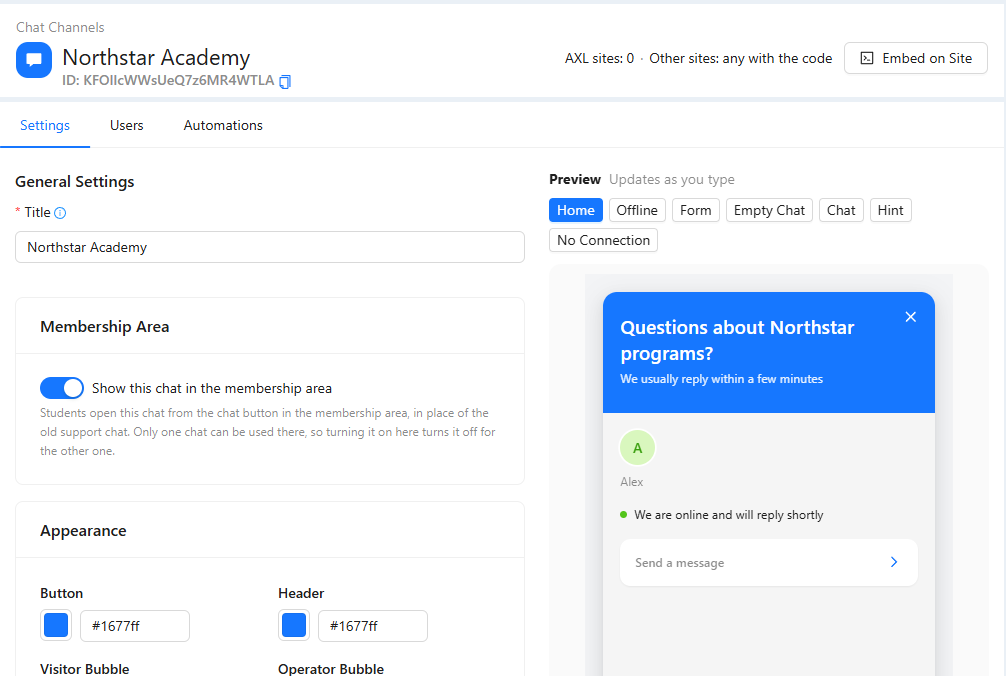
Open Communications → Website Chat. Set the title and colors; the Preview on the right updates as you type and shows the chat's screens: Home, Offline, Form and others.
Put It on Your Sites
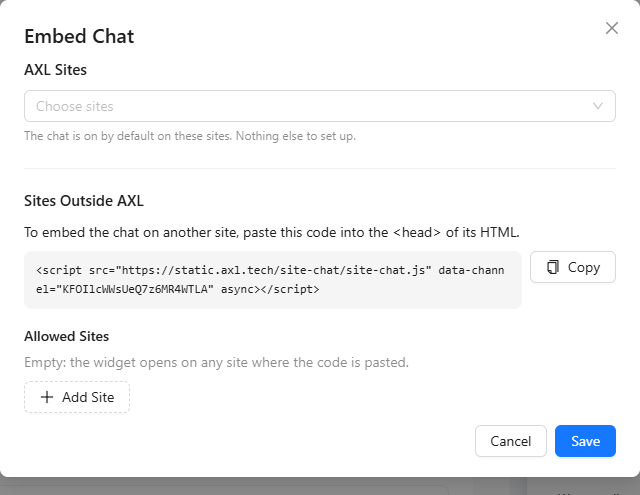
- Click Embed on Site.
- Under AXL Sites, choose the websites built in AXL; the chat is on there with nothing else to set up.
- For a website outside AXL, copy the code and paste it into the <head> of that site's HTML. Add Allowed Sites if the chat should open only on certain addresses.
- Click Save.
Answer Visitors
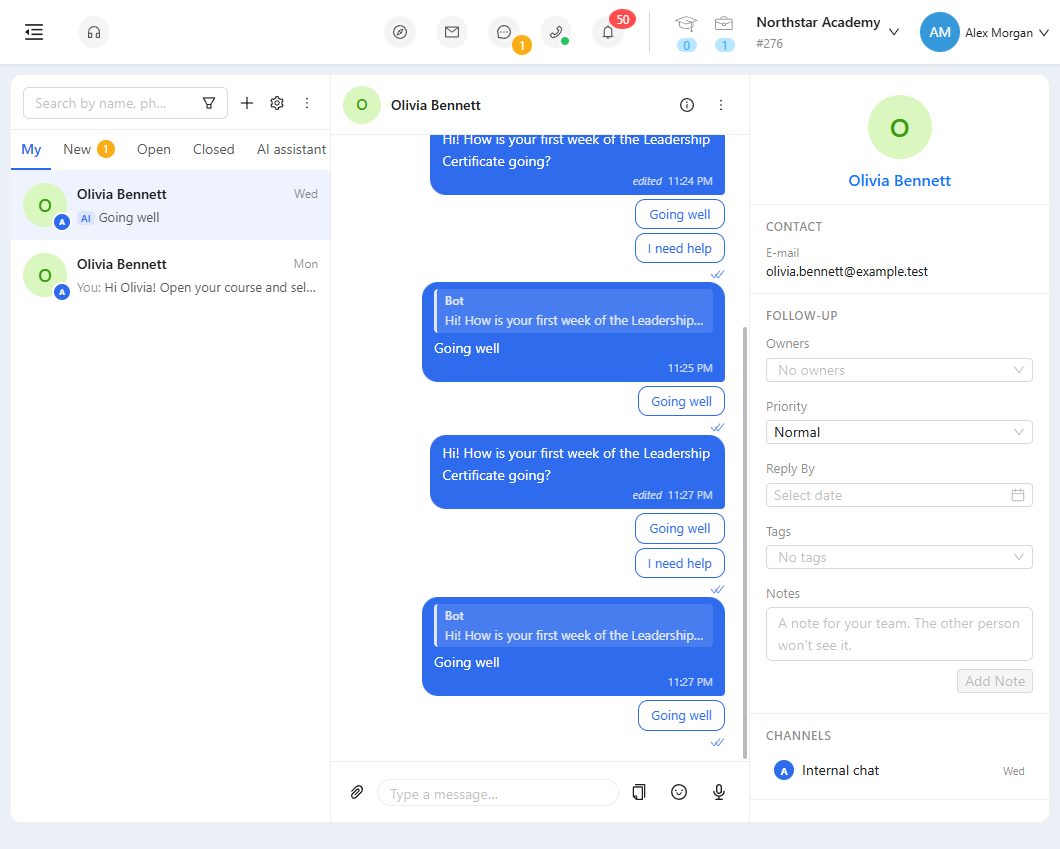
New messages appear in Communications → Chat and under the chat icon in the top bar, together with conversations from your other channels. See "Chat". To connect messengers such as WhatsApp, Telegram or Instagram, see "Chat Channels".