In AXL’s new page editor, you can create and edit pages with AI and make smaller changes manually.
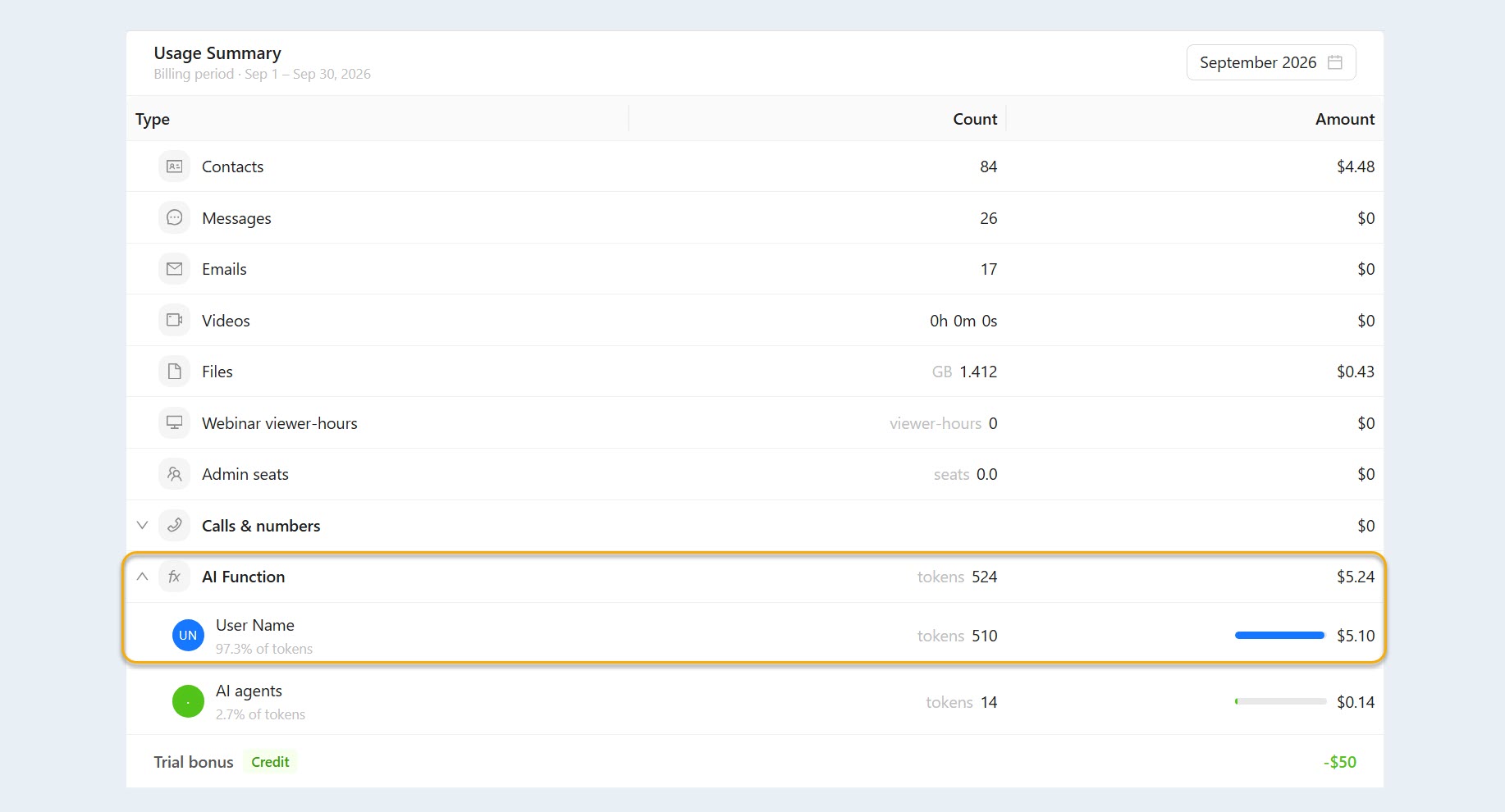
The AI assistant can modify the text, structure, and design of a page based on a text prompt. For smaller changes, use the manual editing tools. Use of the AI assistant is billed separately.
In this article, we’ll explain how to use the page editor.
Click a section below to jump to it:
How to Open the Editor
Go to Websites and open the website you want to edit. Then go to the site’s pages and open the page you want to change. The page editor will open.
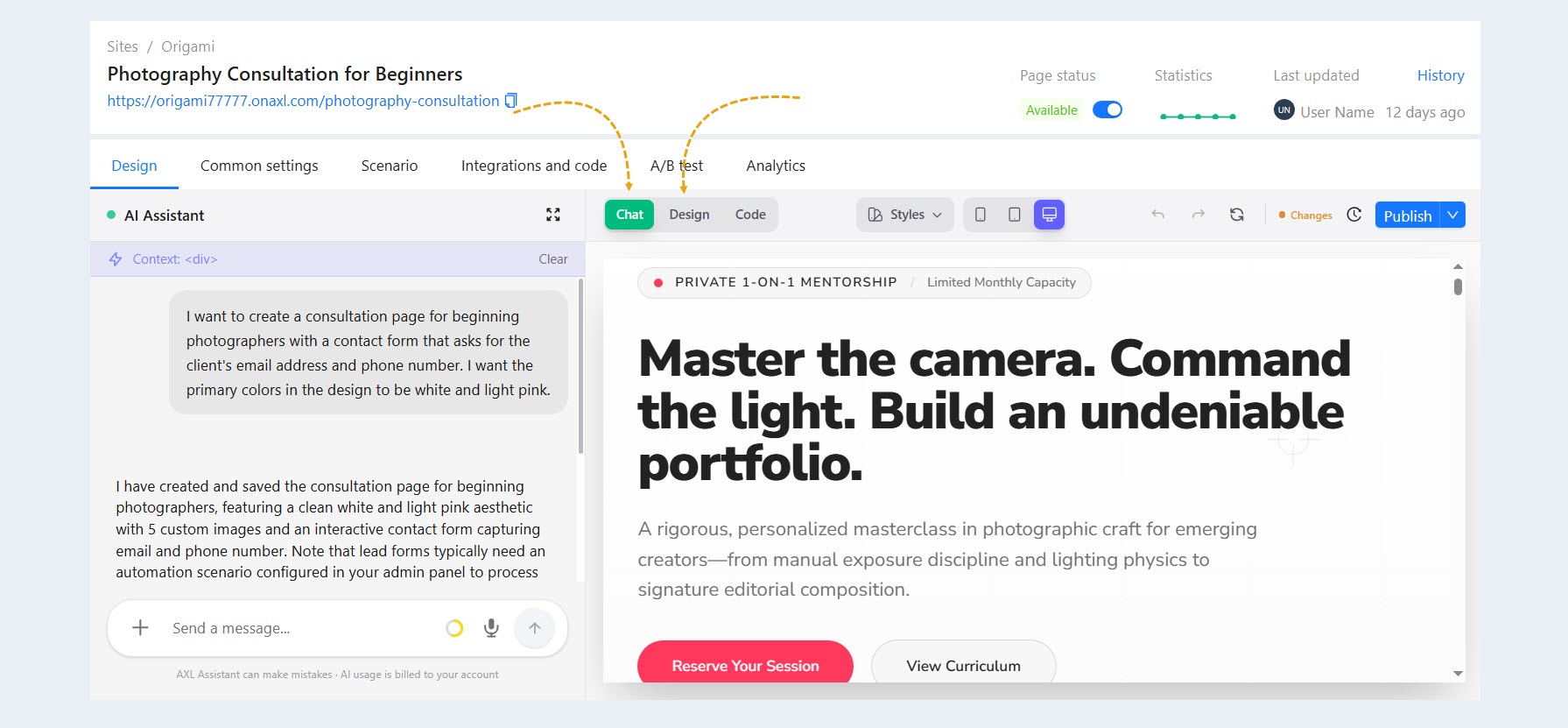
In the editor, you can make changes manually in the Design tab or use the AI assistant in the Chat tab.
Editing a Page with AI
To use the AI assistant, open the chat in the editor and describe what you want to change on the page. You can write your request in plain language.
For example:
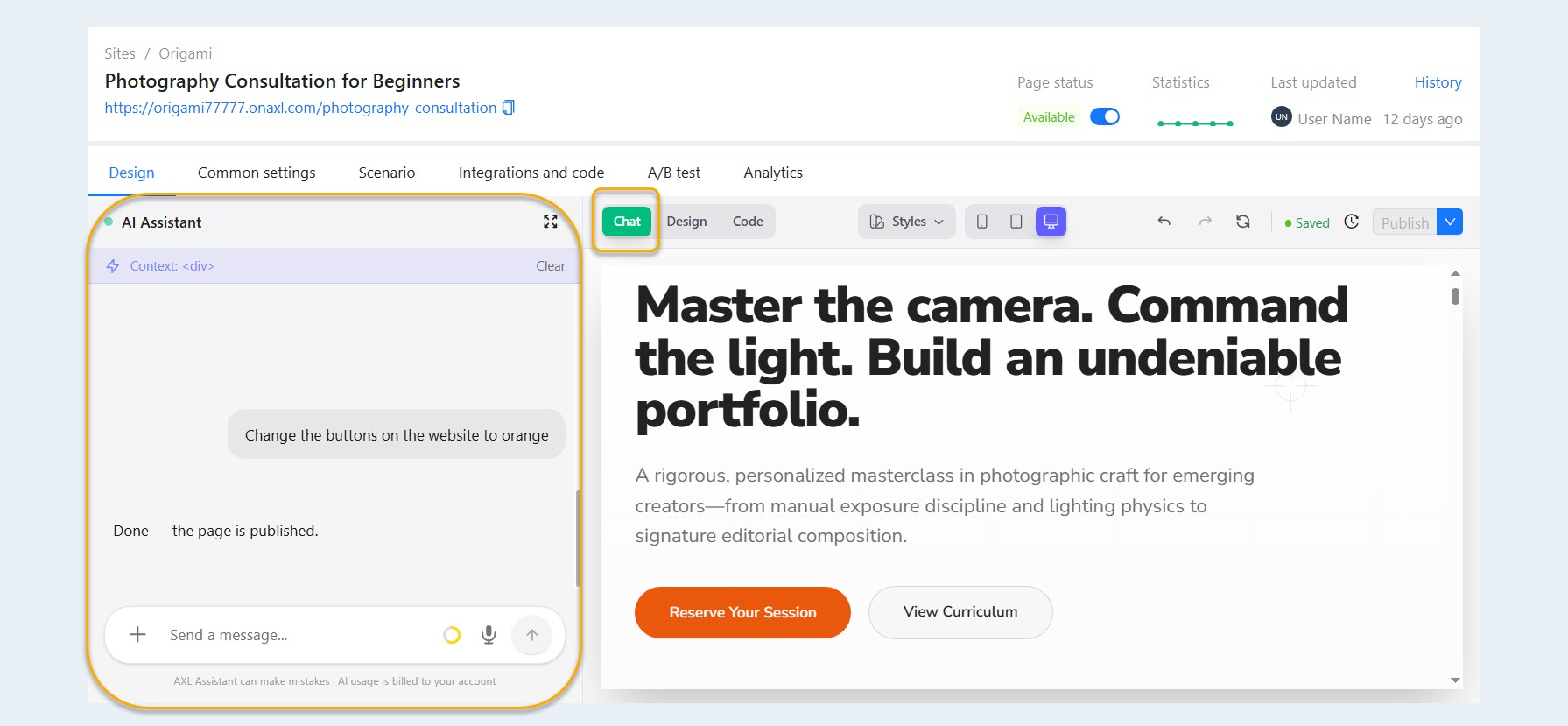
“Change the button color to purple.”
“Add a contact form to the page.”
“Update the hero section and add a course description.”
“Make this section more compact.”
“Update the page copy and design for a new product.”
The AI assistant will analyze the page and make changes based on your request. You can include multiple changes in a single prompt. The more clearly and thoroughly you describe the desired result, the more accurately the AI can complete the task.
Once the AI assistant has completed your request, review the changes. If the result needs adjustment, send the assistant another prompt or make the changes manually.
Manual Editing
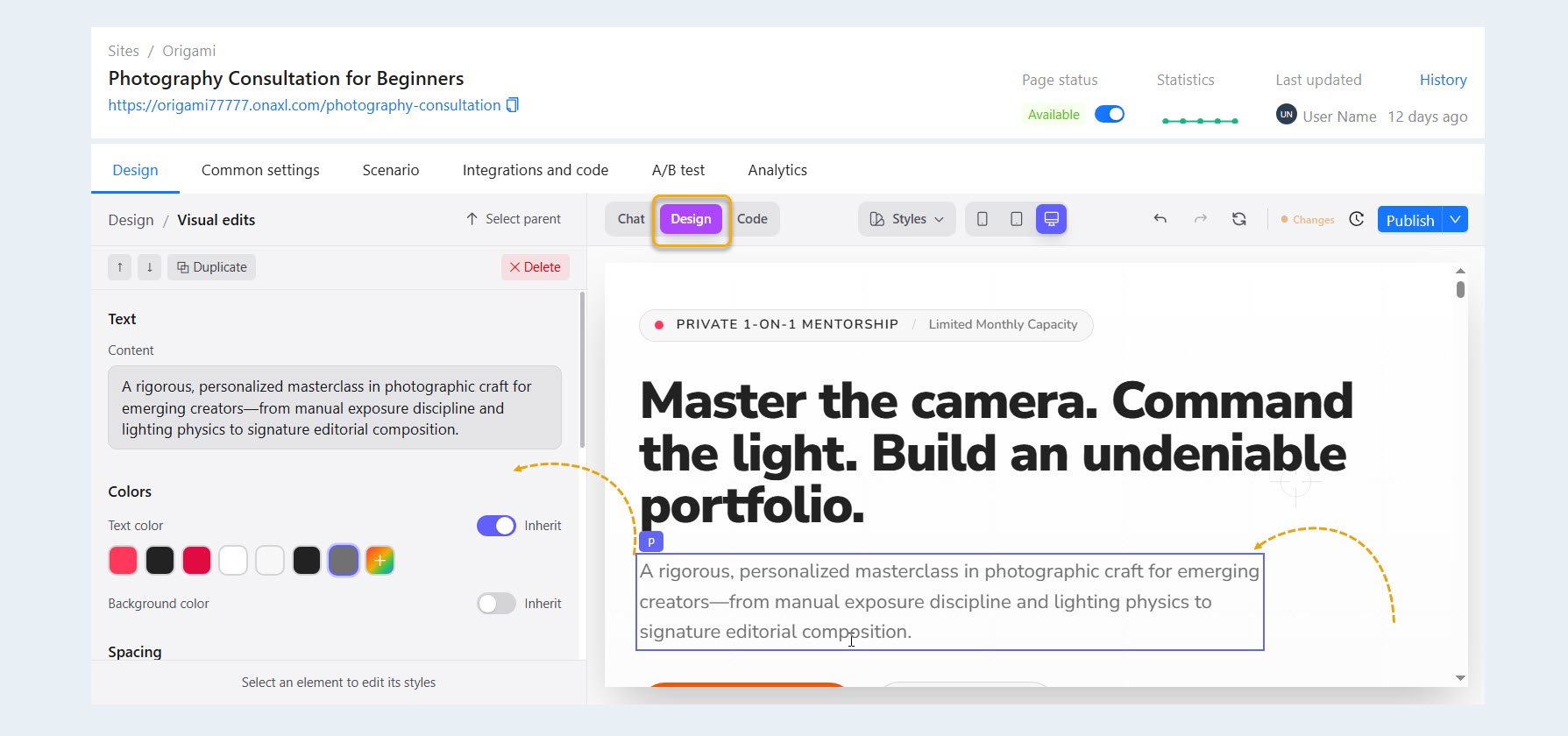
You don’t need to use the AI assistant for small changes. You can edit page elements directly in the editor under the Design tab.
For example, you can manually:
edit text;
adjust individual page elements;
change the design;
configure links and buttons;
make other small changes.
The AI assistant is useful for creating pages or making larger changes, while smaller edits can be made manually. After making your changes, save the page.
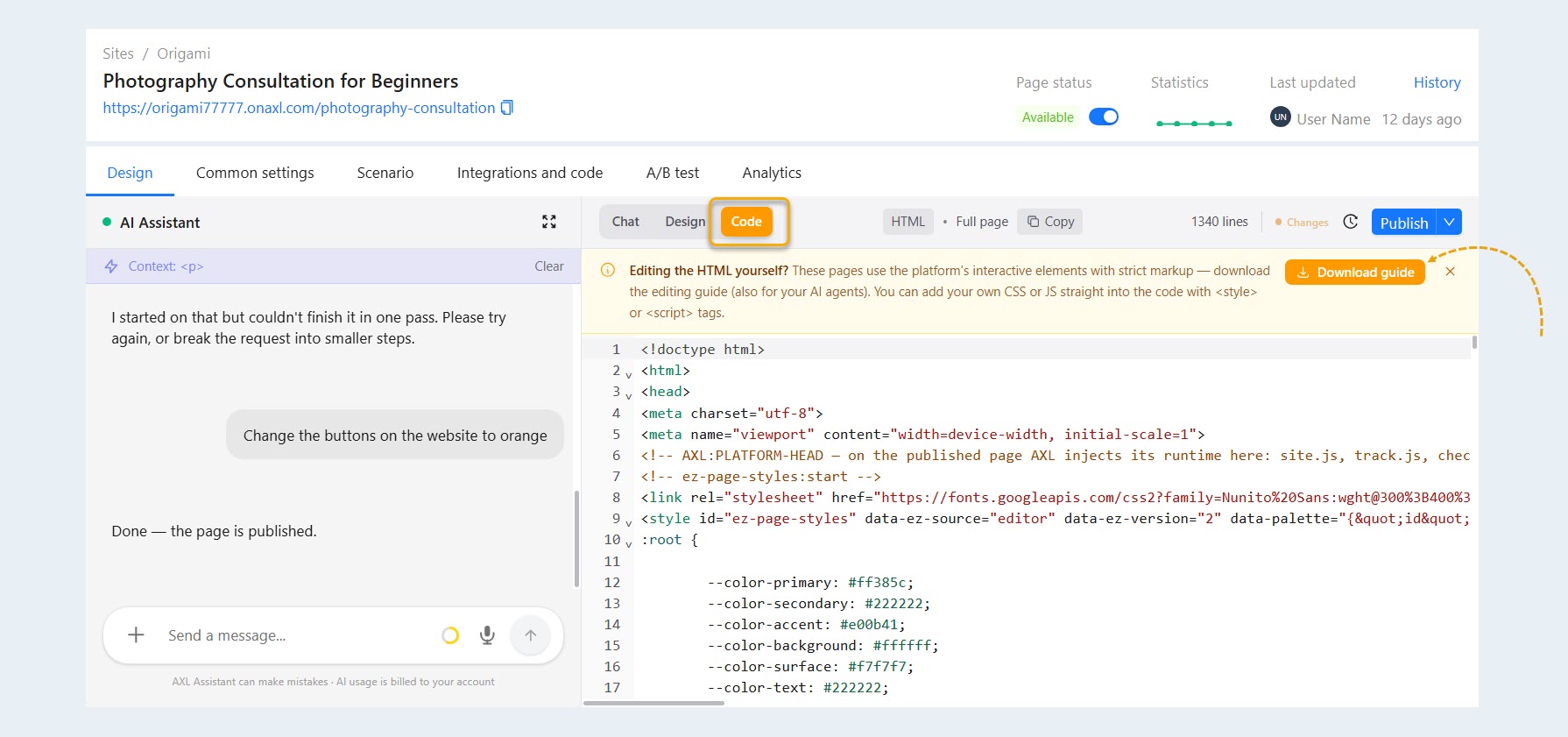
Working with Code
Pages in the new editor are built using HTML and CSS along with additional AXL-specific instructions.
If needed, you can work directly with the page code and make changes in the Code tab. This mode is useful when you need precise control over the page or want to change settings that are easier to configure directly in the code.
If you’re editing the code yourself and aren’t sure how to add a specific element, download the instructions, open the file in a text editor on your computer, and review it.
If an AI agent is helping you edit the code, provide the instructions to the agent.
After editing the code, review the result and save your changes.
Previewing a Page
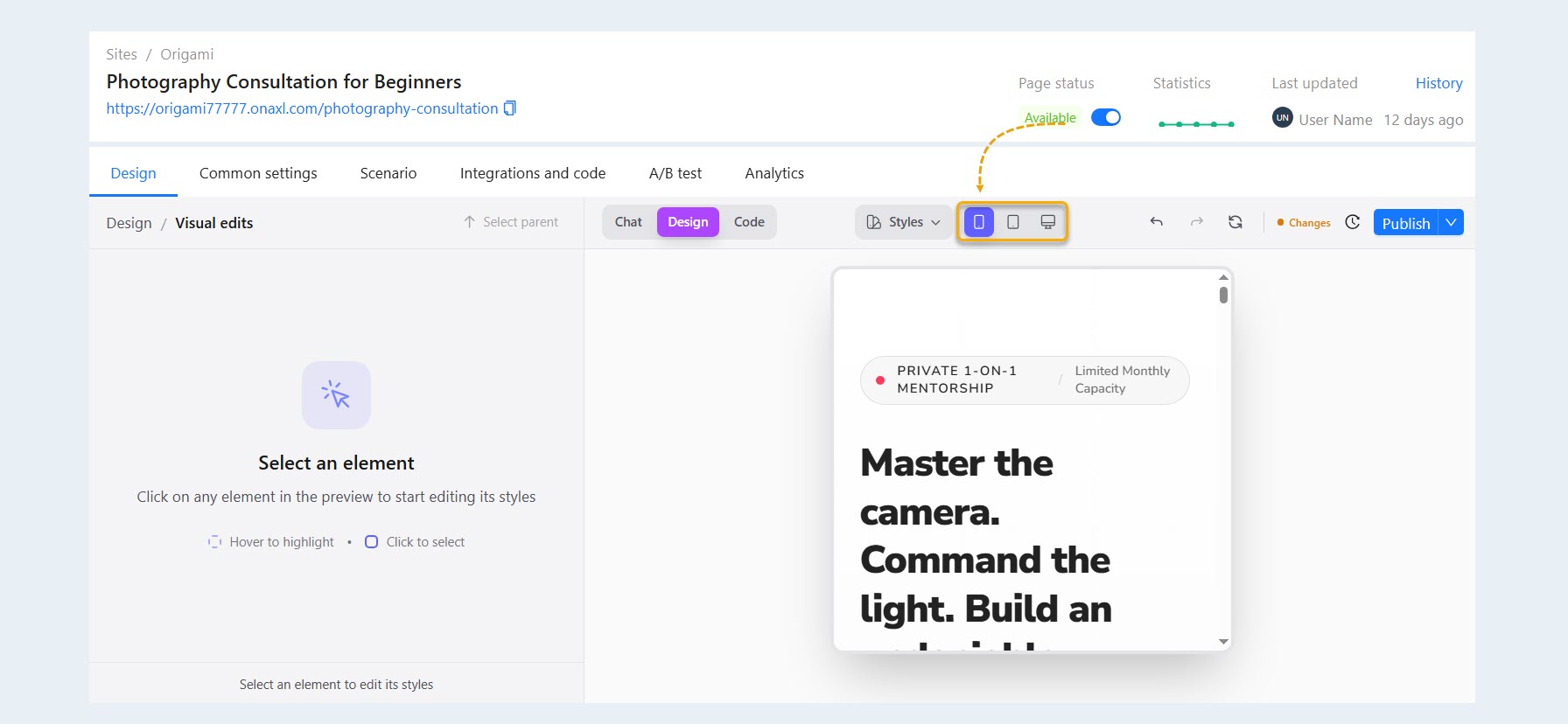
Before publishing, check how the finished page looks on desktop, tablet, and mobile devices. Use the preview to check:
text;
element placement;
design;
buttons and links;
how newly added sections are displayed.
If you need to make changes, return to the editor. You can update the page manually or describe the changes you want to the AI assistant.
Once you’re finished, save the page.
The new editor lets you combine both approaches: use AI to create pages and make larger changes, while handling smaller edits manually in the editor.
Pricing
Manual page editing does not incur any AI usage charges.
When you use the AI assistant, the cost is calculated based on your actual AI usage and deducted from your account balance.
AXL’s internal billing unit is the AXL token: 1 AXL token = $0.01.
By default, AI usage is limited to $10. The account owner can change or remove this limit in the billing section.
The number of tokens used depends on the scope and complexity of the task. For example, making a small change to a single page element typically requires fewer resources than creating or significantly redesigning an entire page.