Conditions select contacts by what you know about them: tags, groups, purchases, courses, webinars, emails, deals and more. You can combine them, for example contacts who completed a course and have a phone number. This article is the full list of conditions.
The same conditions work in three places:
- CRM → Contacts: the advanced filter of the contact list, described below.
- The Condition step of an automation: see "Conditions in Automations". It also has conditions of its own, such as the order or form of the current run.
- Dynamic mailing lists: see "Conditions for Mailing".
Advanced Filters
Go to "CRM" → "Contacts". Click the filter icon (funnel) in the upper right corner of the contact list. Its tooltip reads "Show advanced filter."

A "Filter Conditions" panel opens. To add a condition, open the "Select a filter" list next to "Add 'OR' Condition" and pick a filter. To start another group of conditions, click "Add 'AND' Condition Group."
"AND" and "OR" are the logical operations that control how conditions combine.
- AND condition groups: a contact must meet every group at the same time. For example, take the rule "A contact must complete course A AND course B to receive a certificate." The contact has to complete both courses to reach the goal.
OR conditions inside a group: meeting at least one of them is enough. For instance, "A contact can receive a certificate if they complete course A OR course B." Here the contact can choose either course, and completing one is enough to earn the certificate.
"AND" conditions are stricter, while "OR" conditions give you more freedom of choice.
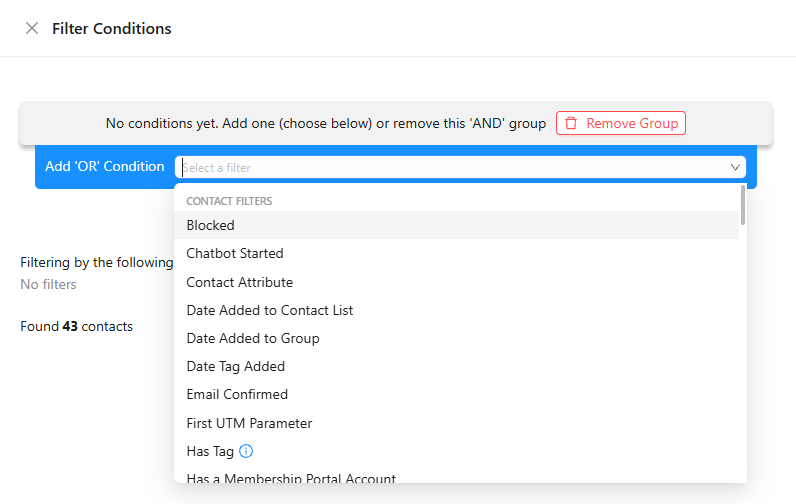
Below are the conditions you can use in a filter.
Example: add Course Completed for Leadership Foundations and another Course Completed condition for Team Communication in the same OR group. Add a second AND group with Contact Attribute → Phone → Specified. The result must have a phone number and have completed at least one of those two courses. Click Apply Filter and inspect the contact list before using a bulk action.
How to Use Search Conditions
Choose a filter from the "Select a filter" list. For example, choose "Course Completed." A condition row appears with the filter name, followed by a choice of "completed" or "did not complete." Choose "completed." (If you choose "did not complete," the list shows contacts who haven't completed the course.) Then select a course from your courses on the AXL platform and click "Apply Filter." Your contact list now shows only the contacts who completed the course you specified.
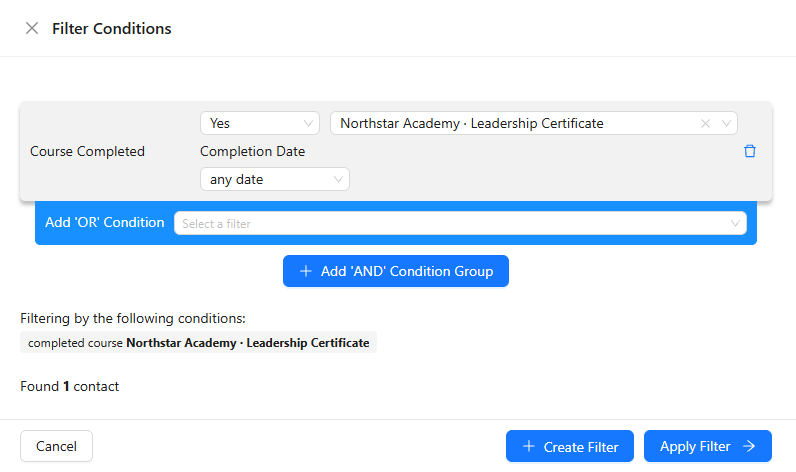
You can set several conditions at once. For example, require that a contact completed the course and/or that their contact attribute contains a phone number.
Creating a Filter
When you've chosen your conditions, you can save them as a filter you can reuse. A saved filter can be available only to you or to all team members in your account.
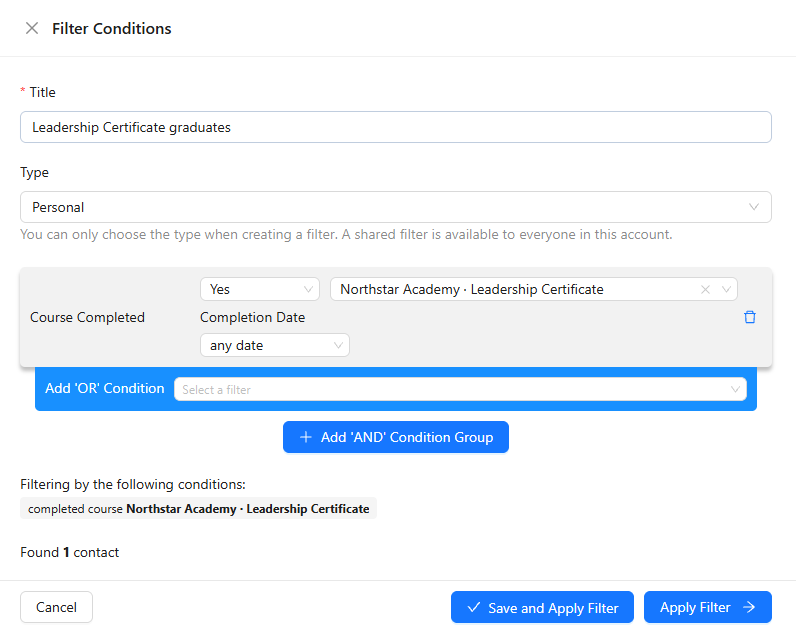
After you select the conditions, click "Create Filter."
Two more fields appear in the "Filter Conditions" panel:
- Title. Enter a name for the new filter so it's easy to find.
Type. Choose the filter type. You can choose the type only when you create a filter. There are two types:
- Personal. Only you can use a personal filter.
Shared. Every team member in your account can use a shared filter.
Click "Save and Apply Filter."
Your new filter appears in the list of saved filters.
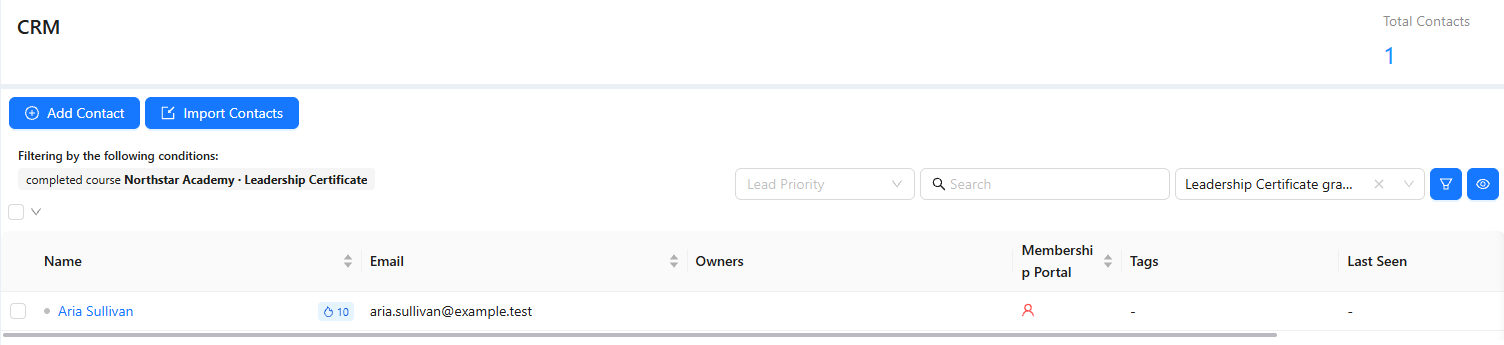
Instead of setting up conditions again, you can choose a saved filter from the saved-filter list above your contacts. To manage your saved filters, click "Manage Filters" at the bottom of that list.
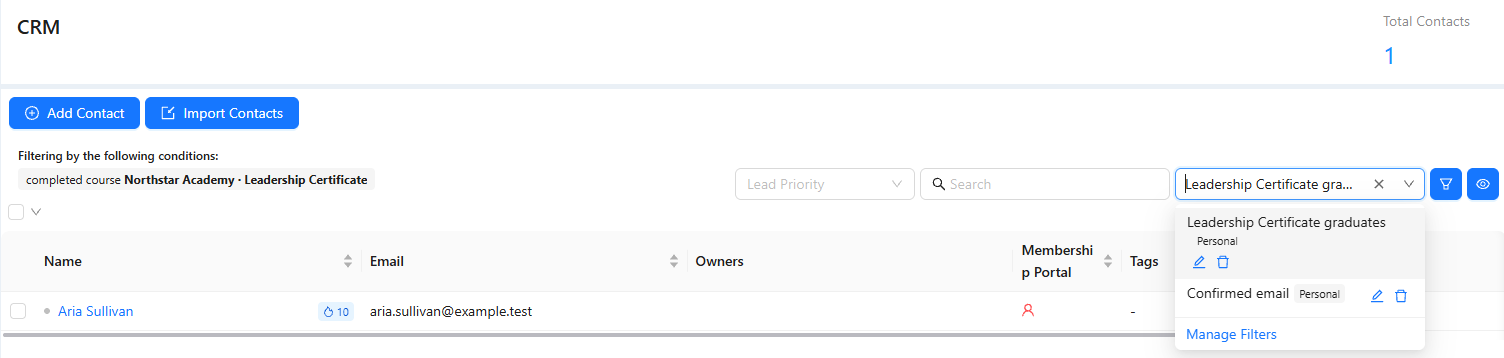
The "Advanced Filters" window opens. Here you can copy, edit, and delete your saved filters, and create new ones.
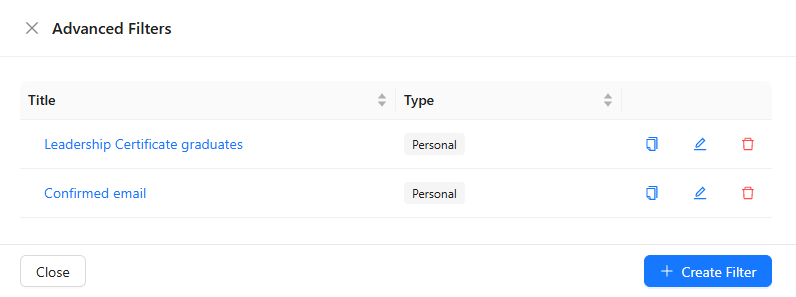
Filter Conditions
Contact Filters
Blocked
Choose Yes for blocked contacts or No for contacts who are not blocked. This checks the contact's blocked status. An unblocked contact still needs the relevant access to open a course or other restricted material.
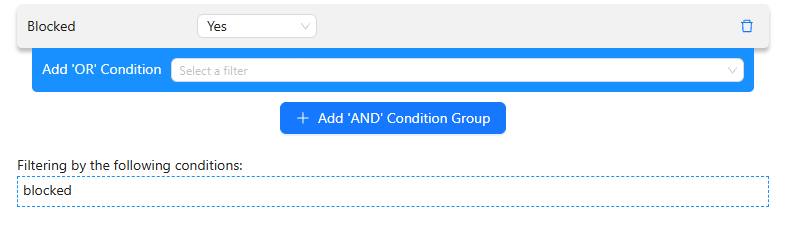
Contact Attribute
Use this condition to find contacts by a specific attribute. It lets you build exactly the audience you need for personalized learning, tailored communication, special promotions, and more.
Filter conditions:
- Attribute. The contact field you want to filter on, such as email, name, city, or gender. The attribute you pick determines which information is filtered.
Condition Options:
- Specified. Finds contacts whose chosen attribute has any value (for example, contacts who have an email address). If you choose "email specified," the list shows every contact with an email address.
Not specified. Finds contacts whose chosen attribute is empty (for example, no email). If you choose "city not specified," you get every contact without a city.
Contains. Finds contacts whose attribute contains the value you enter. For example, "name contains Anna" returns every contact whose name includes "Anna" (such as "Anna," "Hannah," or "Mary Anna").
Does not contain. Finds contacts whose attribute doesn't contain the value. For example, "city does not contain York" returns every contact whose city doesn't include "York."
Equals. Finds contacts whose attribute exactly matches the value. For example, "city equals New York" returns only contacts whose city is "New York."
Does not equal. Finds contacts whose attribute differs from the value. For example, "name does not equal John" returns every contact whose name isn't "John."
Value Field. Enter the value to filter by. The filter applies it with the condition you selected.
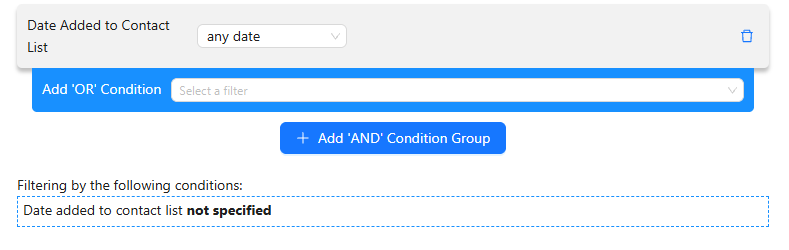
Date Added to Contact List
Use this condition to sort or limit your contact list by the time contacts were added to the system. Each option helps you narrow your selection for more targeted work and analysis.
Filter conditions:
- Condition:
- Any date. No date limit. All contacts appear, whenever they were added, so you can see the complete list.
Before. Shows contacts added before the date you specify. Useful for analyzing or selecting older contacts up to a certain point in time.
After. Shows contacts added after the date you specify. Convenient for analyzing your newest contacts or running promotions aimed at new contacts.
Between. Lets you set the start and end of the period when contacts were added, so you can select a group added on specific dates.
Today. Shows contacts added today. Convenient for tracking recent additions.
Yesterday. Shows contacts added yesterday. Useful for tracking additions while the previous day's data is still relevant.
This week. Shows contacts added from the start of the current week through today, so you can track activity over the week.
Last week. Shows contacts added during the previous week. It helps you see how your contact count grew or shrank compared with the period before.
This month. Shows contacts added since the beginning of the current month. Convenient for monthly analysis and planning.
Last month. Shows contacts added in the previous month, so you can analyze monthly trends and results.
Date or period selection. Available when you select before, after, or between. Choose specific dates and times.
Date Added to Group
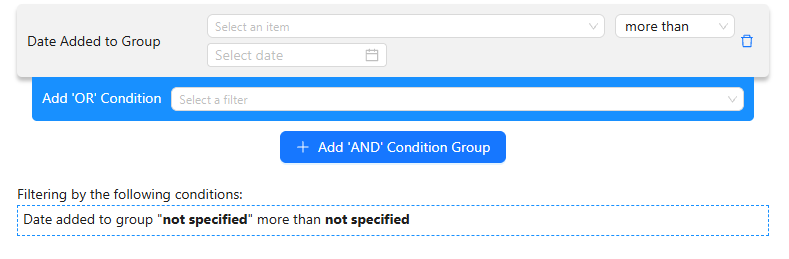
This condition finds contacts who were added to a group on specific dates. Choose a group from the list, then set the condition ("more than," "less than," or "between") and the date.
Filter conditions:
- Group. Select the group to filter by.
Condition:
- More than. Selects contacts who were added to the group after the date and time you specify. Useful for analyzing new members and keeping up with the latest changes.
Less than. Selects contacts who were added to the group before the date and time you specify. Useful for finding contacts who joined the group a long time ago.
Between. Selects contacts who were added to the group within a time interval. Convenient for analyzing changes and activity over a period, for example, a report on group additions in December.
Date or period selection. Choose specific dates and times.
Email Confirmed
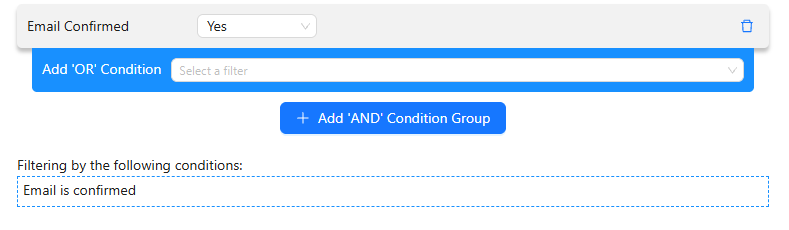
This condition shows whether contacts have confirmed their email addresses. Use it to manage your contact base, send notifications, or analyze contact activity.
Filter conditions:
- Email Confirmed:
- Confirmed. Lists contacts whose email addresses are confirmed.
Not confirmed. Lists contacts who haven't confirmed their email addresses. They may need a reminder or help with the confirmation process.
First UTM Parameter
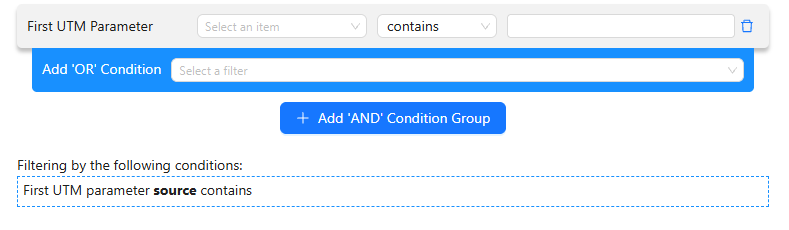
Use this condition to analyze UTM parameters, which track traffic sources and the effectiveness of ad campaigns. Knowing the different conditions helps you segment contacts and their behavior. Enter the value of the first UTM parameter to select only the contacts who came to your website through a link with that parameter.
UTM parameters are special parameters added to URLs to track the effectiveness of marketing campaigns. They collect information about where visitors came from and how they interact with your content.
Filter conditions:
- First UTM Parameter:
- utm_source - traffic source; shows where the contact comes from (for example, Google, Facebook, or email).
utm_medium - marketing medium (channel); shows the type of traffic (for example, CPC, email, or banner).
utm_campaign - name of the ad campaign; tracks a specific campaign or promotion.
utm_term - keyword or phrase; mostly used in paid search advertising to track the keywords people used to find the ad.
utm_content - content; tells similar links or content elements in one campaign apart, so you can see which performed better (for example, different versions of the same ad or banner).
Condition:
- Equals. Selects contacts whose value for the chosen UTM parameter exactly matches your text. Example: if you choose "utm_campaign" and enter "python_course," you get every contact whose first "utm_campaign" equals "python_course."
Does not equal. Excludes contacts whose value for the chosen UTM parameter matches your text. Example: if you choose "utm_medium" and enter "email," you get contacts whose first "utm_medium" isn't "email."
Contains. Finds contacts whose UTM parameter contains your text as part of the value. Example: if you choose "utm_campaign" and enter "sale," you get contacts whose first "utm_campaign" contains "sale" (such as "summer_sale" or "holiday_sale").
Does not contain. Excludes contacts whose chosen UTM parameter contains your text. Example: if you choose "utm_content" and enter "banner," contacts whose value contains "banner" are left out.
Specified. Selects contacts who have a first UTM parameter value (not empty). Example: if you choose "utm_term," the filter shows every contact with a value for "utm_term."
Not specified. Selects contacts who have no first UTM parameter value (empty). Example: if you choose "utm_campaign," you get contacts with no value for that parameter.
Value Field. Enter the value to filter by. The filter applies it with the condition you selected.
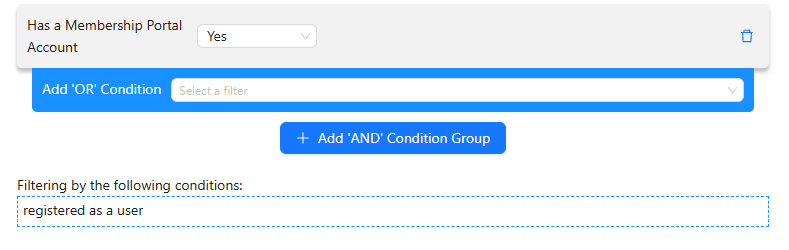
Has a Membership Portal Account
This condition lists contacts who have registered on the platform and have an account in your Membership Portal. Course access is a separate condition; use Has Access to check access to a specific course.
Filter conditions:
- Membership Portal account:
- Registered. Lists contacts registered in the Membership Portal. Admins can use it to manage these contacts, check their status, and assign courses or update information. For example, to send notifications only to portal members, use this filter to select just those recipients.
Not registered. Lists contacts who don't have a Membership Portal account. It can help you find potential new members. For instance, use it for ad campaigns or to analyze the audience that hasn't joined your Membership Portal yet.
In Group
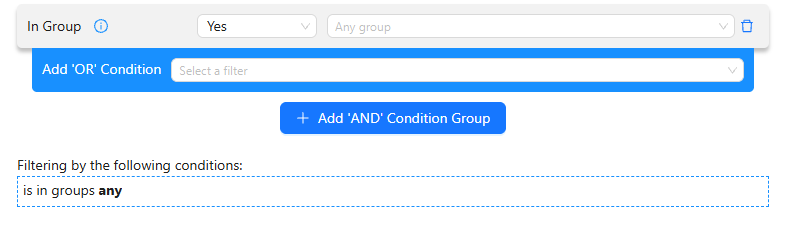
This condition finds contacts by the groups they belong to. Use it to deliver content or notifications, set access to materials, and analyze activity in specific groups. It makes managing the learning process and communicating with contacts much easier.
Filter conditions:
- In group:
- Yes. Lists contacts who belong to one or more of the selected groups. For example, send notifications or give access to materials only to members of a specific group.
No. Lists contacts who don't belong to any of the selected groups. Useful when you want to reach contacts outside certain groups, such as new contacts or those who haven't completed a particular level of training.
Select a group from the list. Choose the group to filter by. This gives you more precise control over content access by group.
Has Tag
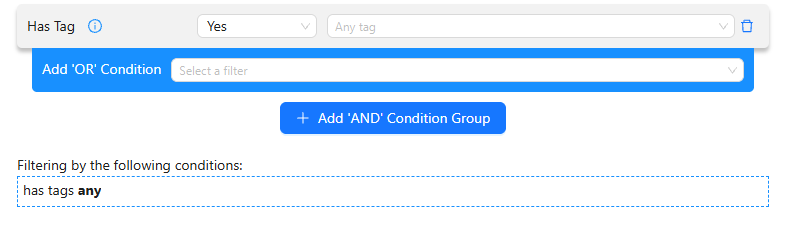
This condition finds contacts who have a tag. Tags help you pick out new customers or customers in specific situations. The condition checks that a contact has any of the selected tags, or none of them.
Filter conditions:
- Has a tag:
- Yes. Shows only contacts who have at least one of the selected tags. For example, if you select the tag "Beginner," you get the contacts marked with that tag.
No. Shows only contacts who have none of the selected tags. Use it to exclude contacts marked with specific tags. For example, if you select the tag "Experienced," you get the contacts who don't have that tag.
Tag. Select one or several tags for more precise filtering. Click "Manage Tags" to find or create tags.
Last UTM Parameter
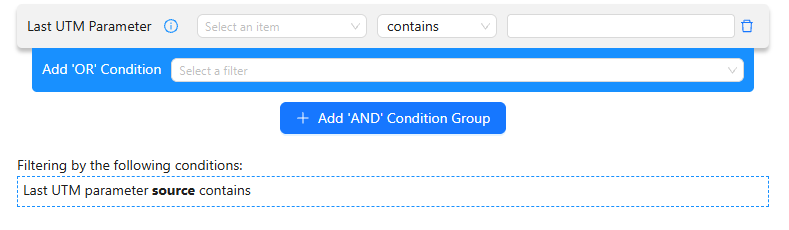
Enter the last UTM parameter value (at the time of the last conversion) to select only the contacts who came to your site through a link with that parameter. UTM parameters are special parameters added to URLs to track the effectiveness of marketing campaigns. They collect information about where visitors came from and how they interact with your content.
Filter conditions:
- Last UTM Parameter:
- utm_source - traffic source; shows where the contact comes from (for example, Google, Facebook, or email).
utm_medium - marketing medium (channel); shows the type of traffic (for example, CPC, email, or banner).
utm_campaign - name of the ad campaign; tracks a specific campaign or promotion.
utm_term - keyword or phrase; mostly used in paid search advertising to track the keywords people used to find the ad.
utm_content - content; tells similar links or content elements in one campaign apart, so you can see which performed better (for example, different versions of the same ad or banner).
Condition:
- Equals. Selects contacts whose value for the chosen UTM parameter exactly matches your text. Example: if you choose "utm_campaign" and enter "python_course," you get every contact whose last "utm_campaign" equals "python_course."
Does not equal. Excludes contacts whose value for the chosen UTM parameter matches your text. Example: if you choose "utm_medium" and enter "email," the list includes contacts whose last "utm_medium" isn't "email."
Contains. Finds contacts whose UTM parameter includes your text as part of the value. Example: if you choose "utm_campaign" and enter "sale," contacts whose last "utm_campaign" contains "sale" (such as "summer_sale" or "holiday_sale") are included.
Does not contain. Excludes contacts whose chosen UTM parameter contains your text. Example: if you choose "utm_content" and enter "banner," contacts whose value contains "banner" are left out.
Specified. Selects contacts who have a last UTM parameter value (not empty). For example, if you choose "utm_term," the filter shows every contact with a value for "utm_term."
Not specified. Selects contacts who have no last UTM parameter value (empty). For example, if you choose "utm_campaign," it shows contacts with no value for that parameter.
Value Field. Enter the value to filter by. The filter applies it with the condition you selected.
Last Activity Date
This condition separates contacts by their activity on the AXL learning platform and applies only to registered contacts. Use it to group contacts who haven't been active since a certain date and take action (for example, send them an email). You can also use it to find contacts who visit your Membership Portal often and reward them (send an email, add a product as a bonus, and so on).
Filter conditions:
- Condition:
- Before. Lists contacts whose last activity was before the date you choose. Helps you reach inactive contacts or review activity history.
After. Lists contacts who were active after the date you choose. Helps you find active contacts who interacted with the platform since then.
Between. Lists contacts whose last activity falls between the start and end dates you set.
Any date, Today, Yesterday, This week, Last week, This month, Last month. These options need no date. Pick one to filter by that period.
Date or period selection. Select specific dates and times for very precise results. Available when you select before, after, or between. Choose specific dates and times.
Relative date options are also available: More than … days ago, Less than … days ago, Exactly … days ago, and their future-date equivalents. Enter a whole number of days from 1 to 36,500. These use calendar days in the account’s time zone, so a saved condition can stay relative as time passes.
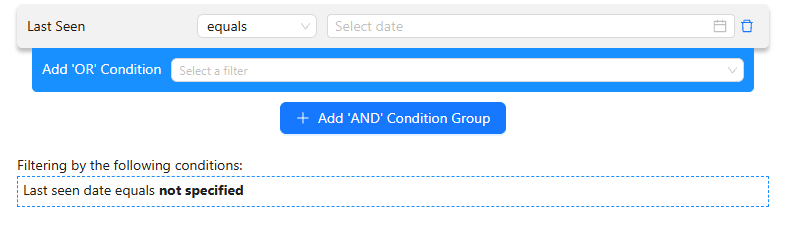
Last Seen
This condition finds contacts by the time of their last visit. Use it to analyze activity, spot abandoned accounts, or find active participants.
Filter conditions:
- Last seen:
- Equals. Selects contacts who were online at exactly the time you specify. This compares the recorded last-seen time; it does not require a sign-in and sign-out at the same moment.
Doesn't equal. Selects contacts who were online at any time except the one you specify. Helps you exclude contacts who were active at exactly that moment.
More than. Lists contacts who last visited the platform after the date and time you specify. Use it to find active contacts or check recent activity.
Less than. Lists contacts who last visited the platform before the date and time you specify. Helps you identify less active contacts or abandoned accounts.
Select date and time. Choose a specific date and time to get very precise data about your contacts.
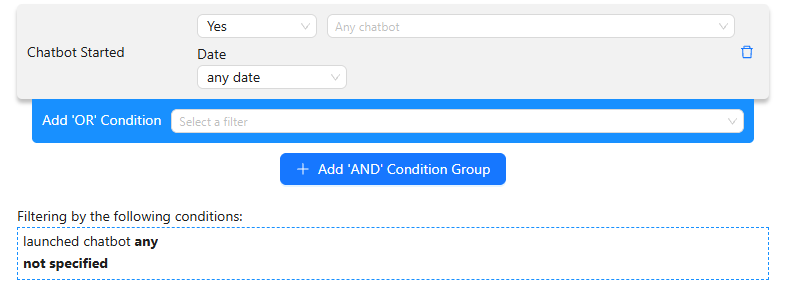
Chatbot Started
This condition finds contacts who started, or didn't start, a specific chatbot during the dates you set. It shows which contacts actively engage with the chatbot on the platform and which don't use it at all, so you can judge how well the chatbot works and improve it.
Filter conditions:
- Chatbot started:
- Yes. Finds contacts who interacted with the chatbot. Useful when you need to know who accessed it.
No. Finds contacts who haven't started the chatbot. Useful for analyzing a lack of engagement or planning next steps for these contacts.
Chatbot. Select a specific chatbot from the list of available ones. This lets you filter contacts by the chatbot they interacted with.
Date:
- Any date. Includes contacts who started the chatbot at any time.
Before. Includes contacts who started the chatbot before the date you choose.
After. Includes contacts who started the chatbot after the date you choose.
Between. Lets you set a start and end date. Includes contacts who started the chatbot within that period.
Today. Includes contacts who started the chatbot today.
Yesterday. Includes contacts who started the chatbot yesterday.
This week. Includes contacts who started the chatbot this week.
Last week. Includes contacts who started the chatbot last week.
This month. Includes contacts who started the chatbot this month.
Last month. Includes contacts who started the chatbot last month.
Date or period selection. Available when you select before, after, or between. Choose specific dates and times.
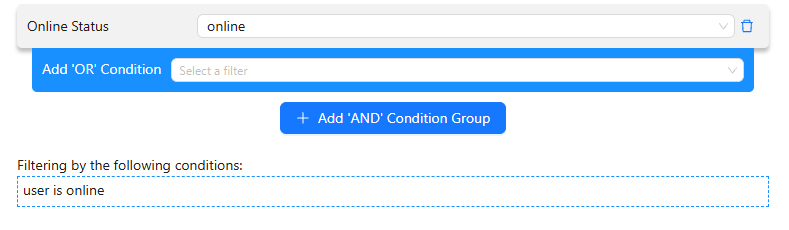
Online Status
This condition sorts contacts by their current status on the platform.
Filter conditions:
- Online status:
- Online. The contact is active on the platform right now: signed in, taking part in a session, viewing materials, or chatting with others. Use it to see active contacts, for example, to give extra materials to contacts who are online at the moment.
Offline. The contact isn't active on the platform at the moment. They may be offline, have ended a session, or haven't signed in yet. Useful, for example, to review contacts who aren't in current sessions and analyze their activity.
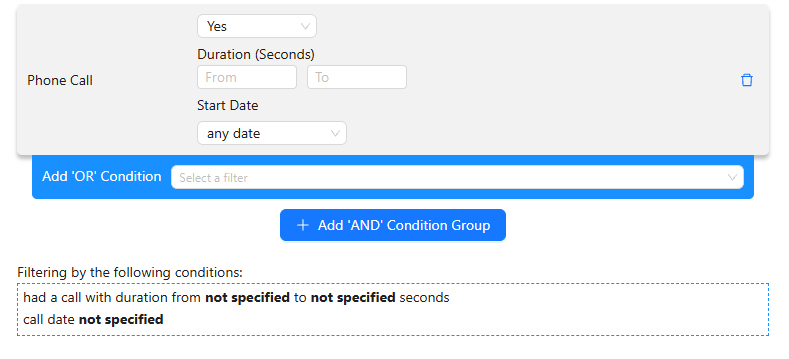
Phone Call
This condition lets you sort and analyze phone call data. It finds contacts who received a call on specific dates and of a specific duration (in seconds). Use it to analyze calls, spot trends, and make decisions based on the data.
Filter conditions:
- Phone call:
- Yes. Lists contacts who had phone calls.
No. Lists contacts who had no calls.
Duration (Seconds). Set a range for call duration by entering a minimum and a maximum number of seconds. Use it to find calls of a certain length, such as short, long, or average conversations.
Start Date:
- Any date. Includes all calls, regardless of their date.
Before. Includes calls made before the date you choose.
After. Includes calls made after the date you choose.
Between. Lets you set a start and end date. Includes calls made within that period.
Today. Includes all calls made today.
Yesterday. Includes all calls made yesterday.
This week. Includes calls made from Monday to Sunday of the current week.
Last week. Includes calls made from Monday to Sunday of the previous week.
This month. Includes all calls made in the current month.
Last month. Includes calls made in the previous month.
Select date or period. Available when you select before, after, or between. Choose specific dates and times.
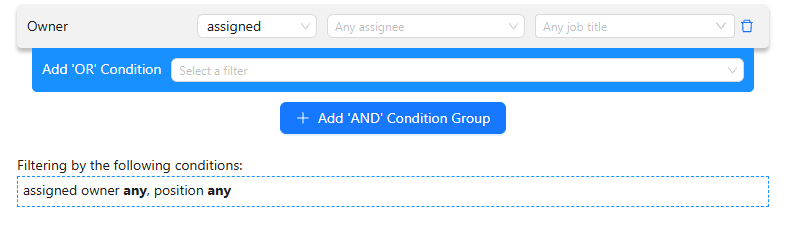
Owner
This condition finds contacts by who is responsible for them.
Filter conditions:
- Owner:
- Assigned. Finds contacts who have an owner assigned (for example, a teacher or tutor).
Not assigned. Finds contacts who don't have an owner yet. Useful for spotting contacts that need attention and assigning owners so they get proper control and support.
Select owner. Choose a specific team member. The list shows the contacts assigned to the teacher or tutor you selected.
Select position. Filter by the owner's position. The system shows all contacts whose owner holds that position. This is handy for managing the learning process and dividing duties by role.
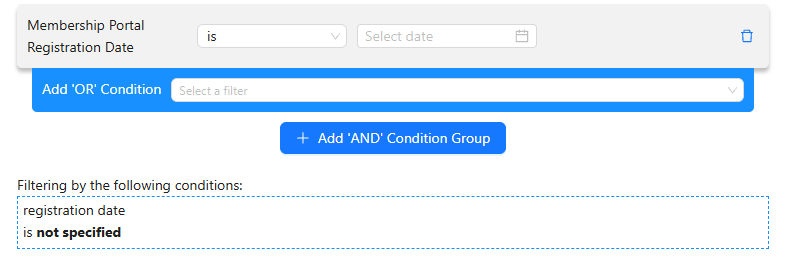
Membership Portal Registration Date
This condition separates contacts by the date they registered on the platform. It helps you analyze activity and tell new contacts from long-time ones.
Filter conditions:
- Condition:
- Is. Finds contacts whose registration date is the selected date; it does not require the same time of day. Useful for analyzing specific promotions or events.
Is not. Finds contacts with a registration date on a different day from the selected date. Contacts without a registration date are not included.
Before. Highlights contacts who registered before the date and time you specify.
After. Finds contacts who registered after the date and time you specify.
Period. Sets a date range in which contacts registered.
Date or period selection. Choose the date and time to use with the other conditions. This makes it easy to set up a precise query.
Relative registration dates. In the Condition list, choose one of the six options below. The Days field replaces the fixed-date picker; enter a whole number from 1 to 36,500. Here, N means the number you enter.
| Condition | Which registration dates match |
|---|---|
| More than … days ago | Dates before the start of the calendar day N days ago. |
| Less than … days ago | Dates within the last N calendar days, including today up to the current time. |
| Exactly … days ago | Any time during the calendar day N days ago. |
| In more than … days | Dates after the calendar day N days from today. |
| In less than … days | Dates from the current time up to the start of the calendar day N days from today. |
| In exactly … days | Any time during the calendar day N days from today. |
Relative conditions use calendar days in the account’s time zone and are recalculated when the filter is evaluated. For example, choose Exactly … days ago and enter 7 to find contacts whose registration date falls on the whole calendar day seven days before today; you do not need to update a fixed date each day.
Enter the day count before using the filter: an empty or invalid value matches no contacts. Contacts without a registration date also do not match a relative registration-date condition. The future options compare the stored registration date; they do not predict or schedule a future registration.
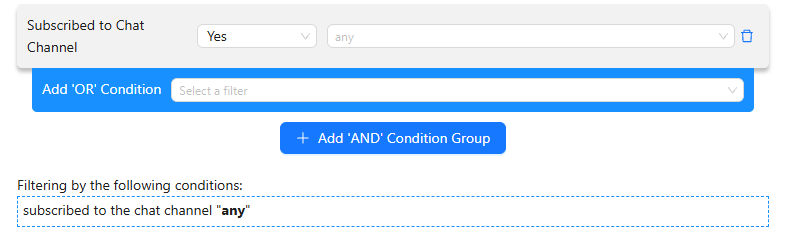
Subscribed to Chat Channel
Find contacts with a chat conversation that has not been unsubscribed from or deleted. Choose a specific channel, or keep the broader scope when any channel should count.
- Subscribed: at least one qualifying conversation exists in the selected channel, or in any channel if none is selected.
- Not subscribed: no qualifying conversation exists in that scope. A contact can still be subscribed to a different channel.
This is the recorded channel-subscription state. It does not prove that the person is online or that a new message will be delivered.
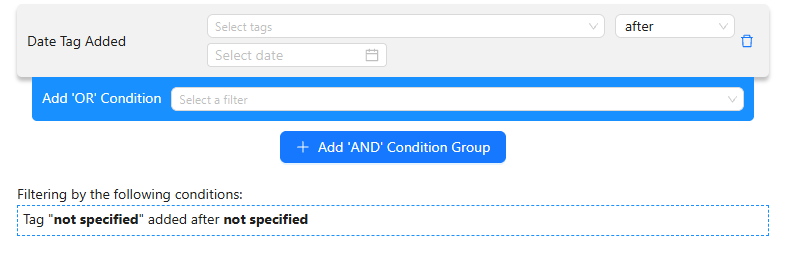
Date Tag Added
This condition builds a list of contacts based on when a specific tag was assigned. It's useful for data analysis and contact segmentation, for example, for broadcasts, notifications, or other marketing activities.
Filter conditions:
- Tag. Select a tag that was previously assigned to contacts to focus on a particular group, such as a category or topic. Click "Manage Tags" to find or create tags.
Condition:
- After. The tag was added later than the time you specify. You get the contacts who received this tag after a certain date.
Before. The tag was added earlier than the time you specify. You see contacts who received this tag before a certain date, which helps when analyzing old records or managing interaction history.
Period. Sets a date range during which the tag was added.
Date or period selection. Choose specific dates and times. This gives you very precise data about contacts who received the tag at a certain point in time.
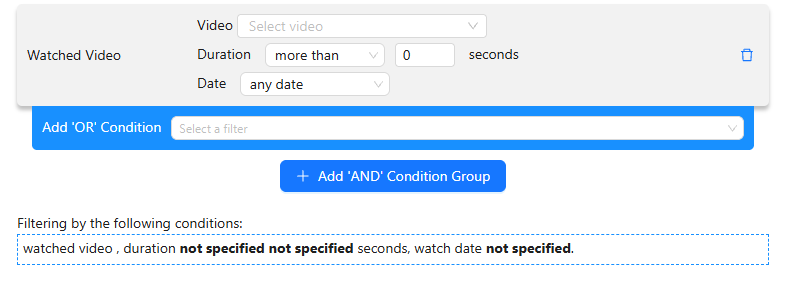
Watched Video
This condition analyzes data about contacts who watched videos. Each option narrows your search and gives you more precise information about how contacts interact with video materials.
Filter conditions:
- Video. Select a specific video to get information about. This is useful when the platform has many videos and you need to analyze interactions with just one or a few of them.
Duration:
- More than. Selects contacts who watched the video for longer than a specified time. For example, "more than 10 seconds" shows contacts who not only opened the video but also watched it for at least 11 seconds.
Less than. Finds contacts who watched the video for less than a specified time. Relevant if you're interested in brief or superficial interaction with the video.
Seconds. Enter the number of seconds.
Date:
- Any date. Includes all data for all time.
Before. Selects contacts who interacted with the video before the date you choose.
After. Shows contacts who started interacting with the video after the date you choose.
Between. Sets a date range for the analysis, such as January 1 to January 31.
Today. Lists contacts who watched the video on the day of the request.
Yesterday. Shows contacts who interacted with the video the day before.
This week. Shows contacts who watched the video from Monday to Sunday of the current week.
Last week. Lists contacts who interacted with the video during the past week.
This month. Shows contacts who watched the video since the first day of the current month.
Last month. Shows contacts who interacted with the video last month.
Select date or period. Available when you select before, after, or between. Choose specific dates and times.
Orders & Payments
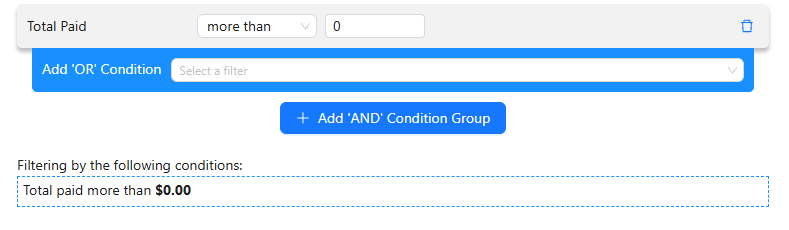
Total Paid
This condition filters contacts by the total amount of their payments.
Filter conditions:
- Total paid:
- Equals. Lists contacts whose total payments exactly match the value. For example, "Total paid equals $150" lists contacts who spent exactly $150.
Doesn't equal. Excludes contacts with a specific payment total. For example, "Total paid doesn't equal $100" lists contacts whose total spending isn't $100.
More than. Lists contacts whose payment total exceeds the value. For example, "Total paid more than $300" lists contacts who spent more than $300.
Less than. Lists contacts whose payment total is below the value. For example, "Total paid less than $50" lists contacts who spent less than $50.
Between. Lists contacts whose payment totals fall within a range. For example, "Total paid between $50 and $200" lists contacts who spent from $50 to $200, inclusive.
Value field. Enter the exact amount to filter by.
Has Order
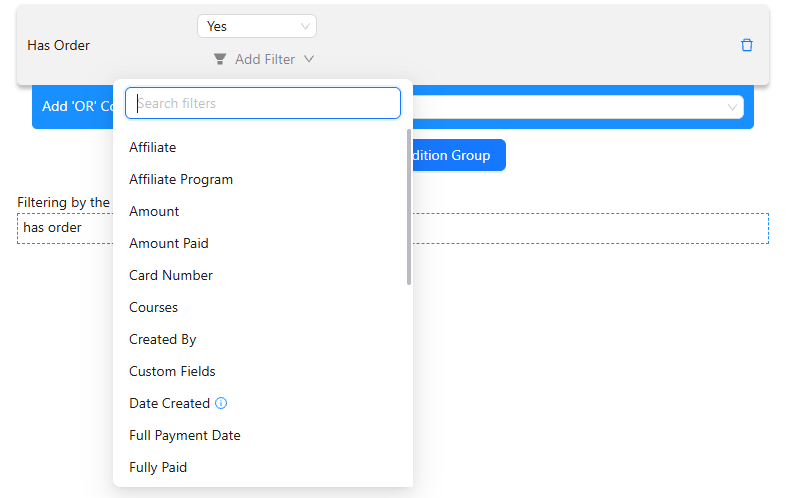
This condition finds contacts who have a specific order. Use the different criteria to sort and search.
Filter conditions:
- Has order:
- Yes. Shows contacts who have orders in the system.
No. Shows contacts without orders (for example, potential customers who haven't placed an order yet).
Add Filter:
- Search. Enter words or phrases to find orders that contain them in course titles, tags, or other text fields.
Creation Date. Filters orders by the date they were created. Useful for seeing orders placed in a specific period (for example, the last month).
Payment Date. Filters orders by the date they were paid. Useful for analyzing the gap between creating and paying an order. Any payment for an order within the period is shown, including partial payments.
Date of Full Payment. Filters orders that were fully paid within the period you specify.
Has Payments. Shows orders that have any payments (partial or full).
Fully Paid. Shows only orders that are fully paid and have no outstanding balance.
Related Contact. Finds orders linked to a specific contact. Select one or more contacts from your CRM contact list.
Owner. Filters orders by the manager or team member who handles the order. Select one or more team members from the list.
Products. Filters orders by the products they contain. Choose one or more products from the list.
Statuses. Shows orders that currently have a specific status (for example, "Processing," "Completed," or "Canceled").
Amount. Filters orders by the order amount. Useful for finding orders in a certain price range.
Order payment amount. Filters orders by the total of all payments made on the order. Set the amount range you need.
Renewal. Highlights subscriptions that were or weren't renewed. Move the slider to the active or inactive position to set what you need.
Courses. Highlights orders that include a specific course. Choose one or more courses from the list.
UTM parameters. Filters orders by the UTM parameters used to track ad sources and campaigns. You can select only the orders whose related contacts arrived through a specific UTM link to your website.
Tags. Finds orders by the tags applied to them, for more detailed classification.
Promo code. Filters orders where specific promo codes were applied.
Affiliate. Highlights orders linked to a specific affiliate in the affiliate program. You can select one or more affiliates.
Affiliate program. Highlights orders created within the affiliate program.
Show deleted. Shows orders that were deleted from the system (useful for analyzing deleted records).
Additional fields. Sorts orders that have additional fields. You can select one or more additional fields.
Subscription mode. Highlights orders with a trial subscription period, a renewal after the trial period, full payment, or a renewal of a non-trial period.
Number of Payments
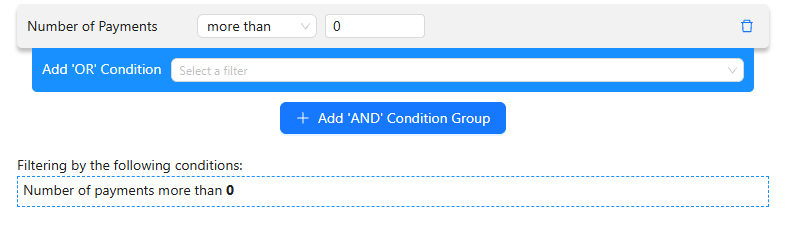
This condition filters contacts by how many payments they've made.
Filter conditions:
- Number of payments:
- Equals. Lists contacts whose number of payments exactly matches the value. For example, "Number of payments equals 5" lists contacts who made 5 payments.
Doesn't equal. Excludes contacts with a specific number of payments. For example, "Number of payments doesn't equal 3" lists contacts who made any number of payments except 3.
More than. Lists contacts whose number of payments exceeds the value. For example, "Number of payments more than 2" lists contacts who made 3 or more payments.
Less than. Lists contacts who made fewer payments than the value. For example, "Number of payments less than 4" lists contacts who made 0, 1, 2, or 3 payments.
Between. Lists contacts whose number of payments falls within a range. For example, "Number of payments between 1 and 5" lists contacts who made from 1 to 5 payments, inclusive.
Value field. Enter the exact number to filter by.
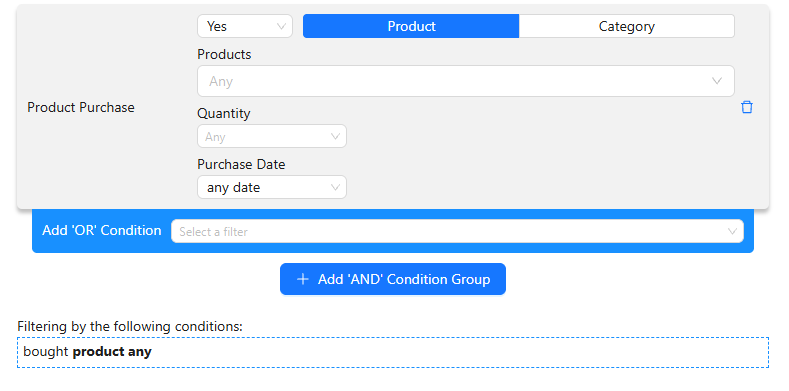
Product Purchase
Find contacts whose order history matches a purchase rule. A qualifying order is fully paid or marked completed. Creating an unpaid order alone does not qualify.
- Choose Product or Category, then select the products or categories to check. Leave the selector empty for the broader scope.
- Set Quantity to Any, Equals, Does not equal, More than or Less than. This counts matching orders, not units of a product within one order.
- Choose Purchase date: Any date, a fixed boundary or interval, a calendar period, or an available relative-day option. The check uses the order's paid date, falling back to its creation date when there is no paid date.
- When a period has a starting boundary, Is first purchase may appear. Yes requires no earlier qualifying order in the same product/category scope before that boundary; No requires an earlier qualifying order. Leave it unset when that distinction does not matter.
Yes selects contacts with at least one qualifying order who meet the date, quantity and first-purchase settings. No selects contacts who do not meet that complete rule. It does not necessarily mean they have never purchased anything.
A positive rule still requires at least one matching order. To find contacts with no matching purchase, use No instead of Yes with Quantity equal to 0.
Education
Access Start
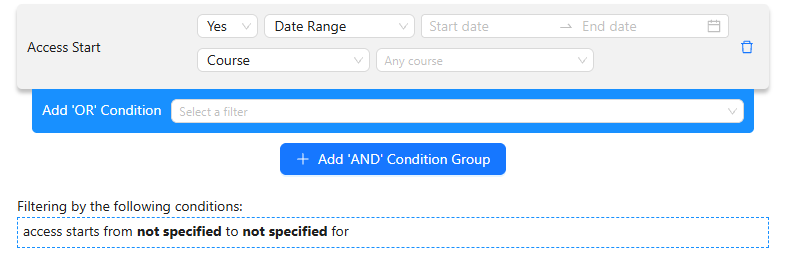
Use Access Start to find contacts with an access start date that matches the period and content you select. It checks the date on the access record; it does not show whether the contact has begun studying or whether that access is currently active.
Filter conditions:
- Access Start:
- Yes. Finds contacts with at least one matching access record whose start date meets the selected period. Both the content scope and date must match the same access record.
- No. Finds contacts with no access record matching both that content scope and start date. It can include contacts with no access to the selected content, or with access whose date falls outside the period. It does not by itself mean that access has not started.
Date Range Selection:
- Date Range. Lets you specify the dates when access started. The system shows contacts whose access to the materials started within that time frame.
Today. Shows contacts whose access to the materials was activated today.
Yesterday. Shows contacts who gained access the day before.
Tomorrow. Shows contacts who will be granted access tomorrow.
- Before Current Date. Matches an access start date earlier than the current moment.
- After Current Date. Matches an access start date at or after the current moment.
Last Week. Lists contacts who gained access last week.
This Week. Shows contacts who will gain access to the materials this week.
Next Week. Shows contacts whose access will open next week.
Last Month. Shows contacts who gained access in the previous month.
This Month. Shows contacts whose access opens this month.
Next Month. Lists contacts who will gain access to the materials next month.
- More than … days ago. Before the calendar day N days ago. That whole boundary day is excluded.
- Less than … days ago. From the start of the last N calendar days through now. For example, 3 includes today and the previous two calendar days, up to the current time.
- Exactly … days ago. The whole calendar day N days ago. Enter 0 for today.
- In more than … days. After the whole calendar day N days from today. That boundary day is excluded.
- In less than … days. From now up to the start of the calendar day N days from today.
- In exactly … days. The whole calendar day N days from today. Enter 0 for today.
For these six relative options, enter the number of days. They use calendar days in the account time zone, not rolling 24-hour intervals. Use a whole number from 0 to 36,500. For either Less than option, entering 0 matches no contacts. Leave no required day count blank.
Date Selection. This field is available when you select the date range option. Choose specific dates and times.
Material Type Selection:
- Course. Filters contacts by their access to specific courses.
Library. Shows contacts with access to library materials.
Cohort. Contacts enrolled in specific cohorts.
Product. Contacts with access to a specific product or set of products.
- All Courses. Checks access granted as an all-courses license or by an all-courses product item. It does not combine separate licenses for individual courses.
- All Libraries. Checks access granted as an all-libraries license or by an all-libraries product item. It does not combine separate licenses for individual libraries.
- Specific item. Select the courses, libraries, cohorts or products to check. Selecting an item narrows the matching access records; it does not exclude a contact merely because they also have access to other items.
- Course Plan. When exactly one course is selected, optionally narrow the filter to its plans. For a single cohort, you can similarly narrow it to the cohort dates shown in the form.
Course Completed
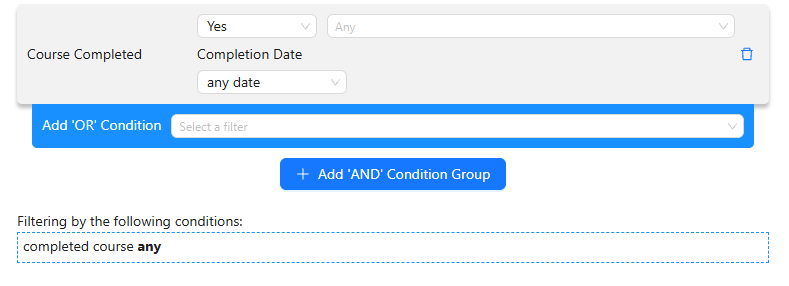
This condition identifies contacts who have completed a course on the AXL platform.
Filter conditions:
- Course Completed:
- Completed. Shows only contacts who have completed the course. Useful for analyzing how well people finish courses and for reports on completed programs.
Did not complete. Shows contacts who haven't completed the course yet. This can help you find those who need extra support or motivation to finish.
Select a specific course. Filters contacts by a specific course, which makes it easy to analyze results and progress in a particular subject or field of study.
Completion Date:
- Any date. Shows completions with no date restriction.
Before. Filters contacts who completed the course before a certain date.
After. Filters contacts who completed the course after a specified date.
Between. Lets you set a date range and selects contacts who completed the course in that period.
Today. Shows only contacts who completed the course today.
Yesterday. Shows contacts who completed the course yesterday.
This week. Selects contacts who completed the course this week.
Last week. Selects contacts who completed the course last week.
This month. Selects contacts who completed the course this month.
Last month. Selects contacts who completed the course last month.
Select a date or period. Available when you select before, after, or between. Choose specific dates and times.
Course Started
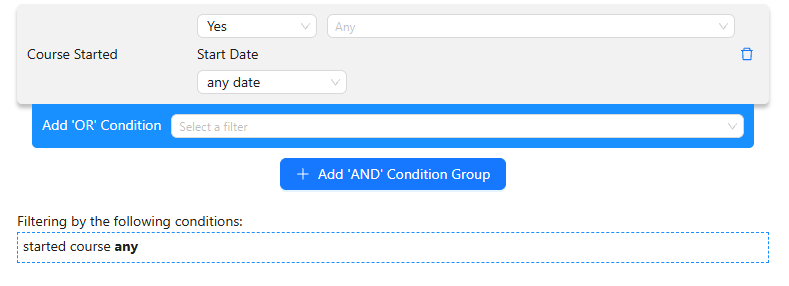
This condition finds all contacts who have started a training course in the Membership Portal. For example, you can select contacts who haven't started a specific course and take action, such as sending them an email.
Filter conditions:
- Course Started:
- Yes. Shows only contacts who have begun studying the course.
No. Shows contacts who haven't started the course yet. This can help you find those who need extra support or motivation to start learning.
Select Specific Course. Filters contacts by a specific course, which makes it easy to analyze results and progress in a particular subject or field of study.
Start Date:
- Any date. Shows starts with no date restriction.
Before. Filters contacts who started the course before a specific date.
After. Similarly, filters contacts who started the course after a specified date.
Between. Lets you set a date range and selects contacts who started the course in that period.
Today. Shows only contacts who started the course today.
Yesterday. Shows contacts who started the course yesterday.
This week. Selects contacts who started the course this week.
Last week. Selects contacts who started the course last week.
This month. Selects contacts who started the course this month.
Last month. Selects contacts who started the course last month.
Select Date or Period. Available when you select before, after, or between. Choose specific dates and times.
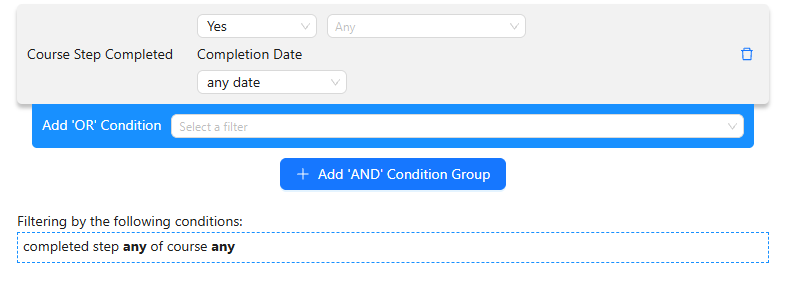
Course Step Completed
This condition finds contacts who have completed a specific step in a course in the Membership Portal on the AXL platform.
Filter conditions:
- Course Step Completed:
- Completed. Shows contacts who have completed a specific step in the course. This helps you see who is moving through the course content.
Did not complete. Shows contacts who haven't completed the step. Useful for finding those who need support.
Select a specific course. Filters steps by a specific course.
Select a course step. Lets you choose a specific step in that course for analysis. Useful for monitoring how people complete individual course elements.
Completion Date:
- Any date. Shows completions with no date restriction.
Before. Filters steps completed before the selected date.
After. Filters steps completed after a specific date.
Between. Lets you select a date range.
Today. Shows steps completed today.
Yesterday. Shows steps completed yesterday.
This week. Shows steps completed this week.
Last week. Shows steps completed last week.
This month. Shows steps completed this month.
Last month. Shows steps completed last month.
Select a date or period. Available when you select before, after, or between. Choose specific dates and times.
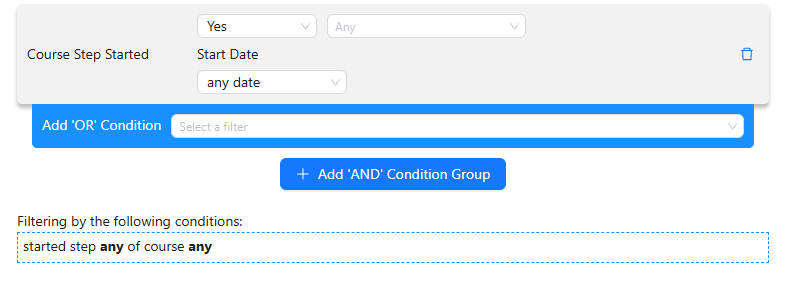
Course Step Started
This condition finds contacts who have started a specific step in a course. For example, they began watching a particular video, and now you can email them a checklist related to the lesson topic.
Filter conditions:
- Course Step Started:
- Yes. Shows contacts who have begun studying a specific step in the course. This helps you see who is moving through the course content.
No. Shows contacts who haven't started the step. Useful for finding those who may need support.
Select Specific Course. Filters steps by a specific course.
Select Course Step. Lets you choose a specific step in that course for analysis. Helpful for monitoring how people complete individual course elements.
Start Date:
- Any date. Shows starts with no date restriction.
Before. Filters steps started before the selected date.
After. Filters steps started after a specific date.
Between. Lets you select a date range.
Today. Shows steps started today.
Yesterday. Shows steps started yesterday.
This week. Shows steps started this week.
Last week. Shows steps started last week.
This month. Shows steps started this month.
Last month. Shows steps started last month.
Select Date or Period. Available when you select before, after, or between. Choose specific dates and times.
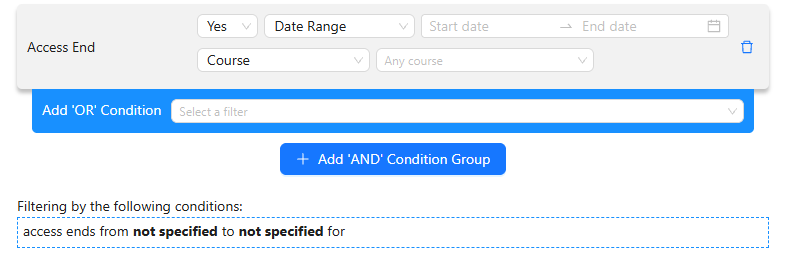
Access End
Use Access End to find contacts with an access end date that matches the period and content you select. Use it for expiry reminders or to find access that ended in a particular period.
Filter conditions:
- Access End:
- Yes. Finds contacts with at least one matching access record whose end date meets the selected period. Both the content scope and date must match the same access record.
- No. Finds contacts with no access record matching both that content scope and end date. It can include contacts with no access to the selected content, or with access whose date falls outside the period. It does not by itself mean that access is still valid.
Date Range:
- Date Range. Lets you set a specific time period. For example, access expires from October 1 to October 10. You get all contacts whose access expires during that period.
Today. Lists contacts whose access expires today.
Yesterday. Shows contacts whose access expired the day before.
Tomorrow. Shows contacts whose access will expire tomorrow.
- Before Current Date. Matches an access end date earlier than the current moment.
- After Current Date. Matches an access end date at or after the current moment.
Last Week. Shows contacts whose access expired last week.
This Week. Lists contacts whose access expires this week.
Next Week. Shows contacts whose access will expire next week.
Last Month. Shows contacts whose access ended last month.
This Month. Lists contacts whose access expires this month.
Next Month. Shows contacts whose access expires next month.
- More than … days ago. Before the calendar day N days ago. That whole boundary day is excluded.
- Less than … days ago. From the start of the last N calendar days through now. For example, 3 includes today and the previous two calendar days, up to the current time.
- Exactly … days ago. The whole calendar day N days ago. Enter 0 for today.
- In more than … days. After the whole calendar day N days from today. That boundary day is excluded.
- In less than … days. From now up to the start of the calendar day N days from today.
- In exactly … days. The whole calendar day N days from today. Enter 0 for today.
For these six relative options, enter the number of days. They use calendar days in the account time zone, not rolling 24-hour intervals. Use a whole number from 0 to 36,500. For either Less than option, entering 0 matches no contacts. Leave no required day count blank.
Select date and time. Choose a specific date and time to get very precise data.
Material Type Selection:
- Course. Shows only courses.
Library. Shows materials from educational libraries.
Cohort. Shows cohorts tied to a specific date, aimed at bringing event participants together.
Product. Includes various products that may relate to educational content (for example, a subscription or a service).
- All Courses. Checks access granted as an all-courses license or by an all-courses product item. It does not combine separate licenses for individual courses.
- All Libraries. Checks access granted as an all-libraries license or by an all-libraries product item. It does not combine separate licenses for individual libraries.
- Specific item. Select the courses, libraries, cohorts or products to check. Selecting an item narrows the matching access records; it does not exclude a contact merely because they also have access to other items.
- Course Plan. When exactly one course is selected, optionally narrow the filter to its plans. For a single cohort, you can similarly narrow it to the cohort dates shown in the form.
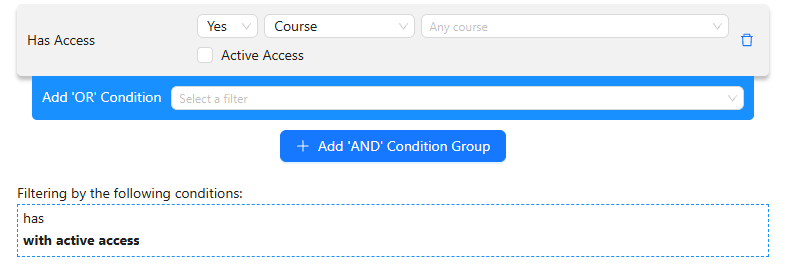
Has Access
This condition finds contacts who have access to certain platform materials.
Filter conditions:
- Has access:
- Yes. Shows only contacts who have access to the materials.
No. Shows contacts who don't have access to the materials. Helps you see which contacts lack access to learning materials.
Material Type Selection:
- Course. Shows only courses.
Library. Shows available libraries with resources (for example, articles or books).
Cohort. Shows cohorts tied to a specific date, aimed at bringing event participants together.
Product. Includes various products that may relate to educational content (for example, a subscription or a service).
All Courses. Checks an all-courses access record or a product that includes all courses. It does not combine separate access records for individual courses.
All Libraries. Checks an all-libraries access record or a product that includes all libraries. It does not combine separate access records for individual libraries.
Specific Material Selection. Lets you filter contacts by access to specific platform materials.
Active Access. Select this checkbox to find contacts with active access to materials. Active access means that, right now, the contact has access to the platform's learning materials.
Auto-renewal is on. Filters contacts whose subscription renews automatically. This means the contact has turned on automatic charging and renews the subscription when the paid period ends. It appears when the material type is Product and counts only products with the "Subscription" type.
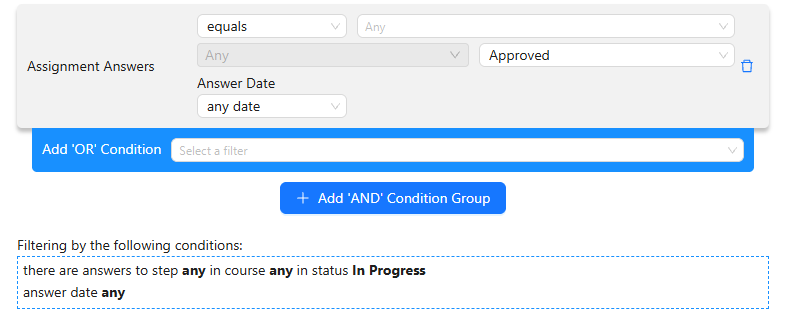
Assignment Answers
This condition sorts and displays contacts based on their activity and interaction with course assignments.
Filter conditions:
- Assignment answers:
- Equals. Shows contacts who match the filter conditions you set. This helps the instructor see who is actively taking part in learning.
Does not equal. Excludes contacts who match the filter conditions. Useful for finding contacts who aren't taking part in assignments.
Select specific course. Filters by a specific course. If you select a course, only contacts registered for it and matching your other conditions appear in the list.
Select course step. Lets you pick a lesson from the selected course. Useful for analyzing how contacts handle specific assignments in a particular lesson. If you select a lesson, only contacts who answered assignments from that lesson appear.
Status:
- Approved. Shows contacts whose assignment answers have been reviewed and approved by the instructor.
In progress. Shows contacts who have submitted assignments but haven't yet received a final grade or approval. Useful for monitoring contact progress.
Answer Date:
- Any date. The list includes answers regardless of their dates.
Before. Sets the upper limit for the date. Shows answers submitted before it.
After. Sets the lower limit for the date. Shows only contacts who answered after it.
Between. Lets you set a time interval. Shows answers submitted within it.
Today. Shows answers submitted today only.
Yesterday. Shows answers submitted yesterday only.
This week. The list includes answers from this week.
Last week. The list includes answers from last week.
This month. Filters answers from this month.
Last month. Filters answers from last month.
Select date or period. Available when you select before, after, or between. Choose specific dates and times.
Webinars
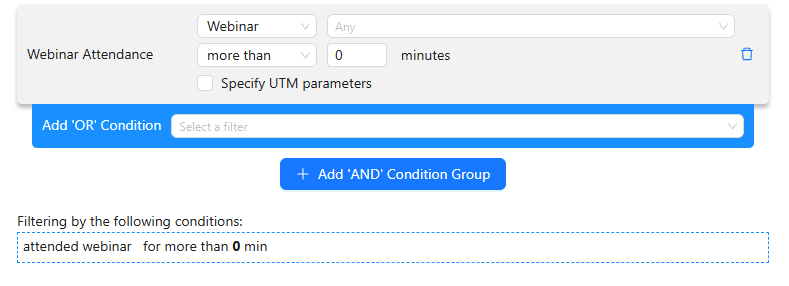
Webinar Attendance
Use Webinar Attendance to find contacts who were present at a particular part of a webinar's timeline. For example, a range from minute 15 to minute 30 finds contacts recorded as present at any minute in that interval. It does not require attendance throughout the whole interval and does not show when a contact first joined.
- Webinar type. Choose Webinar or Automated Webinar.
- Webinar. Select one or more webinars, or leave Any to keep the broader scope.
- Period. Choose less than, more than or range. For this timeline condition, less than checks for a recorded presence minute at or before your value; more than checks at or after it; range checks between From and To, including both boundaries.
- Minutes. Enter the position on the webinar timeline. A value of 15 means minute 15 after the webinar starts; it does not mean 15 minutes of total attendance.
- Automated Webinar date. For automated webinars, optionally narrow the run dates using the additional date condition. Keep Any when the date should not restrict the match.
- Specify UTM parameters. Enable this only when you also want to narrow the selected webinar records by their UTM values, then choose the required values.
For total time attended, use the separate Webinar Attendance (Duration) condition.
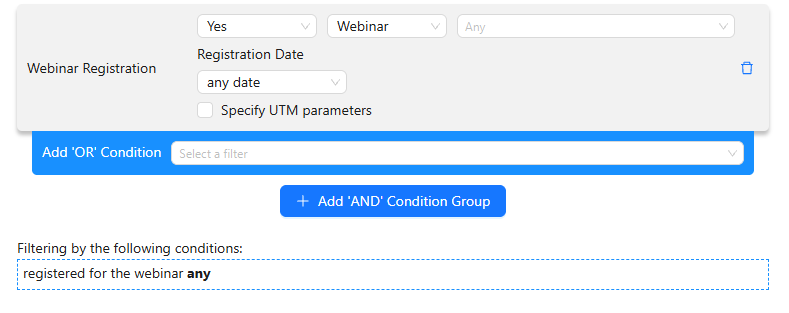
Webinar Registration
Use this condition to find and list contacts who registered for webinars, and to analyze their activity.
Filter conditions:
- Webinar registration:
- Yes. Shows all contacts who registered for the webinar. You can use this list of interested participants for further actions, such as sending reminders or additional information.
No. Finds contacts who didn't register for the webinar. Useful for finding potential attendees to send invitations or reminders to.
Type:
- Webinar. Shows contacts who registered for regular live webinars. This can help you analyze how interesting your live events are.
Automated Webinar. Highlights contacts who registered for pre-recorded webinars. This can be important for assessing interest in automated content.
Select a specific webinar from the list. Select a webinar and see only the contacts who registered for it. This simplifies event management and personalized communication with participants.
Registration Date:
- Any date. All contacts who registered for the webinar, across the entire period.
Before. Contacts who registered before the specified date.
After. Contacts who registered after the specified date.
Between. Contacts who registered within the time frame you specify.
Today/Yesterday/This week/Last week/This month/Last month. Quickly find contacts for specific periods and analyze changes over time (for example, registration activity across different weeks or months).
Choose a date or period. Available when you select before, after, or between. Choose specific dates and times.
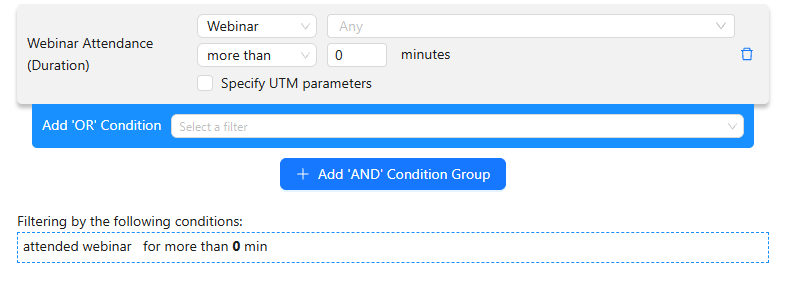
Webinar Attendance (Duration)
Use this filter to analyze how long contacts stayed in a webinar. For example, if you choose "Webinar Attendance (Duration) more than 15 minutes," you get a list of contacts who were in the webinar for more than 15 minutes. This helps you identify the most interested contacts and assess their engagement with the webinar content.
Filter conditions:
- Webinar type:
- Webinar. Tells regular webinars apart from automated ones. A webinar is a live event with a host.
Automated Webinar. A recorded webinar that is broadcast automatically.
Select a specific webinar from the list. Focus on one webinar and assess attendance time for that webinar only. This helps you see which participants were interested in a particular event.
Condition:
- More than. Sets a minimum attendance time. For example, "more than" selects contacts who attended the webinar for longer than the time you specify.
Less than. Selects contacts who didn't stay as long as the time you specify.
Minutes. Enter the number of minutes. This is the time a contact must spend in the webinar to be included in the selection.
Email
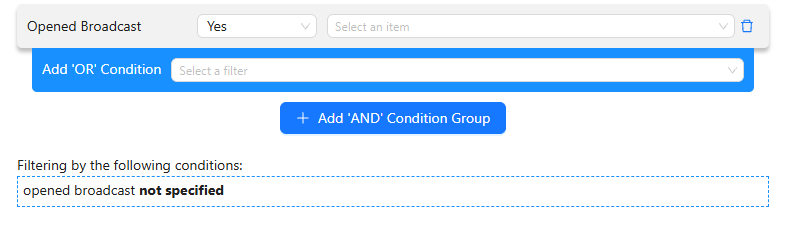
Opened Broadcast
This condition finds contacts who viewed emails from the selected broadcast.
Filter conditions:
- Opened the broadcast:
- Opened. Lists contacts who opened and viewed a specific broadcast. This may mean the broadcast content interested the recipient.
Didn't open. Lists contacts who haven't opened or viewed the broadcast. This can help you identify an audience that isn't responding to communication and needs extra attention.
Broadcast selection. Specify which broadcast to filter by. This is useful for analyzing reactions to specific offers.
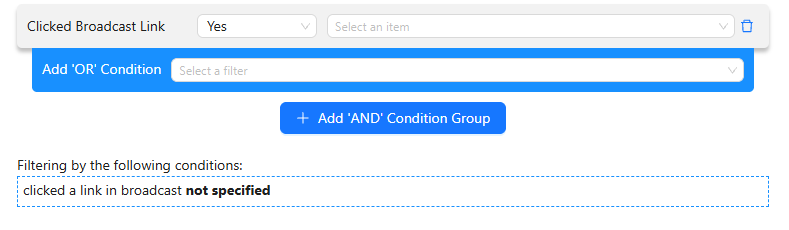
Clicked Broadcast Link
This filter finds contacts based on how they interact with broadcasts. It helps you build more targeted marketing strategies and offers.
Filter conditions:
- Clicked a link in the broadcast:
- Clicked. Lists contacts who clicked a link in the specified broadcast. This may show that the contact is interested in the content or offer, so you can identify potentially interested contacts for further communication or offers.
Didn't click. Lists contacts who didn't click a link in the specified broadcast. Use it to work with contacts who showed no interest and need extra engagement or follow-up reminders.
Select broadcast. Specify which broadcast to filter by. This is useful for analyzing reactions to specific events, such as webinars, promotions, or various offers.
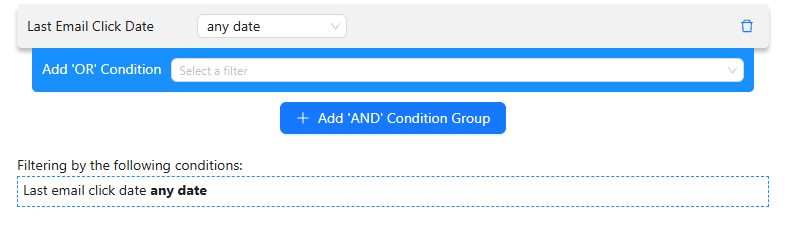
Last Email Click Date
This condition builds a list of contacts based on when they last clicked a link in an email sent to them.
Filter conditions:
- Date of last email click:
- Any date. Selects contacts who clicked an email at any time. Useful for broad analysis and for assessing overall contact activity.
Before. Sets an upper time limit. You get contacts who clicked a link in an email before the date and time you specify. Helpful for analyzing how contacts interacted with earlier messages.
After. Sets a lower time limit. You get contacts who clicked a link in an email after the date you specify. Helps you find active contacts over a specific period.
Between. Lets you select a date range in which the last click happened. Useful for analyzing activity during certain time frames, such as promotional campaigns.
Today. Highlights contacts who clicked an email today. Important for understanding current engagement.
Yesterday. Highlights contacts who clicked an email the day before. Helps you assess the effectiveness of emails sent the previous day.
This week. Selects contacts who clicked an email from the beginning of the current week to now. Useful for operational analytics.
Last week. Selects contacts who interacted with emails last week. Helps you evaluate weekly activity and plan future campaigns.
This month. Highlights contacts who clicked an email since the beginning of the current month. Convenient for analyzing monthly activity.
Last month. Highlights contacts who clicked an email last month. Helps you analyze how earlier campaigns performed.
Select date and time. Choose a specific date and time to get very precise data about your contacts.
Include those who didn't click. Adds contacts who have never clicked an email to the list. Helpful for analyzing your entire contact base, including contacts who showed no interest.
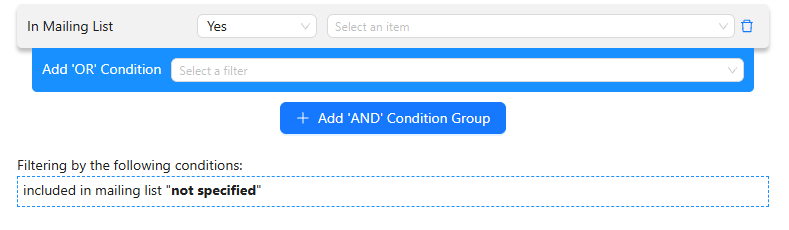
In Mailing List
This condition segments contacts by their subscription to mailing lists, for example, to send webinar invitations.
Filter conditions:
- In the mailing list:
- Included. Shows contacts who are in a specific mailing list. This helps you identify the target audience for business communication and send targeted offers and promotions.
Not included. Shows contacts who aren't in the mailing list. This can help you segment your audience to avoid information overload and find those who need convincing to subscribe.
Select mailing list. Choose a specific list to target your audience more precisely for different broadcasts. For example, you can create separate offers for different contact groups based on their interests or activity.
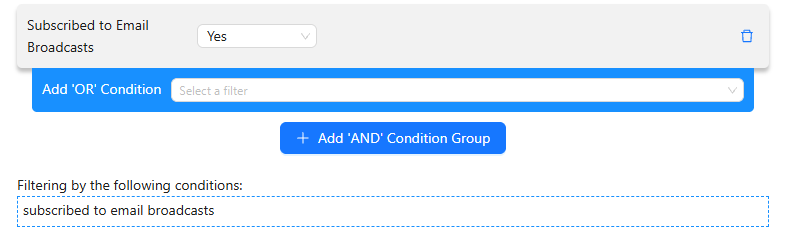
Subscribed to Email Broadcasts
This filter helps you understand which contacts are willing to receive information and which need extra attention to engage. It makes it easier to plan future promotional offers.
Filter conditions:
- Subscribed to email broadcasts:
- Yes. Lists contacts who are subscribed to email broadcasts. Useful for seeing who is ready to receive information and updates about new courses or events.
No. Lists contacts who aren't subscribed to email broadcasts. This can help you find potential contacts you need to convince to subscribe to hear about new opportunities.
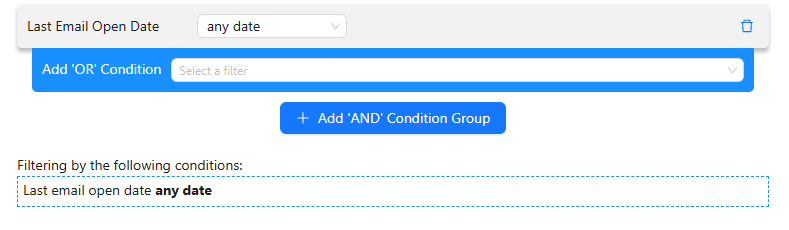
Last Email Open Date
This condition builds a list of contacts based on when they last opened an email. It helps you set up marketing campaigns that focus on engagement levels.
Filter conditions:
- Date of last email open:
- Any date. Selects contacts with a recorded last email-open date, without restricting that date. It does not include contacts with no recorded open.
Before. Lists contacts who opened an email before the date and time you specify. Helps you analyze how well broadcasts worked up to that point.
After. Lists contacts who opened an email after the date you specify. Useful for finding recently active contacts.
Between. Lets you set a date range in which contacts opened an email. Ideal for analyzing activity over a certain time to see trends or reactions to specific campaigns.
Today. Selects contacts who opened an email today. Extremely useful for quick feedback on recent broadcasts or for analyzing current activity.
Yesterday. Selects contacts who opened an email the day before. A good way to monitor the response to messages and promotions you sent the previous day.
This week. Selects contacts who opened an email during the current week. Helps you assess open rates over a wider time frame than one day while still staying current.
Last week. Selects contacts who opened an email during the week before the current one. Useful for analyzing short-term changes in contact behavior.
This month. Selects contacts who opened an email during the current month. Helps you see how your broadcasts perform over a longer period than a week.
Last month. Selects contacts who opened an email last month. Useful for comparing results with the current month and analyzing activity on a larger scale.
Select date and time. Choose a specific date and time to get very precise data about your contacts.
Include those who didn't open. With Before or More than ... days ago, also include contacts with no recorded email open. This option does not change every date condition.
Deal
Has Deal
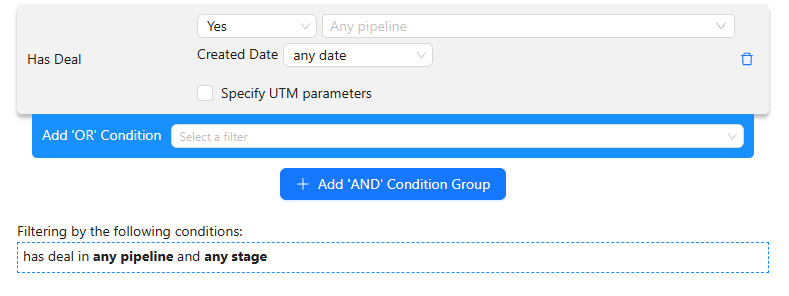
This condition adds or excludes contacts related to the selected deal. You can also filter contacts by the date a deal was created, or select a period.
Filter conditions:
- Has deal:
- Yes. Lists contacts who have at least one non-archived deal matching the selected criteria.
No. Shows contacts with no matching non-archived deal in the selected pipeline, stages, tags, dates and other criteria. They may have deals outside that scope.
Pipeline selection. Filters contacts by a specific pipeline. For example, if you choose the "Marketing Seminar" pipeline, the list includes only contacts associated with it.
Stage selection. Shortlists contacts by the current stage of their deals. For example, if you select the "Application" stage, the list includes contacts whose deals are at that stage.
Tags. Select deal tags to match contacts whose deals have those tags. These are the pipeline’s deal tags, not the tags on the contact profile.
Created Date:
- Any date. Returns all contacts, regardless of the deal creation date.
Before. Sets an upper limit for the deal creation date.
After. Sets a lower limit for the deal creation date.
Between. Specifies a time range during which the deal was created.
Today/Yesterday/This week/Last week/This month/Last month. Filters only contacts whose deals were created on that day or in that period.
Date or period selection. Available when you select before, after, or between. Choose specific dates and times.
After selecting a pipeline, you can also add filters for its custom deal fields. Select Specify UTM parameters to filter by the deal’s campaign, source, medium, content or term values.
Affiliate Program
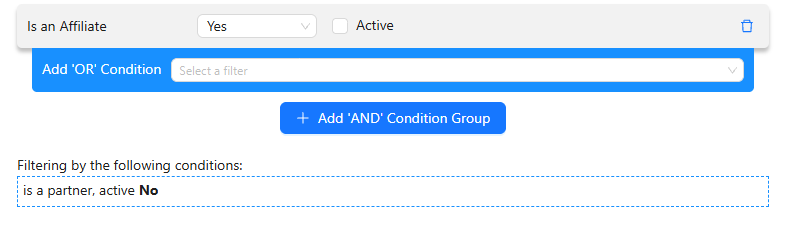
Is an Affiliate
Use this condition to distinguish contacts who have an affiliate-program membership from those who do not.
- Yes. Select contacts who have an affiliate membership, then use Active to choose its status.
- No. Select contacts who have no affiliate membership. The Active checkbox does not narrow this choice.
- Active selected. With Yes, select memberships marked active.
- Active cleared. With Yes, select memberships marked inactive.
Active is the membership's enabled status. It does not measure referral-link clicks, referred purchases or commissions. Use the relevant affiliate statistics when you need to assess performance.
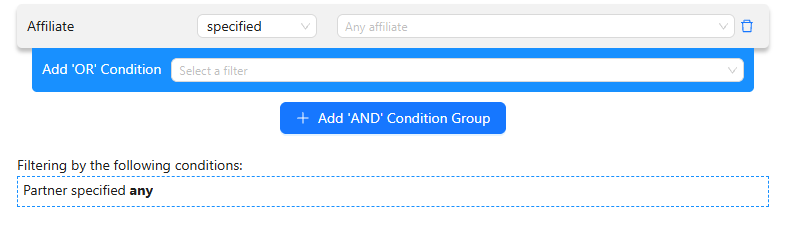
Affiliate
This condition finds contacts who were invited through the affiliate program. Select the affiliate whose invitation link the new contacts used to register and make purchases. You can also find contacts who have no affiliate.
Filter conditions:
- Affiliate:
- Specified. Selects contacts who registered through an affiliate link. These contacts have information about the affiliate who brought them to the platform. You get all contacts invited through the links of certain affiliates, which is useful for analyzing affiliate effectiveness, tracking their activity, or assessing the profit they bring.
Not specified. Selects contacts who registered on their own, outside the affiliate program. They aren't connected to any affiliate. This helps you see how many contacts came to the platform by themselves, without affiliates.
Select a specific affiliate. Choose a specific affiliate from the list to see all contacts who registered through their link. This is useful for a deeper analysis of an affiliate's interactions with contacts and for assessing their contribution to your overall affiliate marketing strategy.
Other
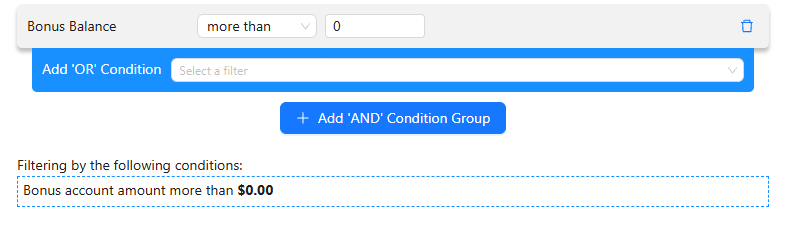
Bonus Balance
This condition finds contacts who have a certain amount in their bonus balance. The amount is in the account's currency.
Filter conditions:
- Bonus Balance:
- Equals. Lists contacts whose bonus balance equals the number you enter. Use it to find contacts with an exact amount.
Does not equal. Lists contacts whose bonus balance doesn't equal the number you enter, for example, not equal to 150. Useful when you need to exclude a specific group of contacts.
Less than. Lists contacts whose bonus balance is below the number you enter, for example, less than 150. Helps you find contacts who haven't reached a certain bonus threshold.
More than. Lists contacts whose bonus balance is above the number you enter. Useful for offering special promotions or bonuses only to more active contacts.
Between. Lists contacts whose bonus balance falls within the range you set. This lets you target contacts with specific scores more precisely, for example, for special offers.
Numeric value field. Enter the value to filter by.
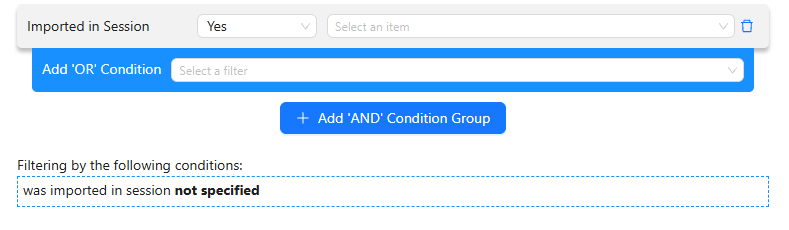
Imported in Session
This condition adds or excludes contacts that were imported into AXL manually. You can select only the imported contacts or, conversely, exclude them from your search.
Filter conditions:
- Imported in session:
- Was. Lists contacts who were imported into the system in a specific session. This can help you analyze how well a particular import worked and track contacts who came from a specific campaign.
Wasn't. Lists contacts who weren't imported in this session. Important for finding contacts who registered or were added in other ways, not through an import.
Import Session Selection. Filters contacts imported as part of a specific campaign or period. Useful for analyzing the results of specific marketing promotions or events.
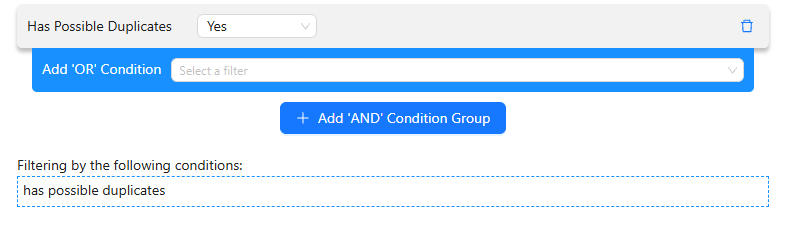
Has Possible Duplicates
This condition selects all contacts that have possible duplicates in your CRM contact database. With this filter, you can tidy up your contact database regularly. Apply the filter to your contacts, click "Similar contacts found," and merge them. For more information about merging contacts, read the article "Merging Contacts."
Filter conditions:
- Has Possible Duplicates:
- Yes. Lists contacts who have possible duplicate entries. Useful for analytics and for understanding the duplicate problem so you can fix it.
No. Lists contacts without duplicates. Important for working with a clean database and keeping communication errors to a minimum.
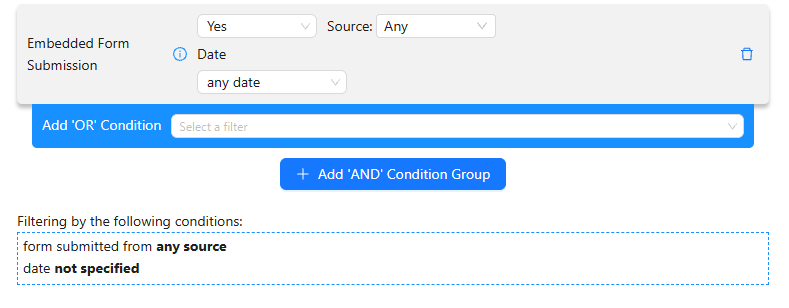
Embedded Form Submission
This filter lists contacts based on how they interacted with embedded forms placed on your website or in widgets. It covers forms embedded through the content editor.
Filter conditions:
- Embedded form submission:
- Yes. Lists contacts who actually submitted embedded forms. This can include applications, registrations, and other kinds of interaction.
No. Lists contacts who didn't submit embedded forms. Useful for analyzing contacts who started interacting but didn't finish the process.
Source:
- Any. Includes contacts from all sources (website and widget).
Website. Limits the list to contacts who interacted with forms on the website.
Widget. Limits the list to contacts who interacted with forms in widgets.
Date:
- Any date. Gets data for the entire period.
Before. Filters contacts who interacted with forms before a specific date.
After. Filters contacts who interacted with forms after a specific date.
Between. Sets a date range for filtering.
Today. Lists contacts who submitted forms today.
Yesterday. Lists contacts who submitted forms the day before.
This week. Lists contacts who submitted forms since the beginning of the current week.
Last week. Lists contacts who submitted forms last week.
This month. Lists contacts who submitted forms since the beginning of the current month.
Last month. Lists contacts who submitted forms last month.
Date or period selection. Available when you select before, after, or between. Choose specific dates and times.
Gamification
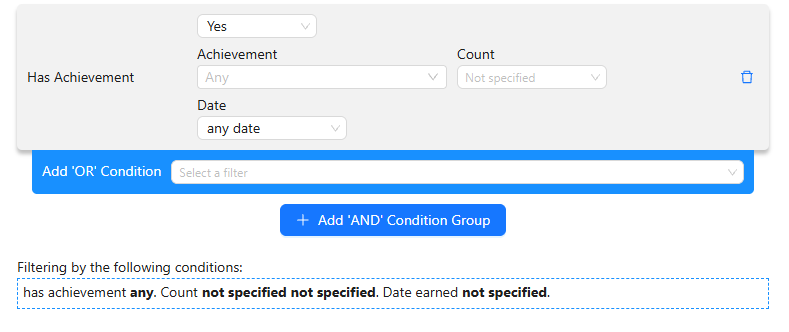
Has Achievement
Find contacts with an enabled achievement matching the selected achievement and date. Choose a particular achievement or keep the broader scope, then set its date condition.
- Yes: at least one matching achievement exists and any Number condition is met.
- No: the complete matching rule is not met. This does not necessarily mean the contact has no achievements at all.
- Number: compare the count of matching achievement records using Less than, More than, Equal to or Not equal to. With Yes, a contact still needs at least one matching record: Less than 5 selects 1–4 matching achievements, not zero.
- Date: use Any date, a fixed date or interval, a calendar period, or a relative-day option offered in the form.
Disabled achievements are excluded from this condition. Check the achievement's status when an expected contact does not match.
Form/Quiz
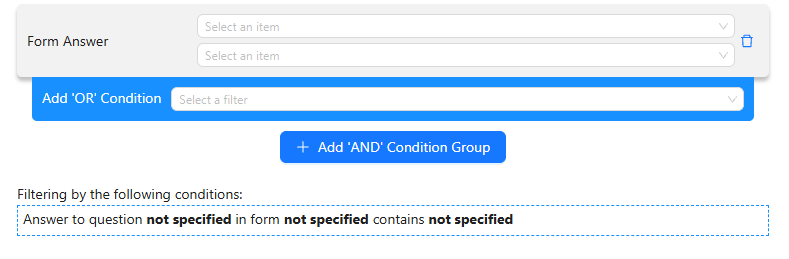
Form Answer
This condition segments contacts by their answers in forms. It helps you understand their preferences and judge the quality of the information you collected.
Filter conditions:
- Form Selection. Choose which form to search for contact answers. For example, you can choose a registration form or a feedback form.
Form Field Selection. Choose a specific field in the selected form, such as name, email, question, or any other requested value.
Condition:
- Equals. Selects contacts whose answer in the field exactly matches the value you enter. For example, "Name equals John" finds contacts who entered the name John.
Does not equal. Excludes contacts with the specified answer. For example, "Age does not equal 25" excludes everyone who said they are 25.
Contains. Finds contacts whose answer partially matches the text you enter. For example, "Comment contains help" finds those who mentioned "help" in their comments.
Does not contain. Excludes contacts whose answer contains the text you enter. For example, "Review does not contain negative" excludes answers that contain the text "negative".
Specified. Finds contacts who gave an answer in the field. For example, "Email specified" shows all contacts who provided an email.
Not specified. Finds contacts who left the field empty. For example, "Phone not specified" shows all contacts who didn't provide a phone number.
Value Field. Enter the value to compare with contact answers.
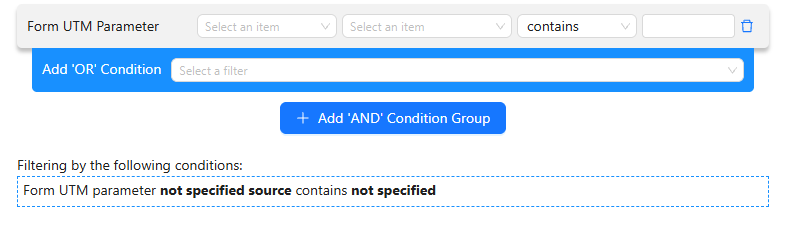
Form UTM Parameter
This condition segments contacts by the UTM parameters used in forms to track traffic sources and marketing campaign results.
Filter conditions:
- Form Selection. Choose the form whose data you want to analyze. For example, if your account has several forms, you can pick the one you want to investigate.
UTM Parameter Selection. Choose the UTM parameter you're interested in.
- utm_source - traffic source; shows where the contact comes from (for example, Google, Facebook, or email).
utm_medium - marketing medium (channel); shows the type of traffic (for example, CPC, email, or banner).
utm_campaign - name of the ad campaign; tracks a specific campaign or promotion.
utm_term - keyword or phrase; mostly used in paid search advertising to track the keywords people used to find the ad.
utm_content - content; tells similar links or content elements in one campaign apart, so you can see which performed better (for example, different versions of the same ad or banner).
Condition:
- Equals. Filters contacts whose value for the UTM parameter exactly matches your value. For example, "utm_source equals Facebook" finds contacts who came from Facebook.
Does not equal. Excludes contacts with the specified value. For example, "utm_source does not equal Google" shows all contacts except those who came from Google.
Contains. Selects contacts whose UTM parameter value includes your text. For example, "utm_medium contains email" finds contacts who came from email broadcasts.
Does not contain. Excludes contacts whose UTM parameter value includes your text. For example, "utm_source does not contain Instagram" excludes contacts who came from Instagram.
Value Field. Enter the value that the selected parameter and condition are compared against.
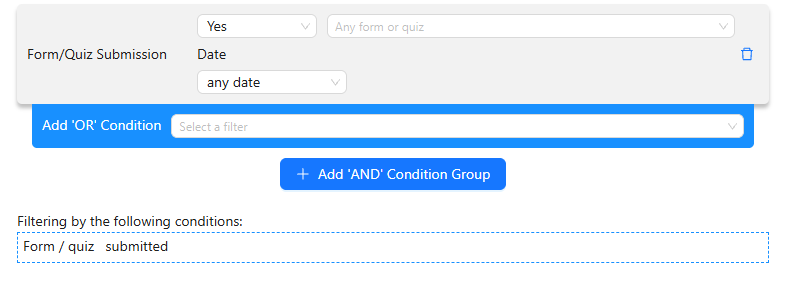
Form/Quiz Submission
This filter selects contacts based on whether they submitted forms or quizzes. Use it to list contacts who did or didn't take certain actions, which helps you analyze contact activity and engagement.
Filter conditions:
- Form/quiz submission:
- Submitted. Shows contacts who completed and submitted the form or quiz. Helps you track mandatory assignments and engagement levels.
Not submitted. Shows contacts who didn't submit the form or quiz. This can help you find contacts who may be having difficulties or simply aren't taking part in the survey.
Form Selection. Choose a specific form or quiz to filter contacts. When you pick one, the list narrows to only the contacts who did or didn't submit that one. Useful for assessing work on a particular task.
Date:
- Any date. Shows all contacts, with no limit on the date the form or quiz was submitted.
Before. Selects contacts who submitted the form before a certain date. Useful for analyzing task completion before an important date or event.
After. Selects contacts who submitted the form after a certain date. Useful for tracking contact activity within a given period.
Between. Set a start and end date to select contacts who submitted during that period.
Today. Shows contacts who submitted forms or quizzes today.
Yesterday. Shows contacts who submitted forms or quizzes the day before.
This week/Last week. A weekly selection helps you see how contacts handle assignments over a longer time frame and monitor trends.
This month/Last month. Similar, but on a monthly level. Useful for long-term analysis of activity and task completion.
Date or period selection. Available when you select before, after, or between. Choose specific dates and times.
Apps
Telegram Groups/Channels. Member of Groups/Channels
Find contacts with a Telegram group or channel association recorded in AXL. Select one or more groups, or leave the selector empty to check any connected group.
- Yes: at least one recorded association matches the selected group and date conditions.
- No: no recorded association matches that scope. The contact can still have an association with another group or outside the selected date range.
This filter does not verify current Telegram membership. Its results can include pending invitations or requests and people recorded as having left or been banned. A record removed from AXL, a deleted group or a deleted app connection is excluded. Check the person’s current group status when your next action depends on actual membership.
The date controls apply to when AXL created the association record, which can differ from when the person joined the group. Any date leaves that date unrestricted; the group and Yes/No conditions still apply. Choose a date comparison and enter its date or day count to narrow the recorded associations.

Additional Contact Conditions
The following conditions are available in the contact-condition selector. Add a condition, choose its options and check the filter summary before applying or saving it. Conditions within one group use OR; separate AND groups must all match.
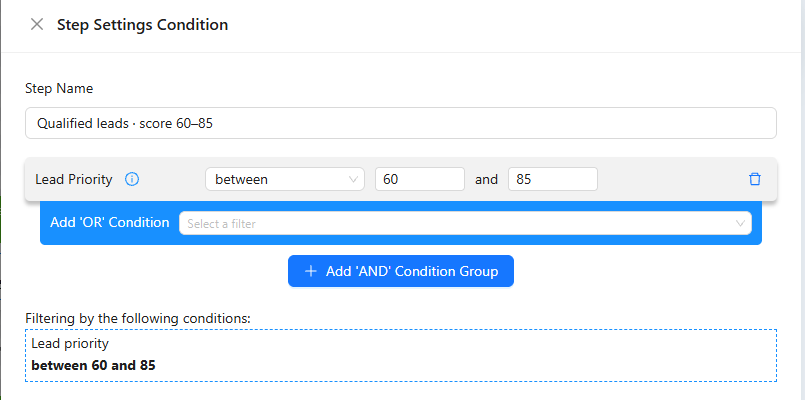
Lead Priority
Filter contacts by their assigned lead-priority tier or numerical score. Use is or is not with Hot, Warm or Cold. Use above or below for a strict score threshold, or between for an inclusive range from 0 to 100. For example, between 60 and 85 includes both 60 and 85. Use is set for scored contacts and is not set for contacts without an assigned priority.
Membership Portal: Active Sessions
Choose equals, does not equal, less than, more than or between, then enter the session count. This counts the contact's membership-portal sessions that have not been completed. It is not a count of page views or proof that the person is online right now. For example, more than 2 finds contacts with at least three unfinished sessions.
Has Subscription
- Choose Yes to find contacts with a subscription, or No to find contacts without a subscription in the selected product scope.
- Leave the product selector at Any, or choose the relevant subscription products.
- With Yes, optionally set Subscription is active, Renewal is active and Payment method is active to Any, Yes or No. Any leaves that check unrestricted.
Subscription is active checks the subscription's access dates. Renewal is active checks whether renewal is enabled and within its limits. Payment method is active checks whether a payment method is recorded; it does not guarantee that the next payment will succeed. If several subscriptions are in scope, different subscriptions can satisfy the separate status checks. Choose one product when you need a narrowly scoped match. With No, these three status controls are hidden and are not applied.
Subscribed to Email Broadcasts
Choose Yes for contacts who have not unsubscribed from email broadcasts, or No for contacts who have unsubscribed. This is the contact's general email-broadcast subscription status, not membership of a particular mailing list or a guarantee of email delivery.
Community: Activity
- Choose Yes for matching community activity, or No for its absence.
- Enable Like, Comment or both. Select at least one activity type.
- For each enabled type, leave Space at Any or select the relevant community space and, when offered, a post.
When Like and Comment are both selected, the contact must satisfy both activity checks; they need not be on the same post. No means there is no matching combination in the selected scope, not that the contact has never used the community.
Community: Has Posts
- Choose Yes for contacts who have authored a matching post, or No for those with no matching post.
- Leave Space at Any or select the community spaces to check.
- Optionally set Number of Likes and Number of Comments to less than or more than a count. Leave Any to ignore that measure.
If both counts are configured, the same post must satisfy both. For example, Yes with more than 10 likes and more than 3 comments selects authors with at least one post meeting both thresholds. No excludes matching posts within this scope; it does not necessarily mean the contact has never posted.