Your company's products and services are what you will sell to your customers through the AXL platform.
In this section, you manage products for sale: add or remove products, edit cost, description, title.
Click on the desired section of the article to go to its description:
Type of product
On the AXL platform, you can sell any goods and services. To do this, simply select the type of product. What products are there:
- Digital product. This is a file that can be downloaded from the site. For example: e-book, checklist, catalog, song, etc. For the downloadable product, the option "Free download" is available (the client can download this product without payment).
- Physical product. Any physical item that you sell. For example: books, phones, clothes, bags, etc.
- Service. This is any service that you provide. For example: consultations, manicure, cleaning, car repair, construction of a country house, etc.
- Courses and materials. These are training courses in your account, libraries and other educational materials. You can sell training courses one at a time or group them together. Read more about the courses in the article "Courses".
- Subscription. This is a built-in payment system, in which the client must regularly pay a recurring amount for access to a product or service. Read more about the subscription in the article "Subscription".
Cohort. This is an event on the AXL platform, which is tied to a specific date, in order to unite the participants of the event.
How to create a product
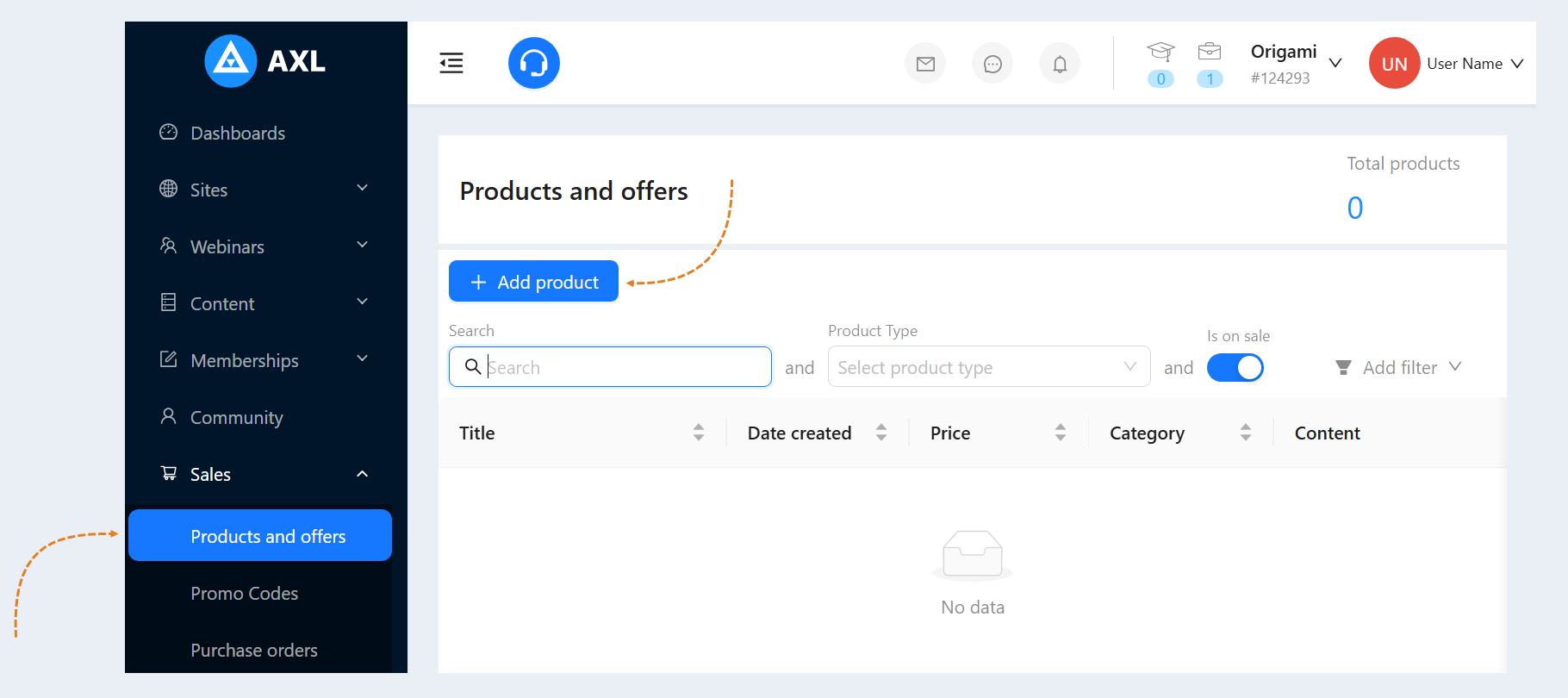
Go to the "Products and Offers" section. Click on the "Add Product" button.
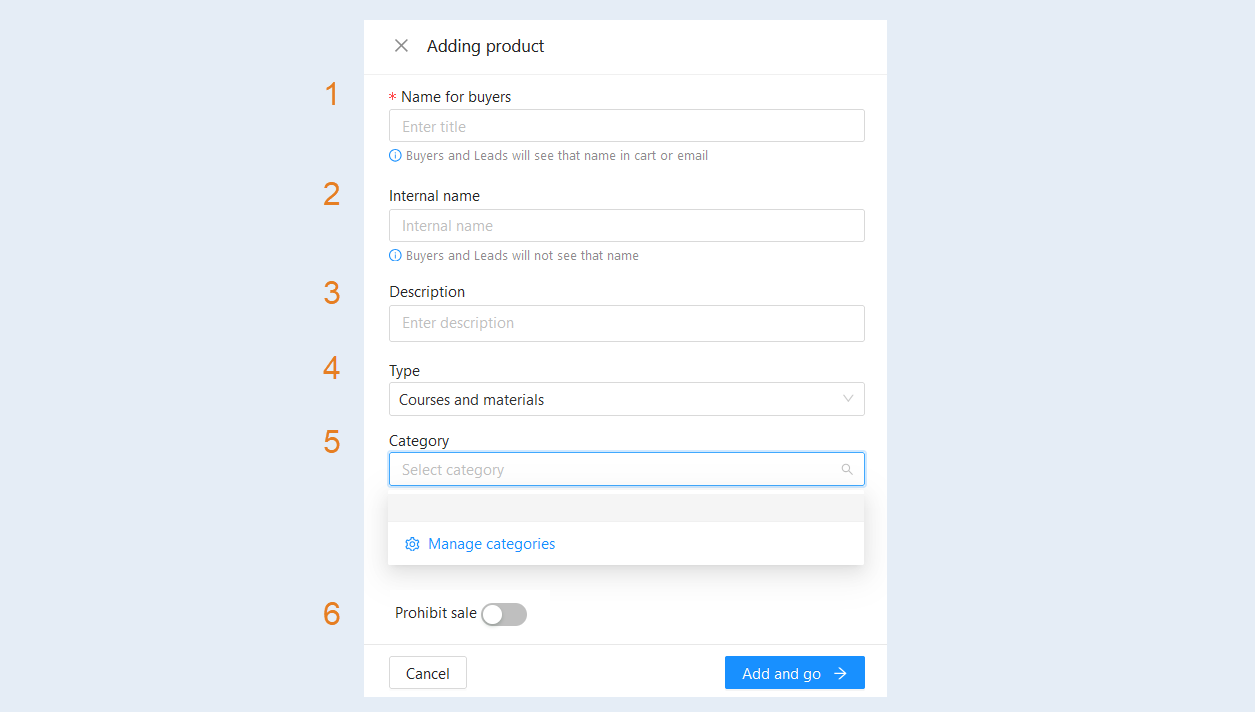
In the window that opens, fill in the fields:
Name for buyers. Enter the product name. Buyers and Leads will see that name in cart or email.
Internal name. The internal name will be visible only to you and will not be shown to users.
Description. Add a description to this product. This field is optional.
Type. Select the product type from the list: digital product, physical product, service, courses and materials, subscription, stream.
Category. Categories help to structure and organize products, which makes it easier to find the information you need. Click on "Manage Categories" and create product and offer categories.
Prohibit sale. Move the slider to the active position to prohibit the sale of this product or service.
Click on the "Add and Go" button, the product settings window will open. Make the necessary changes in the "Common Settings" tab. Add a description, specify the price and duration of the course, add the content of the product. For more information about product settings, read the article “Common settings of the products and services section".
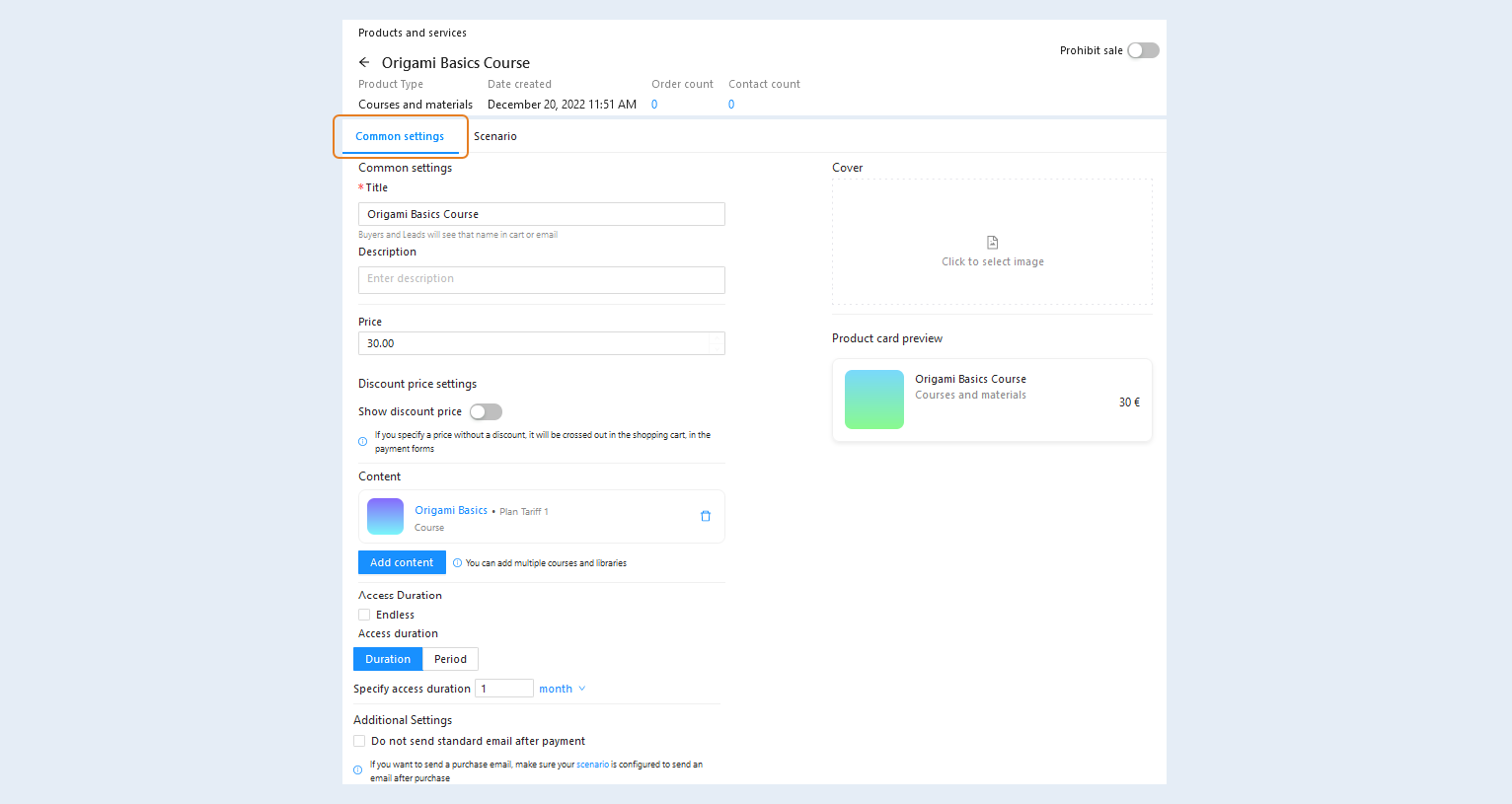
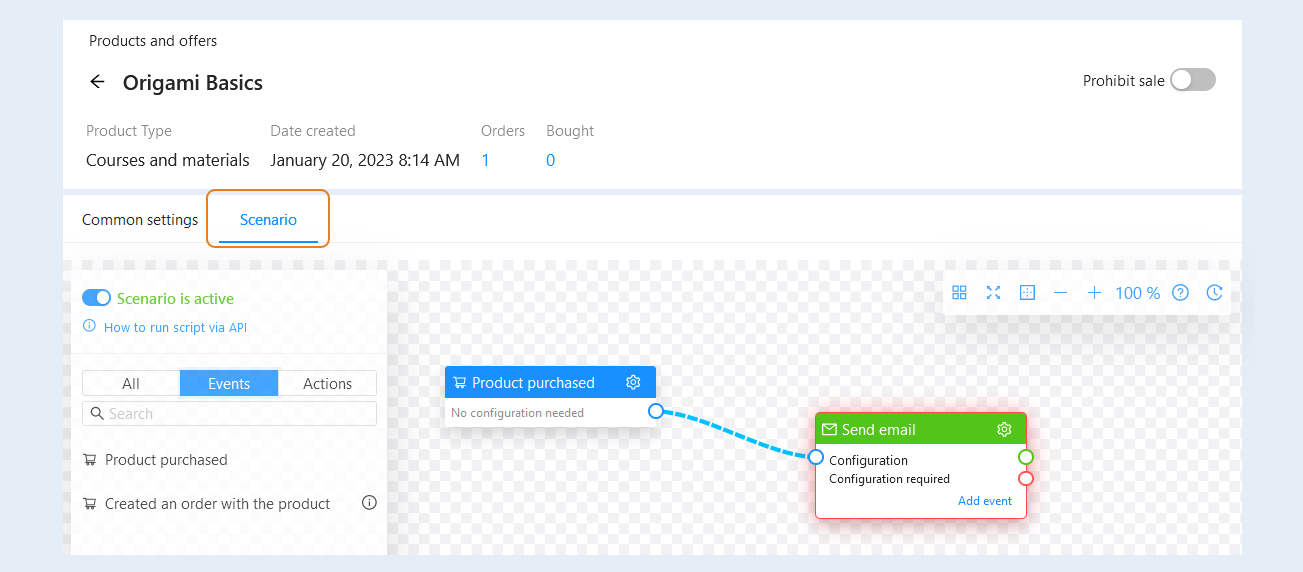
The Scenario tab. In this section, you can configure scripts for each product. Read more about how to create scripts in the article “Scenario".
Grocery list
The product you created has appeared in the list of products. Here you can see the product information:
Title. Product name and product type.
Date created. The exact date and time of the product creation.
Price. The cost of the course at this rate.
Category. This is a way to group products within a single system for easy search and organization.
Content. A set of courses and tariffs within this product.
Oorders. The number of orders created for this product.
Bought. The number of users who have access to the product.
The "Edit" button. Click to edit the product.
The "Copy" button. Click to copy the product. All product settings and scripts will also be copied.
The "Delete" button. Click to delete the product.

A search bar and a filter are available at the top of the page. Use them to quickly find the right product.
- Search. Use this line for a free keyword search.
Product Type. This condition allows you to select products based on certain categories. Select a product type from the list.
Click the "Add Filter" button and select a filter condition from the list:
- Course. This condition highlights products that have a certain course. Select one or more courses from the list.
Library. This condition allocates only libraries. Select one or more libraries from the list.
Cohort. This condition highlights the products that are included in the streams.
Categories.This condition highlights a specific product category that you want to view. This condition allows you to quickly filter and see only those products that match the selected category, excluding the rest.
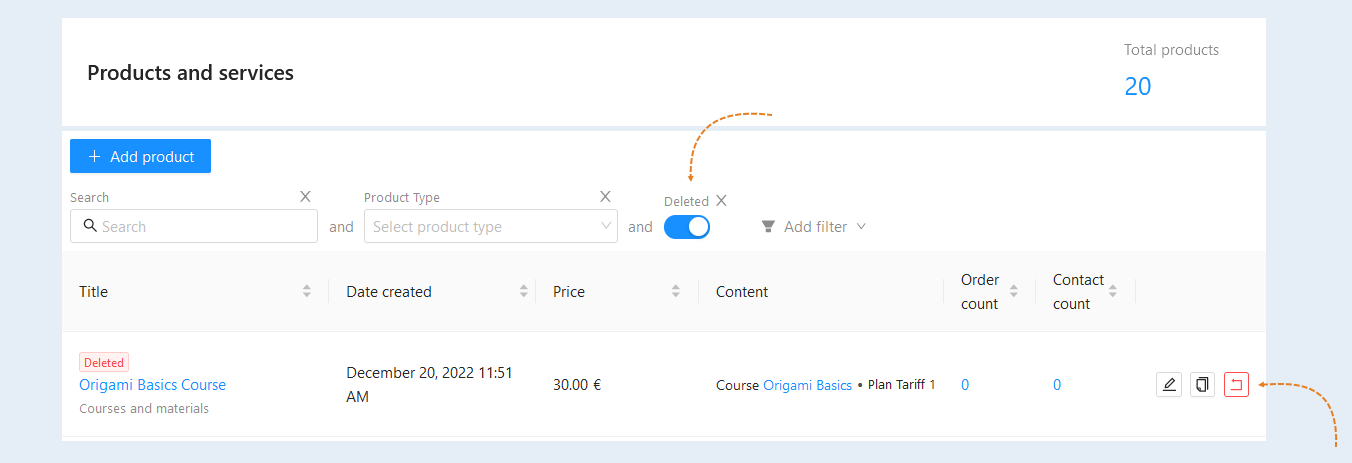
Deleted. This condition highlights the deleted purges. You can restore previously deleted products.
Is on sale. This condition allows you to filter out products depending on their availability for purchase. Move the slider to the active or inactive position to see the products that are currently for sale or not for sale.
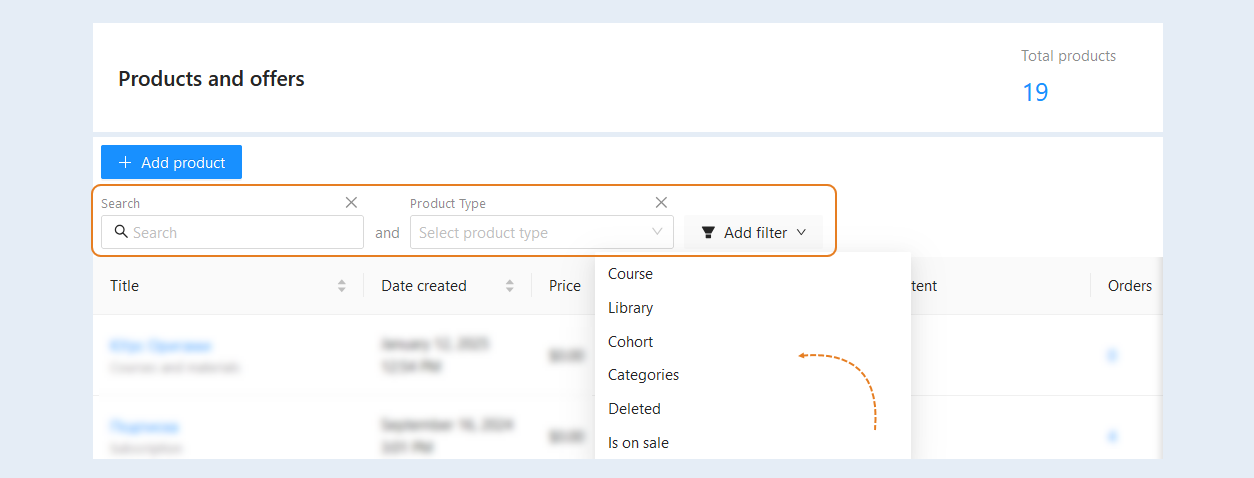
To restore a deleted product, add the "Deleted" filter. You will have a list of all deleted products. Next, click the "Restore" button next to the required product.