Dialogs is a section for written communication between administrators and users within your account on the AXL platform.
Two dialog options are available at the top of the toolbar:
- Email. Here you will see messages that come to your email address. Click on the icon to open the list of messages. Read more about this section in the article "Mail client and incoming mail setup".
Dialogs. This section is for communication on the AXL platform. Click on the icon to open the dialog window.
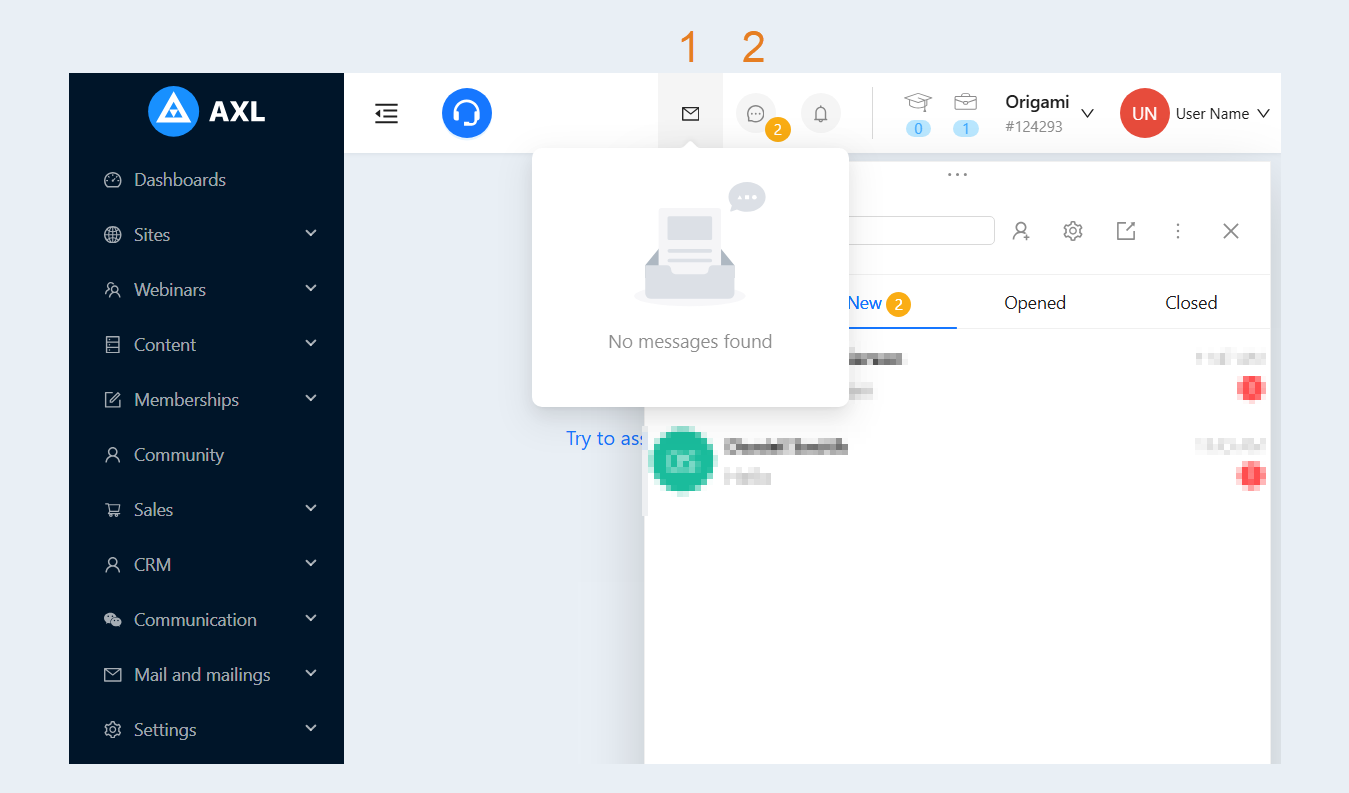
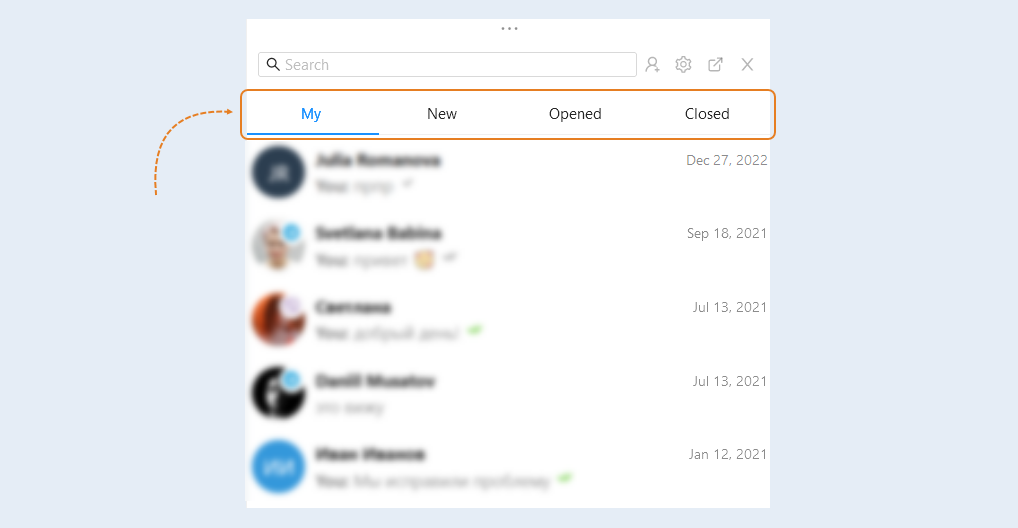
There are several tabs inside the "Dialogs" section:
- My. All messages addressed to you are shown here.New.
New messages from users of your account are shown here.
Opened. Here you can see a dialogue between a user and an administrator of the account. This dialogue is open for the user and the administrator.
Closed. Here you can see dialogues between users and administrators of the account that have already been completed and sent to the "Closed" section. This means that the administrator has helped the user and has finished communicating with him. After the conversation, the dialogue is closed.
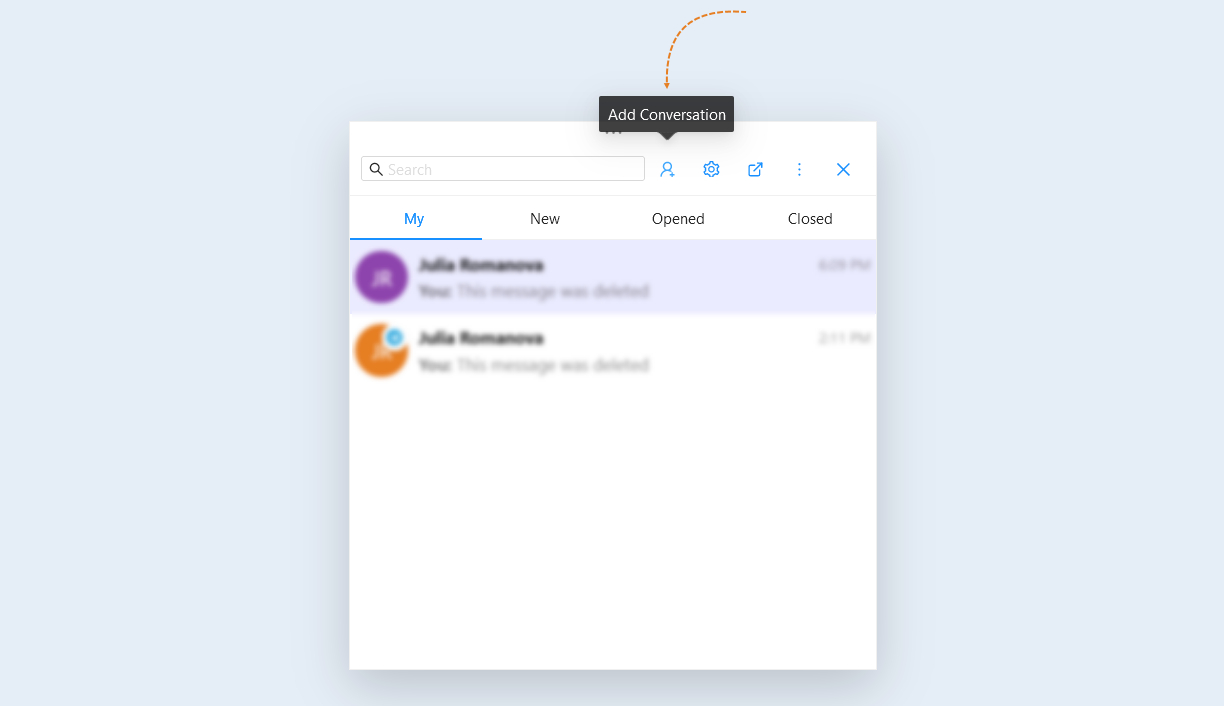
To start a dialogue, click the "Add Dialogue" button in the upper right corner.
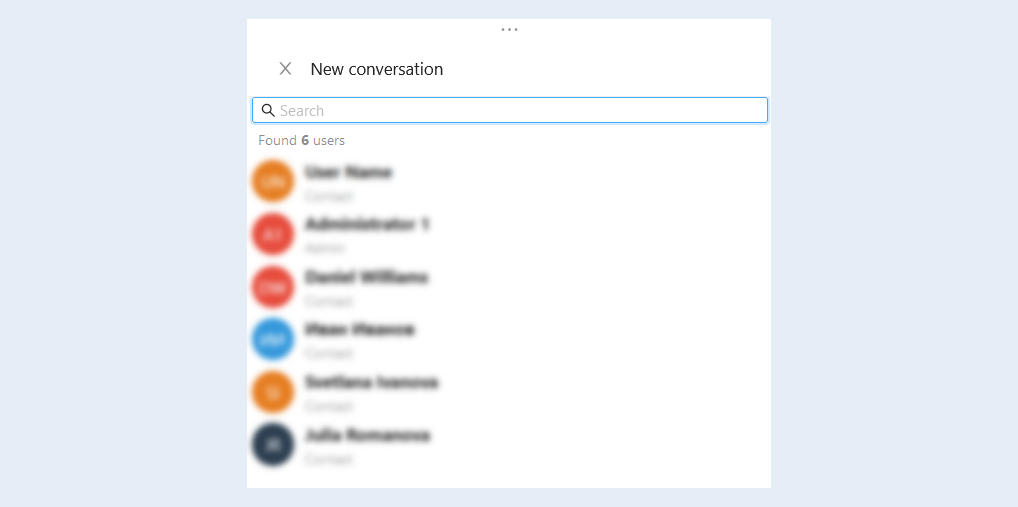
The "Your Contacts" list will open. Select a user from the list of accounts with whom you want to start a dialogue. Click on the username. Now you can write him a message in the dialog box.
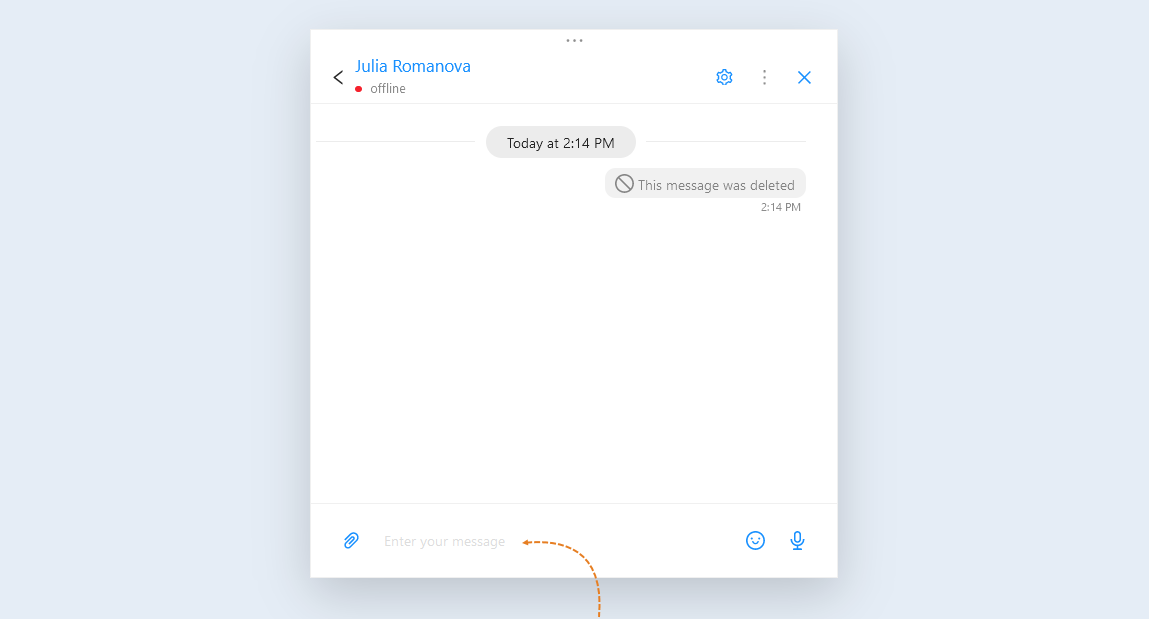
In the dialog box, you can read the correspondence with the user and write a reply. In the reply to the user, you can attach a file, add an emoji, and record a voice message.
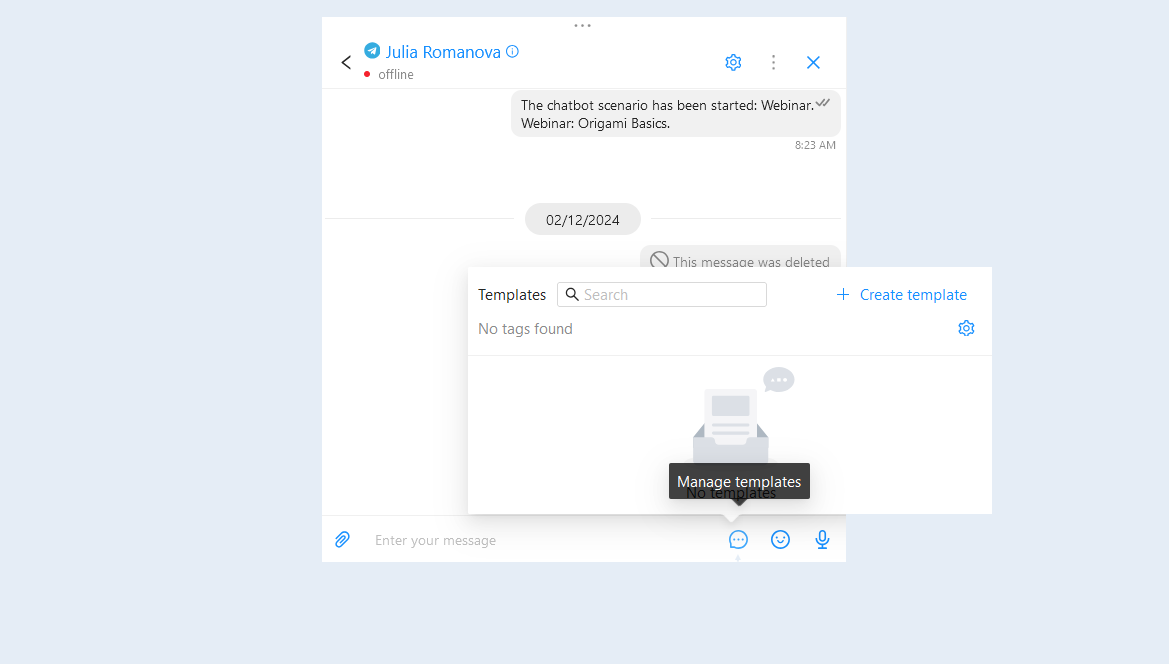
Click the "Manage Templates" button to create and select a message template. Templates allow you to quickly send standard messages without wasting time writing them from scratch. This is especially useful for frequently asked questions or typical situations.
Templates can include links to resources, instructions, and useful tips, which helps users find the information they need faster and improves the quality of learning.
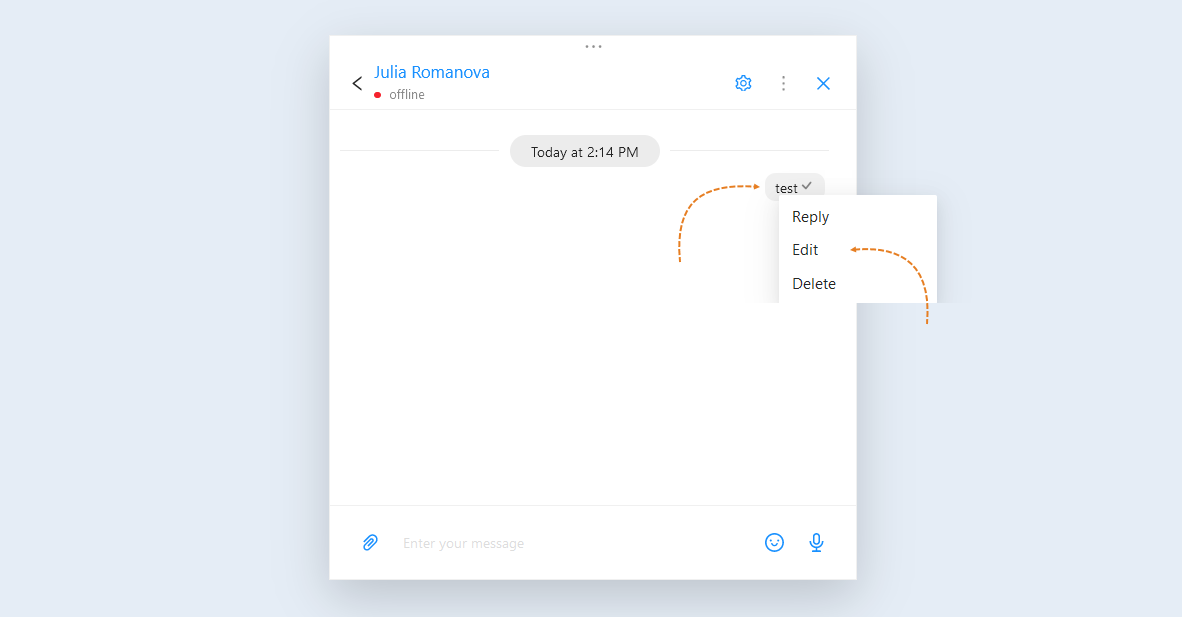
From the chat, you can also delete a message sent from a mailing list or from a script. After deletion, the informational message "This message has been deleted" will appear.
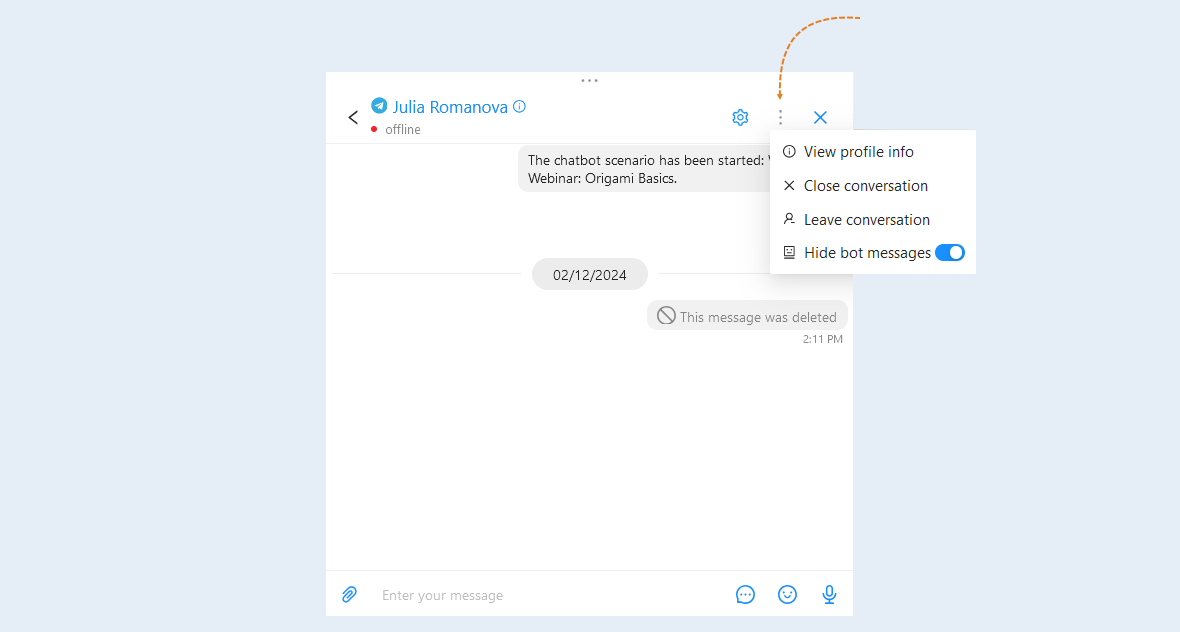
In the dialog box, click the "Actions" button in the upper right corner. The following actions are available to you here:
- View profile info. Click to see information about the user, the associated CRM contact and other chats with the user.
Close conversation. Click to end the current session with the user.
Leave conversation. Click to exit the current dialog.
Hide bot messages. Move the slider to the active position to hide the messages that were sent by the bot. This can be useful if the bot's messages distract from the necessary information.
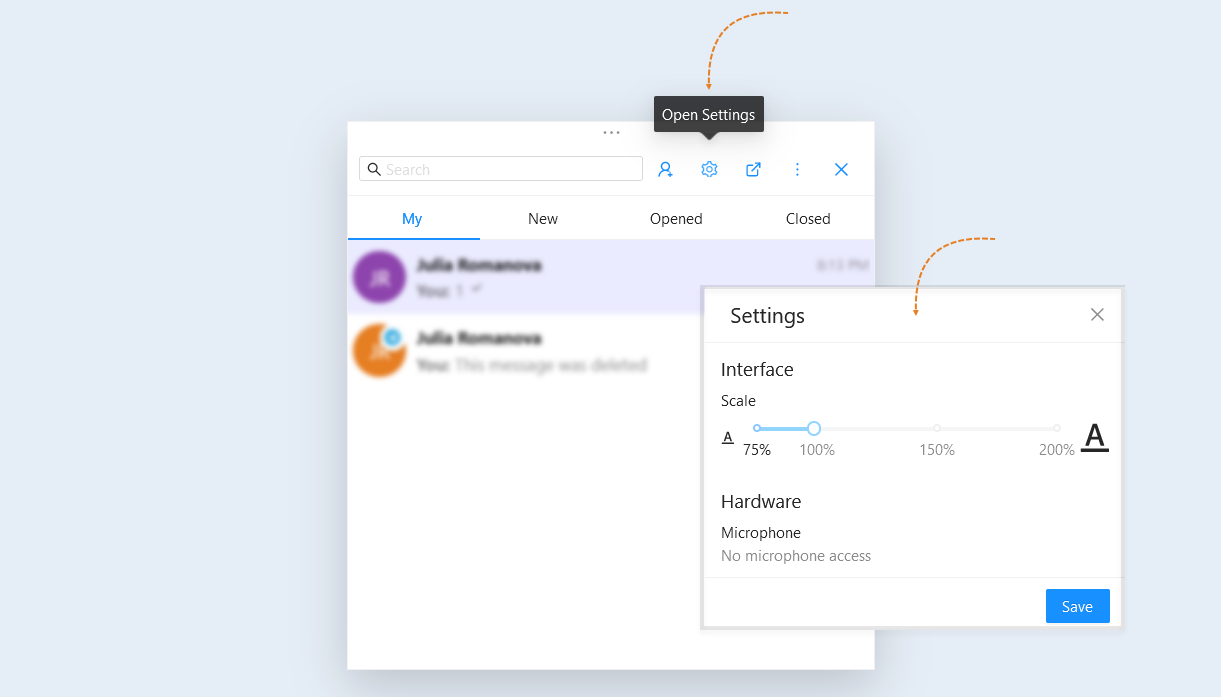
To open the dialog settings window, click the "Open Settings" button. In this window, you can select the font size in the chat (from 75 to 200%), as well as configure access to your device's microphone to record voice messages in chats.
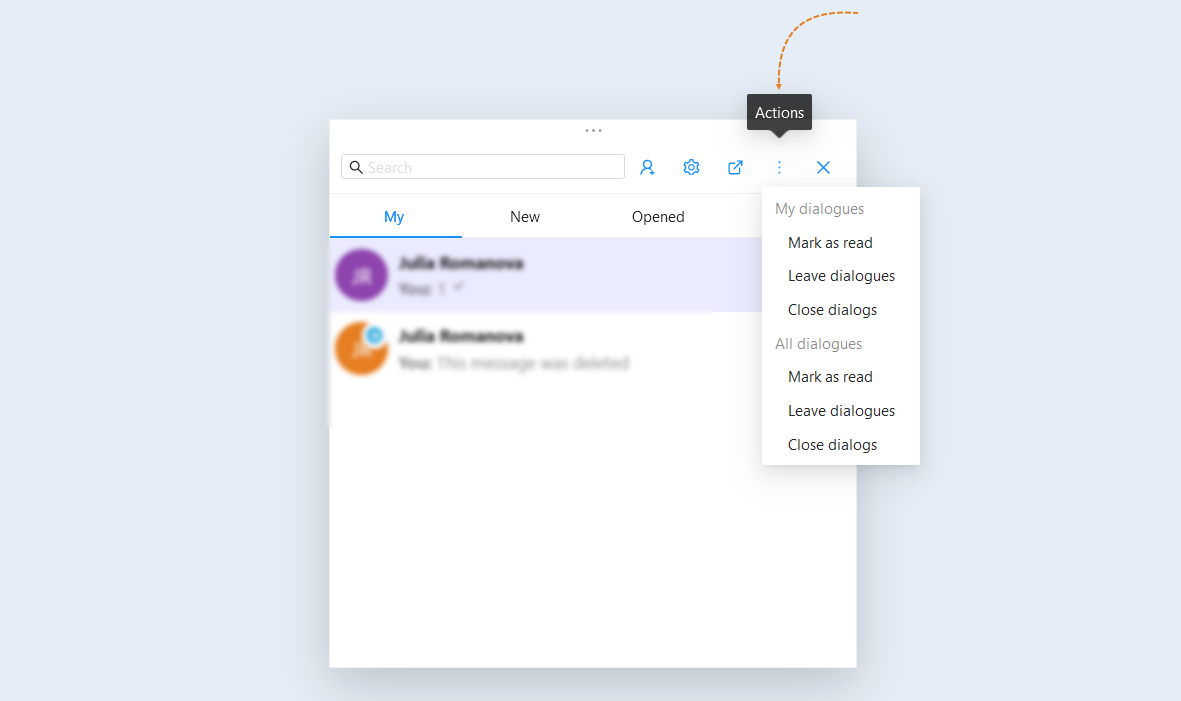
To open the dialog settings window, click the "Actions" button in the upper right corner. The following actions are available to you here:
- My dialogues. These actions will be performed only for your dialogs.
- Mark as read.
Leave dialogues.
Close dialogs.
All dialogues. These actions will be performed for all dialogs.
- Mark as read.
Leave dialogues.
Close dialogs.
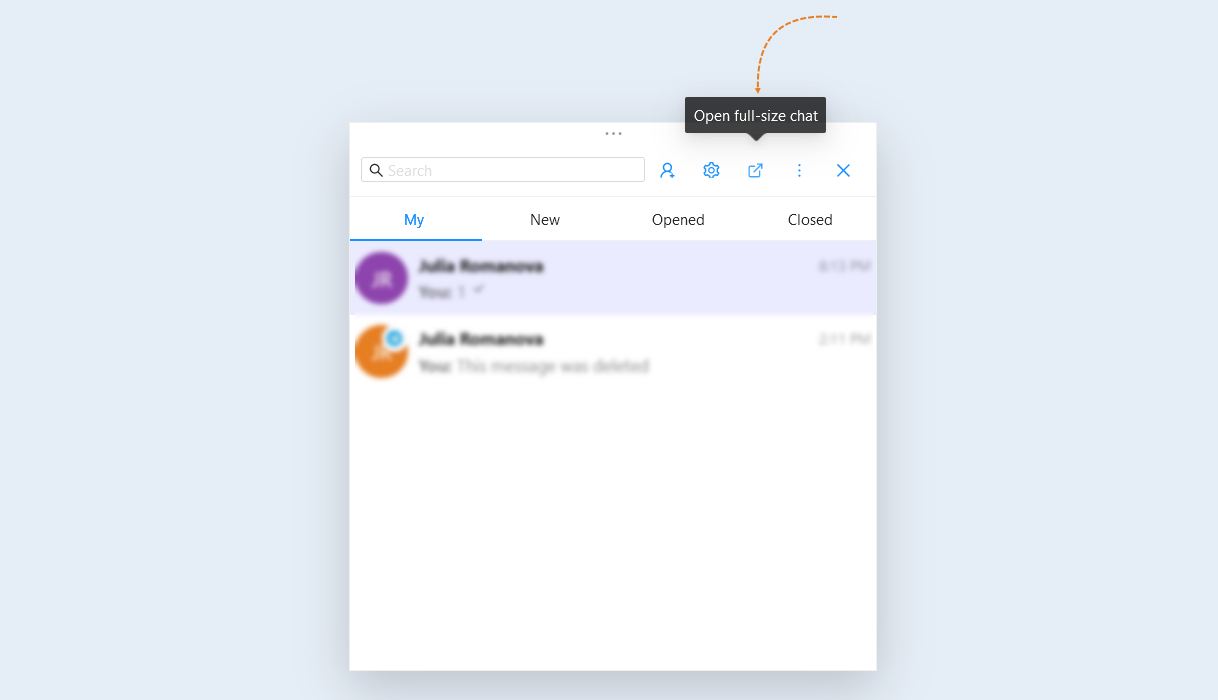
To open the dialog box in full screen, click the "Open full-size chat" button.