AI Calls let you automatically call contacts using a voice AI agent. Add an AI Call to an AXL scenario so the agent can handle the conversation while the scenario determines the call outcome, extracts the required data from the transcript, and continues along the appropriate branch.
For example, an AI agent can qualify a new lead by asking about the company’s number of employees, industry, and revenue. After the call, AXL can save the collected information to the contact record and determine whether the customer is ready to buy.
Click a section below to jump to its description:
Connecting Retell AI
Before adding an AI Call to a scenario, connect the Retell AI integration.
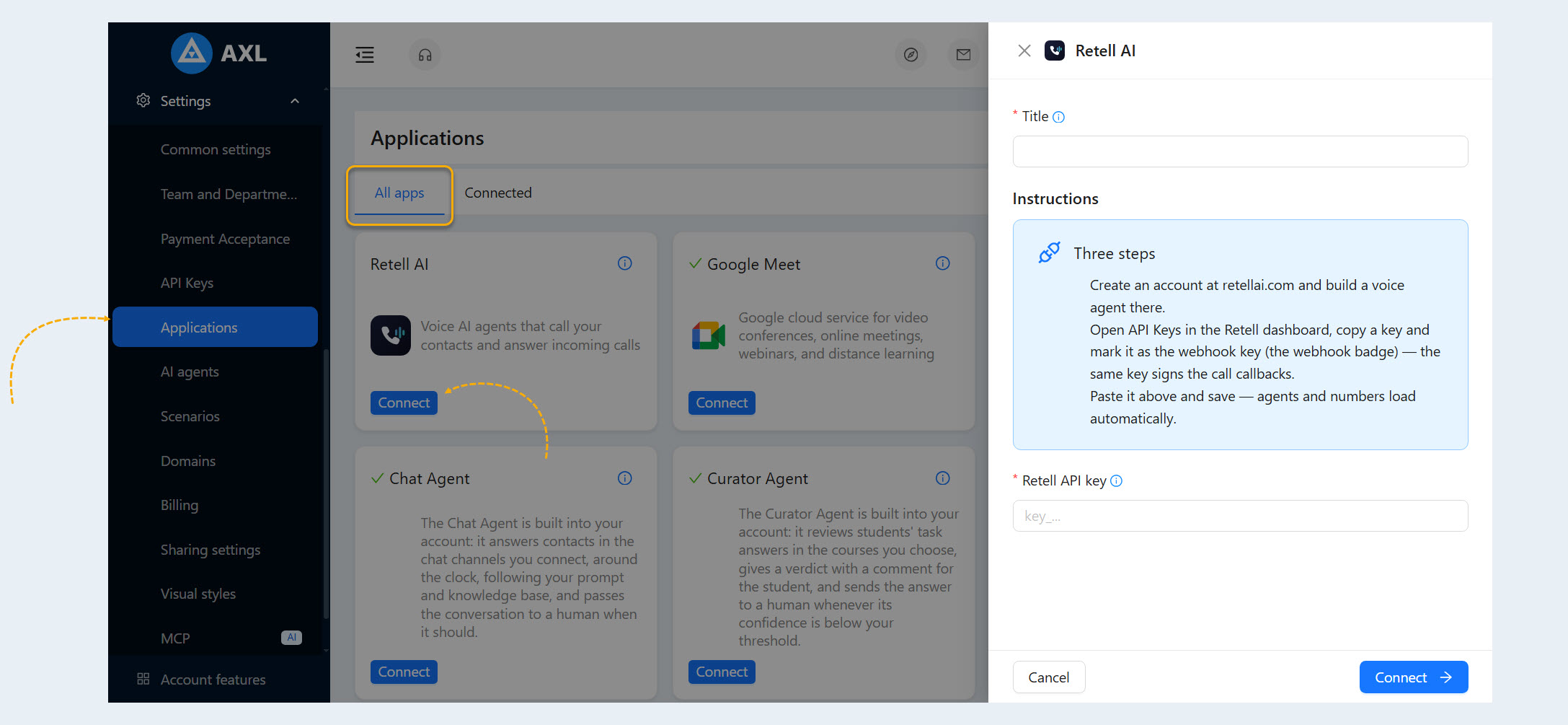
Go to Settings → Apps → All Apps, find Retell AI, and click Connect. Then follow the instructions provided during the integration setup.
Enter your API key, specify an internal name for the connection, and click Connect.
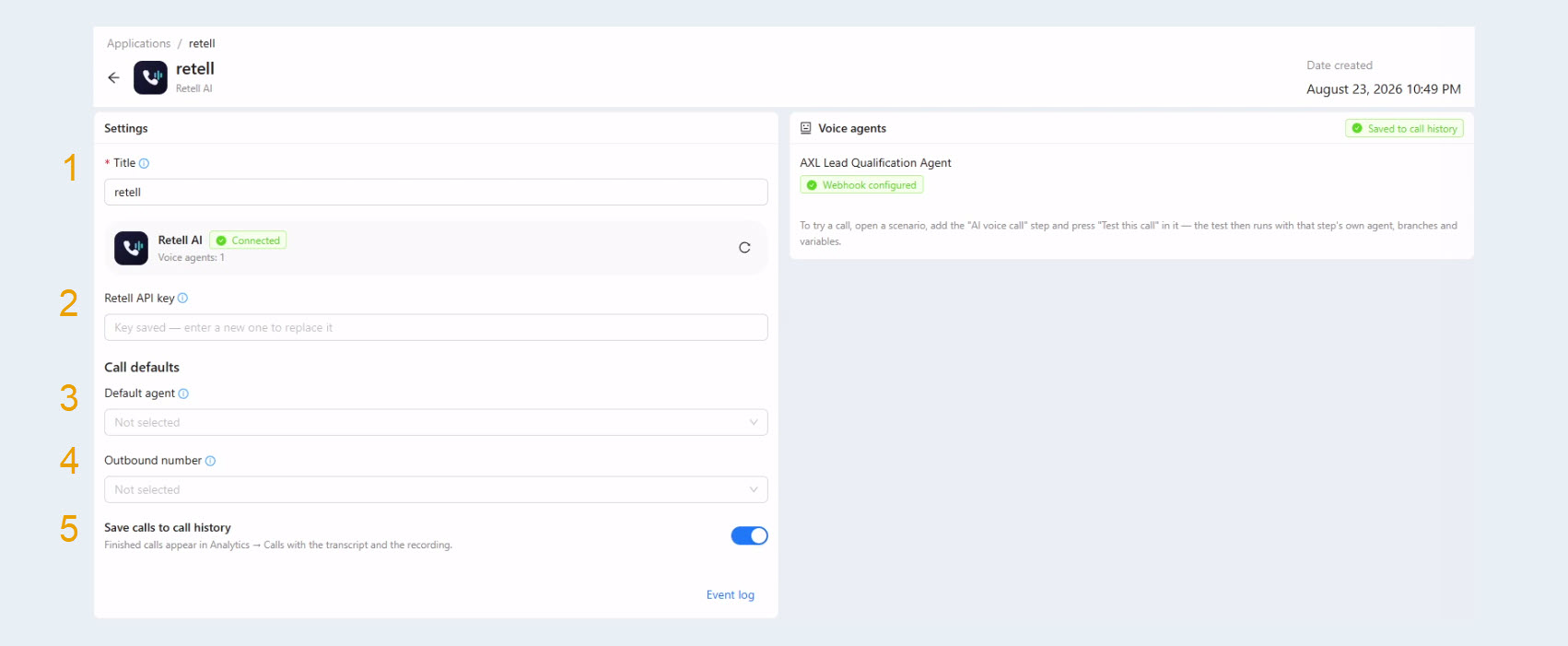
The following settings are available in the app:
Name. Enter an internal name to make the connection easier to find. This name is visible only to you.
Retell API Key. Enter your Retell AI API key.
Default Voice Agent. Select the agent that will be used for calls.
Outbound Number. Select the phone number the AI agent will use to call customers.
Save Calls to Call History. Enable this option if completed calls should be saved in AXL along with their recordings and transcripts.
Once Retell AI is connected, the available voice agents will appear in the app settings.
Note: To make calls, the integration must have both a voice agent and an outbound phone number configured.
Adding an AI Call to a Scenario
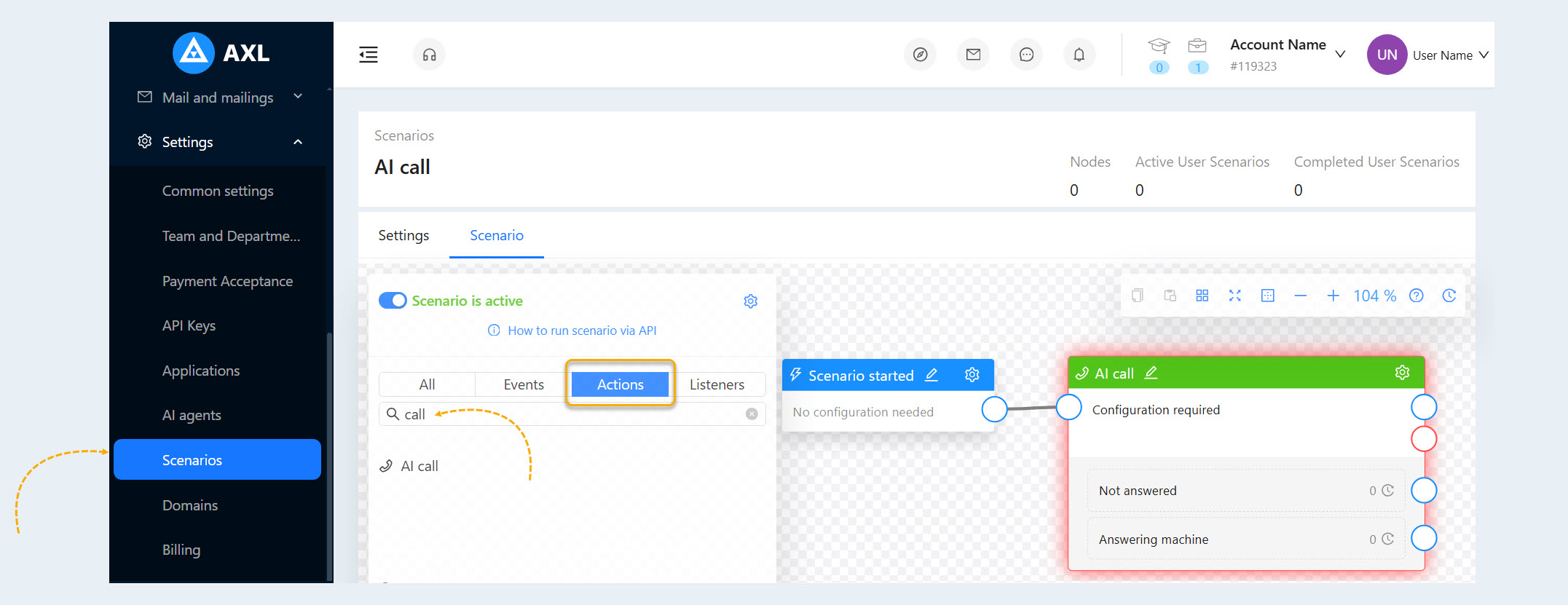
Go to Settings → Scenarios. Create a new scenario or open an existing one.
For more information about creating and using scenarios, see the Scenarios section.
In AXL, a scenario is a sequence of events and actions that run automatically after the scenario is triggered.
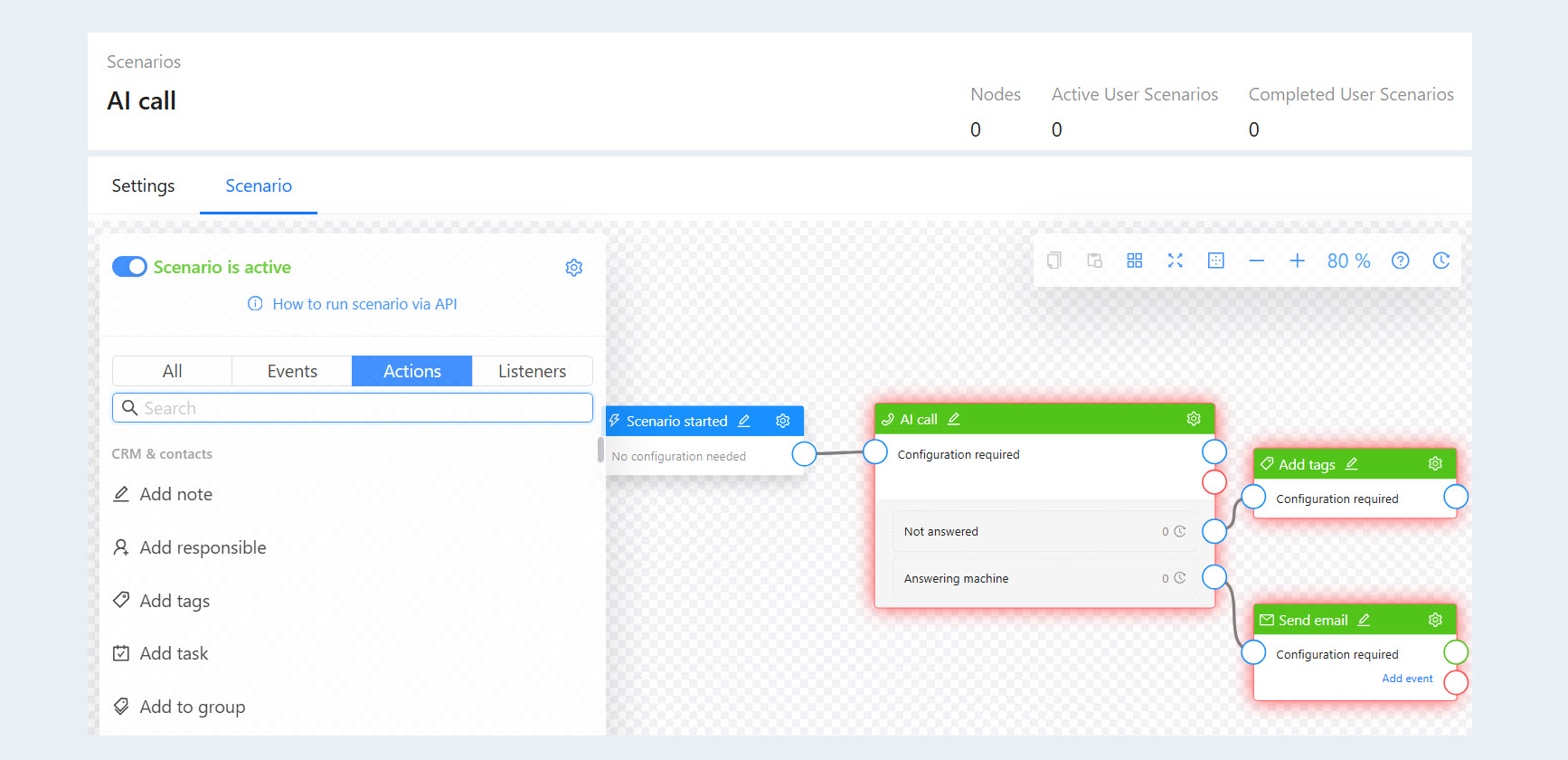
Add the AI Call action to the scenario and connect it to the previous scenario element. Then open the settings for the newly added node.
AI Call Node Settings
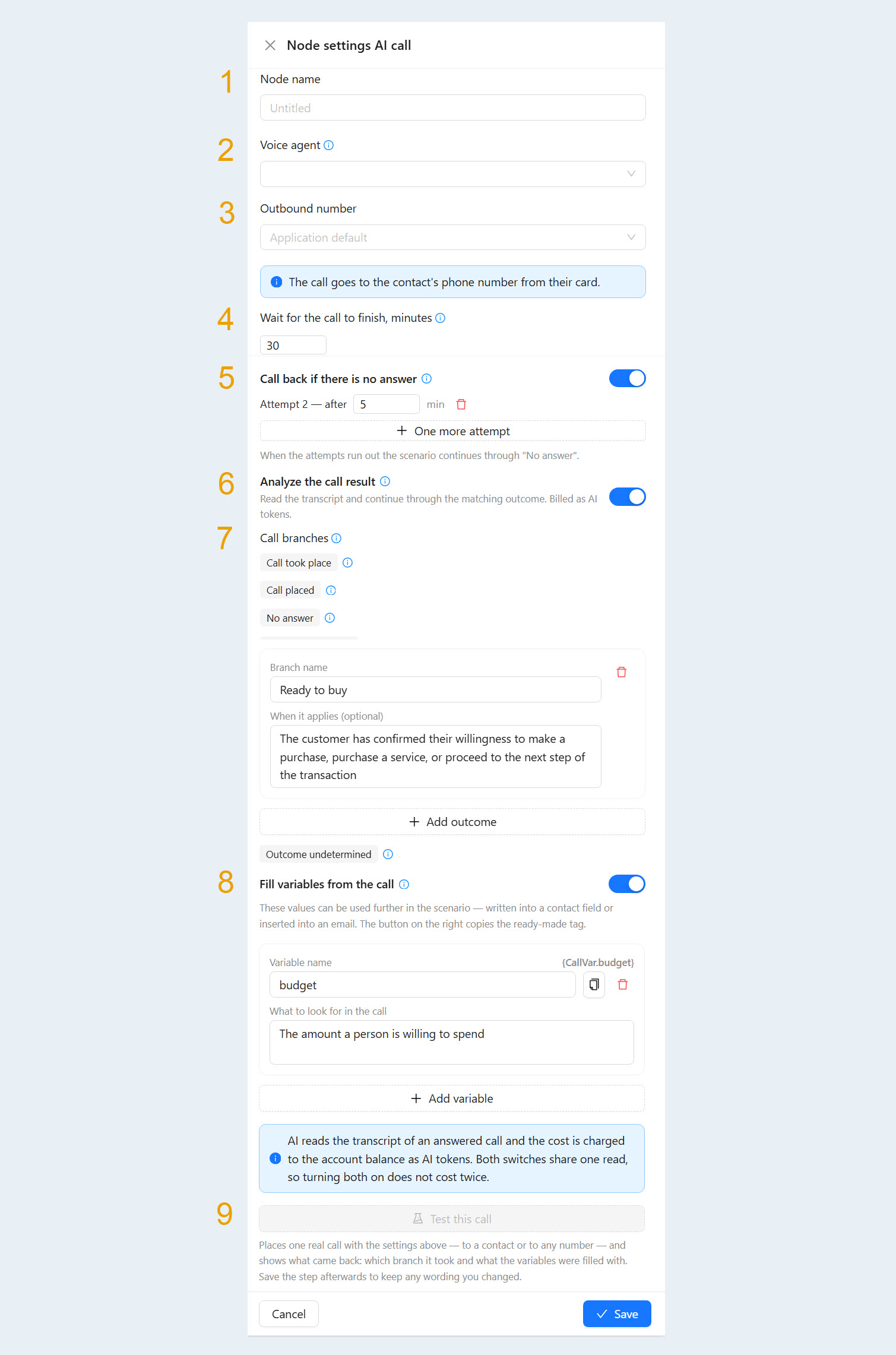
The following fields are available in the action settings:
Node Name. Enter a name for the action. The name is used only within the scenario and helps you distinguish one AI Call from another.
Voice Agent. Select a voice agent from Settings → AI Agents. If the Retell AI app is connected, its agents will also appear in the list.
Outbound Number. Select the phone number that will be used to place the call. The phone number must match the number configured in your calling app.
Wait for Call Completion (minutes). If no response is received within this period, the scenario continues through the No Answer branch.
Call Again if There Is No Answer. Enable Call Again if There Is No Answer if you want AXL to make multiple call attempts. Retries occur only when no one answers or the line is busy. Voicemail has its own branch, and a successfully answered call is never retried. For each additional attempt, specify how long AXL should wait before placing the next call.
Analyze Call Outcome. Enable Analyze Call Outcome to have AI analyze the conversation transcript and determine the outcome of the call. This is a paid feature. After each answered call, AI processes the transcript, and the cost is deducted from the account balance in AI tokens. If this option is disabled, the node can still distinguish between Answered, No Answer, Voicemail, and Call Failed. These statuses are provided directly by the telephony provider at no additional cost. When call outcome analysis is enabled, you can add custom scenario branches based on the result of the conversation. For example, you can create a Ready to Buy branch with a condition such as: “The customer confirmed that they are ready to make a purchase, purchase the service, or move forward to the next step of the deal.” You can also create a Not Ready to Buy branch with a condition such as: “The customer declined the purchase, expressed a lack of interest, or said they are not ready to buy.” After the conversation ends, AI analyzes its content and routes the contact to the most appropriate scenario branch.
Call Branches. In addition to custom outcomes, the action can include technical call branches:
- Call Completed — The person answered and spoke with the agent. This branch is triggered for any answered call in addition to the outcome branch. Connect actions here that should run regardless of the call outcome, such as saving call variables.
- Call Sent — Triggered when the call is initiated, while the step is still waiting for the call to finish. Use this branch for actions that should run in parallel, such as notifying the contact that a call is coming.
- No Answer — No one answered, or the line was busy. This status comes directly from the telephony provider, works without AI analysis, and does not incur any additional cost.
- Voicemail — The call was answered by voicemail. In most cases, you may want to try again later. This status also comes directly from the telephony provider, works without AI analysis, and does not incur any additional cost.
Populate Variables from the Call. After the call, AI reads the transcript and extracts the information you specify below, such as the customer’s budget, preferred time, or any other details mentioned during the conversation. Each extracted value becomes a {CallVar.key} tag that can be used later in the scenario. For example, you can save it to a contact field or insert it into an email. This is a paid feature, and its cost is deducted from the account balance in AI tokens.
Test Call. Places one real call using the settings above. You can call either a contact or any phone number. After the test, AXL shows the returned results, including which branch was selected and what values were assigned to the variables. After testing, save the node to apply your changes.
Running the Scenario
Connect all required actions and set the scenario to Active. When the scenario runs for a contact, the AI Call action automatically initiates a call to the phone number stored in that contact’s record.
After the call ends, the scenario:
determines the technical call result;
analyzes the conversation content if call analysis is enabled;
extracts the configured variables;
selects the appropriate branch;
runs the actions connected to that branch.
As a result, AI Calls can be used as a complete step in CRM automation, from the first customer interaction to lead qualification and saving the results of the conversation.