Top panel
After registering on the AXL website, you will be directed to the main page of the site. In the top section of the page, you can see information about your account.
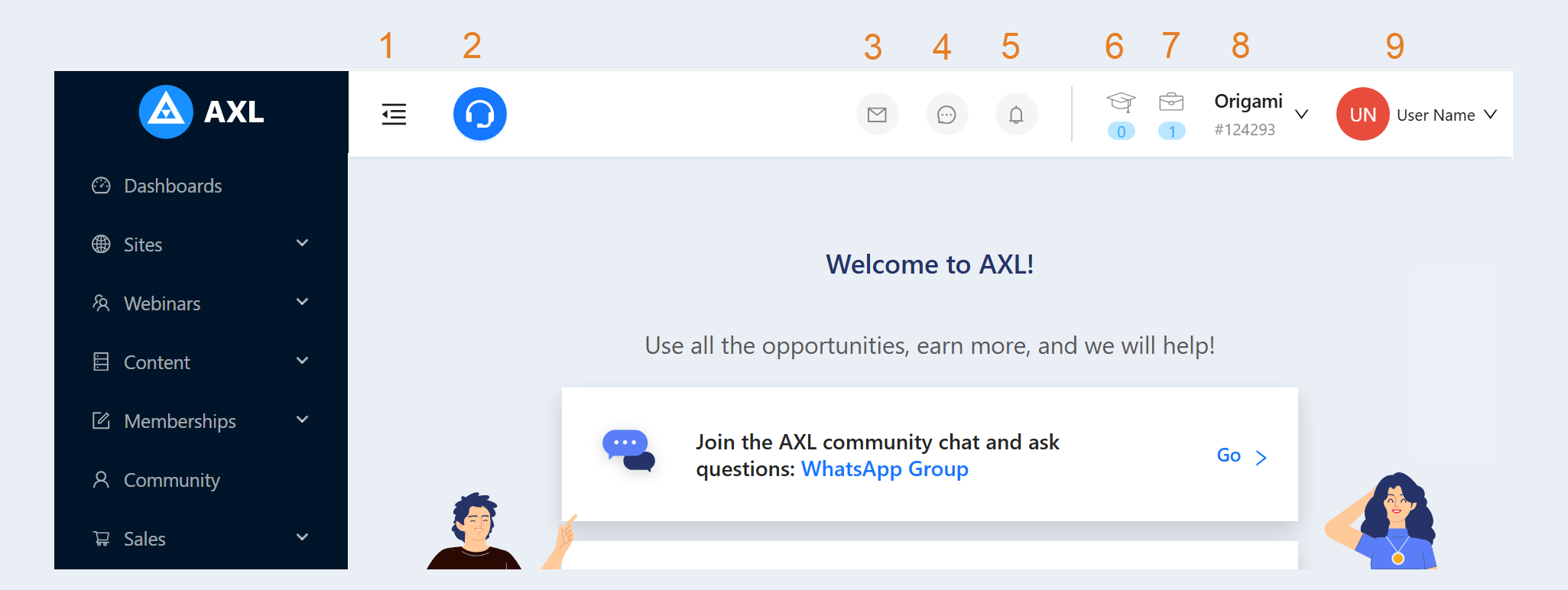
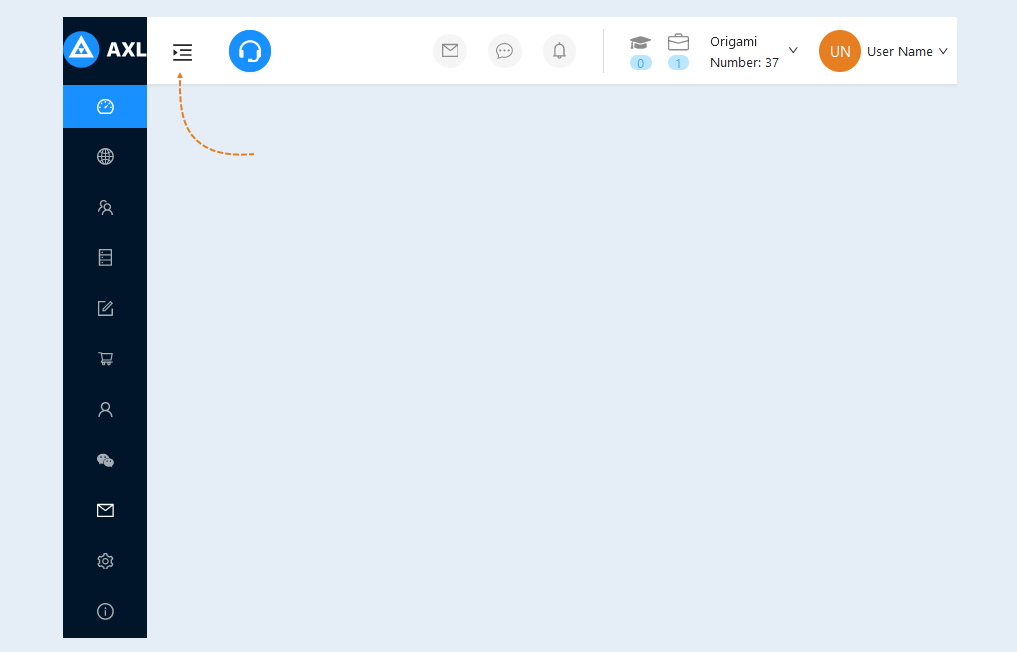
Hide/show. You can hide/show the toolbar by clicking on the button. The toolbar is described in detail in the article below.
Tech support. Here you can contact our company's specialists for assistance. The tech support section is specifically designed to help account employees with technical issues related to the functioning, configuration, and maintenance of the online platform.
Email. Here you will see messages that are sent to your email address.
Dialogues. This section is intended for communication on the AXL platform. Click on the icon to open the dialogue window.
Notifications. Here you will see notifications about actions in your account.
Online users. This shows the number of users who are currently online in the Membership portal.
Online employees. This shows the number of account employees who are currently online on the AXL platform.
Account. In the account section, you can add multiple accounts to your project and configure them by assigning or changing names, adding descriptions, email addresses, and languages. The added accounts should be distinct from each other, meaning they have different website addresses and client databases. For more details on settings, refer to the "Account settings" article.
Profile. In the profile section, you can modify personal information such as name, surname, password, email, phone number, position, and date of birth. You can also change the language or log out of your account.
To access the technical support of the platform, prepare all the necessary information before contacting tech support. Include details about your problem and any other useful information.
Contact tech support by clicking on the "Technical support" icon on the top panel. In the dialogue window that appears, describe the problem or question in as much detail as possible. Provide any accompanying information that you have prepared. You can also attach files, screenshots, or videos in the correspondence by clicking on the paperclip icon "attachment" and uploading the file from your device.
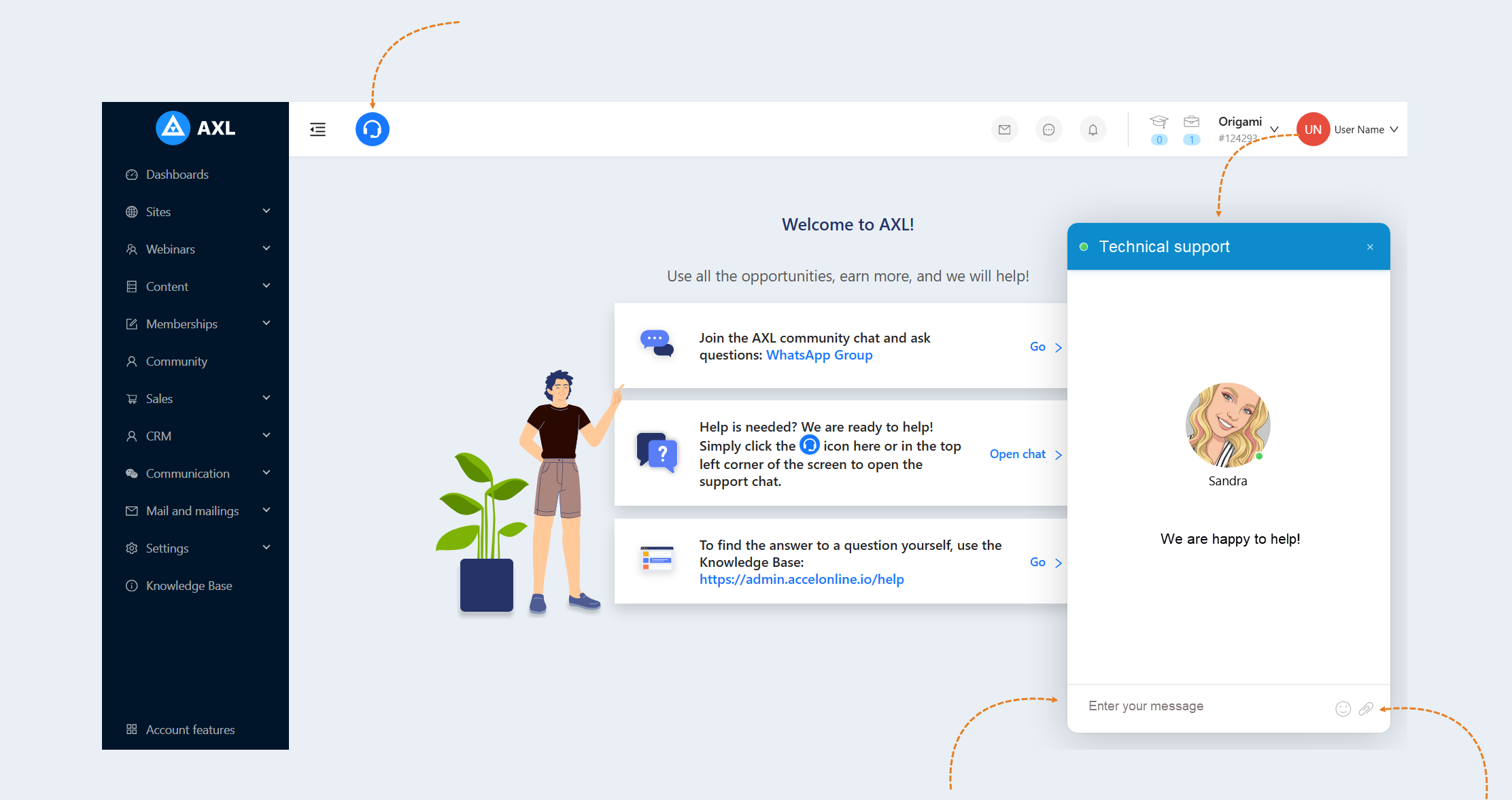
Follow the instructions and recommendations of tech support specialists. They may ask additional questions to understand the cause of the problem or propose a solution. After resolving the issue, make sure to familiarize yourself with the information provided and understand how to avoid similar problems in the future.
Toolbar
The AXL toolbar is located on the left side of the page. Each section is described below.
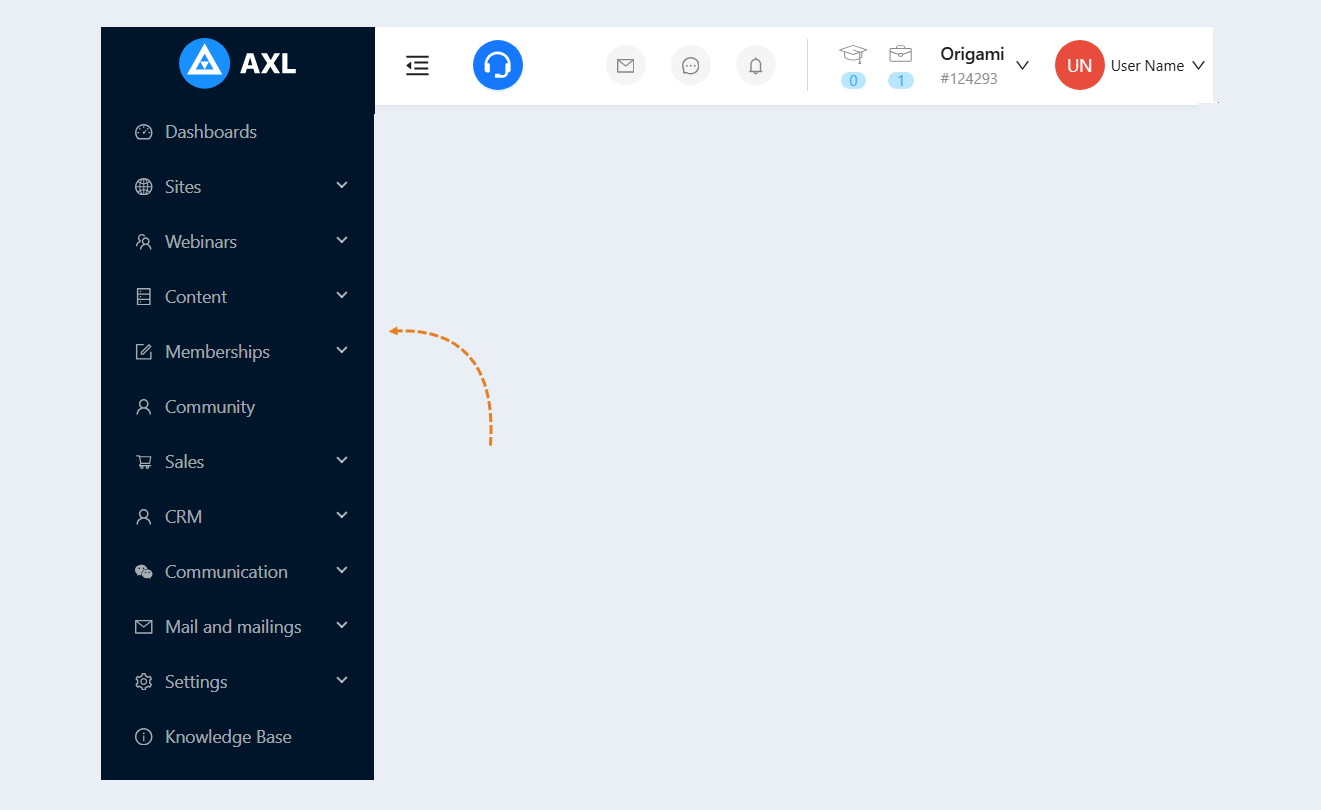
Dashboard. This is the start page of the account. It displays key indicators of your account.
Sites. In this section, you can create websites for selling your products. Refer to the article "Sites" for more information about this section.
Webinars. In this section, you can create and conduct webinars and automated webinars. Refer to the article "Webinars" for more information about this section.
Content. This section serves as a storage for videos and files that can be uploaded and used for teaching. Read more in the articles "Video" and "File manager" for detailed information about this section.
Courses and Training. This section contains tools for creating courses and libraries. It includes the ability to create lectures, assignments, tests, and assess users' knowledge. It also provides access to educational materials, user progress, and course editing capabilities. Read more in the article "Courses" for detailed information about this section.
Sales. The "sales" section is responsible for all aspects related to attracting, retaining, and increasing the number of users. It is a key component of the successful operation and development of the account. In this section, you can create and configure the sale of your products, such as educational courses and membership portals. Refer to the article "Products and offers" for more detailed information about this section.
CRM. CRM (Customer Relationship Management) is a customer relationship management system. In this section, account employees can manage user contacts, track their activity, and add tasks for interacting with the platform's clients. This helps increase customer satisfaction by understanding their needs, offering personalized service, and facilitating customer retention. Refer to the article "Contacts" for more information about this section.
Communication. In this section, you create chats for communication with your users and visitors to your websites and work with telephony: phone numbers, call settings, call analytics and call history. Refer to the articles "Chat room", "Call settings" and "Calls analytics" for more information about this section.
Mail and mailings. In this section, you can create and manage email mailings. Refer to the article "Mail section" for more information about this section.
Settings. This section presents the general settings of the account. In the settings, you can change the account's information, add employees, and manage their access to the AXL platform. You can also manage payments and more. For more information about this section, please read the "Account settings" article.
Knowledge Base. In this section, you can learn how to use the AXL platform. Instructions and guides for users and teachers are provided here. This serves as a supplementary resource for finding answers to your questions about the platform's functionality and capabilities.
You can hide the left toolbar by clicking the "Hide" button.